
Add your game identity
Your handle, roles and platform for each game you play, so teams see who you are and you can apply.
For players · 6 steps
What you need first
- You are logged in.
- Your in-game handle for Marvel Rivals, spelled exactly as it shows in the game; your BattleTag for Overwatch (
Name#1234, capitals as the Battle.net app shows them); or the name you go by in Counter-Strike 2, Deadlock or Rocket League — or, for League of Legends and Valorant, your Riot ID (Name#TAG) and the server or Valorant region you play on.
Steps
Step 1: Open Profile
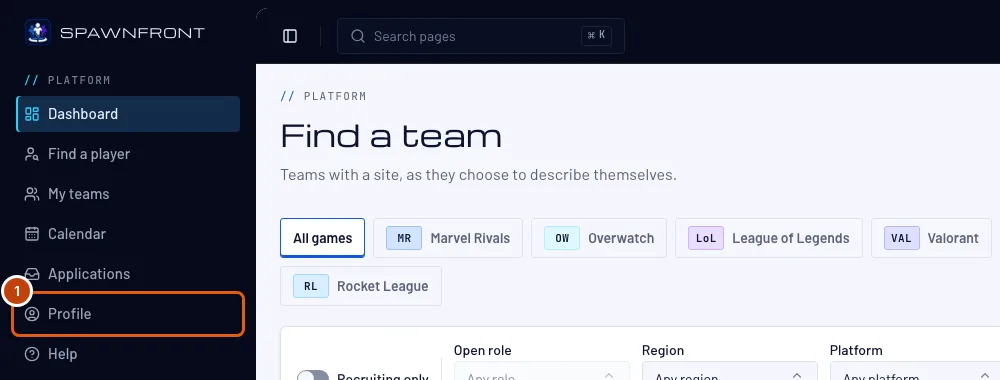
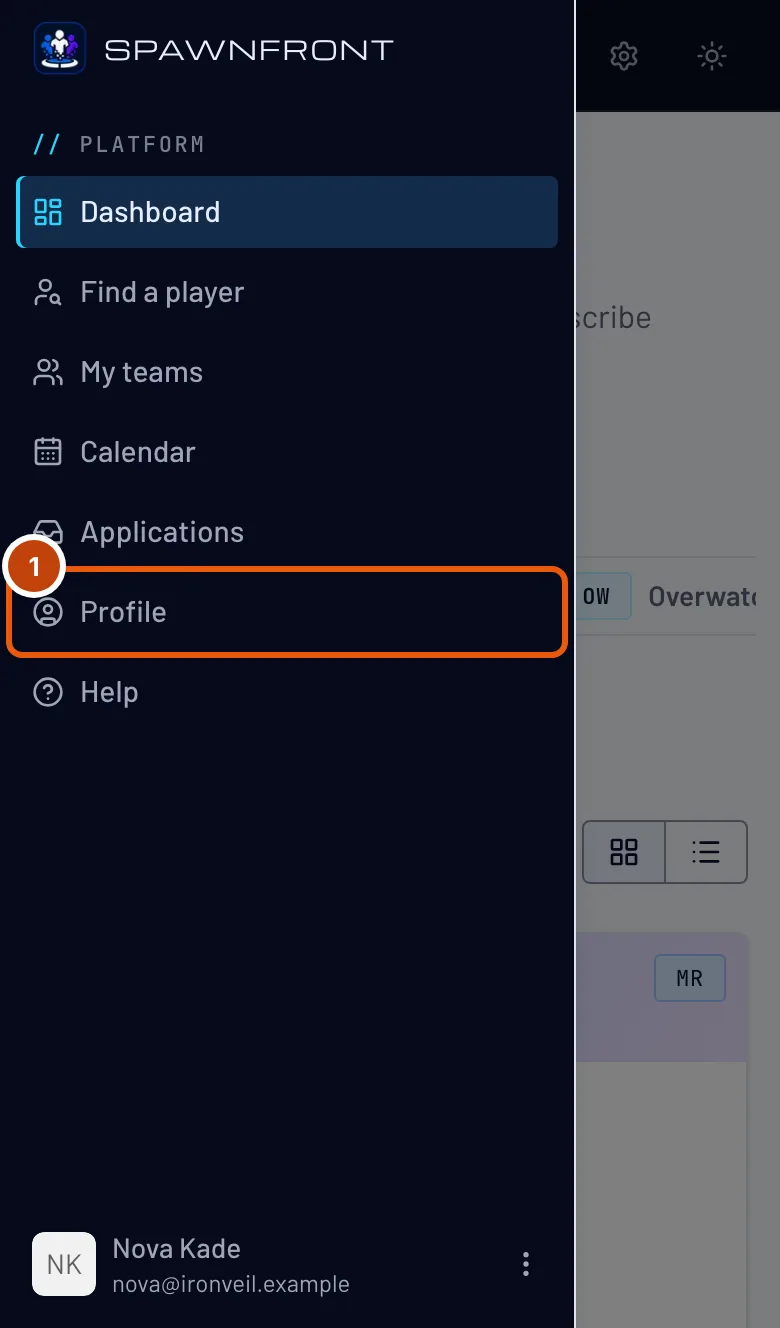
In the menu, press Profile. On a phone, open the menu with the button at the top left first.
You should see: Profile, with the Account section open.
Step 2: Open Games and your game's tab
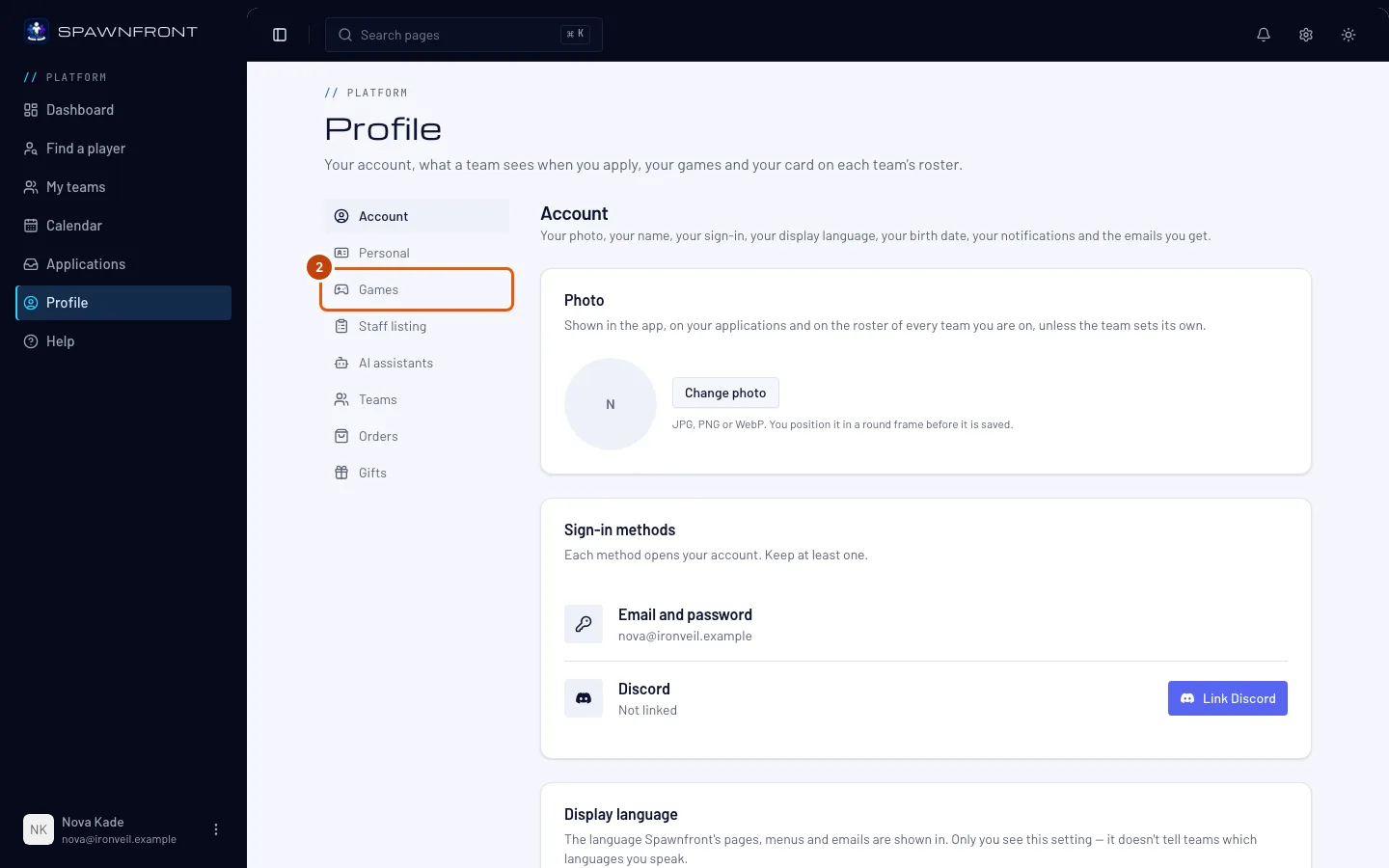
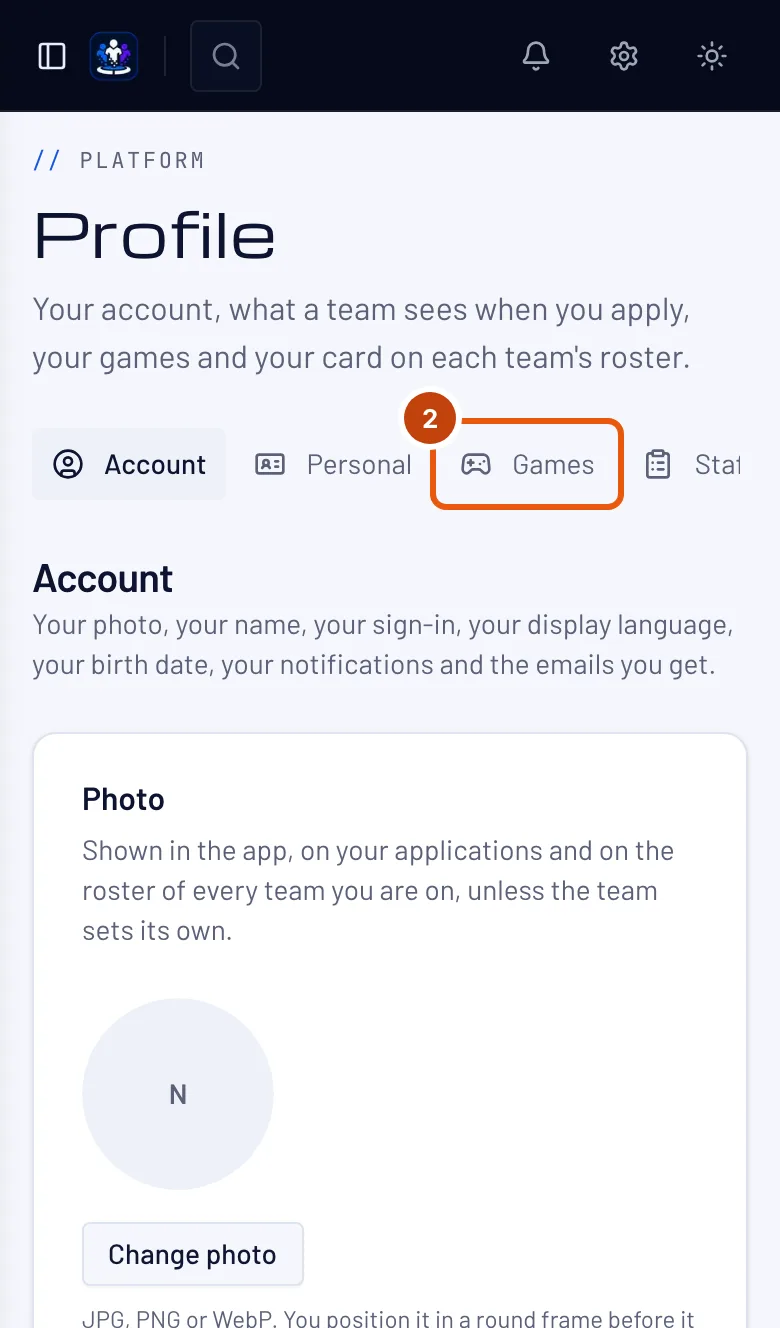
Press Games in the section list, then the tab of your game along the top — one game shows at a time.
You should see: the card for that game — Marvel Rivals, Overwatch, League of Legends, Valorant, Counter-Strike 2, Deadlock or Rocket League. Fill in a card for each game you play; the steps are the same on each, and the Riot games add a server or region.
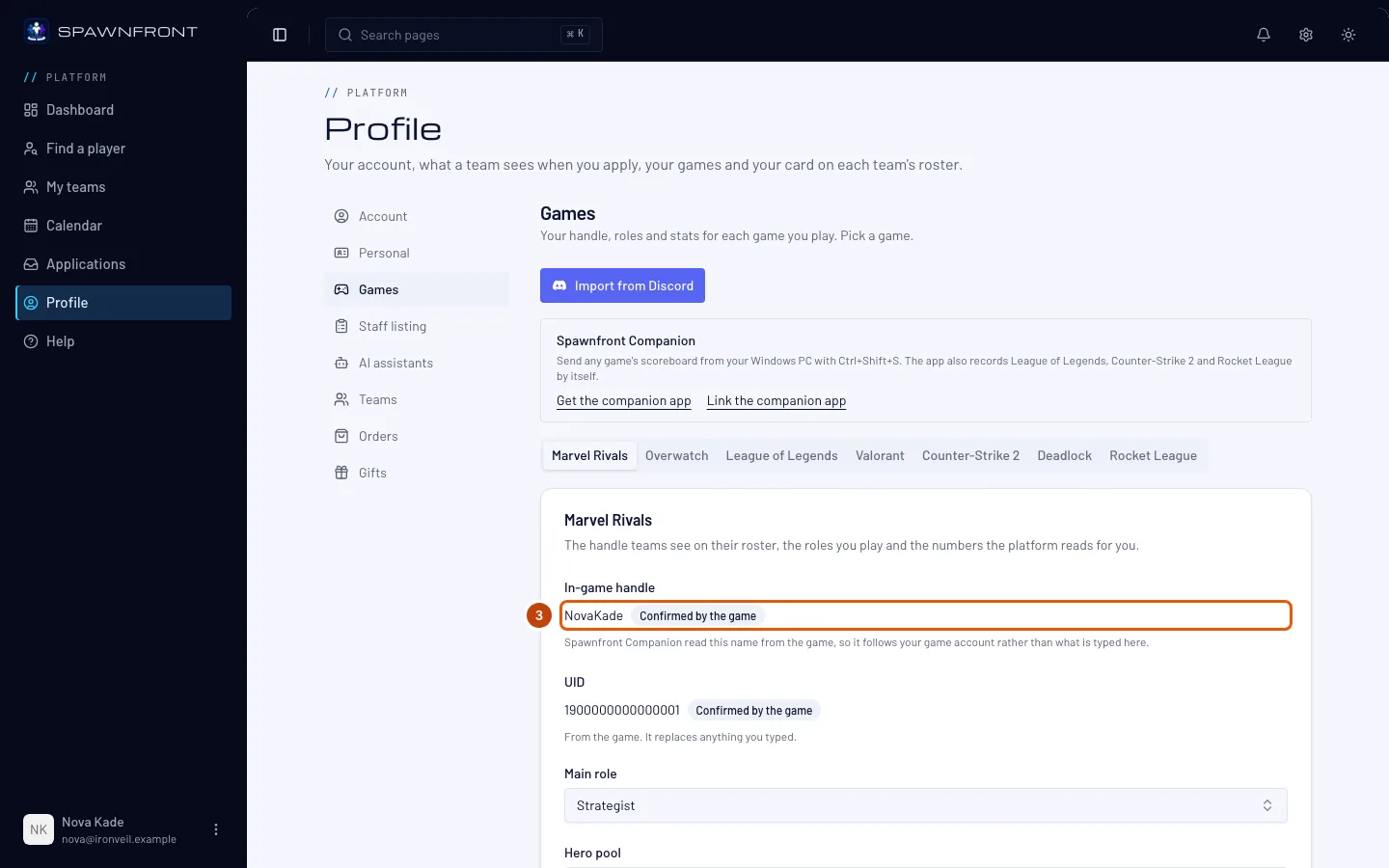
Step 3: Enter your in-game handle
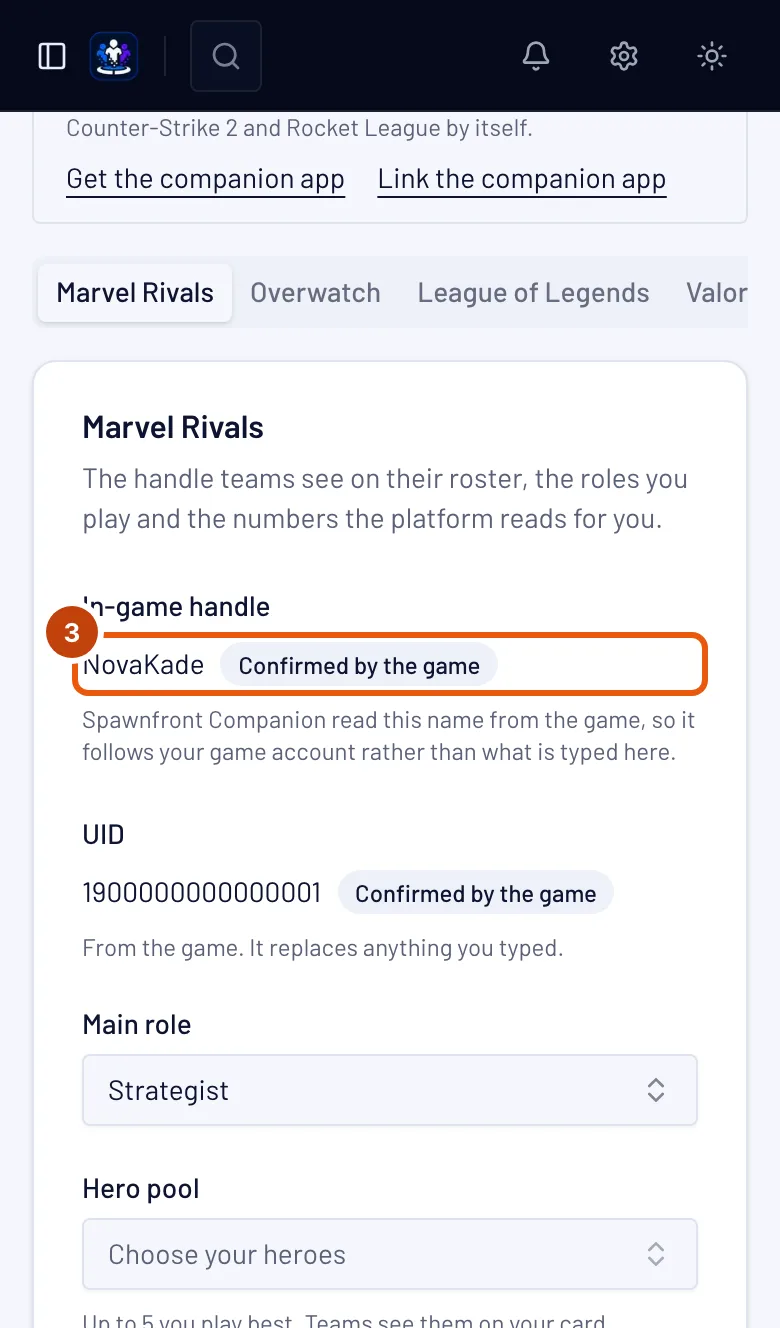
Type your handle in In-game handle, exactly as it shows in Marvel Rivals.
Teams see this handle on their roster. In Marvel Rivals, your stats are read from your UID once a team you play for verifies it, not from the handle you type.
A handle may hold symbols, spaces and other alphabets —
[TAG] Name,Ʀαιη☆or名前は猫are all fine — from 2 to 32 characters. Type it exactly as the game shows it.You can change your handle five times in 24 hours, across all your games; adding a game's first handle counts too. The 24 hours start at your first change. The line under the box says how many changes you have left and when they all come back. Fixing only capital letters never counts.
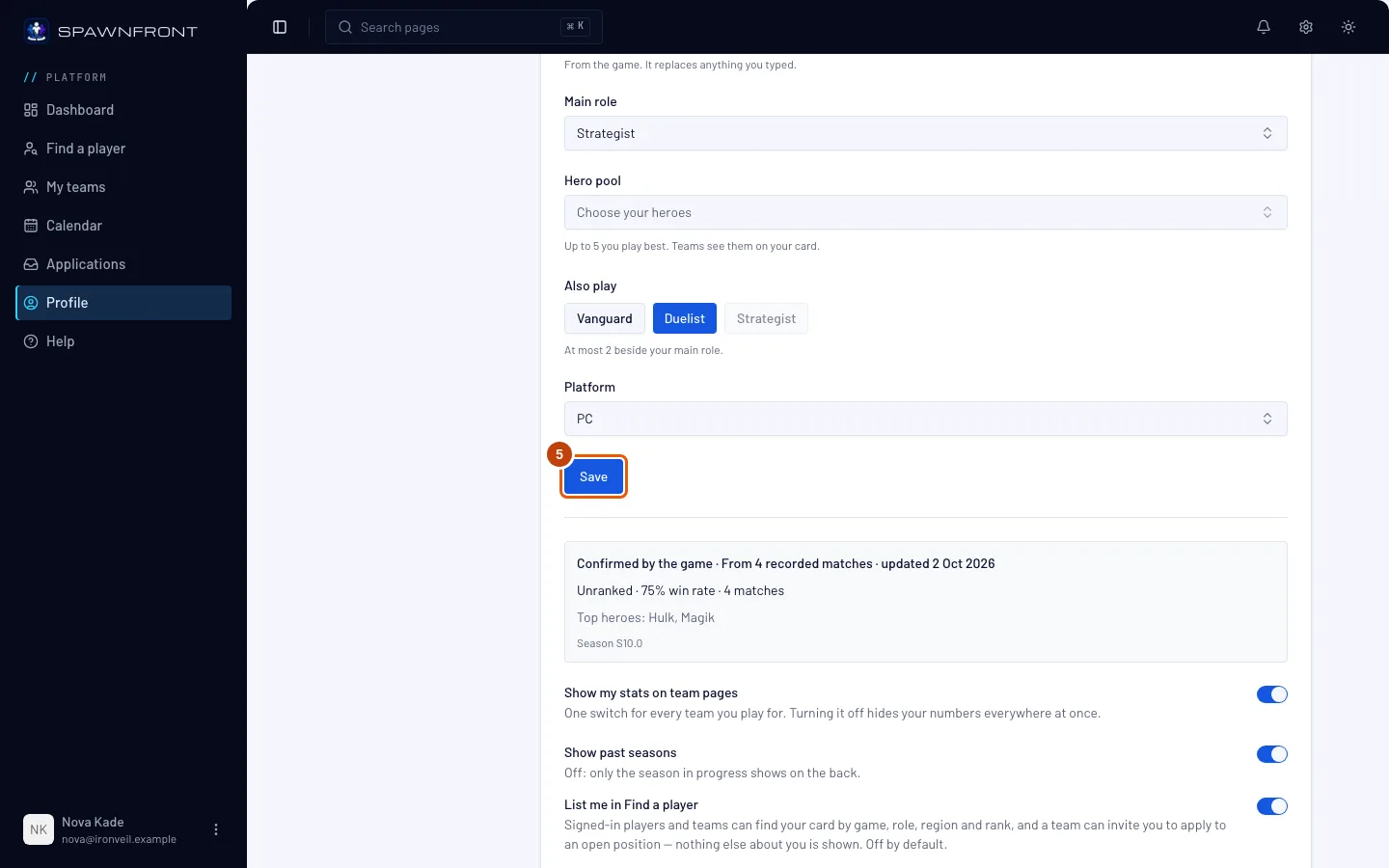
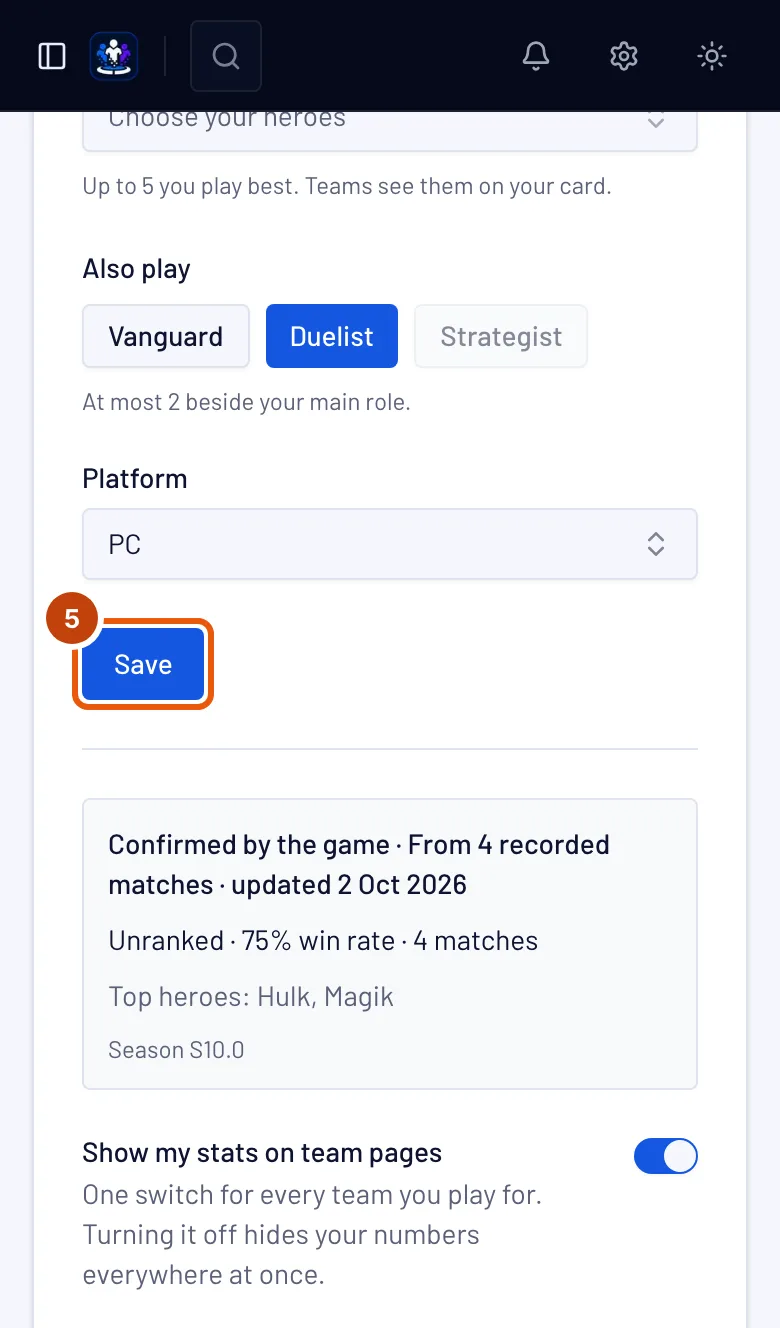
For Marvel Rivals, also type your UID in UID — the number on your in-game profile, 4 to 20 digits. Players search each other by it. Teams see it beside your handle — on your applications, the team's roster and team page — labeled "Self-reported". A team you play for can check it and mark it Verified on its own roster; other teams still see it as self-reported. Changing your UID clears every team's check, so each team checks the new number again. A UID the Spawnfront Companion app confirmed reads Confirmed by the game: it counts as verified on every team you play for, without anyone's check, and can no longer be edited here.
For League of Legends, type your Riot ID — your name,
#and your tag, likeName#EUW— in Riot ID, and choose your Server. Teams on other servers can see you, but you can only play matches on your own server.For Valorant, type your Riot ID in Riot ID and choose your Valorant region — North America, Latin America, Brazil, Europe, Asia Pacific or Korea, the region your Riot account plays in. Teams in other regions can see you, but you can only play matches in your own region.
For Overwatch, type your BattleTag in BattleTag — your name,
#and the number, likeName#1234, with capitals exactly as the Battle.net app shows them. Then paste the link to your career page on Blizzard's Overwatch site in Career link — Find my career opens Blizzard's search for your name; see Add your Overwatch career link. Your stats are read from that career once a team you play for verifies your BattleTag and link on its roster. Instead of typing your BattleTag, you can press Connect Battle.net to take it from your Battle.net account — see Connect your Battle.net account.For Counter-Strike 2, type the name you want teams to know you by in In-game handle. Your Steam name is recommended — it is what your teammates see in the game. Counter-Strike 2 has no regions to choose: teams anywhere can meet you, and you pick servers by ping in the game.
For Deadlock, type the name you want teams to know you by in In-game handle — your Steam name is recommended — and confirm your account with Steam, as for Counter-Strike 2: see Confirm your Steam account.
For Rocket League, type the name you want teams to know you by in In-game handle — your Epic display name is recommended, the name your teammates see in the game. Rocket League has no regions to choose: players on every platform play together.
Step 4: Choose your roles and platform
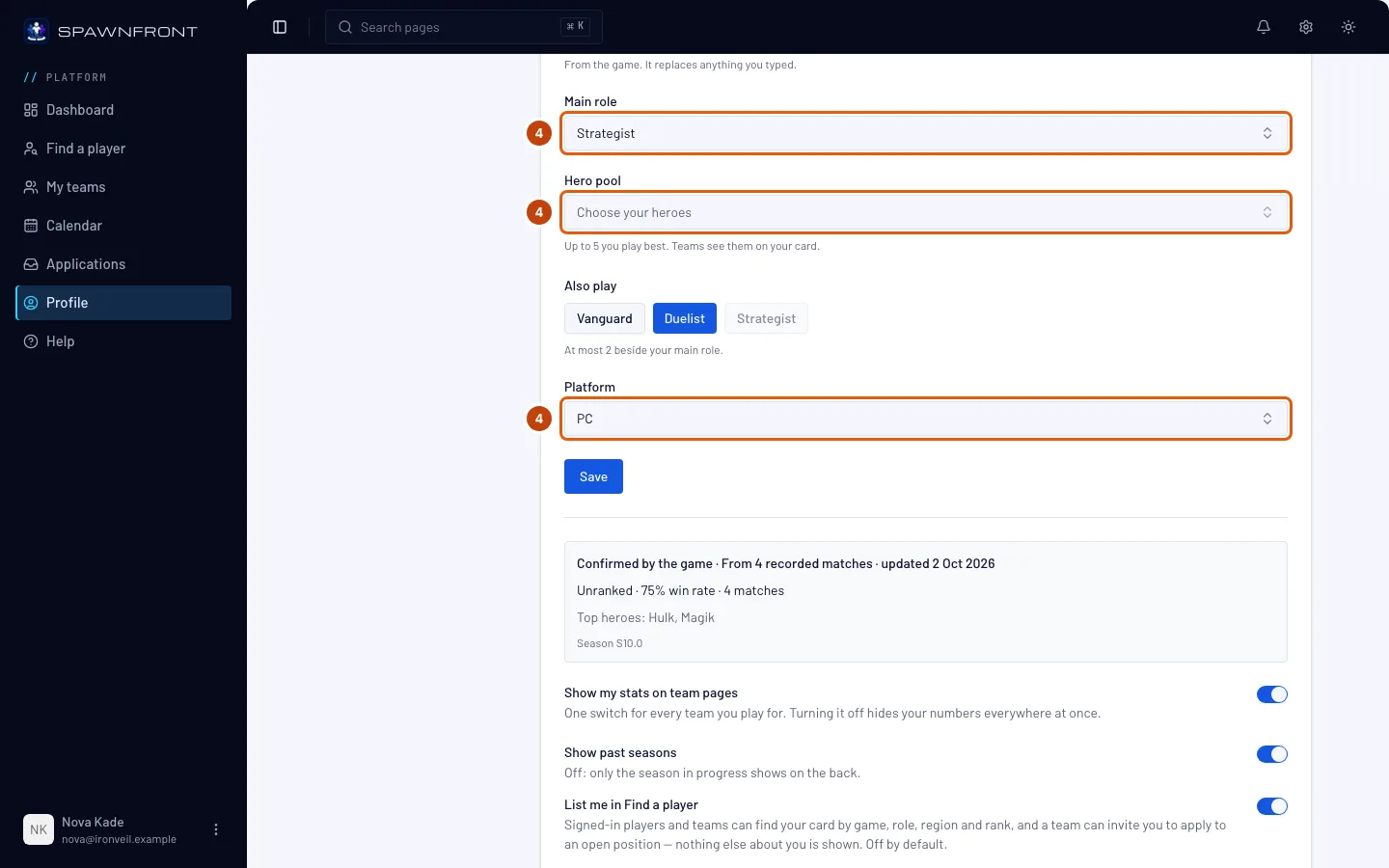
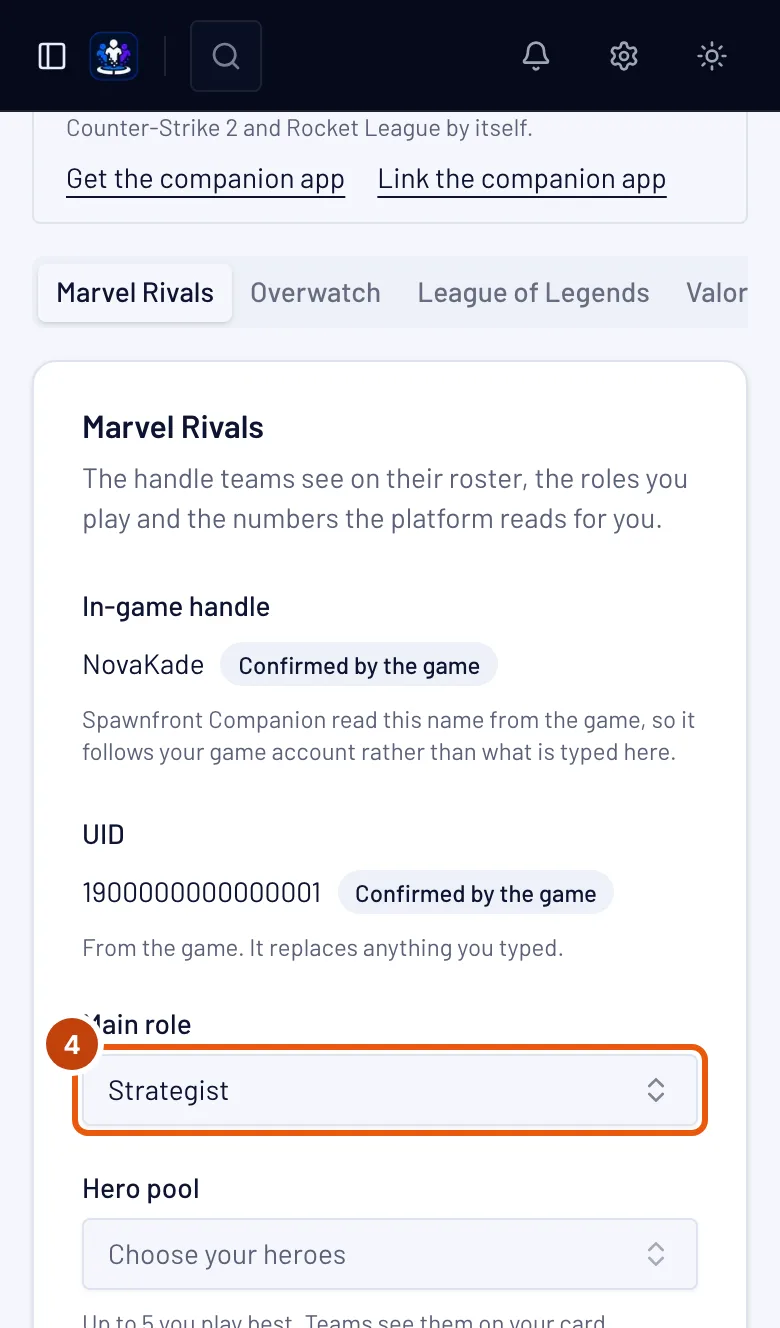
Choose your Main role — in League of Legends, Main position. Under Also play, press up to two more roles you play. Then choose your Platform.
A team's player position asks for one role — you can apply to it only if it is your main role or one you also play.
In League of Legends the roles are the positions: Top, Jungle, Mid, Bot (ADC) and Support. League of Legends is played on PC only, so its platform is already set.
In Valorant the roles are Duelist, Initiator, Controller and Sentinel, plus Flex if you fill whatever the team needs. Choose your platform — PC, PlayStation or Xbox. PlayStation and Xbox players play together, but never with PC players, so teams look for players on the same kind of machine.
In Counter-Strike 2 the roles are Entry, AWPer, Support, Lurker and IGL (in-game leader), plus Flex if you fill whatever the team needs. Many players list IGL as an extra role beside the one they play, like "AWPer, also IGL". Counter-Strike 2 is played on PC only, so its platform is already set.
In Deadlock the roles are Frontline, Carry and Support, plus Flex if you fill whatever the team needs. Deadlock is played on PC only, so its platform is already set.
In Rocket League the roles are Shot-caller, if you call the plays, and Flex, if you fill whatever the team needs. Choose your platform — PC, PlayStation, Xbox or Nintendo Switch. Players on every platform play together.
In Valorant, also choose your competitive rank in Rank (Competitive) — Iron 1 up to Immortal 3, or Radiant — or No rank. On PlayStation or Xbox, choose your console rank. Teams see it labeled "self-reported", and it counts toward your team's rank.
In Valorant, you can also pick up to 5 agents you play best in Agent pool. Teams see your pool on your card, and a team can find your application by an agent in it.
In Marvel Rivals and Overwatch, you can pick up to 5 heroes you play best in Hero pool. Teams see your pool on your card. In Marvel Rivals, Deadpool is one hero.
To find a hero or an agent faster, press a role above the list — like Strategist, Tank or Sentinel — to show only that role. Press All to see everyone again. Heroes you already picked stay in your pool.
In Counter-Strike 2, also choose your Premier rating in Premier rating — in steps of 1,000, from Under 1,000 up to 35,000+ — or No rank. Teams see it labeled "self-reported", and it counts toward your team's rank. Once the Spawnfront Companion app records Counter-Strike 2, your card also shows the Premier rating the game reported, as your verified rating.
In Deadlock, also choose your rank in Rank — the badge and its number, from Initiate 1 up to Eternus 6 — or No rank. Teams see it labeled "self-reported", and it counts toward your team's rank.
In Rocket League, also choose your Standard (3v3) rank in Rank (Standard) — the rank and its division, from Bronze I Div I up to Grand Champion III Div IV, or Supersonic Legend — or No rank. Teams see it labeled "self-reported", and it counts toward your team's rank.
You can check your Rocket League ranks from a screenshot once your profile is saved. In the game, open your Player Profile and scroll down until the DUEL, DOUBLES and STANDARD ranks show, with your name at the top. Take a screenshot, then under Check your rank from a screenshot press Check my rank and choose it — or press Ctrl+Shift+S on that screen with Spawnfront Companion running, then Check my rank. When the name on it is your Rocket League name on Spawnfront, all three ranks are set from it: your card shows Rank (Standard), Rank (Doubles) and Rank (Duel), each marked checked from a screenshot with the day, and teams see your Standard rank marked the same way. The screenshot itself is not kept. Change Rank (Standard) by hand later, and it reads "self-reported" again; change your Rocket League name, and the check is cleared — check again from your profile under the new name.
Once the Spawnfront Companion app records your Rocket League matches on PC, your card shows them per playlist — Standard, Doubles and Duel — under Online matches: games, wins, win rate, and your goals, assists, saves and shots per game, over the last 90 days, with the arenas you play most. Ranked and casual matches count together, because the game does not say which is which. Only your own numbers show; nobody else's account is ever shown. The first recorded match confirms your account: your card reads Confirmed by Rocket League, because the game itself named you to the app, and it counts as verified on every team you play for, with nothing for a team to check.
In League of Legends, also choose your Solo/Duo rank in Rank (Solo/Duo), or No rank if you have none. Teams see it labeled "self-reported" until Spawnfront can read your rank from Riot, and it counts toward your team's rank.
In League of Legends, you can also pick up to 5 champions you play best in Champion pool. Type a name to find one; press the × on a champion to take it off. Teams see your pool on your card, and a team can find your application by a champion in it.
Step 5: Save
Press Save.
You should see: your game's name and "saved" (for example "Marvel Rivals saved"). For Marvel Rivals the box under the form reads Your team verifies your UID — or Set your UID so your team can verify it if you left the UID empty. For Overwatch it reads Your team verifies your BattleTag, Add a career link to show stats if you left Career link empty, or Not a BattleTag if the handle is not one. For League of Legends, Valorant on PC and Counter-Strike 2 it reads Link the companion app to confirm; for Valorant on a console, No stats for this game yet.
Step 6: Get your stats
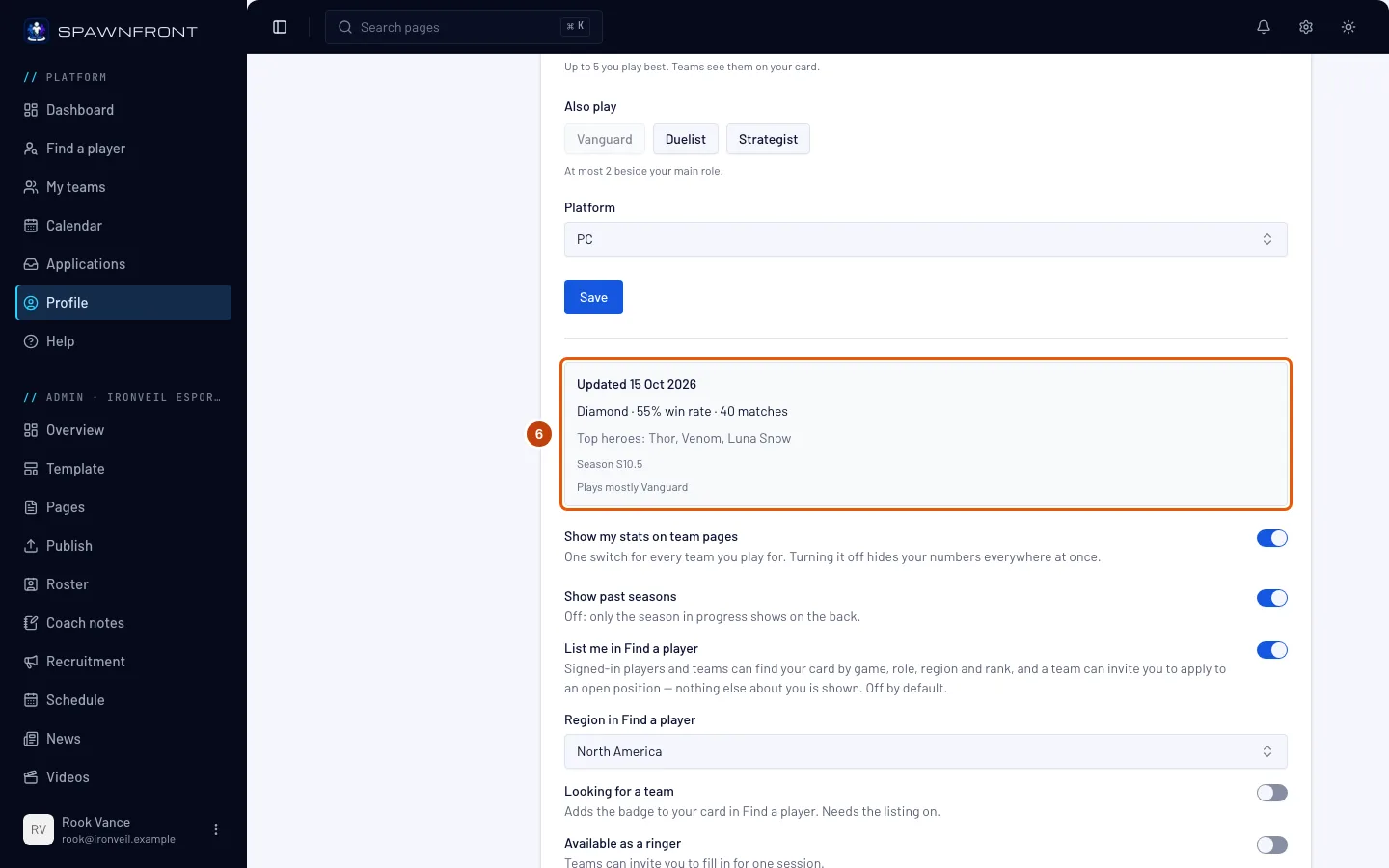
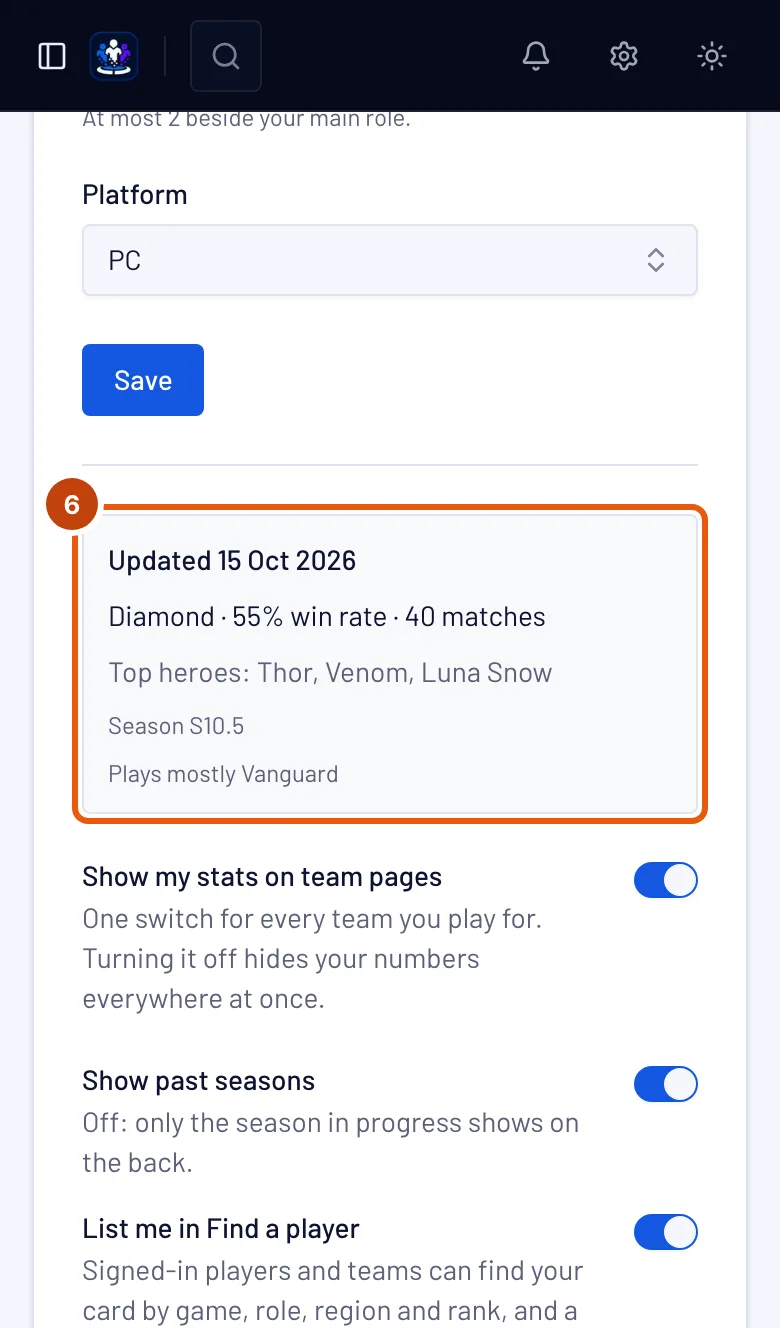
For Marvel Rivals and Overwatch, ask an owner or admin of your team to verify your UID — or your BattleTag and career link — on the team's roster — see Verify a player's UID. The first read usually comes within the hour. After that, your stats are read once a day on a team with a site, once a week on a free team. Then read the box under the form.
Your stats are free. They belong to your account, and a free team gets them too. A team's site pays for the team's own tools — see Get a site — never for your stats; it only makes the reads daily instead of weekly.
You should see: Stats update daily (or Stats update weekly when no team that verified you has a site) until the first read, then Updated with how long ago and your numbers — for Marvel Rivals your rank, win rate, matches played and top heroes; for Overwatch your rank, competitive games, win rate and KDA. If it says Match history private or Career profile private, the box shows the steps to make it public in the game — see Make your match history public or Make your Overwatch career profile public.
League of Legends and Counter-Strike 2 numbers come from the matches you record with Spawnfront Companion on your PC — see Install the companion app. Valorant has no stats source yet: its numbers will come from Riot once Riot approves Spawnfront. Deadlock numbers are read from deadlock-api.com once you confirm your account with Steam and a team you play for lists you — once a day on a team with a site, once a week otherwise. They count the ranked and normal matches deadlock-api has seen in the last 90 days. Rocket League numbers come from the matches Spawnfront Companion records on your PC, once you turn on Record Rocket League. In every game, teams also see your handle, your roles and the rank you chose, labeled "self-reported".
Teams you play for show your numbers on their roster while Show my stats on team pages is on.
Under it, List me in Find a player, Looking for a team and Show past seasons choose whether teams can find your card and which seasons it shows — see List yourself in Find a player.
How to know it worked
- For Marvel Rivals, once your team verified your UID — and for Overwatch, once it verified your BattleTag with your career link saved — the box under the form says Stats update daily or Stats update weekly, then Updated with your numbers.
- When you apply to a team, What the team will see shows your handle and roles.
Something doesn't look right?
It still says "Link the companion app to confirm"
In League of Legends and Counter-Strike 2 the box keeps saying this until you record a match with Spawnfront Companion. Valorant has no stats source yet, so its box keeps saying this. Nothing is missing on your side: teams see your handle, your roles and the rank you chose, labeled "self-reported".
My Marvel Rivals card says "Your team verifies your UID"
Nobody has checked your UID yet. Ask an owner or admin of your team to open your row on the team's Roster page and press Verify. Once they do, your stats are read once a day on a team with a site, once a week on a free team.
My Marvel Rivals card says "Stats update daily"
Your team verified your UID, and the first read has not happened yet. It usually comes within the hour; after that, your stats are read once a day.
My card says "Stats update weekly"
No team that verified your UID or BattleTag has a site, so your stats are read once a week. The first read usually comes within the hour. Once a team that verified you gets a site, your stats are read once a day.
My Marvel Rivals card says "Match history private"
Your match history is hidden in the game, so only your rank can be read. Make it public in the game — see Make your match history public — and your numbers show after the next read: once a day on a team with a site, once a week on a free team.
My rank says Unranked
In Marvel Rivals, you have played no ranked match this season. In Overwatch, a public career with no competitive game this season reads No competitive games yet instead. In League of Legends and Counter-Strike 2, no match is recorded until you play with Spawnfront Companion running; in Valorant only the rank you chose shows, labeled "self-reported".
The Overwatch card says "Your team verifies your BattleTag"
Overwatch stats are read from your linked career after a team you play for verifies your BattleTag and link: once a day on a team with a site, once a week on a free team. Ask an owner or admin of your team to press Verify on your row of the team's Roster page — see Verify a player's UID or BattleTag. Teams still see your BattleTag, your roles (Tank, Damage or Support) and your platform meanwhile.
The Overwatch card says "Career profile private"
Overwatch keeps career profiles private unless you change it, so only your BattleTag can be read. See Make your Overwatch career profile public.
The Overwatch card says "Not a BattleTag"
Your Overwatch handle was saved before Spawnfront read Overwatch stats, and it is not a BattleTag. Type your BattleTag, like Name#1234, in BattleTag and press Save.
My League of Legends card shows no numbers
League of Legends numbers come from the games you record with Spawnfront Companion: until the app confirms your account the box says Link the companion app to confirm, and teams see your Riot ID, server, positions and the Solo/Duo rank you chose, labeled "self-reported".
Once the app confirms your Riot account from the League client, your card reads Verified with League of Legends, and so does your row on the roster of every team you play for. It counts on every team at once: no team needs to check it.
After Spawnfront's connection to Riot is approved, your League of Legends card gets a Confirm with Riot button. It signs you in at Riot to prove the Riot account is yours; your Riot ID and server then come from Riot, and your card shows the Solo/Duo rank, ranked results and top champions from Riot, with the rank no longer labeled "self-reported", and reads Verified with Riot. The button is not available yet — until it appears, nothing on your card comes from Riot.
One Riot sign-in confirms both Riot games. League of Legends and Valorant share one Riot account, so signing in with Riot from either card confirms every Riot game you have saved here. Save your Valorant identity first if you play both; a game you have not saved yet is not created for you, and you can press Confirm with Riot on it later.
My Valorant card shows no numbers
Valorant has no stats source yet: on PC the box says Link the companion app to confirm, and on a console platform No stats for this game yet. Either way, teams see your Riot ID, region, platform, roles and the rank you chose, labeled "self-reported". Valorant numbers will come from Riot, not from the app.
Valorant stats from Riot show only for players who sign in with Riot to share them. After Spawnfront's connection to Riot is approved, your Valorant card gets a Confirm with Riot button too. Signing in proves the Riot account is yours, and your Valorant region is corrected from Riot — if you chose another region than the one your Riot account plays in, the card moves to Riot's and tells you so. Your card then shows your competitive rank, competitive matches and top agents from Riot, on PC or console, and reads Verified with Riot — on your card and beside you on the roster of every team you play Valorant for, because you proved the account yourself. The button is not available yet — until it appears, nothing on your Valorant card comes from Riot.
The UID is refused
A Marvel Rivals UID is 4 to 20 digits and nothing else. Open your in-game profile and copy the number exactly; leave the box empty if you would rather not share it.
The Riot ID is refused
A Riot ID is a name of 3 to 16 characters, a # and a tag of 3 to 5 letters or numbers — Name#TAG. Copy it from the Riot client or the game, where it shows under your name — League of Legends and Valorant share one Riot ID.
My Rocket League rank check was refused
The answer says what to fix. "That profile is …'s, not …'s": the name at the top of the Player Profile is not your Rocket League name on Spawnfront — send your own profile, or change your name on Spawnfront to the one the game shows. "Spawnfront couldn't read all three ranks": scroll down until the DUEL, DOUBLES and STANDARD ranks all show, and send the whole screen with the game in English. A screenshot of the top of the profile has no ranks to check.
I don't want teams to see my stats
Turn off Show my stats on team pages. It hides your numbers on every team at once; your handle stays.
Related articles
Still stuck? Contact support or email support@spawnfront.com — tell us the page you're on and the step number.