
Add your Overwatch career link
Paste the link to your Overwatch career page on your profile, so your team can verify it and your stats can be read.
For players · 6 steps
What you need first
- You play Overwatch, and your BattleTag, like
Name#1234, is saved on your profile — see Add your game identity. - You can open a web page in another browser tab. Step 3 happens on Blizzard's Overwatch site and step 6 on your team's roster, so they have no pictures here.
Steps
Step 1: Open Games and the Overwatch tab
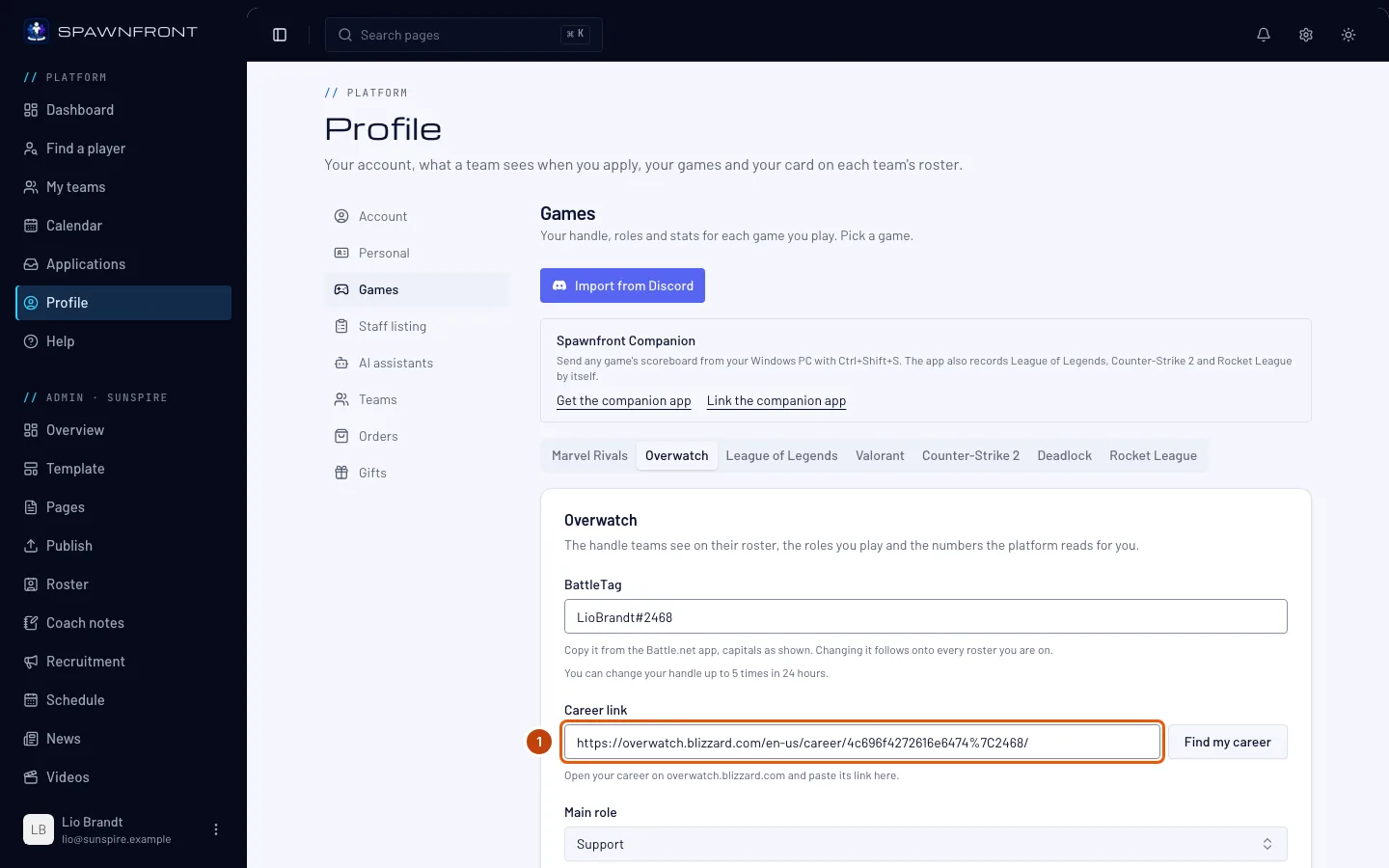
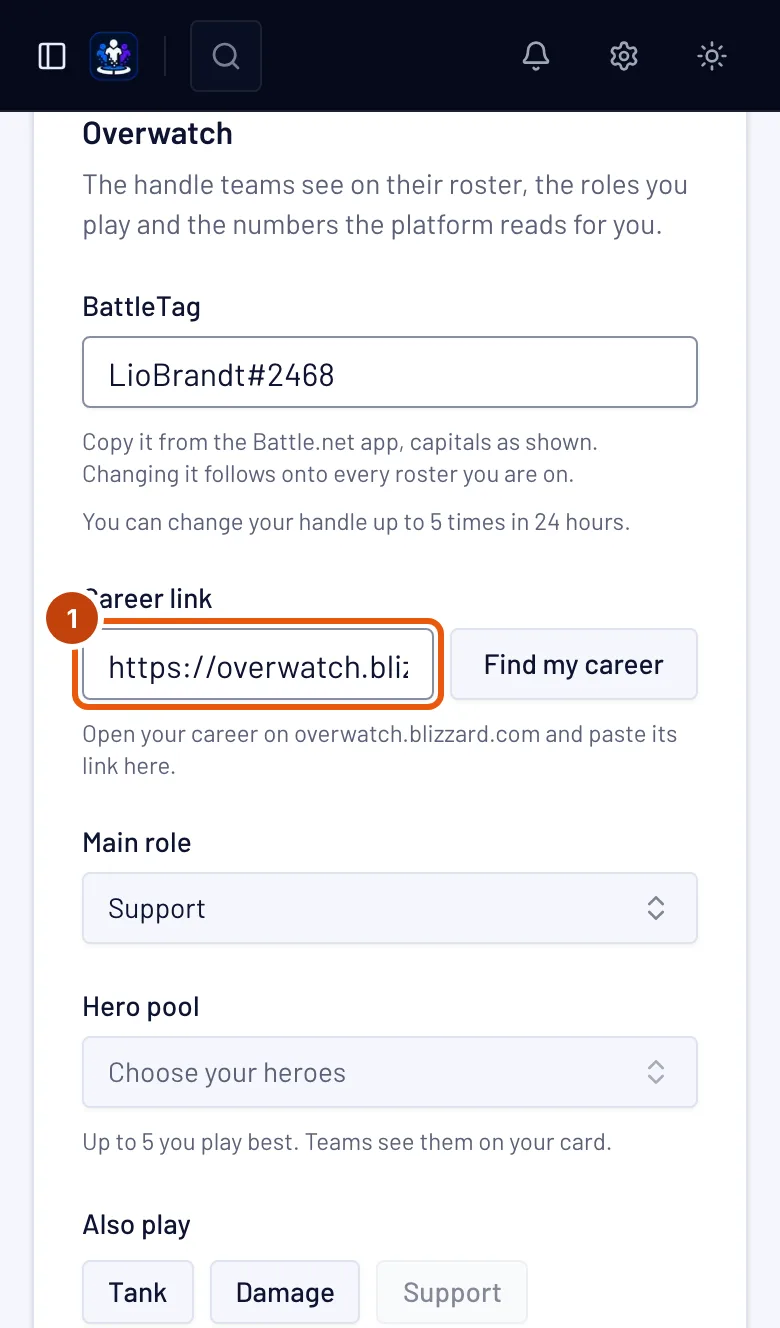
Press Profile in the menu, Games in the section list, then the Overwatch tab.
You should see: your Overwatch card, with your BattleTag and, under it, Career link.
Step 2: Press Find my career
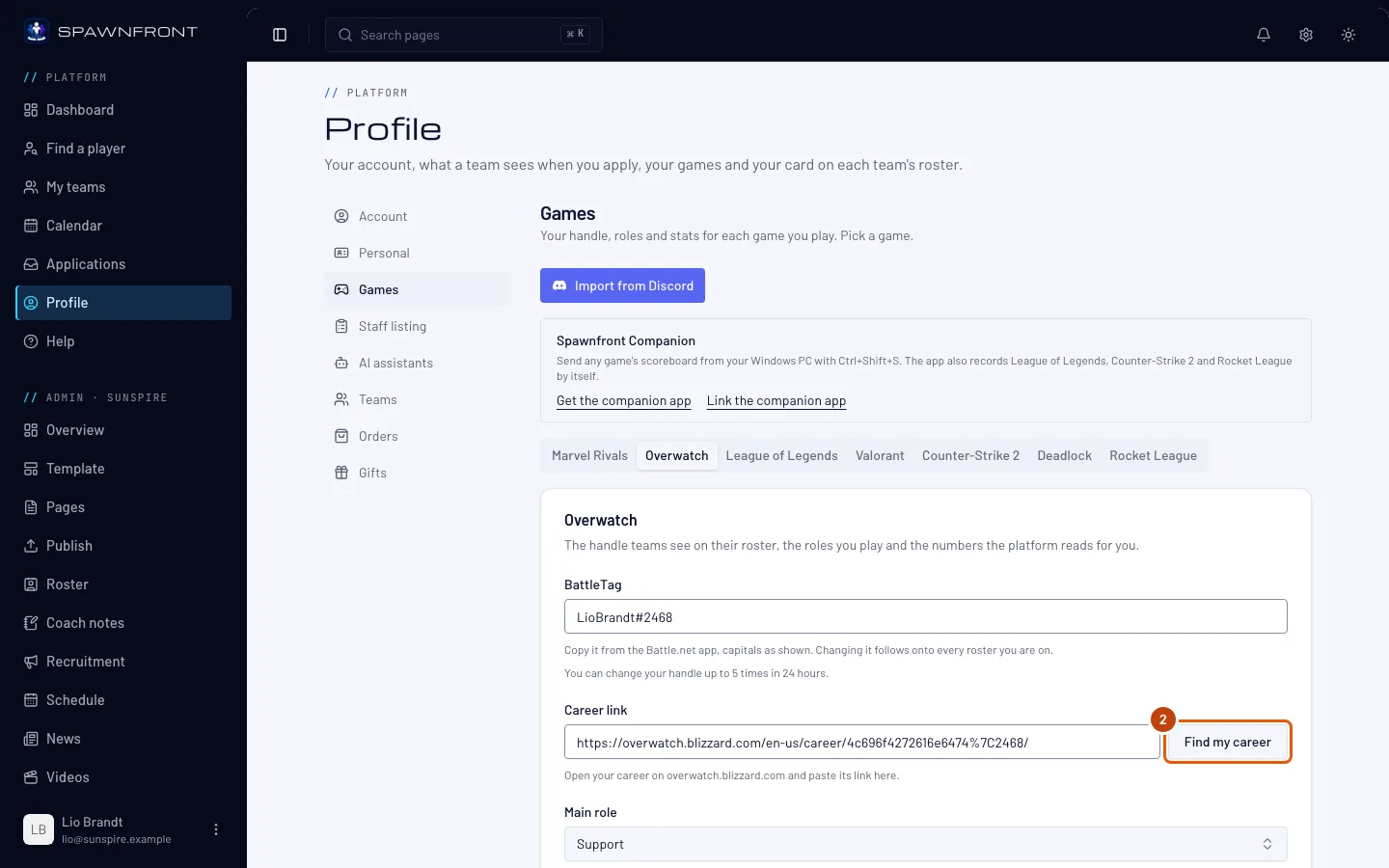
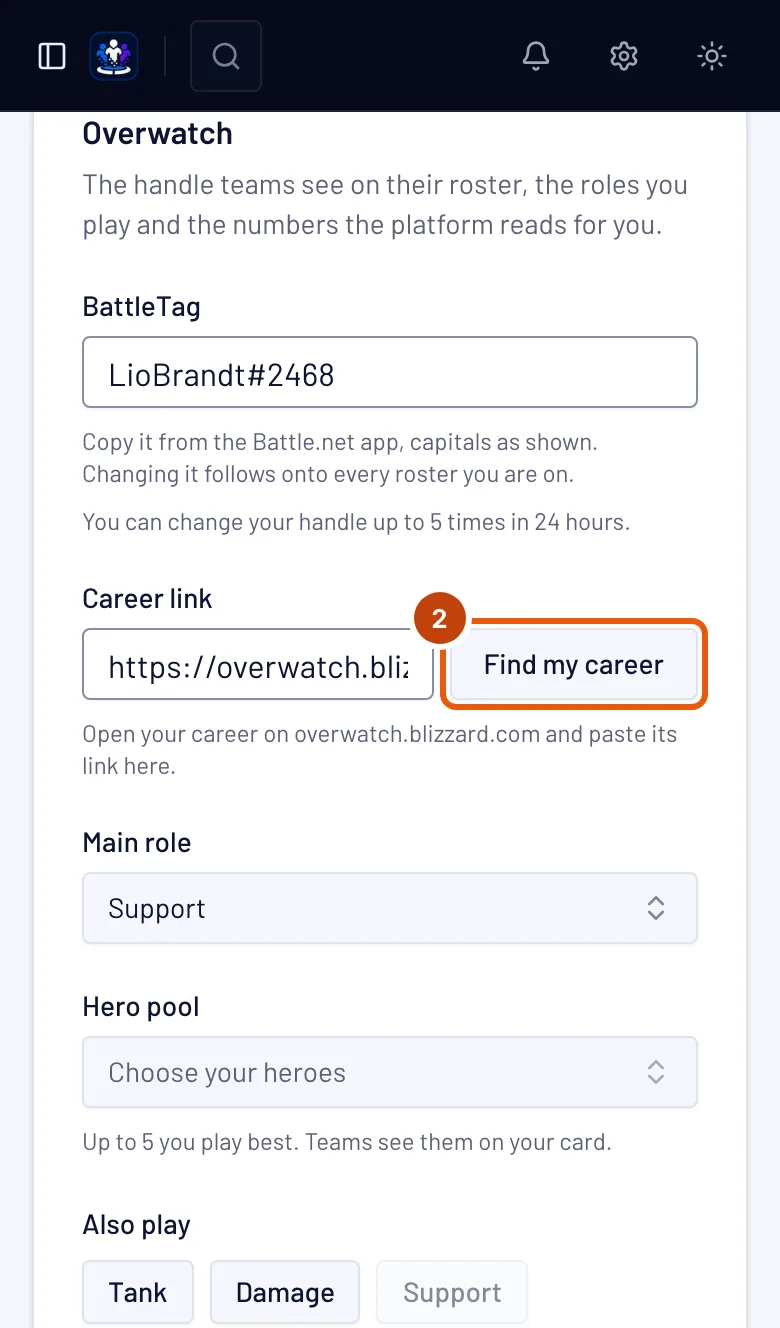
Press Find my career beside Career link.
It shows only while your BattleTag is a BattleTag, like
Name#1234.You should see: Blizzard's Player Search opens in a new tab, listing the players who share your BattleTag's name.
Step 3: Open your career and copy its link
On Blizzard's page, press your own player — your picture and title tell you which one is you. Then copy the address from your browser's address bar.
Blizzard's search no longer shows the number of a BattleTag, so many players can share your name. The link is what tells Spawnfront which career is yours.
You should see: an address that starts with
overwatch.blizzard.comand has/career/in it.Step 4: Paste the link in Career link
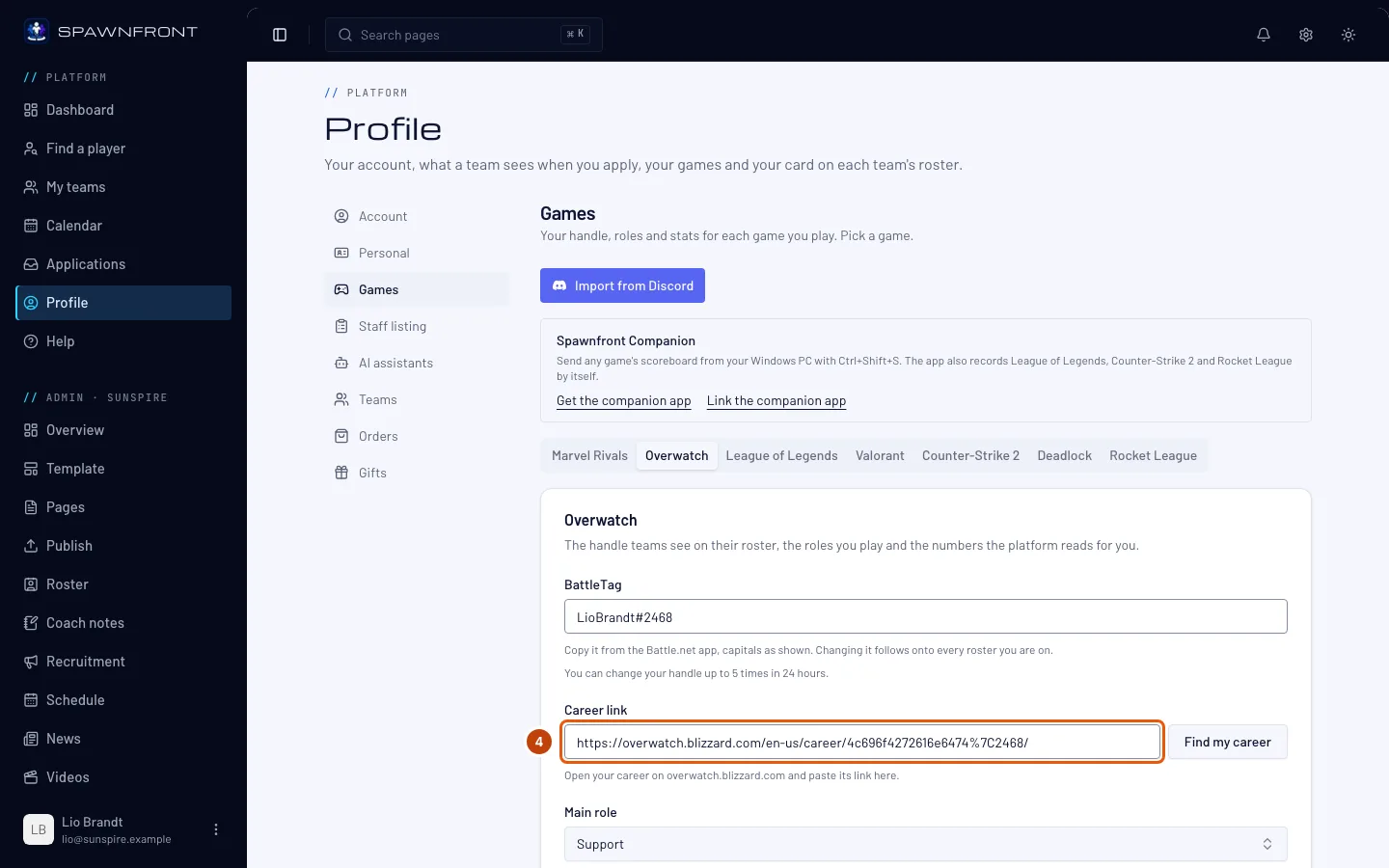
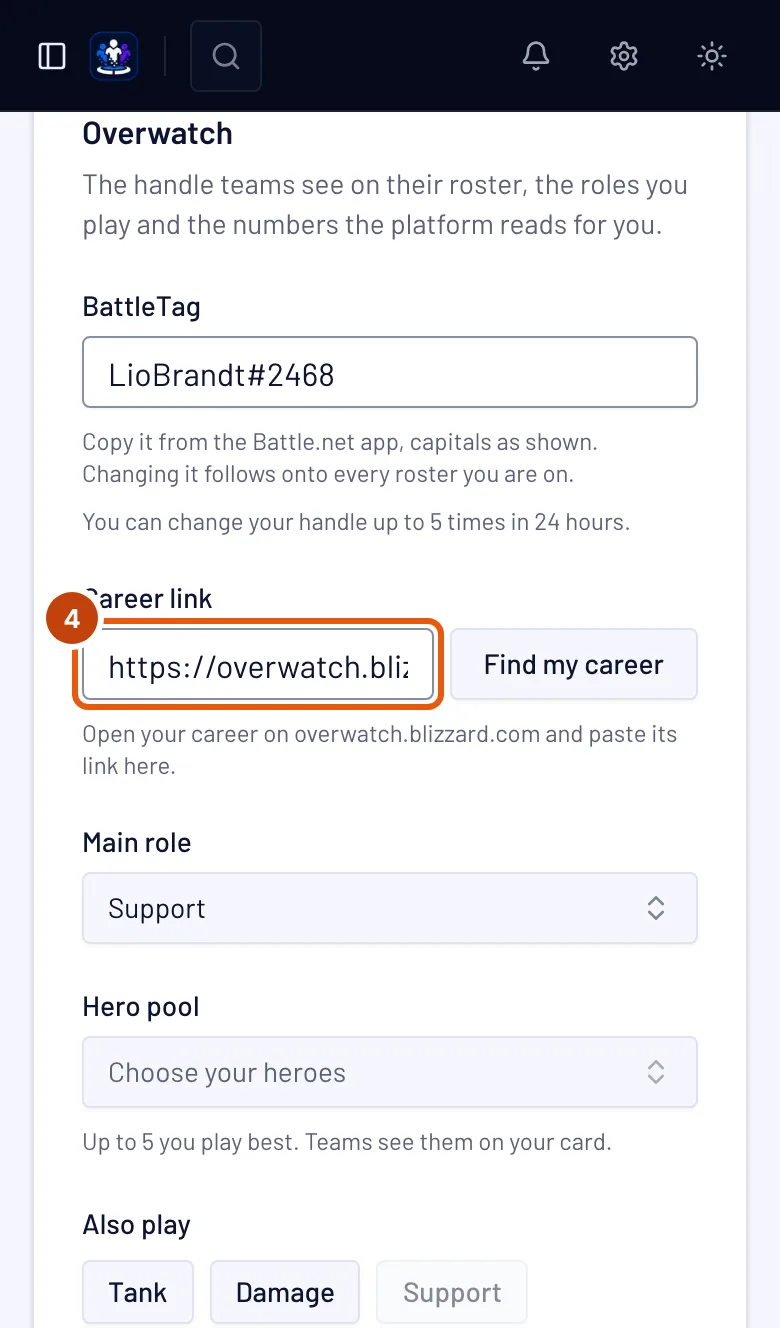
Go back to the Spawnfront tab and paste the address in Career link.
You should see: the address in the box, and no red message under it.
Step 5: Save
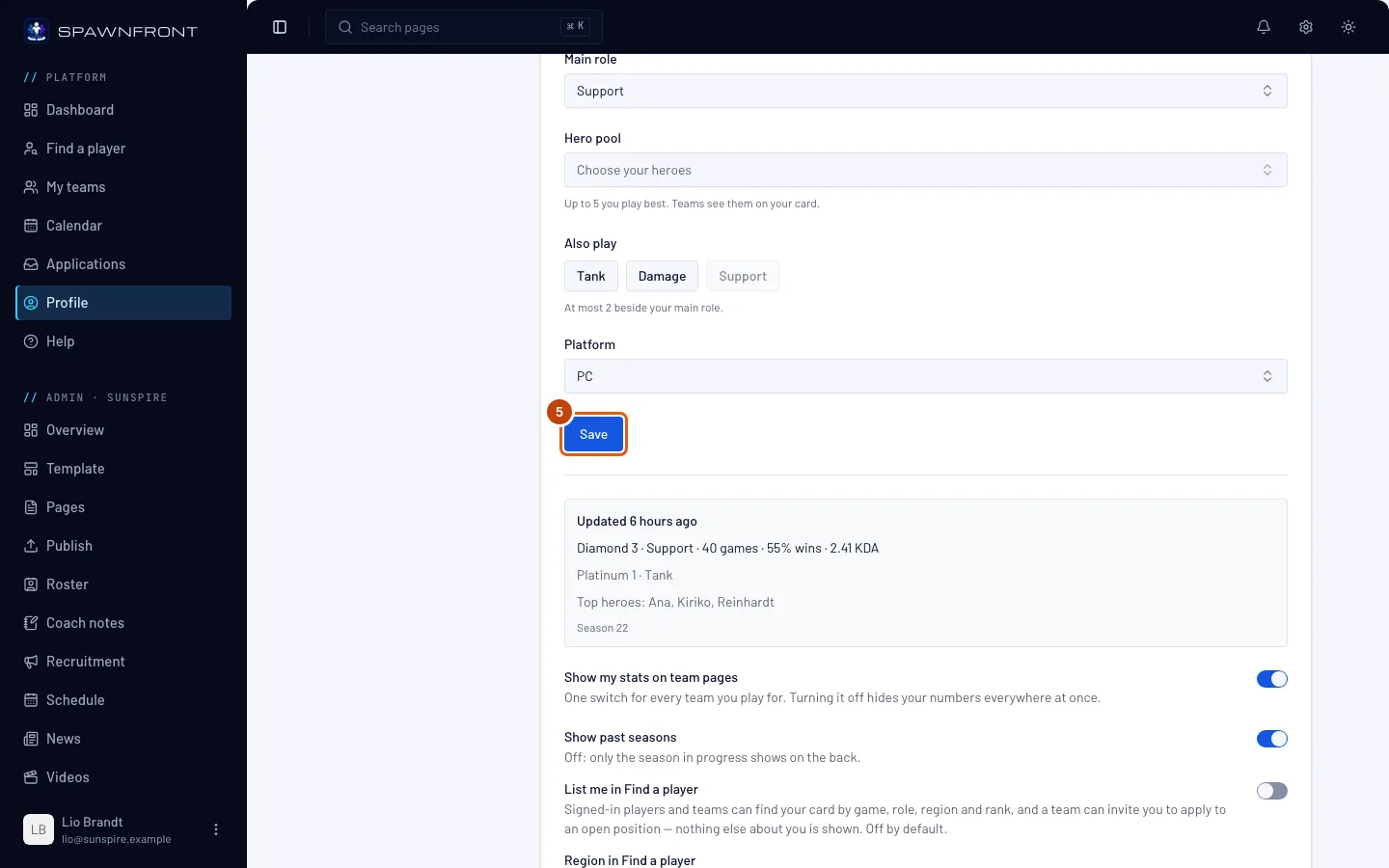
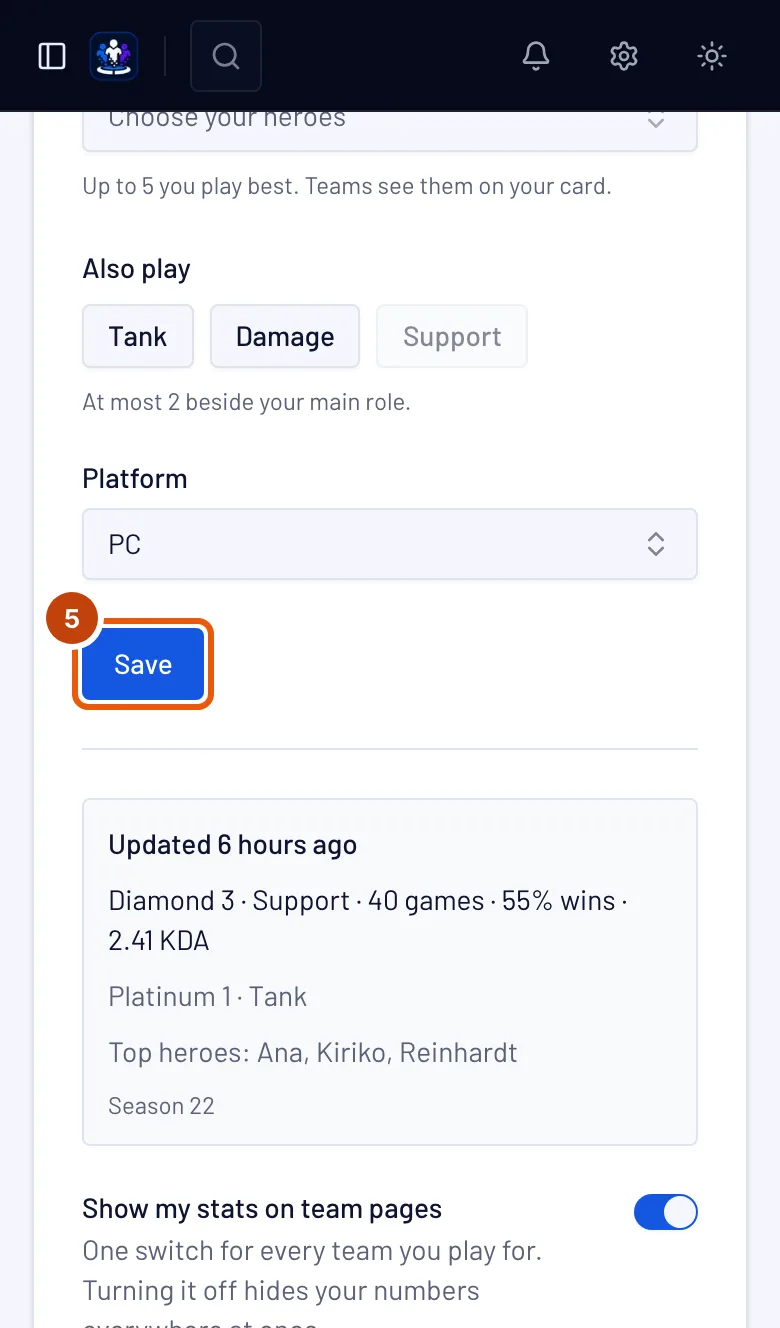
Press Save.
Adding or changing your link clears every team's check of your BattleTag, so each team checks it again before your stats are read.
You should see: "Overwatch saved", and the box under the form reads Your team verifies your BattleTag.
Step 6: Ask your team to verify it
Ask an owner or admin of your team to press Verify on your row of the team's Roster page — see Verify a player's UID or BattleTag. If your BattleTag reads Verified with Battle.net, skip this: you connected Battle.net, so it is verified on every team you play for, and on your own card even when you're on no team — see Connect your Battle.net account. The first read usually comes within the hour. After that, your stats are read once a day on a team with a site, once a week on a free team.
You should see: the box under the form reads Stats update daily (or Stats update weekly), then Updated with your rank and numbers.
How to know it worked
- Career link on your Overwatch card holds your career's address.
- After your team verifies it and the next read, the box under the form reads Updated with your rank.
Something doesn't look right?
It refuses the link I pasted
A red message under the box reads Paste the link to your career page on overwatch.blizzard.com: what you pasted is not the address of a career page. Open your career on Blizzard's site (step 3) and copy the address from the address bar — it starts with overwatch.blizzard.com and has /career/ in it. A link to another site, such as a stats tracker, is not accepted.
The box says Career doesn't match BattleTag
The career you linked carries another name than your BattleTag, so no stats are shown. You probably opened another player with a similar name. Repeat steps 2 to 5 and pick your own career.
The box says "Career not found"
Blizzard's Overwatch site knows no career at the address you saved — usually a link copied from another page. Repeat steps 2 to 5 with your own career's address.
The box says "Add a career link to show stats"
Your BattleTag is saved but no career link is, so there is nothing to read. Follow the steps above.
I can't find my career on Blizzard's page
Blizzard lists at most 100 players under one name. Your picture and title in the game are the quickest way to spot yours; if the list is long, open the ones that look like you until the page shows your stats.
It still says "Career profile private"
The link is right, but your career profile is private in the game, so only your BattleTag can be read. See Make your Overwatch career profile public.
Related articles
Still stuck? Contact support or email support@spawnfront.com — tell us the page you're on and the step number.