
Get a site for your team
Choose Team or Team Pro, monthly or yearly, check the total, pay on Polar, and start setting up your team's site.
For team owners and admins · 8 steps
What you need first
- You have a team, and you are its owner or an admin. No team yet? See Found a team.
- A way to pay on Polar, the payment service Spawnfront uses. Your card details go to Polar and never reach Spawnfront.
- A site adds the hosted team site, the listing in the team browser, the store, custom domains on Team Pro, hosting tournaments (entering one is free), a place in the ladder ranking, coach notes, and higher scrim limits: five open scrims at once, ten scrim requests a day and twenty screenshot or log readings a day, where a free team has two, five and five. Your team, roster, open positions, schedule and scrims (the finder, open scrims and results) stay free.
- Whoever pays becomes the team's payer. Only the payer can open the subscription on Polar later — see Manage your billing.
Steps
Step 1: Open Get a site
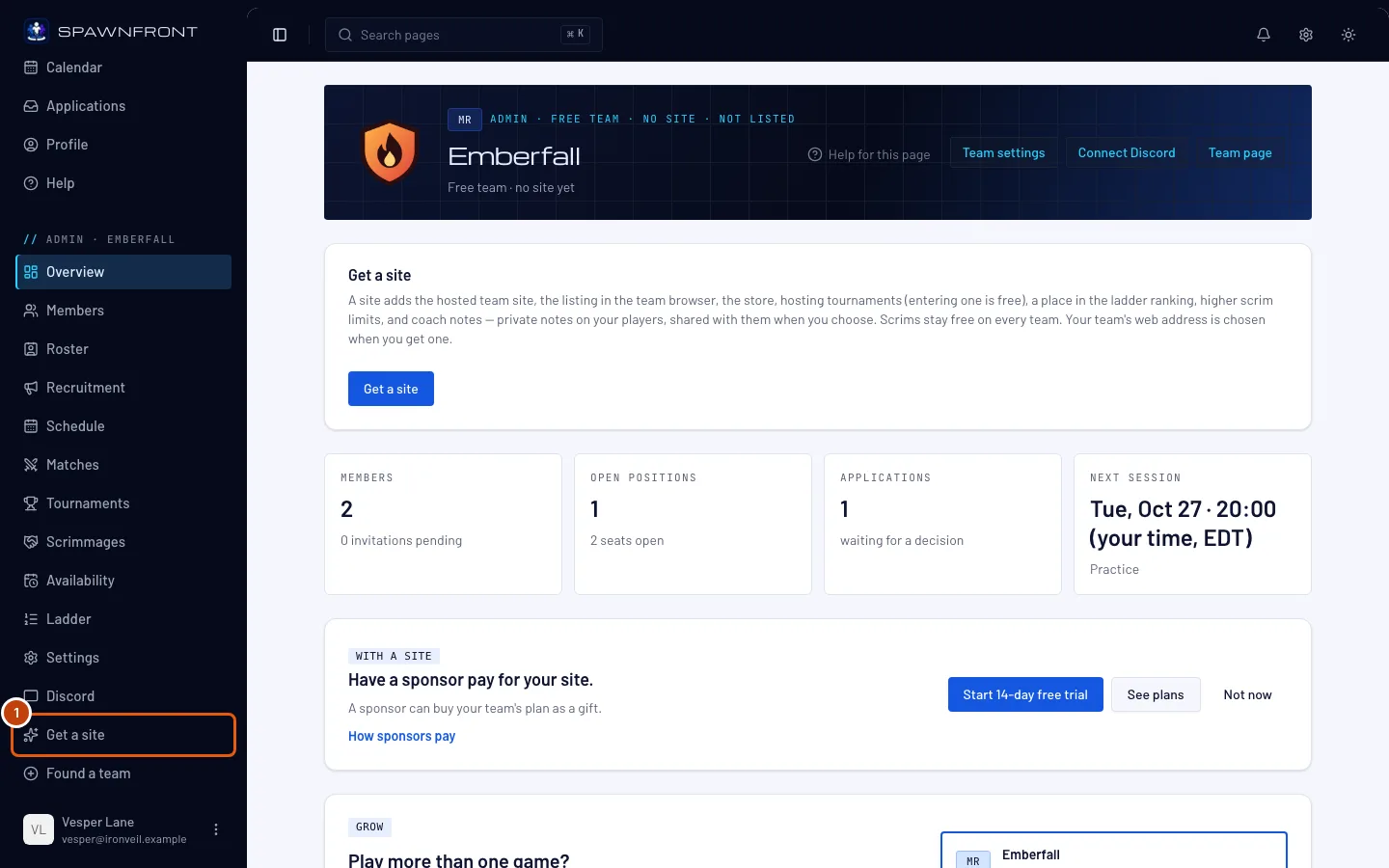
In the menu on the left, under Admin, press Get a site.
You should see: Get a site for your team's name, and the plans under Choose a plan, each with its price.
Step 2: Choose monthly or yearly
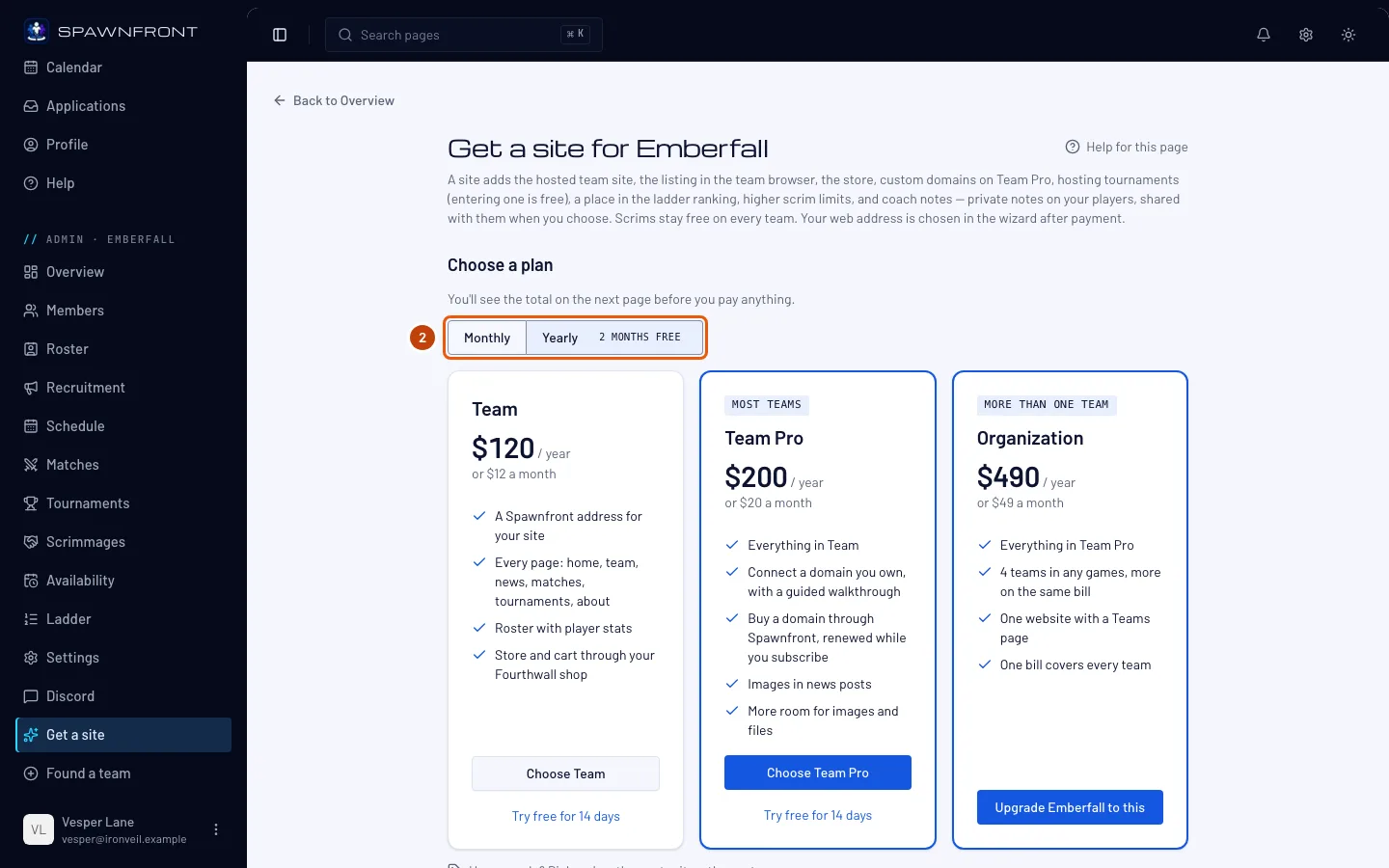
Above the plans, press Monthly or Yearly. Paying once a year costs ten monthly payments, so you get two months free.
You should see: every plan's price change to that choice.
Step 3: Choose a plan
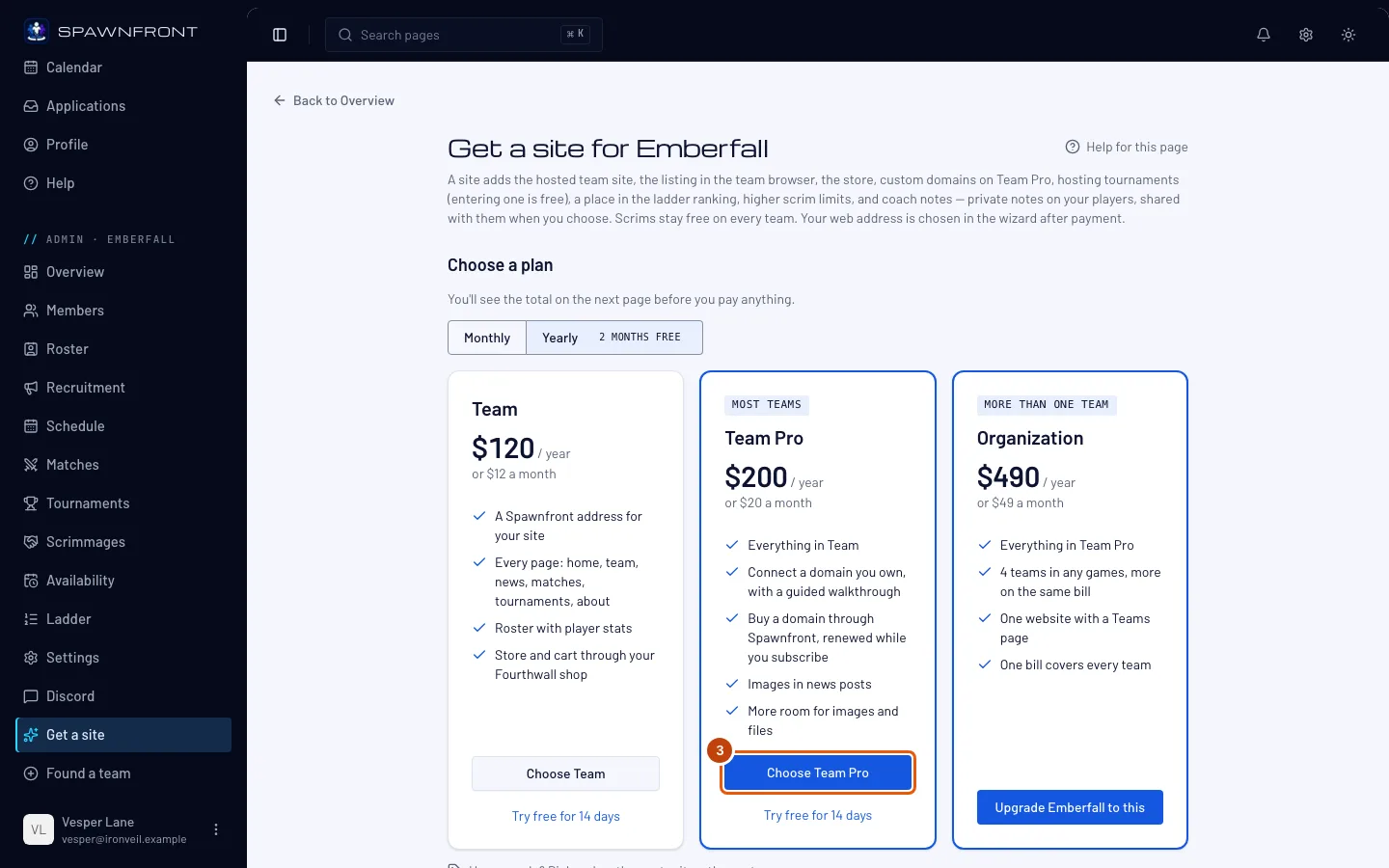
Under the plan you want, press Choose Team or Choose Team Pro. The Team plan gives you a Spawnfront address, your site, your roster and your store. Team Pro is everything in the Team plan plus your own domain, images in news posts and more room for uploads.
You should see: the Checkout page. Nothing is charged on this page.
Step 4: Check the total
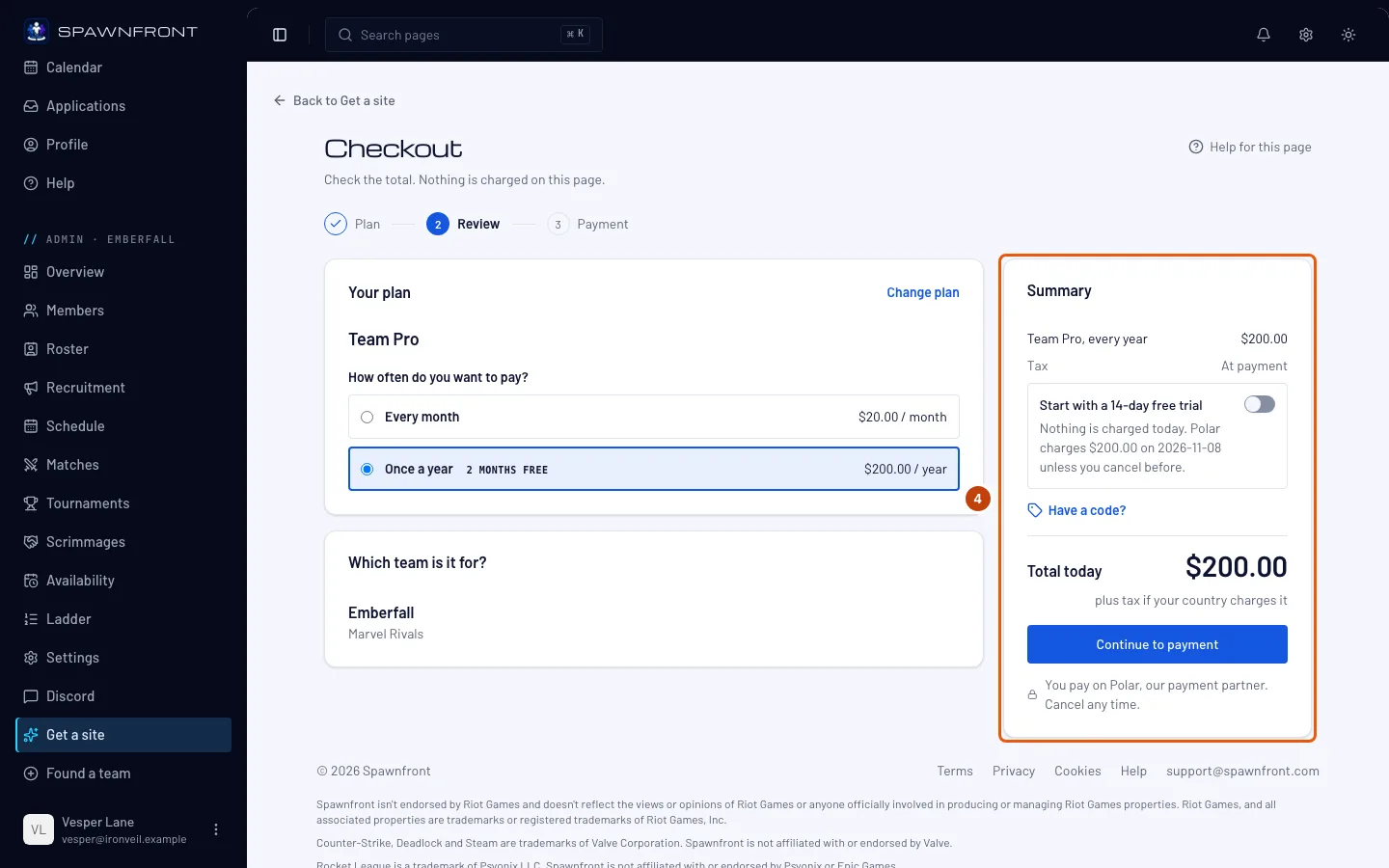
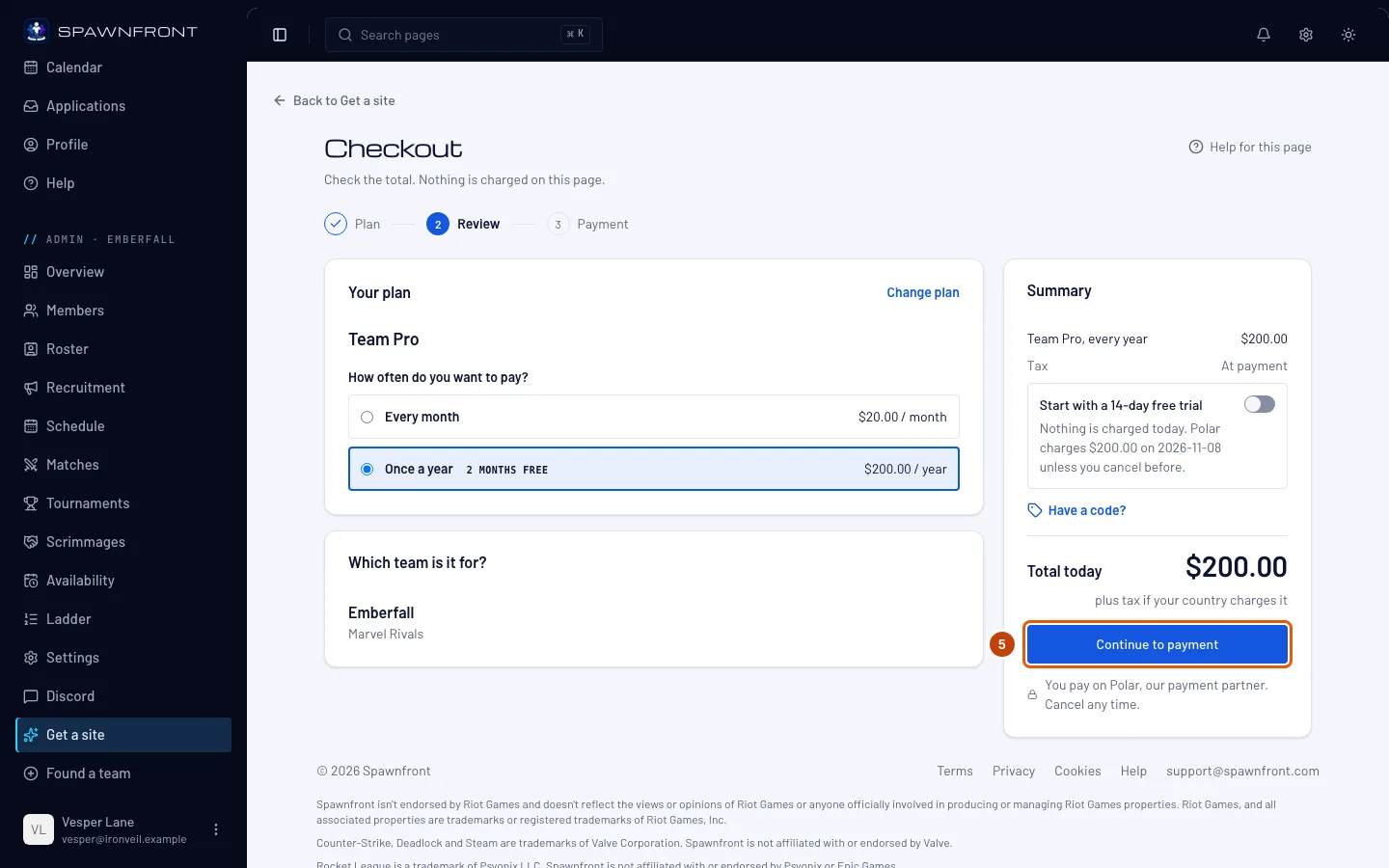
Read the Summary on the right: the plan, how often you pay, and Total today. A team's first site can start with a free trial: if you see Start with a 14-day free trial, leave it on to pay nothing today — Polar still asks for your card and charges the plan's price when the 14 days end, unless you cancel on Billing before. It is on already when you came from Try free for 14 days. Tax, if your country charges it, is added on the payment page. To pay the other way, choose Every month or Once a year under How often do you want to pay? — the total changes with it. To pick a different plan, press Change plan.
You should see: the total you are about to pay.
Step 5: Continue to payment
Press Continue to payment.
You should see: Polar's payment page, for the same plan and price. Nothing is charged until you pay there. If you leave without paying, Get a site shows You already started a checkout for this team while that checkout is still open — press Continue to checkout in it to pick up where you left off.
Step 6: Pay on Polar
On Polar's page, enter your payment details and pay. This happens on Polar's site, not in Spawnfront.
You should see: Polar send you back to Get a site.
Step 7: Wait for the confirmation
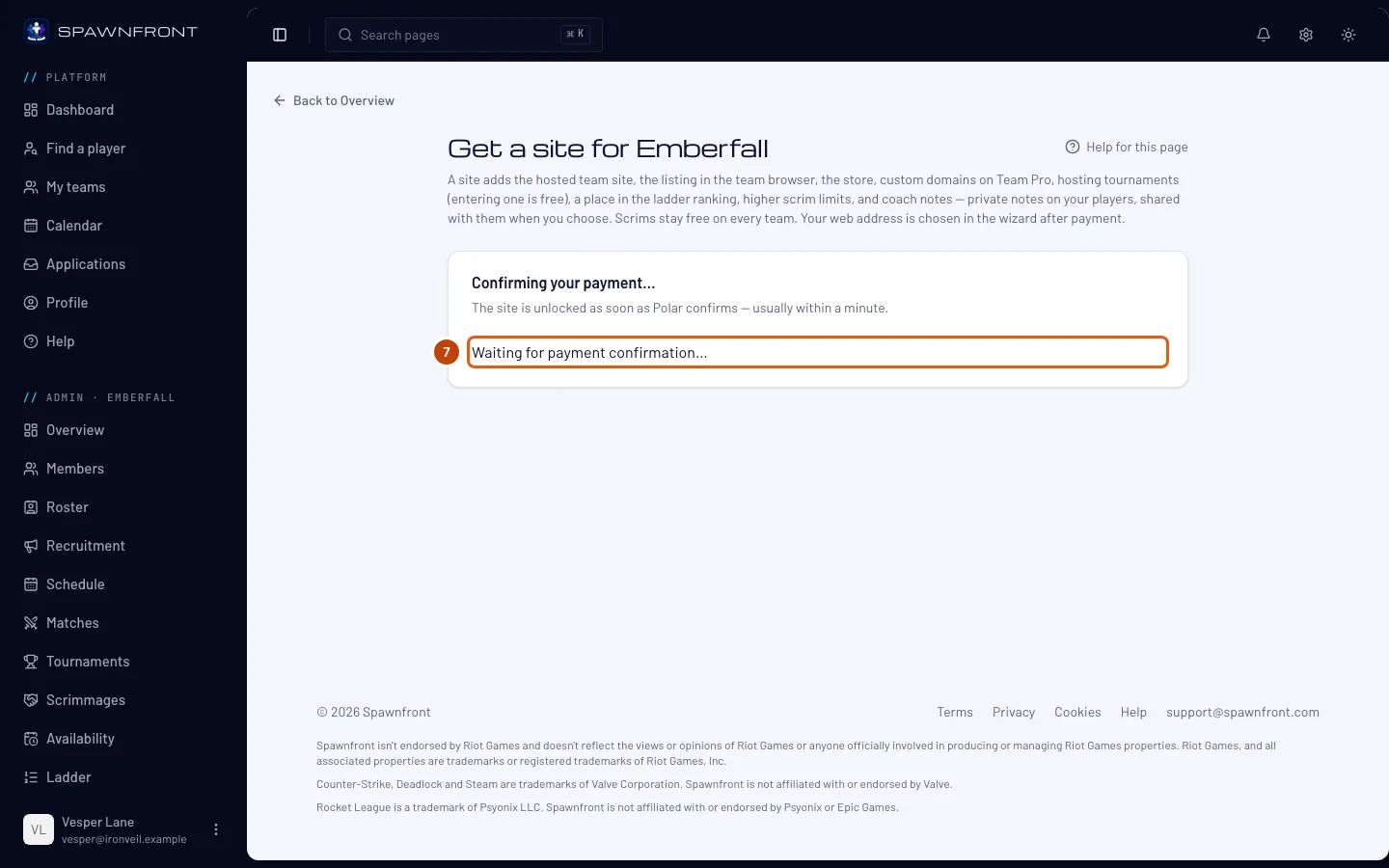
Stay on the page while the Confirming your payment… card reads Waiting for payment confirmation…. It usually takes under a minute.
Your site unlocks when Polar confirms the payment, not when the page comes back — keep this page open until that line changes.
You should see: Your site is ready to set up., with Start the wizard and Go to My teams below it.
Step 8: Start the wizard
Press Start the wizard. To do it later, press Go to My teams instead — your team's overview brings you back with Continue setup.
You should see: Set up your team, at Step 1 of 4. The wizard picks your site's web address first — see Set up your site with the wizard.
How to know it worked
- Your team's admin menu shows the site pages — Template, Pages, Publish, Billing and the rest — and no longer shows Get a site.
- Billing shows your plan, with Status reading Active.
Something doesn't look right?
It says "This team already has an active subscription."
Your team already has a site. See its plan on the Billing page. To pay for it yourself instead of the current payer, use Take over payment there — see Manage your billing.
It says "This checkout is no longer valid."
The checkout expired or was abandoned. Nothing was charged. Go back to Get a site and start again from step 2.
It still says "Waiting for payment confirmation…"
Polar can take a minute to confirm. Keep the page open. After two minutes the page says it is taking longer than usual; check whether Polar charged you before starting a new checkout.
How does the free trial work?
A team's first Team or Team Pro plan can start with 14 days free; each person who pays can use one trial. Polar takes your card at checkout and charges nothing until the trial ends. Three days before it ends, you get an email. To stop, cancel on Billing before the trial ends: the team goes back to being a free team and nothing is deleted. A domain can't be bought during the trial — connect one you own instead, or wait for your first payment.
What is a founding team?
During the founding offer, the first 50 teams in each game to subscribe to Team or Team Pro are founding teams. When your team can be one, Get a site says Founding team offer above the plans and the Checkout page shows the discount. A founding team pays 40% less for as long as it stays subscribed, gets the Founding team badge in the team browser and on its team page, and gets a referral code on Billing. A founding checkout has no free trial: the discount replaces it. If the subscription ends, the team stops being a founding team, and subscribing again costs the normal price.
I have a referral code
A founding team shared it with you. On the Checkout page, press Have a code?, type the code and press Apply. It takes 50% off your first month on a monthly plan; the yearly plan and the free trial are off while it is applied. If the code does not work, the page says so when you press Continue to payment.
My Overview shows a card about a site
A free team's Overview shows one card at a time. After your team's first settled scrim against another Spawnfront team, Your first scrim result names the opponent and the score: teams with a site are ranked on the ladder from every scrim they settle, and your results so far count the day you start. Teams looking for scrims during your practice times, or a roster big enough for a lineup, show a card with Find a scrim, which opens Scrimmages — scrims are free. A finished tournament, three applications, or a roster of three that a sponsor could pay for show what a site would add. The first-result card and the site cards have See plans, and Start 14-day free trial when your team can start one. Press Not now to hide that card for you; the next one that applies can show later.
I have a code
Choose any plan, then press Have a code? on the Checkout page. A code that makes the total $0.00 needs no card and no payment. See Use a code.
The page shows no prices
It says We can't show prices right now. Spawnfront reads the prices from Polar, and Polar did not answer. Nothing is wrong with your team. Wait a minute and reload the page.
I have free access from a gift. What happens if I pay?
The Checkout page says so at the top: your free access keeps running until the payment goes through, then the paid plan takes over. If you leave the payment page without paying, nothing changes.
I don't see Get a site in the menu
Only the team's owner and admins see the admin menu, and Get a site shows only while the team has no site. A team whose subscription ended pays again from its Billing page instead.
Related articles
Still stuck? Contact support or email support@spawnfront.com — tell us the page you're on and the step number.