
Verify a player's UID or BattleTag
Check a Marvel Rivals player's UID or an Overwatch player's BattleTag and mark it Verified on your roster.
For team owners and admins · 3 steps
What you need first
- You are the team's owner or an admin, and your team plays Marvel Rivals or Overwatch.
- In Marvel Rivals, the player is on your roster, linked to their account, and has saved their UID under Games on their profile. Their row marks it Self-reported, as UID and a number under their handle.
- In Overwatch, the player's row carries their BattleTag, like
Name#1234, which is their handle, and a career link — the address of their career page on Blizzard's Overwatch site. A linked player saves both on their profile (see Add your Overwatch career link); for a player with no account, you type the BattleTag and paste the link in their row yourself (see Manage your roster). Until you verify it, the BattleTag reads Self-reported — or Not verified on a row with no account. - You know the player's real UID or BattleTag: ask them, or look it up on their in-game profile or in the Battle.net app.
- A Marvel Rivals UID marked Confirmed by the game needs nothing from you: the Spawnfront Companion app confirmed it, which counts as verified on every team the player plays for. Its row has no Verify.
- An Overwatch BattleTag marked Verified with Battle.net needs nothing from you: the player connected their Battle.net account, which proves it on every team they play for (see Connect your Battle.net account). This article is for the UIDs and BattleTags players typed.
Steps
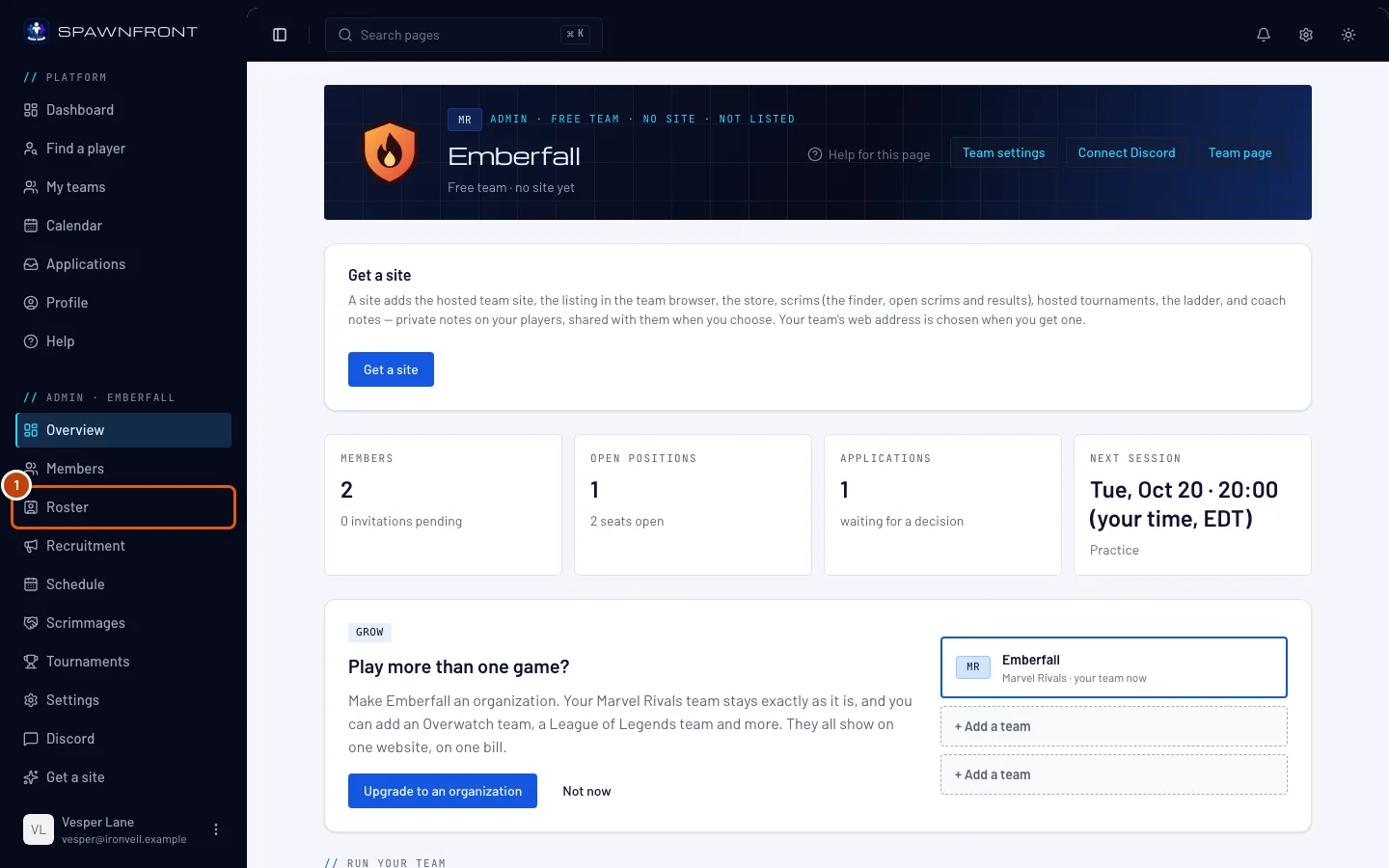
Step 1: Open Roster
In the menu on the left, under Admin, press Roster.
You should see: your Players and Staff. Under a player's handle, their UID — or, in Overwatch, the mark under their BattleTag — reads Self-reported, and their stats column reads Verify the UID to show stats (in Overwatch, Verify the BattleTag and career to show stats).
A team whose subscription has lapsed has a read-only roster, with no Edit on any row.
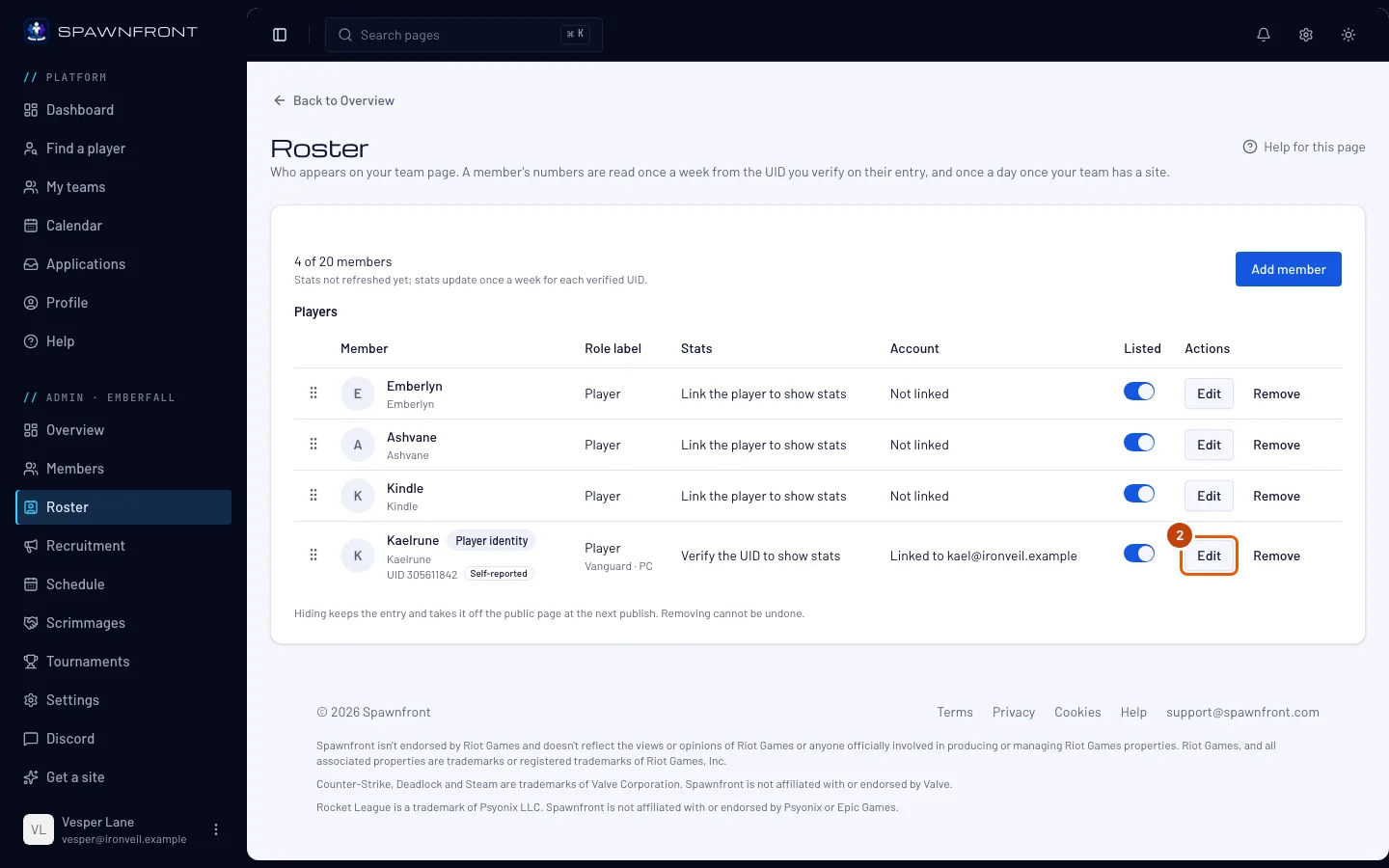
Step 2: Press Edit on the player's row
On the player's row, press Edit.
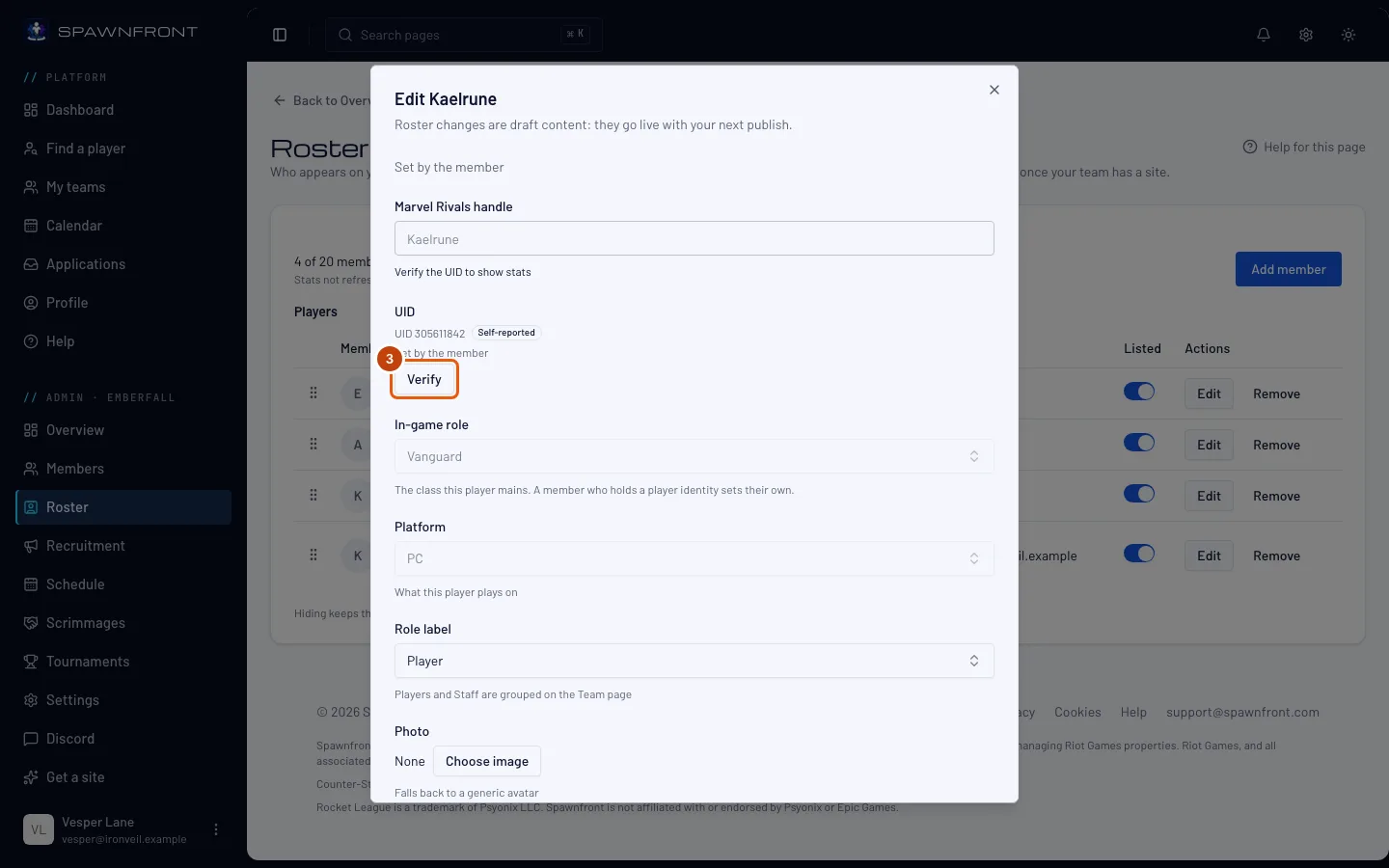
You should see: a box titled Edit and the player's name, with their UID (in Overwatch, their BattleTag and Career link) and, for a linked player, Set by the member under it.
Step 3: Press Verify
Check it against the player's real UID or BattleTag — in Overwatch, capitals too, and open the career link to see it is their career — then press Verify under it.
Spawnfront does not check it for you. Verifying says your team vouches that this UID — or in Overwatch this BattleTag and career — is your player's. In Overwatch, Spawnfront does check one thing: a career whose name is not the BattleTag's shows no stats.
In Overwatch you can verify a row with no account too, and a BattleTag with no career link — the player's lines in a Workshop log then match, but there are no stats until a link is added, and adding it clears your verification. If you changed the BattleTag or the link in this box, press Save changes first: Verify waits until then.
Verifying is what shows their stats. The first read usually comes within the hour. After that, the player's stats are read once a day on a team with a site, once a week on a free team: Marvel Rivals stats from this UID, Overwatch competitive stats from the linked career.
You should see: UID verified (in Overwatch, BattleTag verified), the box closes, and on the roster it now reads Verified. Their stats column reads Stats update daily until the first read — or Stats update weekly while your team has no site.
How to know it worked
- On your roster, the player's UID or BattleTag reads Verified.
- After the next stats read, usually within the hour, their stats column reads Updated with the date and time — or Match history private (Marvel Rivals) or Career profile private (Overwatch).
Your verification is your team's alone. Other teams the player plays for see the UID or BattleTag as Self-reported until they verify it too. To take yours back, open the player's row again and press Unverify.
A BattleTag marked Verified with Battle.net is the player's own proof, not a team's: it shows on every team they play for, and it has no Verify or Unverify. It ends only if the player leaves your roster or connects another Battle.net account.
Something doesn't look right?
There is no Verify button
In Marvel Rivals, the player has not typed a UID, or their row is not linked to their account. Ask them to add their UID under Games on their profile; to link a row, see Manage your roster. A UID marked Confirmed by the game, or a BattleTag marked Verified with Battle.net, needs no verifying, so it has no button. In Overwatch, the stats column reads Not a BattleTag when the row's handle is not one: a linked player saves their BattleTag, like Name#1234, under Games; for a player with no account, type it in the row yourself.
It says Self-reported again
The player changed their UID, BattleTag or career link, so your verification no longer applies to it. Check the new one and press Verify again.
The stats column says "Career not found"
Blizzard's Overwatch site knows no career at the linked address — a wrong or outdated career link. Ask the player to paste their career's link again under Games on their profile (for a row with no account, paste it yourself), then verify it again. It is checked again at the next read: once a day on a team with a site, once a week on a free team.
The stats column says Career doesn't match BattleTag
The career linked in the row carries another name than its BattleTag, so no stats are shown — usually another player with a similar name. Ask the player to paste their own career's link (for a row with no account, paste it yourself), then verify it again.
The stats column says "Add a career link to show stats"
The BattleTag is verified but no career link is saved, so there is nothing to read. Ask the player to add it — see Add your Overwatch career link — or, for a row with no account, paste it in the row yourself.
The stats column says "Career profile private"
The player keeps their Overwatch career profile private, which is the game's default, so only their BattleTag can be read. Send them Make your Overwatch career profile public.
Related articles
Still stuck? Contact support or email support@spawnfront.com — tell us the page you're on and the step number.