
List yourself in Find a player
Let teams find your card for a game, say you're looking for a team, choose your region and which seasons show, and open an invitation.
For players · 8 steps
What you need first
- You are logged in.
- You have saved your game identity for the game — see Add your game identity. The listing rows appear on a saved card only.
Steps
Step 1: Open Profile › Games
In the menu, press Profile, then Games in the section list, then your game's tab along the top.
You should see: your card for that game, with Save and Show my stats on team pages under the form, and four more rows below them.
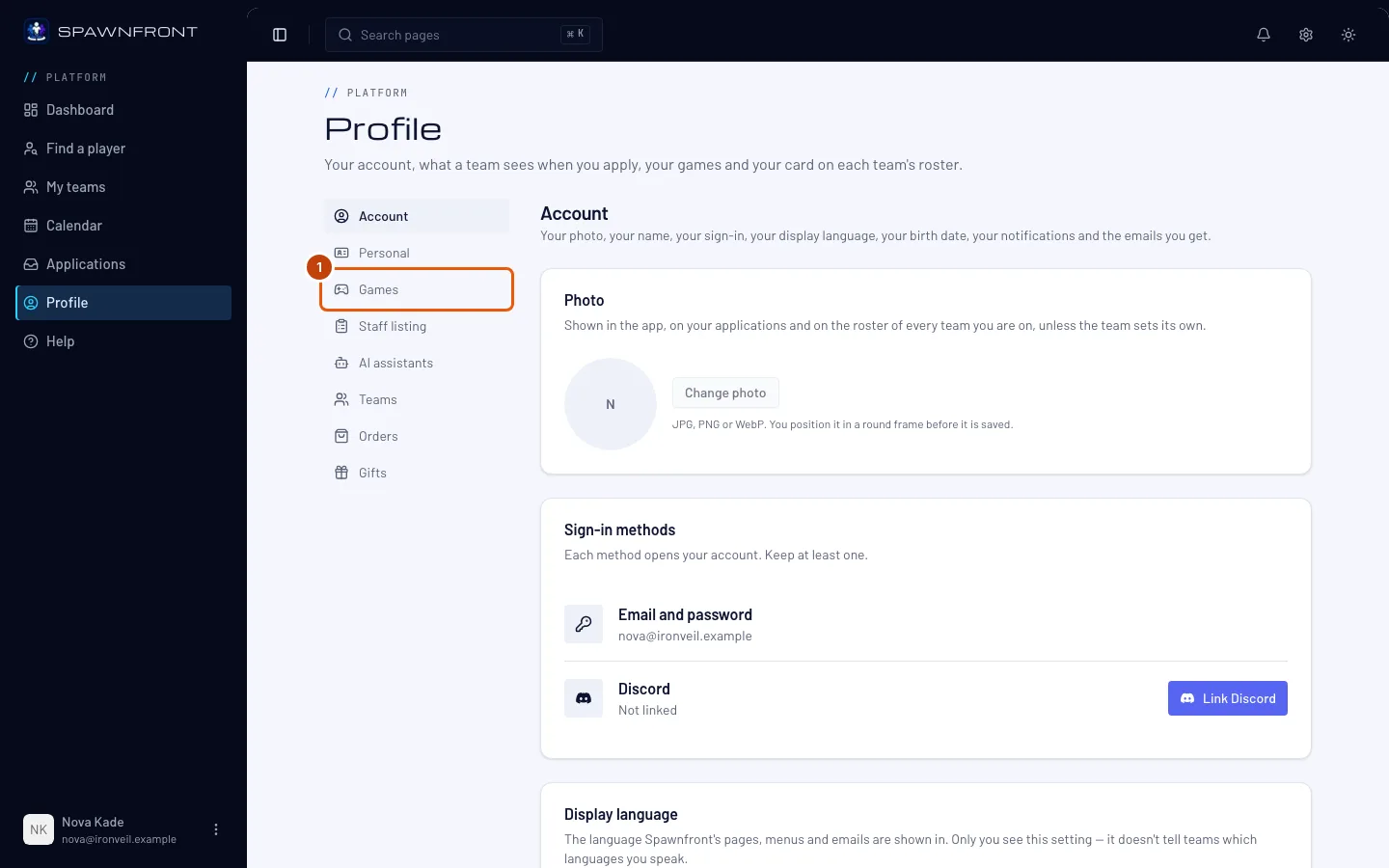
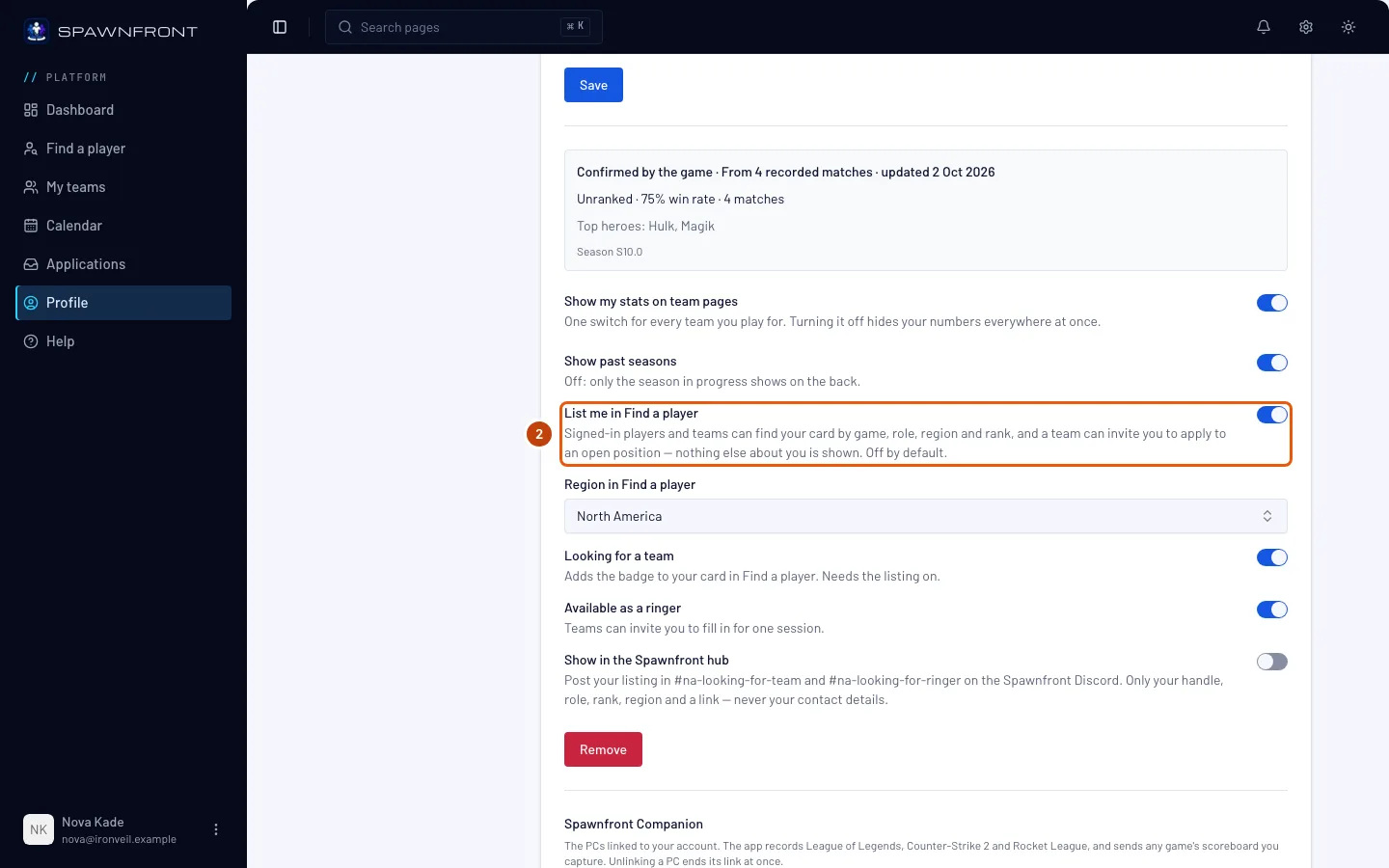
Step 2: Turn on List me in Find a player
Turn on List me in Find a player. It is off until you turn it on.
Teams see your card and nothing else. Logged-in players and teams can find it by game, role, region and rank. Your email, birth date, age, country, languages and contact details are never shown, and a team can reach you only by inviting you to apply to one of its open positions.
You should see: "Card settings saved", and you are in Find a player for this game at once.
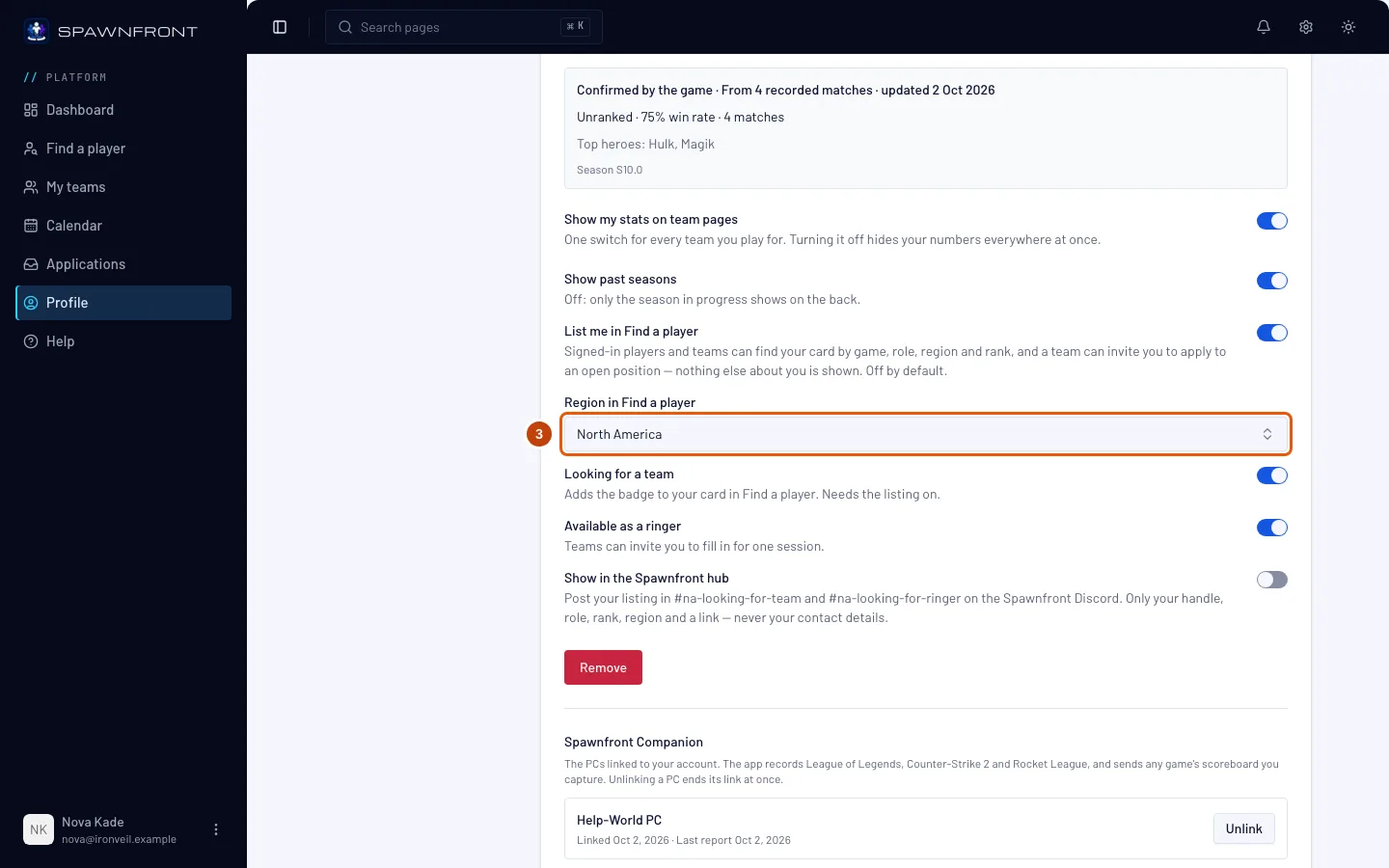
Step 3: Choose your region
For Marvel Rivals, Overwatch, Counter-Strike 2, Deadlock and Rocket League, choose where you play in Region in Find a player. Teams filter by it.
League of Legends and Valorant have no box here: your listing uses the server or Valorant region you saved above, and the row says which.
You should see: "Card settings saved".
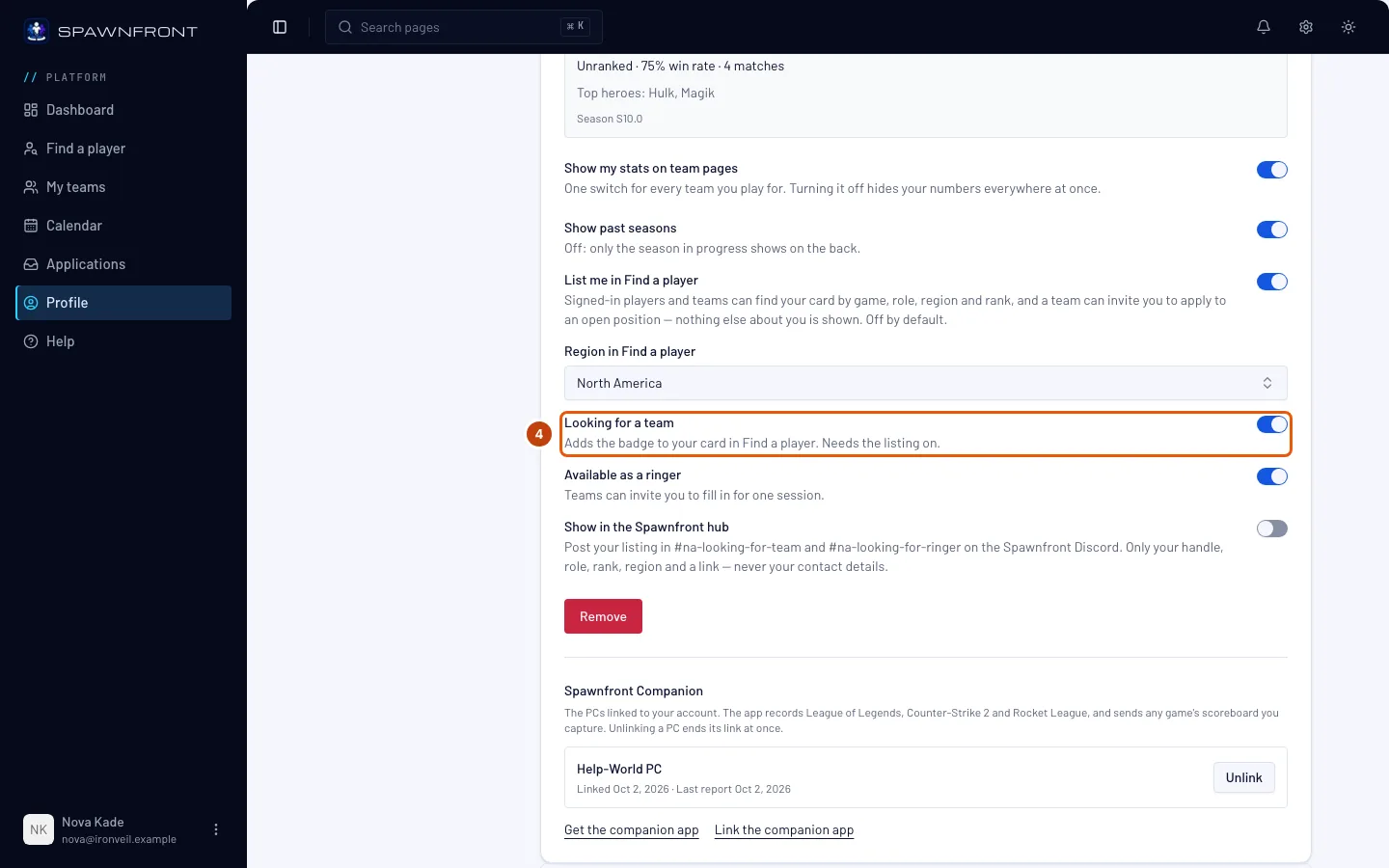
Step 4: Say you're looking for a team
Turn on Looking for a team.
It needs the listing. The switch is grayed out until List me in Find a player is on.
You should see: "Card settings saved". Your result in Find a player carries the Looking for a team badge, and you show under Looking for a team only — newest first.
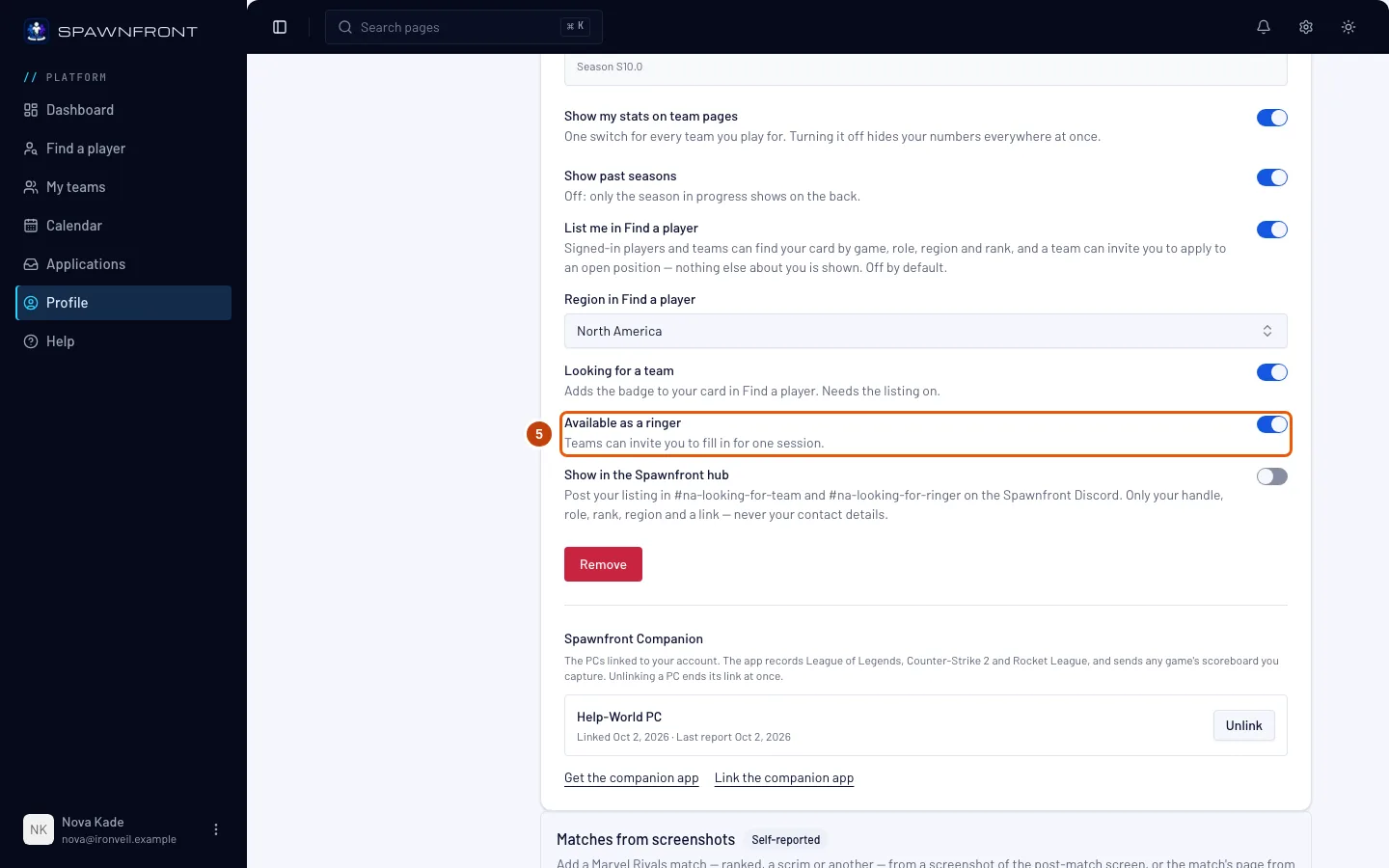
Step 5: Say you can fill in as a ringer
If you like, turn on Available as a ringer. A team that needs a player for one session can then invite you to its ringer need — even if you're on another team.
It needs the listing, like Looking for a team.
You should see: "Card settings saved". Your result in Find a player carries the Ringer badge, and you show under Ringers.
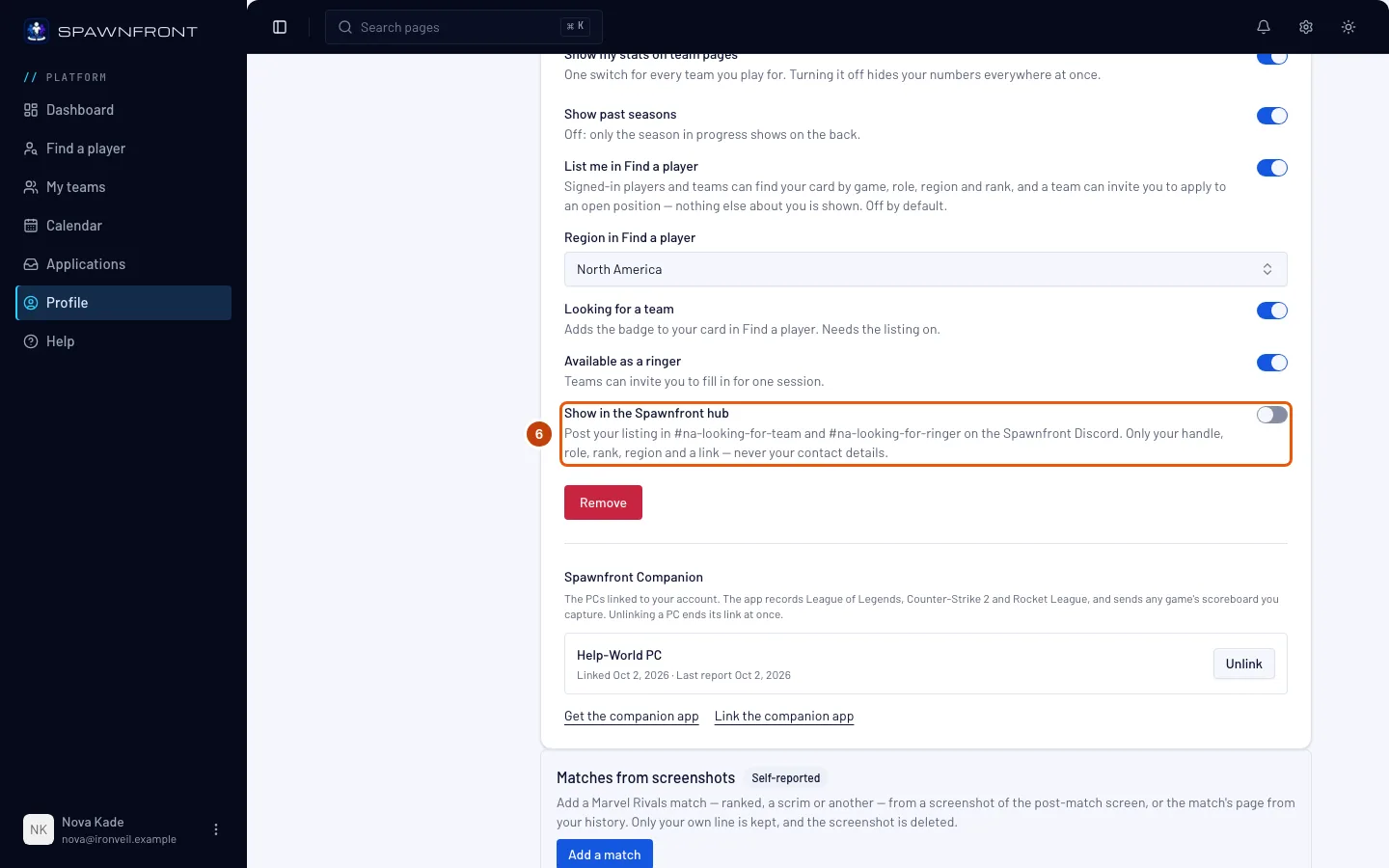
Step 6: Show your listing in the Spawnfront hub
If you like, turn on Show in the Spawnfront hub. Spawnfront's bot then posts a card for your listing on the Spawnfront Discord: in looking-for-team while Looking for a team is on, and in looking-for-ringer while Available as a ringer is on, in your region's channels (on Xbox or PlayStation, your console's recruitment channel). The card shows your handle, role, rank, region and platform, with a link to your page in Find a player — never your contact details.
It needs the listing. Turn it off, or turn the listing off, and the card is taken down: it then reads "This listing was taken down." with no name.
You should see: "Card settings saved".
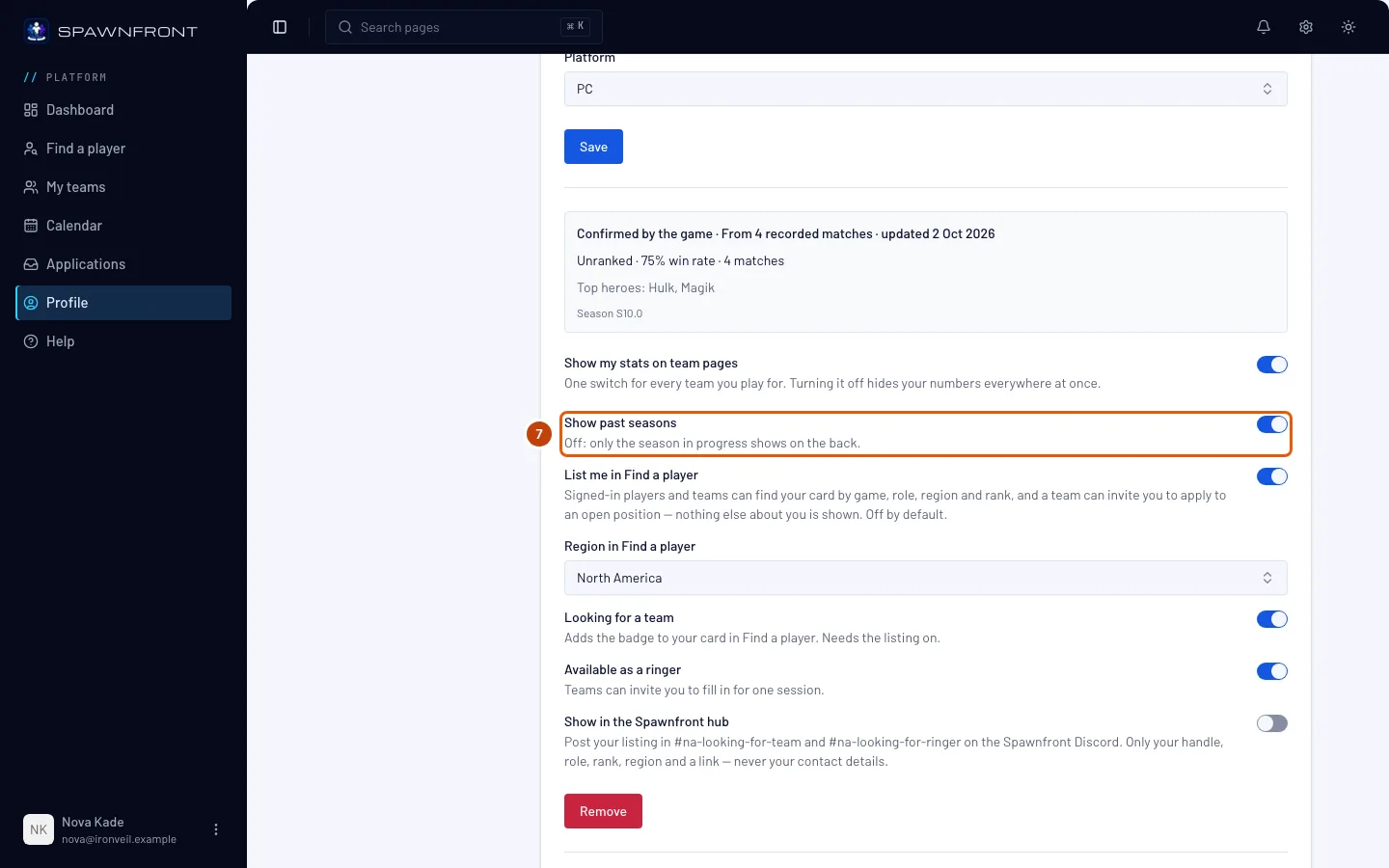
Step 7: Choose whether past seasons show
Show past seasons is on by default. Turn it off to show only the season in progress on the back of your card.
It changes every card of yours for this game — in Find a player and on your teams' pages and websites.
You should see: "Card settings saved".
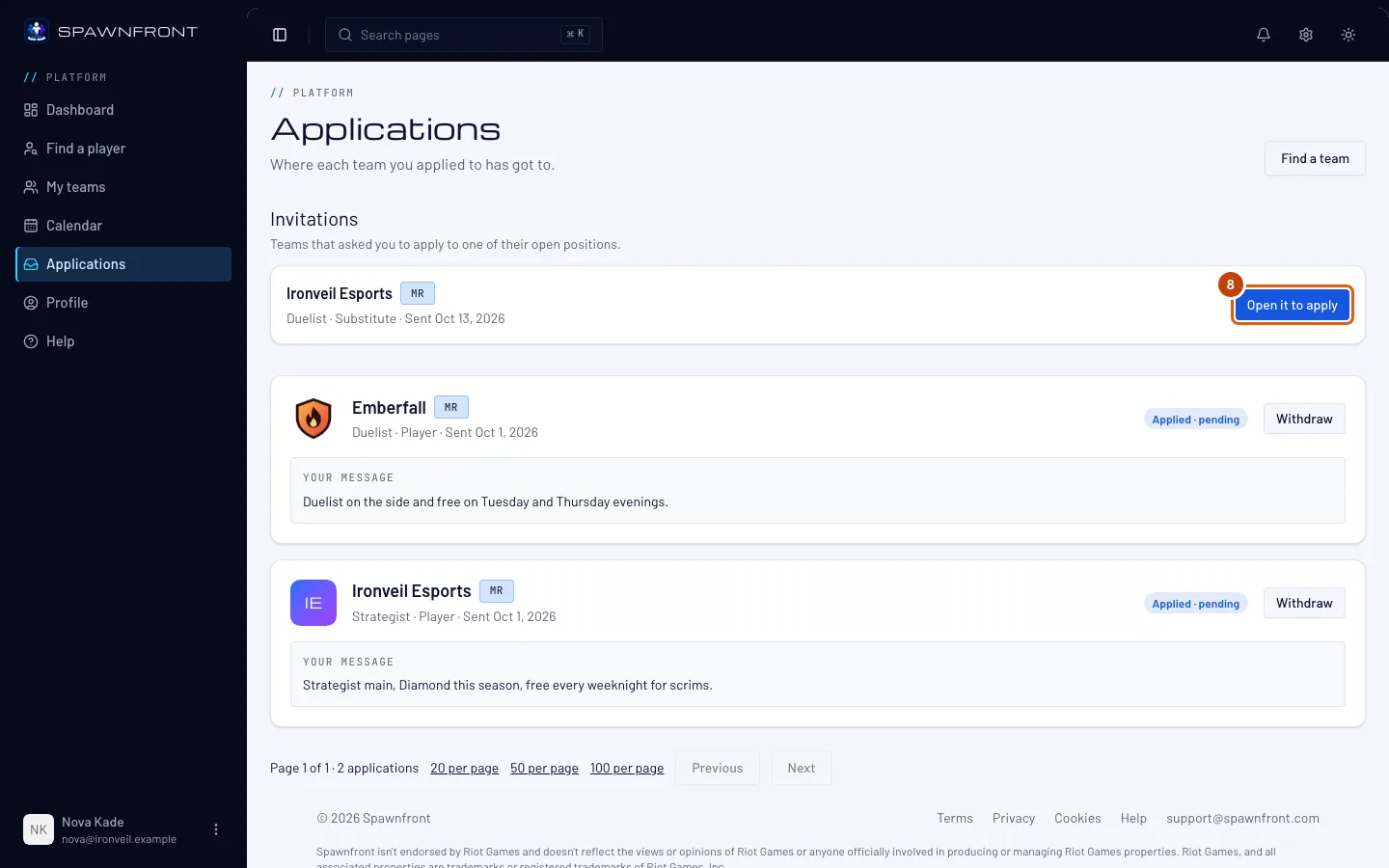
Step 8: Open an invitation
When a team invites you, you get a notice in the bell — "… invited you to apply for … — open it to apply" — and an email. In the menu, press Applications. Under Invitations, press Open it to apply on the team's row.
You should see: the Apply box for that position — see Apply to a team. A team sees your contact details only when you apply.
How to know it worked
- In Find a player, your game's tab lists you, with the Looking for a team and Ringer badges if you turned them on.
To stop being listed, turn off List me in Find a player. Looking for a team turns off with it. You leave Find a player at once, teams can no longer invite you, and invitations you already have go quiet: no new notice or email reaches you from them.
Something doesn't look right?
I can't turn on Looking for a team
Turn on List me in Find a player first; Looking for a team needs the listing.
I don't see the listing rows
They appear on a saved game card. Fill in the card and press Save first — see Add your game identity.
My listing turned itself off
Spawnfront staff can take a listing out of Find a player, for example over a handle that breaks the rules. Your other settings stay, and you can list yourself again.
An invitation says "This position is closed"
The team filled or closed that position. There is nothing to apply to; the row stays for your record.
Related articles
Still stuck? Contact support or email support@spawnfront.com — tell us the page you're on and the step number.