
Install the companion app
Download Spawnfront Companion on a Windows PC, open it past Windows' warning, and link it to your account with a code. It records Counter-Strike 2, League of Legends and Rocket League, and sends a scoreboard when you press Ctrl+Shift+S.
For players · 10 steps
What you need first
- A Windows PC. The app does not run on a console, a Mac or a phone.
- The app records Counter-Strike 2, League of Legends and Rocket League by itself. Counter-Strike 2 starts recording after you next start the game. League of Legends records ranked, normal and custom Summoner's Rift games. Rocket League records Standard, Doubles and Duel on PC.
- Rocket League records once you turn it on. In the app, press Settings, then turn on Record Rocket League: the app changes one setting in Rocket League's own files so the game shares each match, and Rocket League must restart before the first match is recorded. The app sends each Duel, Doubles and Standard match you finish (never one with bots), and a Standard match of your scrim fills in the scrim's result once players on both teams have recorded it.
- In Marvel Rivals, Overwatch, League of Legends, Valorant, Counter-Strike 2, Deadlock and Rocket League, you can send a scoreboard yourself with Ctrl+Shift+S — see Send a scoreboard from the app; Rocket League's goes to your own card only. Marvel Rivals and Overwatch stats also come from your team verifying your UID or BattleTag, and Deadlock's from confirming your Steam account — the app doesn't record Deadlock — see Add your game identity.
- The app and your stats are free. Your stats belong to your account, on a free team too; a team's site pays for the team's own tools, never for your stats.
- You have a Spawnfront account, and you can log in to it on that PC.
Steps
Step 1: Open the download page
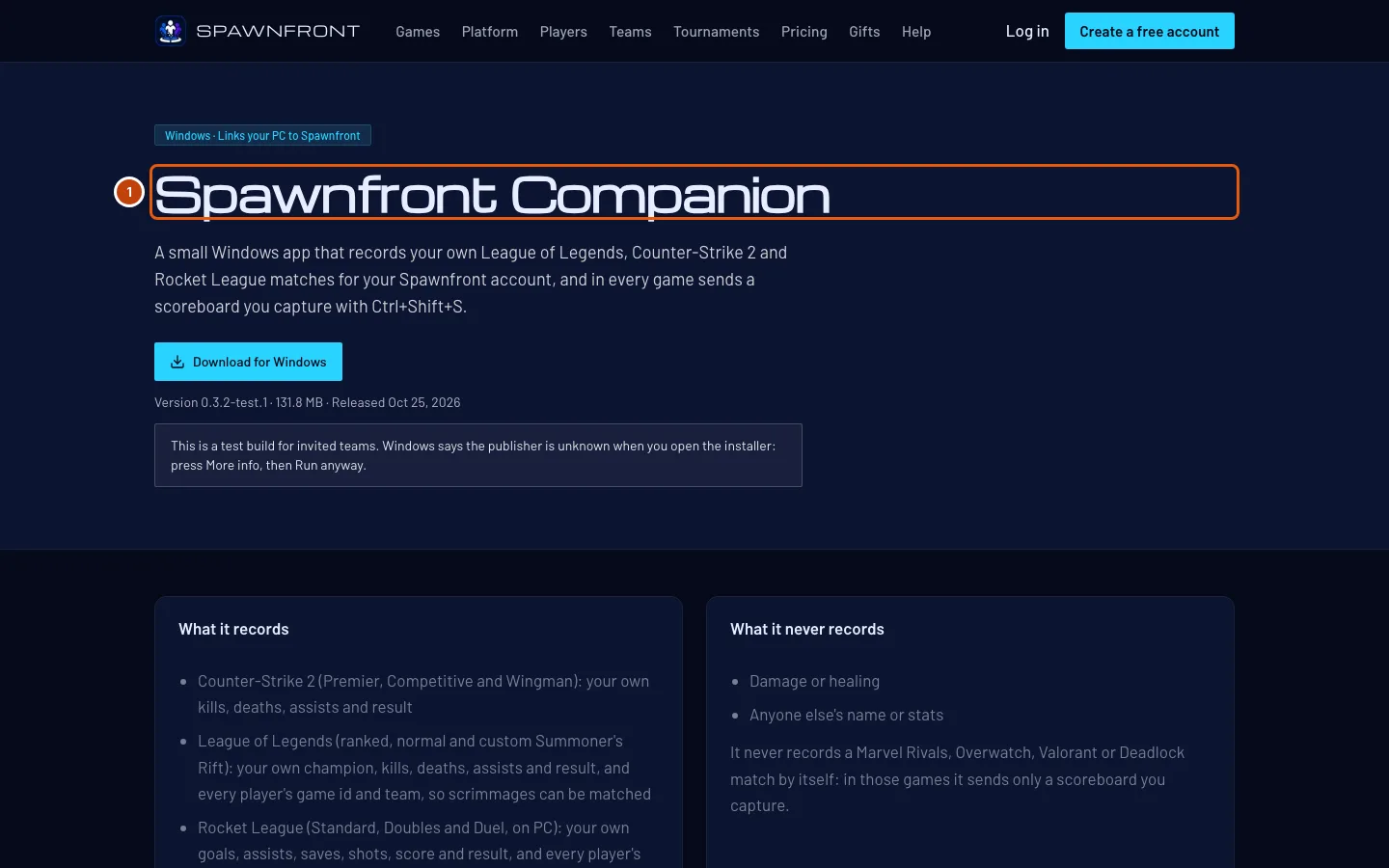
On the Windows PC, go to spawnfront.com/companion.
You should see: a page titled Spawnfront Companion, with a Download for Windows button and the version under it.
Step 2: Download the installer
Press Download for Windows.
You should see: a file whose name starts with
SpawnfrontCompanion-Setupin your Downloads folder.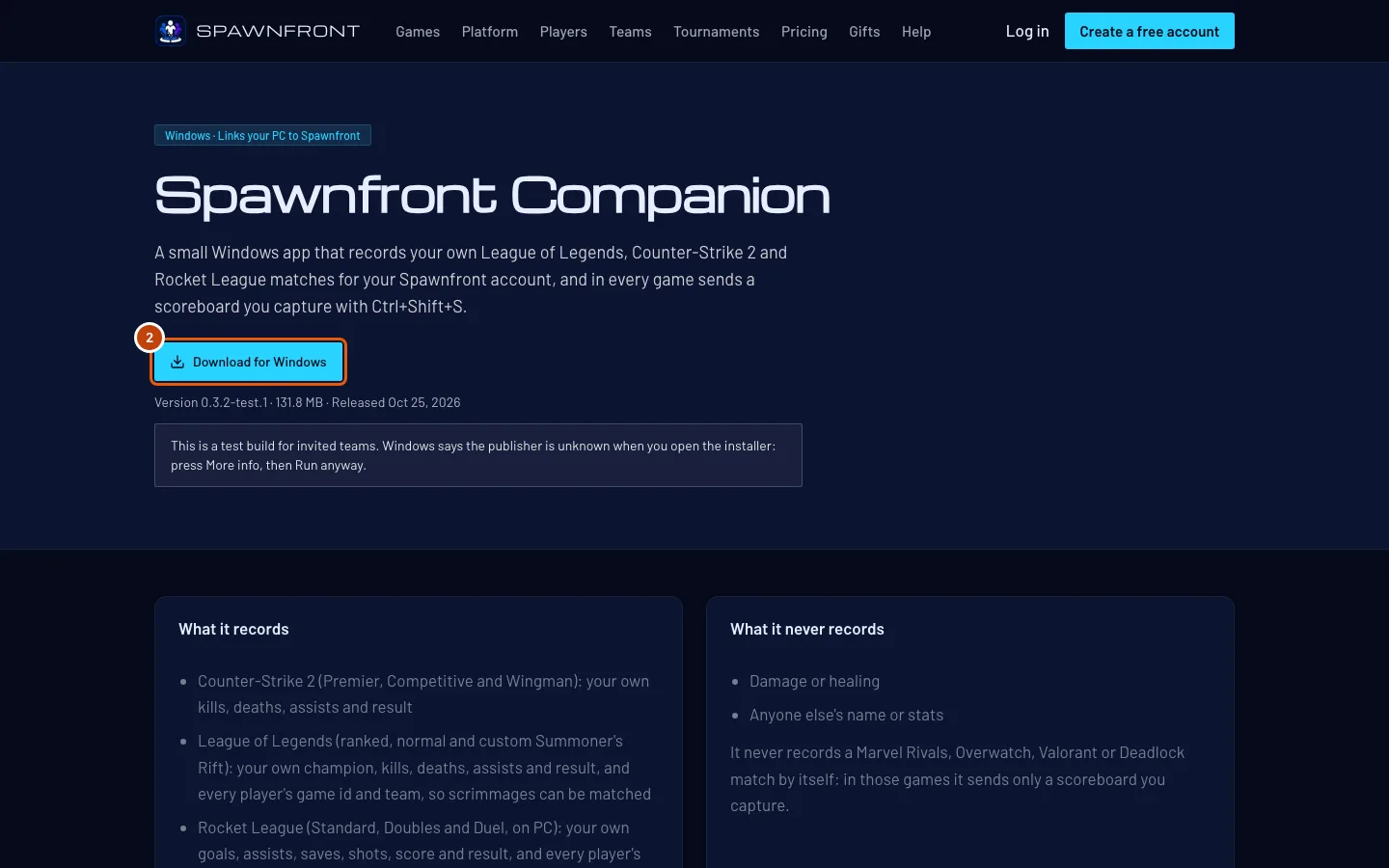
Step 3: Open the installer
Open the file you downloaded.
Windows says the publisher is unknown, because the app is not signed yet: press More info, then Run anyway. The warning is titled Windows protected your PC.
You should see: Spawnfront Companion Setup, on a page titled Choose Installation Options.
Step 4: Press Next
Leave Only for me chosen and press Next.
You should see: Choose Install Location, with the folder the app goes into.
Step 5: Press Install
Press Install.
You should see: the installer copy the app, then Completing Spawnfront Companion Setup, with Run Spawnfront Companion ticked.
Step 6: Press Finish
Press Finish.
You should see: Spawnfront Companion open, titled Link Spawnfront Companion to your account, with a code in large letters, like
7KQM-2XRD, and the buttons Open Spawnfront, Copy code and New code. If it does not open, open it from the Start menu.No password is ever typed into the app. You link it from the website, where you are logged in.
Step 7: Press Open Spawnfront
In the app, press Open Spawnfront.
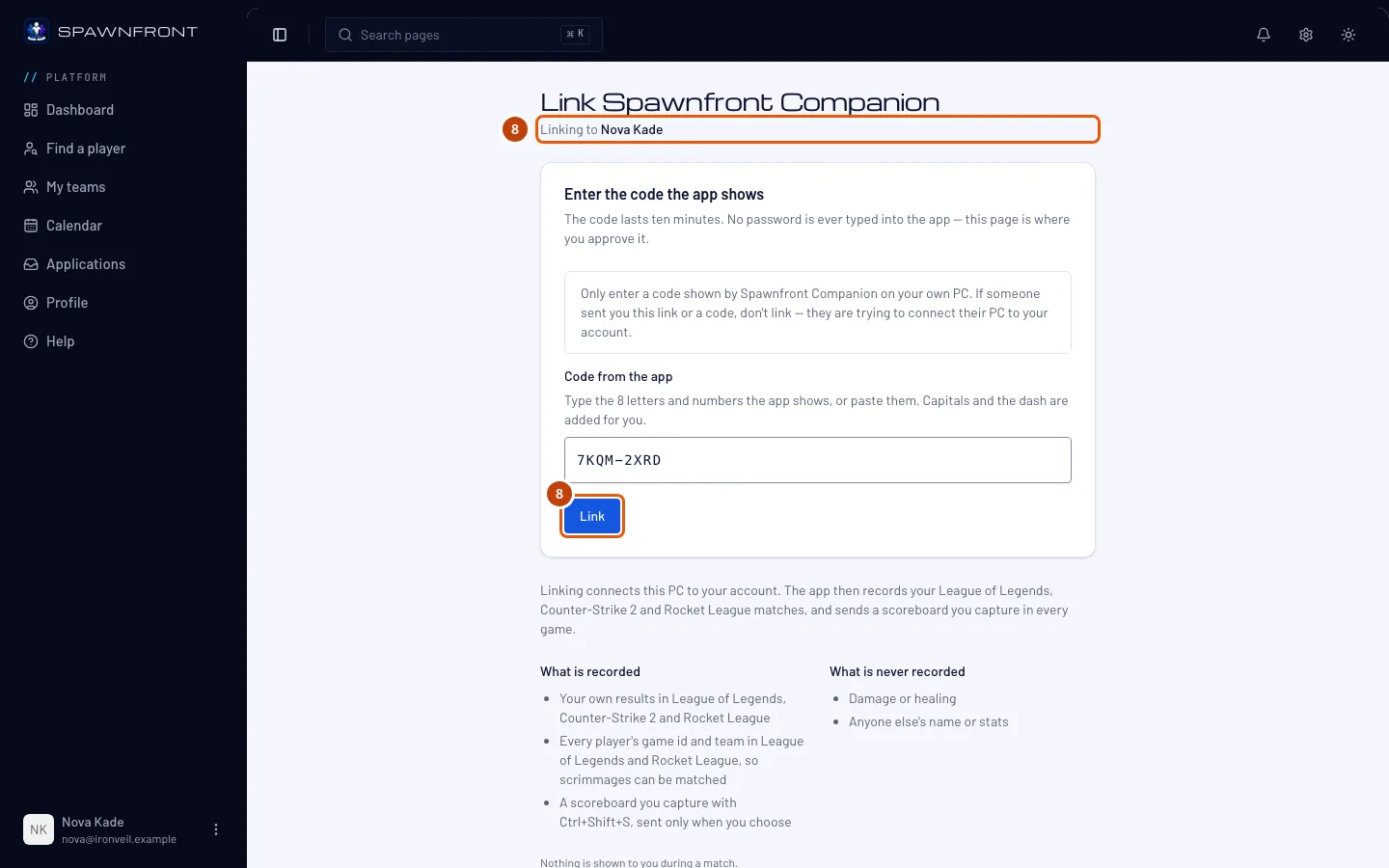
You should see: your browser opens a page titled Link Spawnfront Companion, with the code already in Code from the app.
If you are asked to log in first, the code is not carried over. Log in, then press Copy code in the app and paste it into Code from the app.
The code works for ten minutes. If it runs out, press New code in the app.
Step 8: Check the account and press Link
Under the title, read Linking to and check it names your own account. Then press Link.
You should see: "Linked — go back to the app".
Only enter a code your own PC shows. If someone sent you a code or a link to this page, do not link it: that would connect their PC to your account.
Step 9: Go back to the app
Switch to Spawnfront Companion.
You should see: Ready when you are, then Linked as and your name, then Recording is on with "Play Counter-Strike 2 and League of Legends — each match is recorded when it ends."
Step 10: Check your PC on your profile
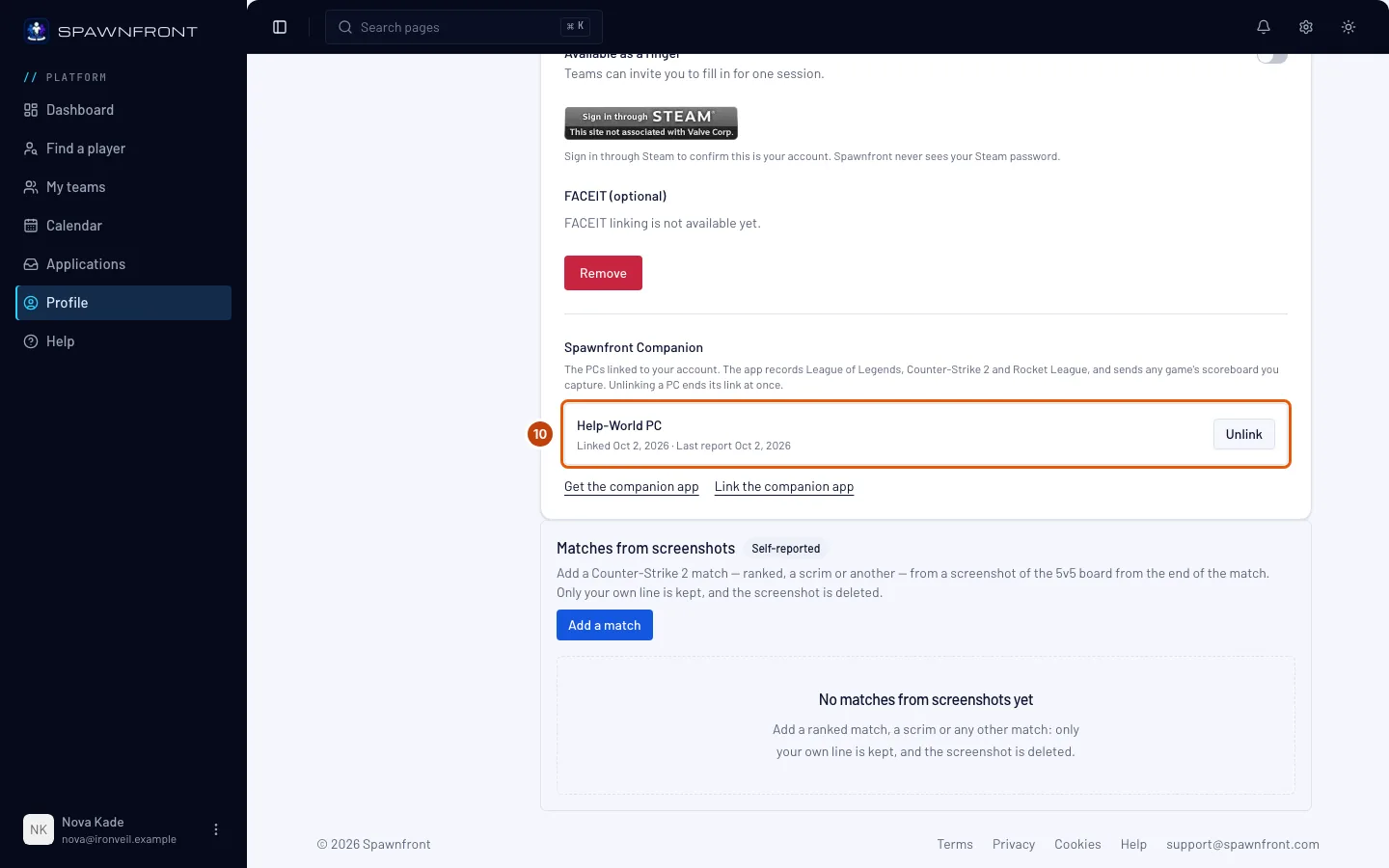
On spawnfront.com, press Profile in the menu, Games in the section list, then the Counter-Strike 2 tab.
You should see: under Spawnfront Companion, a row with your PC's name, Linked with today's date, and No reports yet — or Last report and its date, once the app has sent a match. Your linked PCs are listed at the foot of every game's tab, and the top of the page has the app's two links, whichever game is open.
How to know it worked
- The app shows Ready when you are and Linked as with your name.
- On your profile, under Spawnfront Companion, your PC is listed with Linked and the date.
- The app's tabs — Home, My stats, My teams, Applications and Schedule — show your own stats for each game, your teams, the applications you sent (and, for a team you run, the ones waiting for you), and your teams' sessions for the next two weeks with your own late or out mark. They are read from Spawnfront at most every five minutes; anything you change, you change on Spawnfront.
Something doesn't look right?
Windows says it protected my PC
The app is not signed yet, so Windows does not know its publisher. On Windows protected your PC, press More info, check the app's name starts with SpawnfrontCompanion-Setup, then press Run anyway. Only run an installer you downloaded from spawnfront.com/companion yourself.
The link page says the code didn't work
The code was mistyped, has run out, or was already used. Press New code in the app and enter the new one. You can try five times an hour.
The app says "Too many codes were asked for from this network. Try again in an hour."
Codes were asked for too many times from your internet connection. Wait an hour, then press New code.
The app says "Update needed"
The app shows Update Spawnfront Companion to keep recording when this version is too old for Spawnfront. Press Update now. The app downloads the update, then restarts as the new version. Your link and anything waiting on the PC are kept.
If the app opens Spawnfront Help instead, your version is older than the app's own updates: download the new installer from spawnfront.com/companion and open it. It installs over the old app, so you don't need to uninstall it or link the PC again.
The app says "An update is ready"
The app checks for a new version when it starts and every few hours, and downloads it while you play. Press Restart and update to install it now; the app closes for a few seconds and opens again, still linked. Or press Later, and press Restart and update when it suits you. To check yourself, press Settings, then Check for updates.
The app says "Unlinked"
The app shows This PC was unlinked from your Spawnfront profile when the PC was unlinked on your profile, or its link stopped working. Resetting your password unlinks every PC linked before it, so someone who knew your old password can't keep using a PC they linked. Link it again from step 7: the app already shows a new code.
I want to unlink this PC
In the app, press Settings, then Unlink this PC. Or, on your profile, press Unlink beside the PC under Spawnfront Companion. The app goes back to its code screen.
Related articles
Still stuck? Contact support or email support@spawnfront.com — tell us the page you're on and the step number.