
Confirm your Steam account
Sign in through Steam from your Counter-Strike 2 or Deadlock identity to prove the Steam account is yours; Spawnfront never sees your password.
For players · 3 steps
What you need first
- You have a Spawnfront account and are logged in.
- You have saved a Counter-Strike 2 or Deadlock identity on your profile's Games section. The Steam button appears only after you save one.
- You can sign in to the Steam account you play that game on. Each game's identity is confirmed on its own: confirming Counter-Strike 2 does not confirm Deadlock.
Steps
Step 1: Open your game's identity
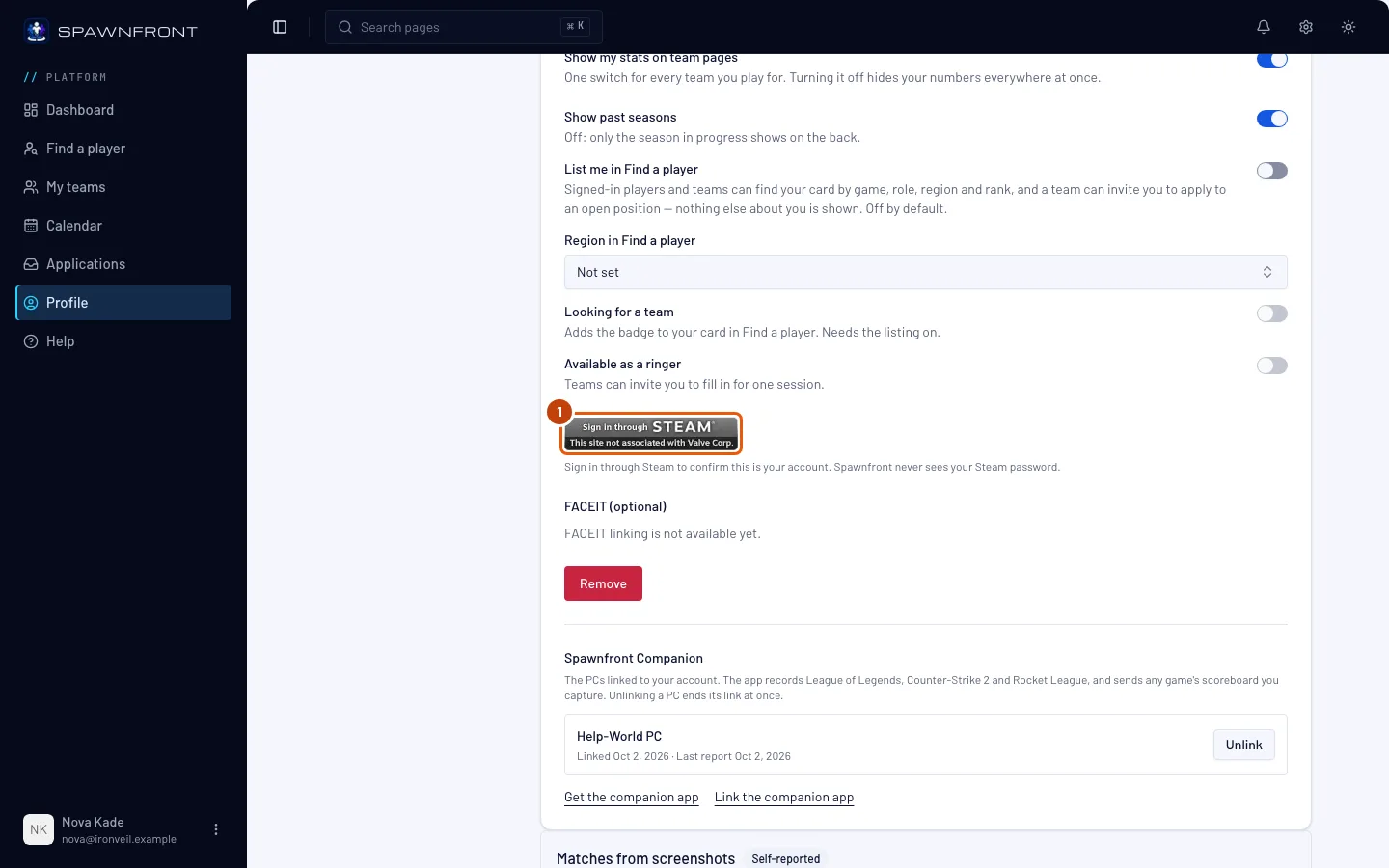
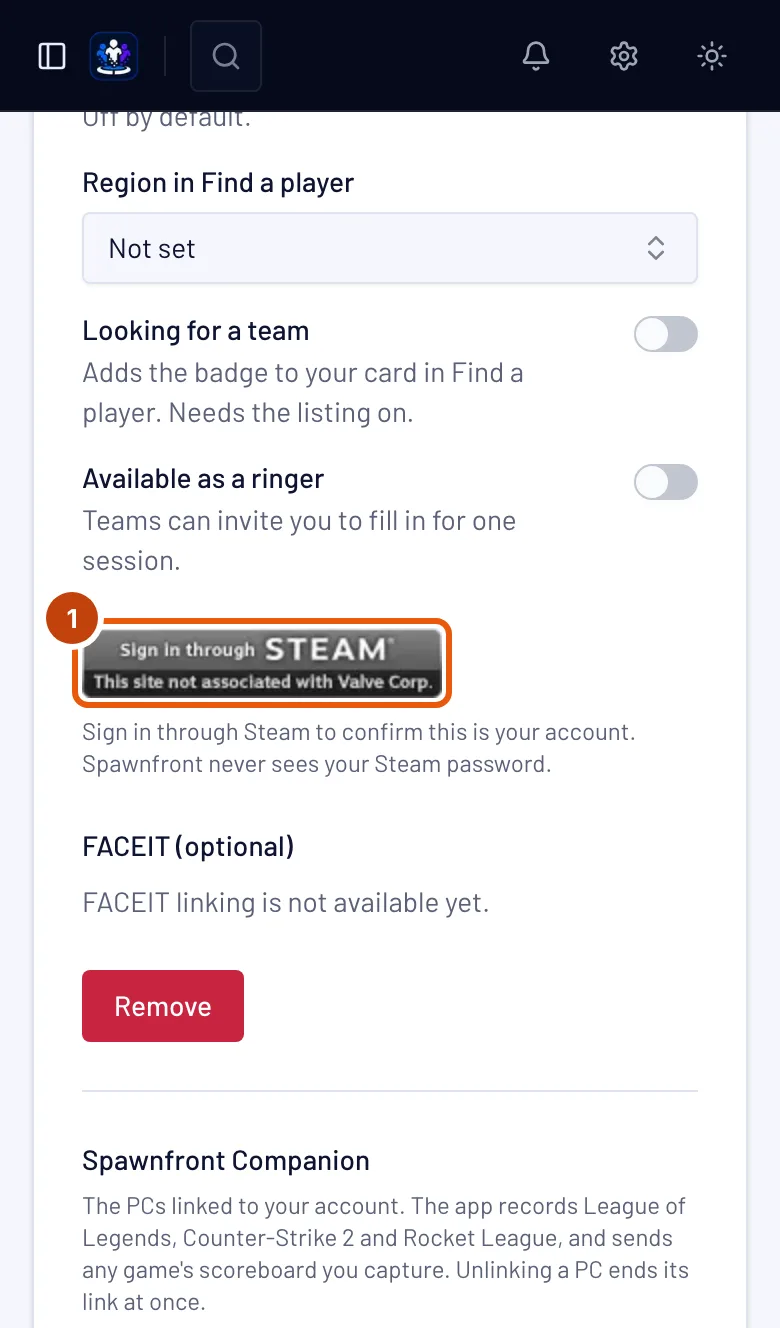
Open your Profile, then Games in the section list, and the Counter-Strike 2 or Deadlock tab.
You should see: your handle and roles, and a Sign in through Steam button under them.
Step 2: Press Sign in through Steam
Press Sign in through Steam.
You should see: Steam's own sign-in page, on steamcommunity.com. You type your password on Steam, never on Spawnfront — Spawnfront never sees it, and Steam shares no email address with us. If Steam asks for a code from the Steam Guard app or your email, Steam's help explains it.
Step 3: Sign in on Steam
Sign in with the Steam account you play the game on, and confirm on Steam's page. Finish within ten minutes; an older attempt expires.
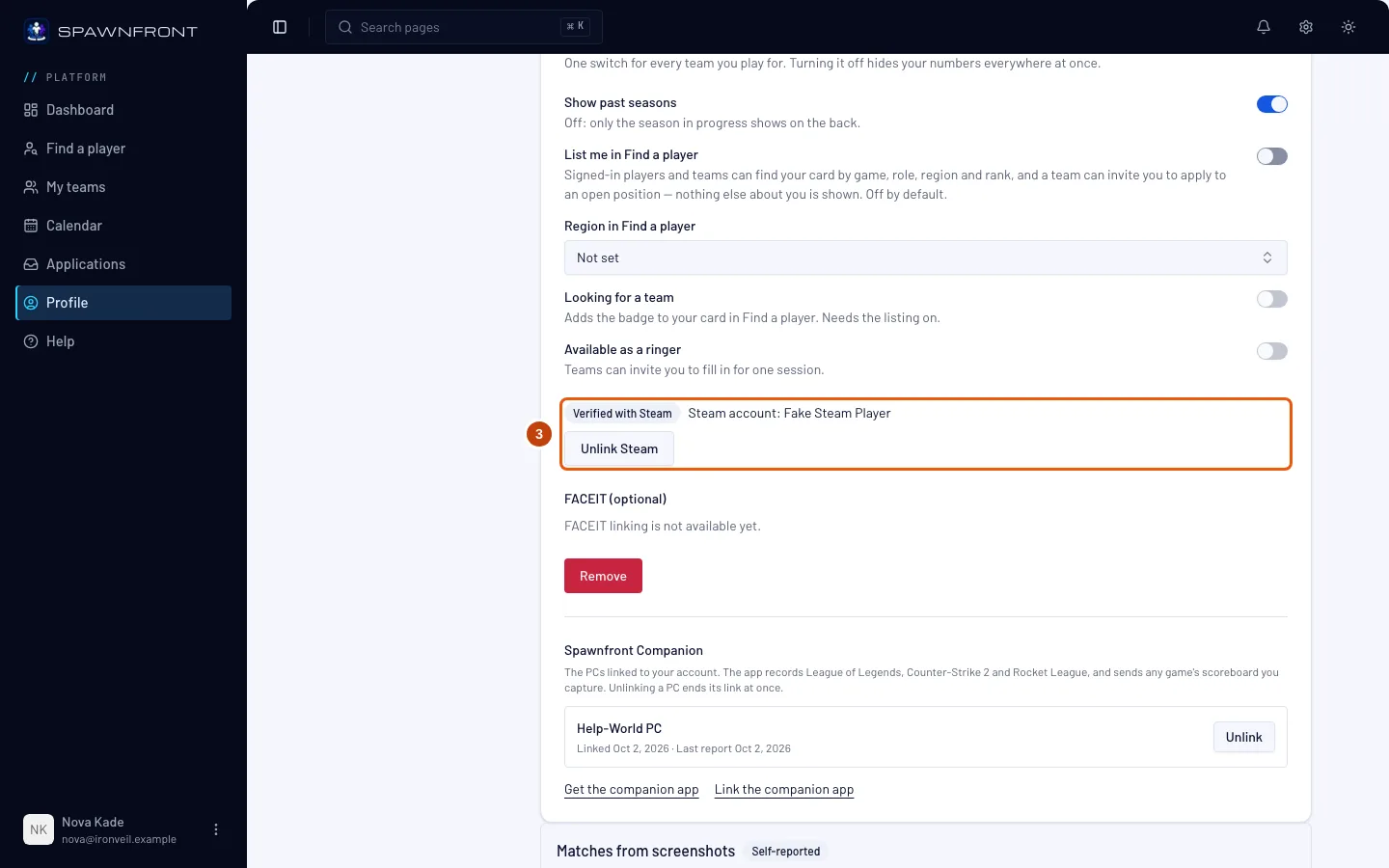
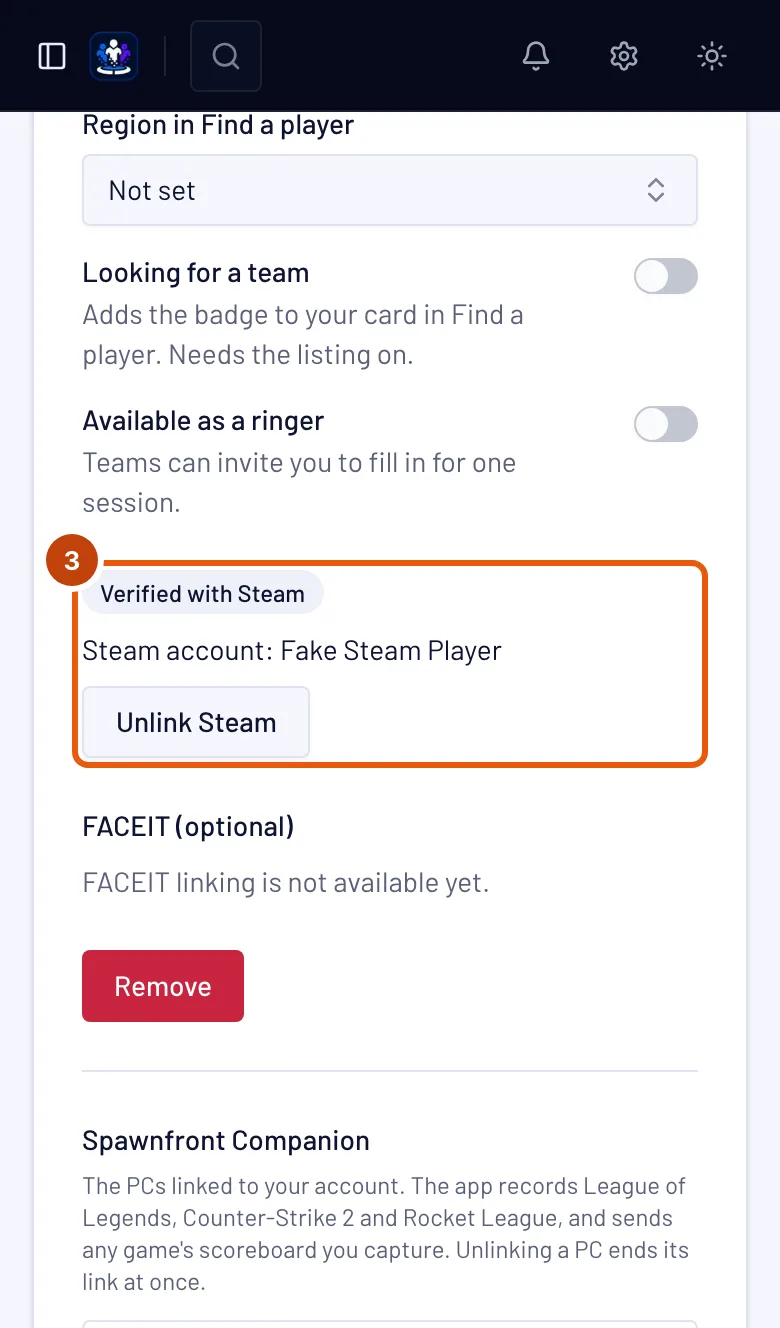
You should see: your Spawnfront profile again, with "Your Steam account is confirmed." and Verified with Steam on that game's card.
How to know it worked
- The game's card reads Verified with Steam.
- On the roster of every team you play that game for, Verified with Steam shows beside your name.
- If Spawnfront can read it, the card also shows Steam account: and your Steam name. Only you see it.
Something doesn't look right?
Why confirm with Steam?
It proves the Steam account behind your identity is yours. Teams can then trust that the matches they see are your own. Spawnfront keeps your Steam account's number (its SteamID64) to know your matches by, and never shows it to anyone.
Does my team need to verify it?
No. You proved the account yourself, through Steam, so it counts as verified on every team you join — no team checks or verifies anything. Your team's roster shows Verified with Steam beside you.
What does Spawnfront keep?
The SteamID64 of the account you signed in with, the time you confirmed, and your Steam name when Steam shares it. The Steam name is shown on your own profile only, never on a team page. Your handle stays what you typed.
How do I unlink Steam?
Press Unlink Steam on the game's card. Spawnfront forgets the Steam account and your Steam name. You can confirm again at any time.
It says the attempt expired
You took longer than ten minutes, or used an old tab. Press Sign in through Steam again.
It says Steam did not confirm the sign-in
The sign-in was cancelled or Steam could not be reached. Press Sign in through Steam again in a minute.
It says the Steam account is confirmed on another Spawnfront account
One Steam account can confirm one Spawnfront account. Sign in to the other Spawnfront account and unlink Steam there, or contact support if it is not yours.
It says this identity is already confirmed with another Steam account
That game's identity is confirmed with a different Steam account. Press Unlink Steam first, then sign in through Steam with the account you want.
Spawnfront Companion opened a page that says Connect Steam
That page is the same sign-in, started from the app after you pressed Ctrl+Shift+S on a Deadlock scoreboard. Sign in to Spawnfront if it asks. If you have no Deadlock identity yet, type your name under Your name in Deadlock: Deadlock shows your Steam name on the scoreboard, and it's the name at the top right of the Steam window. Press Continue to Steam and sign in on Steam. Your Deadlock identity is set up and confirmed in one go, and the page tells you to go back to Spawnfront Companion.
It says too many attempts
You can start ten sign-ins an hour. Wait an hour and try again.
Related articles
Still stuck? Contact support or email support@spawnfront.com — tell us the page you're on and the step number.