
Sign in with Discord
Continue with Discord to log in or create your account, or link Discord to the account you already have from Profile.
For everyone · 6 steps
What you need first
- A Discord account whose email Discord has verified. Discord shows it under User Settings › My Account.
- You are 13 or older.
- To link Discord to an account you already have, you can log in to it with your email and password.
Steps
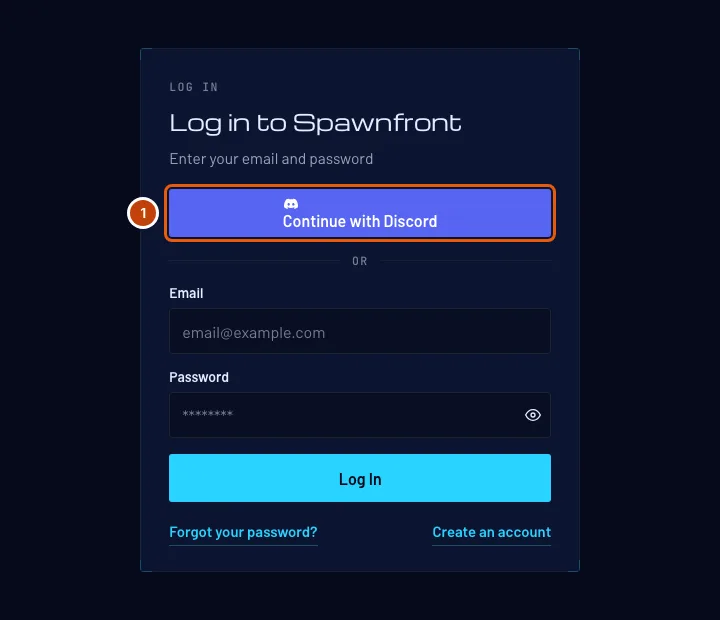
Step 1: Press Continue with Discord
On the Log in page, press Continue with Discord, above the email and password.
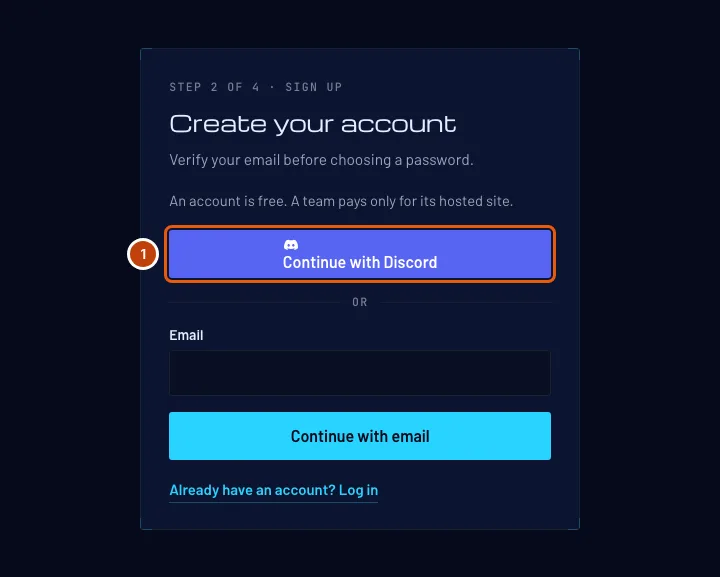
New to Spawnfront? You can also start from Create a free account: answer the birth-date screen, then press Continue with Discord above the email box.
You should see: Discord's own page, asking to share your username and email with Spawnfront.
Step 2: Approve on Discord
On Discord's page, check that it names the Discord account you want, then press Authorize. Finish within ten minutes; an older attempt expires.
Spawnfront never sees your Discord password. Discord shares your username and your email, and nothing else.
You should see one of these:
- Your Dashboard, if this Discord account is already linked to your Spawnfront account, or if its verified email is your account's email. In the second case Discord is now linked to that account, and we email you to say so.
- Confirm your birth date, if no Spawnfront account uses this email yet. Go on to step 3.
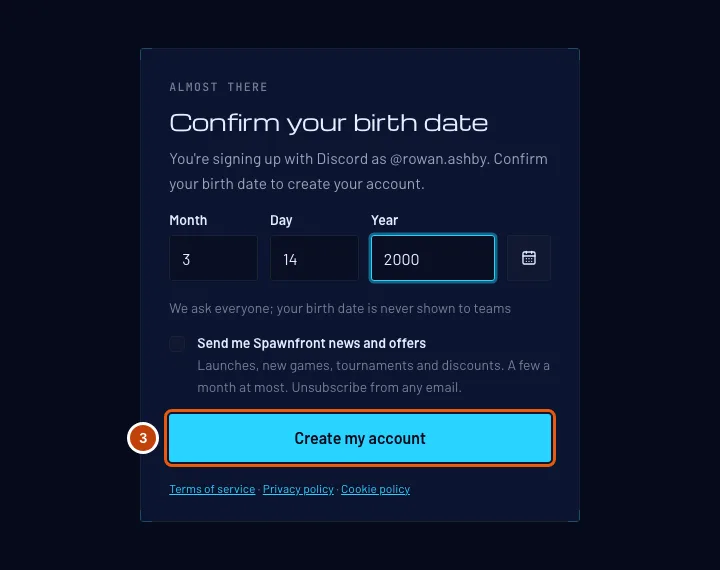
Step 3: Confirm your birth date if you are new
Type your birth Month, Day and Year as numbers. The cursor moves to the next box by itself once a month or day is complete. Or press the calendar button beside the boxes, choose the year and month, and press your day. Then press Create my account.
We ask everyone, and your birth date is never shown to teams. If you already answered it on Create a free account, this screen is skipped.
You can also tick Send me Spawnfront news and offers here — optional, and unticked unless you tick it (Email preferences).
You should see: your Dashboard, with "Signed up with Discord as @…". Your Discord username is your display name; change it on your profile whenever you like.
Step 4: Open Profile
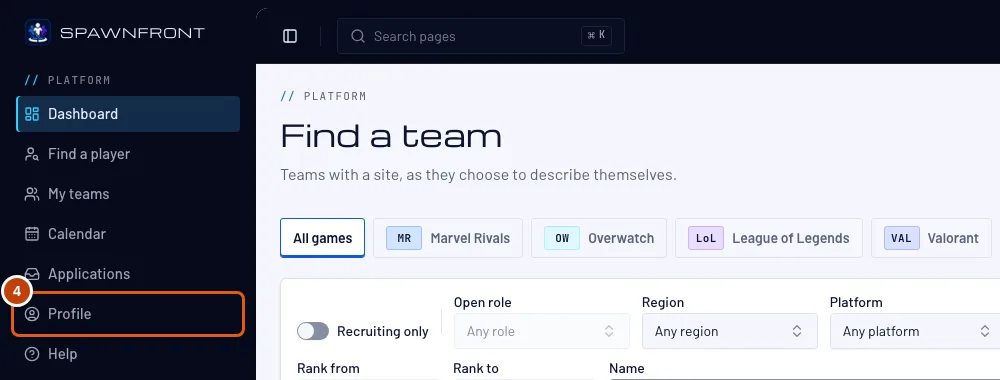
To add Discord to an account you log in to with a password, log in as usual and press Profile in the menu.
You should see: Profile, with the Account section open and a Sign-in methods card.
Step 5: Press Link Discord
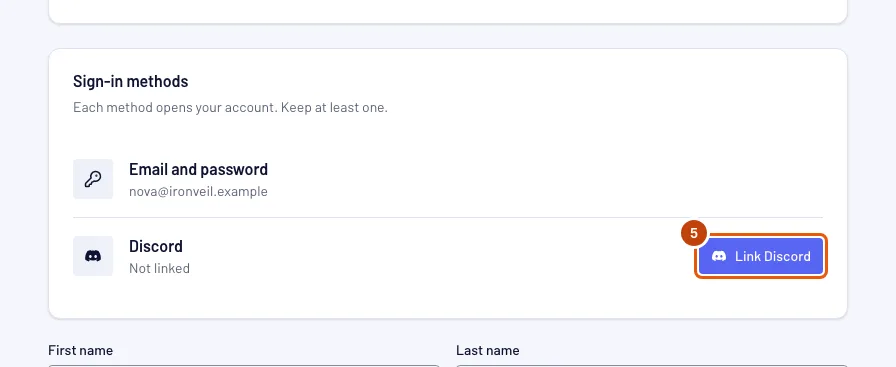
On the Sign-in methods card, press Link Discord on the Discord row, then approve on Discord's page as in step 2.
Any Discord account can be linked here, whatever its email. One Discord account opens one Spawnfront account, and an account has one Discord.
You should see: "Discord linked. You can sign in with it now." and the Discord row reading Linked as @…. We email your account's address to say Discord was added.
Step 6: Unlink Discord
On the Sign-in methods card, press Unlink on the Discord row, then Unlink in the box that opens. Keep Discord closes it without a change.
You keep at least one way in. While Discord is your only one, Unlink is grayed out: press Set a password first, and choose one from the email we send.
You should see: the Discord row reading Not linked. We email your account's address to say Discord was removed.
How to know it worked
- Profile's Sign-in methods card shows Linked as @… on the Discord row.
- Logging out, then pressing Continue with Discord on the Log in page, opens your Dashboard.
Something doesn't look right?
What does Spawnfront keep from Discord?
Your Discord account's id and username, and the display name and picture Discord shows. If Discord created your account, the email Discord verified became your account's email; it does not change when you change your email on Discord. Spawnfront keeps nothing that lets it act as you on Discord.
I have two Spawnfront accounts. Will Discord join them?
No. Spawnfront never combines two accounts. Continue with Discord opens one account: the one this Discord account is linked to, or else the one whose email is the email Discord verified. To use Discord on the other account, unlink it from the first (step 6) and link it on the second (steps 4 and 5).
It says “Discord sign-in didn't finish. Try again.”
You took longer than ten minutes, cancelled on Discord's page, or used an old tab. Press Continue with Discord again.
It says “Discord sign-in didn't finish”, and I got an email saying my account is suspended
Spawnfront's staff suspended your account, so neither Discord nor your password logs you in until the suspension ends. The email says why and until when. See Your account was suspended.
It says “Discord hasn't verified this email”
Discord has not confirmed the email on your Discord account, so Spawnfront cannot use it. Verify it in Discord's User Settings › My Account, then try again — or create your account with your email instead (Create a free account, then Continue with email).
It says “This email's account adds Discord from its profile”
A Spawnfront account already uses this email, but it cannot be linked at sign-in — usually because it already has a different Discord account linked. Log in with your email and password, open Profile, unlink the other Discord account if there is one, then press Link Discord (steps 4 to 6).
It says “This Discord account is linked to another Spawnfront account”
One Discord account opens one Spawnfront account. Log in to the other account, unlink Discord there (step 6), then link it here.
It says “That Discord account doesn't match. Nothing changed.”
You approved a different Discord account from the one this needs — your account already has one linked, or you were confirming a deletion with Discord. Log out of Discord in your browser, log in as the right account, and try again.
Unlink is grayed out
Discord is your only way in. Press Set a password on the Sign-in methods card, choose a password from the email we send, then unlink.
It says “Too many attempts with Discord”
You can go to Discord from Spawnfront ten times an hour: each link, import, confirmation before deleting your account, and bot install counts. Wait an hour and try again.
I signed up with Discord. How do I delete my account?
Press Delete account on Profile, then Confirm with Discord in the box that opens, and approve on Discord's page with the same Discord account. Back on Profile you can delete the account.
Related articles
Still stuck? Contact support or email support@spawnfront.com — tell us the page you're on and the step number.