
Import your game accounts from Discord
Fill your Riot ID, Steam, BattleTag and platform from the accounts you connected on Discord, then save — nothing is saved until you do.
For players · 7 steps
What you need first
- You are logged in. Your account does not need Discord linked to it.
- Your game accounts are connected on Discord, under User Settings › Connections: Riot Games, Steam, Battle.net, Epic Games, Xbox, PlayStation or Twitch.
Steps
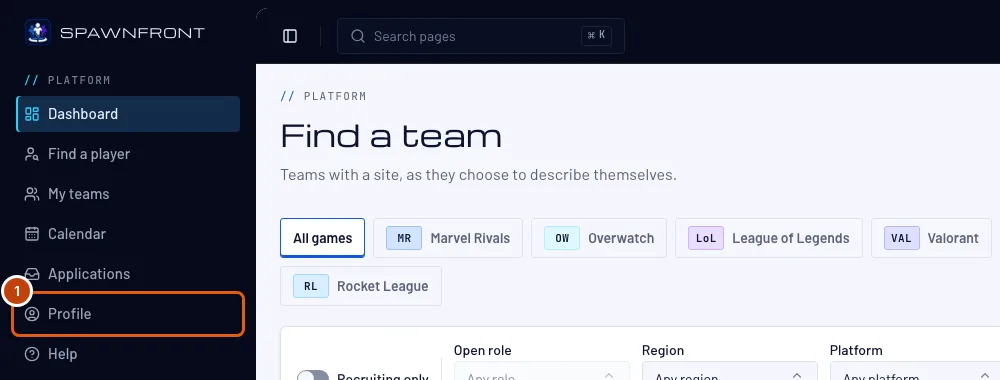
Step 1: Open Profile
In the menu, press Profile.
You should see: Profile, with the Account section open.
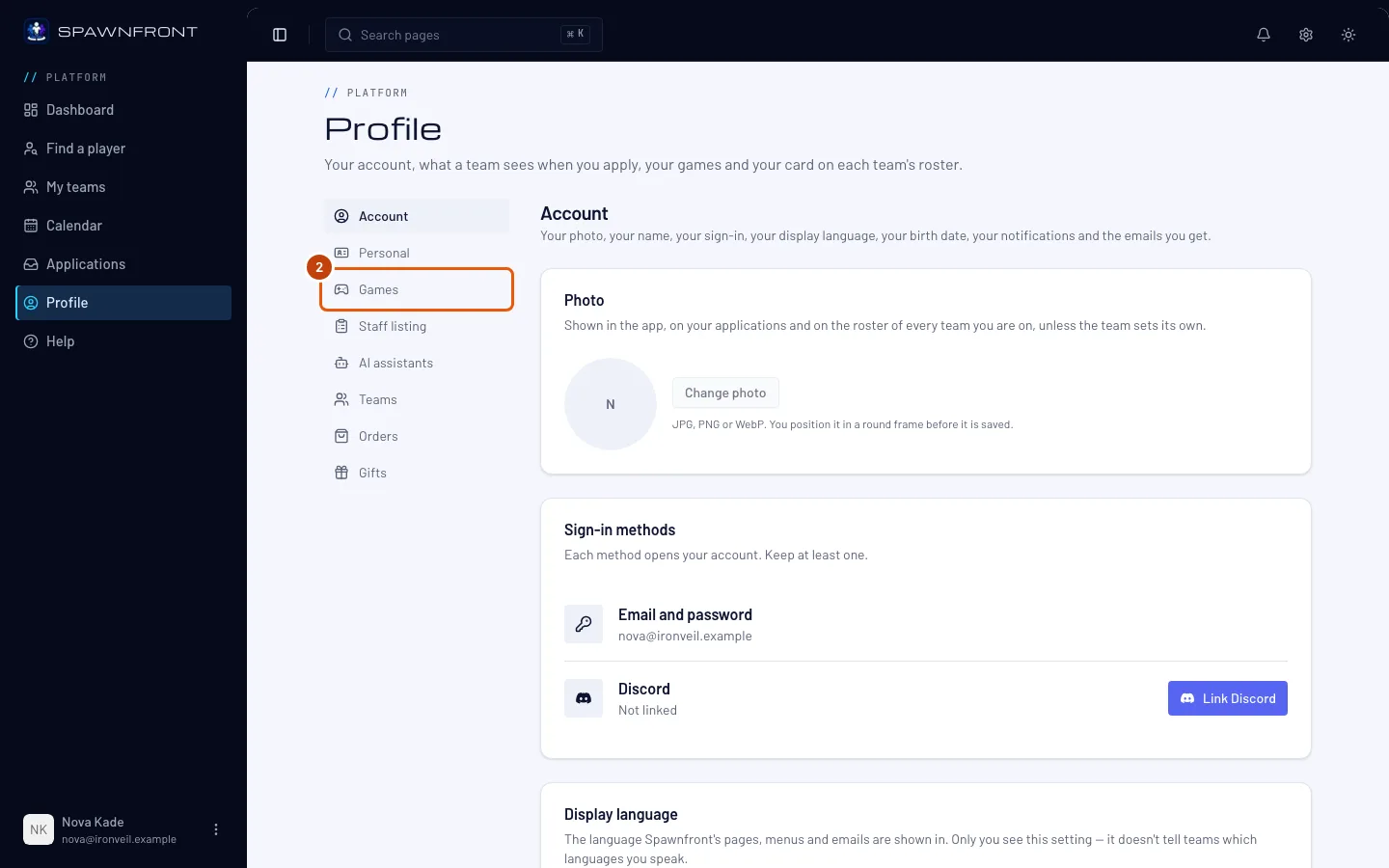
Step 2: Open Games
Press Games in the section list.
You should see: an Import from Discord button above the game tabs.
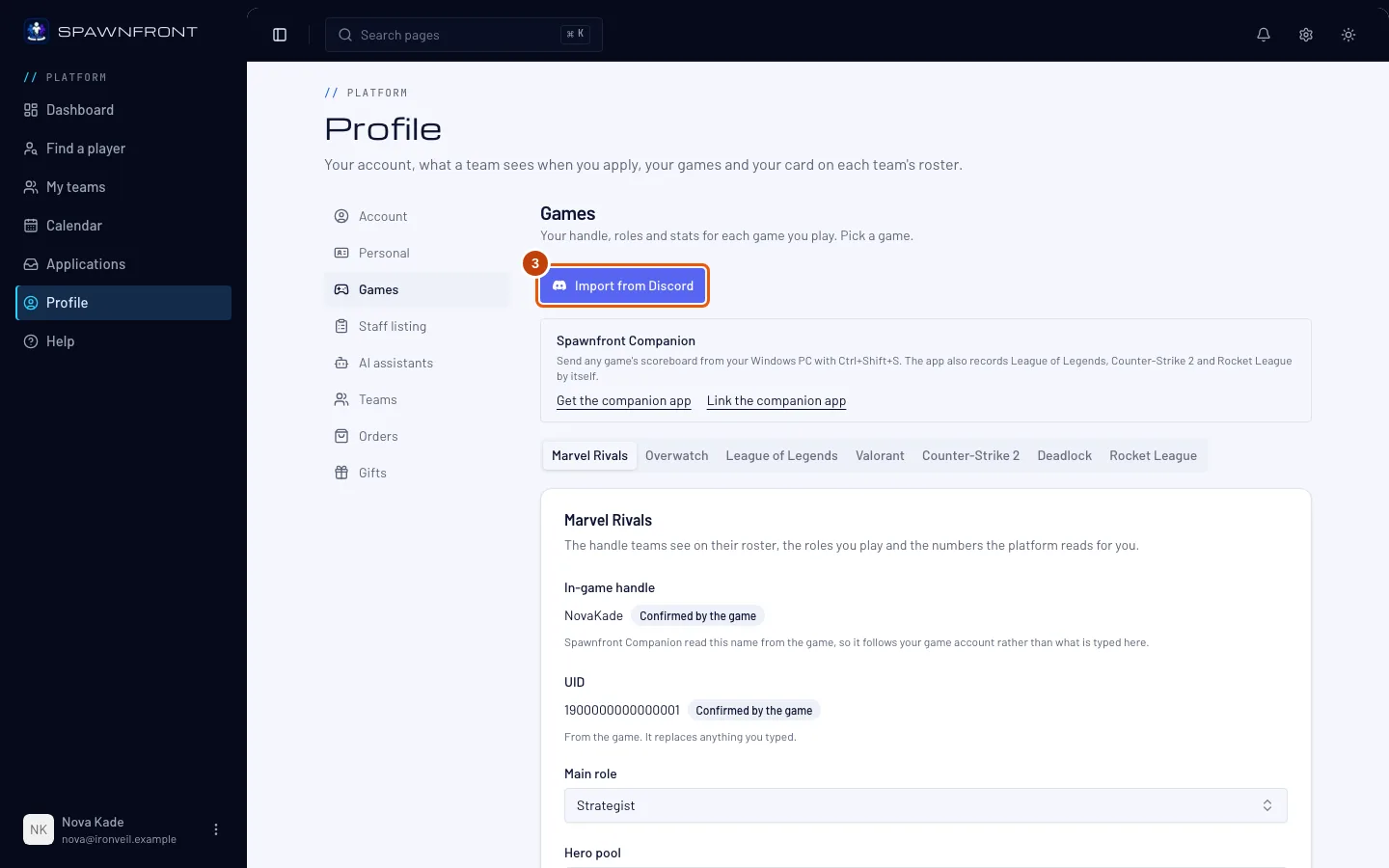
Step 3: Press Import from Discord
Press Import from Discord.
You should see: Discord's own page, asking to share your connections with Spawnfront.
Step 4: Approve on Discord
On Discord's page, check that it names your Discord account, then press Authorize. Discord shares your connected accounts and nothing else — not your email, not your messages.
You should see: your Games section again, with a box titled From your Discord connections.
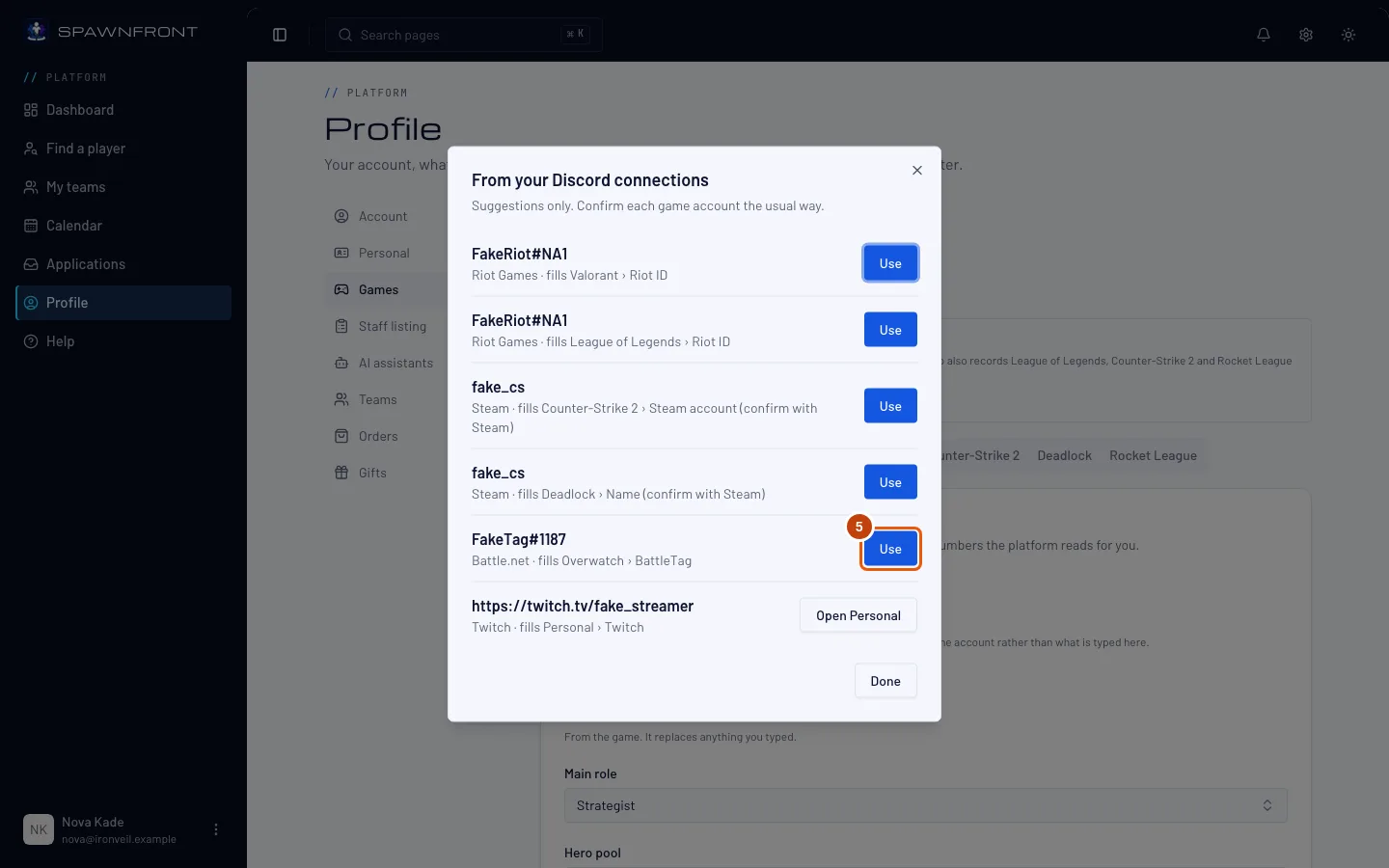
Step 5: Press Use on a suggestion
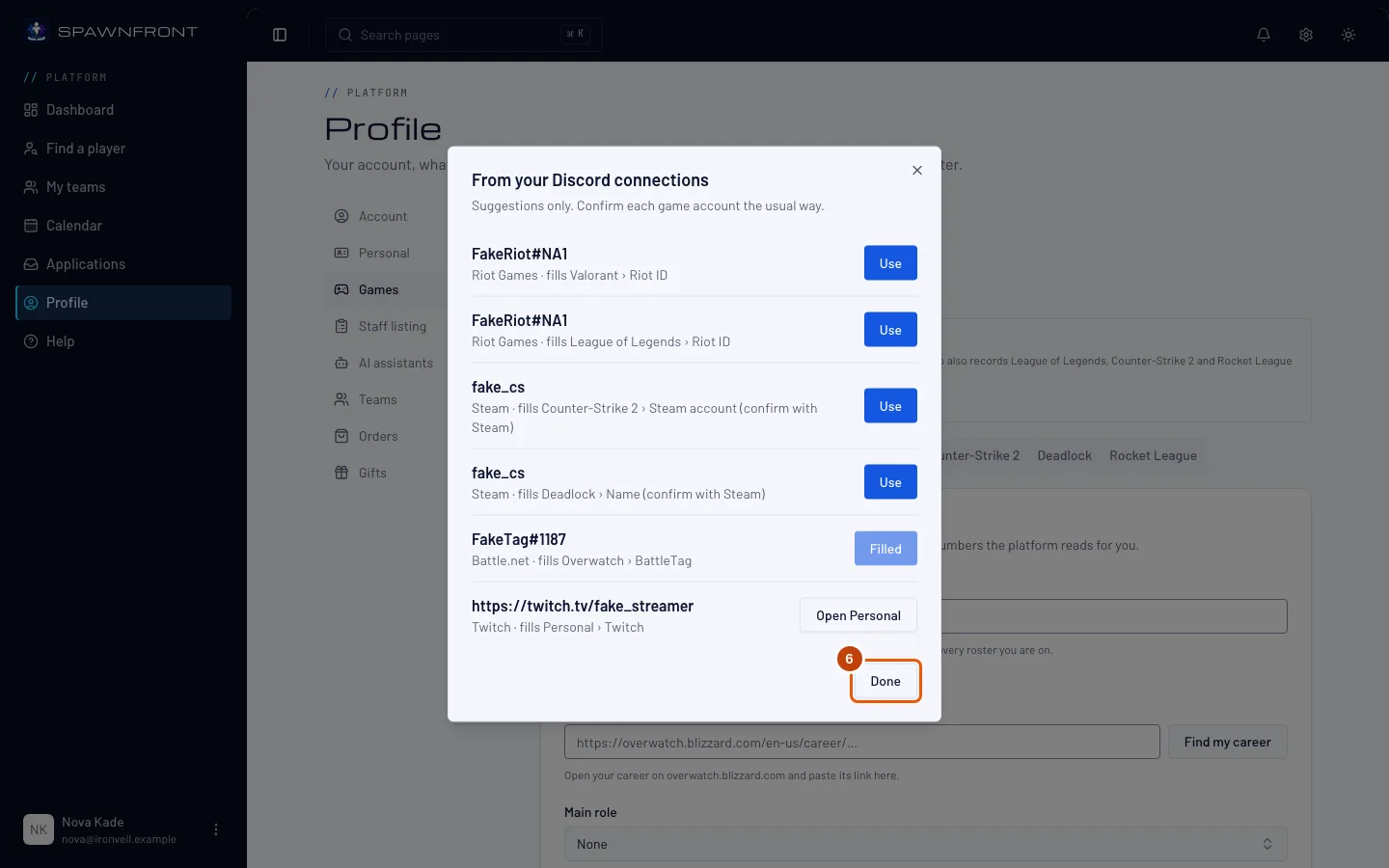
Each row shows a name from Discord and the field it fills. Press Use on the row you want.
- Riot Games fills the Riot ID of Valorant and of League of Legends, a row for each.
- Steam fills Counter-Strike 2's handle and Deadlock's name. You still confirm the Steam account with Sign in through Steam.
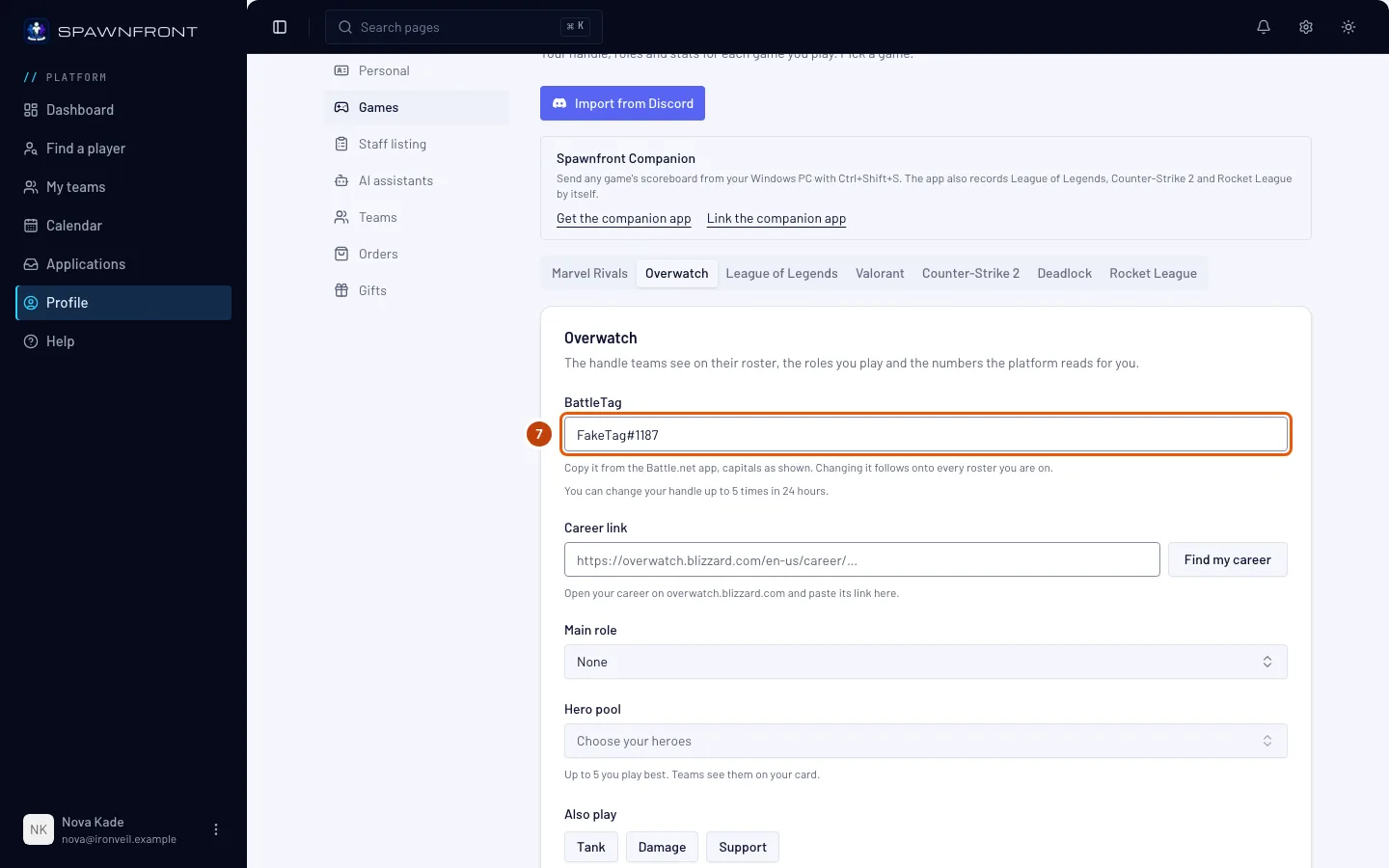
- Battle.net fills Overwatch's BattleTag.
- Epic Games fills Rocket League's In-game handle with your Epic display name. Spawnfront Companion confirms it with the first match it records.
- Xbox or PlayStation fills the Platform of each game released on it.
- Twitch goes to your Personal section, not a game: its row has Open Personal instead of Use, and you paste the link into Twitch there.
Every other kind of connection is left out, and so is one you removed on Discord.
A confirmed game account is never changed. A row for a game whose account the game, Riot or Steam confirmed reads Already confirmed and cannot be used.
You should see: the row's button reading Filled.
Step 6: Press Done
Press Done at the bottom of the box.
You should see: the game's tab open, its field filled, and "Filled from Discord. Nothing is saved until you press Save."
Step 7: Press Save
Check the filled field, then press Save on the game's card, under its fields.
Save stays grayed out until the card is complete. Valorant also needs its Valorant region and Platform, and League of Legends its Server: choose them before you save.
Nothing is saved until you press Save. A suggestion is only what you typed into Discord; leave the page without saving and the field goes back to what it was.
You should see: your game's name and "saved" — "Overwatch saved", for example. Confirm the account the usual way for that game — see Add your game identity.
How to know it worked
- The game's card shows the name from Discord after a reload.
- Each game account still needs its usual confirmation: in Marvel Rivals and Overwatch, a team you play for verifies your UID or BattleTag; in Counter-Strike 2 and Deadlock, Steam.
Something doesn't look right?
I don't see Import from Discord
Discord is not available on Spawnfront right now. Type your game accounts on each card instead.
It says “Discord shared no game accounts.”
Your Discord account has none of the connections Spawnfront reads. Add them on Discord under User Settings › Connections, then press Import from Discord again.
It says “Discord didn't share your connections. Try Import from Discord again.”
The approval was cancelled on Discord's page, took longer than ten minutes, or Discord could not be reached. Press Import from Discord again.
The box closed and the suggestions are gone
The suggestions are read once. Press Import from Discord again to get them back.
It says “Too many attempts with Discord”
You can go to Discord from Spawnfront ten times an hour: each import, link, confirmation before deleting your account, and bot install counts. Wait an hour and try again.
Does Spawnfront keep my Discord connections?
No. Spawnfront reads them once to show the box, and keeps only the time you last imported.
Related articles
Still stuck? Contact support or email support@spawnfront.com — tell us the page you're on and the step number.