
Apply to a team
Send an application to a team's open position: check what the team sees, choose contacts, add a message.
For players · 5 steps
What you need first
- Your country, the languages you speak and your native language on your profile — see Set up your profile.
- For a player or substitute position, a game identity that plays the position's role — see Add your game identity.
- You are not on another team's roster for the same game. One team per game: leave the other team first. A ringer need — a position marked Ringer, for one session — is the exception: you can apply while on another team, and being accepted doesn't make you a member.
- The team's page is open — see Find a team.
Steps
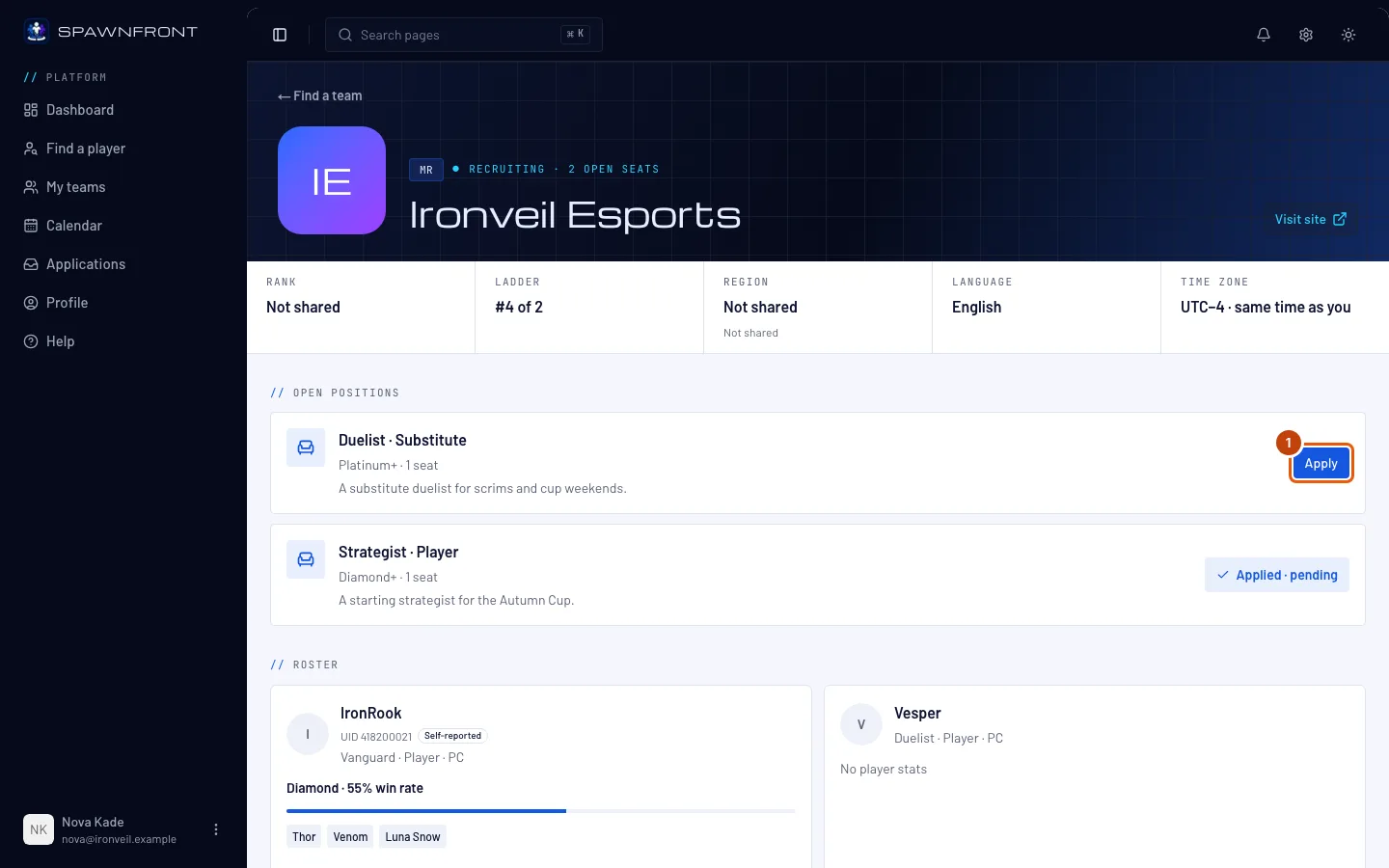
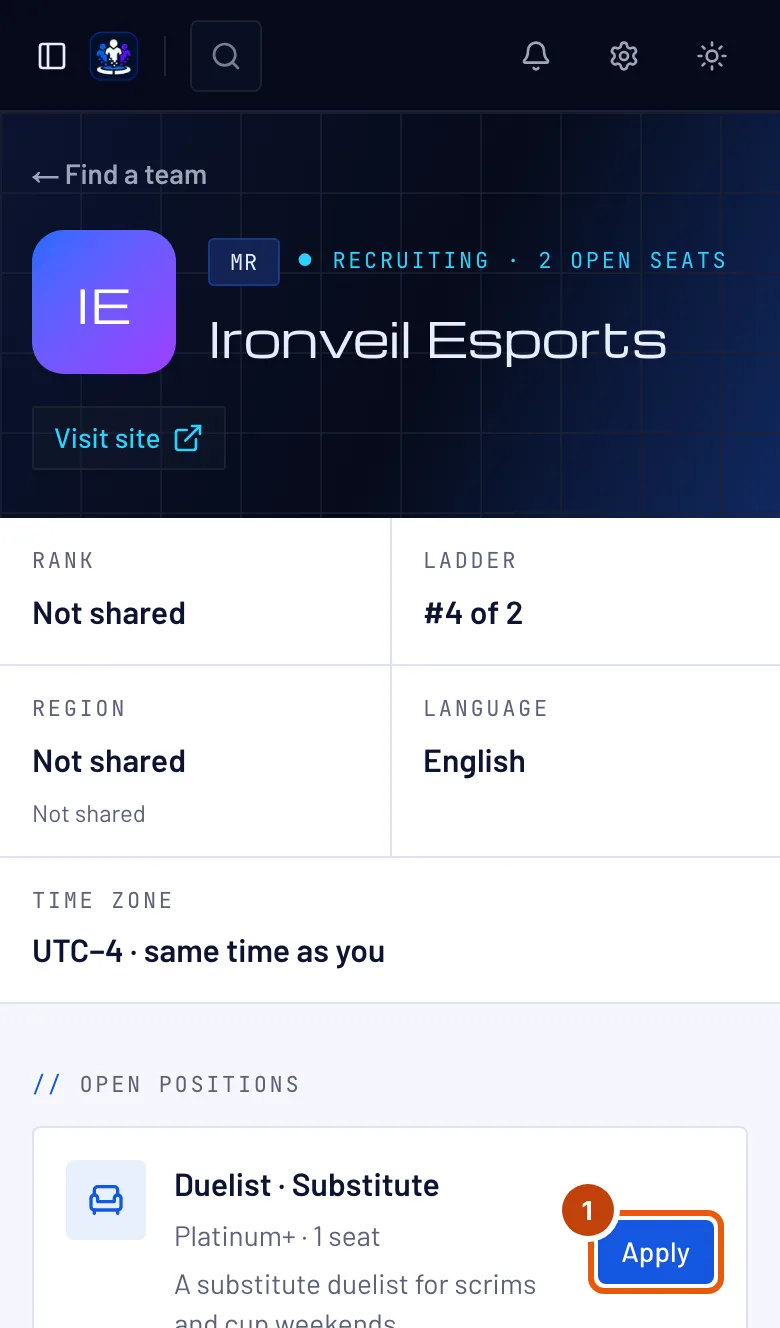
Step 1: Press Apply on a position
Under Open positions, press Apply beside the position you want.
You should see: a box titled Apply to the team.
Step 2: Check what the team will see
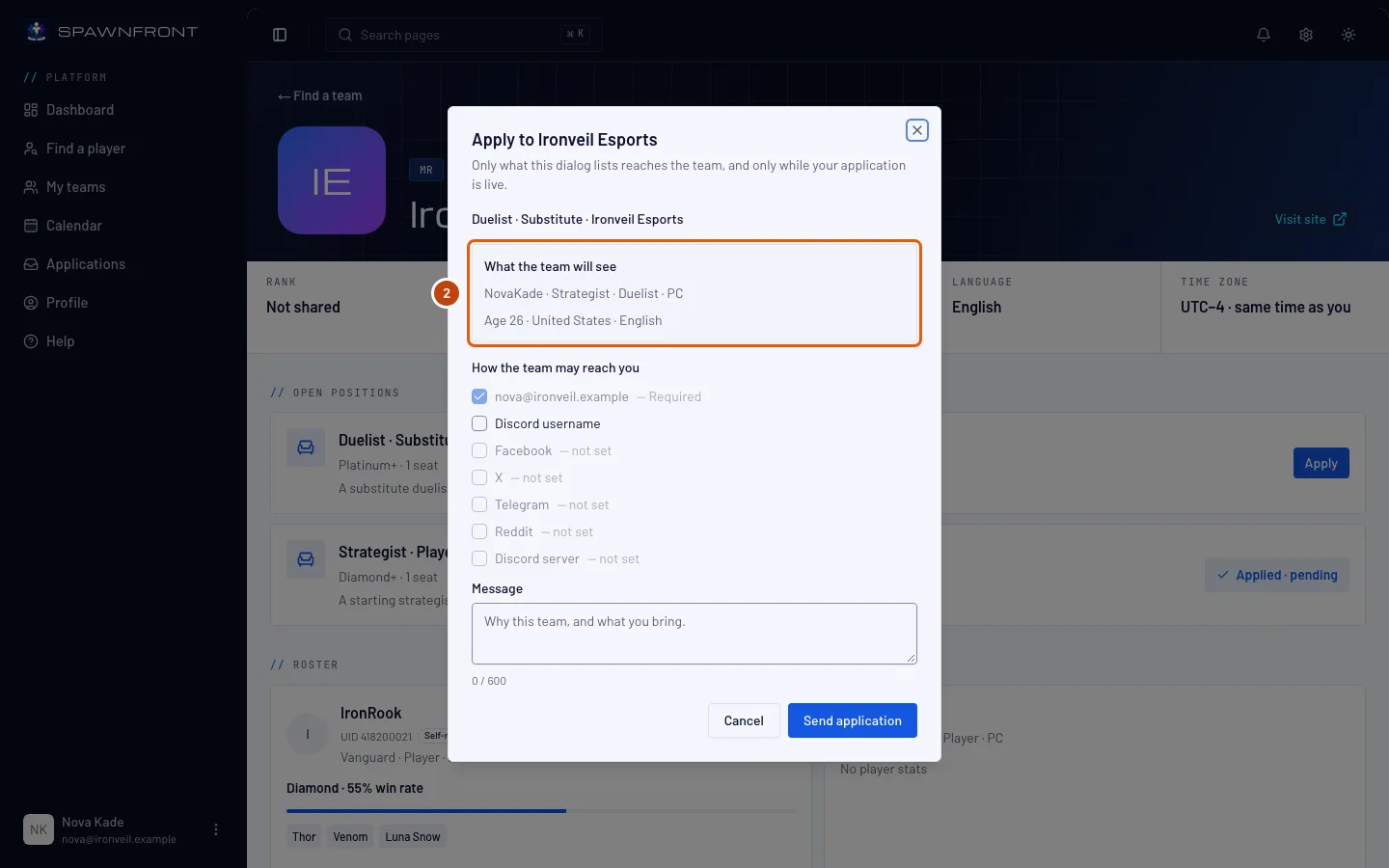
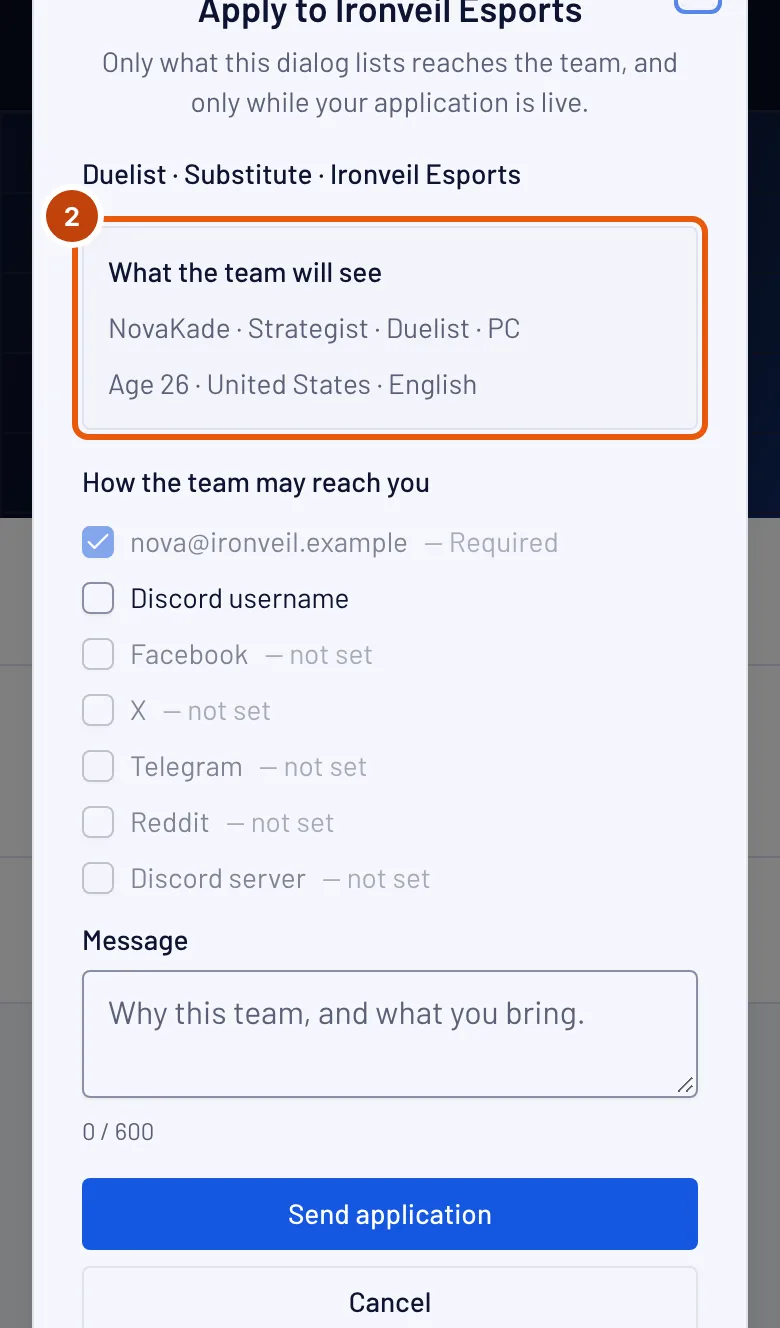
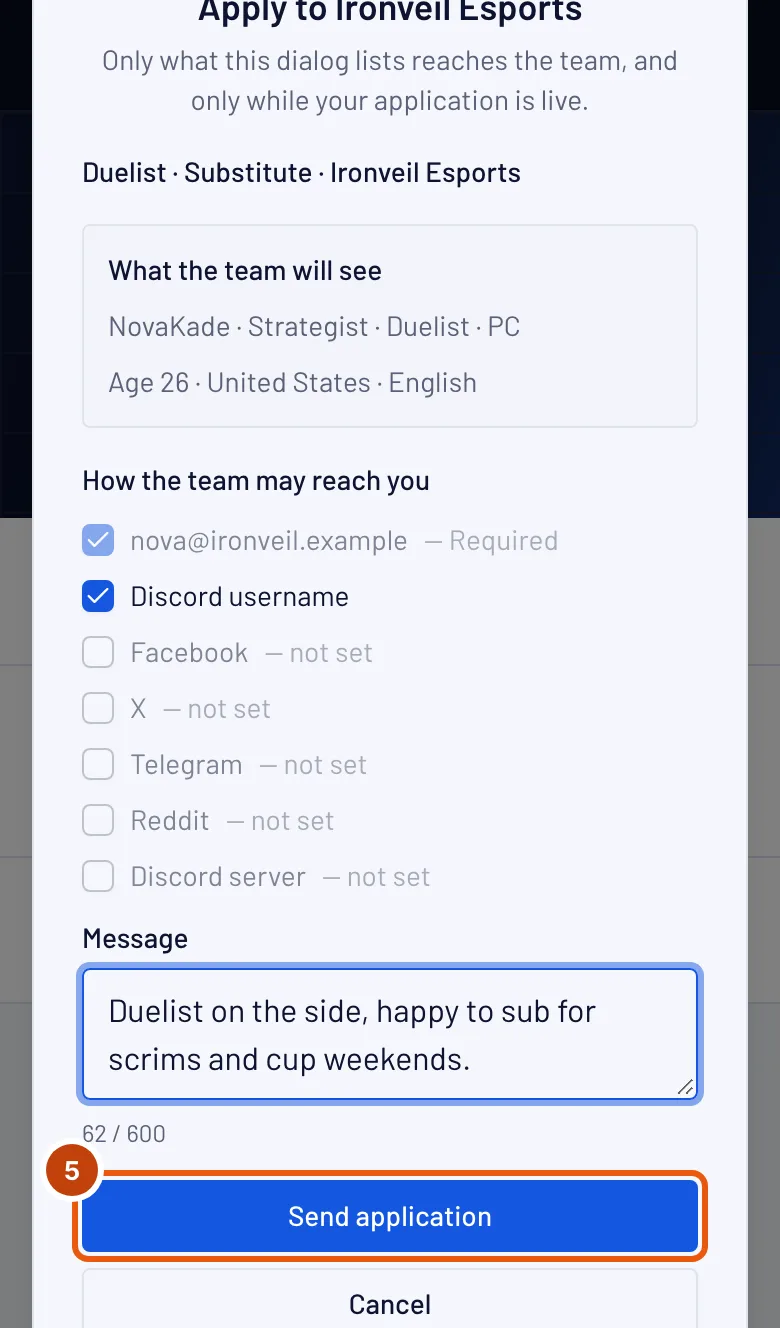
Read the box headed What the team will see: your handle, roles and platform, then your age, your country and the languages you speak, your native language first.
The team sees your age, never your birth date, and only while your application is live.
The team also sees your profile photo — or your initials if you have none — and, for Marvel Rivals, your UID beside your handle, marked Self-reported — a team you join can check it and mark it Verified on its roster — or Confirmed by the game when the Spawnfront Companion app confirmed it, which counts as verified on every team. Add a photo from your profile's Account section — see Add a profile photo.
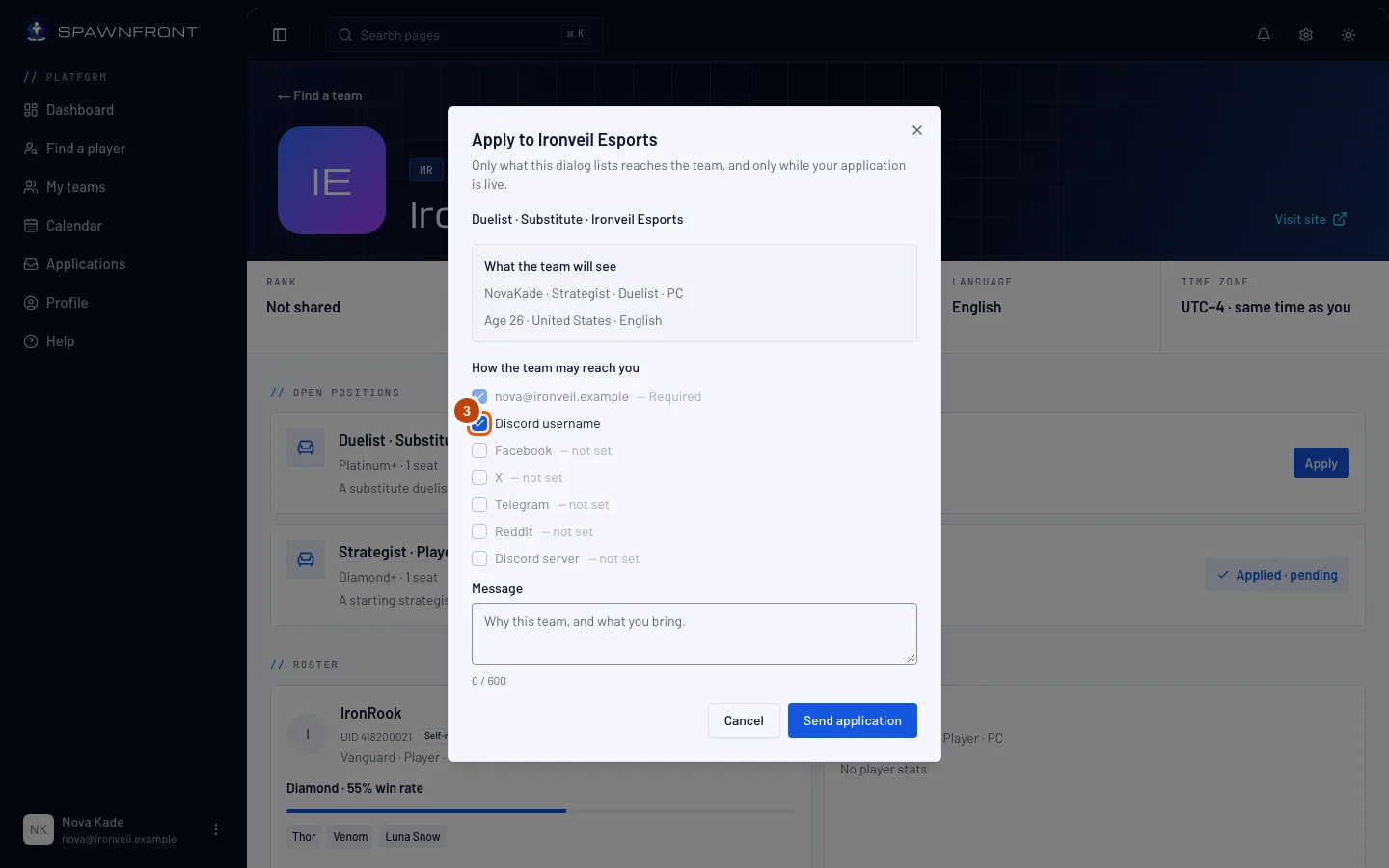
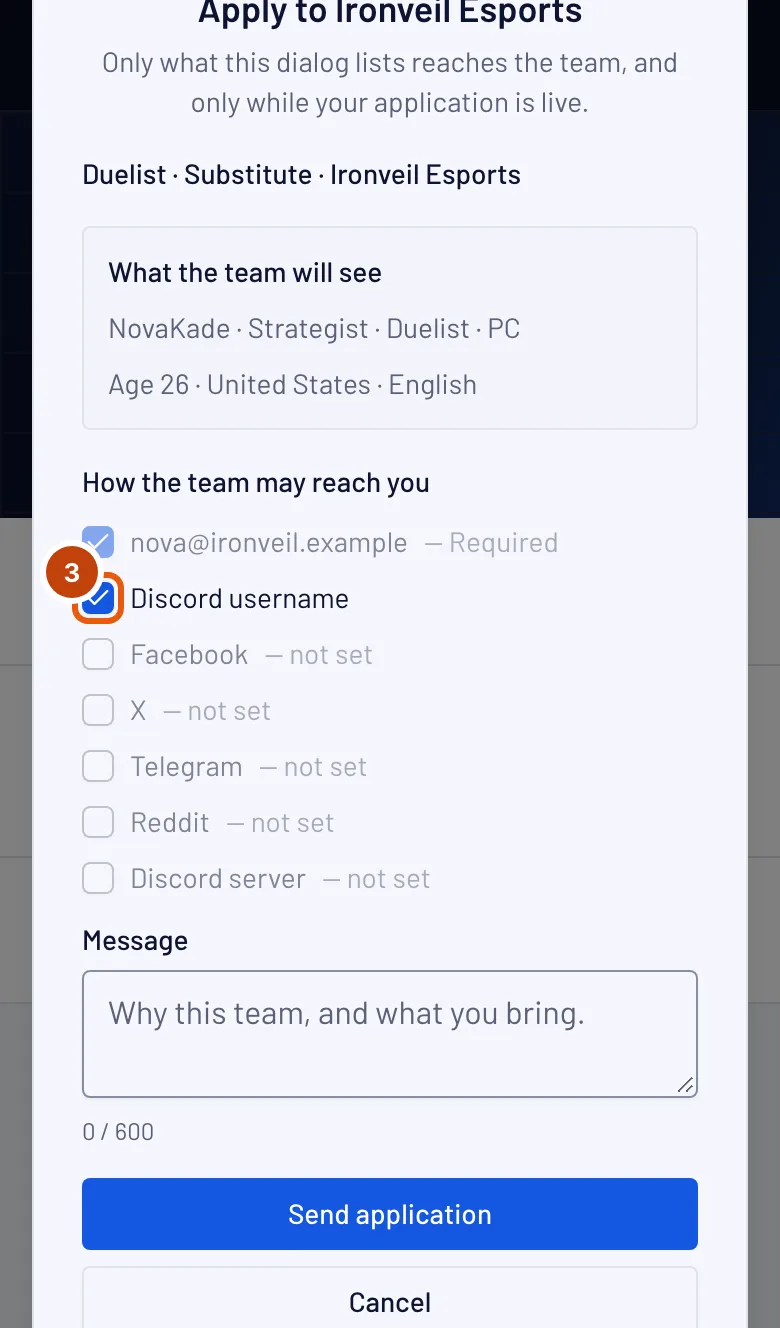
Step 3: Choose how the team may reach you
Under How the team may reach you, tick each contact method the team may use, such as Discord username. Your email is always included. Methods you haven't set on your profile can't be ticked.
Step 4: Write a message
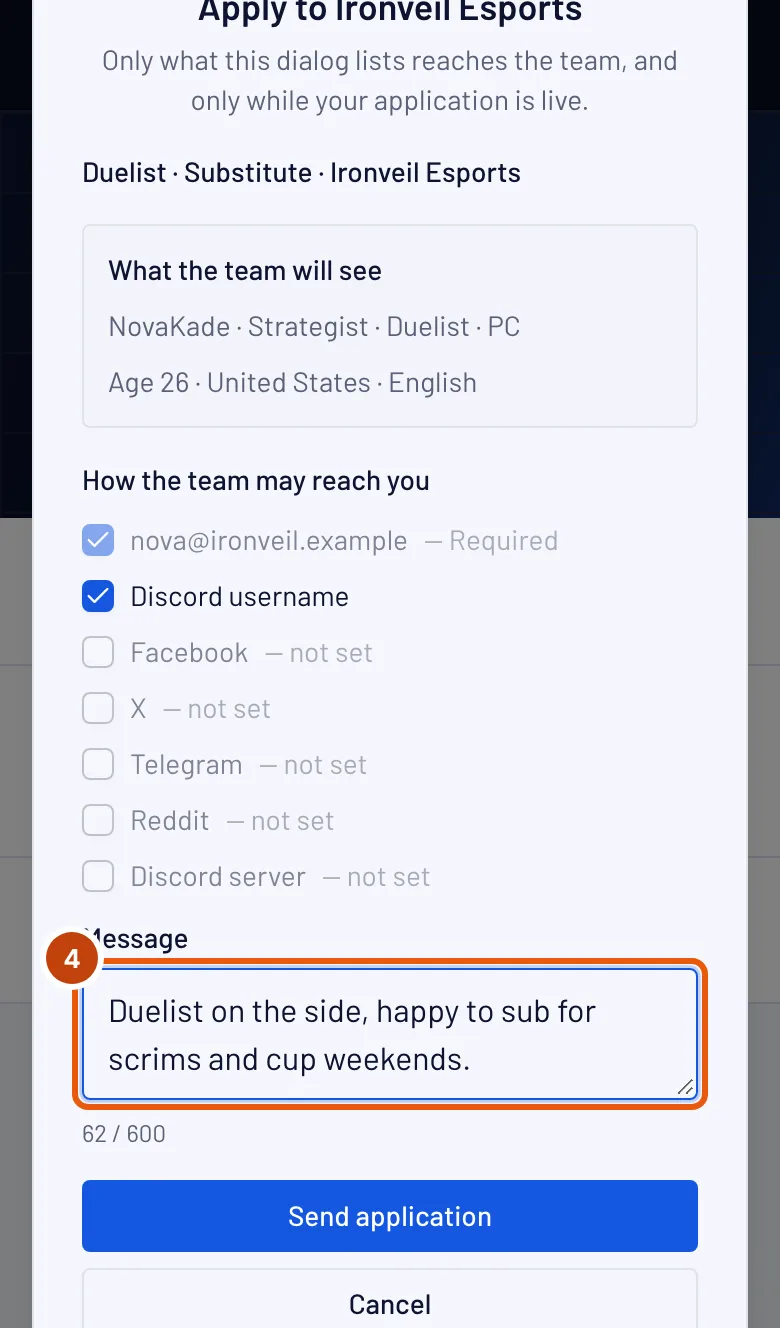
Type a short Message: why this team, and what you bring. It's optional, up to 600 characters.

Step 5: Send your application
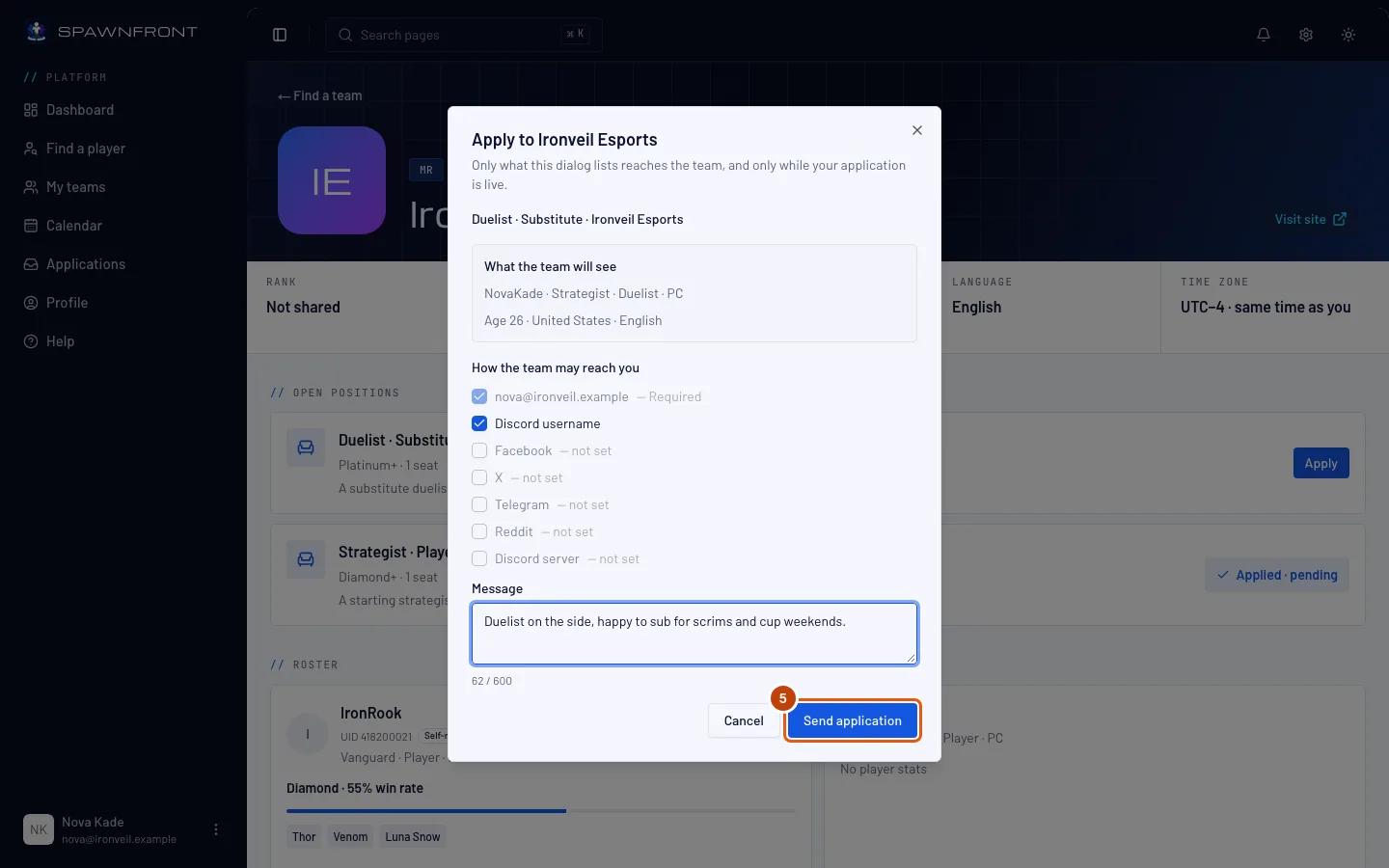
Press Send application.
You should see: "Application sent", and the position now reads Applied · pending.
How to know it worked
- The position on the team page reads Applied · pending.
- Your Applications page lists it — see Follow or withdraw an application.
Something doesn't look right?
The Apply button is grayed out
Your game identity is on another team's roster for this game, and the page says Leave that team to apply. A player is on one team per game.
It says "Profile incomplete"
The line names what is missing, such as your country or the languages you speak. Add them in your profile's Personal section — see Set up your profile — then open the position again.
It says "No player identity for Marvel Rivals"
A player or substitute position needs your game identity — see Add your game identity.
It says "This position is for a …; your player identity plays …"
The position wants a role you don't play. Add it under Also play in your profile's Games section if you play it, or look for another position.
Related articles
Still stuck? Contact support or email support@spawnfront.com — tell us the page you're on and the step number.