
Set up your profile
Your names, your photo, your country, the languages you speak and your native language, your 12-hour or 24-hour clock, your player card's bio, how a team can reach you when you apply, and the links you show on every team.
For everyone · 7 steps
What you need first
- You are logged in.
Steps
Step 1: Open Profile
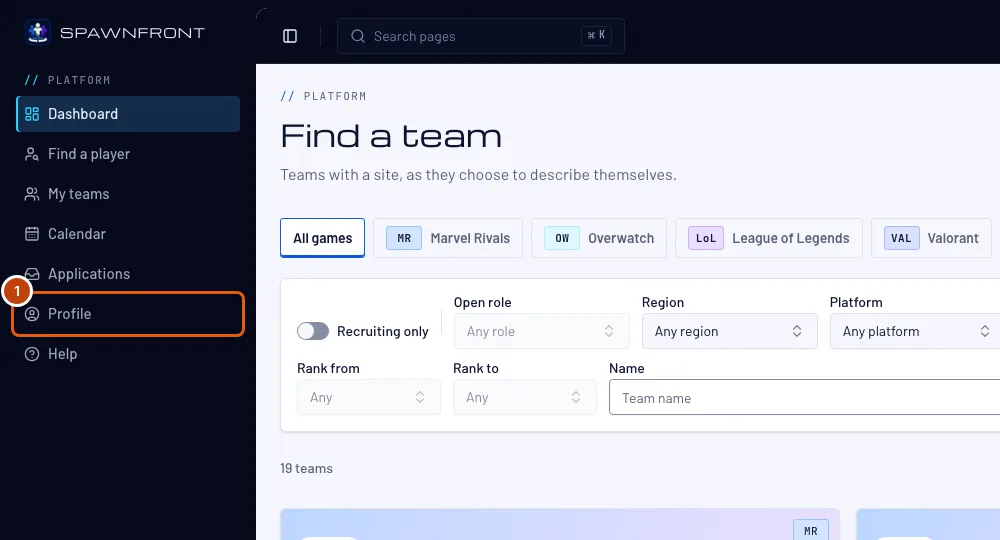
In the menu on the left, press Profile.
You should see: Profile, with its sections listed down the left — Account, Personal, Games, Teams and Orders — and Account open. On a phone the sections are a list at the top.
Step 2: Fill in your names
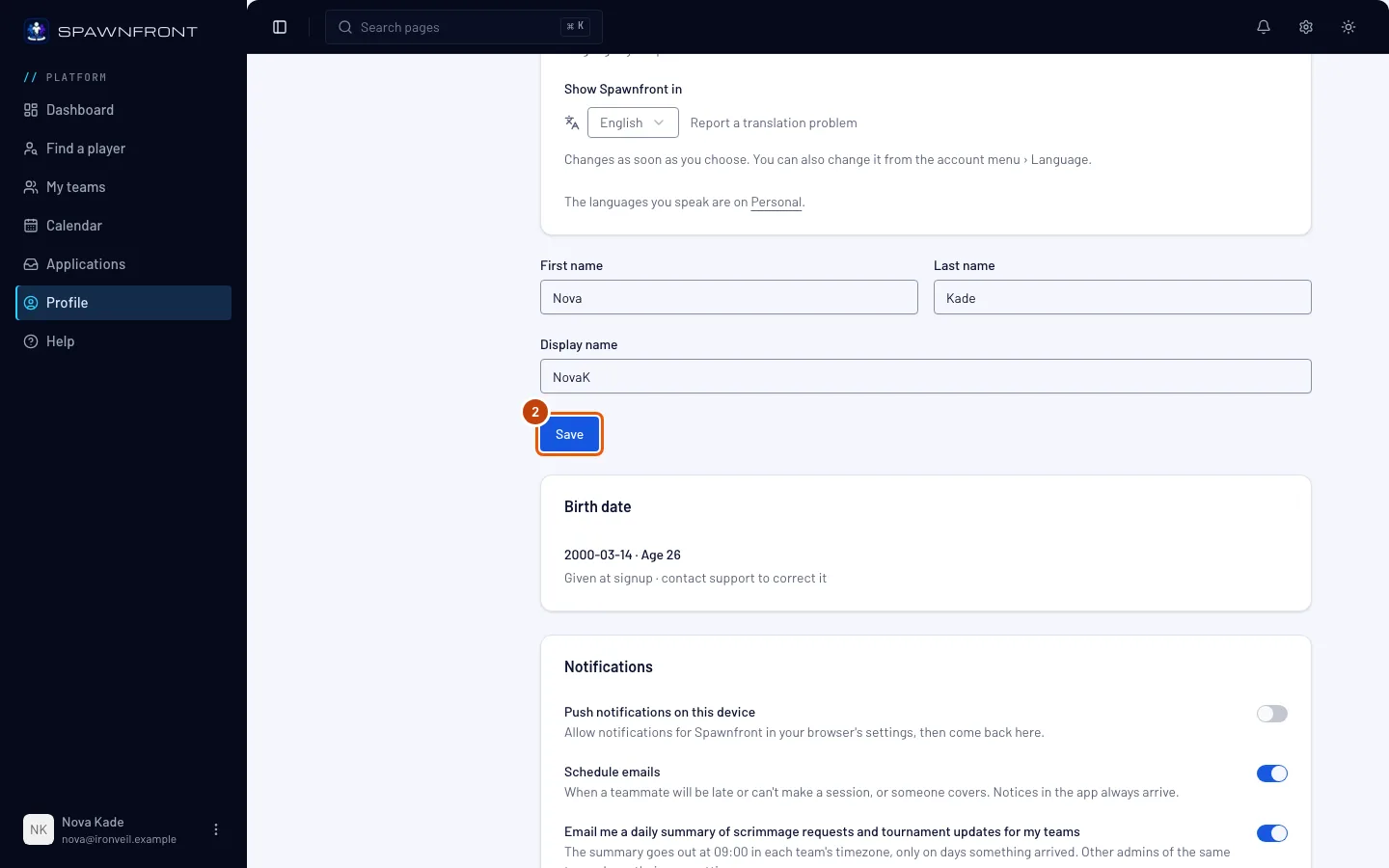
In the Account section, fill in First name and Last name, then Display name — the name a team sees when you apply. Your name on a team's roster is set on your card for that team — see Your member card. Press Save.
You should see: "Profile updated".
The Photo card at the top of Account holds your profile photo: press Change photo to add one. It shows in the app, on your applications and on the roster of every team you are on, unless a team sets its own — see Add a profile photo.
Step 3: Open the Personal section
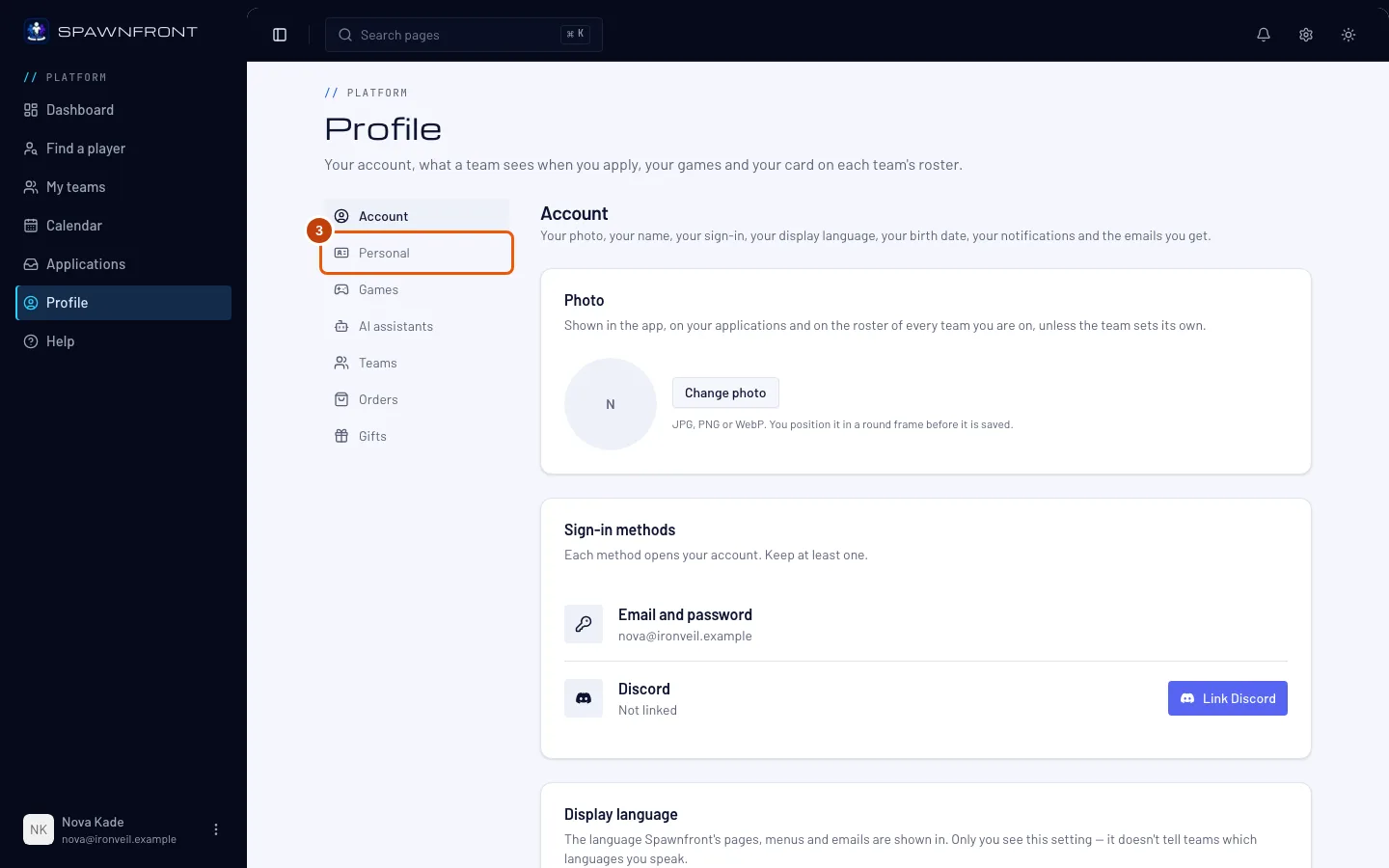
Press Personal in the section list.
You should see: a card titled Personal, with Country, Languages you speak, Native language, Clock, Player card and Contact methods.
Step 4: Choose your country, languages and clock
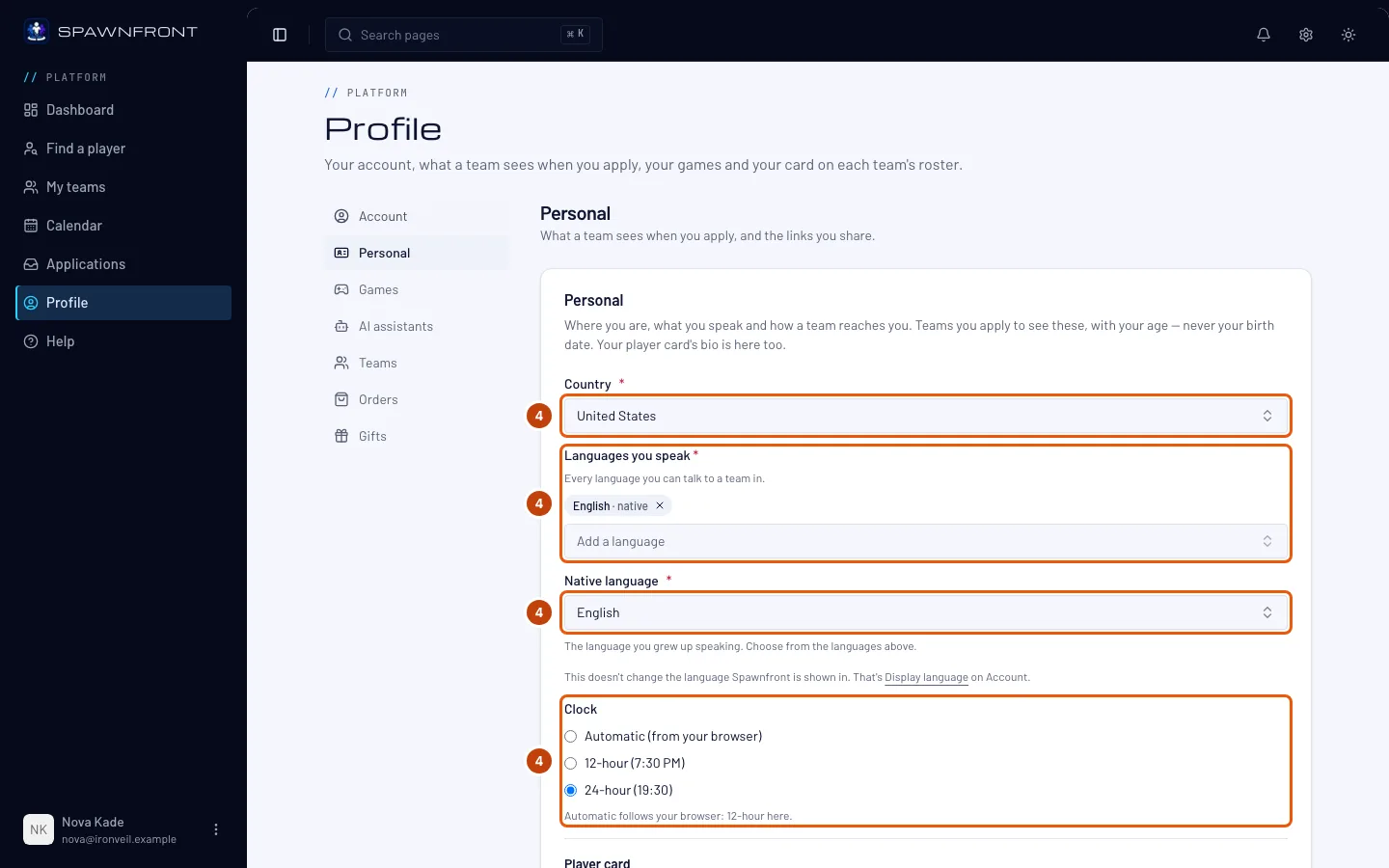
Press Country and choose where you live.
Under Languages you speak, press Add a language and choose a language you can talk to a team in. Do it again for each language you speak — type in the list to find one faster. To take a language off, press × beside it.
Then press Native language and choose the language you grew up speaking. It lists only the languages you added above.
You need your country, at least one language you speak and your native language to apply to a team or found one. They are marked with a red *. If you press Save with one empty, the empty box says so and nothing is saved. A new account starts with your browser's first language here, so check it is right.
These languages are what a team sees — they don't change the language Spawnfront is shown in. That is Display language, in the Account section — see Change your language.
Under Clock, choose how times are shown: Automatic (from your browser), 12-hour (7:30 PM) or 24-hour (19:30). The line under the choices says what Automatic means in the browser you are using. Your choice applies everywhere you are signed in — the schedule, the calendar, matches, scrims and tournaments, the time pickers, your notifications and emails. A team's public site shows times in each visitor's own browser format.
You should see: your country, the languages you speak with your native language among them, and your clock chosen.
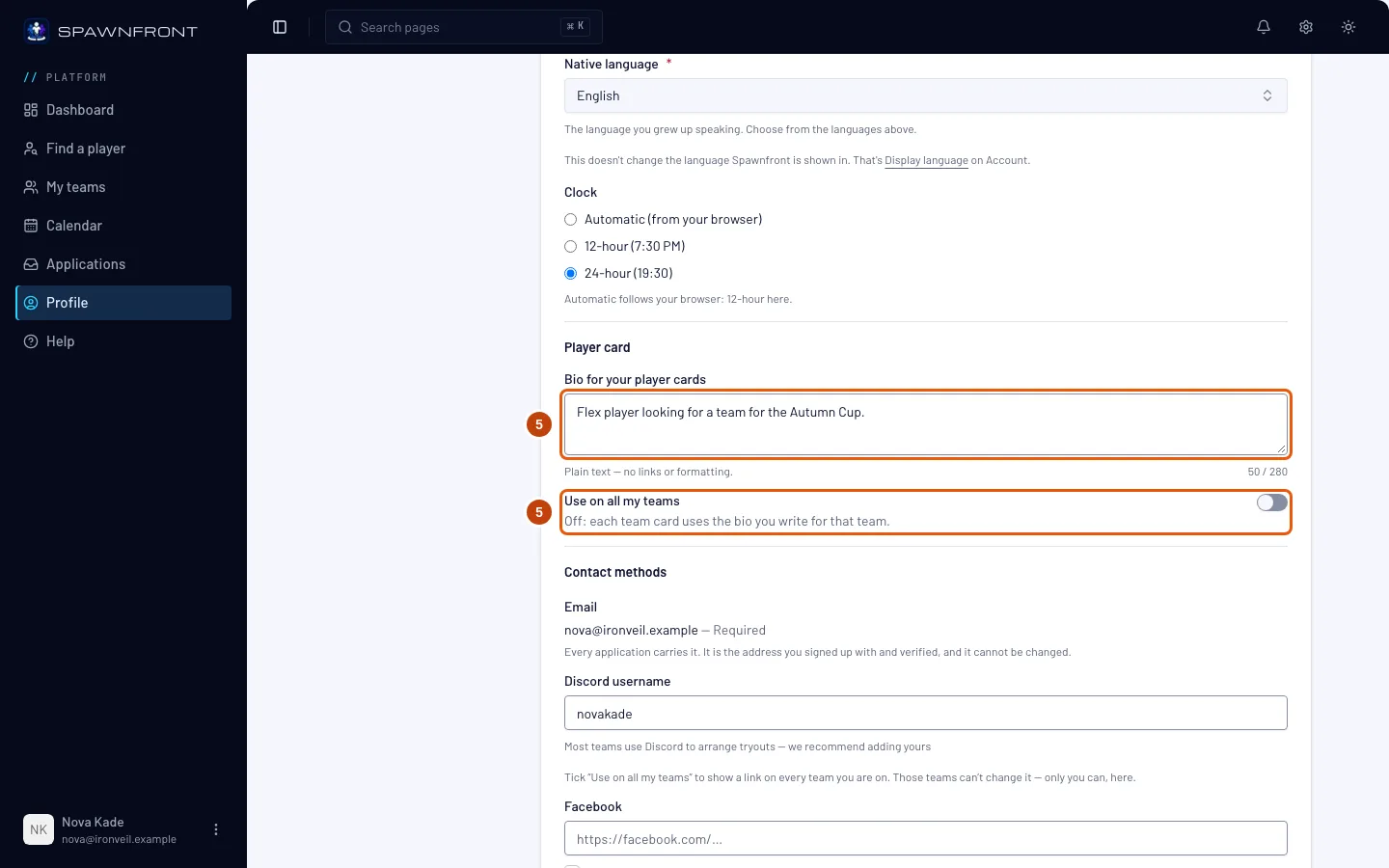
Step 5: Write the bio for your player cards
Under Player card, type a few lines about yourself in Bio for your player cards — up to 280 characters; the count under the box shows how many you have used. It is plain text: a link or formatting shows exactly as you typed it.
Turn on Use on all my teams to show this bio on your player card on every team you are on. Off, each team's card shows the bio you write for that team, under Bio on this team's card in the Teams section — see Your member card.
A team can put its own bio on your card instead of yours, and you are told in the bell when it does — see Your player card.
The bio is saved with the rest of this section when you press Save (step 7).
You should see: your words in the box, and the count under it — such as 52 / 280.
Step 6: Add how teams can reach you
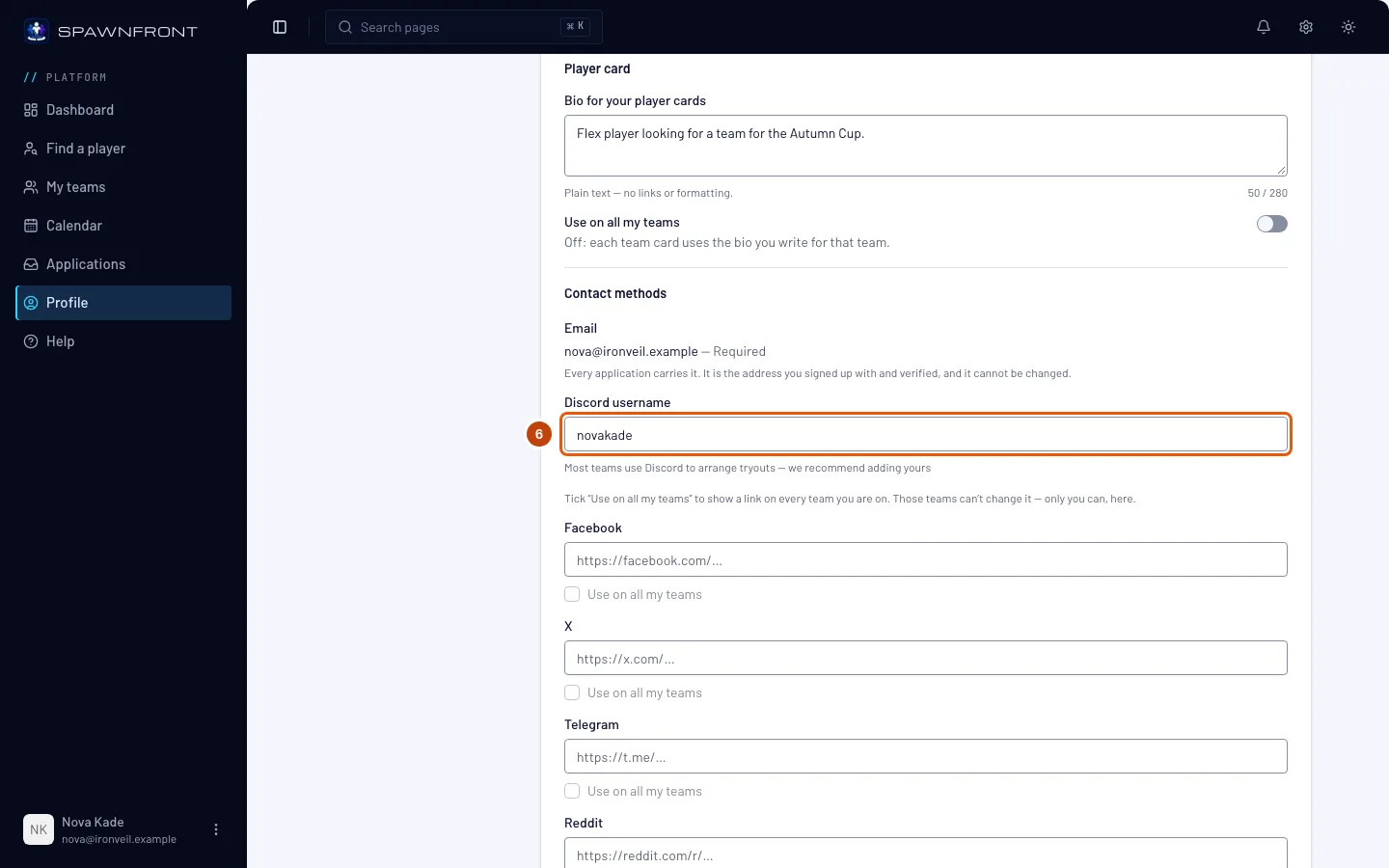
Type your Discord username — most teams use Discord to arrange tryouts.
Under it are six links: Facebook, X, Telegram, Reddit, Discord (a server invite) and Twitch. They are optional; a team sees only the ones you fill in. Paste the full address, starting with https://.
Tick Use on all my teams under a link to show it on your card on every team you are on. Those teams can't change it — only you can, here. The box stays grayed out while its link is empty. See Use your links on all your teams.
Your email is always included, so a team can always reply to you. It is the address you signed up with and verified, and it can't be changed.
You should see: your username in the box.
Step 7: Check what a team sees, then save
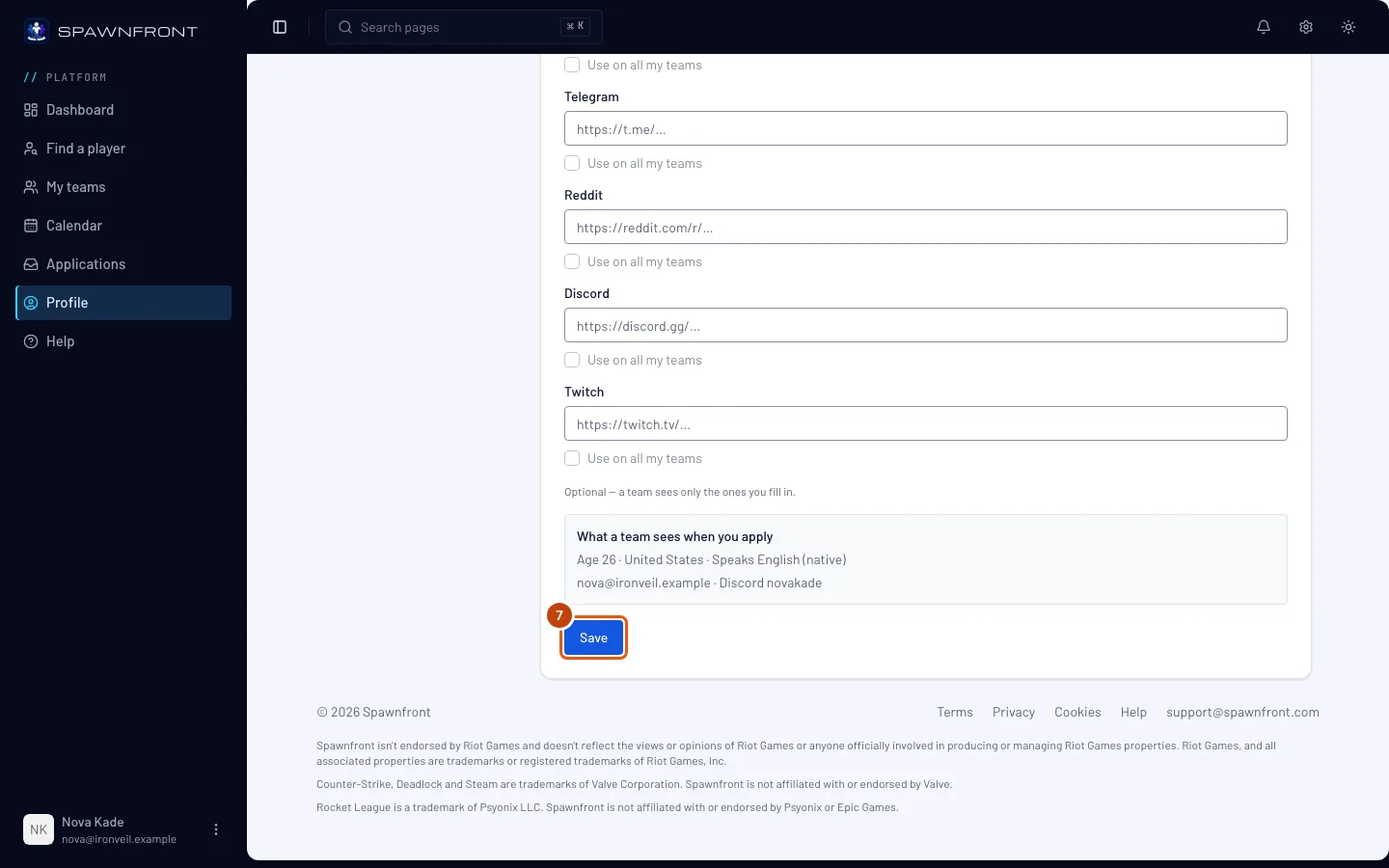
Read the box headed What a team sees when you apply — that is exactly what a team is shown with your application. Then press Save.
You should see: "Profile updated".
How to know it worked
- The Account section shows your names after you reload the page.
- The Personal section's box under What a team sees when you apply shows your country, the languages you speak with your native language first, and your age.
- Your bio is in the Player card box after you reload the page.
Your birth date is in the Account section, under Birth date. You gave it at signup and it can't be edited — contact support to correct it. Your game handle, roles and platform are in the Games section — see Add your game identity.
Your emails and push notifications are set on the Notifications card in the Account section. Push notifications on this device pops your notices up on the phone or computer you're using — see Turn on push notifications. Schedule emails sends you an email when a teammate will be late or can't make a session, or someone covers; turn it off and the notices still arrive in the bell — see Your notifications. Each switch saves as soon as you press it.
Something doesn't look right?
Save in the Personal section says to fix a marked field
Choose a Country, at least one language under Languages you speak and your Native language (step 4) — the box marked in red is the one that is empty. Then press Save again.
My native language isn't in the list
Native language lists only the languages you speak. Add yours under Languages you speak with Add a language first, then choose it as your native language.
I changed my language but Spawnfront is still in the old one
The languages on Personal are for teams. The language Spawnfront is shown in is Display language, in the Account section — see Change your language.
It says "Links must start with https://"
Paste the full address of your page, starting with https://, or leave the box empty. Each box takes a link to its own network only — an X link goes in the X box. The Discord username is just your name, not a link.
"Use on all my teams" is grayed out
The link above it is empty. Paste the link first, then tick the box. Unticking it later leaves each team's card with the link it last had, and you can change it there again.
My bio doesn't show on my team's card
With Use on all my teams off, a team's card shows the bio you wrote for that team in the Teams section, and none when that is empty. Turn the switch on, or write that team's bio. If the team set its own bio, it shows instead of yours — see Your player card.
Times still show the other clock
The clock is saved with the Personal section: choose it under Clock and press Save. With Automatic (from your browser), times follow the browser's language — choose 12-hour (7:30 PM) or 24-hour (19:30) to fix one everywhere. An email sent while Automatic is chosen uses the 24-hour clock.
My birth date is wrong
It can't be changed from your profile. Contact support: we clear the date on file, and the next page you open asks for your birth date again. Enter the right one — it can be entered only once.
Related articles
Still stuck? Contact support or email support@spawnfront.com — tell us the page you're on and the step number.