
Your notifications
The bell at the top right: what your teams tell you, marking notices read, the full list and the schedule emails.
For everyone · 7 steps
What you need first
- You are logged in. Notices come from the teams you're on, and a reviewed report comes from Spawnfront itself — so a player with no team has none until a report they sent is reviewed.
Steps
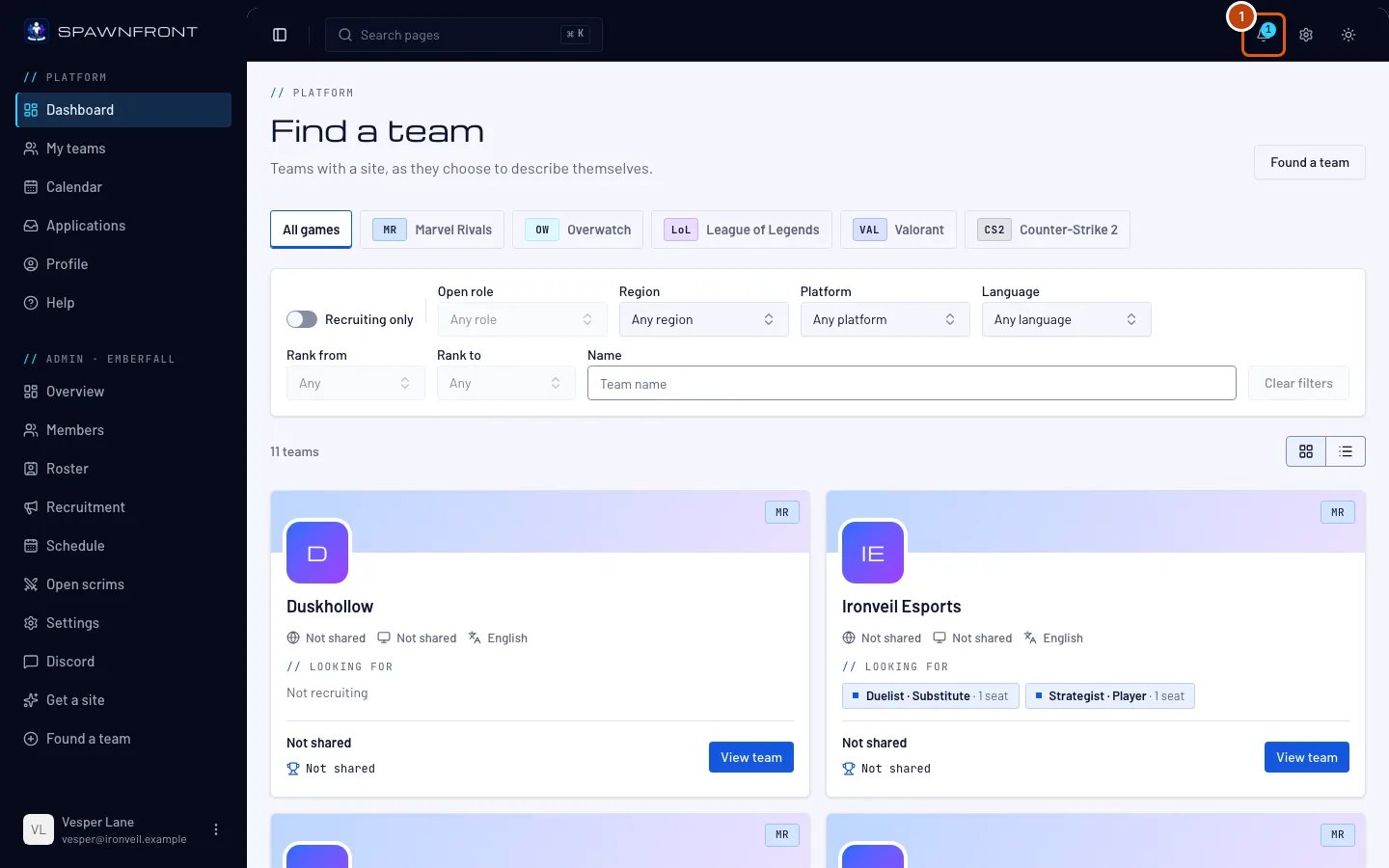
Step 1: Find the bell
Look at the top right of any page. The number on the bell counts the notices you haven't read; with nothing new, the bell has no number.
Step 2: Open the bell
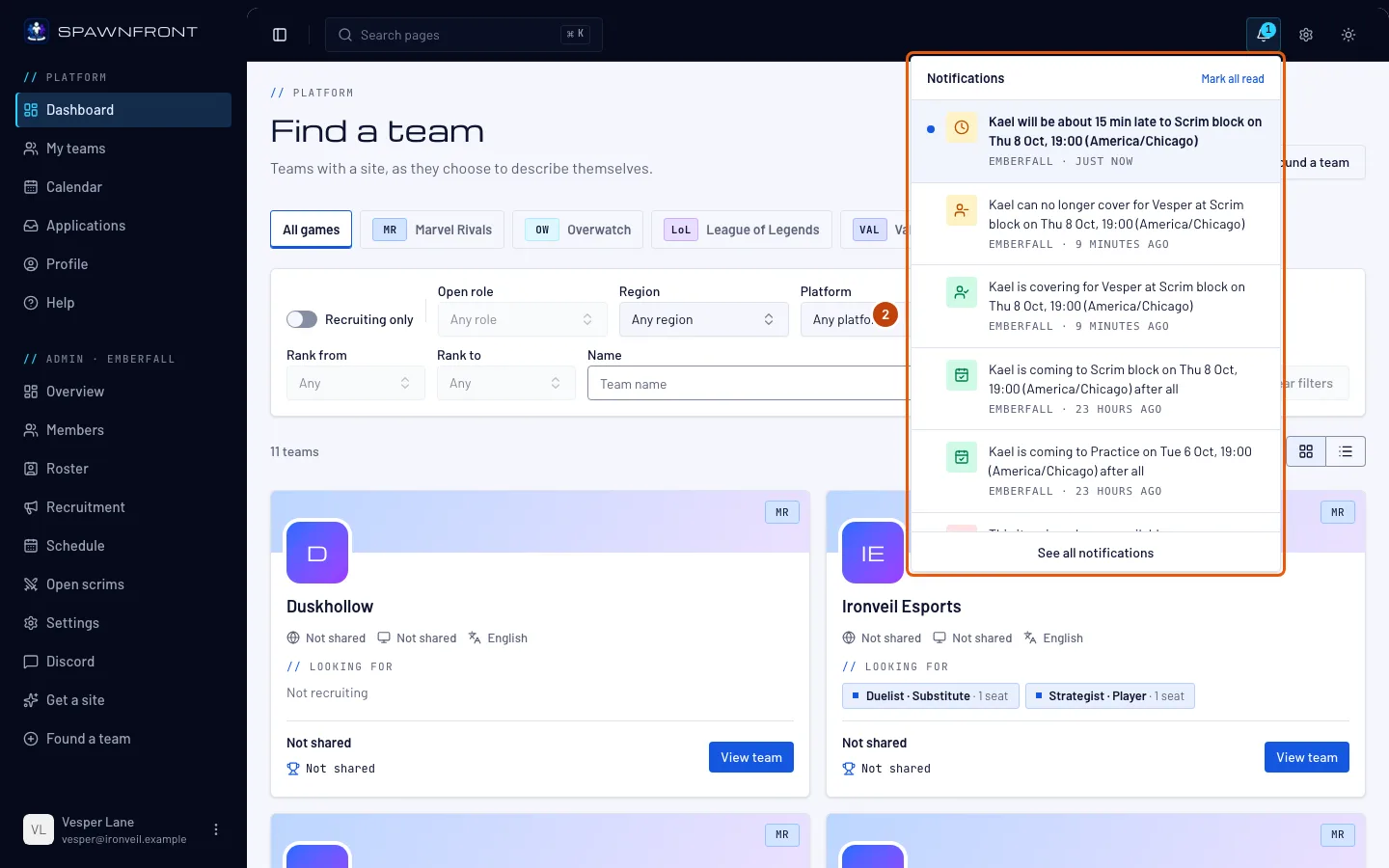
Press the bell.
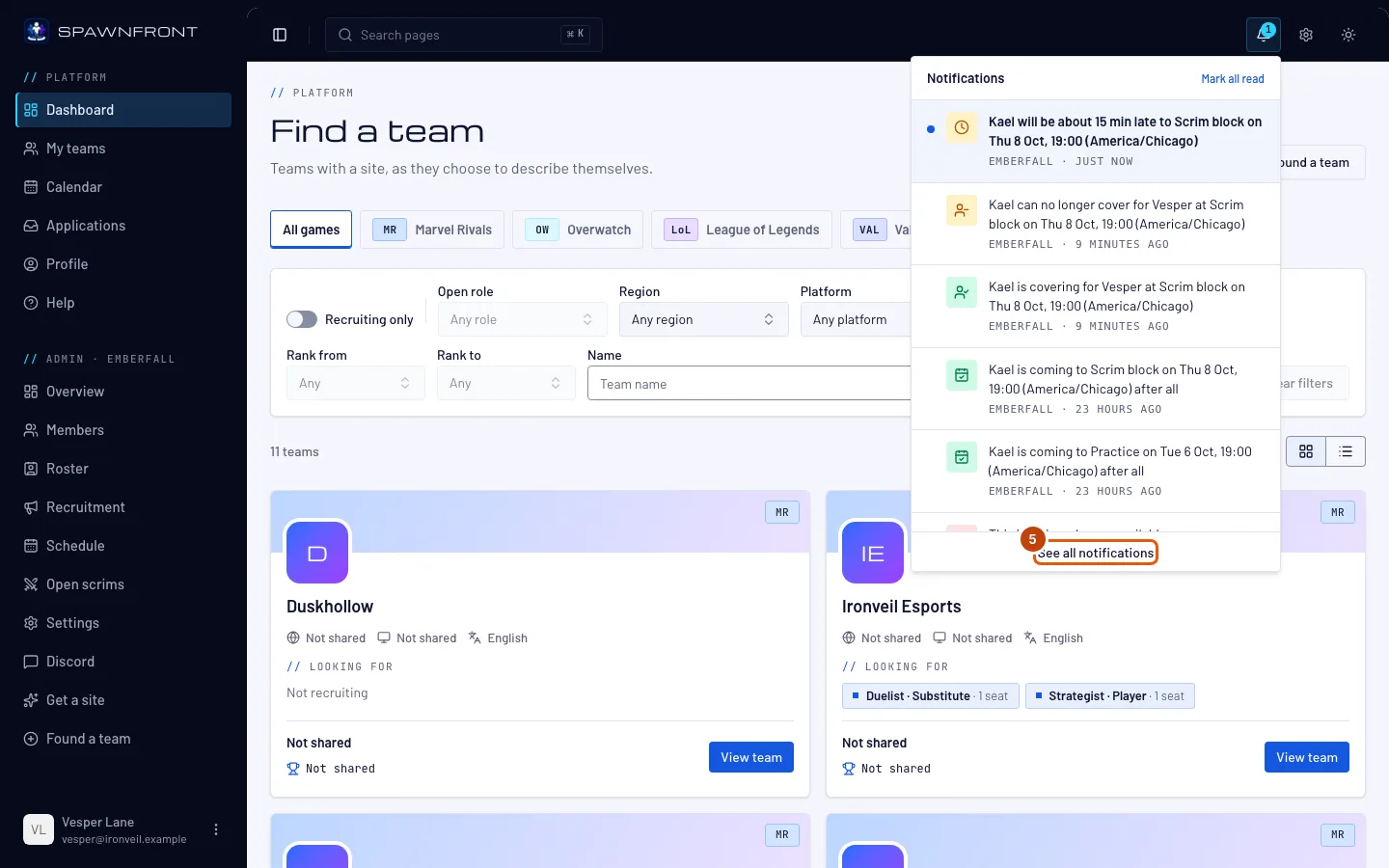
You should see: Notifications, your newest notices first. An unread one has a blue dot. Each names its team, if it has one, and how long ago it arrived.
Step 3: Open a notice
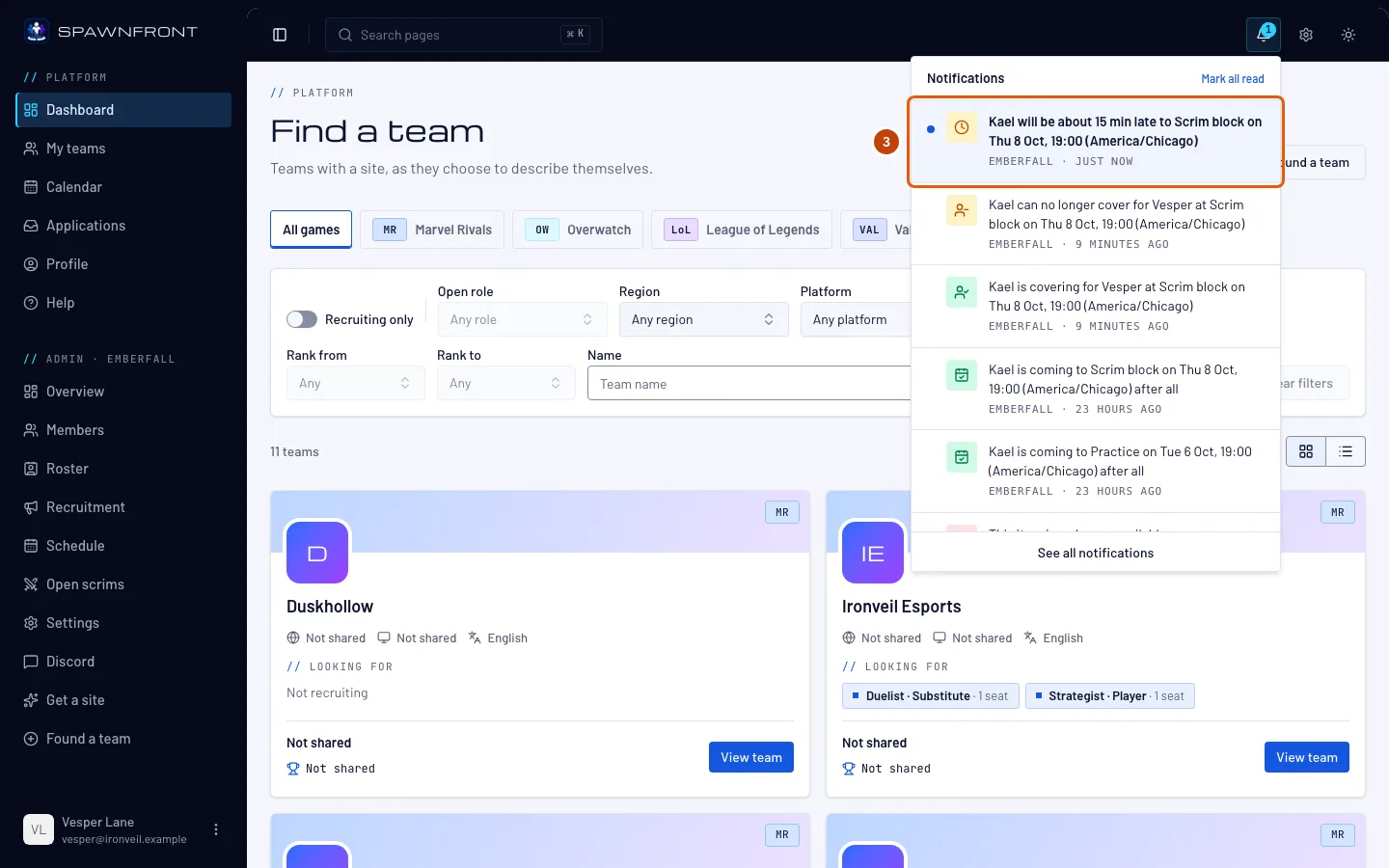
Press a notice to go where it points — the session on Calendar, your team's Recruitment page for an application, its Scrimmages page for a request, a position's Apply box for an invitation to apply, your team's page for a note your coach shared with you, and the Help article Report a site or player for a reviewed report.
Opening a notice marks it read.
Step 4: Mark all read
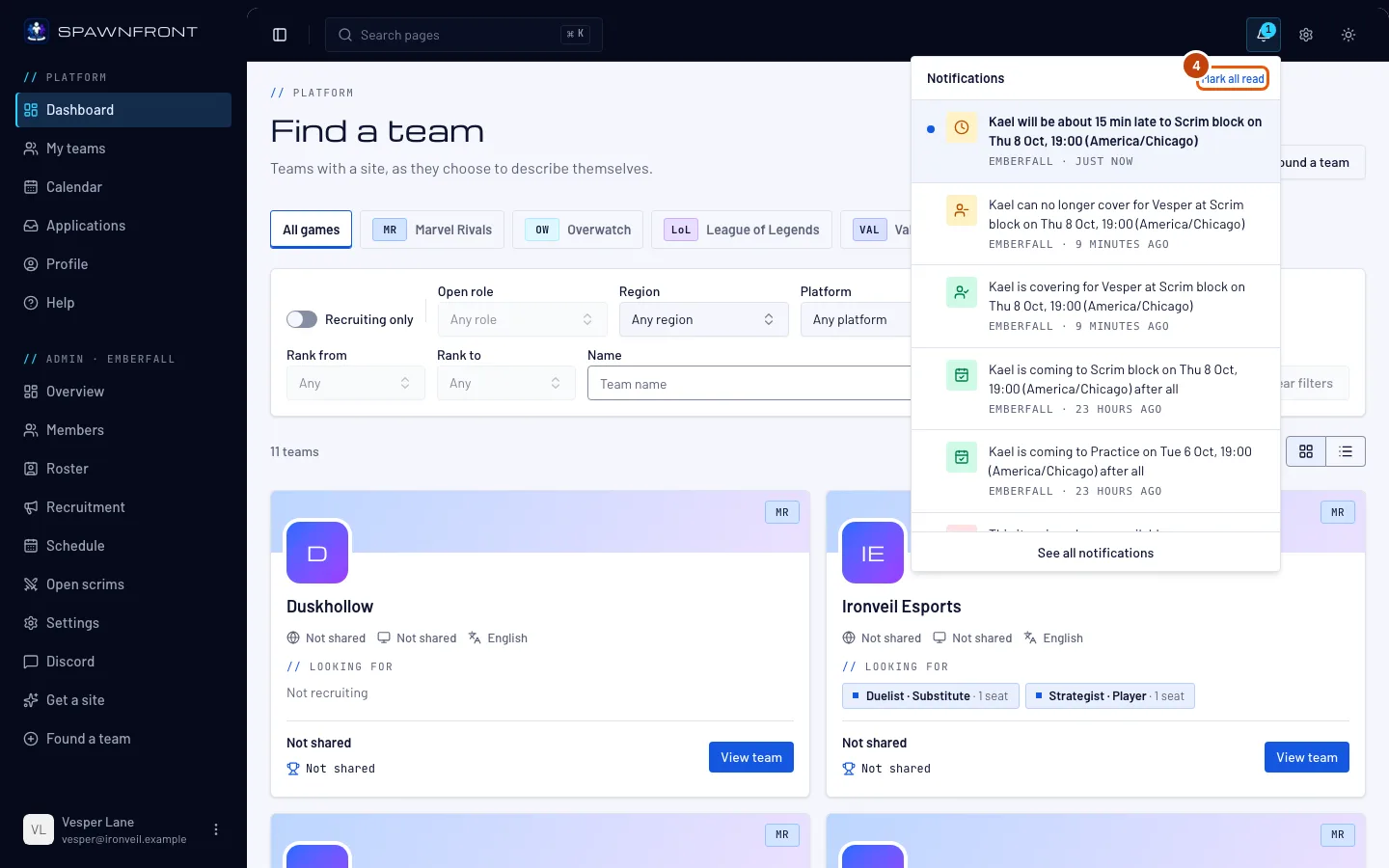
Press Mark all read at the top of the panel.
You should see: the blue dots gone, and no number on the bell.
Step 5: See all notifications
Press See all notifications at the bottom of the panel.
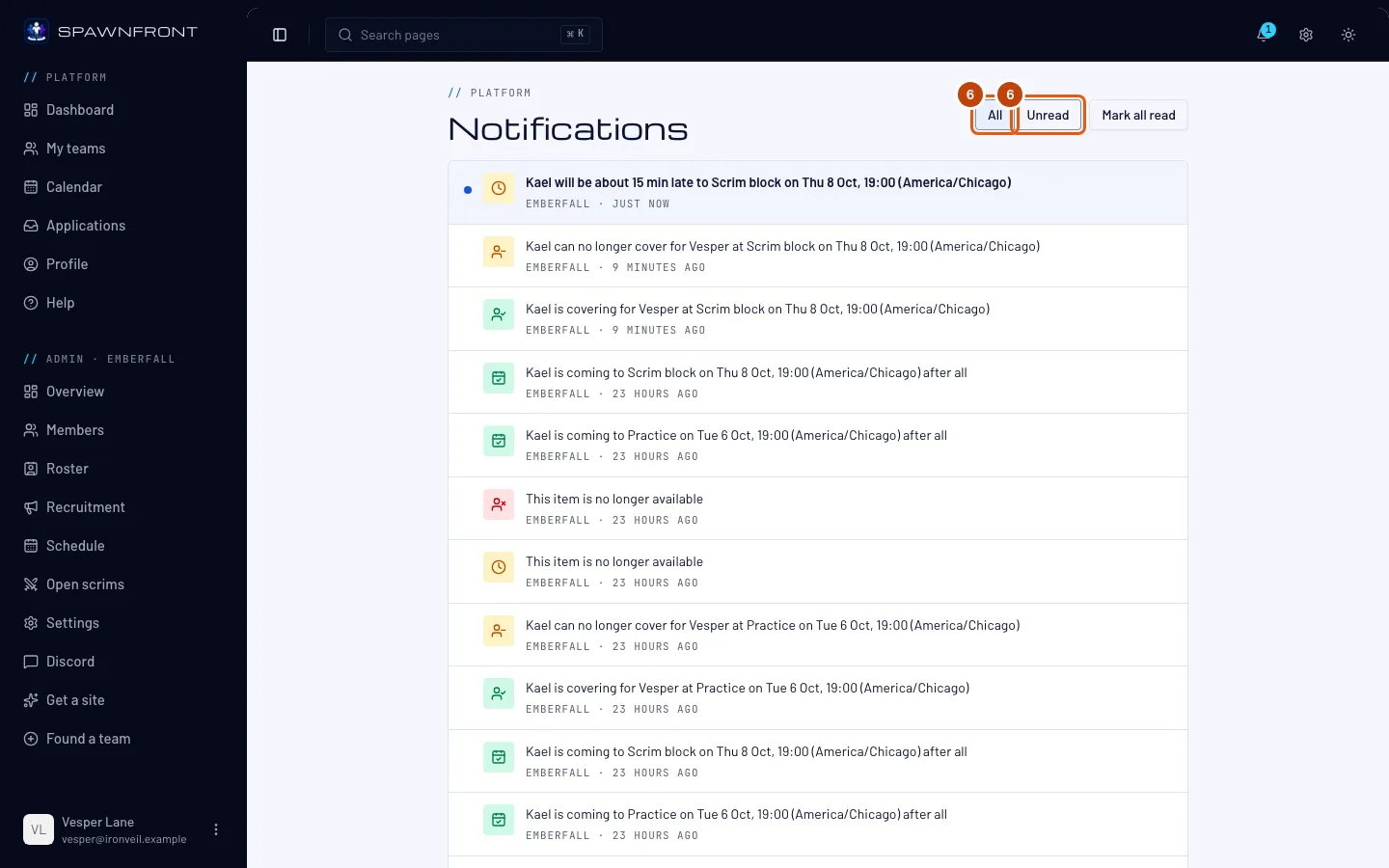
You should see: the Notifications page, with every notice of the last 90 days. Press Show more at the bottom for older ones.
Step 6: Choose All or Unread
Press Unread to see only what you haven't read, and All to see everything again.
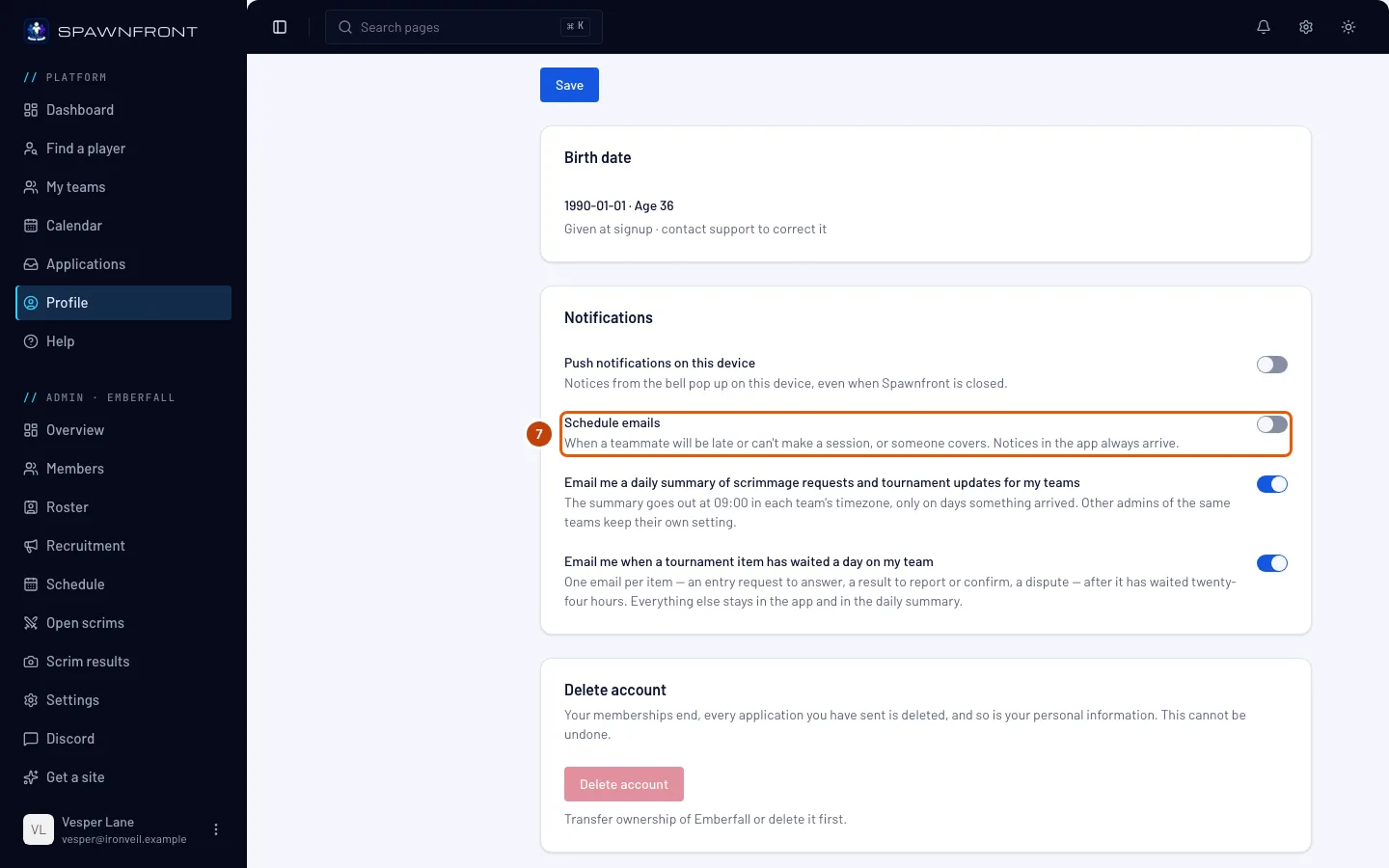
Step 7: Choose your schedule emails
In the menu, press Profile. In the Account section, find the Notifications card and its Schedule emails switch.
Late, out and cover notices also come by email, within about five minutes. Turn Schedule emails off to stop those emails — the bell still shows every notice. The switch saves as soon as you press it.
You should see: "Notification setting saved".
How to know it worked
- The bell's number goes down as you read your notices.
What reaches you depends on your role.
- Every member: a cover taken or given up for you, when you said you can't make a session.
- Substitutes: a player who will be late or can't make a session, with I'll cover on an out — see Cover for a teammate.
- Owners and admins: every late, out and cover on the team, each new application and each scrim request as it arrives. The daily email summary of requests and tournament updates still comes as before.
- Players listed in Find a player: a team's invitation to apply to one of its open positions, also by email — see List yourself in Find a player.
Want them to pop up on your phone or computer, even when Spawnfront is closed? Turn on Push notifications on this device on the same Notifications card — see Turn on push notifications.
Something doesn't look right?
A notice says "This item is no longer available"
What it pointed to has changed: the teammate undid their mark, the application or request is gone, the position you were invited to closed or you stopped being listed in Find a player, or you're no longer an admin or member of that team.
I turned off Schedule emails but still see notices
That's expected: the switch stops the emails only. Notices always arrive in the bell.
My old notices are gone
Notices are kept for 90 days, then deleted.
Related articles
Still stuck? Contact support or email support@spawnfront.com — tell us the page you're on and the step number.