
Add a profile photo
Choose a photo, position it in a round frame, and use a different one on a team if you like.
For everyone · 7 steps
What you need first
- You are logged in.
- A photo of yourself on your device, as a JPG, PNG or WebP file.
- For a photo on one team only (steps 5 to 7): you're on that team's roster, linked to your account, and the team's subscription is active.
Steps
Step 1: Open Profile
In the menu, press Profile.
You should see: Profile, with the Account section open and a card titled Photo at the top.

Step 2: Choose your photo
On the Photo card, press Change photo, then choose your photo in the window your device opens.
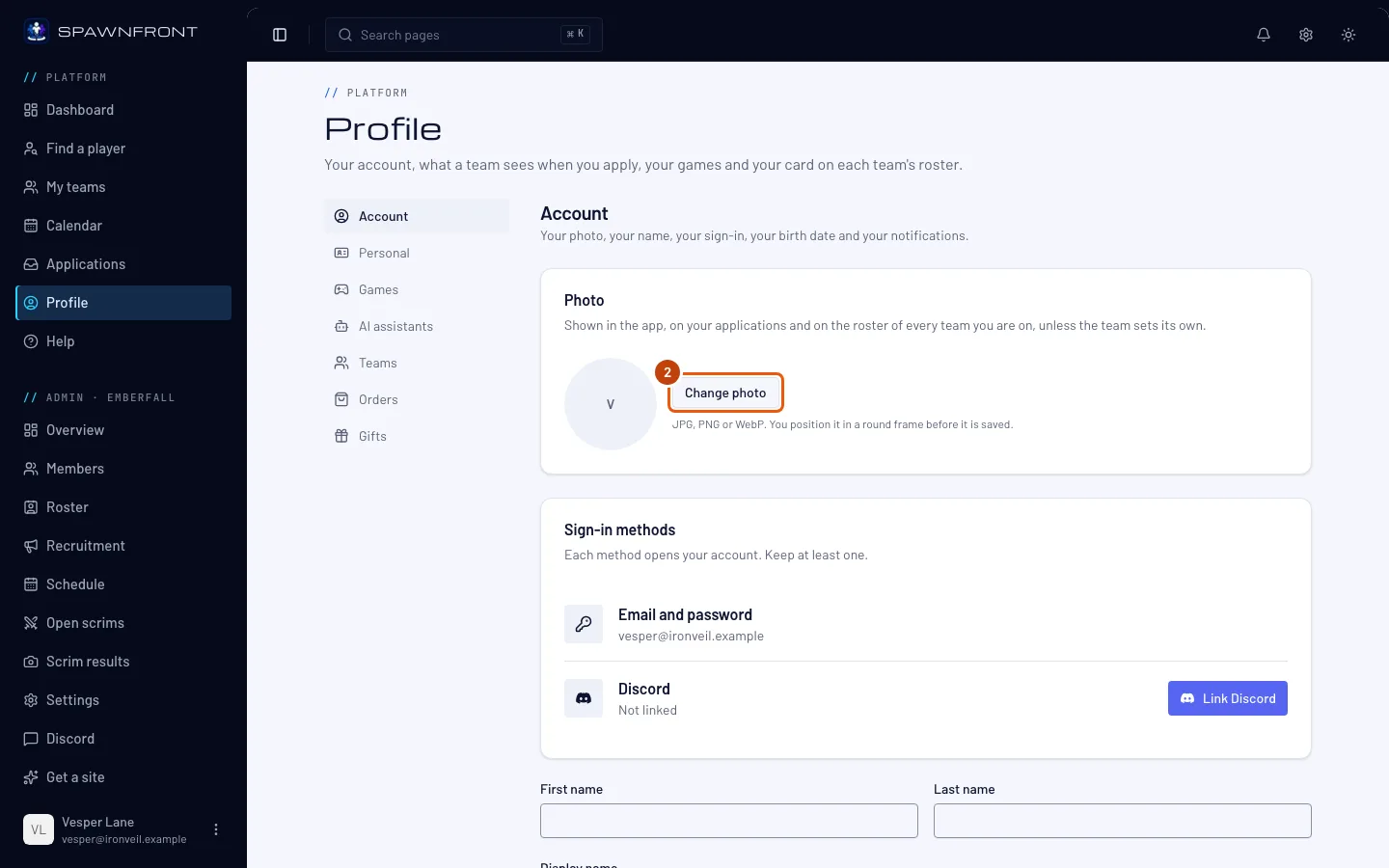
You should see: a box titled Position your photo, with your photo under a round frame.
Step 3: Position your photo
Drag the photo until your face sits inside the circle. Move the Zoom slider, or press the − and + buttons beside it, to make it smaller or larger.
Only what is inside the circle is saved. Picked the wrong file? Press Choose another file.
Step 4: Save photo
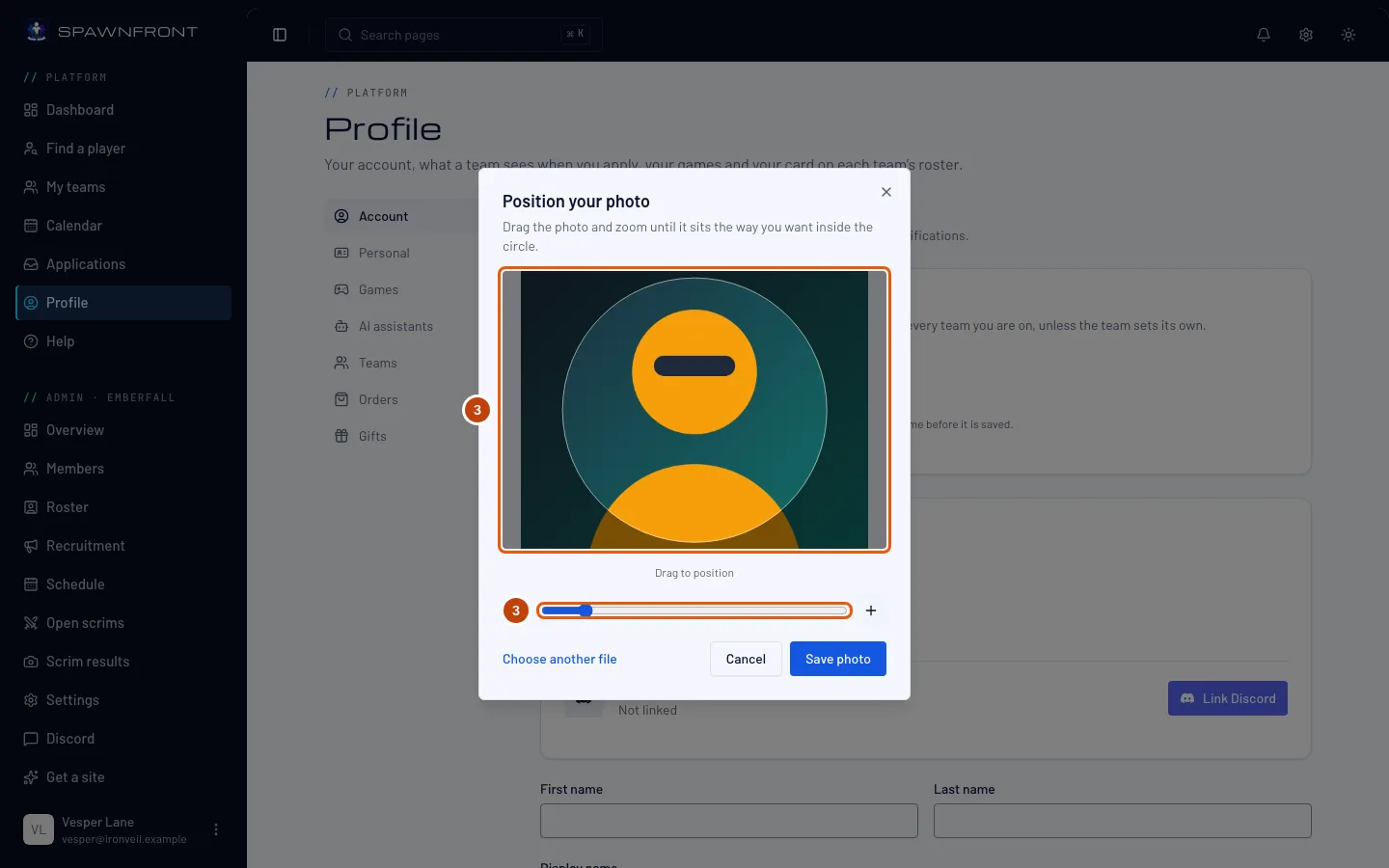
Press Save photo.
You should see: "Photo saved", and your photo in the circle on the Photo card and next to your name at the bottom of the menu.
It shows in the app, on your applications and on the roster of every team you're on — unless a team sets its own photo of you. On a team's public site it appears after the team's next publish.
Step 5: Open Teams and your team's game
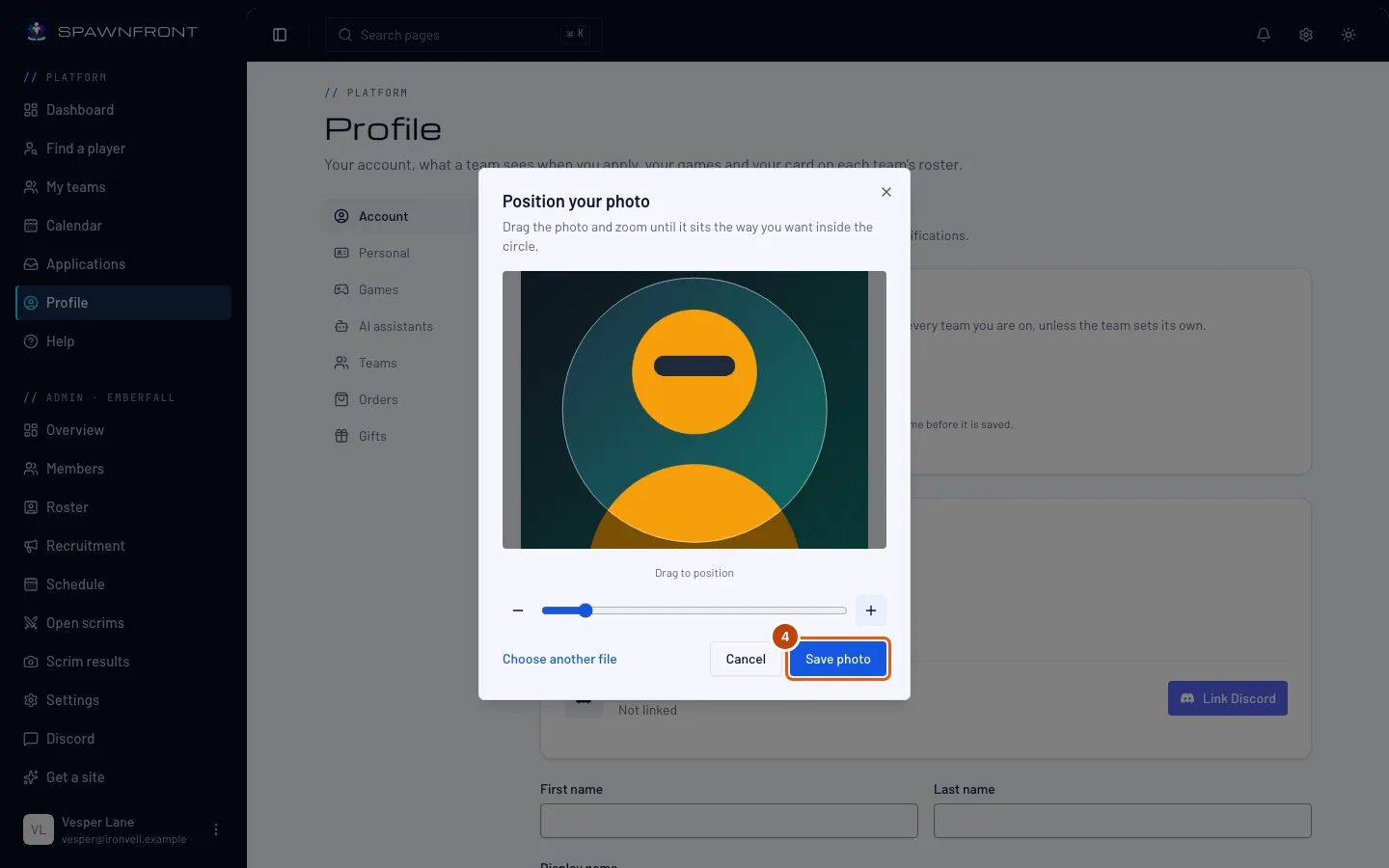
This step and the next two are only for a different photo on one team. Press Teams in the section list, then your team's game along the top. On two teams that play the game, choose the team in the Team box.
You should see: Your card on and the team's name, with Your photo for this team under what the team set.
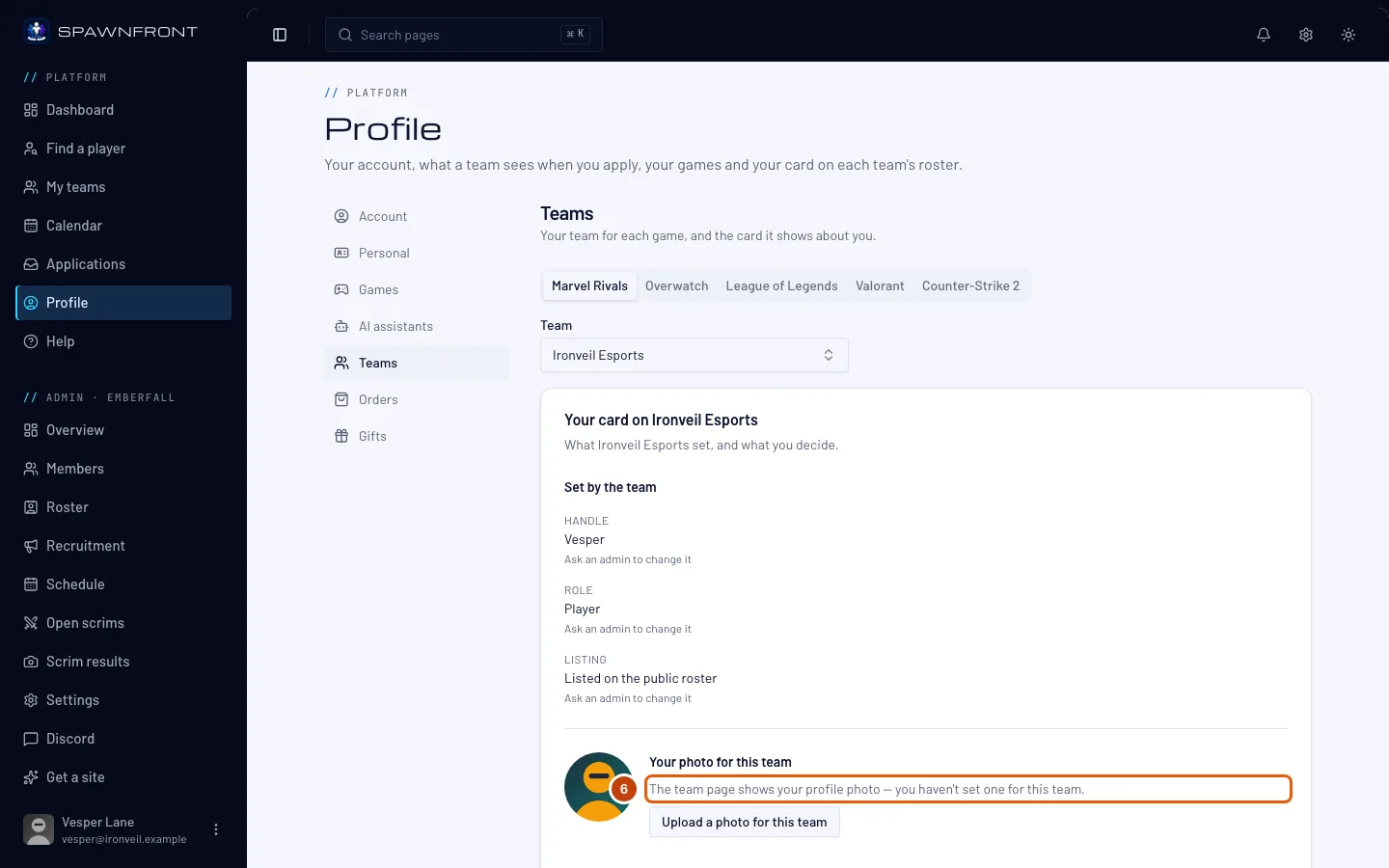
Step 6: See which photo the team page shows
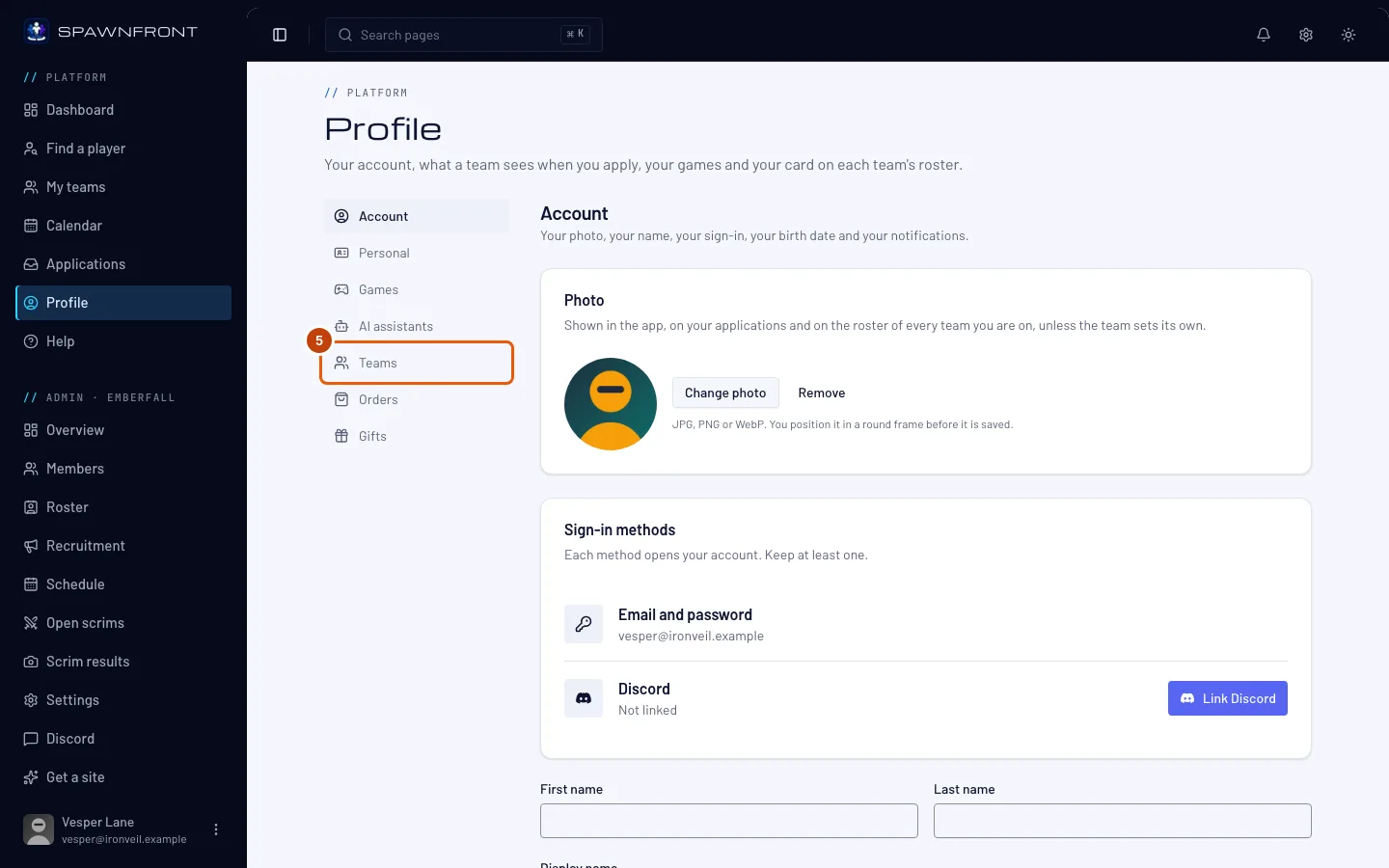
Read the line under Your photo for this team. It says which photo the team page shows now: the team's photo of you, your photo for this team, your profile photo, or your initials.
A team's own photo of you always wins. Only an admin can switch it back to yours — ask them to press Use the member's photo on the team's roster.
Step 7: Upload a photo for this team
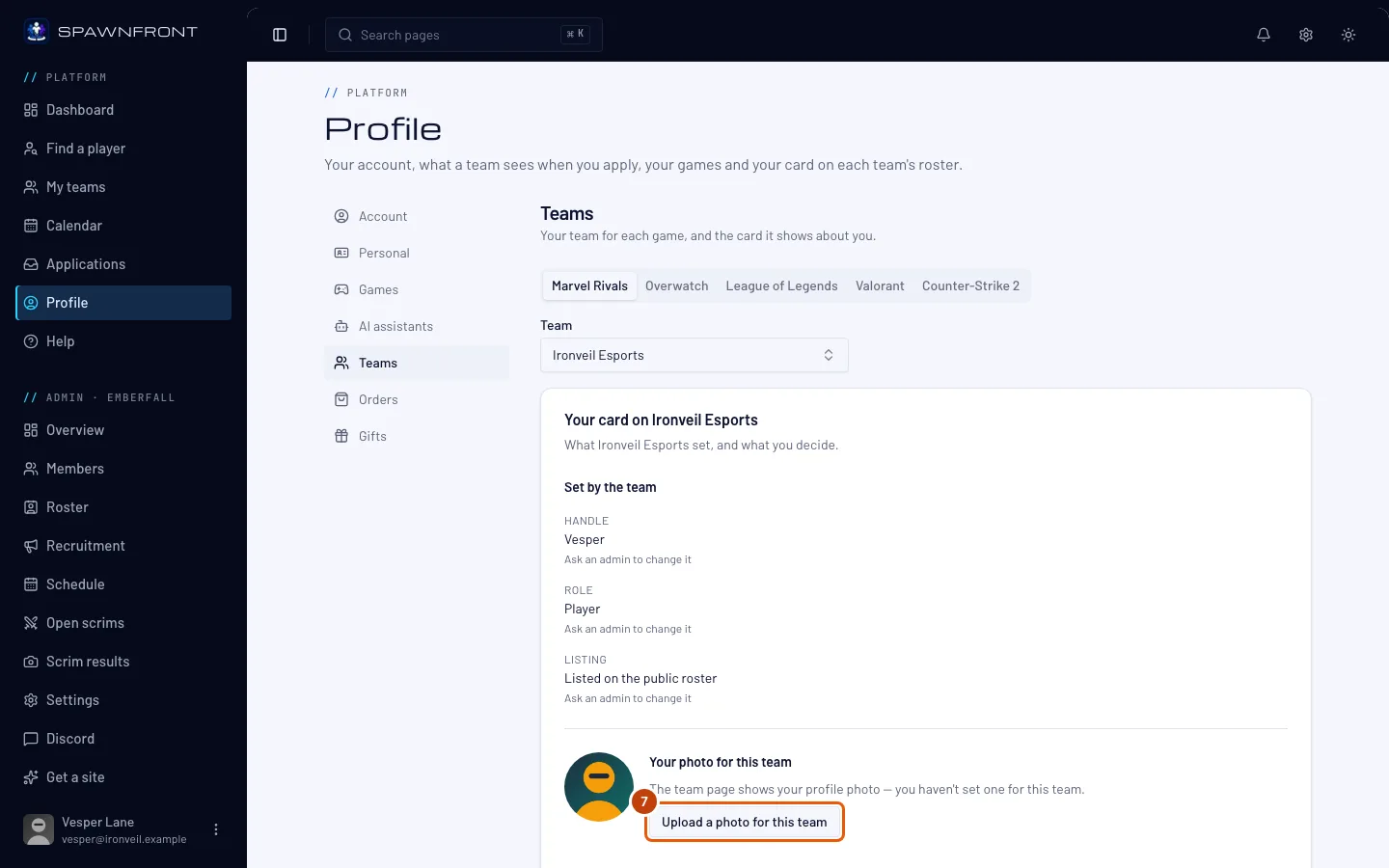
Press Upload a photo for this team, choose your photo, position it and press Save photo, as in steps 2 to 4.
You should see: "Photo saved", and the line reads "The team page shows your photo for this team."
This photo is for this team only. Your other teams keep showing your profile photo.
How to know it worked
- The Photo card and the menu show your photo after you reload the page.
- On Teams, your card's line says which photo the team page shows.
Something doesn't look right?
It says "Choose a JPG, PNG or WebP image."
The file you chose is another kind of file. Save or export your photo as a JPG, PNG or WebP, then press Change photo again.
My team's page shows a different photo
Read the line on your card in Profile › Teams (step 6). If it says the team page shows the team's photo of you, the team set its own — ask an admin to press Use the member's photo. If it shows yours but the team's public site doesn't yet, the site changes at the team's next publish; ask an admin to publish.
How do I remove my photo?
Press Remove next to Change photo on the Photo card. You should see: "Photo removed", and your initials in its place. A photo for one team has its own Remove on your card in Profile › Teams; the team then shows your profile photo again.
What happens to my photos when I leave a team or close my account?
Leaving a team takes your photos off its roster — the team can still show a photo it set itself. Closing your account deletes your photos.
Related articles
Still stuck? Contact support or email support@spawnfront.com — tell us the page you're on and the step number.