
Use your links on all your teams
Add a link once on Personal and tick Use on all my teams to show it on every team you're on.
For team members · 6 steps
What you need first
- You're a member of a team, and you're on its roster, linked to your account. A link reaches only the teams whose roster lists you.
- Your Country, Languages you speak and Native language are chosen on Personal — Save asks for them if one is empty. See Set up your profile.
Steps
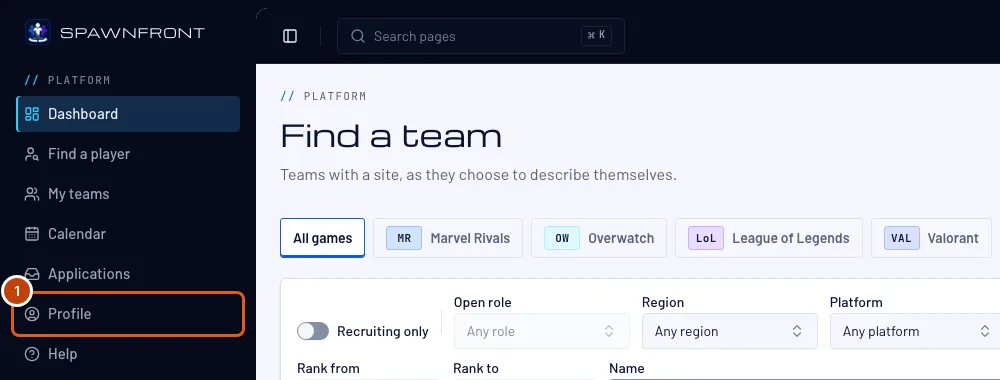
Step 1: Open Profile
In the menu, press Profile.
You should see: Profile, with its sections listed down the left — Account, Personal, Games, Teams and Orders.
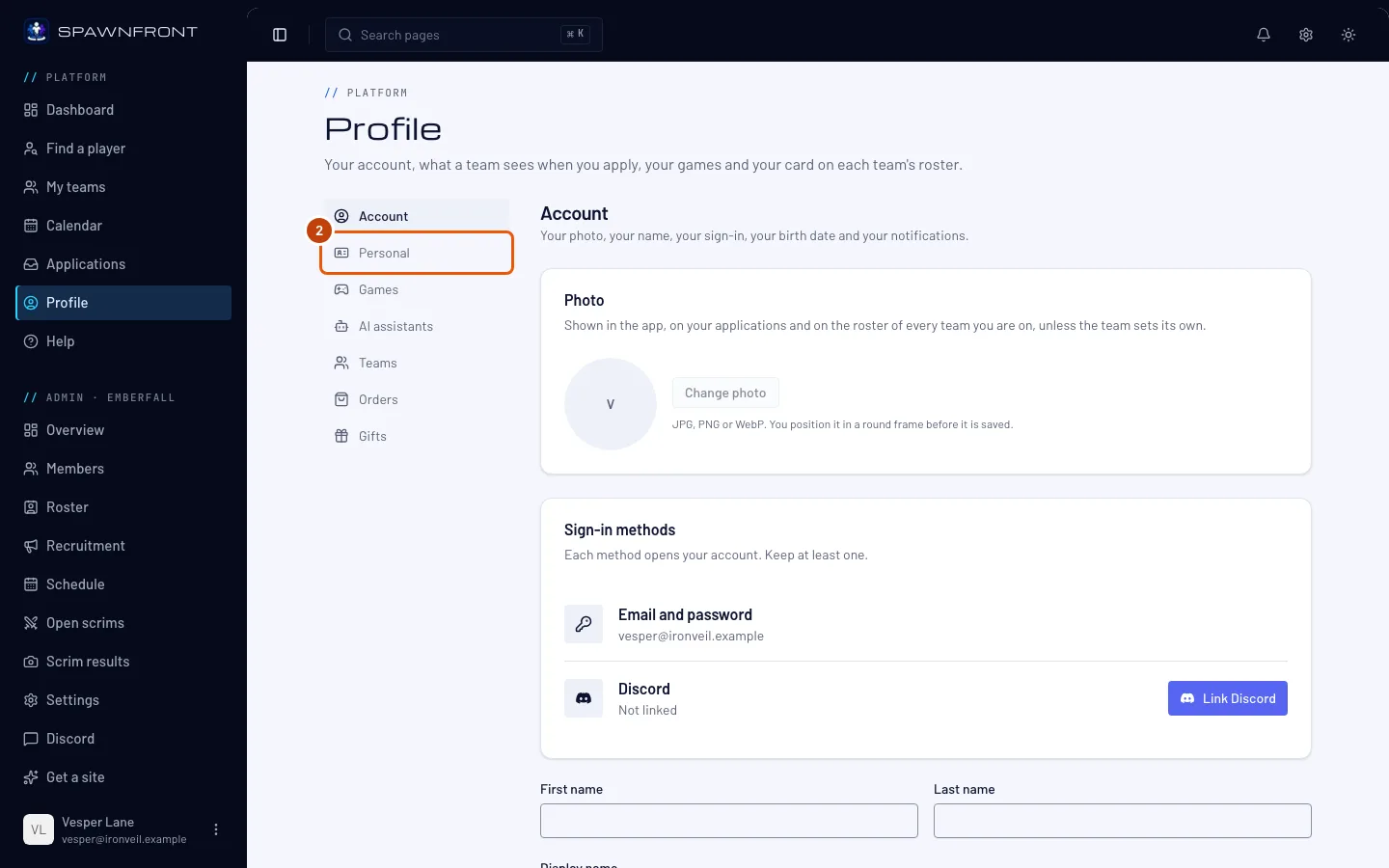
Step 2: Open the Personal section
Press Personal in the section list.
You should see: a card titled Personal, with your links under Contact methods: Facebook, X, Telegram, Reddit, Discord and Twitch.
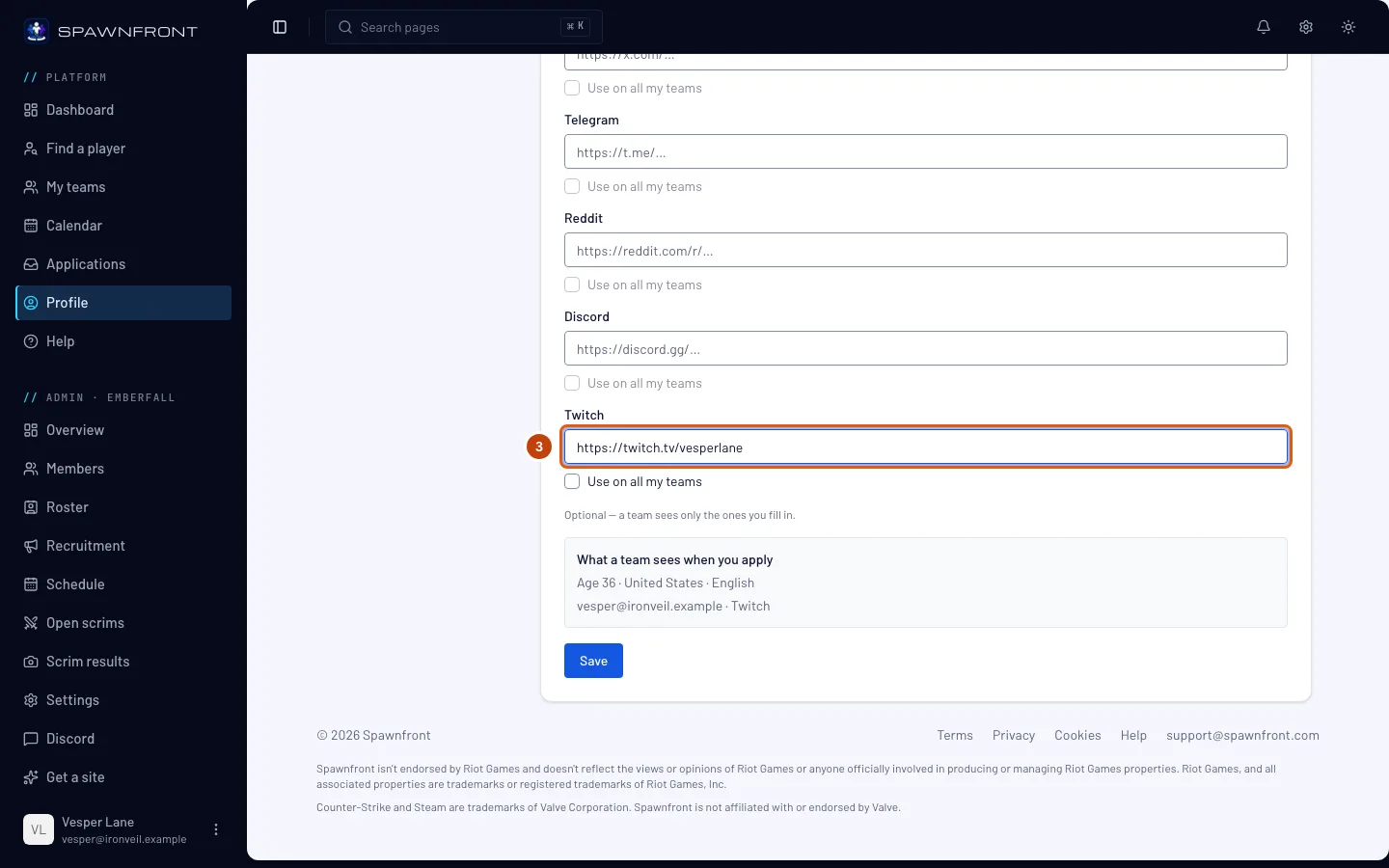
Step 3: Add your link
Paste the full address of your page in its box, starting with https:// — your channel in Twitch, for example. Each box takes a link to its own network only.
You should see: your link in the box.
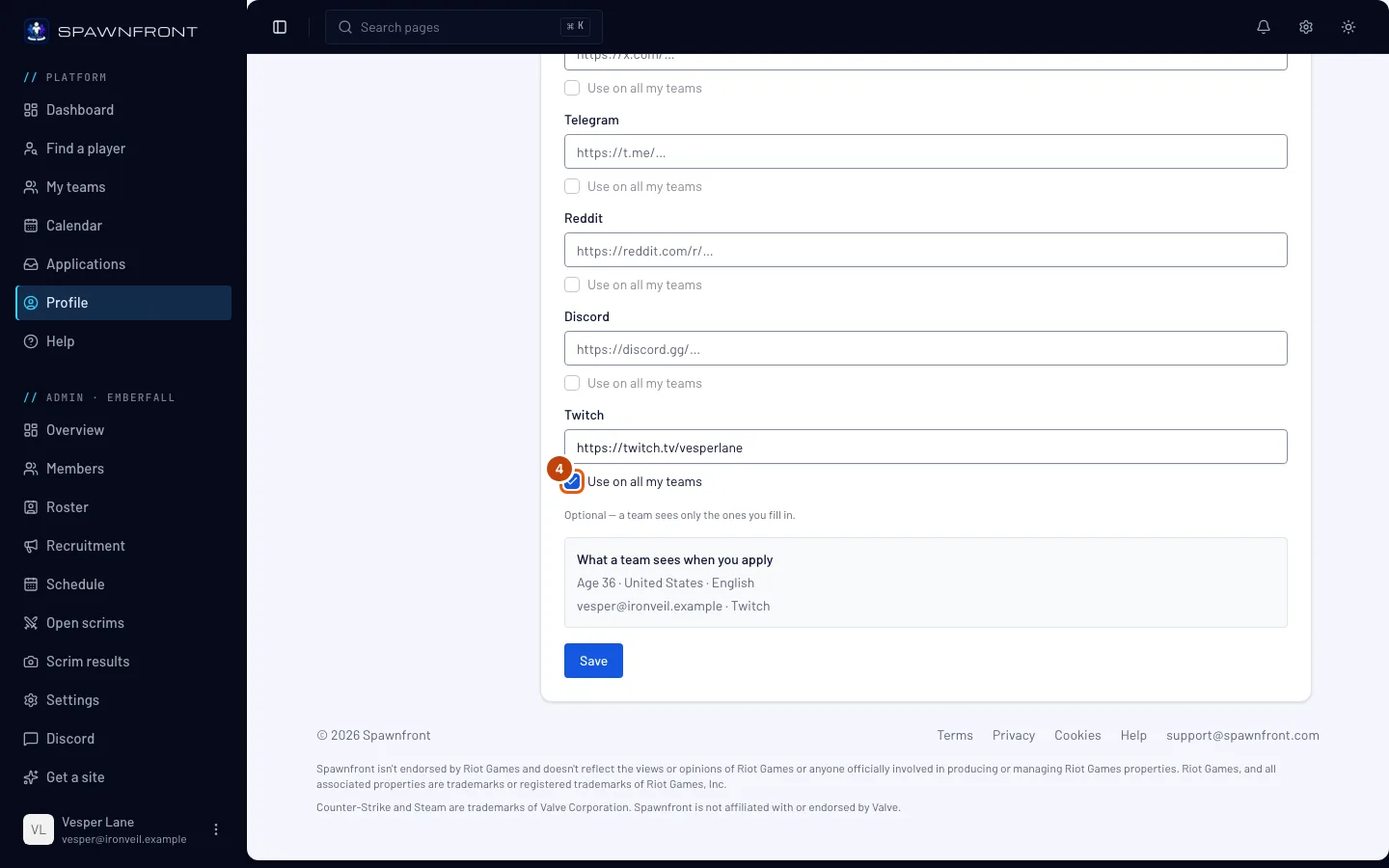
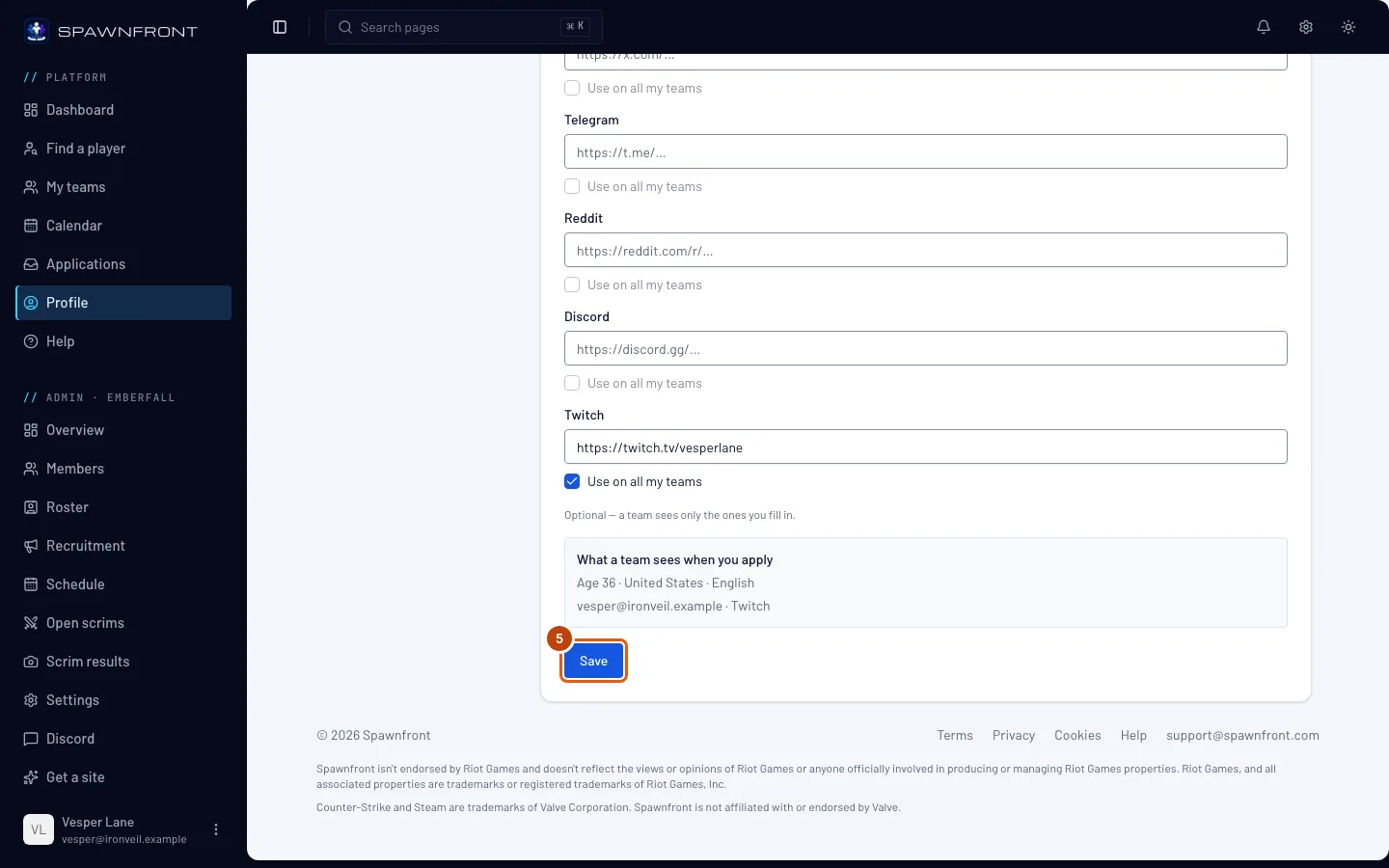
Step 4: Tick Use on all my teams
Under the link, tick Use on all my teams.
The box stays grayed out while the link above it is empty — type the link first.
Step 5: Save
Scroll down and press Save.
You should see: "Profile updated".
Your link goes on every team you're on, and the teams can't change it — only you can, here on Personal. The app shows it at once; a team's public site shows it after the team's next publish.
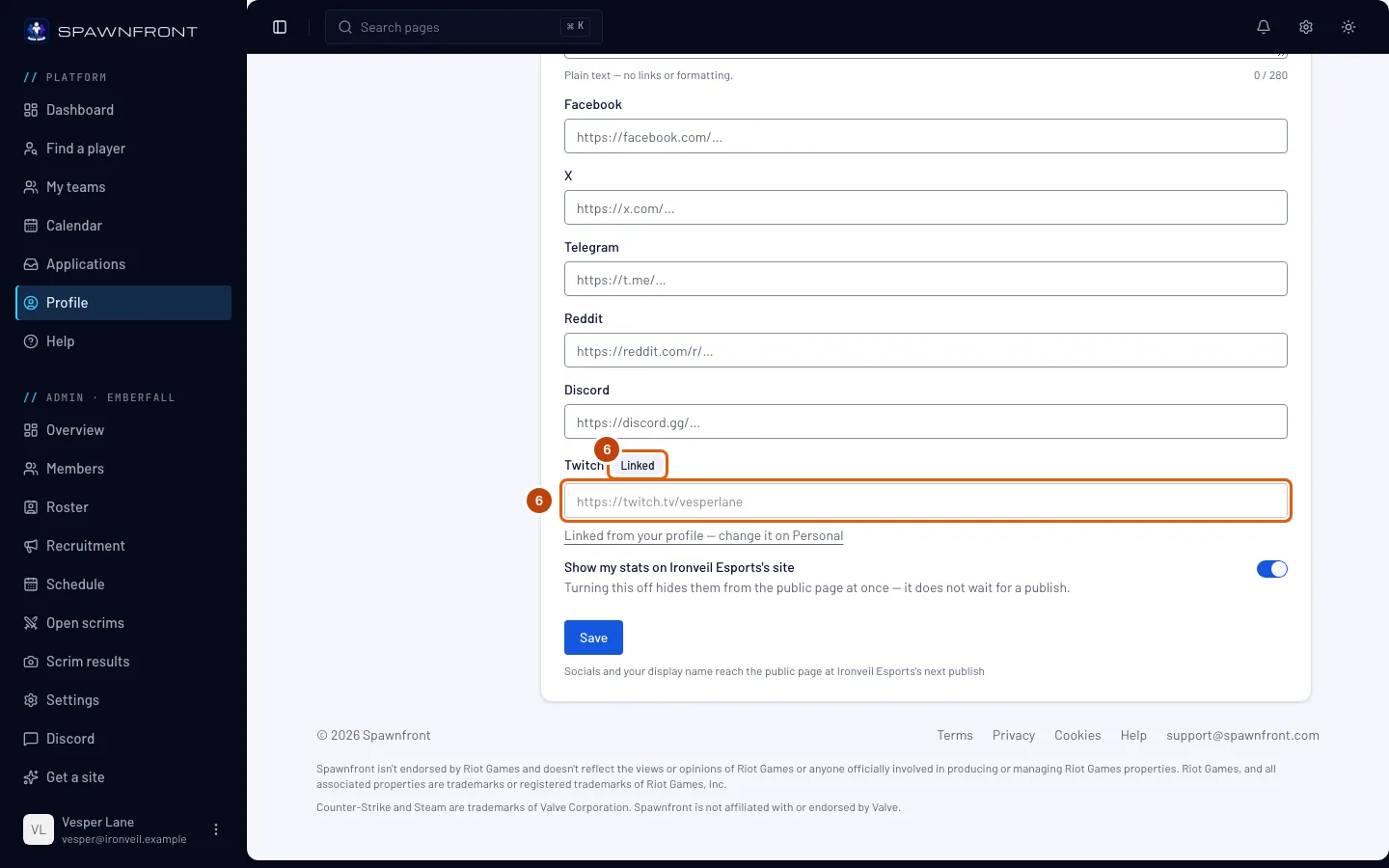
Step 6: See it on your team card
Press Teams in the section list, then your team's game along the top.
You should see: on Your card on your team, the same link, grayed out and marked Linked, with "Linked from your profile — change it on Personal" under it.
How to know it worked
- On Teams, the link reads Linked on your card for every team you're on.
Something doesn't look right?
Use on all my teams is grayed out
The link above it is empty. Type the link first, then tick the box. A link that is already ticked can always be unticked.
I unticked Use on all my teams — what happens to my teams?
Nothing is taken off: each team keeps the link it last had, and you can change it on that team's card in Profile › Teams again. The same happens if you empty a ticked link and save — an empty link can't go on every team, so the box is unticked instead.
My team's public site still shows my old link
The public site changes at the team's next publish. An admin publishes it, not you. The app shows your link at once.
Why doesn't my Discord username have the box?
Your Discord username is how a team reaches you when you apply; it isn't a link and never goes on a team card. The Discord box among the links is for an invite link to a Discord server.
Can a team's admin change a linked link?
No. While it's linked, only you can change it, here on Personal. An admin still decides whether your card is listed on the team's public roster.
Related articles
Still stuck? Contact support or email support@spawnfront.com — tell us the page you're on and the step number.