
Your member card
Choose your display name, photo, bio, socials and stats on your team's roster from Profile › Teams.
For team members · 9 steps
What you need first
- You're a member of a team, and one of its admins has put you on its roster and linked the entry to your account — or invited you from the roster.
- To change your card, the team's subscription must be active. When it has ended you can still read your card.
Steps
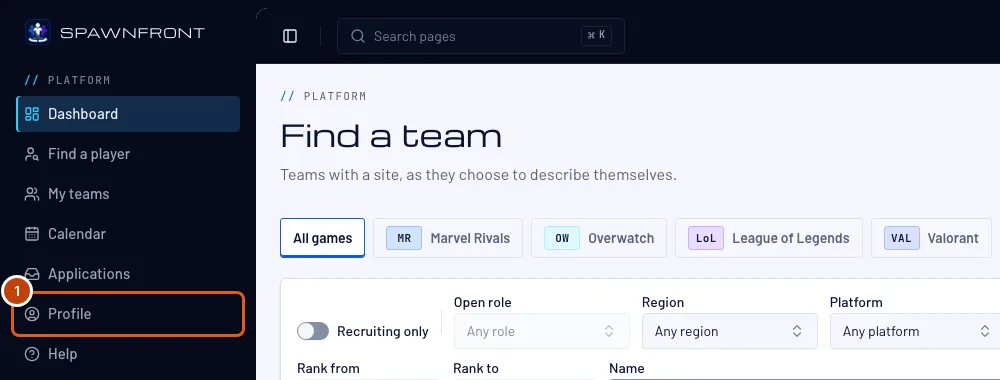
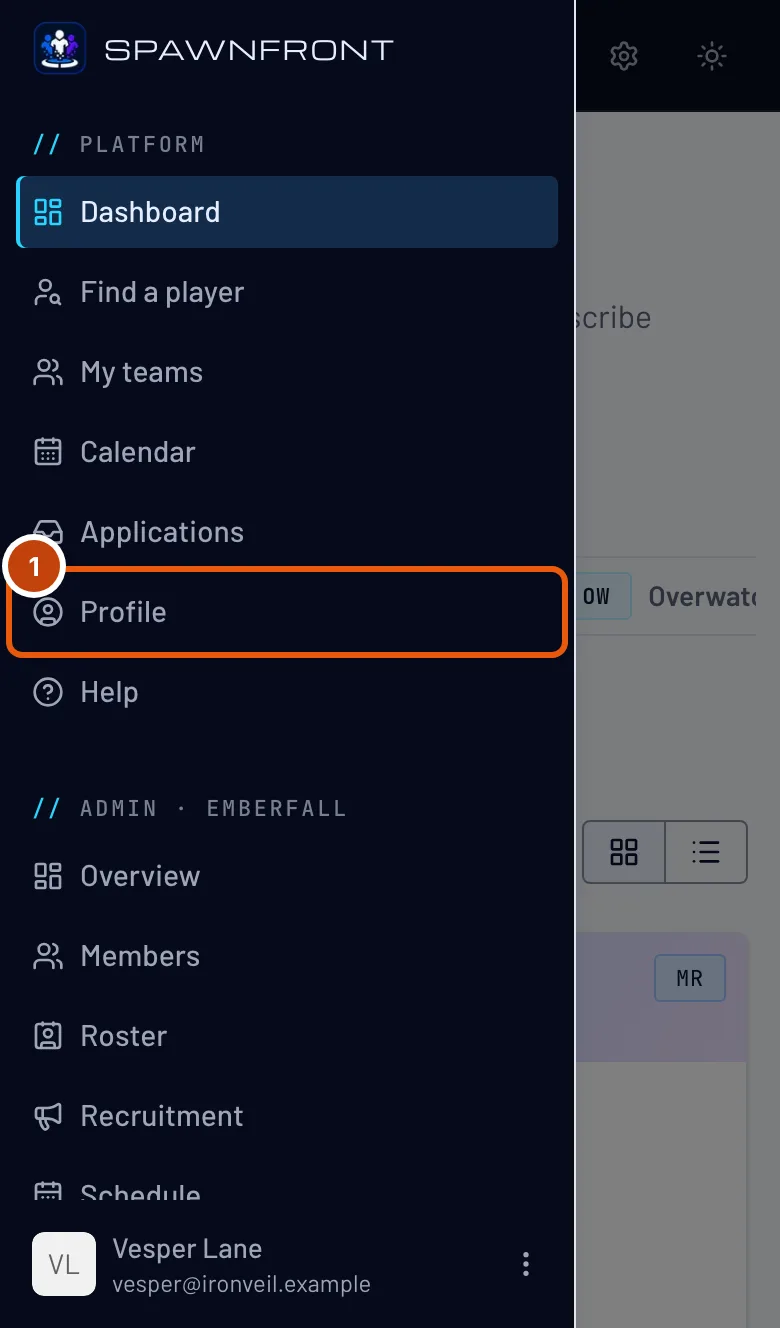
Step 1: Open Profile
In the menu, press Profile. On a phone, open the menu with the button at the top left first.
You should see: Profile, with its sections listed down the left.
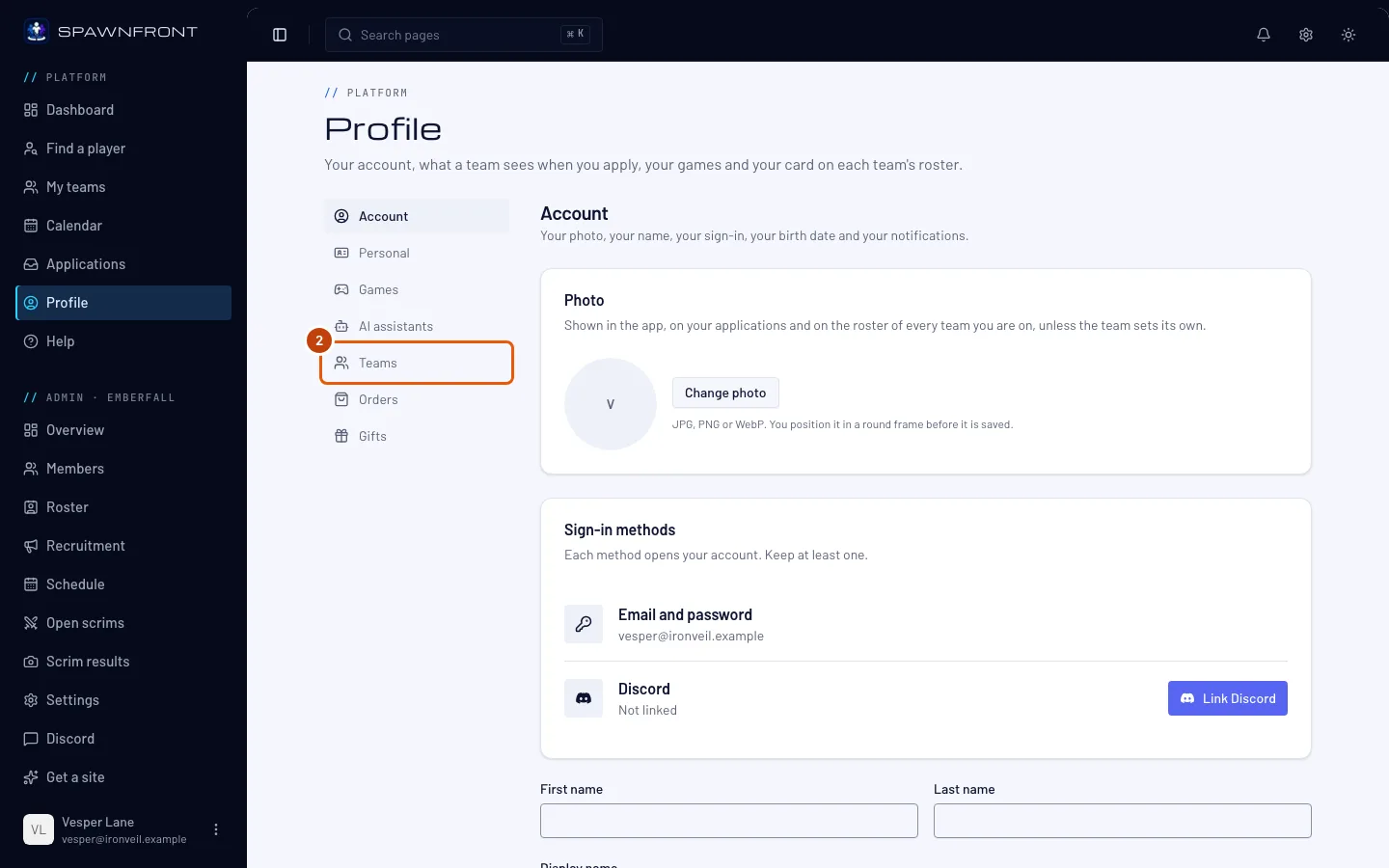
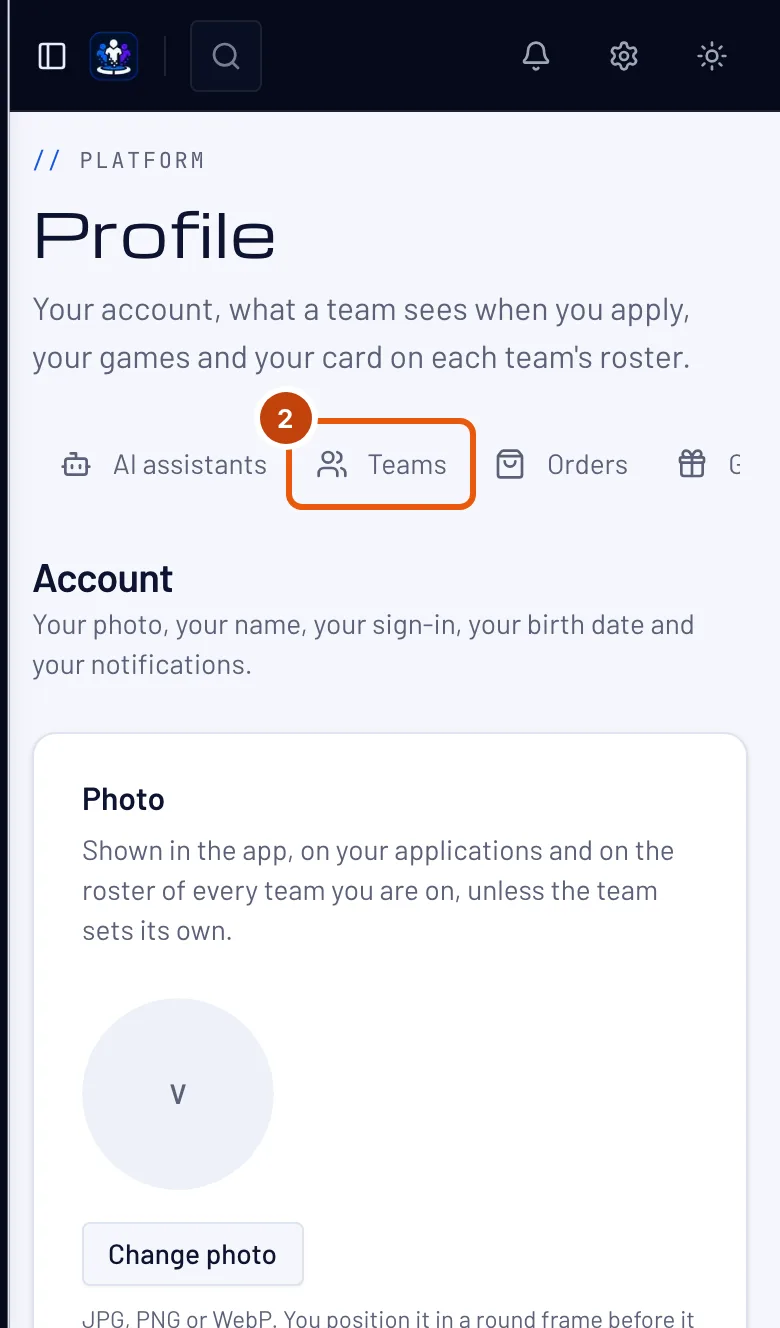
Step 2: Open Teams and your game's tab
Press Teams in the section list, then your team's game along the top.
You should see: your card on that game's team, titled Your card on and the team's name — with a Team picker above it if you are on two teams that play the game.
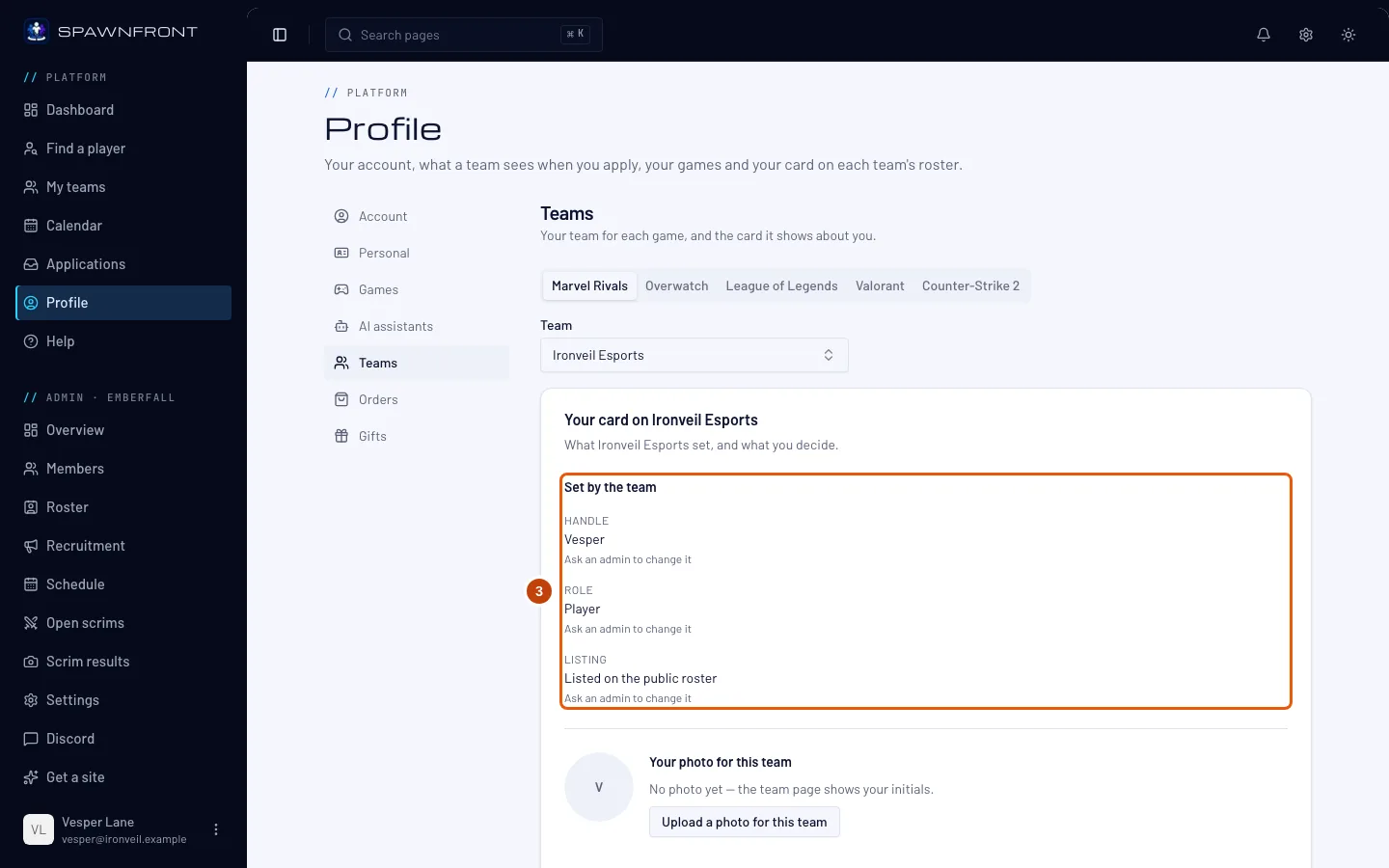
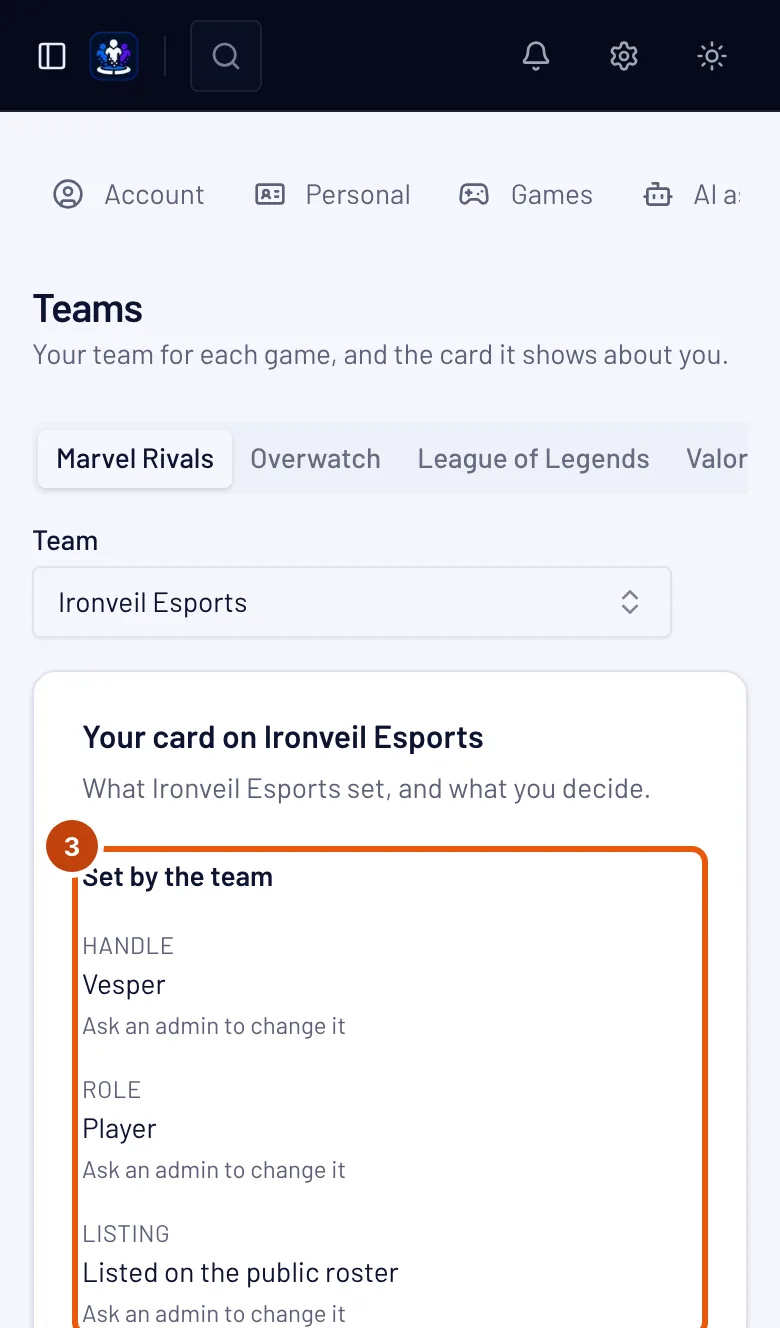
Step 3: Read what the team set
Under Set by the team you see your Handle, your Role and your Listing — whether you're listed on the public roster.
Only an admin can change these. Role and Listing say "Ask an admin to change it"; so does Handle, unless it comes from your game identity. If you have added your game identity for the team's game, your handle, in-game role and platform come from it instead and say "Set on your player identity" — change them in the Games section, through the Edit your handle, roles and platform on Profile › Games link. For Marvel Rivals, the team page shows your UID beside your handle too.
Step 4: Choose your display name
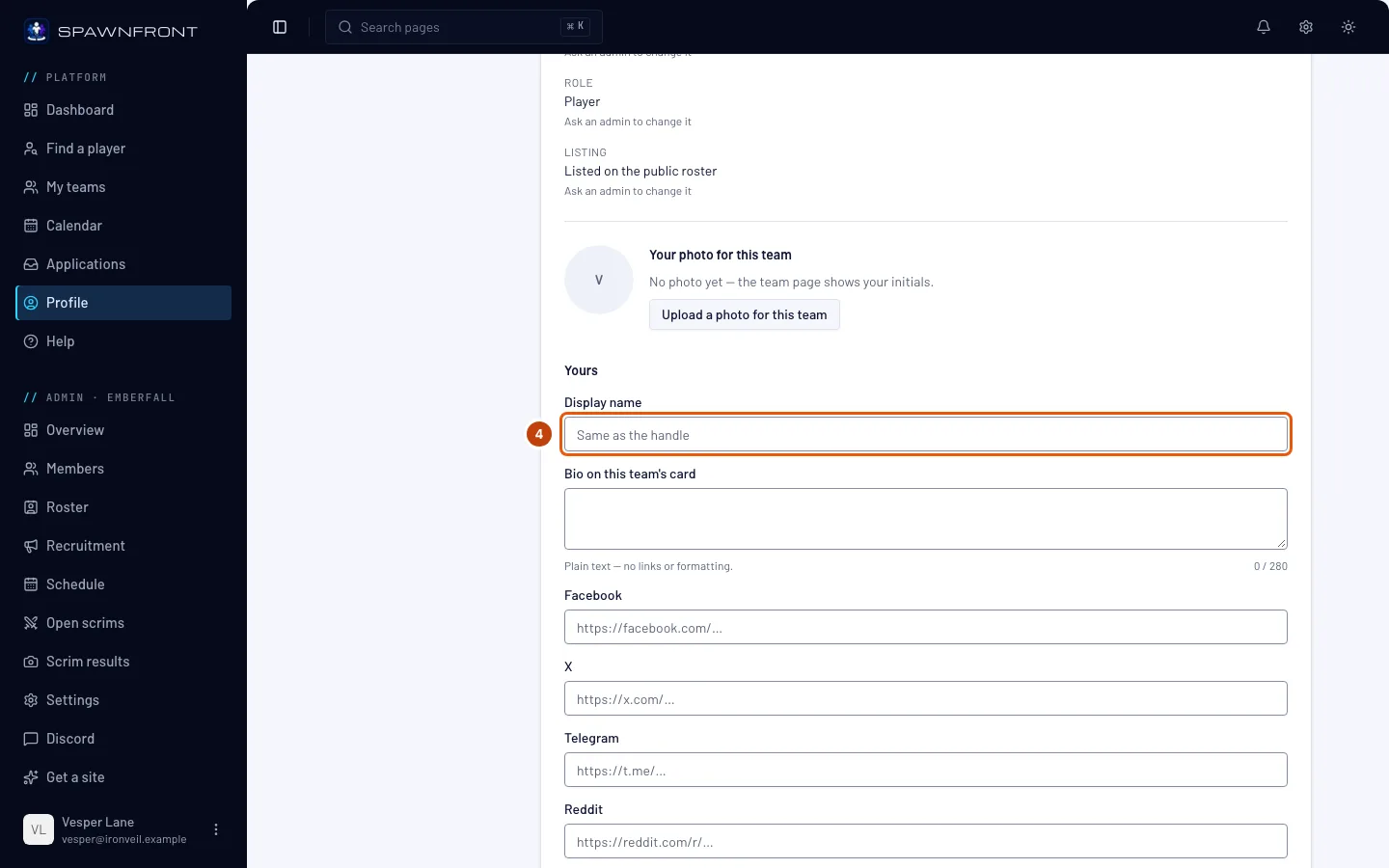
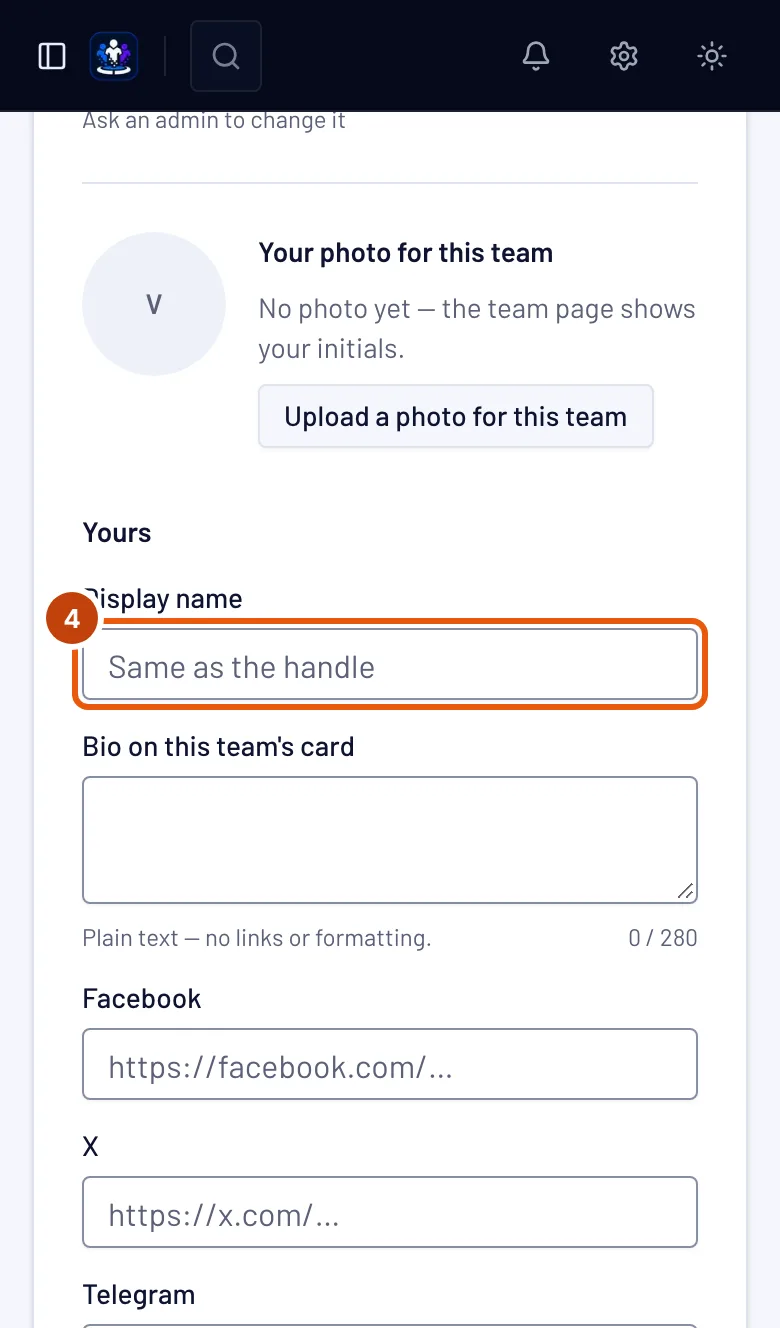
Under Yours, type the name you want on this team's roster in Display name. Leave it empty to show your handle.
It's per team — you can go by a different name on each team you play for.
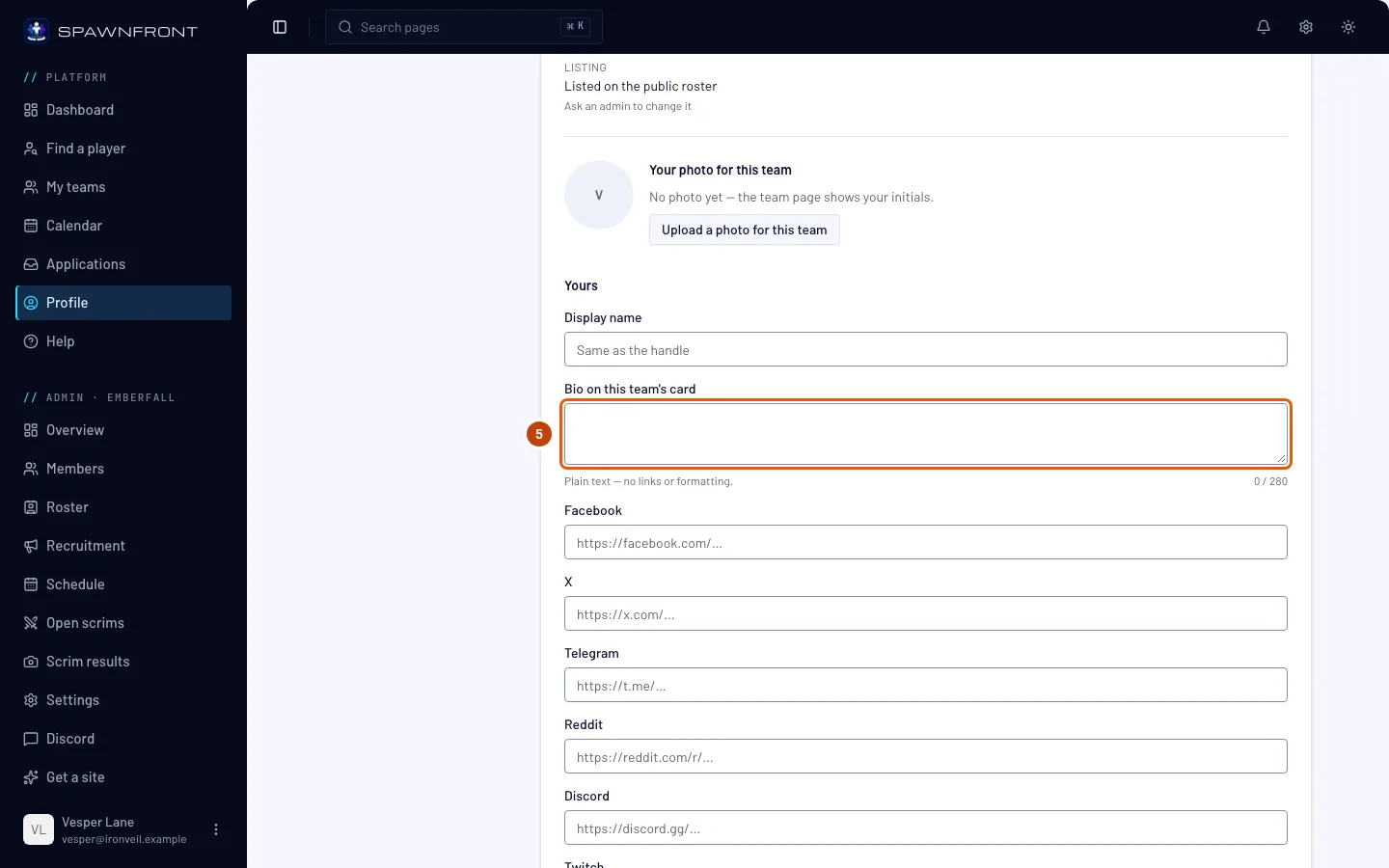
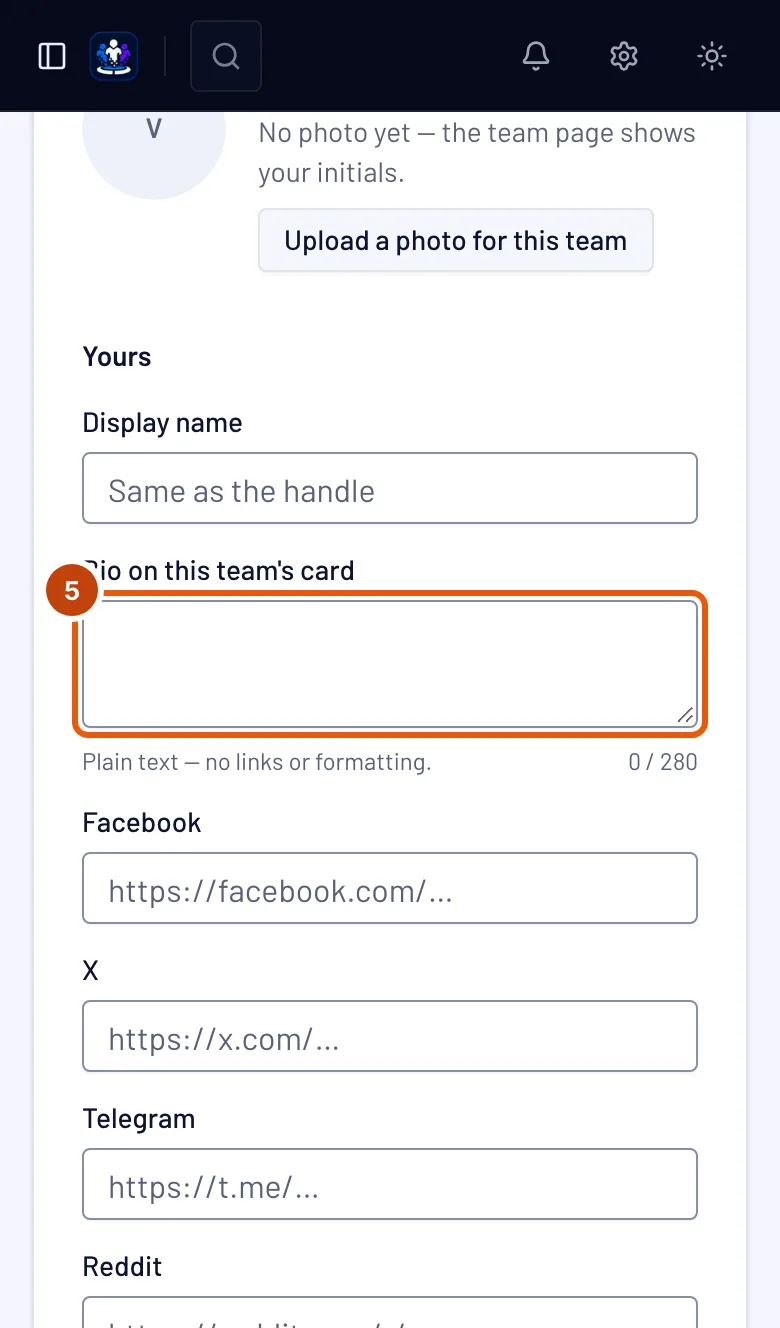
Step 5: Write the bio on this team's card
Type a few lines about yourself in Bio on this team's card — up to 280 characters, plain text. It shows on your player card for this team only — see Your player card.
The box is grayed out while your main bio is on all your teams. It then reads "Your main bio is on all your teams — change it on Personal": you turned on Use on all my teams under Player card in the Personal section, so that bio shows on every card. Change it there, or turn the switch off to write a bio per team.
When the team shows its own bio, a box above reads "… shows its own bio on your card:" with the team's words. Yours is kept for when the team clears its bio.
You should see: your words in the box, and the count under it — such as 52 / 280.
Step 6: Add your socials
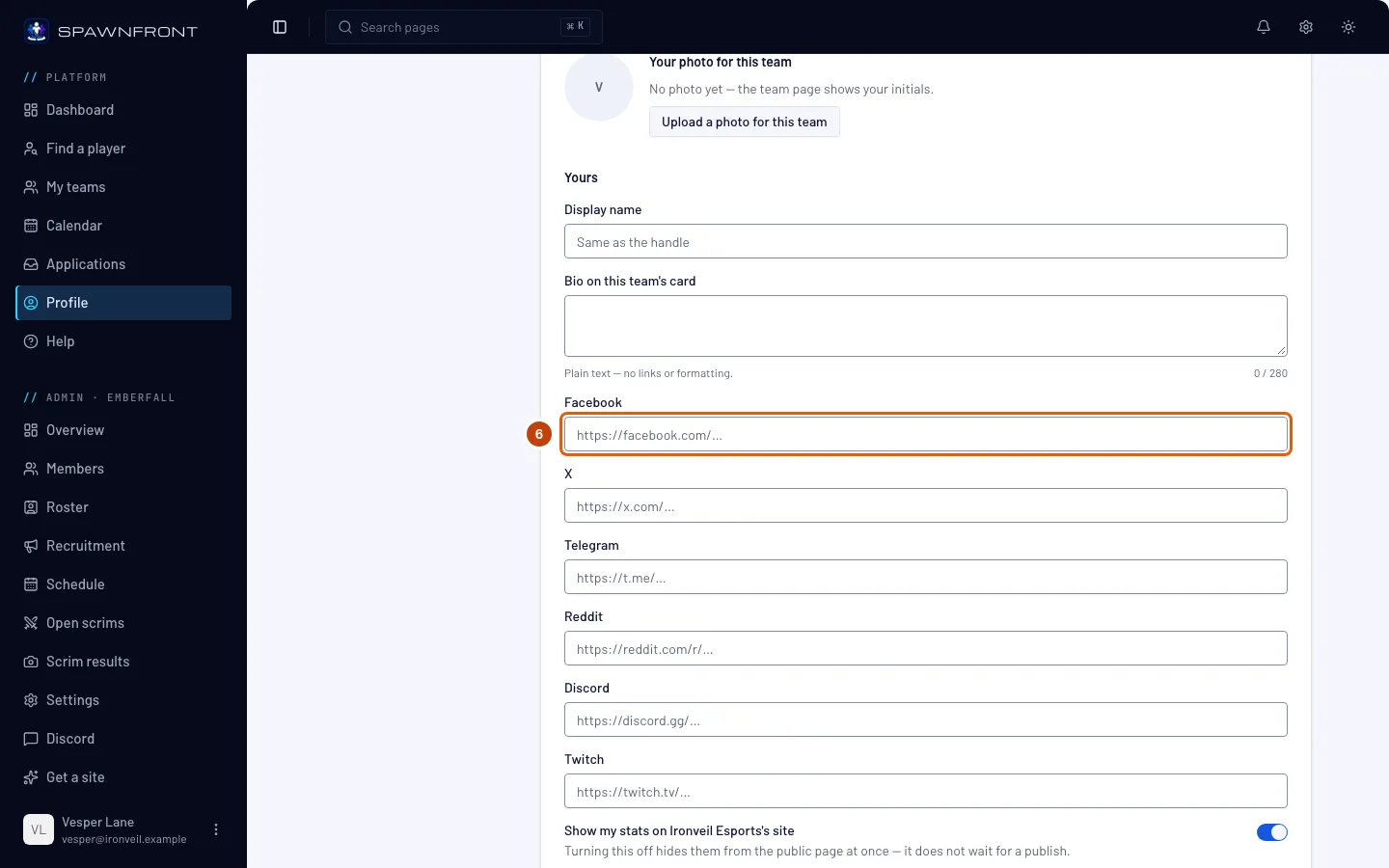
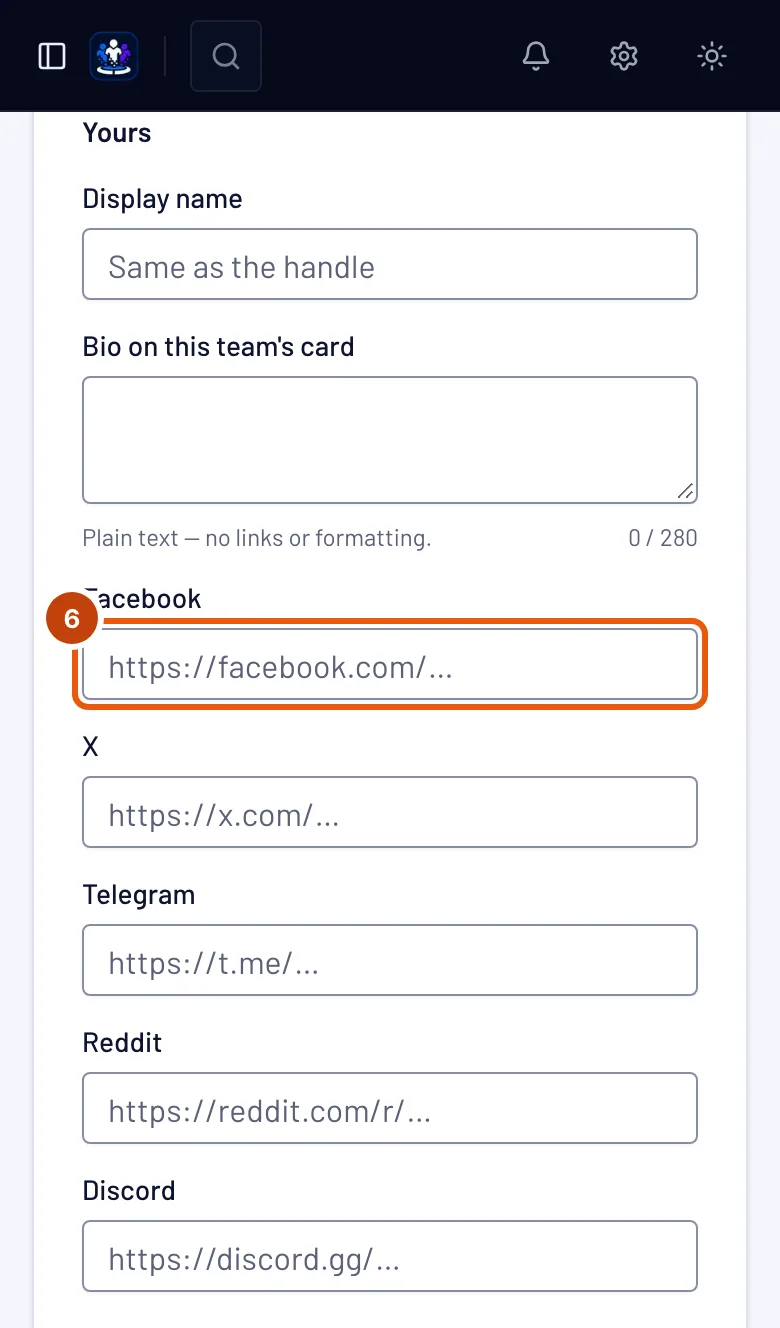
Paste the address of each profile you want on your card: Facebook, X, Telegram, Reddit, Discord and Twitch. Leave the rest empty.
A link marked Linked comes from your profile. You ticked Use on all my teams for it in the Personal section, so it is grayed out here and reads "Linked from your profile — change it on Personal". Change it there, and it changes on every team — see Use your links on all your teams.
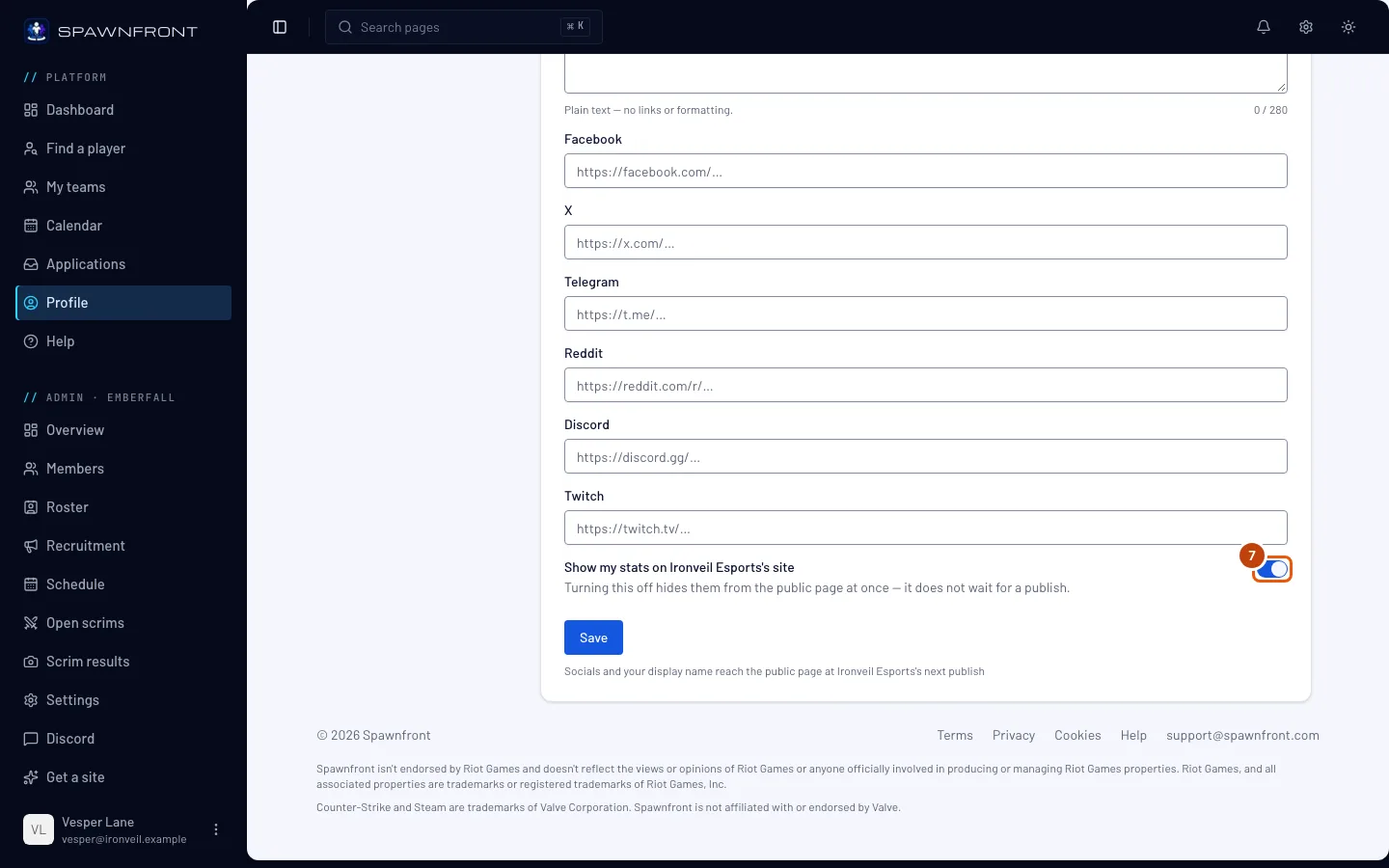
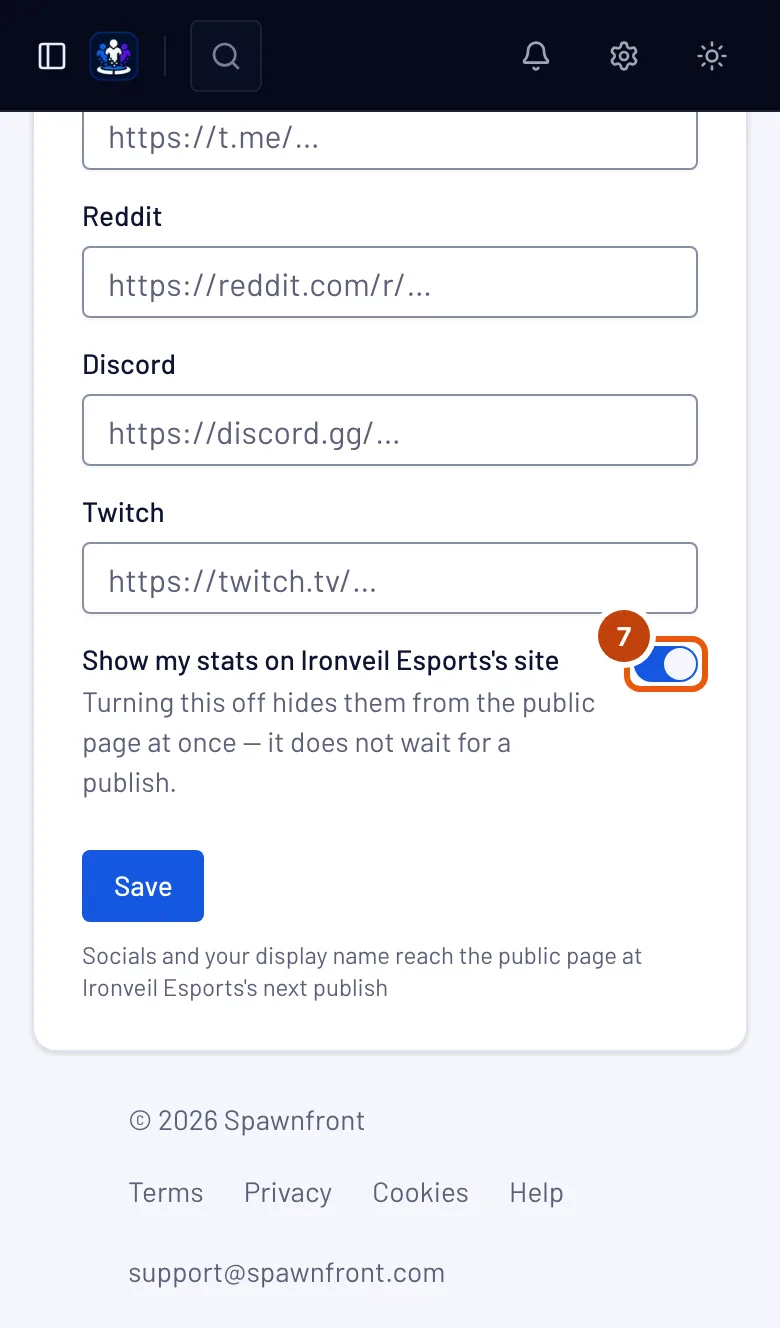
Step 7: Show or hide your stats
Turn Show my stats on …'s site on or off; it names your team.
Turning it off hides your stats from the team's site at once — it doesn't wait for the team to publish. With a game identity, this switch is in the Games section instead, and it decides for every team you play for.
Step 8: Save
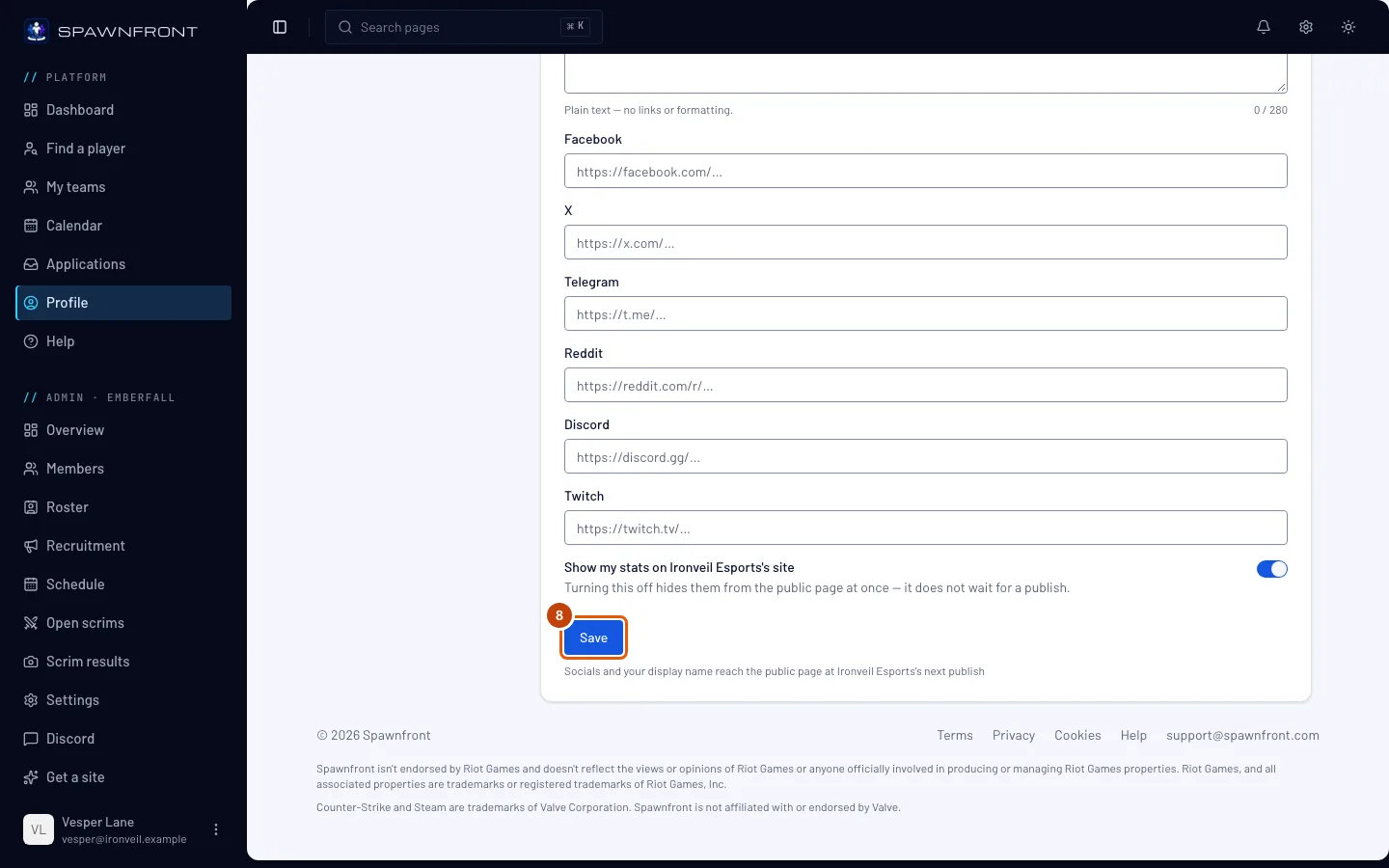
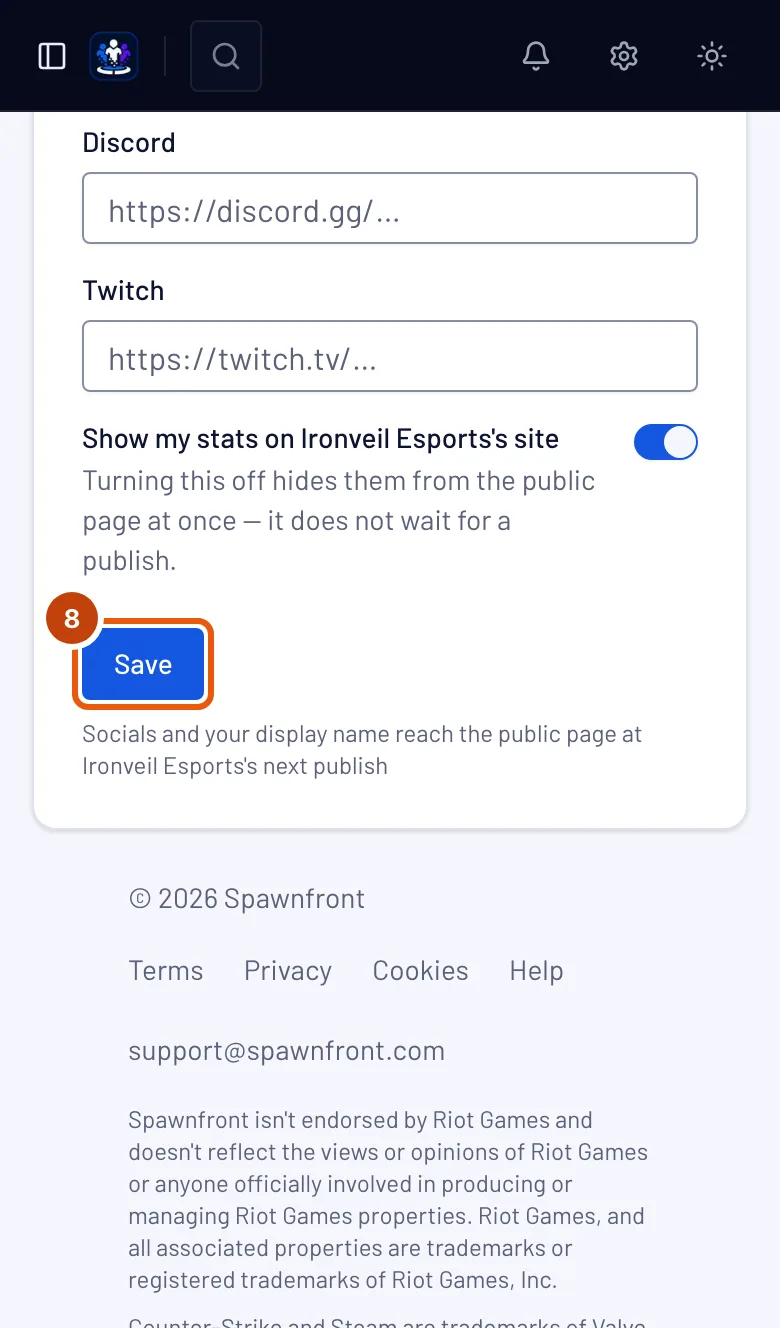
Press Save.
You should see: "Card saved".
Your bio shows on the team's site within a minute. Your display name and socials reach the team's site the next time the team publishes — an admin does that, not you.
Step 9: See your card on the team's site
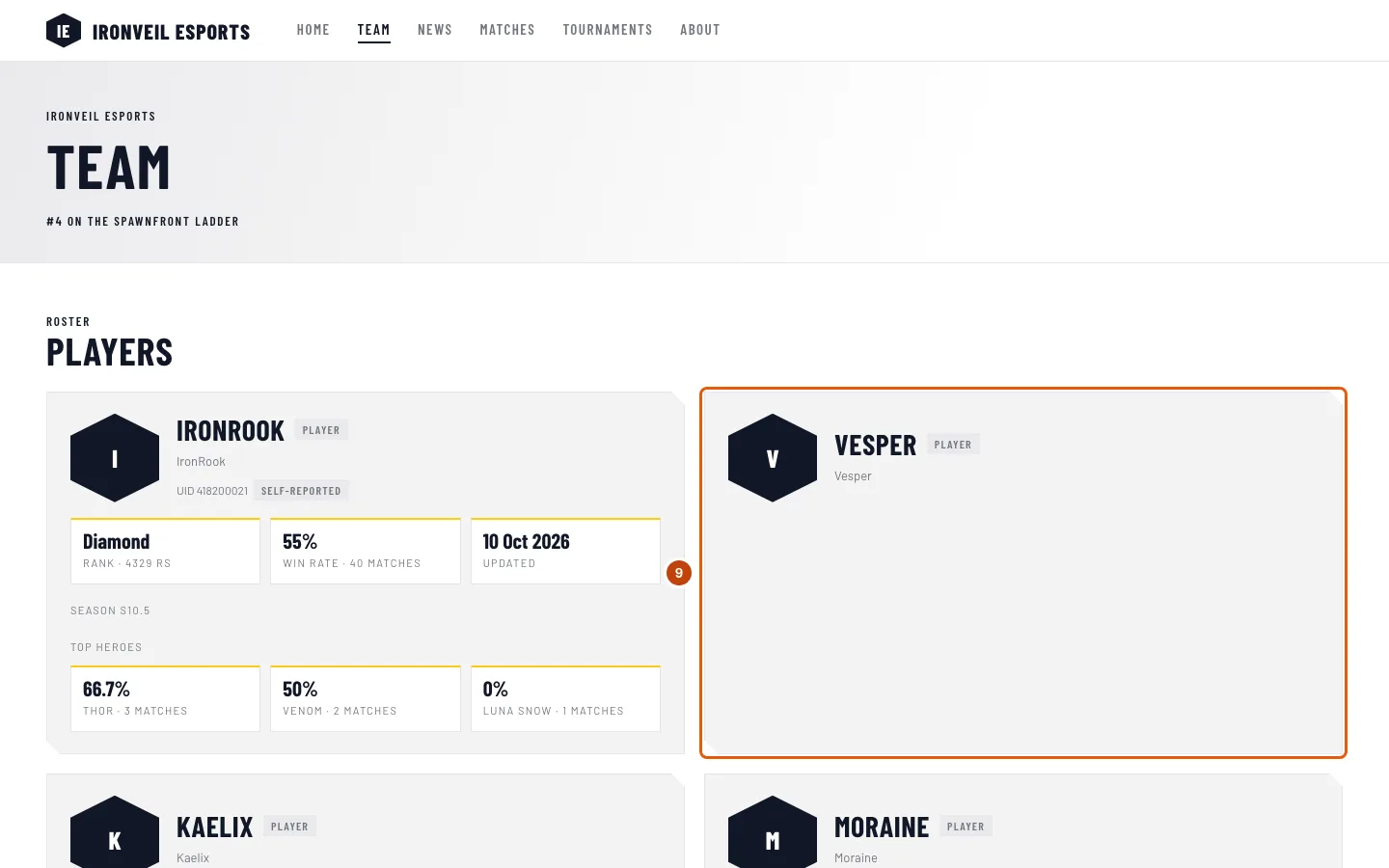
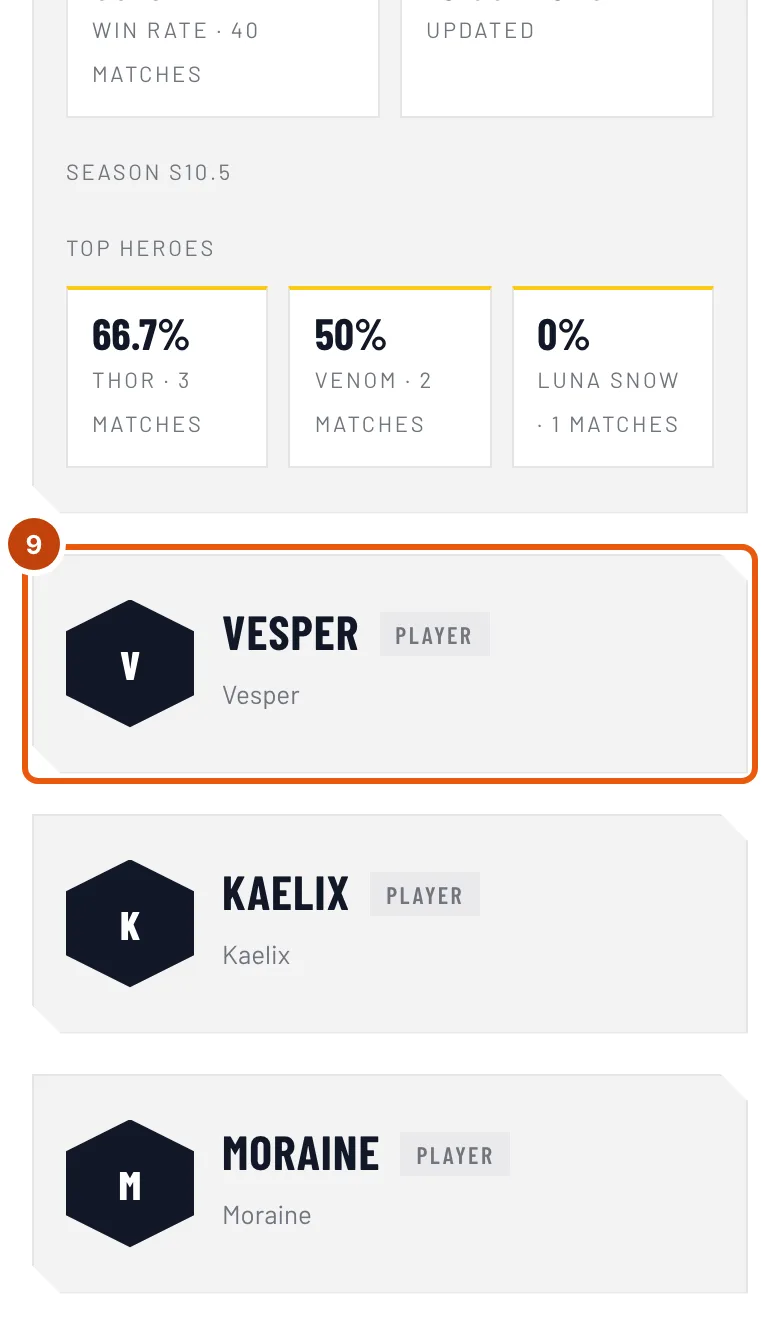
On My teams, press Visit site on the team's card — the site opens in a new tab — then Team in the site's menu.
You should see: your card — if your Listing reads Listed on the public roster — with your photo, your display name (or your handle), your role, your handle — with your UID beside it for Marvel Rivals — your socials and your stats. Stats read Stats private while you hide them, or while your profile is private in the game itself, and Stats coming soon before they're first looked up. No stats at all means the handle on your card didn't match a player — ask an admin to check its spelling. A card that is Not listed stays off the site; ask an admin. Press your name to open your player card, with your bio and your seasons — see Your player card.
How to know it worked
- Your Teams section shows "Card saved" after you save, and, if you are listed, the team's site shows your card after the team's next publish.
Your photo for this team sits between what the team set and your display name. Press Upload a photo for this team to use a different photo on this team than your profile photo; Remove takes it off again. The line beside it says which photo the team page shows:
- the team's photo of you, when an admin set one — it always wins, so ask an admin to use yours instead;
- your photo for this team;
- your profile photo, when you haven't set one for this team — see Add a profile photo;
- your initials, when there is no photo at all.
A photo reaches the team's site at its next publish, like your name.
Something doesn't look right?
It says I'm not on the team's public roster
The team hasn't put you on its roster, or hasn't linked your entry to your account. Ask one of its admins to add you on their Roster page.
The team page shows a different photo of me
An admin has set a team photo of you, and a team's photo always wins over yours. Ask an admin to press Use the member's photo on your roster entry.
The bio box on my card is grayed out
Your main bio is on all your teams. Change it in the Personal section under Player card, or turn off Use on all my teams there to write a bio for each team. On a team whose subscription has ended the whole card is read-only.
My card shows a bio I didn't write
The team set its own bio on your card, and a team's bio shows over yours. You were told in the bell: "… put its own bio on your player card". Yours is kept; ask an admin to press Use the player's bio on your roster entry.
I can't change a link on my card
It reads Linked: it comes from your profile. Change it in the Personal section, or untick Use on all my teams there to edit it on each card again.
My card says "Read-only"
The team's subscription has ended. Your settings are kept, and you can change them again when the team pays again.
My new name isn't on the team's site yet
Names and socials wait for the team's next publish. Ask an admin to publish the site. Hiding your stats doesn't wait.
What happens to my card if I leave the team?
Its card disappears from your Teams section. The team keeps your roster entry, and its admins manage it from then on. Your photos come off it, and your links stay as they last were on that card — see Leave a team.
Related articles
Still stuck? Contact support or email support@spawnfront.com — tell us the page you're on and the step number.