
Turn on push notifications
Get your notices as pop-ups on a phone or computer, even when Spawnfront is closed — one switch per device.
For everyone · 5 steps
What you need first
- You are logged in.
- On an iPhone or iPad, you have installed Spawnfront and opened it from its Home Screen icon — Apple only allows push notifications there (iOS 16.4 or later). See Install the Spawnfront app.
- On a computer or an Android phone, any recent Chrome, Edge, Firefox or Safari works, in the browser or the installed app.
Steps
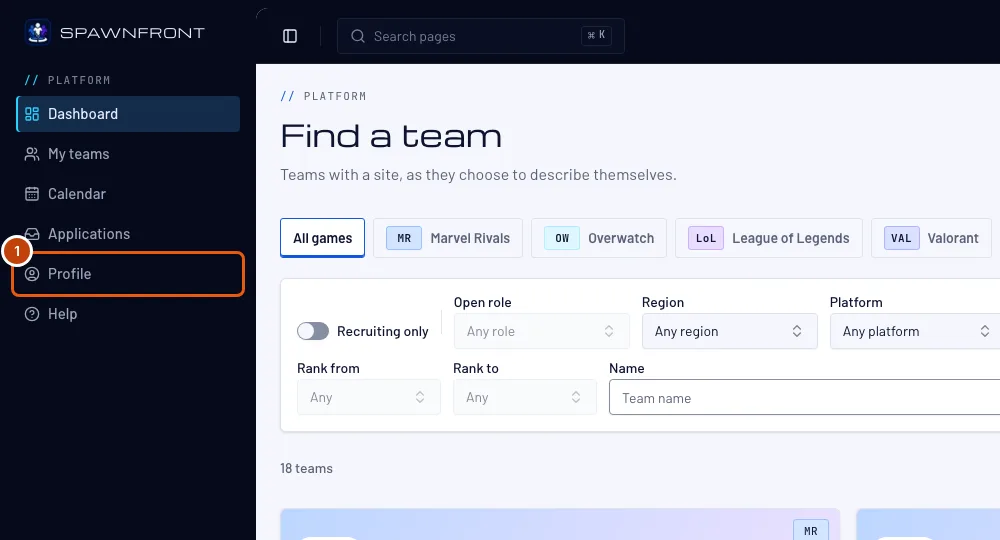
Step 1: Open your profile
In the menu, press Profile.
You should see: the Account section of your profile.
Step 2: Find the Notifications card
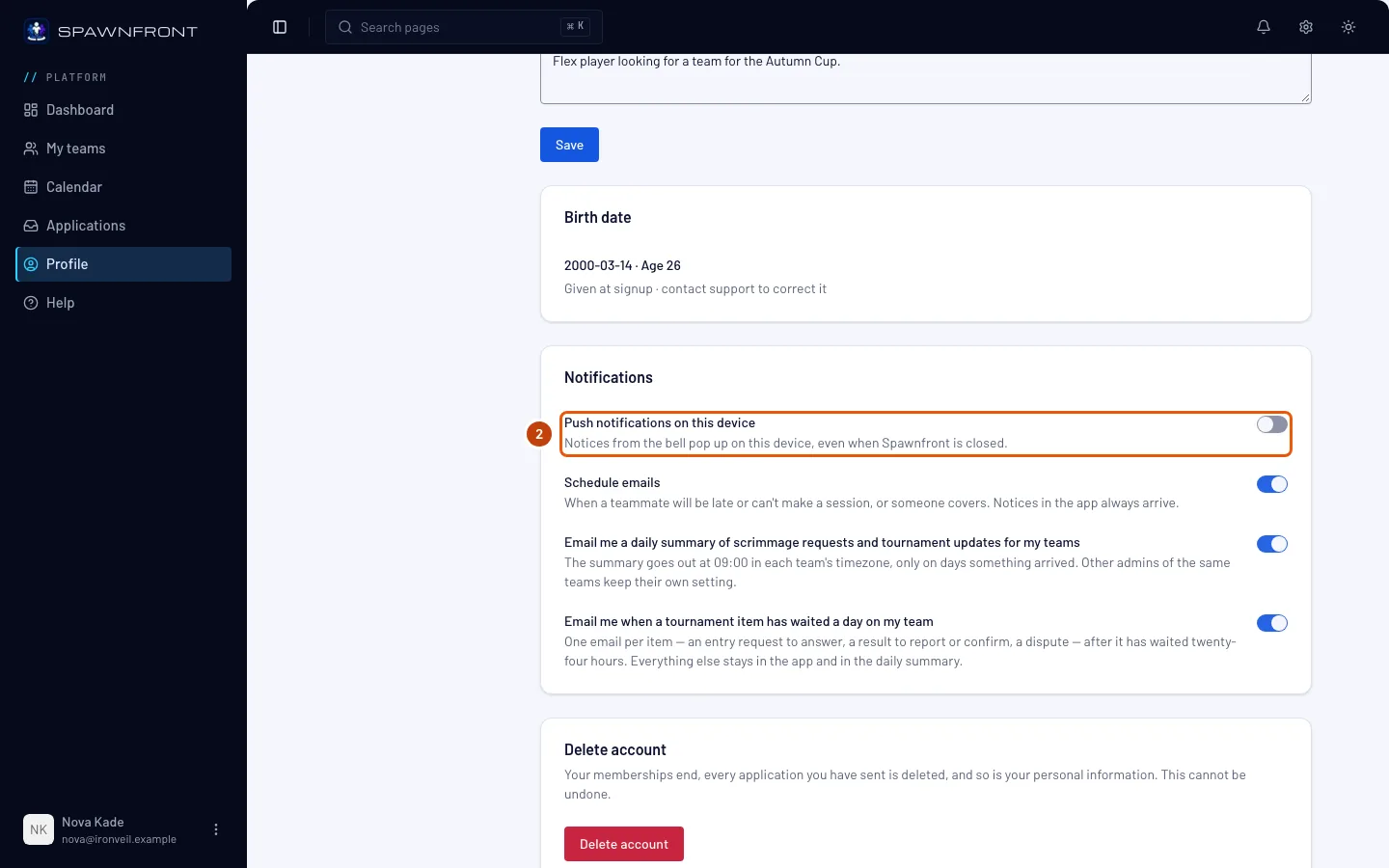
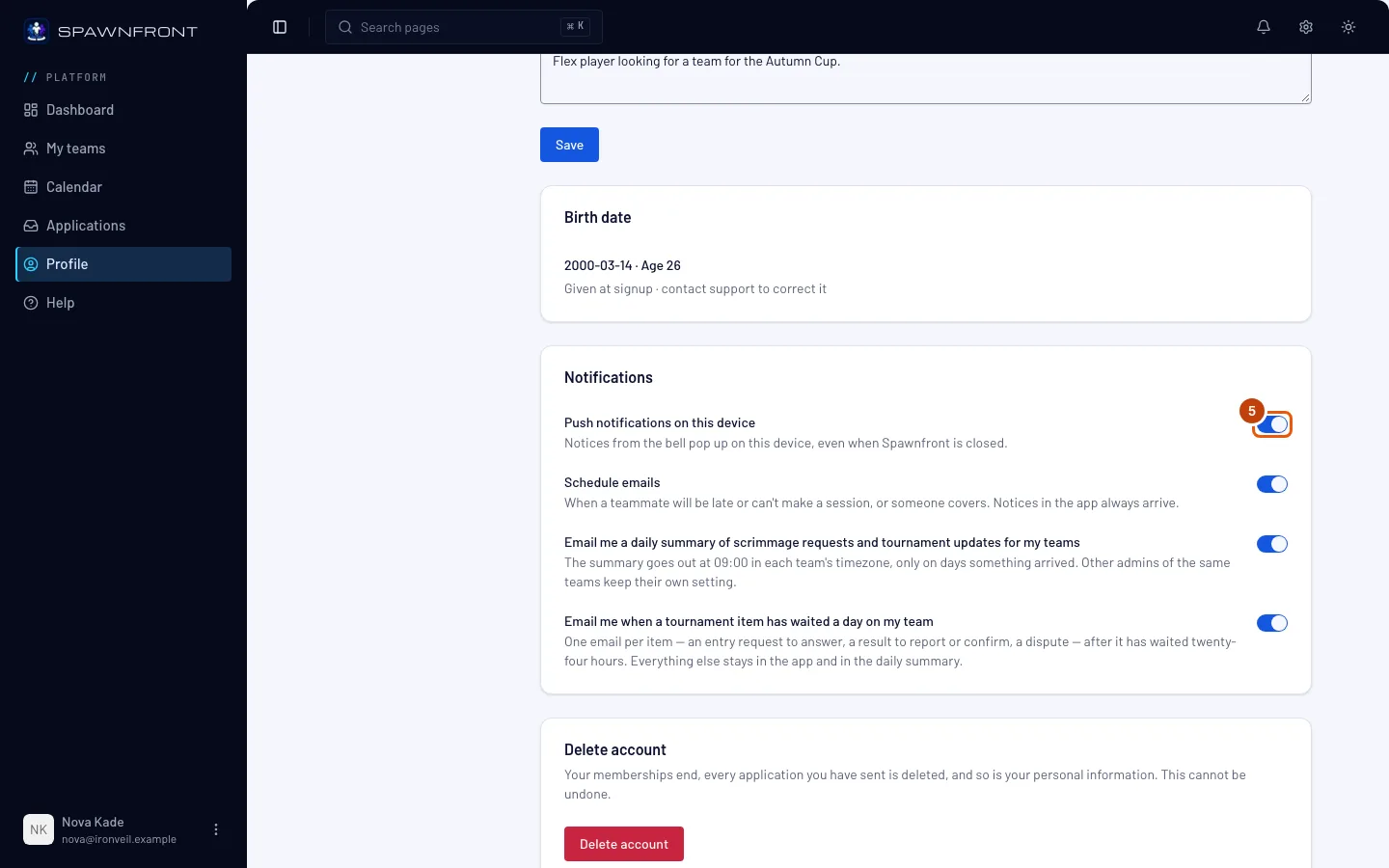
Scroll to the Notifications card. Its first switch is Push notifications on this device.
The switch is for this device and browser only. Turn it on on each phone and computer where you want your notices.
Step 3: Turn on Push notifications on this device
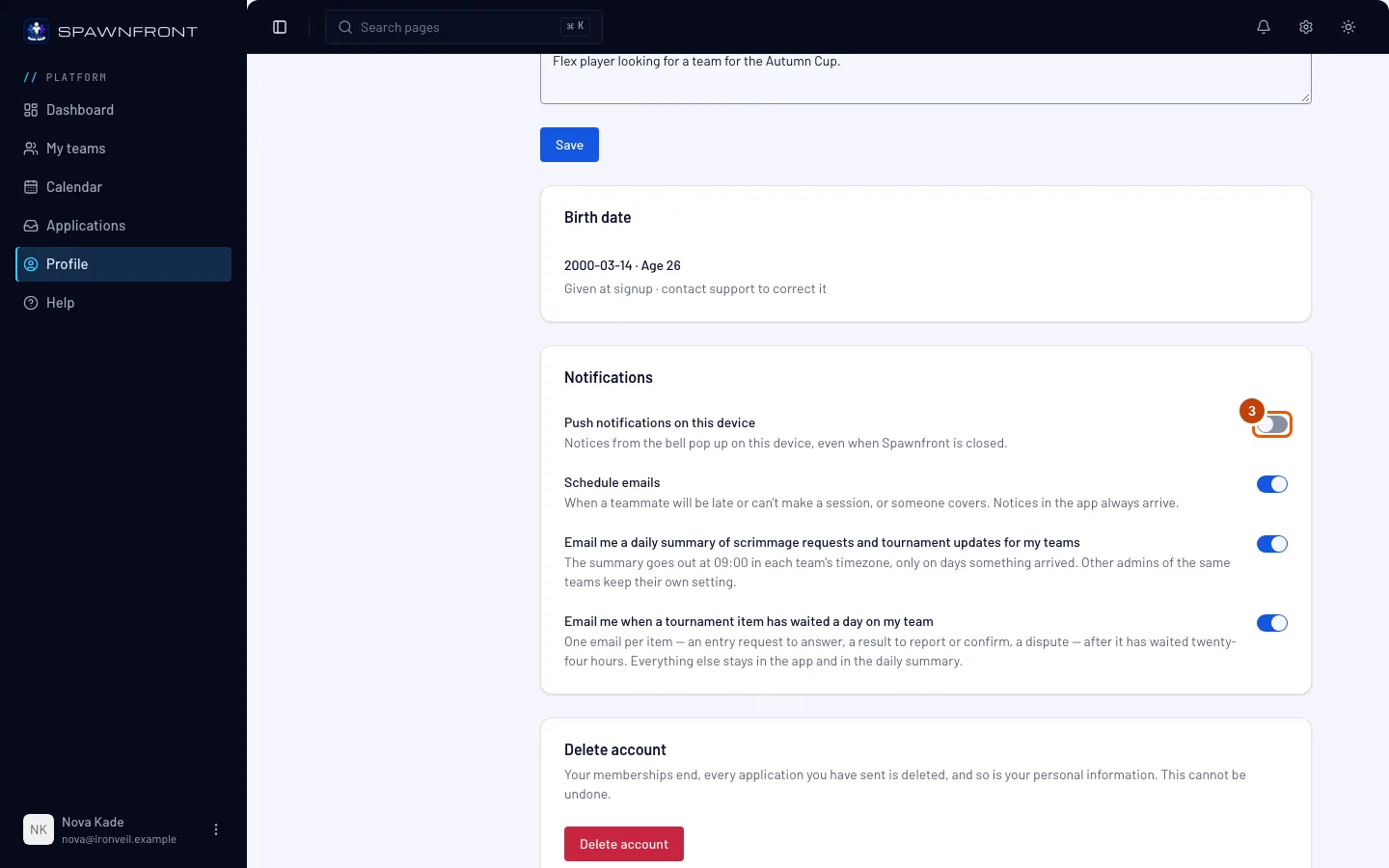
Press the Push notifications on this device switch.
You should see: your browser asking whether Spawnfront may show notifications.
Step 4: Allow notifications
Press Allow in your browser's box.
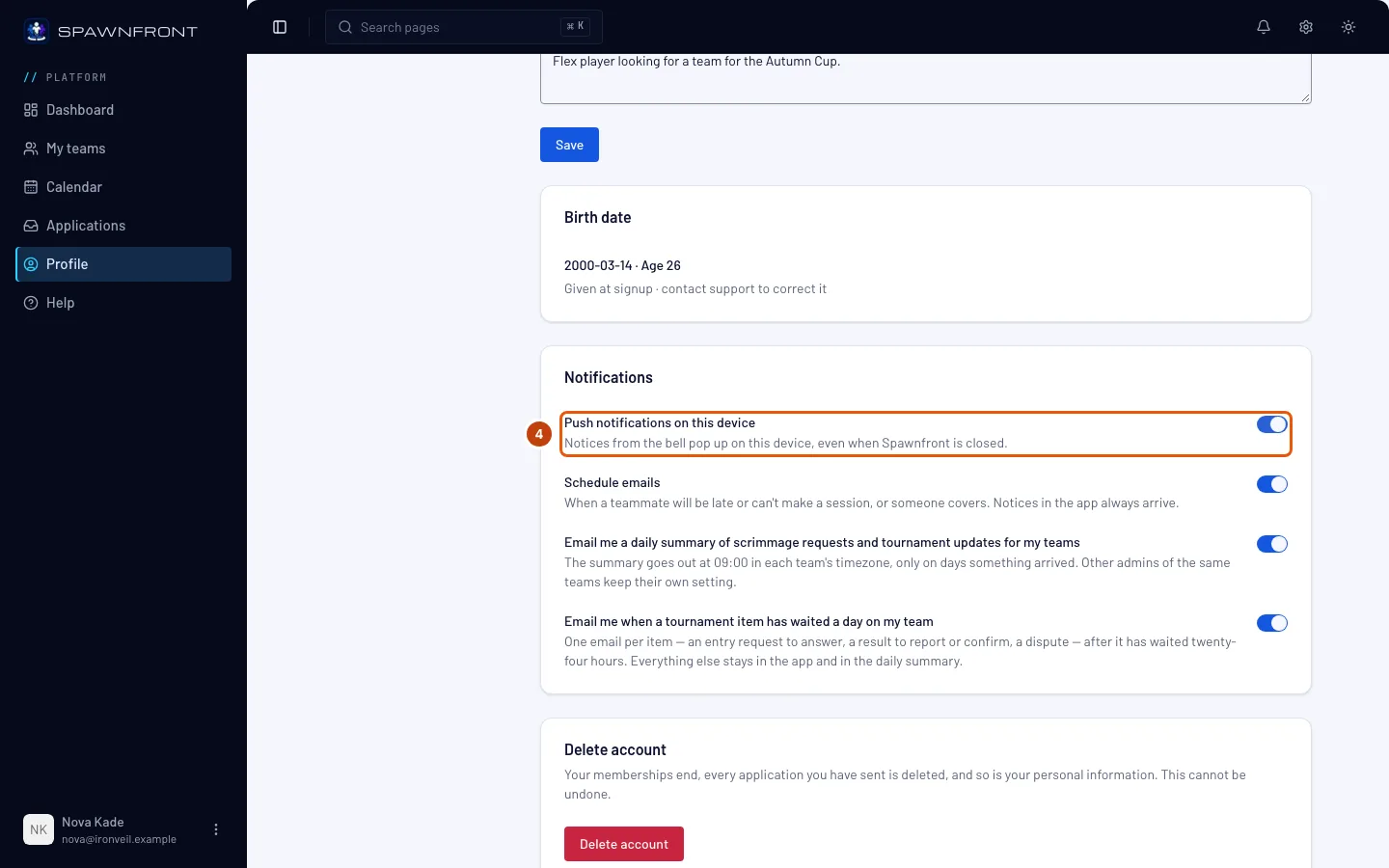
You should see: "Push notifications are on for this device", and the switch on. From now on, every notice that reaches your bell also pops up on this device, even when Spawnfront is closed. Tap one to open what it's about.
Step 5: Turn it off again
To stop them on this device, press the Push notifications on this device switch again.
You should see: "Push notifications are off for this device". The bell still shows every notice.
How to know it worked
- The switch stays on when you come back to your profile on this device.
Logging out turns push off on that device. Someone who uses the device after you never sees your notices. Log in and turn the switch on again to get them back.
A notice that waited more than a day — because the device was off for a long time — is not pushed late; you'll find it in the bell.
Something doesn't look right?
There's no push switch on my profile
Your browser can't receive push notifications here. On an iPhone or iPad you'll see "Install the app to get notifications on iPhone" instead — press How to install, install Spawnfront, open it from its icon and come back to your profile.
It says notifications weren't turned on
You closed your browser's box without choosing. Press the switch again and choose Allow.
The switch is greyed out and says to allow notifications
You blocked notifications for Spawnfront in this browser. Allow them in your browser's site settings (the icon at the left of the address bar on a computer), then come back to your profile.
I stopped getting notifications
- You logged out on that device: log in and turn the switch on again.
- You changed your password, or someone signed your account out everywhere: open Profile on that device once — push turns itself back on there.
- Also check that your phone or computer isn't in Do Not Disturb or focus mode.
Does this replace the emails?
No. Push notifications are extra. The emails you chose on the same card still arrive, and the bell always has every notice.
Related articles
Still stuck? Contact support or email support@spawnfront.com — tell us the page you're on and the step number.