
Your player card
Every player on a roster has a trading card: open it from the roster, flip it, read its seasons and see who writes its bio.
For team members · 7 steps
What you need first
- To open a card in Spawnfront, you are logged in. On a team's website anyone can open one, signed in or not.
- Your seasons show once your team's game reads your stats — for Marvel Rivals and Overwatch, after your team verifies your UID or BattleTag. See Add your game identity.
Steps
Step 1: Open your team's page
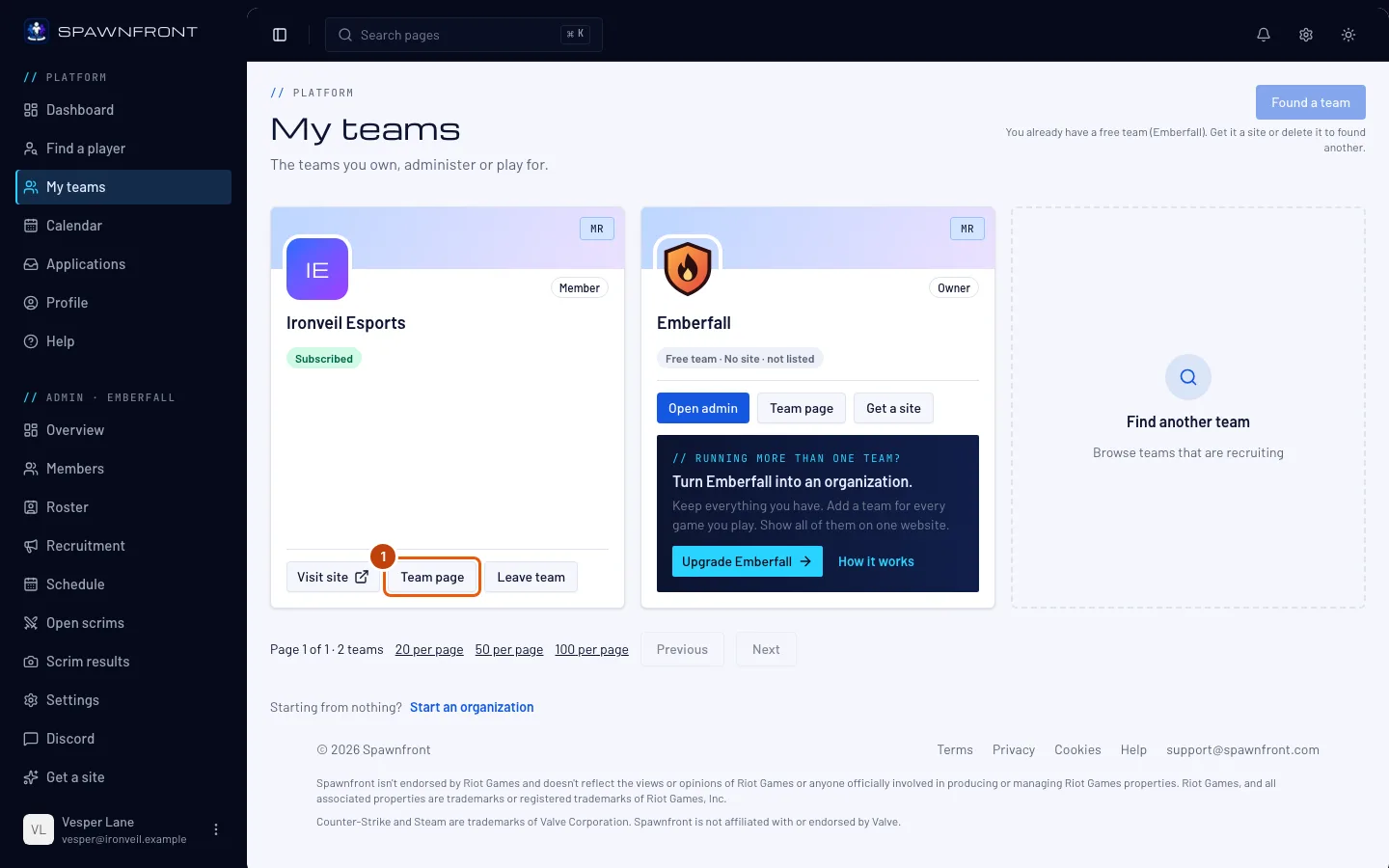
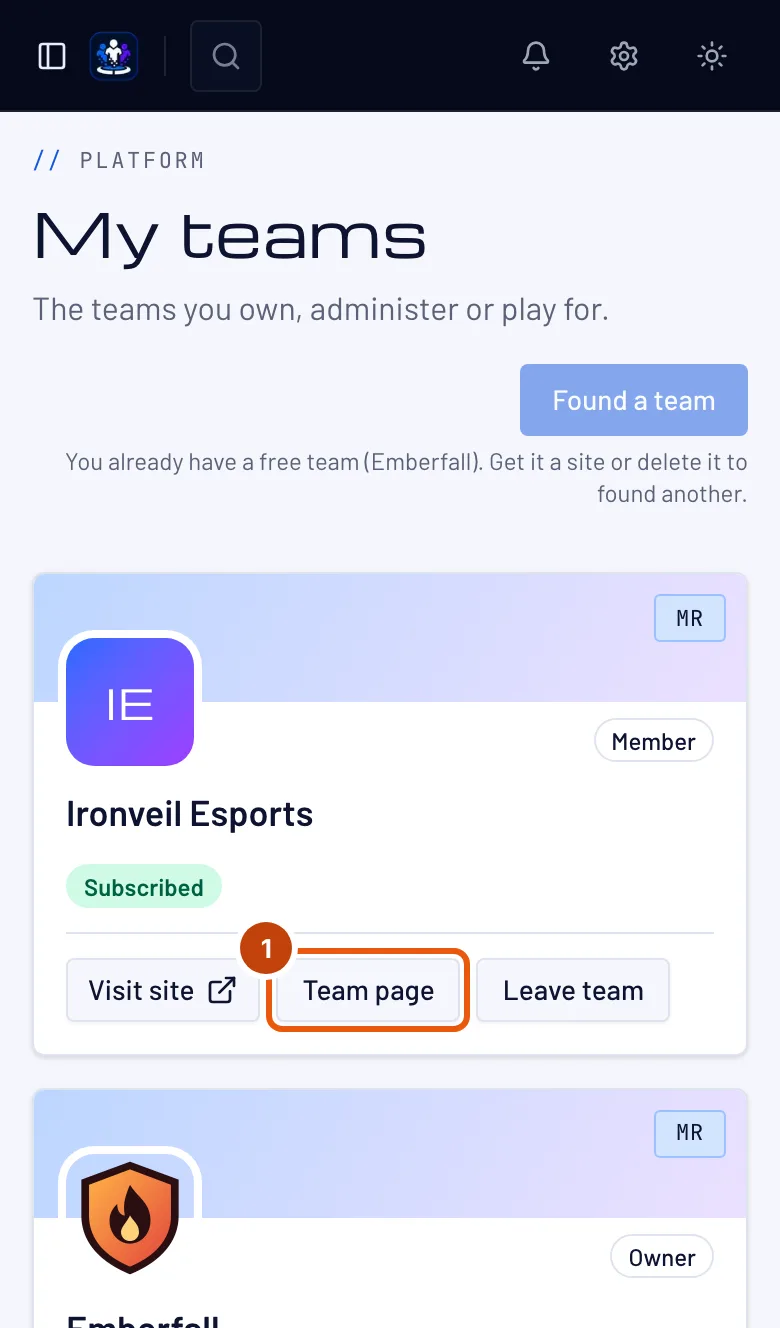
In the menu, press My teams, then Team page on your team's card. Any team's page works the same way — press View team on a team in Find a team. In Find a player, a player's handle opens their card too — see Find a player.
You should see: the team's page, with its Roster.
Step 2: Open a player's card
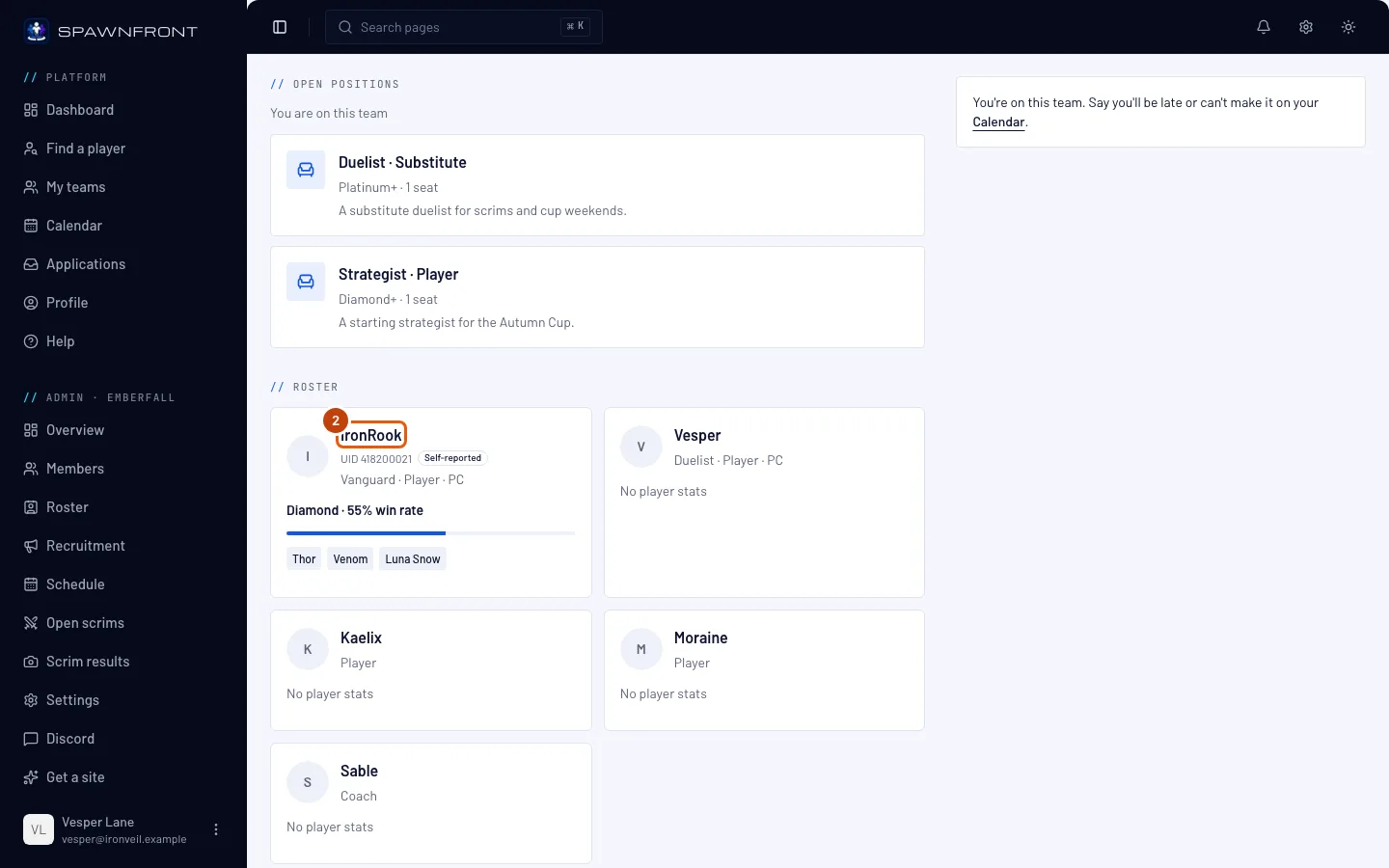
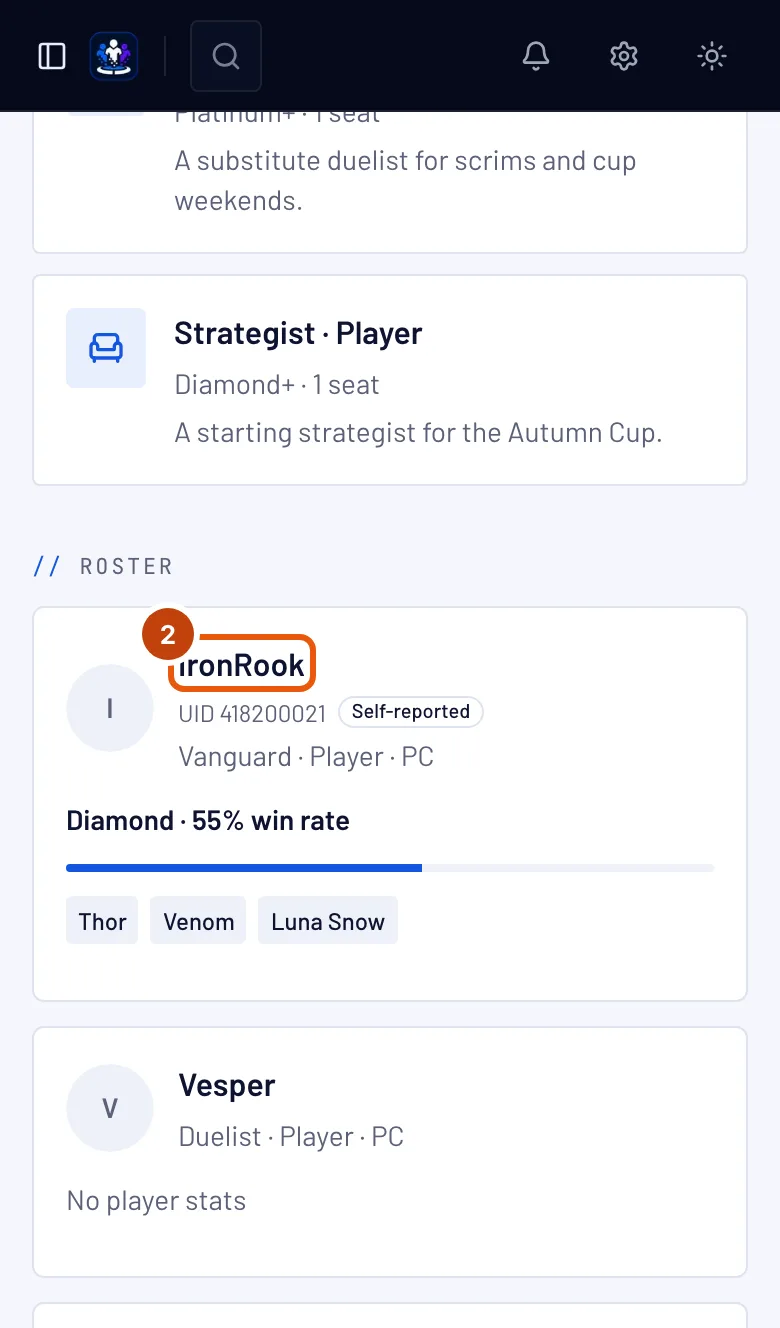
Under Roster, press a player's name.
You should see: Player card and the player's name at the top, with the card under it. The buttons at the top right — ‹ and a name, a name and › — open the cards before and after it on the roster, and the team's name at the top left takes you back.
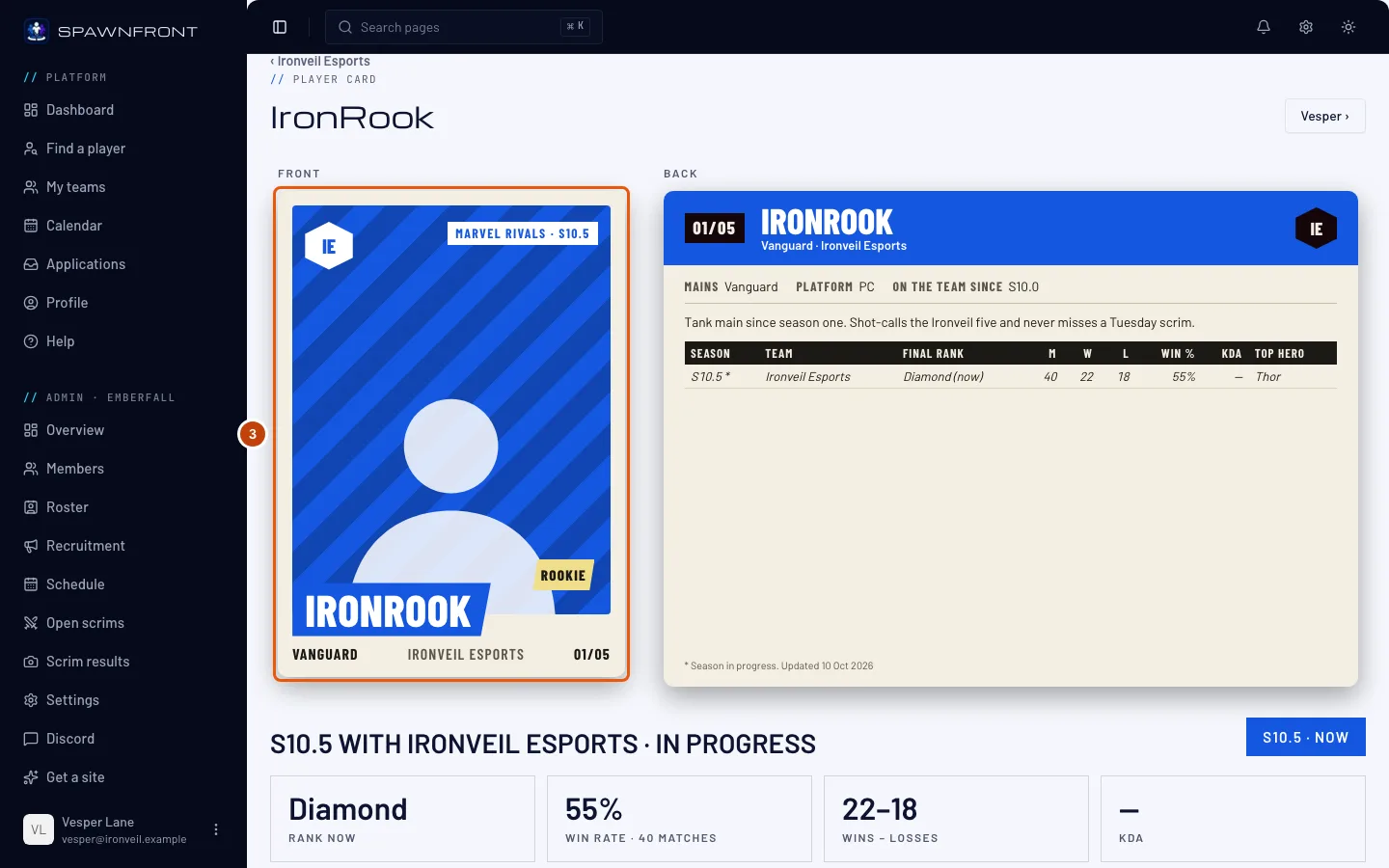
Step 3: Read the front
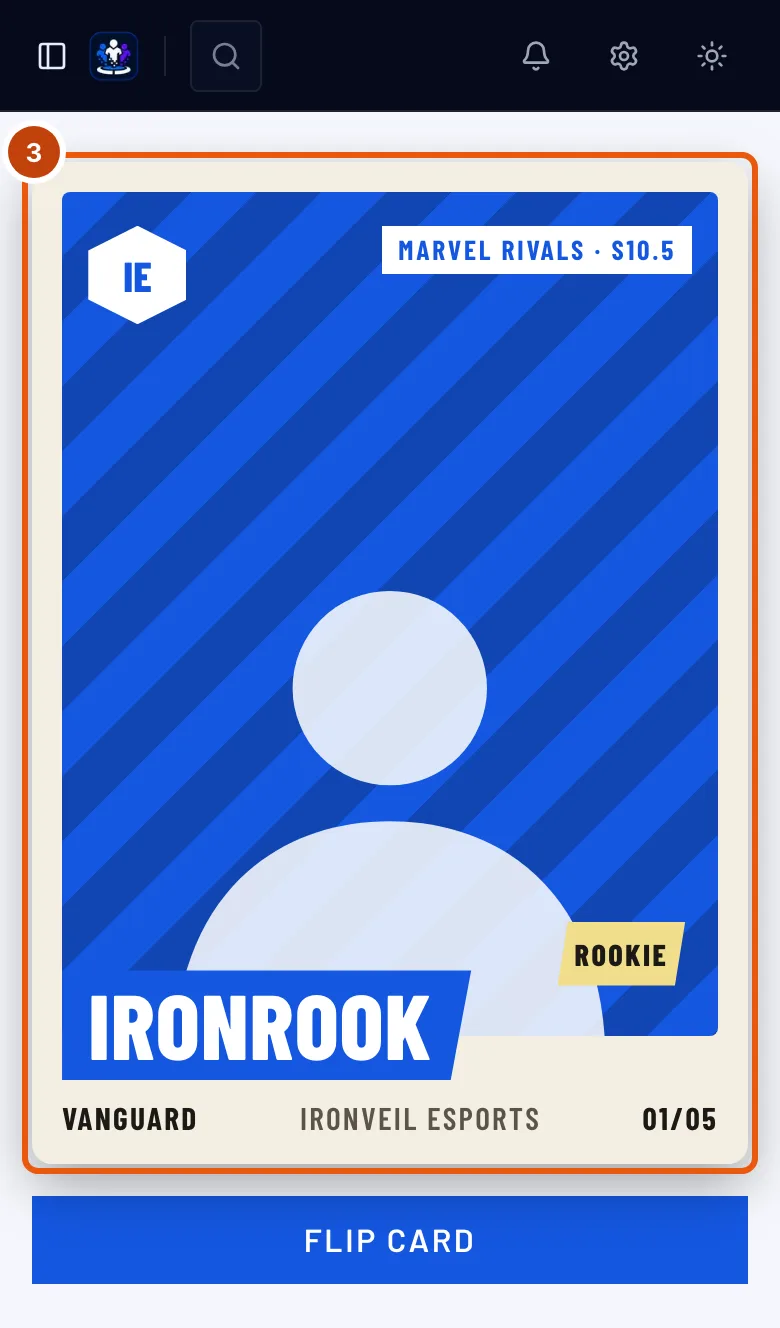
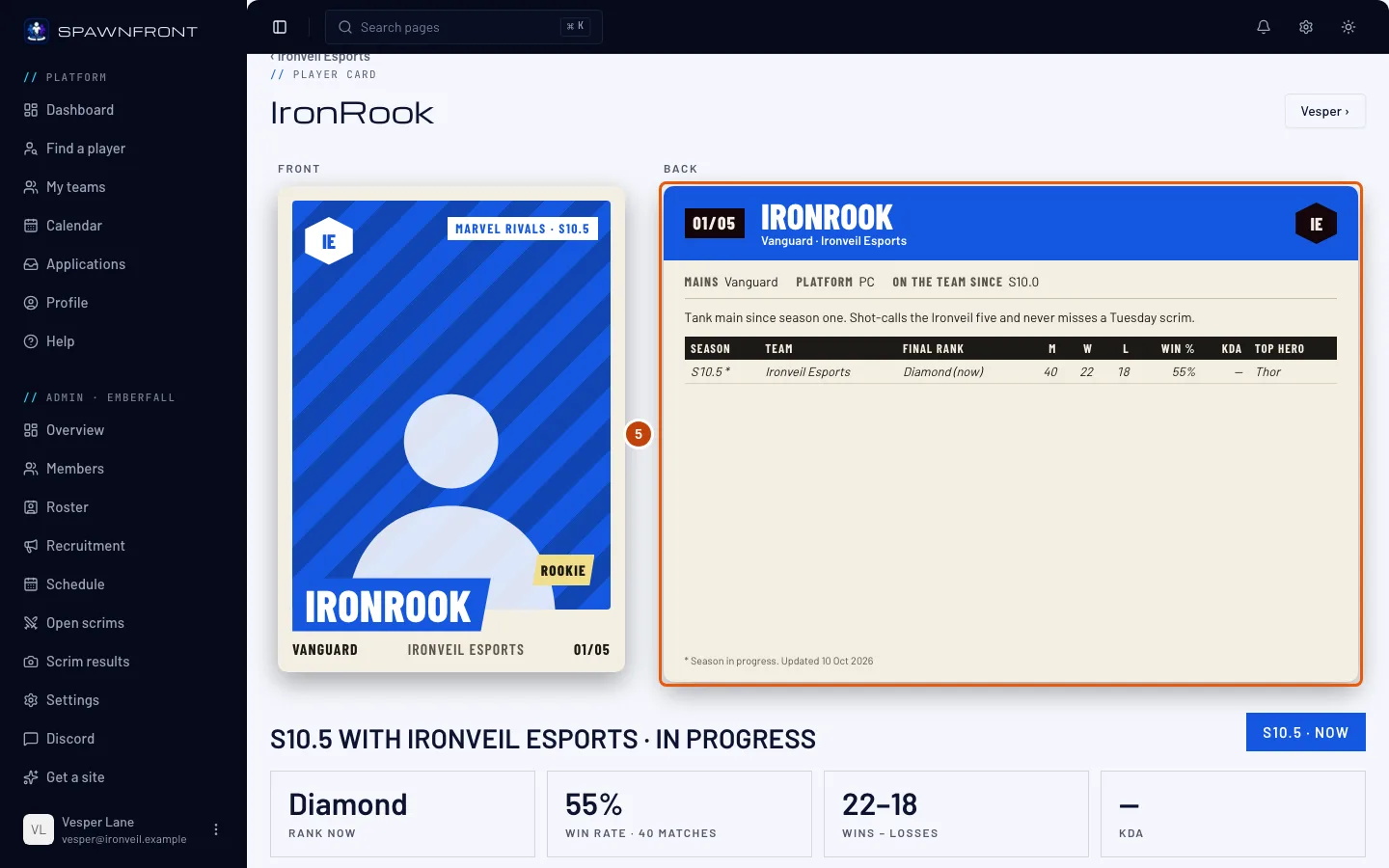
The front shows the player's photo (or an outline of a player when there is none), their name, their role, the team's initials, the game and season, and the card's number — such as 01/05, the player's place on the roster out of everyone listed.
A Rookie badge means the season in progress is the only season on record for this player.
Step 4: Turn the card over
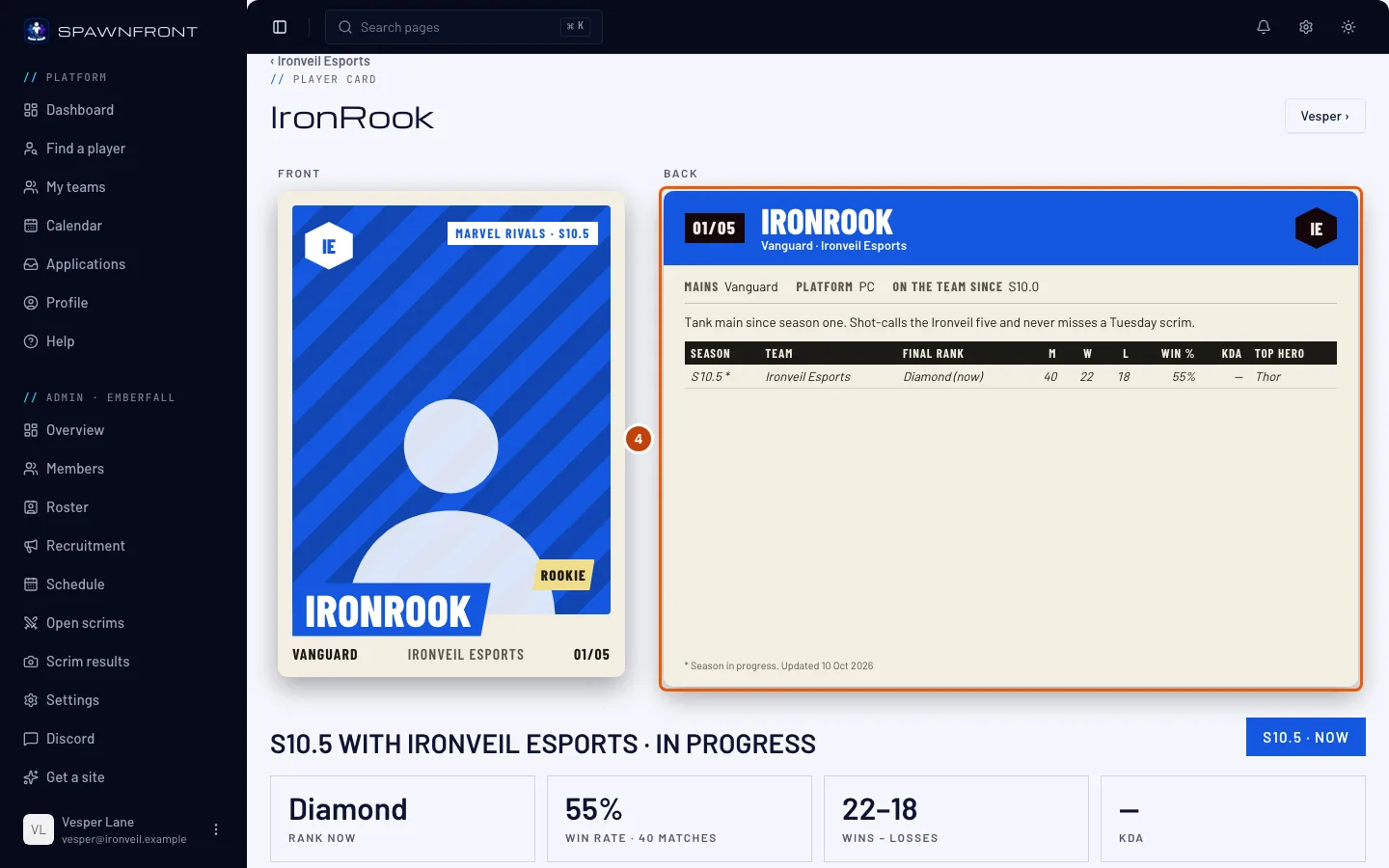
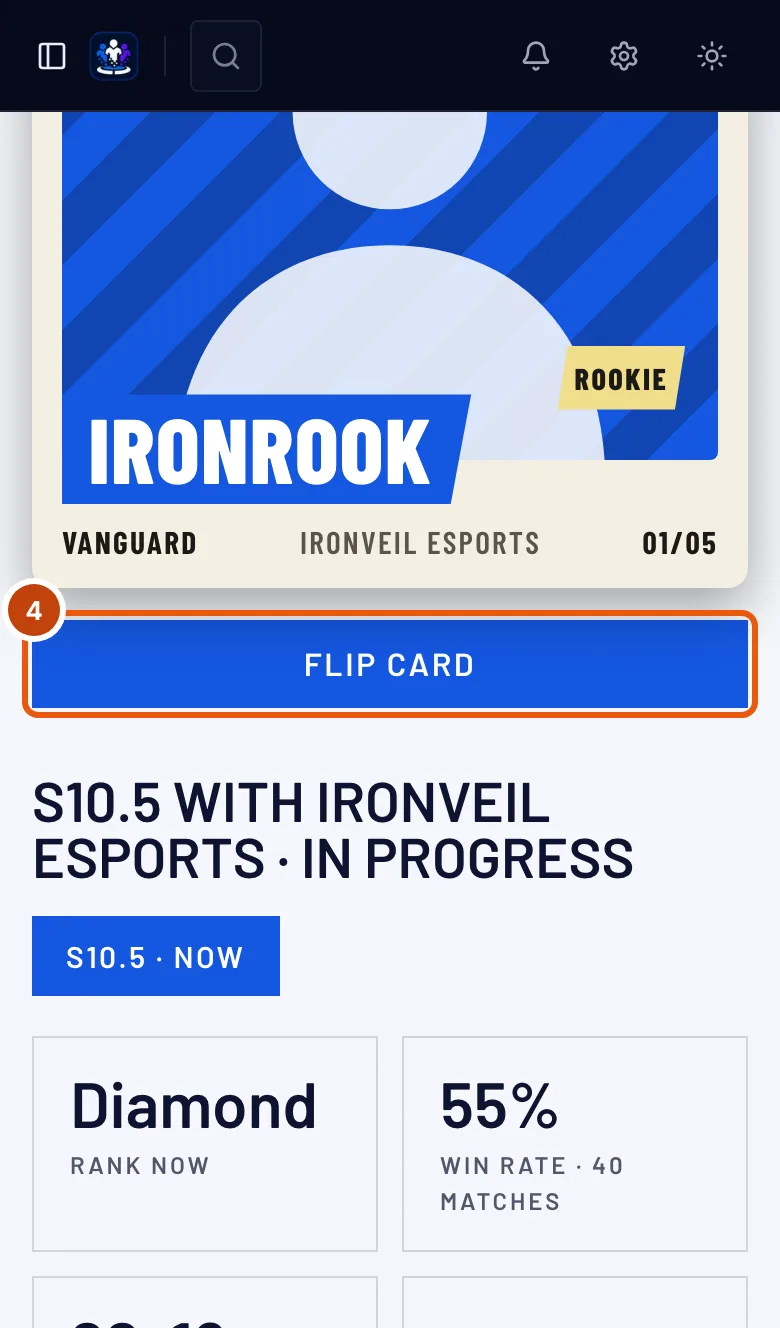
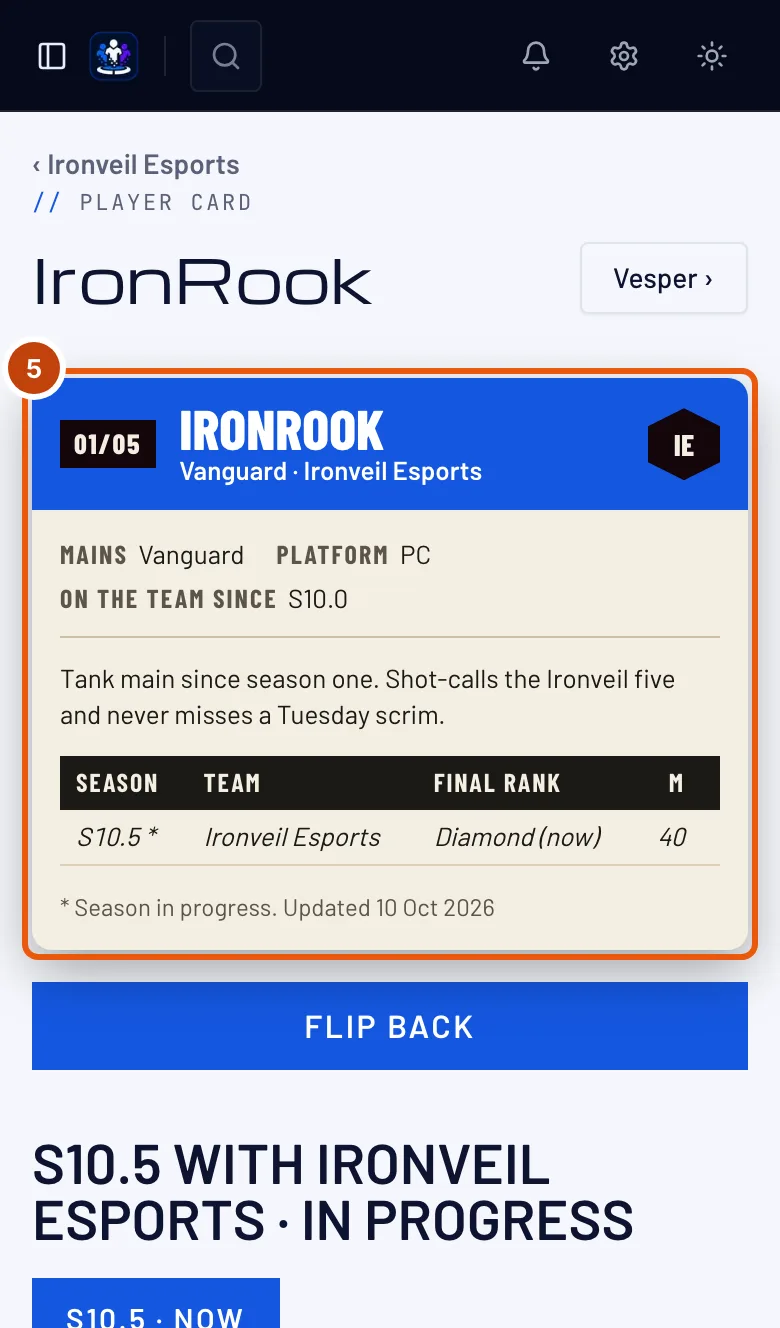
On a computer the back stands beside the front, under Back. On a phone, press Flip card under the front; Flip back turns it again.
You should see: the back of the card.
Step 5: Read the back
The back shows, from the top:
- the card's number, the player's name, role and team;
- a line of facts — Mains, Platform, On the team since and Region (a staff card shows Role instead of Mains);
- the player's bio, when there is one;
- a row per season: Season, Team, Final rank, M (matches), W, L, Win %, KDA and Top hero. The season in progress is marked * and its rank reads "(now)". A — means that season's record doesn't hold the number;
- Career — the seasons added up, once there are two or more;
- Highlight — the best season by win rate among those with 50 matches or more.
A last line says when the numbers were updated.
When there are no seasons, the back says why in a box where the table would be — see the questions below.
Step 6: Choose a season
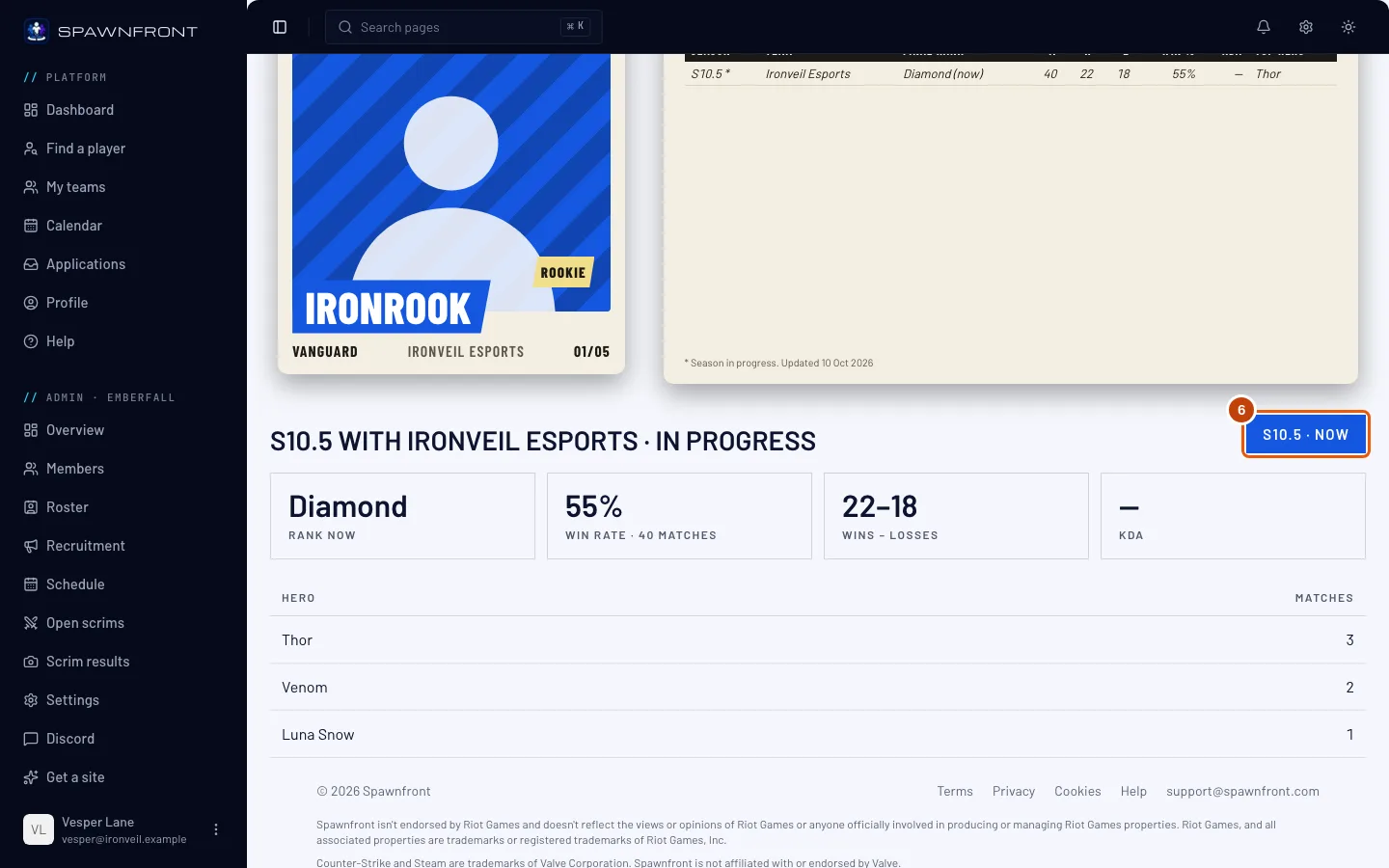
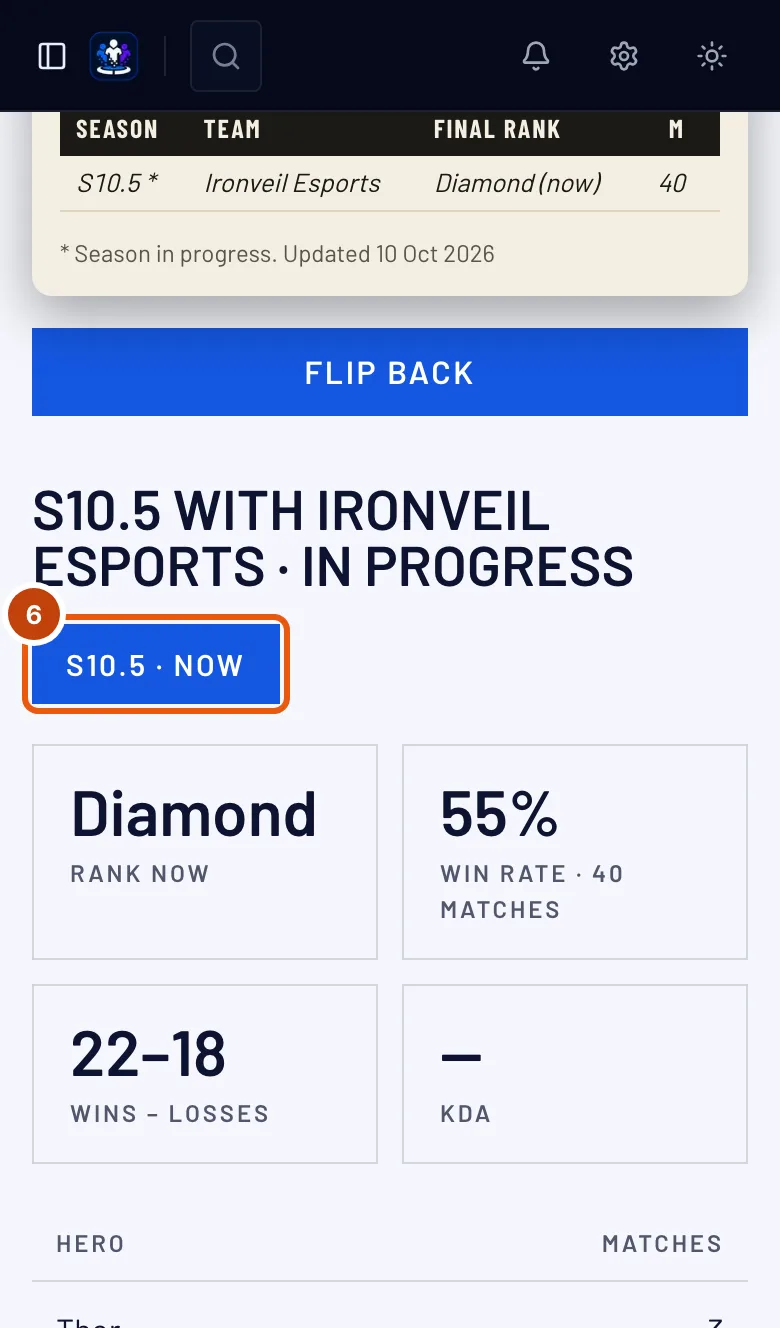
Under the card, press a season's button. The season in progress reads "· now".
You should see: that season's Final rank (Rank now for the season in progress), Win rate with its number of matches, Wins – losses, KDA, and its top heroes with their matches — or "No hero record for this season." A card with no seasons has no buttons.
Step 7: Open the card on your team's website
On My teams, press Visit site on your team's card — the site opens in a new tab. Press Team in the site's menu, then a player's name.
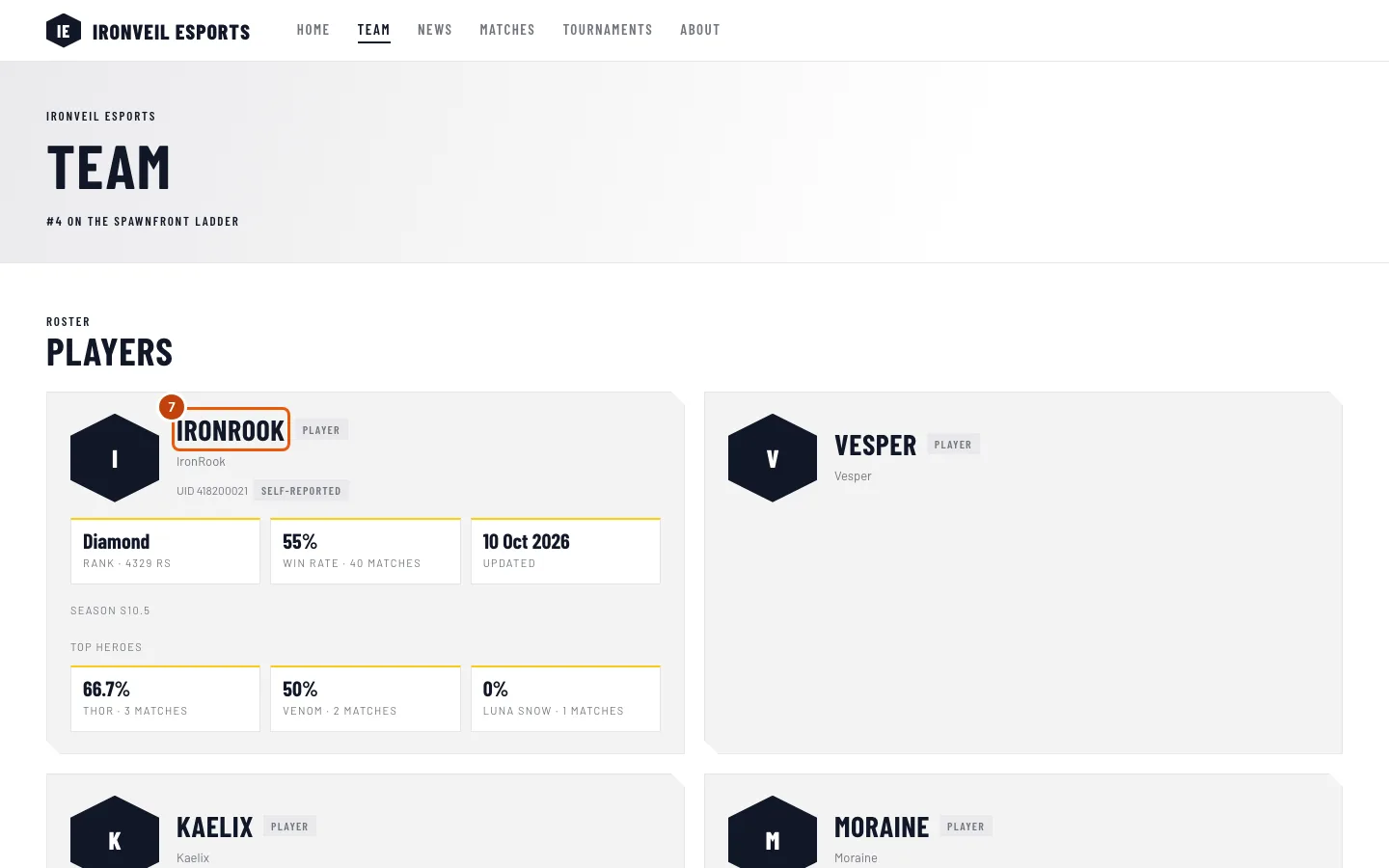
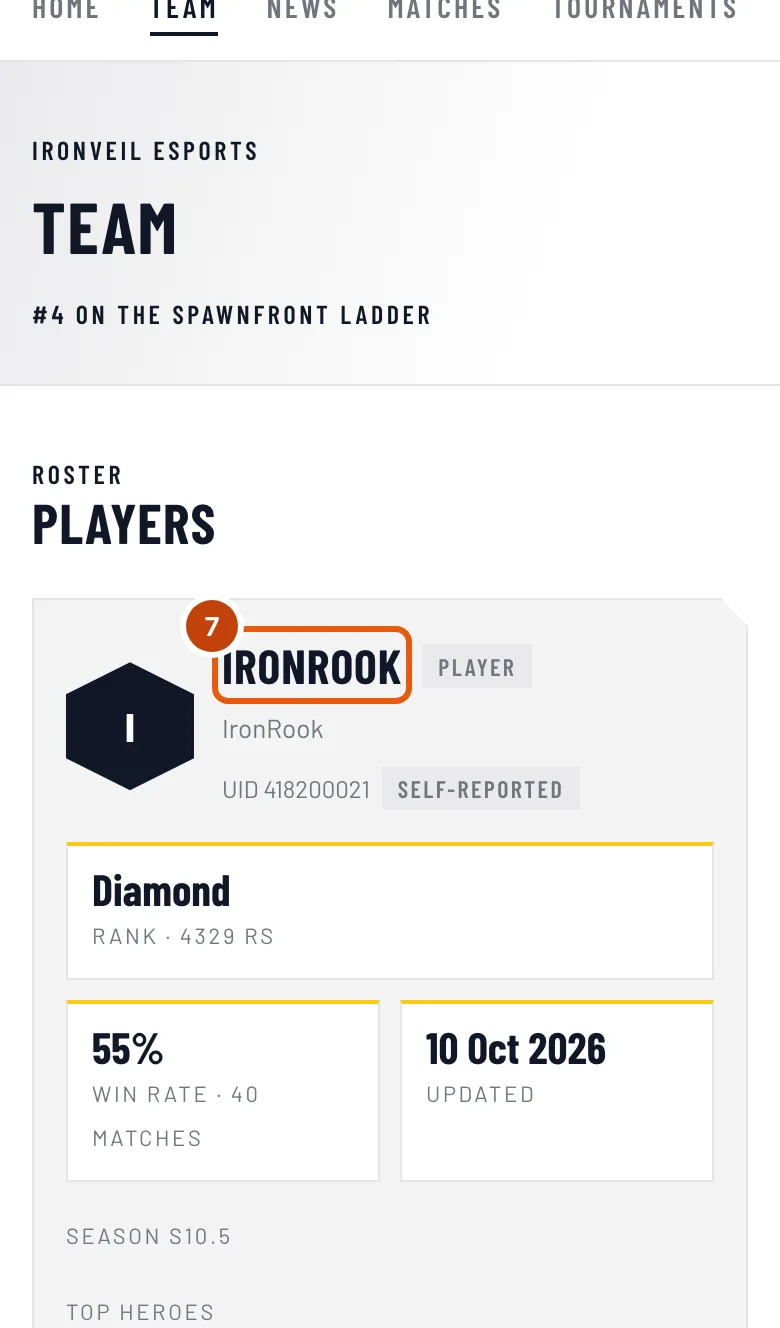
You should see: the same card in the team's colors, with Team › and the player's name above it, the player's socials under it and Season detail below.
How to know it worked
- Your name on your team's roster opens your card, and the card's back shows your bio and your seasons.
Who writes the bio. You do, in Profile:
- in Personal, under Player card: Bio for your player cards, with Use on all my teams on, shows on your card on every team — see Set up your profile;
- in Teams, on each team's card: Bio on this team's card, for that team only, while Use on all my teams is off — see Your member card.
Your team can put its own bio on your card, and the team's bio shows over yours. You are told in the bell — "… put its own bio on your player card" — and by email. Yours is kept, and shows again when the team clears its bio. An entry with no account shows only the team's bio.
A bio change shows on the team's website within a minute; the team doesn't need to publish.
Earlier seasons fill in over time. A new card starts with the season in progress. For Marvel Rivals, earlier seasons are looked up one at a time over the following days, up to six seasons back. Those carry matches and wins only, so their rank, KDA and top hero read —.
From screenshots and Scrims, under the season detail. A player who adds their own matches from screenshots — ranked, scrims or others (see Add a match from a screenshot) — gets a From screenshots block, always marked Self-reported: all their matches together, won – lost and their numbers per match, in Marvel Rivals for the season in progress and in every other game for the last 90 days. In Marvel Rivals the seasons before it are listed under Past seasons, newest first, while Show past seasons is on. They are never added into the numbers above. A player who played scrims for the team gets Scrims with and the team's name, marked Confirmed results: the games, won – lost, their numbers per game and the latest games, from results the other team confirmed (see Settle a scrim with a screenshot). Neither shows while the player hides their stats.
Something doesn't look right?
My card says "Stats private"
You turned off the stats switch — Show my stats on …'s site on your card in Profile › Teams, or in Games when you have a game identity. Turn it on again — see Your member card.
My card says "Stats coming soon"
Your stats haven't been read yet. The first read usually comes within the hour after your team verifies your UID or BattleTag, then once a day on a team with a site and once a week on a free team.
My card says "Match history private"
Your Marvel Rivals match history is hidden in the game. Make it public — see Make your match history public. For Overwatch the card reads Career profile private — see Make your Overwatch career profile public.
The card says "Staff card — no player stats"
The entry's role is a staff role, such as Coach, so it has no player stats. Its back shows the facts and the bio only.
My card shows only the season in progress
You turned off Show past seasons on your game's card in Profile › Games. Turn it on again to show every season — see List yourself in Find a player. It changes every card of yours for that game.
My card shows only one season, with a Rookie badge
Only the season in progress is on record so far. Earlier seasons fill in over the following days; the badge goes once there is a second season.
My card shows a bio I didn't write
Your team set its own bio, which shows over yours. Ask an admin to press Use the player's bio on your roster entry.
A player's name doesn't open a card on the website
The player isn't on the public roster: an admin hid the entry with Listed, or added it after the site's last publish. Ask an admin to check the entry and publish.
Related articles
Still stuck? Contact support or email support@spawnfront.com — tell us the page you're on and the step number.