
Create your account
Sign up with your email, enter the code we send you and choose a password — free.
For everyone · 6 steps
What you need first
- An email address you can open now. The code we send expires after ten minutes.
- You are 13 or older.
- Nothing else — an account is free. A team pays only if it wants a hosted site.
Steps
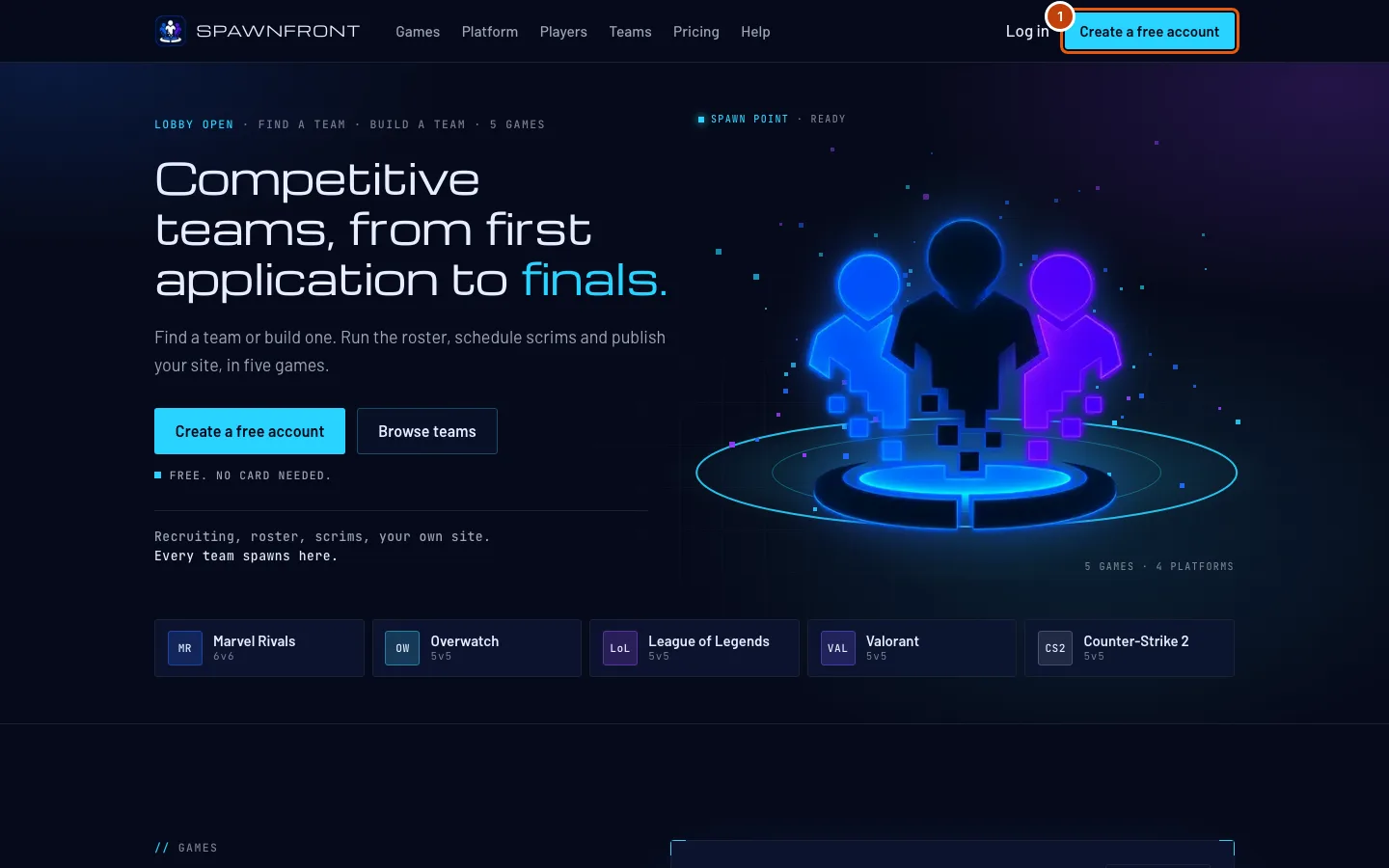
Step 1: Open Create a free account
Go to spawnfront.com and press Create a free account at the top of the page.
You should see: a page asking When were you born?
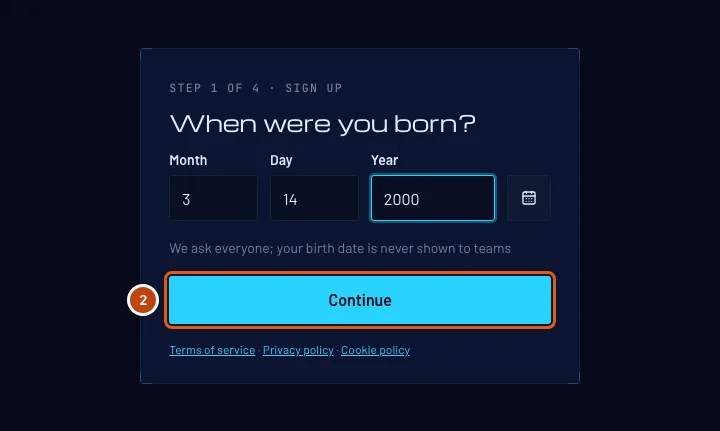
Step 2: Enter your birth date
Type your birth Month, Day and Year as numbers. The cursor moves to the next box by itself once a month or day is complete. Or press the calendar button beside the boxes, choose the year and month, and press your day. Then press Continue.
We ask everyone, and your birth date is never shown to teams. A team you apply to sees your age, not the date.
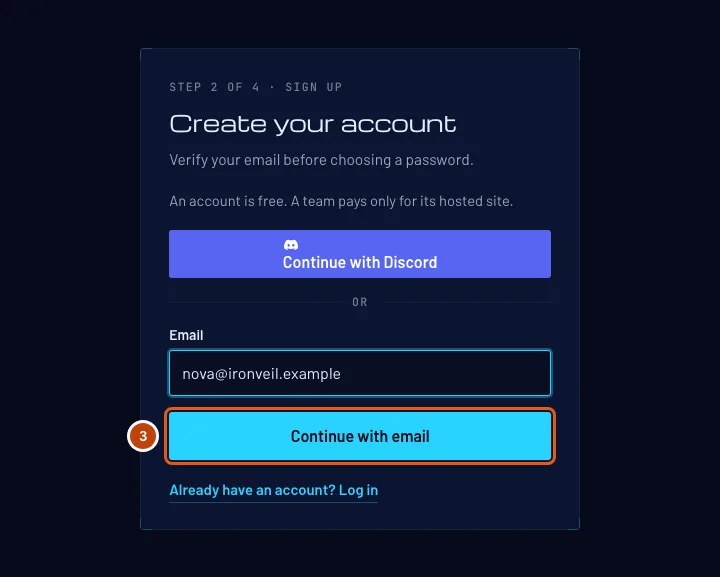
You should see: Create your account, with an Email box.
Step 3: Enter your email
Type your email address in Email, then press Continue with email.
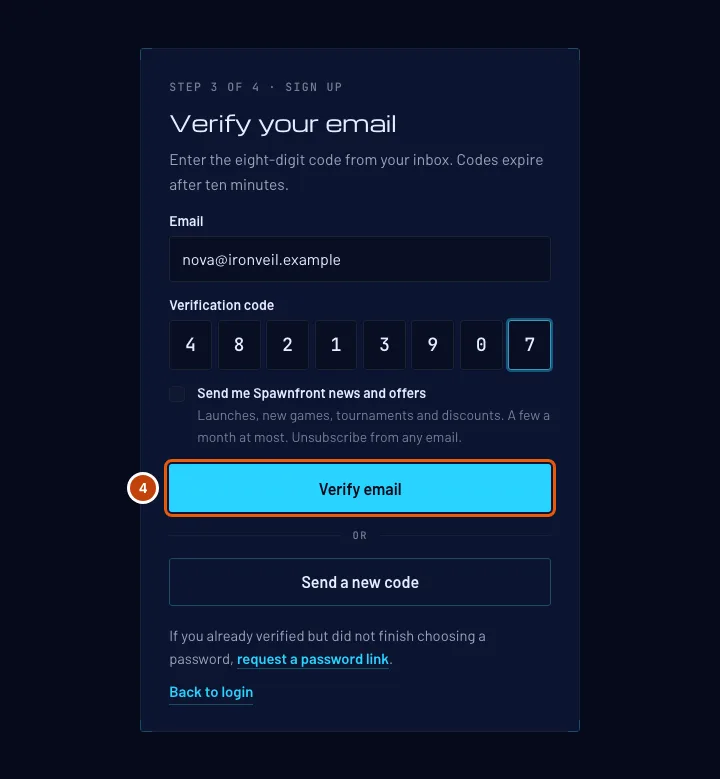
You should see: Verify your email. We have sent an eight-digit code to that address.
Step 4: Enter the code from your email
Open the email from Spawnfront, type its eight-digit code into the eight boxes under Verification code, then press Verify email.
Under the code you can tick Send me Spawnfront news and offers — optional, and unticked unless you tick it. You can change it later in Profile; see Email preferences.
The code expires after ten minutes. If it has expired, or never arrived, press Send a new code on the same page.
You should see: Choose a password.
Step 5: Choose a password
Type a password in New password and again in Confirm password, then press Save password. The list under the box ticks off each rule as you meet it:
- At least 12 characters
- An uppercase letter
- A lowercase letter
- A number
- A symbol or space
Choose it now. If you leave this page without saving, use Forgot your password? on the login page to get a link and choose it there.
You should see: "Your password is saved. Log in to continue."
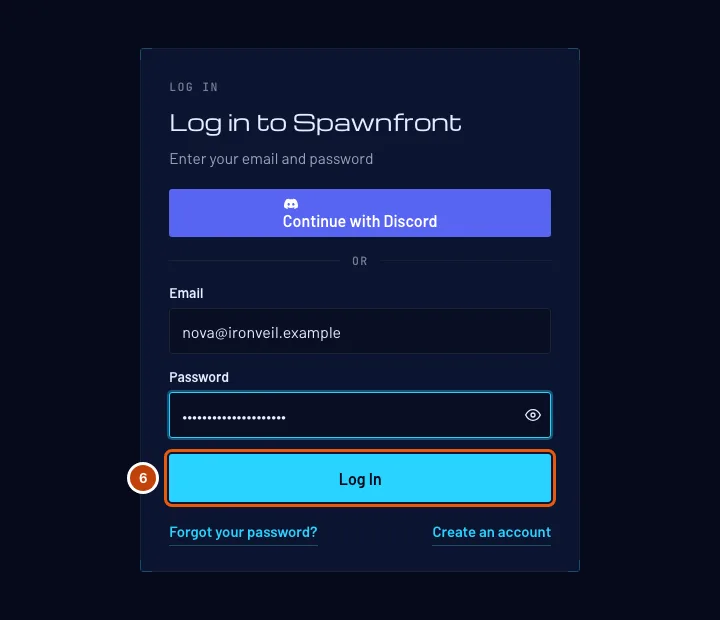
Step 6: Log in
Press Log in. Type your email and your new password, then press Log In.
You should see: your Dashboard.
How to know it worked
- You are on your Dashboard, with Profile in the menu on the left.
- Logging out and back in with your email and password works.
Something doesn't look right?
The code never arrived
Wait a minute, then check your spam or junk folder for an email from Spawnfront. Still nothing? Check the address under Email on the Verify your email page, then press Send a new code.
It says "This code has expired"
Codes last ten minutes. Press Send a new code and use the newest email — an older code stops working once a new one is sent.
It says "This email already has an account"
You created an account with this address before. Log in instead; if you don't remember the password, use Forgot your password? on the login page.
It says “You can't create an account”
Spawnfront accounts are for people 13 and older.
I verified my email but closed the page before choosing a password
Open Forgot your password? on the login page and request a password link. The email lets you choose your password and finish.
Related articles
Still stuck? Contact support or email support@spawnfront.com — tell us the page you're on and the step number.