
Settle a scrim with a screenshot
Send a scrim game's scoreboard — Marvel Rivals, Overwatch, League of Legends, Valorant or Counter-Strike 2 — correct the draft, and let the other team confirm it.
For team owners and admins · 5 steps
What you need first
- You are an owner or admin of a team that plays Marvel Rivals, Overwatch, League of Legends, Valorant, Counter-Strike 2 or Deadlock (Spawnfront can't read Rocket League scoreboards yet — enter a Rocket League scrim's result by hand), and the scrim was registered on Spawnfront — booked with the other team (their team picked as the opponent, or through the scrimmage finder or an open scrim), or registered by name against a team that isn't on Spawnfront. Any team can settle a scrim this way, free or with a site. A scrim that was never registered is sent as an unregistered match: see Send an unregistered match.
- Not an owner or admin? Any member can send results too, unless the team turned it off — from the team's Scrims page (see Send your team's scrim results). Owners and admins choose what members may do in Set scrim permissions.
- The scrim has been played. In Marvel Rivals, nobody on either team has a public match history with a UID their team verified — otherwise Spawnfront fills the result in by itself.
- You have a screenshot of each game's scoreboard, each a PNG, JPEG or WebP, from 1280×720 up, at most 8 MB. Which screen depends on the game:
- Marvel Rivals — the post-match screen when you can, or the game's page in your match history. Spawnfront reads the game's English words. With the game in another language the scoreboard's numbers still read, but the map, the mode and, on a custom game's page, the round and map score may come back empty — fill them in when you check the draft.
- Overwatch — each game report's Teams page from Career Profile → History → Game Reports, and its Summary page beside it: the Summary adds the map, the result and the length. The Teams page is read whatever language the game is in; the Summary's map, result and length only with the game in English, the one language Spawnfront reads Overwatch's words in so far — in another language they stay blank.
- League of Legends — the game's Scoreboard tab from Match History, with the game in English or in Czech, French, German, Hungarian, Indonesian, Italian, Polish, Portuguese (Brazil), Romanian, Spanish, Turkish or Vietnamese — or in Greek, Japanese, Korean, Russian, Thai or Chinese when Spawnfront, your browser or Discord is set to that language too. Only English has been checked on real screenshots so far: if a screenshot in another language isn't read, switch League to English and take it again.
- Valorant — the match's Scoreboard from Career, from 1600×900 up: a smaller picture reads its numbers wrong, so it is refused. The game can be in English, French, German, Indonesian, Italian, Polish, Portuguese (Brazil), Spanish (Spain or Latin America), Turkish or Vietnamese — or in Japanese, Korean, Russian, Thai or Traditional Chinese when your browser (or Discord, for
/scrim result) is set to that language too. Only English has been checked on real screenshots so far: if a screenshot in another language isn't read, switch the game to English and take it again. - Counter-Strike 2 — the 5v5 board at the end of a Premier, Competitive or custom match, not the Tab scoreboard while the match is still being played. The board is read with the game in English, the only language confirmed on real screenshots so far, and also in the game's other languages: Bulgarian, Chinese (Simplified and Traditional), Czech, Danish, Dutch, Finnish, French, German, Greek, Hungarian, Indonesian, Italian, Japanese, Korean, Norwegian, Polish, Portuguese (Portugal and Brazil), Romanian, Russian, Spanish (Spain and Latin America), Swedish, Thai, Turkish, Ukrainian and Vietnamese. Bulgarian, Chinese, Greek, Japanese, Korean, Russian, Thai and Ukrainian are tried only when your browser — or Discord, for
/scrim result— is set to that language. - Deadlock — the scoreboard at the end of the custom match. If Deadlock doesn't show it after a custom match, attach the match by its Match ID instead (see Record your matches). The game can be in English, French, German, Spanish (Spain or Latin America), Italian, Polish, Portuguese (Brazil), Czech, Turkish, Indonesian, Russian, Ukrainian, Simplified Chinese, Korean, Japanese or Thai, but only English is confirmed on real screenshots so far, so a board in another language may not be read yet. In Russian, Ukrainian, Chinese, Korean, Japanese or Thai it is read only when Spawnfront or your browser — or, for
/scrim result, Discord — is set to that language too. Souls are read only where the game writes them with a k, as it does in English, French, Italian, Indonesian, Chinese, Japanese and Thai; in the other languages the souls are left blank.
- Not sure where your game shows that screen, or its replay code? See Find your match stats and replay codes.
- Your team has screenshots left today: Results shows how many, like 14 of 20 left today · resets and the day and time. A free team can have 5 screenshots read in 24 hours, and a team with a site 20.
Steps
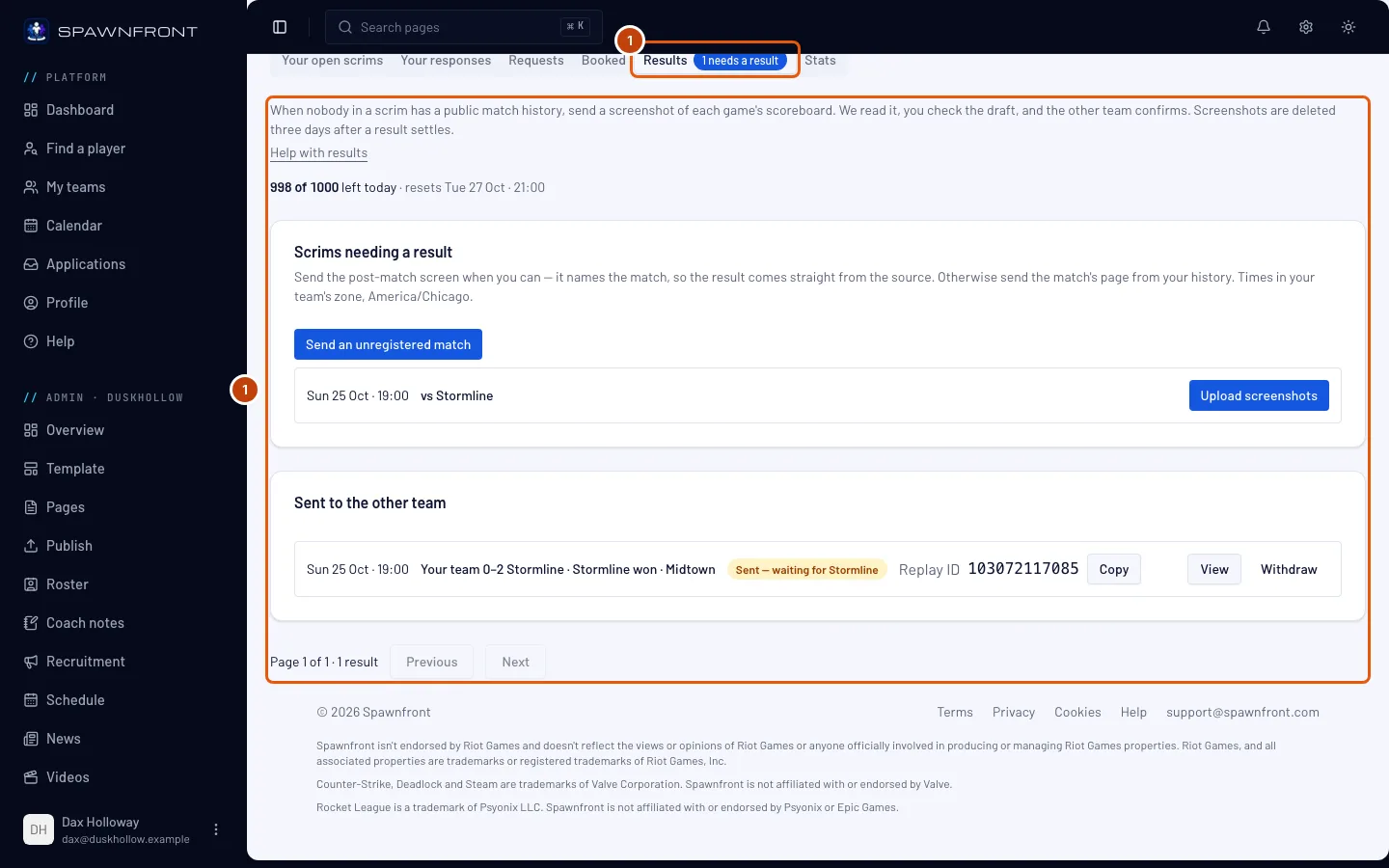
Step 1: Open Results on Scrimmages
In the menu on the left, under your team's admin menu (Admin · and your team's name), press Scrimmages, then press the Results tab under the finder. If you run several teams, open your team's name under Admin first. You can also press Settle with a screenshot on a played scrim's row on your Matches page, which opens the same tab.
You should see: Results, with how many screenshots your team has left today — like 14 of 20 left today — above Scrims needing a result.
Step 2: Upload your screenshots
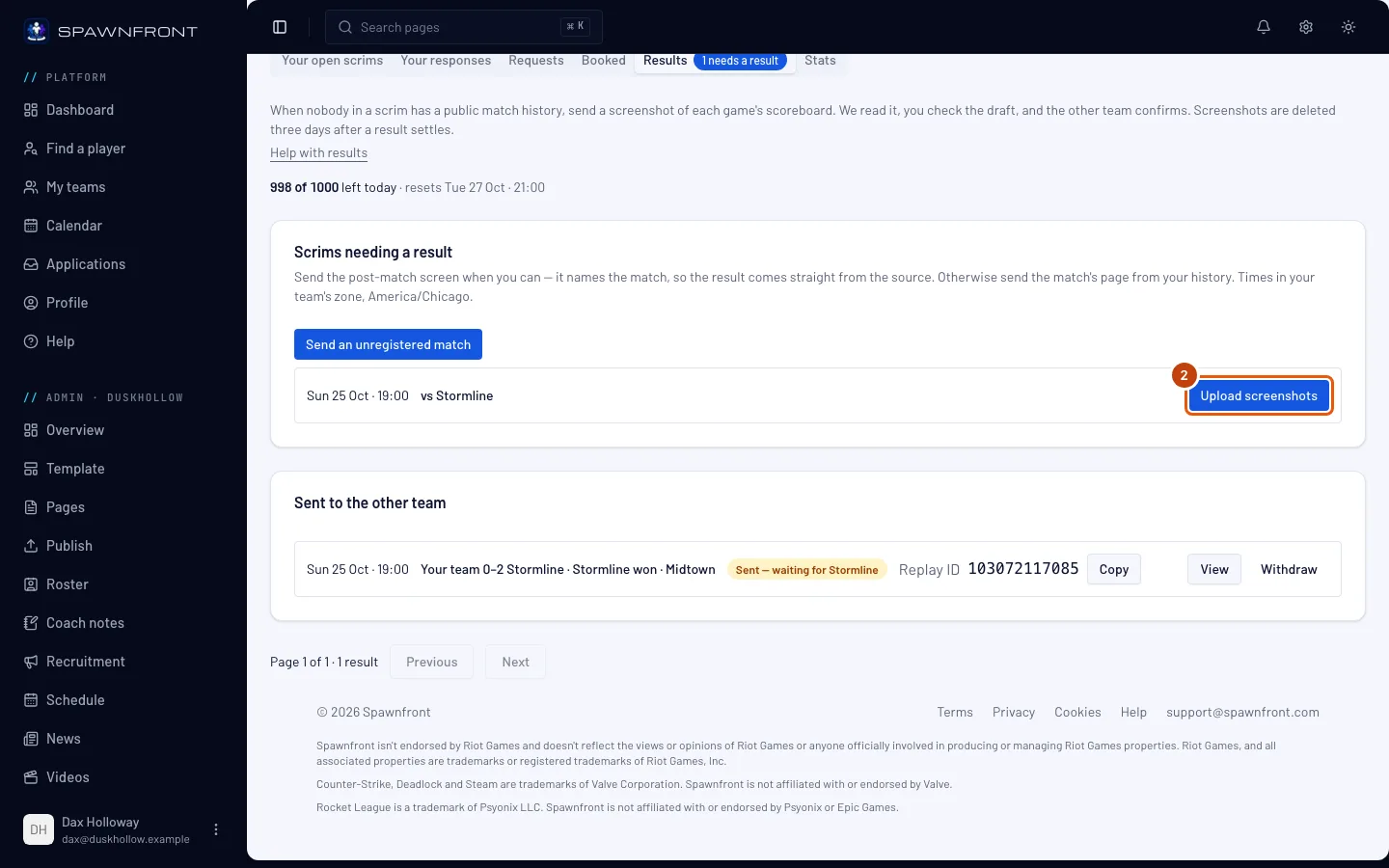
On the scrim's row, press Upload screenshots, then Choose files and choose up to 10 images at once — one for each game of the scrim. Choose more and the first 10 are read; choose the rest once those are done. You can also drop them on the box. Each image is read in your browser, one after another, so keep the page open until the list is done.
You should see: a numbered list of your files, each reading Waiting, then Reading…, then Read — draft ready with a Check the draft button. If you chose one image, its draft opens by itself with Screenshot read. Check the draft, then send it. In Overwatch, a Summary page reads Read — added to its Teams page's draft: send it with its Teams page, in the same go or after it. If Rivals Island already had a Marvel Rivals game, the file reads Recorded from the match source and there is nothing to correct. If your browser can't read an image within a minute, its draft opens empty for you to fill in.
Every screenshot read counts toward today's readings, refused ones too. A file can read Refused — the same game as file and a number (you chose two screenshots of one game), Refused — not a Marvel Rivals scoreboard (or the same for your game, like Refused — not an Overwatch game report), or Refused — and the reason. When your team runs out partway, the files left read Not read — none left today; upload them after the time Results shows.
An Overwatch team's row also has Upload a Workshop log beside it: see Settle an Overwatch scrim with a Workshop log.
Step 3: Correct the draft
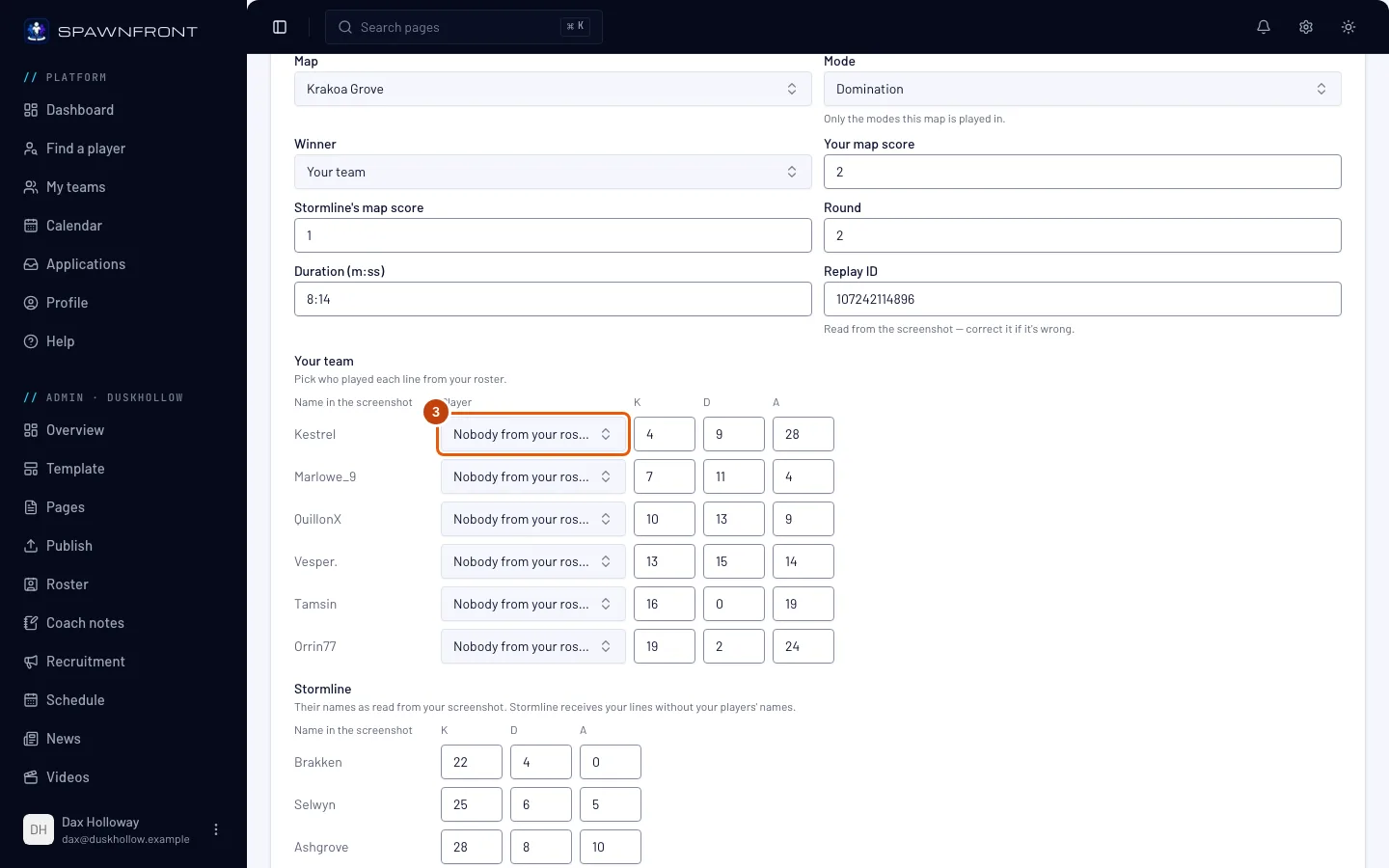
Press Check the draft beside a file, or Correct the draft on its row under Drafts to correct — the row reads Draft — check it, then send it. The Correct the draft box opens. Check the Map — in Marvel Rivals its name carries its area, like Tokyo 2099: Spider-Islands — and the Mode, which lists only the modes that map is played in. League of Legends has neither: every game is on Summoner's Rift. Check the Winner, Your map score, the Round and the Duration (m:ss).
The replay field depends on the game. Marvel Rivals' Replay ID is read from the screenshot: correct it if it's wrong — it is 10 to 13 digits. In Overwatch, type the Replay code from History → Replays → Share if you kept the replay — six letters and digits. In Counter-Strike 2, paste the Share code or the share link from the match's Watch page. League of Legends and Valorant have no replay field.
Then check each player's kills, deaths and assists, under the K, D and A headings, and the game's other numbers beside them: Lvl, CS and Gold in League of Legends; ACS, Econ, FB, Plants and Defuses in Valorant; HS % and DMG in Counter-Strike 2; Souls in Deadlock. In Overwatch, the line the Summary page matched shows the heroes that player played. Choose your players for your team's lines; a name the screenshot shows but your roster does not stays Nobody from your roster. Press Save to keep your corrections for later.
Only your own team's players are yours to name. The other team's lines show their names as read from your screenshot and their counts; the other team receives your lines without your players' names.
You should see: Draft saved.
Step 4: Send it to the other team
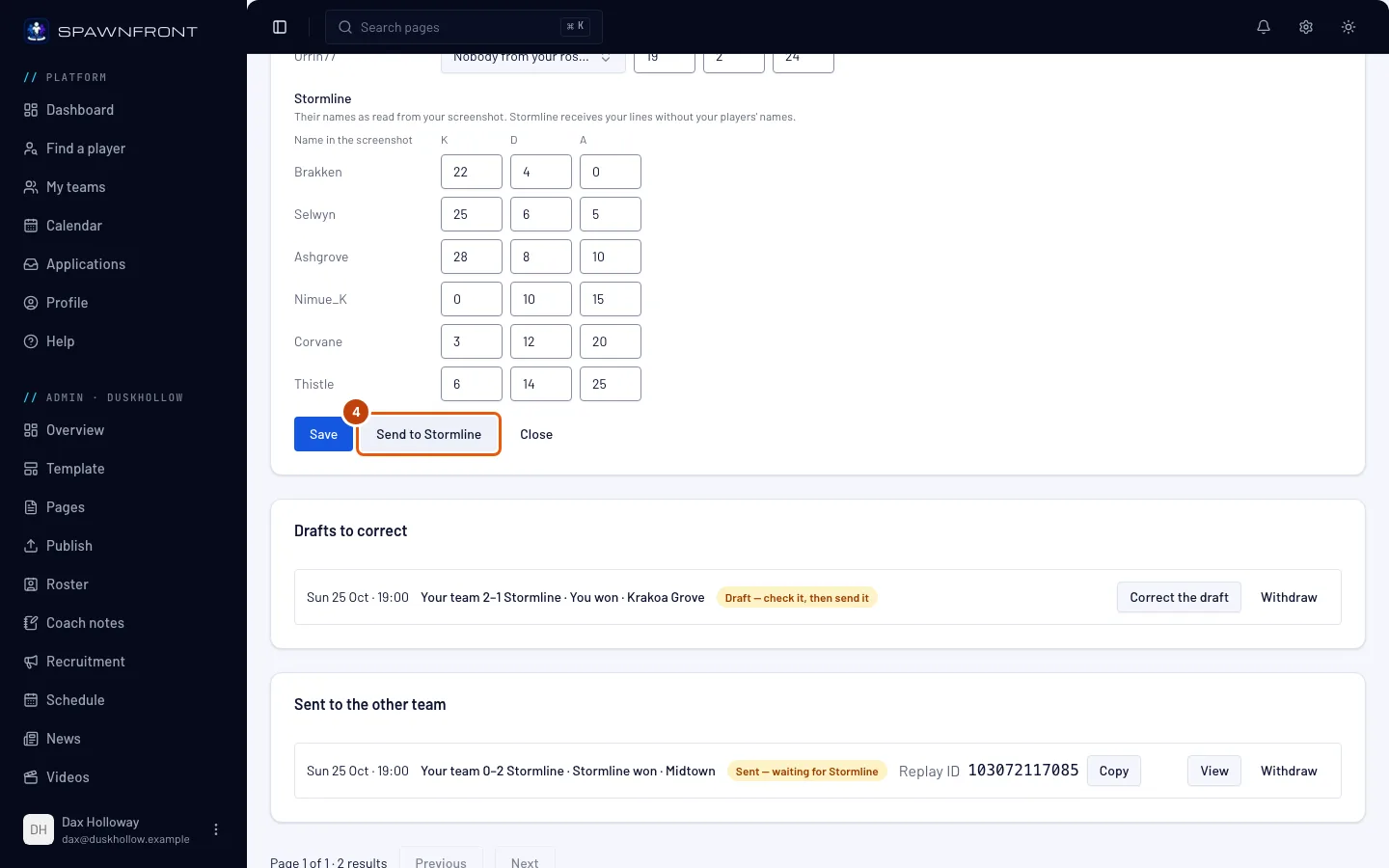
Press Send to and the other team's name — it saves your corrections too.
You should see: Sent for confirmation, and the row under Sent to the other team reads Sent — waiting for the other team. Their owner and admins get a notification.
Step 5: The other team confirms or disputes
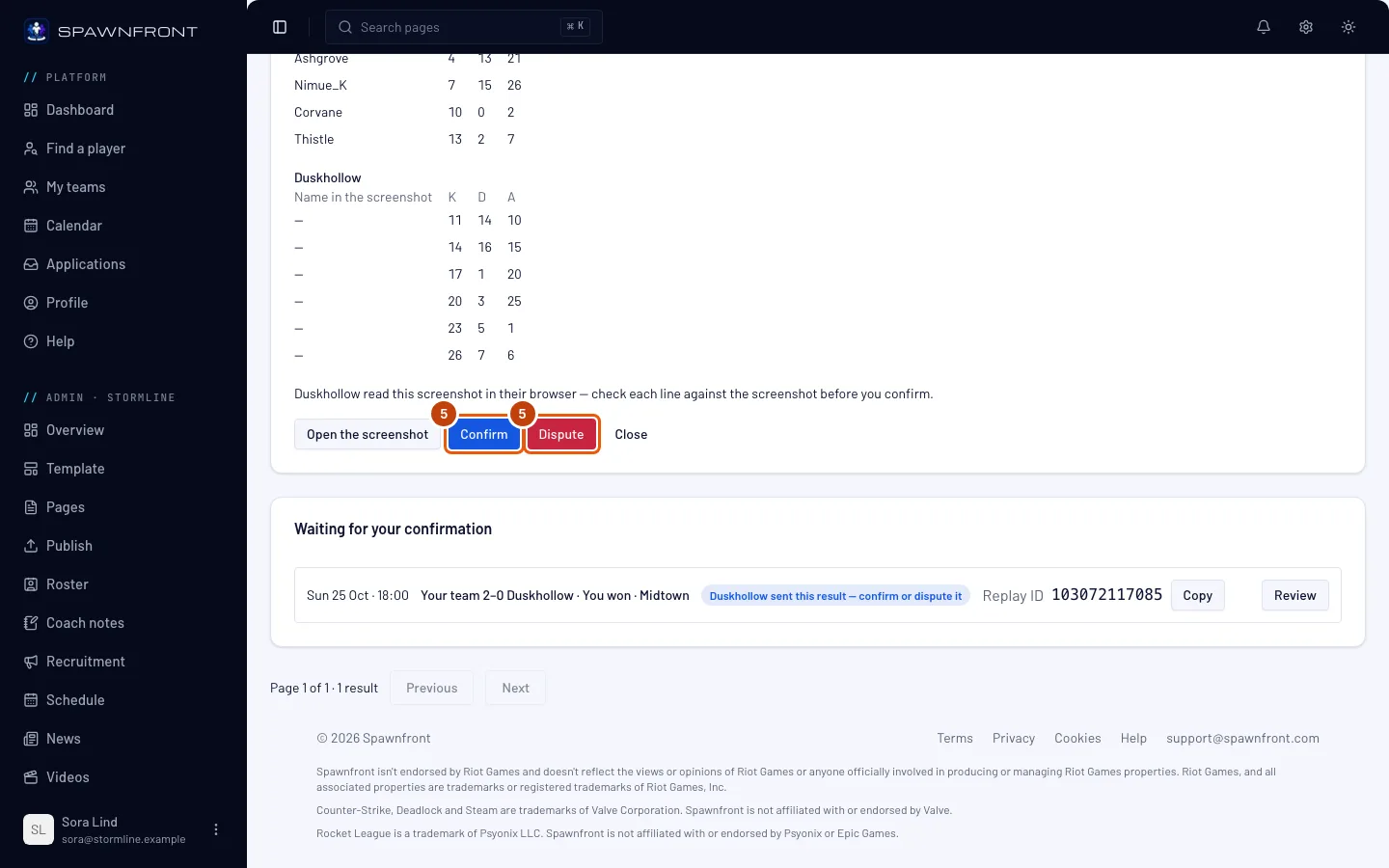
Under Results on their Scrimmages page, the result is under Waiting for your confirmation. The other team presses Review, then Confirm or Dispute. You get a notification when they answer. Because the screenshot was read in your browser, they see your team's name followed by read this screenshot in their browser — check each line against the screenshot before you confirm. above the buttons. In Overwatch, Open the Summary page beside Open the screenshot shows the Summary page the draft was paired with.
Against a team that isn't on Spawnfront, there is no other team to answer: once it is sent, your own team's owners and admins confirm it with Confirm, and nobody can dispute it. Members confirm none, even the ones allowed to confirm results.
You should see: your row under Settled reads Confirmed by the other team, and the game counts toward the scrim's result — or Disputed by the other team. A disputed result counts nowhere; each team can still enter its own result by hand on its Matches page.
Once a result is sent or confirmed, its row shows the draft's Replay ID (an Overwatch Replay code, a Counter-Strike 2 Share code) with Copy, for both teams. Each team also finds a confirmed game's code on the match's page under Matches.
How to know it worked
- The row reads Confirmed by the other team, under Settled.
- Your team's Matches page shows the game in the scrim's result.
Send it from Discord. In a Discord server your team is linked to, type /scrim result and attach the screenshot to the command — for a block of games, attach up to ten (screenshot, screenshot2 … screenshot10); each becomes its own draft and the answer counts them, with how many readings your team has left today. If several of your teams share the server, set the team option to your team's name. The team option takes your team's name or its full name, like Blades · Team 1; when two of your teams share a name, type the full one, and when two of your teams in different games share the full name, pick the one with your game from the option's suggestions. In Overwatch, attach each game report's Teams page before its Summary page: they are read in the order you attach them. Spawnfront reads it for your team's latest scrim waiting for a result, and answers only you: Reading your screenshot… The draft appears under Results on Scrimmages in a minute; if it doesn't, upload it there. Within a minute the answer changes to Read it for your team — check the draft., with a Check the draft button that opens Results on your Scrimmages page. Correct and send the draft there, as above. An Overwatch Summary page answers Added the Summary page to your team**'s Teams page draft — check the draft.** If Rivals Island already had the game, the answer is Rivals Island had this game — it's on the scrim. and there is nothing to correct. Your Discord must be linked to your Spawnfront account (see Sign in with Discord), and the server to your team (see Connect your Discord server).
The screenshot is seen only by your team's members and the other team's owners and admins, and it is deleted three days after the result is confirmed, disputed or withdrawn. Spawnfront never reads damage, healing or mitigation from a Marvel Rivals or Overwatch screenshot.
Something doesn't look right?
The screenshot is refused
It must be one game's scoreboard as a PNG, JPEG or WebP image, from 1280×720 up (a Valorant one from 1600×900 up) and at most 8 MB, and not one you already sent for this scrim — nor another screenshot of a game already sent. Refused — the same game as file and a number means two of the files you chose show the same game: the first one is kept. Take it in the game again if it was cropped or resized. A free team can have 5 screenshots read in 24 hours and a team with a site 20, and every screenshot Spawnfront reads counts, even one it then refuses.
It says your team has read all its screenshots for the last 24 hours
Results reads Your team has read 5 screenshots (20 on a team with a site) in the last 24 hours. You can upload again and a day and time, and Upload screenshots is off. The 24 hours start at your team's first screenshot read. Your drafts stay open: you can still correct them and send them.
It says 'A Replay ID is 10 to 13 digits.'
The Replay ID you typed is too short, too long or has something other than digits. Copy it from the screenshot again, or clear the field if the screenshot shows none. Save and Send to wait until it is right. In Overwatch the sentence is A replay code is six letters and digits., and in Counter-Strike 2 A share code starts CSGO- and has five groups of five letters and digits.: copy the code again, or clear the field.
It says to send this game's Teams page first
The page reads Send this game's Teams page first: its Summary page fills in the map, result and length of the Teams page whose line matches it. An Overwatch Summary page joins a Teams page draft already on this scrim whose line has the Summary's own eliminations, assists and deaths. Upload the Teams page, then the Summary again — or both in one go, and the Summary is tried again once the Teams page is read. Each try counts toward today's readings.
It says 'That scrim can't take a screenshot result.'
The scrim is no longer open: it was cancelled, or it settled three days after its window. Enter the result by hand on your Matches page.
It says your team's owners and admins send scrim results
Your team's owners and admins turned off sending results for you. Ask one of them to turn on Submit results for you (see Set scrim permissions), or to send it themselves.
It says 'That scrim hasn't started yet.'
A result is sent once the scrim has started. Come back when it has — it shows under Scrims needing a result then.
It says 'That scrim can't take a result right now.'
The scrim was booked by the other team, and it can't take a result at the moment. Ask that team about it, or enter the result by hand on your Matches page.
Confirm and Dispute aren't there, and it says someone else has to answer
You sent the result, or you're also on the team that sent it. One team sends a result and the other answers it, so nobody can confirm their own. Ask a teammate who isn't on the team that sent it to press Confirm or Dispute.
I sent the wrong screenshot
Press Withdraw on its row — on a draft, or on a result still Sent — waiting for the other team. The row reads Withdrawn and moves under Settled. Then upload the right screenshot.
It says the screenshot couldn't be read in your browser
The page reads This screenshot couldn't be read in your browser, so the draft is empty: type the map, the score and each player's line from the screenshot. Your browser couldn't read the image within a minute — usually an older device or browser. The screenshot is kept as usual: fill in the Map, the Winner, the scores and each player's kills, deaths and assists in the empty draft from it, then send it. Don't upload the same file again: it is refused as already sent for this scrim.
A picture that isn't your game's scoreboard doesn't open a draft at all: it is refused with a sentence naming the screen to send, like That doesn't look like a Marvel Rivals scoreboard. Send the post-match screen or the history page. A Counter-Strike 2 Casual board is refused the same way: send a Premier, Competitive or custom match's 5v5 board.
A name reads as Unread name
The screenshot's text was hard to read. Choose the player yourself in the draft before you send it.
The other team disputed it
Your row reads Disputed by the other team, and the result counts nowhere. Talk to the other team, then send a clearer screenshot of the same game — or enter the result by hand on your Matches page.
/scrim result says it couldn't read the screenshot right now
Spawnfront could not read it from Discord at that moment. Press Results on Scrimmages under the answer and upload the same screenshot there with Upload screenshots: it works the same way. If the answer said the image is not a PNG, JPEG or WebP, is over 8 MB, or does not look like your game's scoreboard, send a different screenshot.
The draft from /scrim result never appears
If Results shows no new draft a few minutes after Reading your screenshot…, upload the screenshot there with Upload screenshots.
/scrim result says your team has no scrim waiting for a result
The command reads the screenshot for your team's latest scrim that is registered, played and still open. Press Results on Scrimmages under the answer to see every scrim you can settle, and upload it there instead. If the scrim was never registered, the answer offers Send as an unregistered match — see Send an unregistered match.
/scrim result asks you to set the team option
More than one of your teams is linked to this server, or the team you typed is not one you own or administer there. Send /scrim result again with team set to the exact name of your team. If it answers More than one of your teams here is called…, two of your teams share that name: type the full name it lists, like Blades · Team 1.
/scrim result says only a team's owners and admins, and the members they let send results, can send a scrim result
The answer reads Only a team's owners and admins, and the members they let send results, can send a scrim result, in the server their team is linked to. You are not on a team linked to this server, your team turned off sending results for you, or the server isn't connected to your team yet. Ask your team's owner, or connect the server first (see Connect your Discord server).
There is no Upload screenshots button
The scrim must be registered on Spawnfront — booked with the other team or registered by name against a team that isn't on Spawnfront — played, and still open: a scrim settles three days after its window. A cancelled scrim takes no result. A scrim that was never registered is sent with Send an unregistered match — see Send an unregistered match.
Related articles
Still stuck? Contact support or email support@spawnfront.com — tell us the page you're on and the step number.