
Find a player
Browse the players and staff who listed themselves, one game at a time: filter by role, region, platform and rank, and open a card.
For players · 6 steps
What you need first
- You are logged in. Find a player is only for logged-in accounts; nobody outside Spawnfront sees it.
Steps
Step 1: Open Find a player
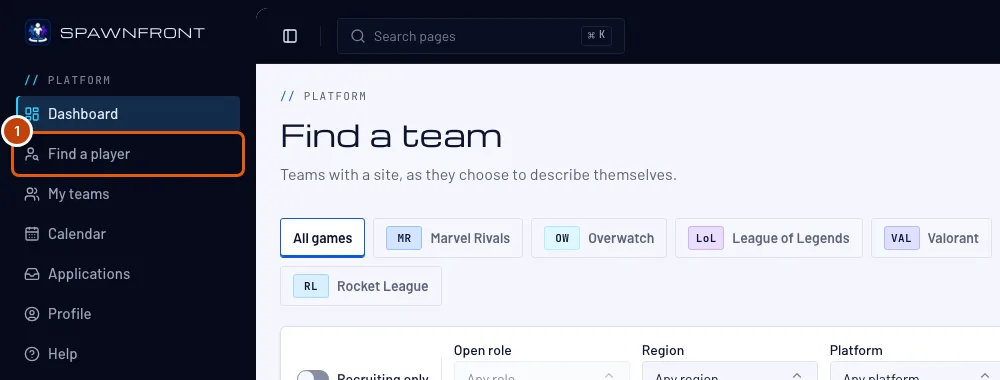
In the menu, press Find a player. On a phone, open the menu with the button at the top left first.
You should see: Find a player, with a row of games, the filters and the players listed for the first game.
Only people who chose to be listed are here, one game at a time: players — see List yourself in Find a player — and coaches, managers, analysts and content creators — see List yourself as staff.

Step 2: Pick the game
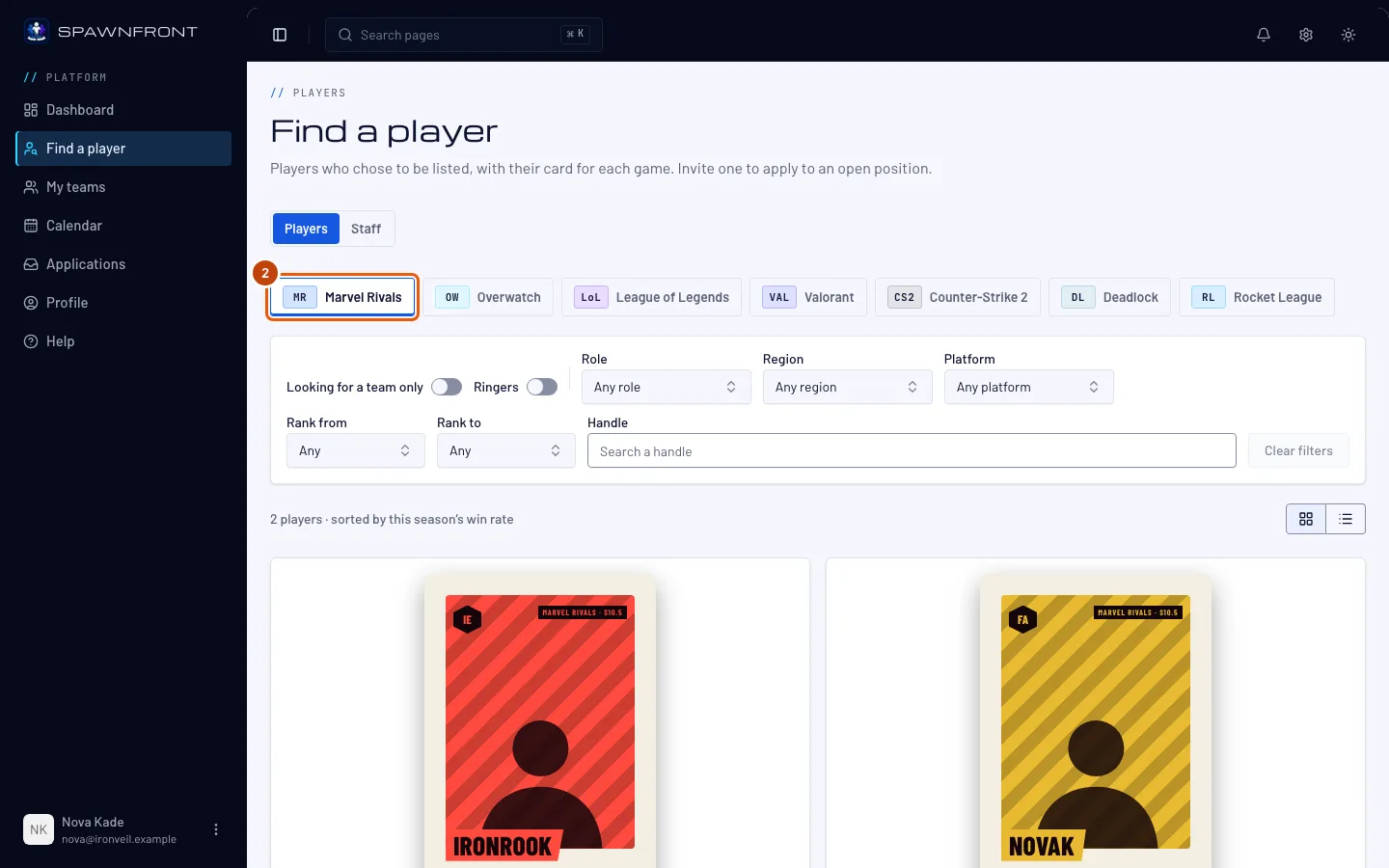
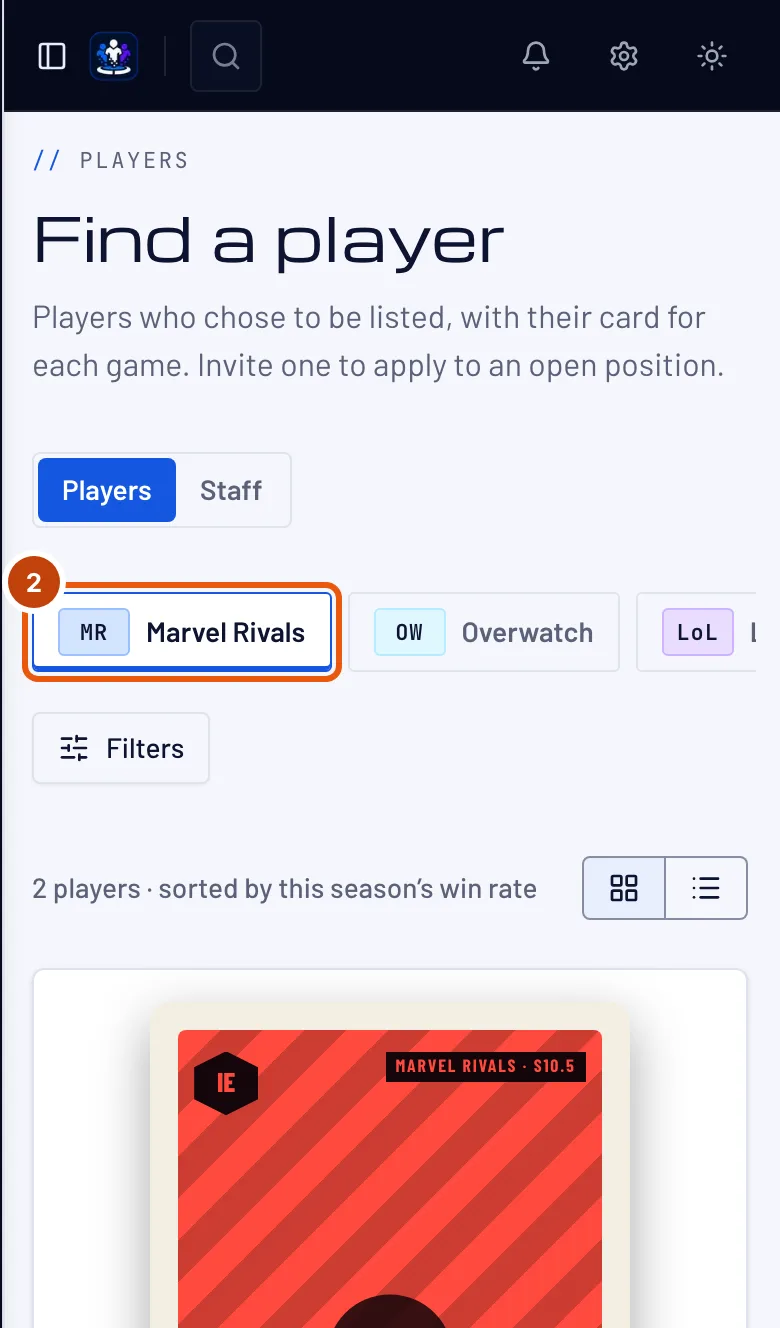
Press the game's tab along the top: Marvel Rivals, Overwatch, League of Legends, Valorant, Counter-Strike 2, Deadlock or Rocket League.
You should see: the players listed for that game, with how many there are — "sorted by this season's win rate".
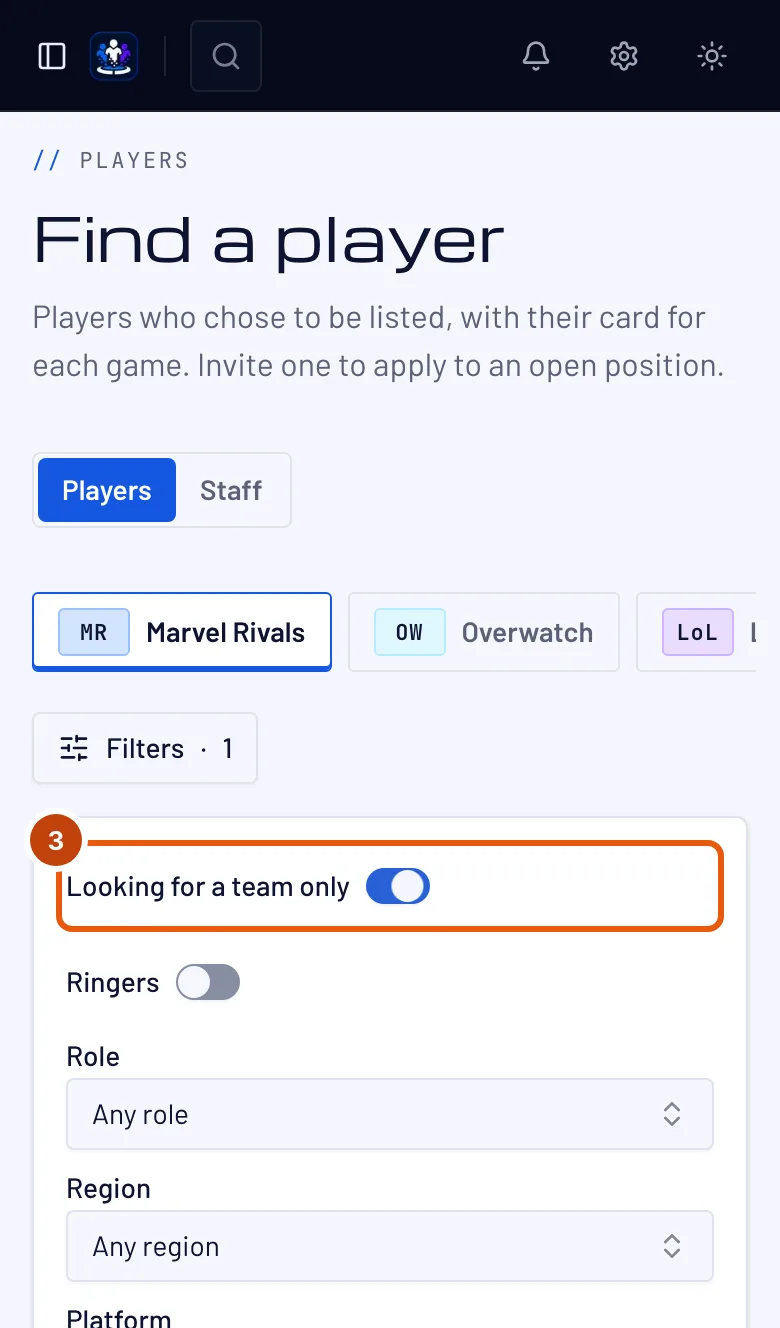
Step 3: Show only players looking for a team
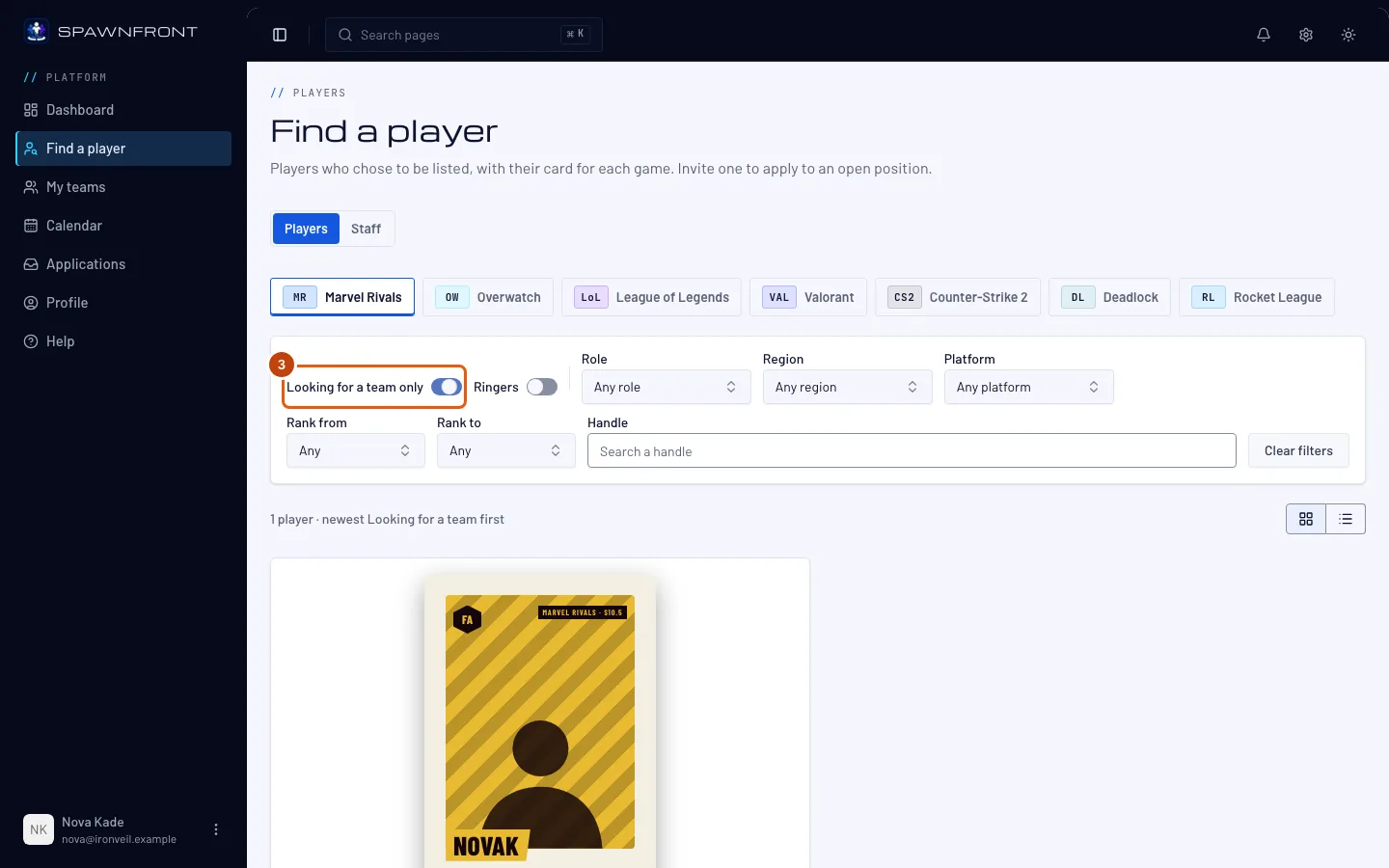
Turn on Looking for a team only. On a phone, press Filters first.
You should see: only players with the Looking for a team badge, newest first — the line above them reads "newest Looking for a team first".
Step 4: Narrow the list
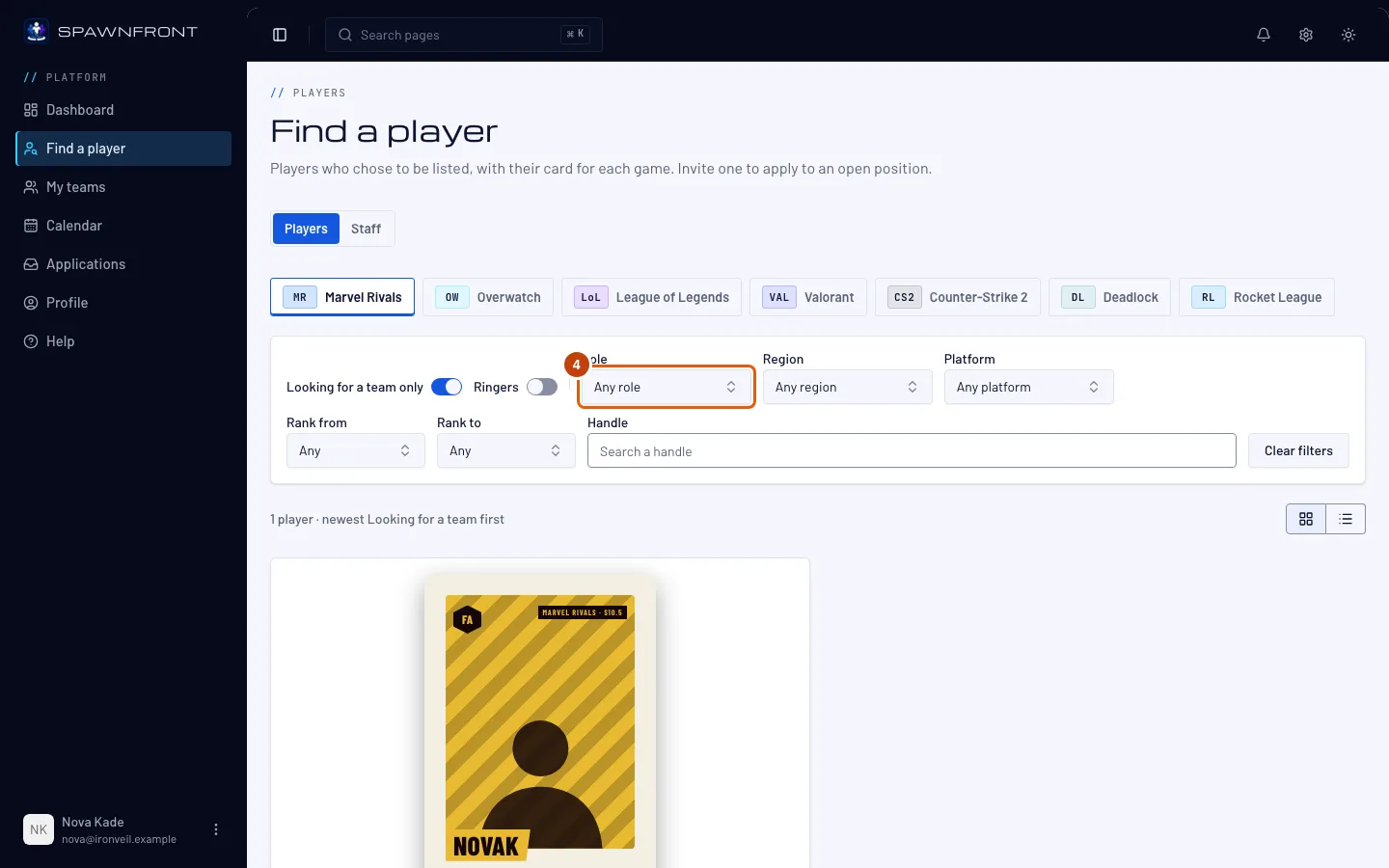
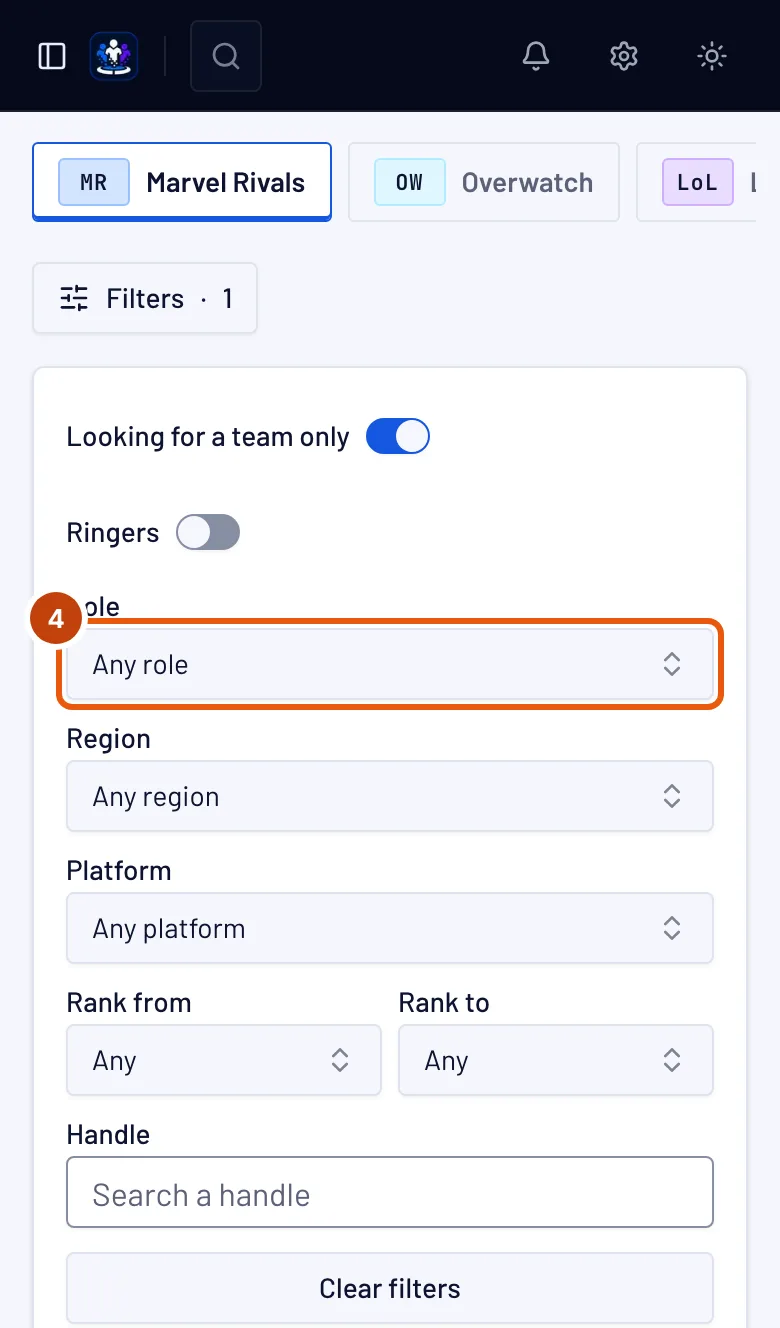
Choose a Role, and if you like a Region, Platform or a rank range with Rank from and Rank to. For League of Legends choose a Server, and for Valorant a Valorant region, instead of Region. Type part of a player's handle in Handle to find one player. Clear filters starts over. To scan many players at once, switch from Cards to List above the players.
To find a player who can fill in for one session, turn on Ringers: only players who turned on Available as a ringer stay, each with the Ringer badge. Invite one to your ringer need — see Find a ringer.
To find a coach, manager, analyst or content creator instead, press Staff above the filters. Each staff listing shows their roles, games, region, a few lines about them and the languages they speak, newest listed first; narrow it with Role and Region.
You should see: the list and its count change as you choose. Each player shows their role, Region, Platform, Rank, this season's record (or last season's, early in a season), and the team they play for — or Free agent.
Step 5: Open a player
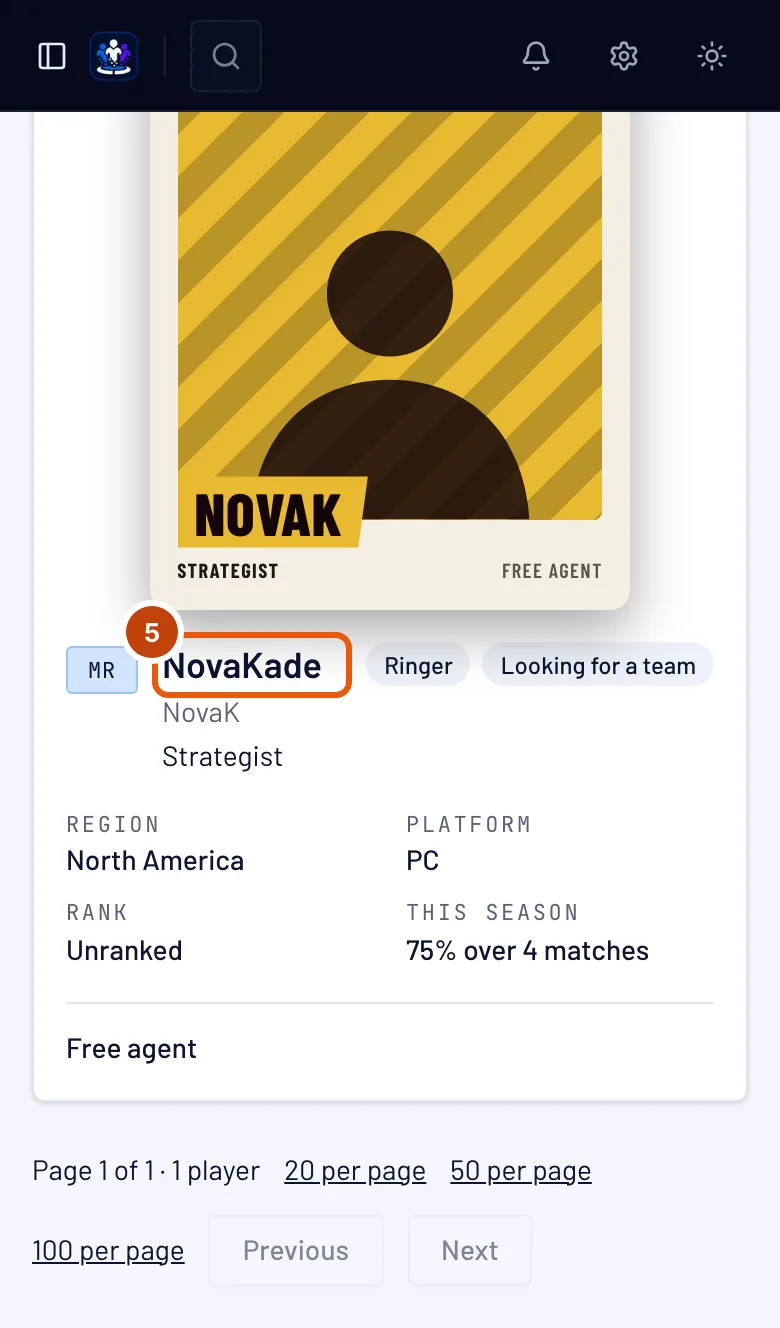
Press a player's handle.
You should see: the player's card. A player who plays for a team opens on that team's page, as Player card with the team's name — see Your player card. A free agent opens on their own page.
Step 6: Read a free agent's card
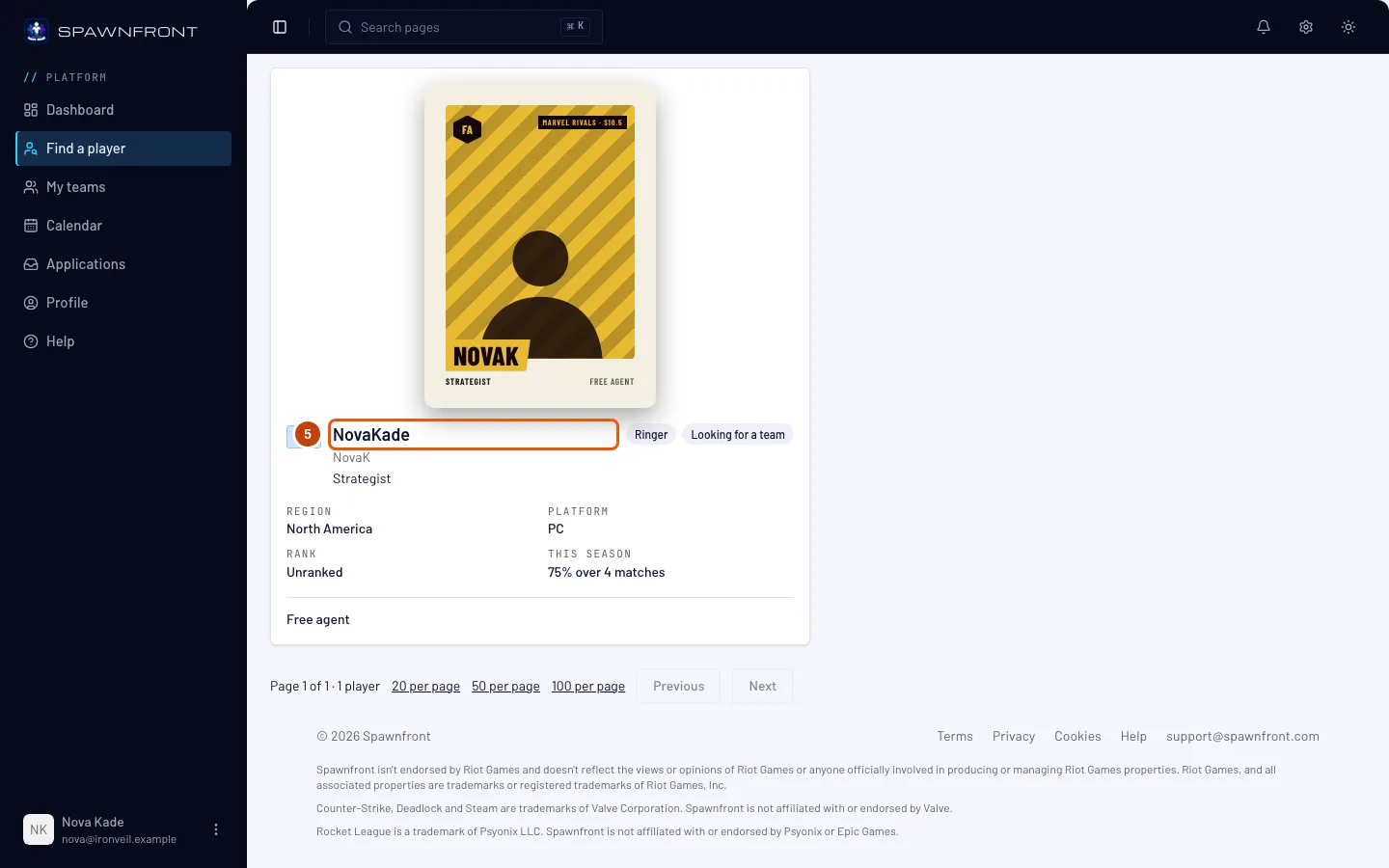
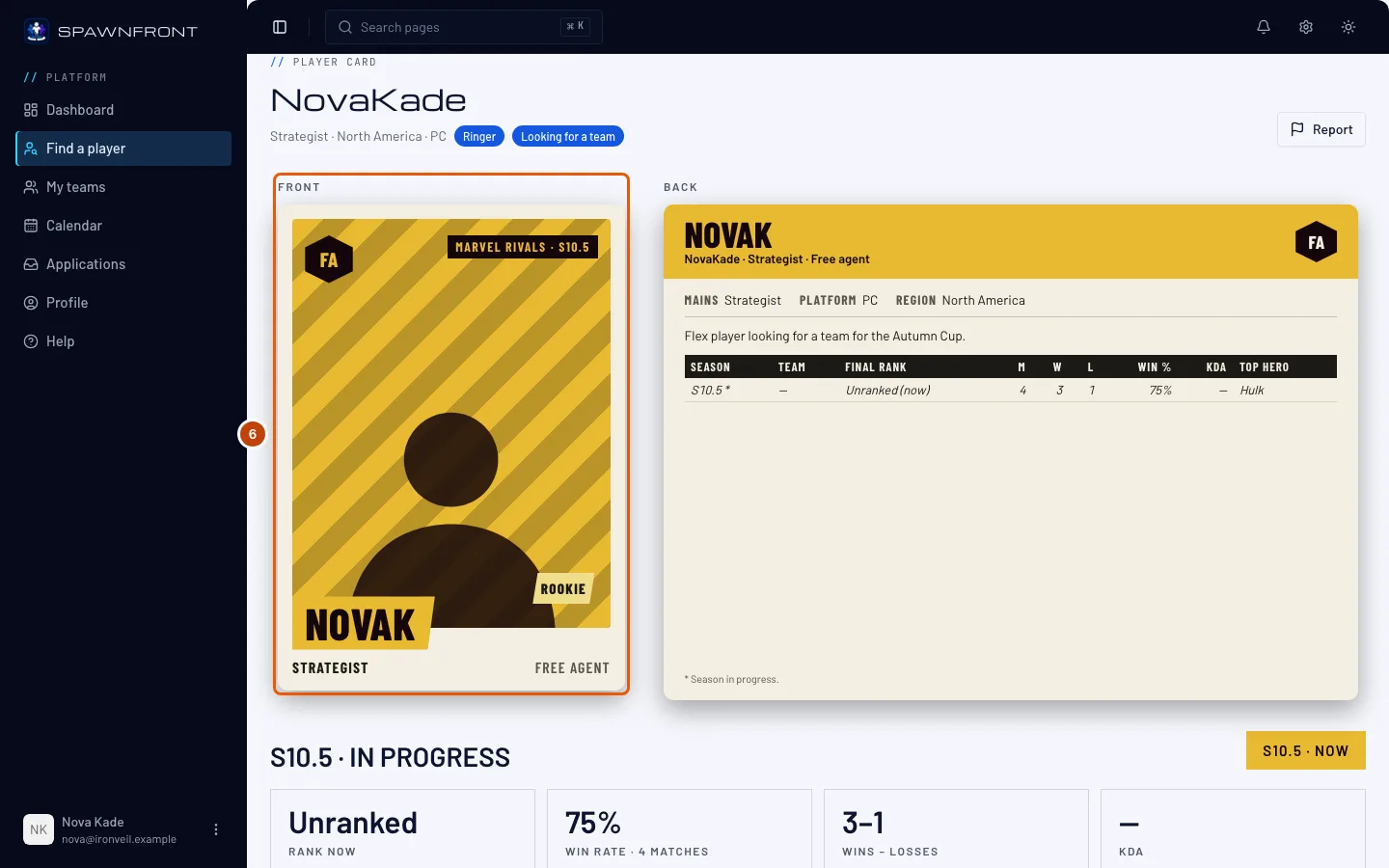
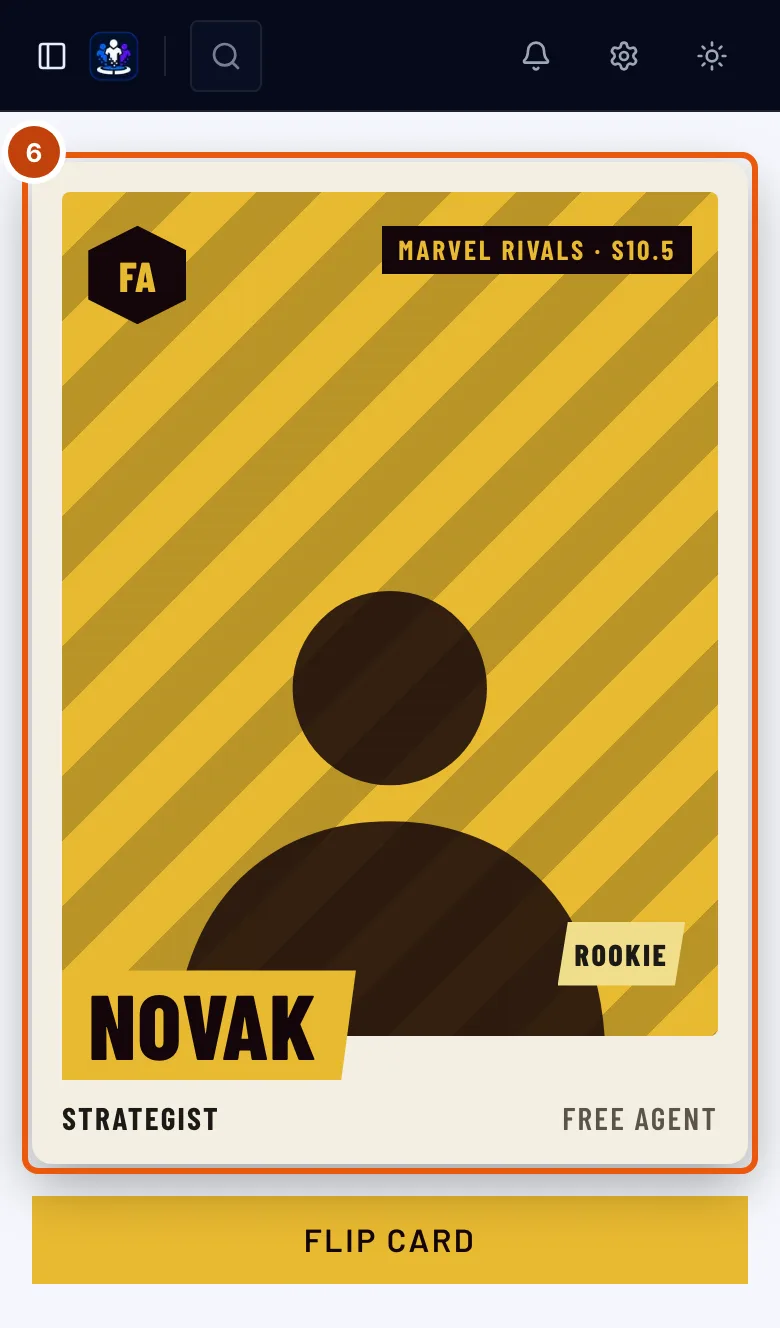
A free agent's page shows Player card, the handle, their role, region and platform, the Looking for a team badge when they said so, and their card: FA and Free agent in the team's place, in gold. On a computer the back stands beside the front; on a phone, press Flip card. Under the card, press a season's button to read that season. ‹ Back to Find a player takes you back to the list.
You should see: the card's back with a row per season, or a line saying why there are none.
How to know it worked
- Pressing a player's handle opens their card. If you run a team of their game, Invite to apply sits beside them — and beside a staff listing, for a staff position — see Invite a player to apply.
What a team sees is the card, nothing else. Find a player never shows a player's email, birth date, age, country, languages or contact details. A staff listing shows the languages from that person's profile, and never their email, birth date, age, country or contact details. The only way to reach anyone here is Invite to apply.
Something doesn't look right?
It says "No listed player matches"
Your filters match no listed player. Widen the rank range or the region, or turn off Looking for a team only — or press Clear filters.
It says "No player is listed for … yet."
Nobody has listed themselves for that game so far. Press List yourself in Profile › Games to be the first — see List yourself in Find a player.
It says "Searching too quickly — try again in a moment"
You changed the filters many times in a minute. Wait a moment, then choose again; the last list stays on screen meanwhile.
There's no Invite to apply button
It shows only when you are the owner or an admin of a team of that player's game.
I'm not in the list
You are listed per game. On Profile › Games, turn on List me in Find a player on that game's card. As a coach, manager, analyst or content creator, list yourself in Profile › Staff listing and look under Staff — see List yourself as staff.
Related articles
Still stuck? Contact support or email support@spawnfront.com — tell us the page you're on and the step number.