
Add a match from a screenshot
Add a ranked match, a scrim or any other match to your own record from a screenshot: choose your line and the match type, and only your line is kept, labelled self-reported.
For players · 4 steps
What you need first
- You are logged in, and you saved your game on Profile › Games. See Add your game identity.
- You have a screenshot of the match — ranked, a scrim or any other: a PNG, JPEG or WebP, from 1280×720 up, at most 8 MB. Which screen depends on the game:
- Marvel Rivals — the post-match screen, or the match's page from your history, in the game's English. With the game in another language your numbers still read, but the map and mode may come back empty: choose them in the draft.
- Overwatch — the game report's Summary page from Career Profile → History → Game Reports. Its kills, deaths, assists and heroes are read whatever language the game is in; its result, map, score, date and length only with the game in English, the one language Spawnfront reads Overwatch's words in so far.
- League of Legends — the match's Scoreboard tab from Match History, with the game in English or in Czech, French, German, Hungarian, Indonesian, Italian, Polish, Portuguese (Brazil), Romanian, Spanish, Turkish or Vietnamese — or in Greek, Japanese, Korean, Russian, Thai or Chinese when Spawnfront, your browser or Discord is set to that language too. Only English has been checked on real screenshots so far: if a screenshot in another language isn't read, switch League to English and take it again.
- Valorant — the match's SCOREBOARD tab, from the screen at the end of the match or from Career, from 1600×900 up: a smaller picture reads its numbers wrong, so it is refused. The game can be in English, French, German, Indonesian, Italian, Polish, Portuguese (Brazil), Spanish (Spain or Latin America), Turkish or Vietnamese — or in Japanese, Korean, Russian, Thai or Traditional Chinese when your browser is set to that language too. Only English has been checked on real screenshots so far: if a screenshot in another language isn't read, switch the game to English and take it again.
- Counter-Strike 2 — the 5v5 board at the end of the match, not the scoreboard you open with Tab while the match is still being played. The board is read with the game in English, the only language confirmed on real screenshots so far, and also in the game's other languages: Bulgarian, Chinese (Simplified and Traditional), Czech, Danish, Dutch, Finnish, French, German, Greek, Hungarian, Indonesian, Italian, Japanese, Korean, Norwegian, Polish, Portuguese (Portugal and Brazil), Romanian, Russian, Spanish (Spain and Latin America), Swedish, Thai, Turkish, Ukrainian and Vietnamese. Bulgarian, Chinese, Greek, Japanese, Korean, Russian, Thai and Ukrainian are tried only when your browser or your Spawnfront language is set to that language.
- Deadlock — the scoreboard at the end of the match (or the same screen opened from your match history), with every player's souls, kills, deaths and assists. Deadlock shows souls rounded to thousands, like 55k, so your card keeps 55,000. The game can be in English, French, German, Spanish (Spain or Latin America), Italian, Polish, Portuguese (Brazil), Czech, Turkish, Indonesian, Russian, Ukrainian, Simplified Chinese, Korean, Japanese or Thai, but only English is confirmed on real screenshots so far, so a board in another language may not be read yet. In Russian, Ukrainian, Chinese, Korean, Japanese or Thai it is read only when Spawnfront or your browser is set to that language too. Souls are read only where the game writes them with a k, as it does in English, French, Italian, Indonesian, Chinese, Japanese and Thai; in the other languages the souls are left blank.
- Rocket League — the scoreboard at the end of the match, under MY ACCOLADES, or the match picked in the MATCH HISTORY list (beside SAVED REPLAYS), with its WIN or LOSS, MATCH INFO and MY STATS showing beside the list — with the game in English. The scoreboard you open with Tab during a match isn't read: the match isn't over.
- Not sure where your game shows that screen? See Find your match stats and replay codes.
- You can add 20 matches a day.
Steps
Step 1: Open your game on Profile
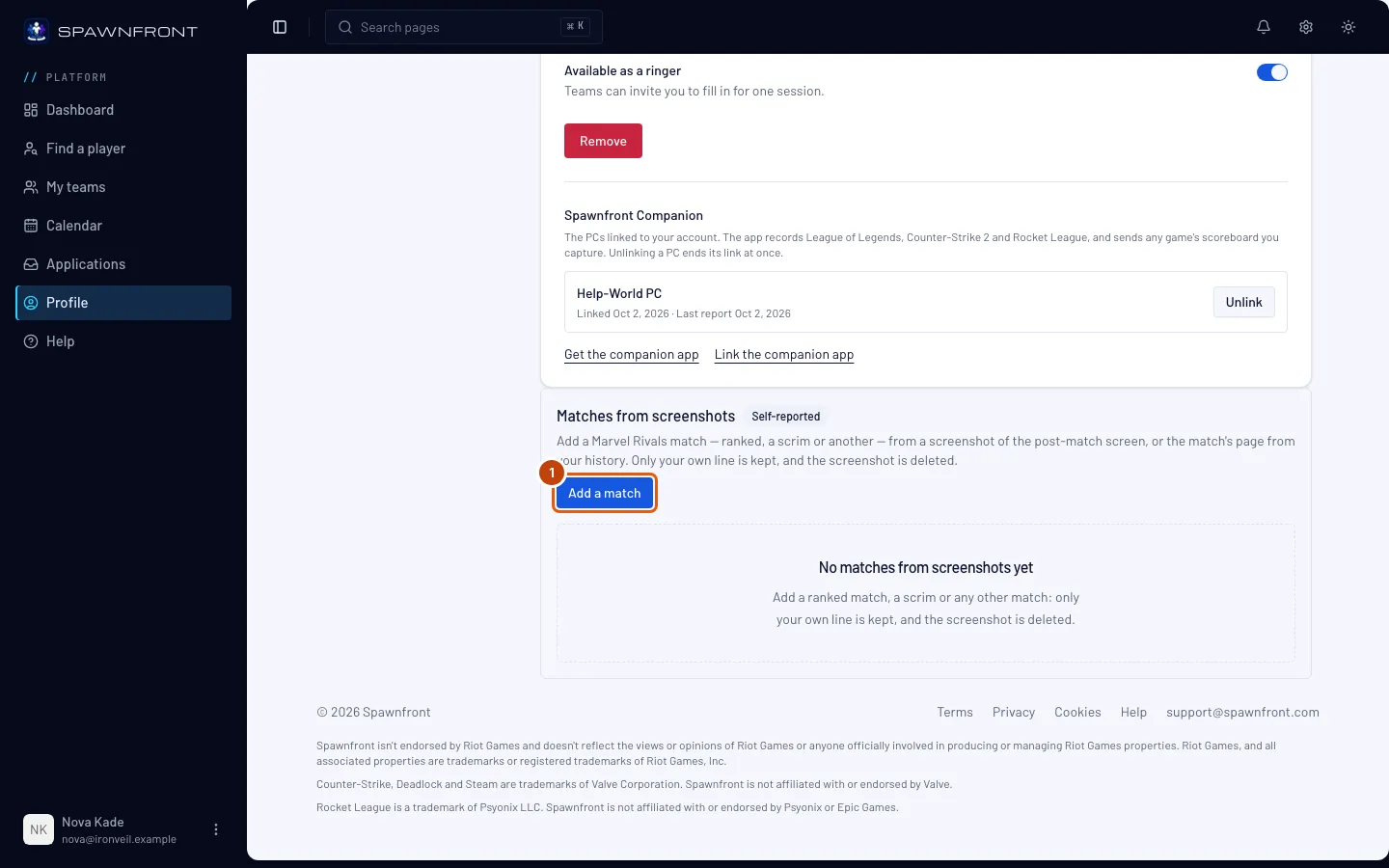
In the menu on the left, press Profile, then Games, and pick your game's tab. Below your game's details is Matches from screenshots, marked Self-reported.
You should see: Add a match under Matches from screenshots.
Step 2: Add a match
Press Add a match and choose the screenshot. It is read in your browser, so keep the page open while the button reads Reading the screenshot….
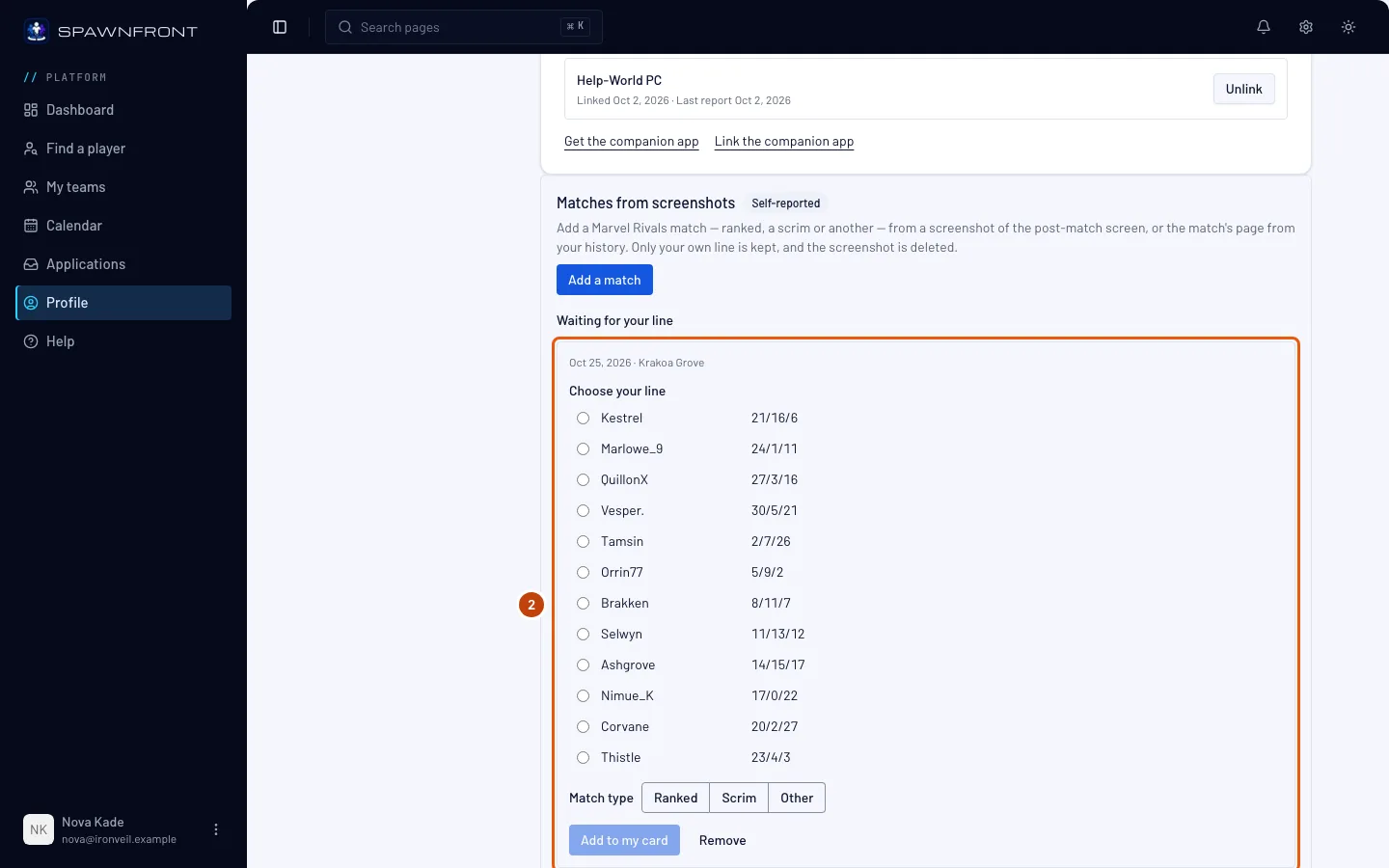
You should see: Screenshot read. Choose your line, then add it to your card., and the match under Waiting for your line, with every line the screenshot showed.
Step 3: Choose your line and the match type
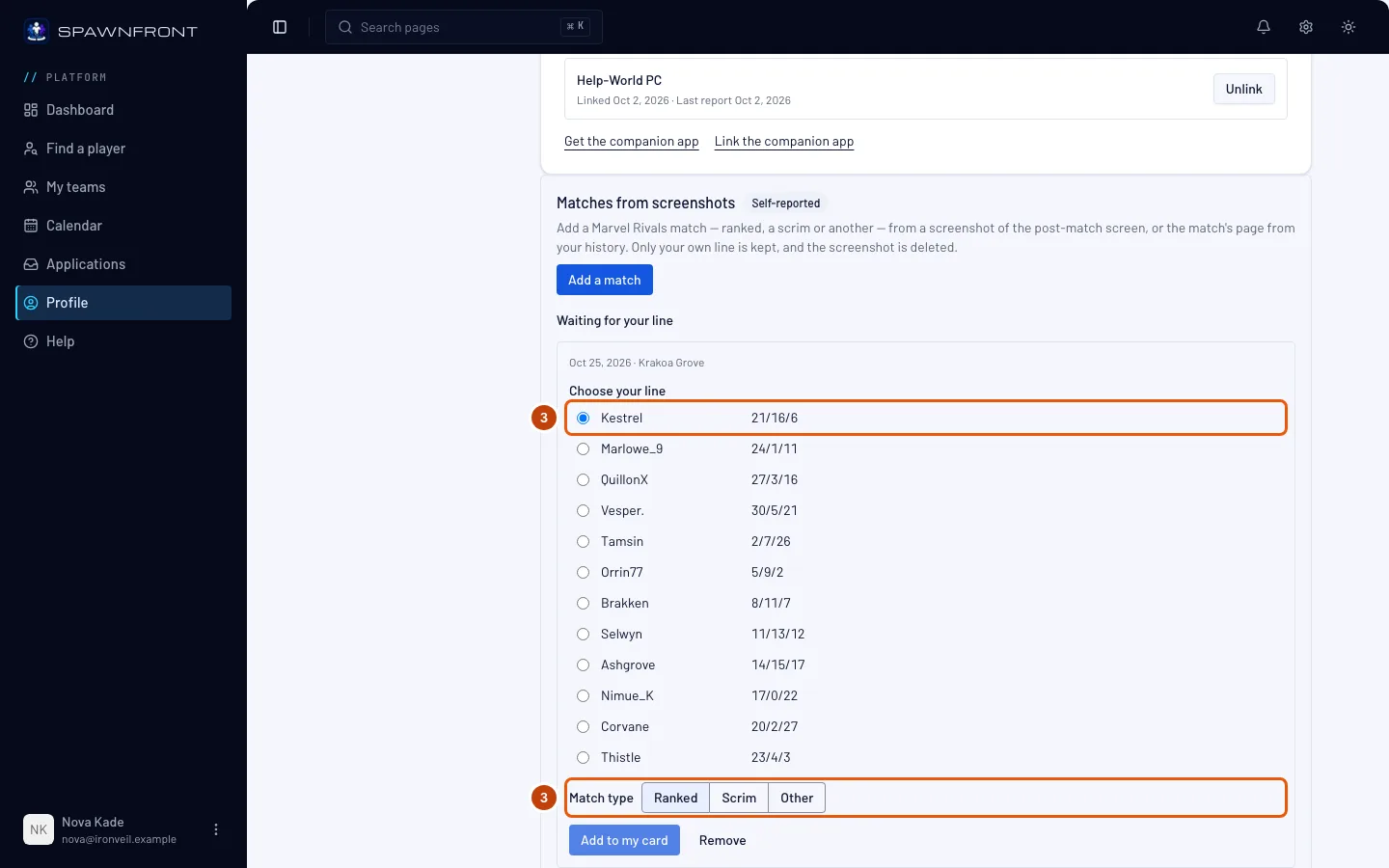
Under Choose your line, the line with your name is marked Suggested when Spawnfront could match it to your game handle. Check that it is yours, or choose your own line. Each line shows its kills, deaths and assists, and the game's own numbers: Lvl, CS and Gold in League of Legends; Perf (Performance Score), FB, Plants and Defuses in Valorant — a match from before Valorant's September 2026 update shows ACS and Econ instead of Perf; HS % and DMG in Counter-Strike 2; Souls in Deadlock; your heroes in Overwatch. A Rocket League line has no kills or deaths: it shows your Assists, then Goals, Saves, Shots and Score. A column your scoreboard shows something else in — Demos in a Duel, or a stat you chose for your scoreboard in Rocket League's settings — is left blank. A match from Rocket League's MATCH HISTORY has one line, yours, shown as Your line and already chosen.
Then choose the Match type: Ranked, Scrim or Other. Which ones you see depends on the screenshot:
- When it shows a ranked queue — like Ranked Solo/Duo in League of Legends, Competitive or Premier in Valorant, Premier in Counter-Strike 2, a Deadlock board's Ranked match, your rank under a Rocket League board (CURRENT TIER, PROMOTION, DIVISION UP and the like, shown after a competitive match only), or COMPETITIVE as the playlist of a Rocket League match picked in MATCH HISTORY — the match is Ranked, shown "from the screenshot's queue", and there is nothing to choose.
- When a Counter-Strike 2 board shows Competitive, choose Ranked, Scrim or Other: a scrim on a private server set to Competitive shows the same word.
- When it shows another queue, like Normal (Draft Pick) or Custom, a Deadlock Standard Match, or CASUAL as a Rocket League match's playlist in MATCH HISTORY, choose Scrim or Other.
- A Deadlock Street Brawl match is Other, with nothing to choose.
- When it doesn't show the queue — always in Marvel Rivals and Overwatch, in Rocket League when no rank shows under the board (a casual or private match, or a screenshot taken before the rank appears), and in the other games when the queue's name couldn't be read — choose Ranked, Scrim or Other.
Every type counts on your card, and each match shows its type.
Step 4: Add it to your card
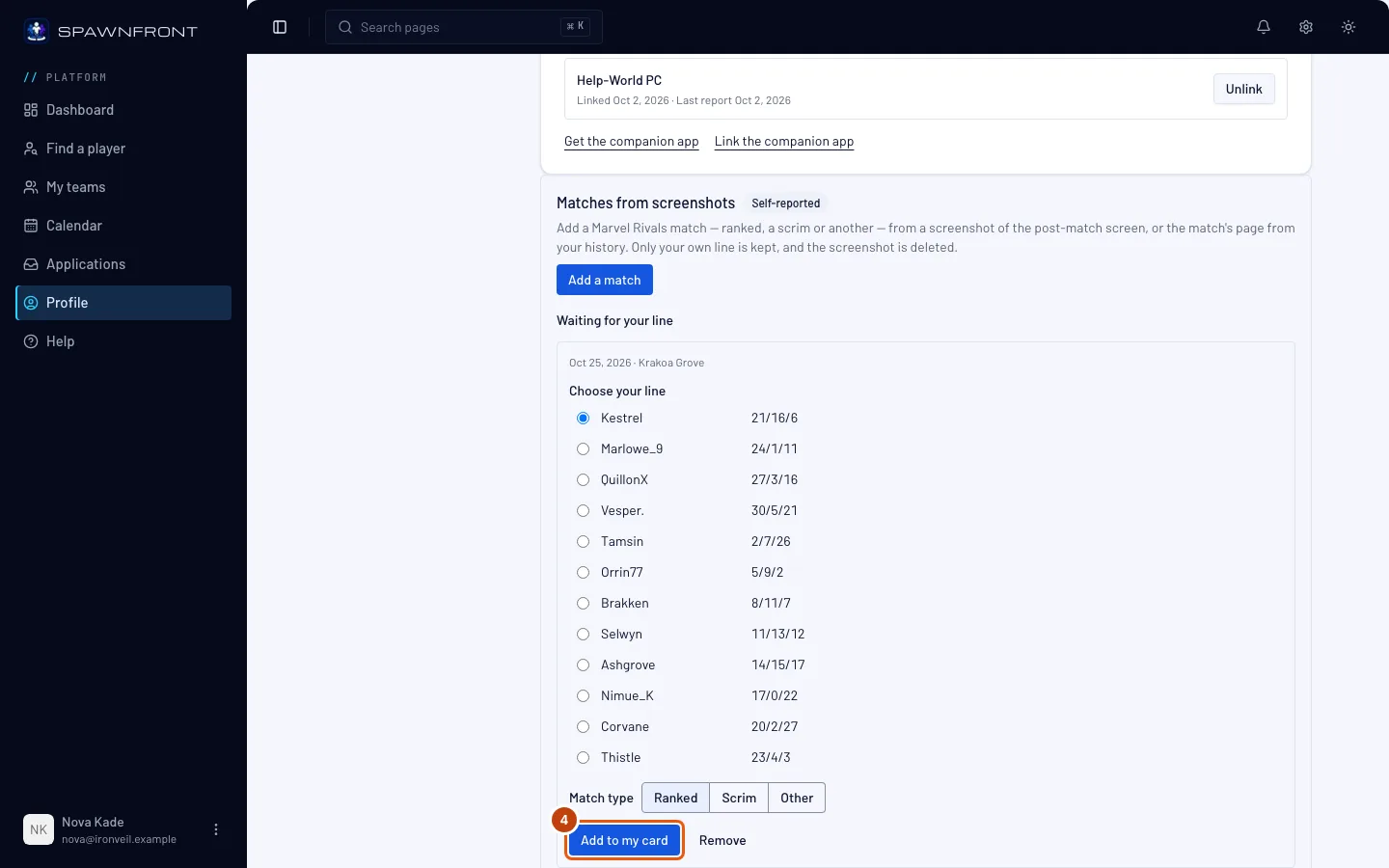
Press Add to my card.
You should see: Added to your card., and the match under Your matches with its date, its type (Ranked, Scrim or Other), your result, the map and your line. The screenshot and every other player's line are deleted.
How to know it worked
- The match is under Your matches on Matches from screenshots.
Add it from Discord. In any server Spawnfront's bot is in, type /stats add and attach the screenshot. If you saved more than one game on Spawnfront, set the game option to the match's game. Spawnfront answers only you: Reading your screenshot… In a minute, choose your line on Spawnfront to add the match to your card., then Read your match. Choose your line on Spawnfront to add it to your card. with a Choose your line button that opens your game on Profile › Games, where the match waits under Waiting for your line. Finish it there, as above. Your Discord must be linked to your Spawnfront account (see Sign in with Discord).
Only your own line is kept. The other players' names and numbers leave with the screenshot when you press Add to my card. Spawnfront never reads damage, healing or mitigation from a Marvel Rivals or Overwatch screenshot. A match you don't finish is deleted with its screenshot a day after you added it. Matches from screenshots are your own claim, so they are always labelled Self-reported, and Spawnfront staff can take a reported match off your card.
Something doesn't look right?
It says the screenshot doesn't look like my game
The answer names the screen to send, like That doesn't look like a Valorant scoreboard. Send the match's Scoreboard from Career. Send that screen of the match, from 1280×720 up — a Valorant one from 1600×900 up. In Overwatch, send the game report's Summary page, not its Teams page. In Counter-Strike 2, a Casual or Wingman match's board isn't a 5v5 board and is refused this way, and so is the Tab scoreboard during a match: take the screenshot on the board at the end of the match. In Rocket League, send the scoreboard at the end of the match or the match picked in MATCH HISTORY: the scoreboard you open with Tab during a match, the WEEKLY CHALLENGES tab and a free-for-all match's list are refused this way.
It says the screenshot shows a queue that isn't ranked
The answer names the queue, like The screenshot shows Normal (Draft Pick), which isn't ranked: choose Scrim or Other. The screenshot shows the match wasn't ranked, so choose Scrim or Other under Match type. In the same way, a match whose screenshot shows a ranked queue can only be Ranked.
It says to choose whether this match was Ranked, Scrim or Other
The screenshot doesn't show the queue, so Spawnfront asks you. Choose Ranked, Scrim or Other under Match type, then press Add to my card again. If you see this in Spawnfront Companion, update the app, or finish the match on Profile › Games.
It says 'That match is already on your card.'
That match, or the same screenshot, is already under Your matches. Each match counts once.
It says 'A remake isn't a match'
The game ended in a remake, so there is no result to add. Only games played out count.
It says I've added 20 matches today
The answer reads You've added 20 matches today. Try again tomorrow. Every screenshot read counts, refused ones too.
It says I've started 40 uploads today
The answer reads You've started 40 uploads today. Try again tomorrow. Each screenshot you start sending counts, even one you never finish. Try again tomorrow.
It says 'That game profile isn't on your account.'
The game profile the match would go on was removed from your account, or belongs to someone else. Open Profile › Games, check your game is saved there, and add the match again from that game's card.
Add to my card is greyed out
Choose your line under Choose your line, and choose Ranked, Scrim or Other under Match type when it asks.
/stats add asks me to set the game option
You saved more than one game on Spawnfront, so /stats add can't tell which game the screenshot is from. Send it again with game set to the match's game. If it says you haven't saved that game, save it under Profile › Games first.
/stats add says it couldn't read the screenshot right now
Spawnfront couldn't read it from Discord at that moment. Add the same screenshot under Profile › Games with Add a match instead: it works the same way.
I added the wrong match
Press Remove on its row under Your matches, or on the match under Waiting for your line.
Related articles
Still stuck? Contact support or email support@spawnfront.com — tell us the page you're on and the step number.