
Say you'll be late or can't make it
Tell your team from the Calendar that you'll be late or can't make a session, and change your mind until it starts.
For team members · 9 steps
What you need first
- You're a member of a team whose schedule has the session on it — see Use your team calendar.
- The session hasn't started yet. Once it starts, late and out can no longer be changed.
Steps
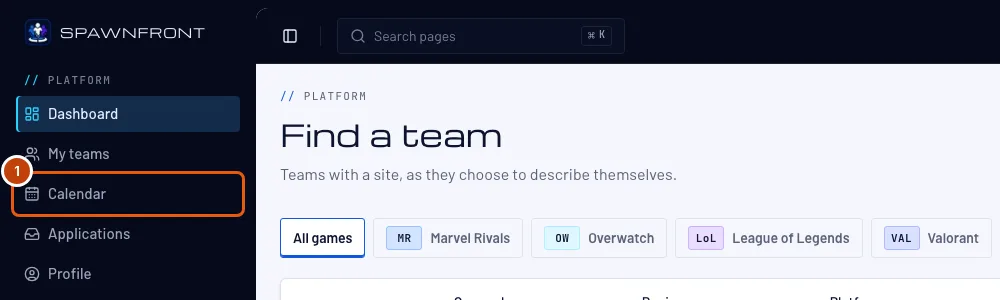
Step 1: Open Calendar
In the menu on the left, press Calendar.
You should see: this week's sessions of every team you're on.
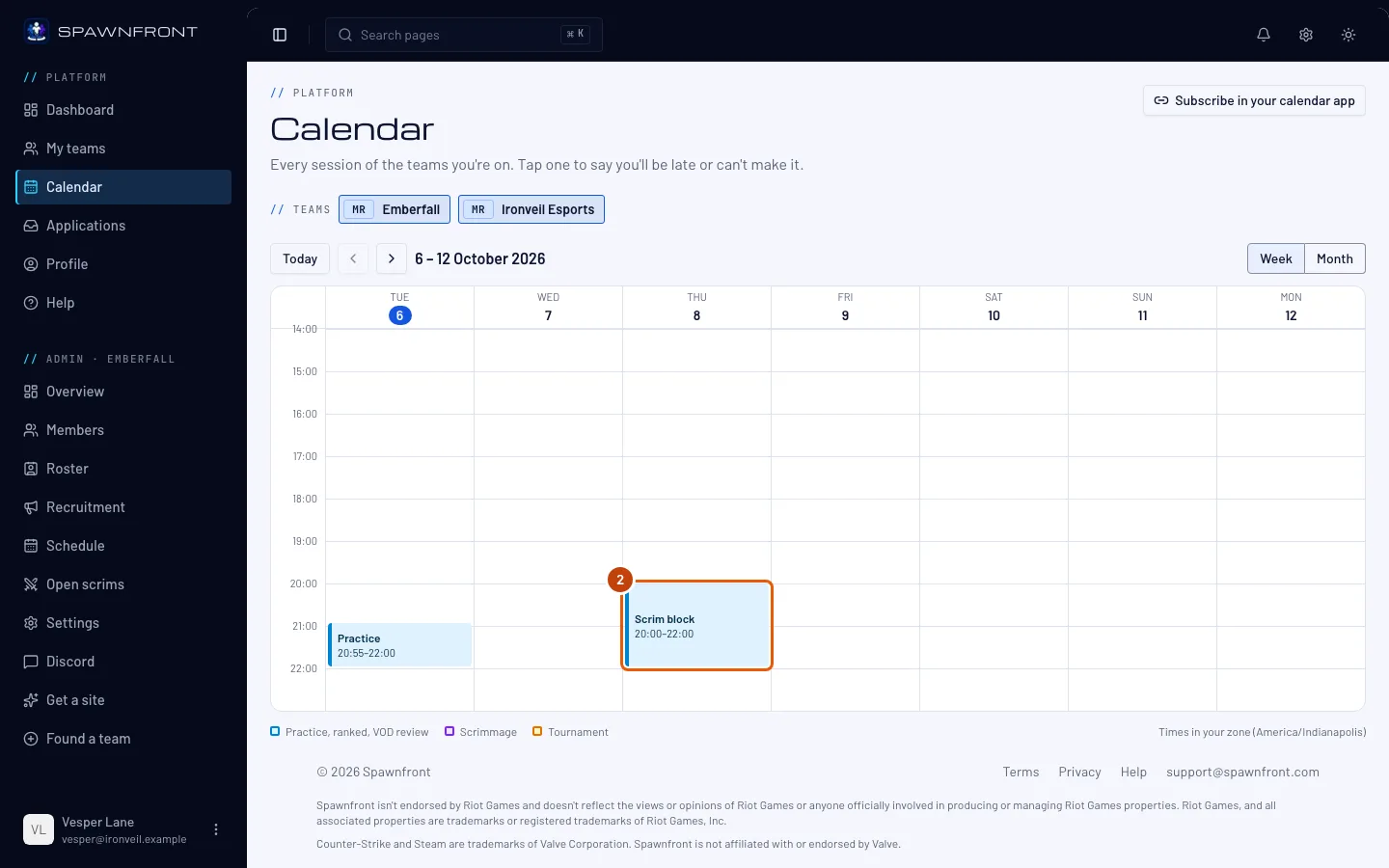
Step 2: Open the session
Press the session's block on the calendar.
You should see: the session beside the calendar, with "You're expected. Nothing to do if you're coming."
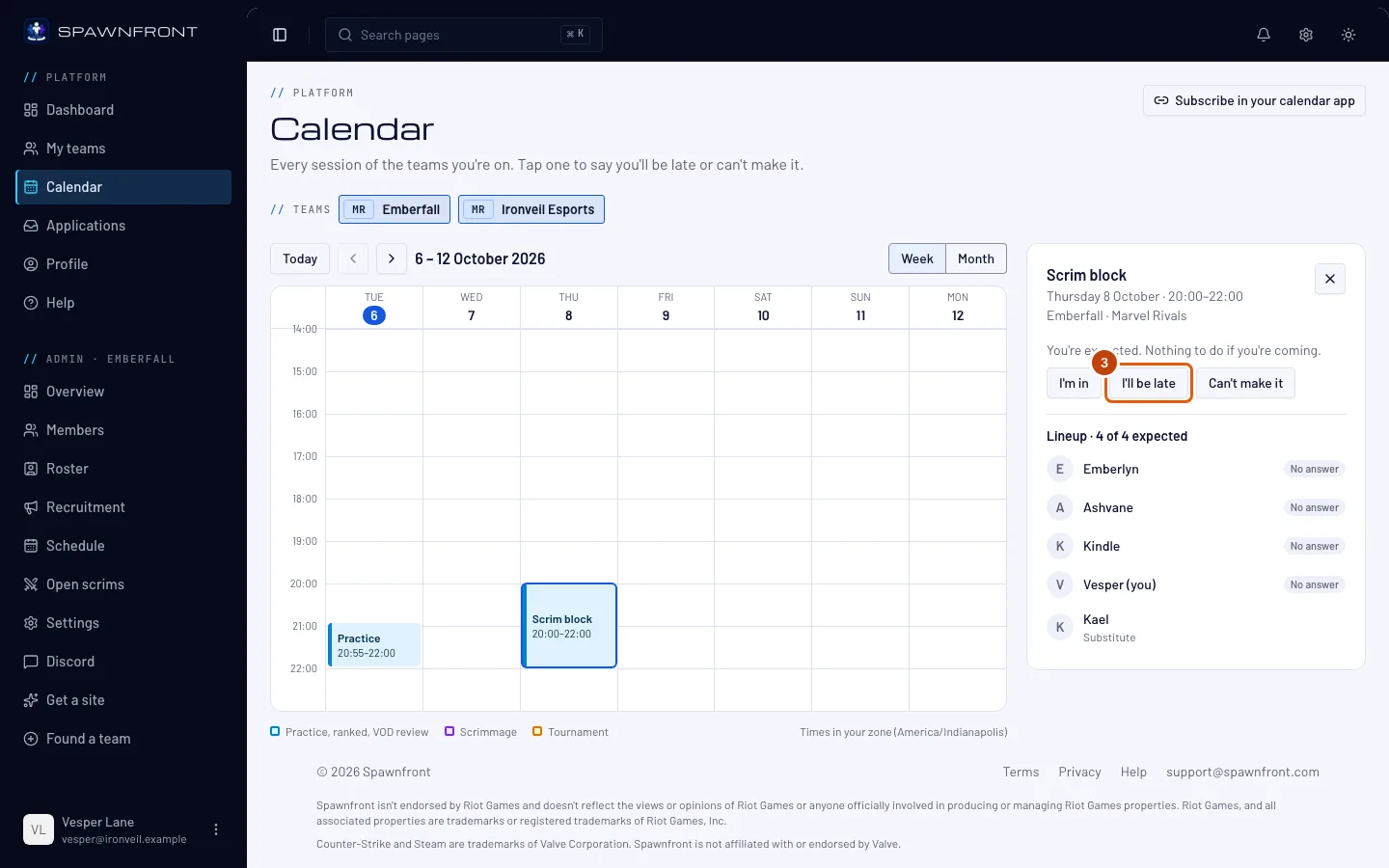
Step 3: Press I'll be late
Press I'll be late.
You should see: a box titled I'll be late, naming the session, its day and its time — check it's the right one.
Step 4: Choose how late
Under How late?, press 15 min, 30 min or An hour or more.
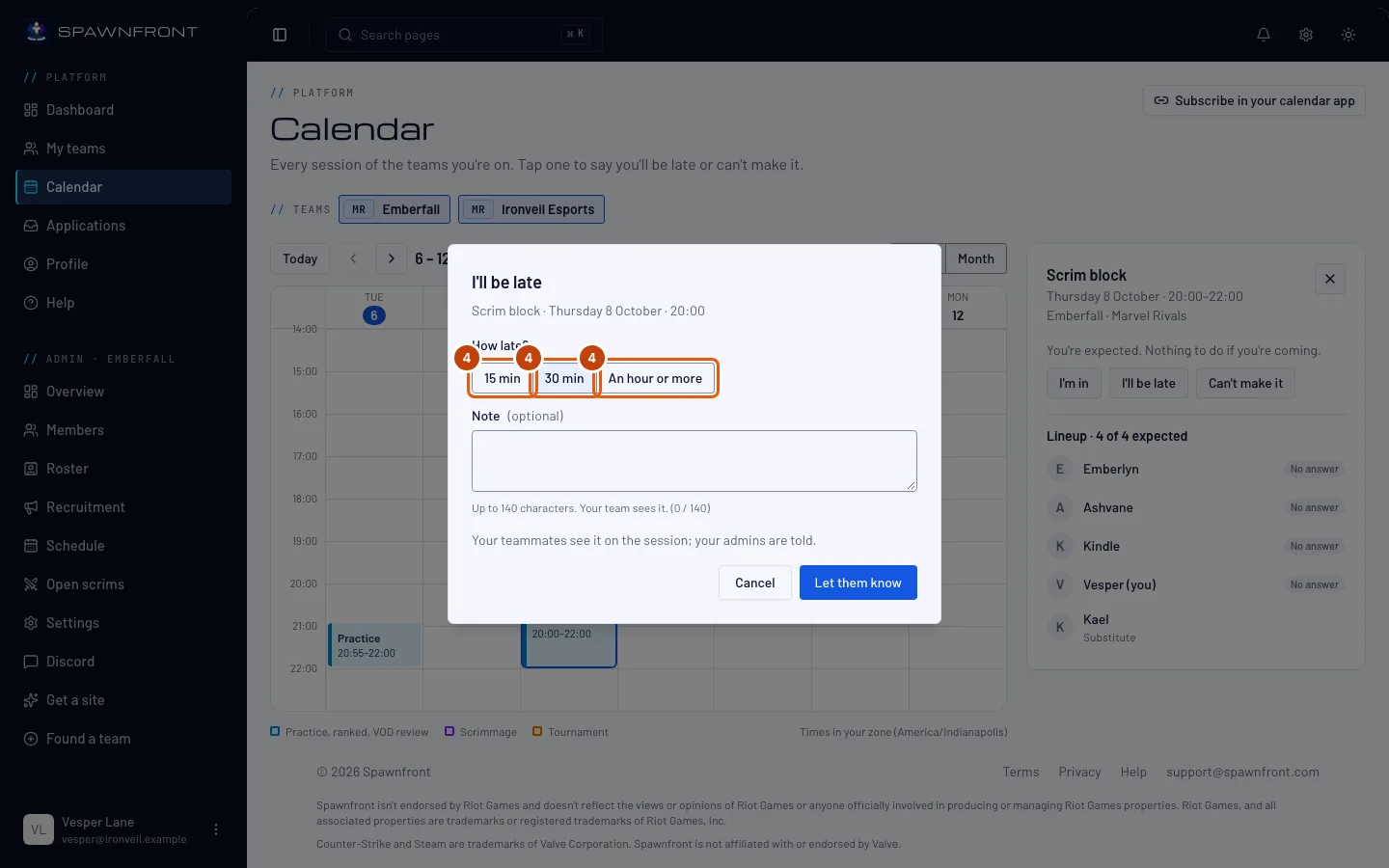
Step 5: Add a note
Type a short Note if you like — up to 140 characters. Your team sees it on the session.
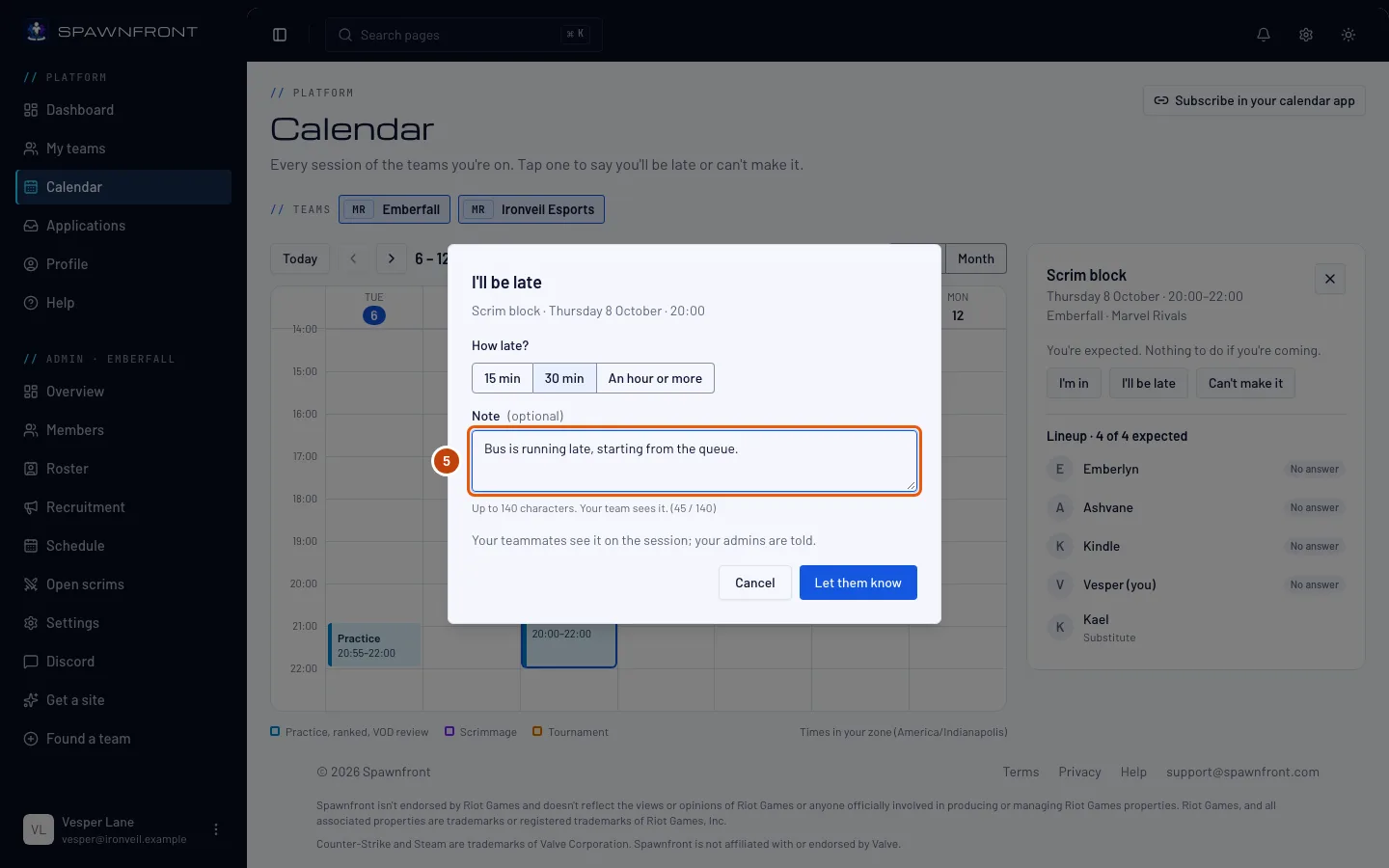
Step 6: Press Let them know
Press Let them know.
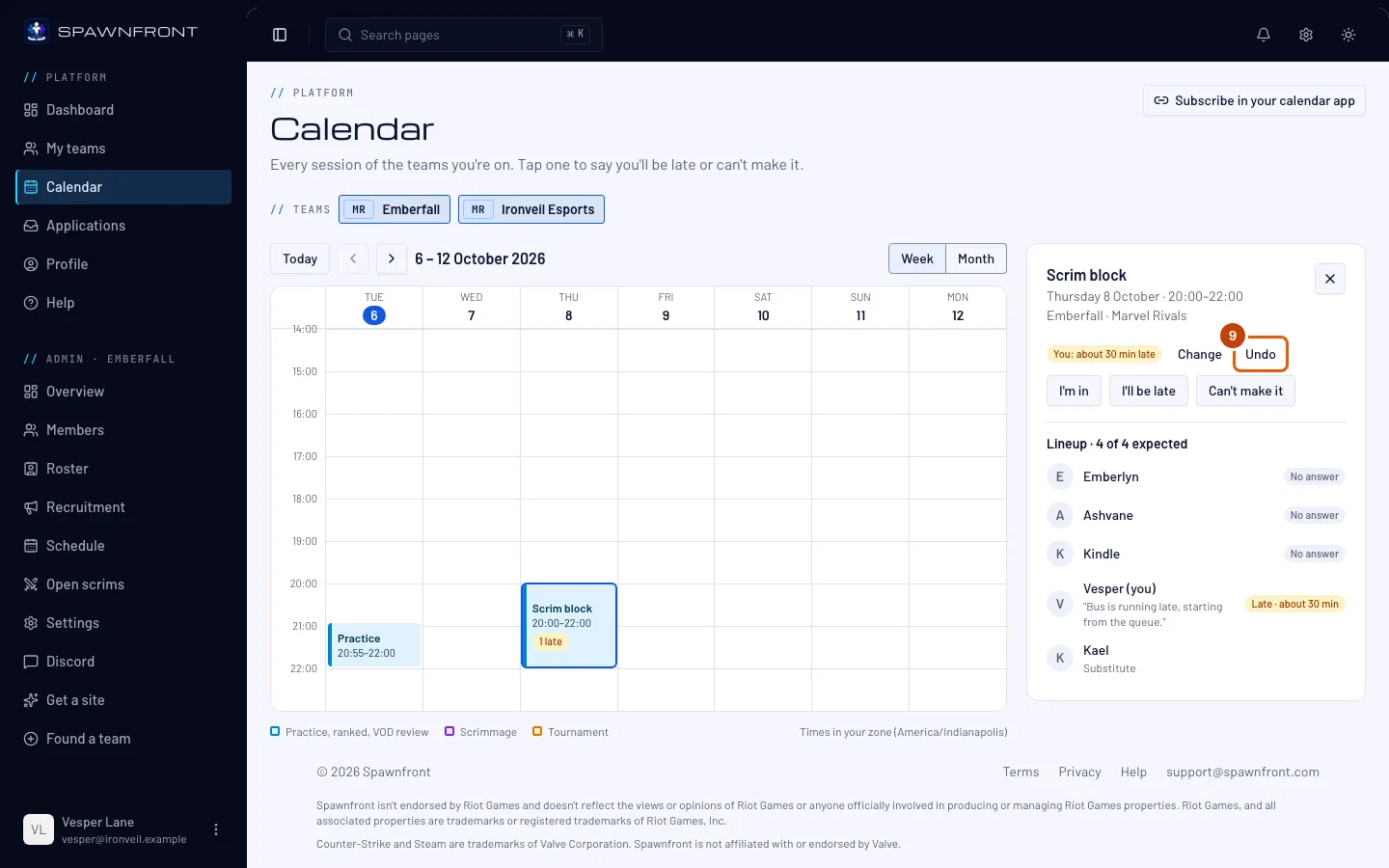
You should see: on the session, "You: about 30 min late", with Change and Undo. The block on the calendar shows "1 late". Your team's substitutes and admins are told in the app and by email.
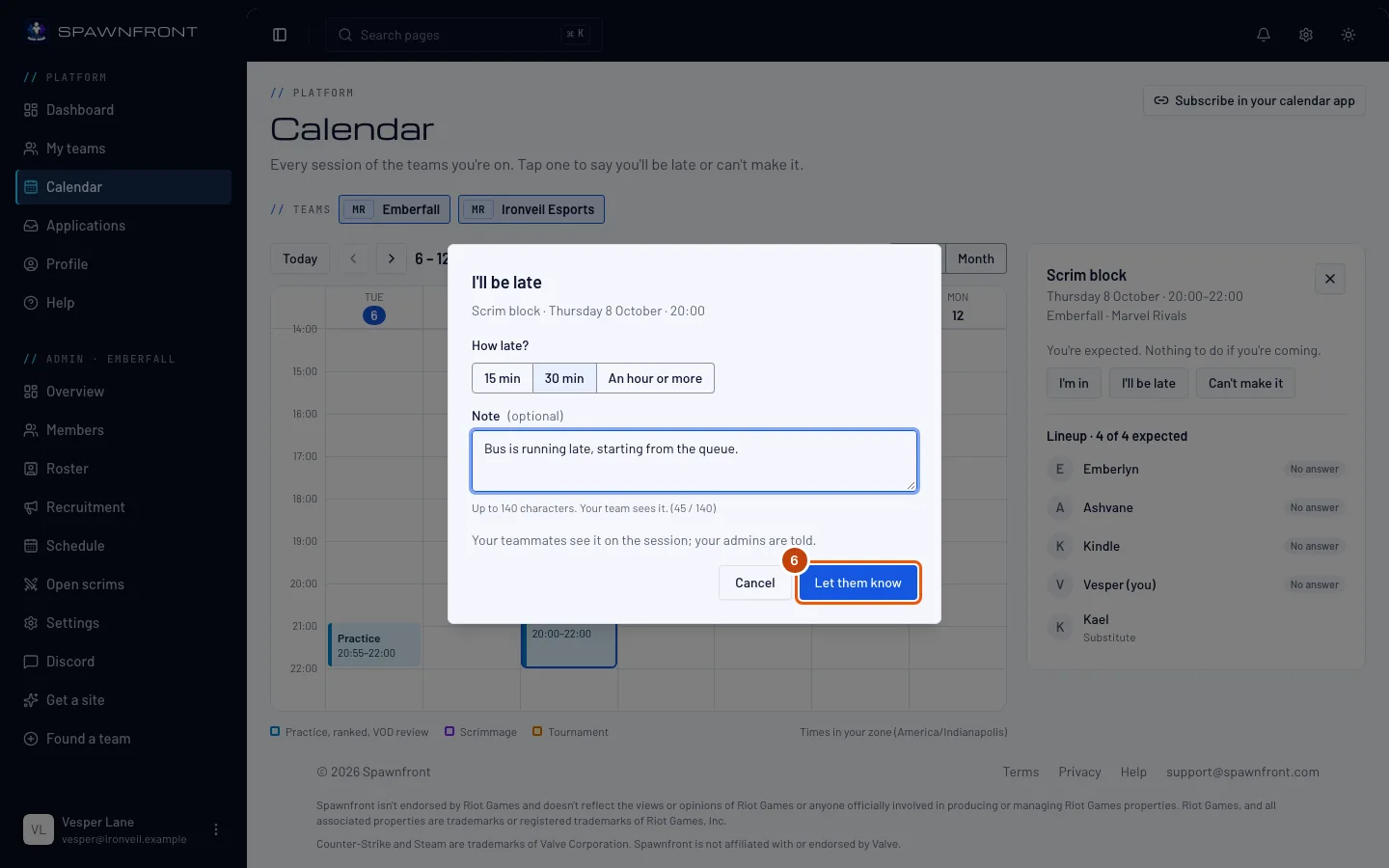
Step 7: Press Change
Plans changed again? Press Change beside your status.
You should see: I'll be late and Can't make it again under your status.
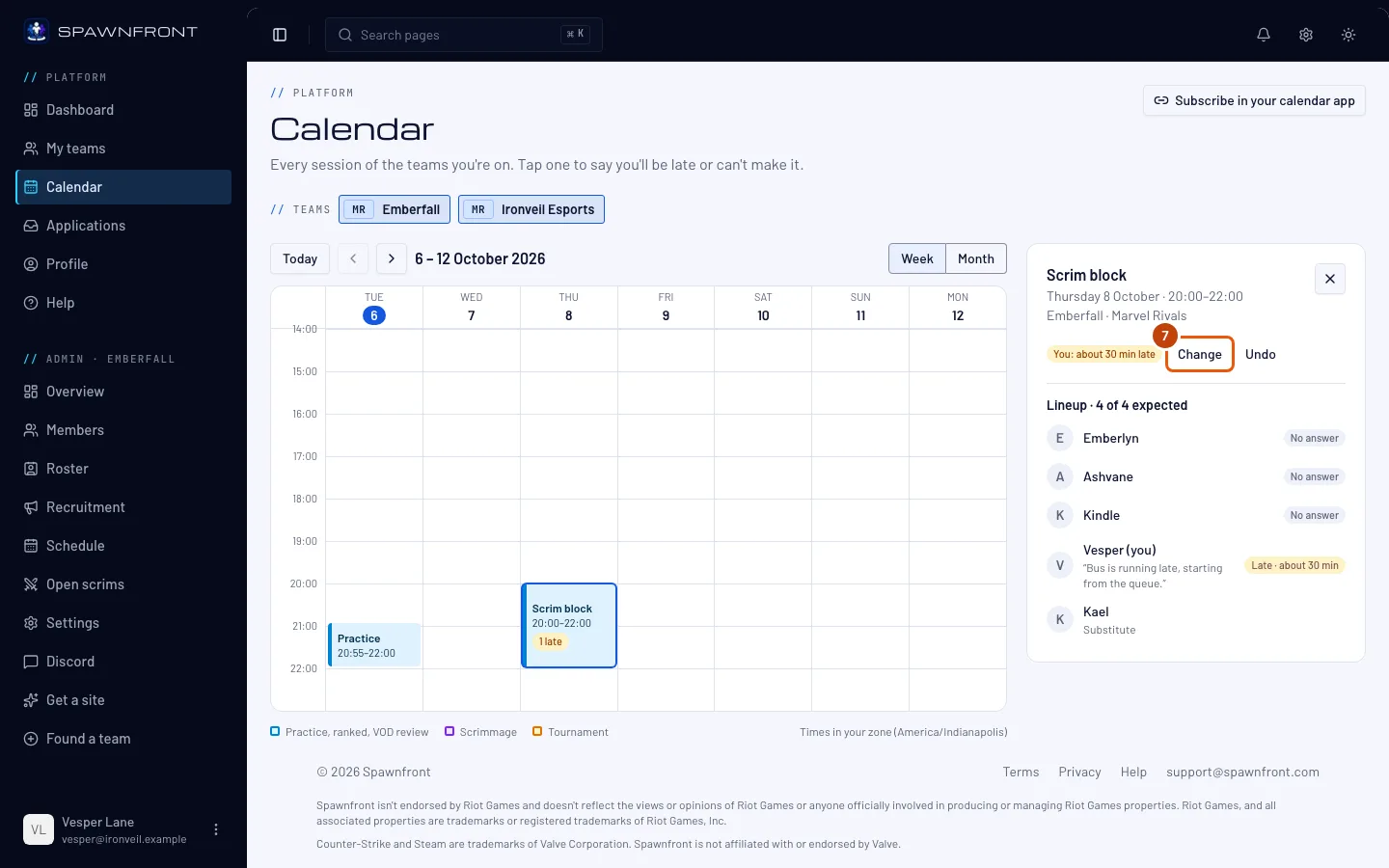
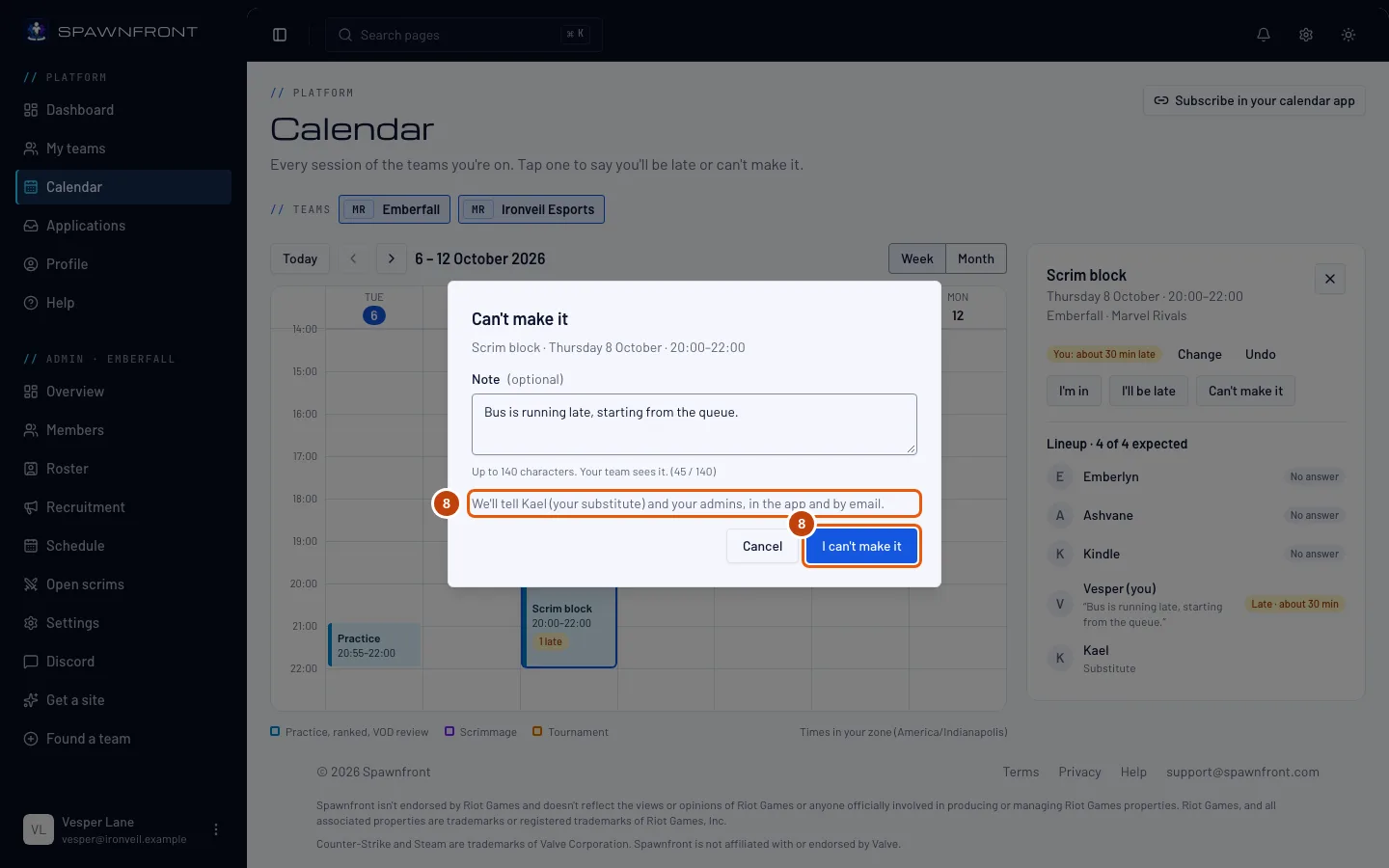
Step 8: Press Can't make it
Press Can't make it. Add a Note if you like, then press I can't make it in the box.
The box names who will be told before you confirm: your team's substitutes by name, and your admins, in the app and by email. They hear about it once — changing the note later doesn't tell them again.
You should see: "You: can't make it" on the session, and who was told under it.
Step 9: Press Undo
Coming after all? Press Undo beside your status.
You should see: "You're expected" again. If a substitute was covering for you, they're told they're no longer needed.
How to know it worked
- The session's block shows your mark: "1 late" or "1 out".
- In the lineup, your row reads Late with how late, or Out.
On a phone, I'll be late and Can't make it are on each session in the day list — no need to open it first.
Something doesn't look right?
The buttons are gone from a session
The session has started. It says "This session has started — late and out can no longer be changed." The lineup still shows who came.
It says "That session has started or is no longer on the schedule"
The session started while the box was open, or an admin moved or removed it. Reload the Calendar and choose the session again.
Who sees my note?
The members of your team, on the session's lineup, and the substitutes and admins who are told. Nobody outside the team sees it.
It says "You have changed your attendance a lot this hour"
You can change your attendance 30 times an hour. Wait a little and try again.
Related articles
Still stuck? Contact support or email support@spawnfront.com — tell us the page you're on and the step number.