
Review applications
Read each applicant's card and accept or decline them, with an optional note.
For team owners and admins · 5 steps
What you need first
- You are the team's owner or an admin, and the team has an open position — see Post an open position.
Steps
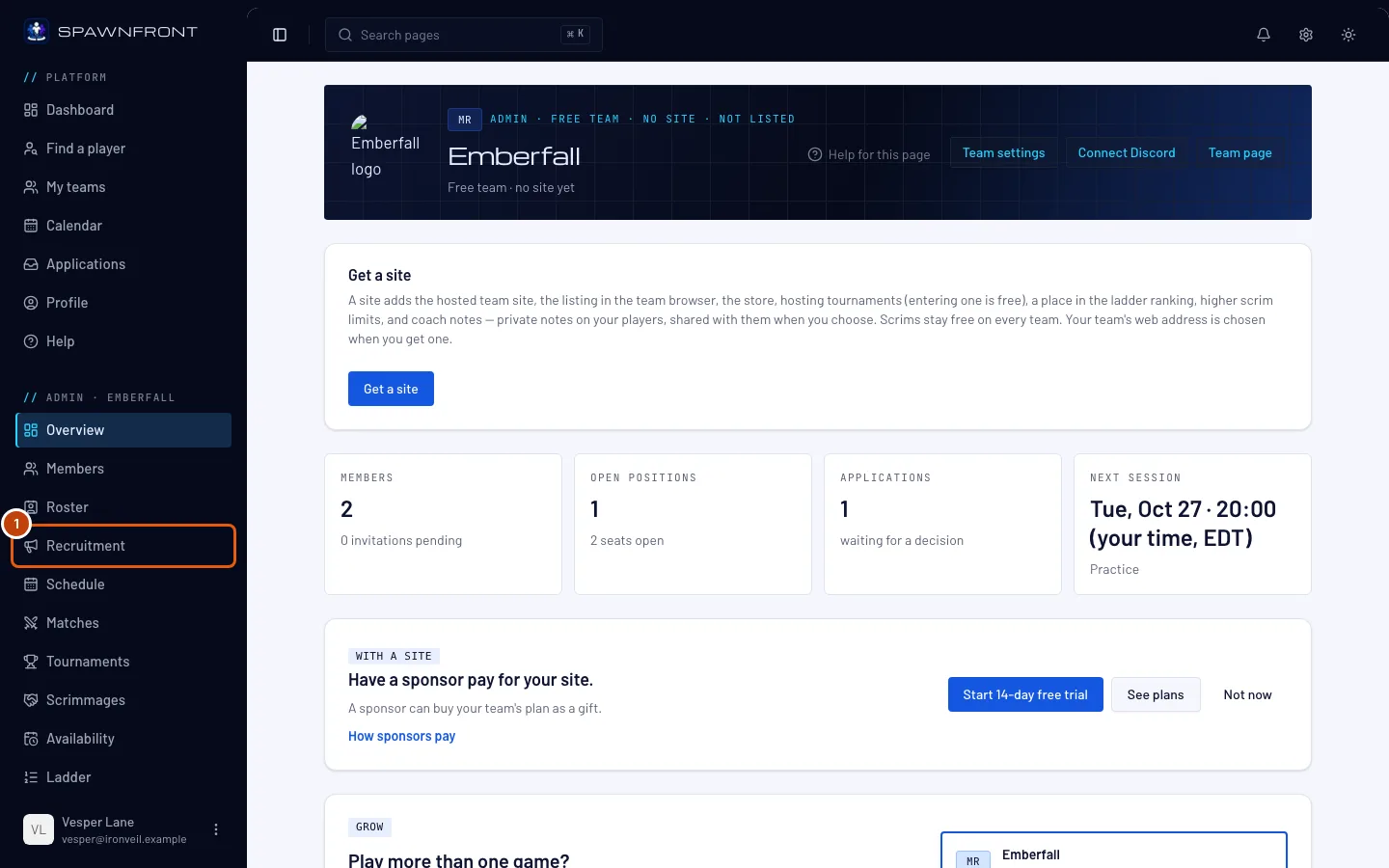
Step 1: Open Recruitment
In the menu on the left, under Admin, press Recruitment.
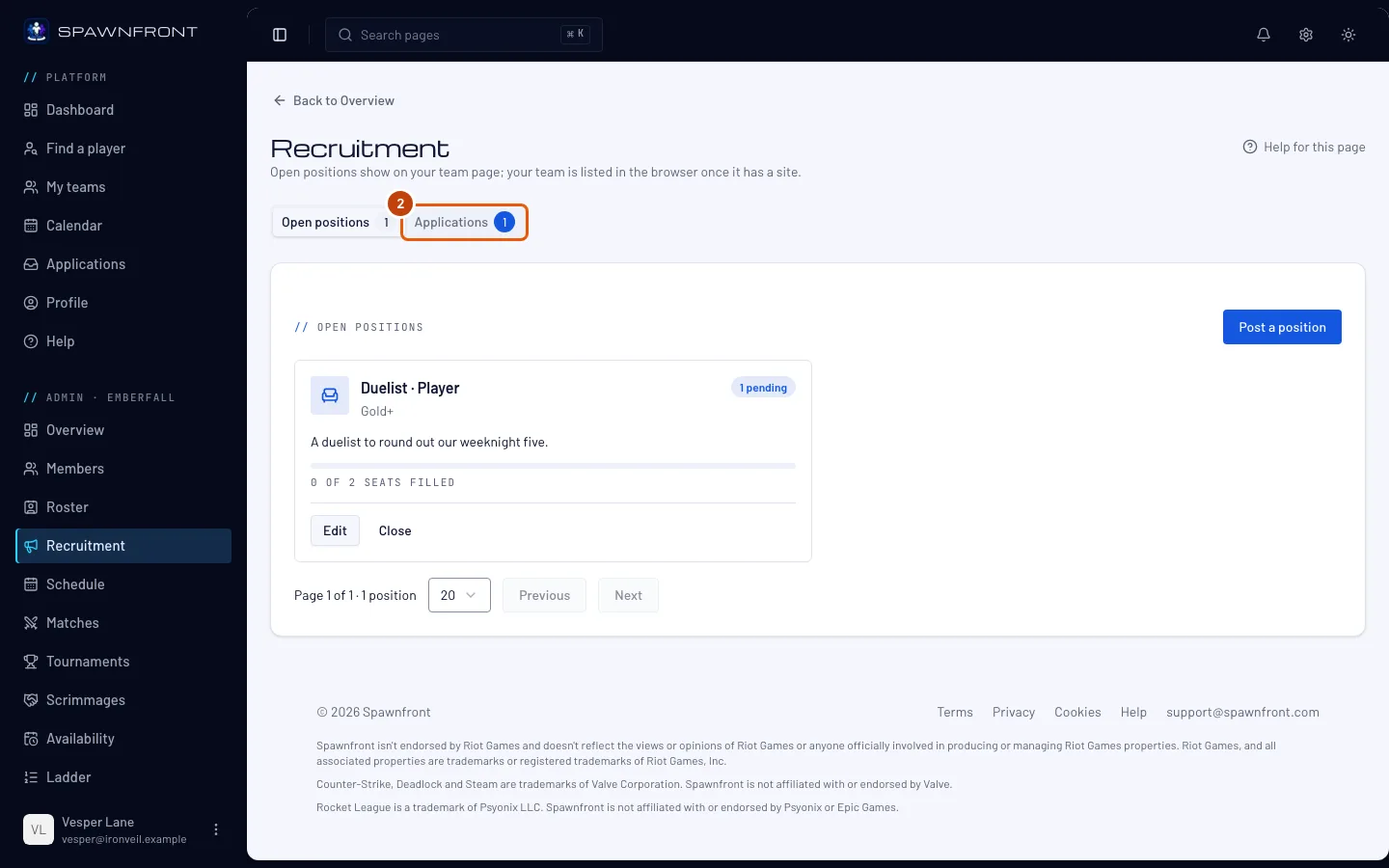
Step 2: Open the Applications tab
At the top of the page, press Applications. The number beside it is how many applications wait for an answer. The Applications tile on your team's Overview and a notification about a new application open this tab directly.
You should see: the applications, open on Pending, with how many wait in each state beside its name.
Answer within 30 days — after that, an application closes as "The team did not answer".
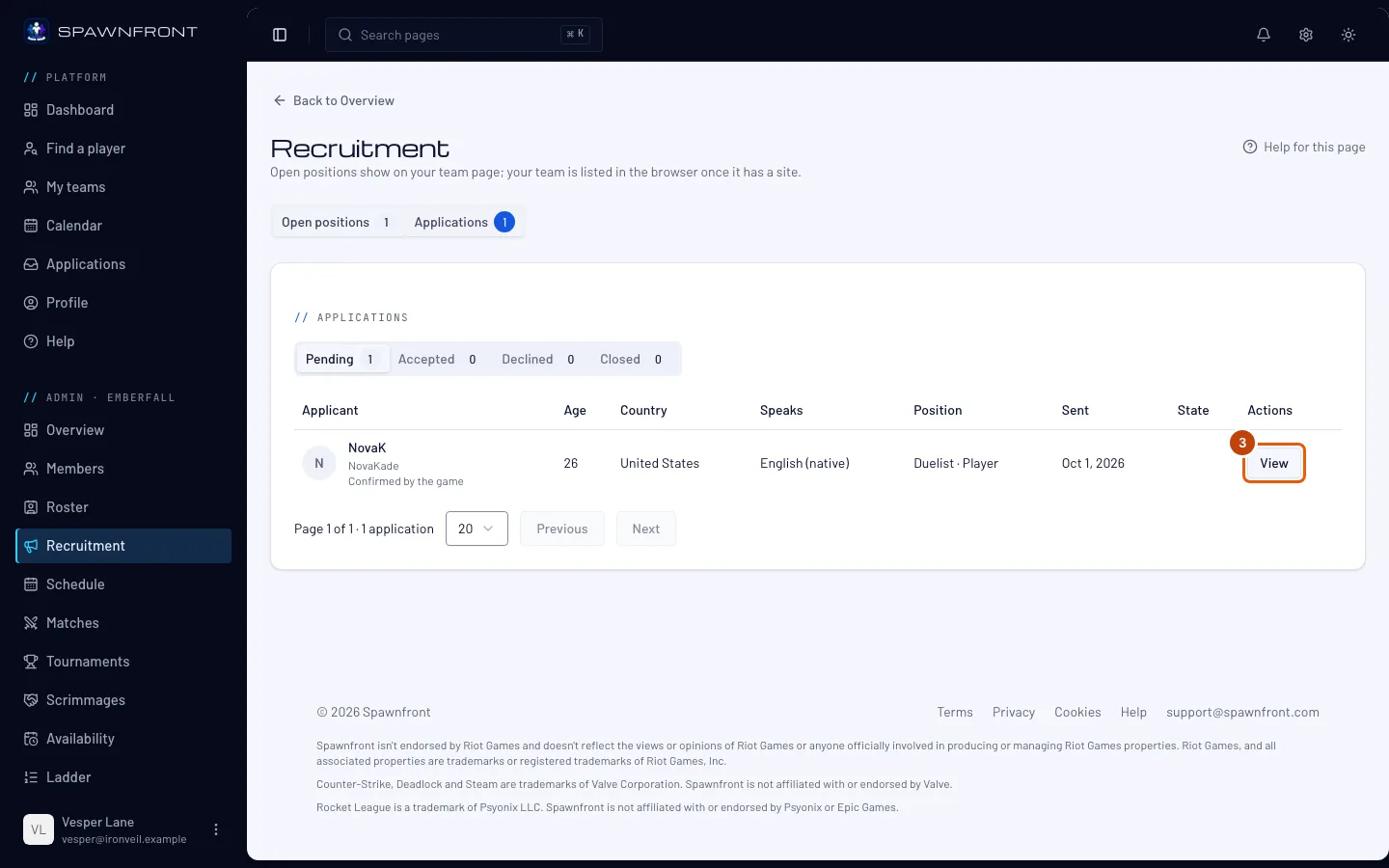
Step 3: Open an application
On a row, press View.
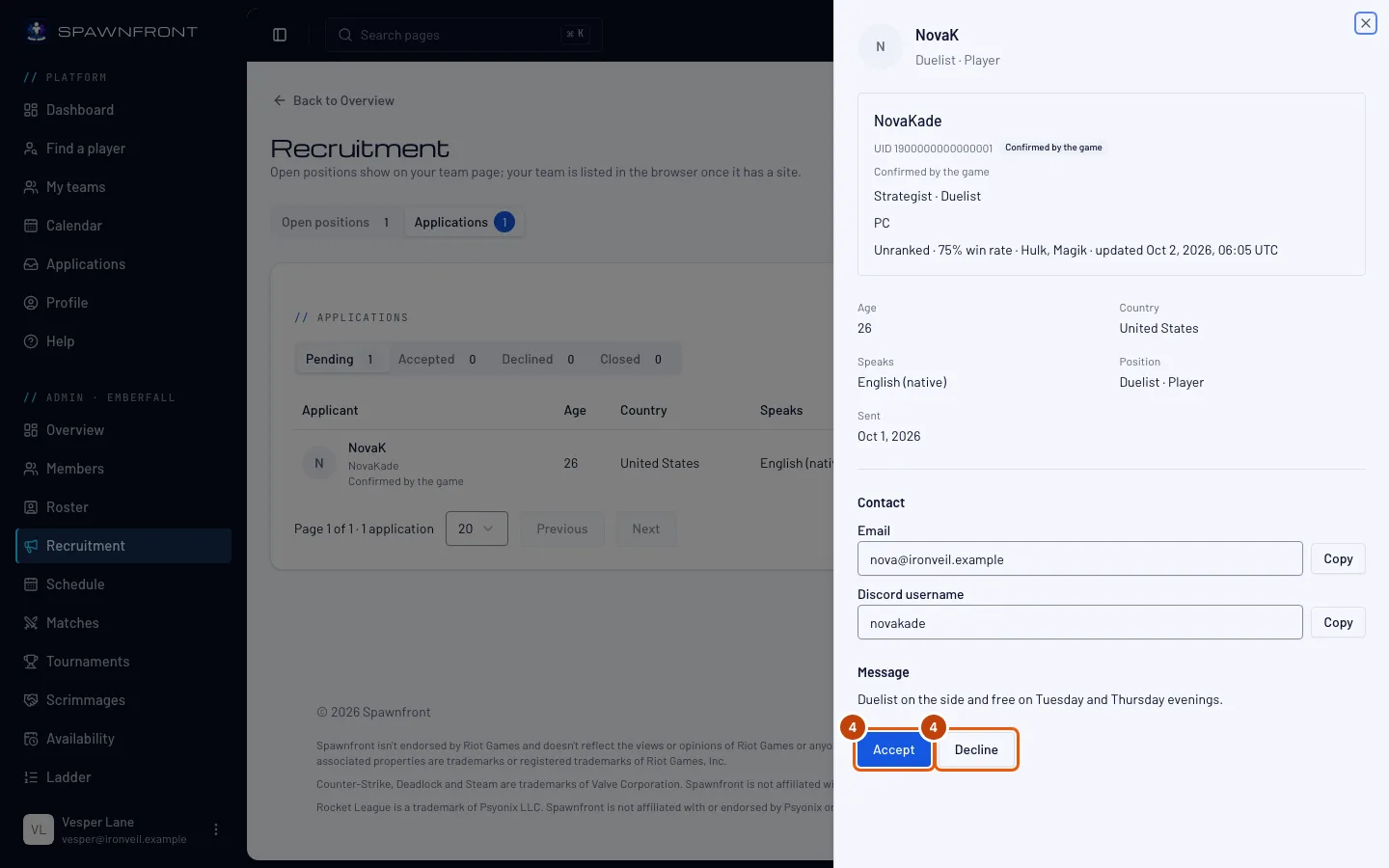
You should see: the applicant's card — their profile photo (or their initials), their handle, roles, platform and stats, age, country and the languages they speak (their native language first, marked), their email and the contact methods they chose, and their message. For Marvel Rivals, their UID shows beside the handle, marked Self-reported when they typed it, or Confirmed by the game if the Spawnfront Companion app confirmed it. The line under it reads Not verified yet unless the app confirmed it — a confirmed UID counts as verified on every team, with nothing for you to check. Once they are on your roster you can check it and mark it Verified — see Verify a player's UID. A Marvel Rivals applicant's stats show only when another team they play for verified their UID — never a team they own or run themselves. Until then their stats read No player stats, and a private match history shows their rank with Match history private. An Overwatch applicant's stats show the same way, only once another team verified their BattleTag; a private career reads Career profile private. A Rocket League applicant whose account the app confirmed from a recorded match reads Confirmed by Rocket League, and a Counter-Strike 2 or Deadlock applicant whose account Steam confirmed reads Verified with Steam: each counts on every team.
Step 4: Accept or decline
Press Accept or Decline.
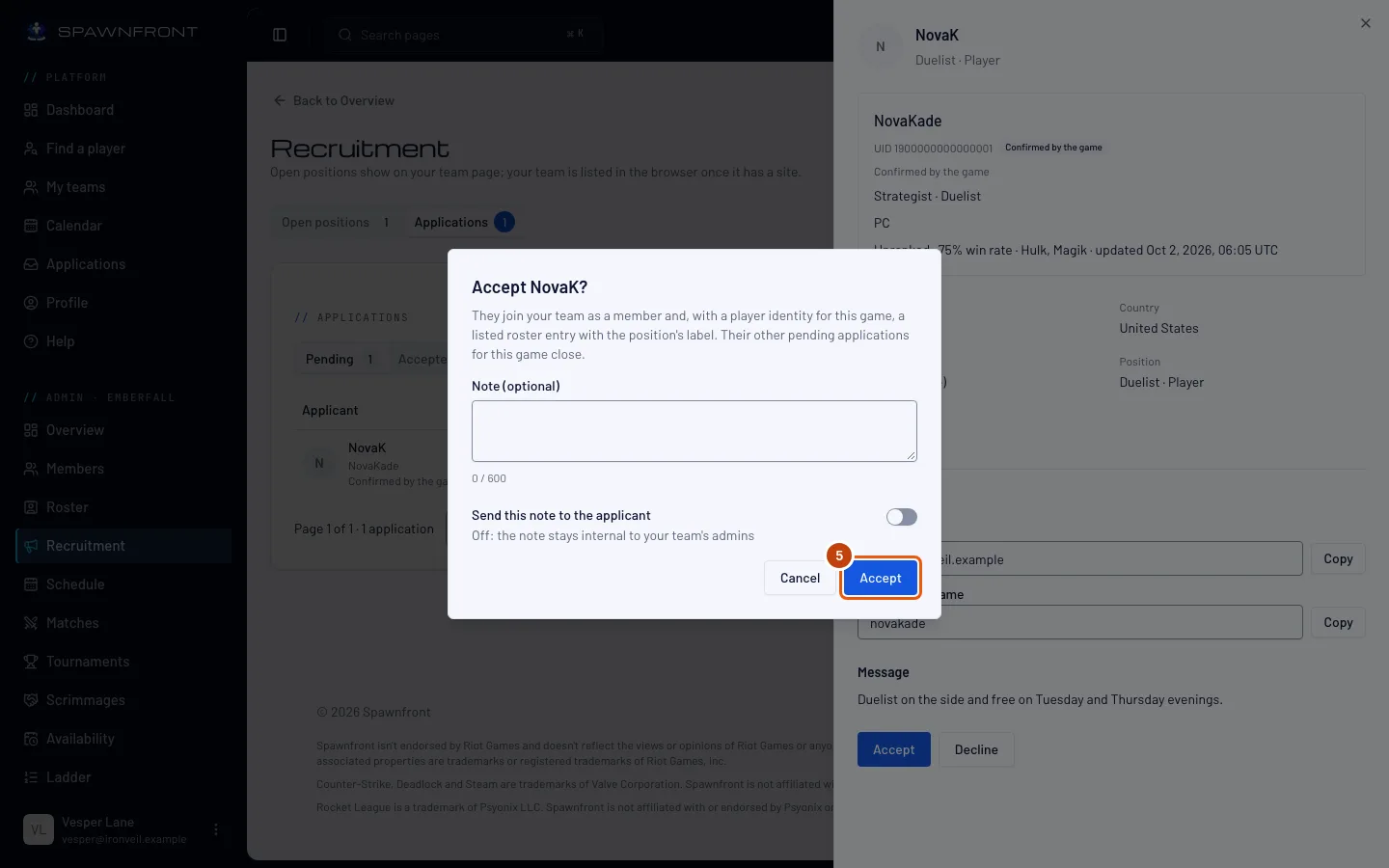
Step 5: Confirm
Add a Note (optional) if you like, and turn on Send this note to the applicant to email it to them — otherwise it stays with your admins. Then press Accept or Decline in the box.
Accepting makes them a member and takes a seat. With a game identity, it also adds them to your roster and closes their other pending applications for this game. Declining can't be undone for this position; they can apply to your next one.
Accepting a ringer — an applicant to a ringer need — adds no member: they get a card on your roster for that session only, hidden from your site. See Find a ringer.
How to know it worked
- The application moves to the Accepted or Declined tab.
- An accepted player shows on Members and Roster.
A new application reaches the bell at the top right of every page, for each owner and admin, as it arrives — open it to come straight here. The daily email summary still lists it too. See Your notifications.
Something doesn't look right?
The contact details are gone
Contact methods are shown while an application is pending or accepted. Once it is declined, withdrawn or closed, they are hidden.
A card says "Account closed"
The applicant deleted their account after applying.
Related articles
Still stuck? Contact support or email support@spawnfront.com — tell us the page you're on and the step number.