
Set scrim permissions
Choose what your team's members may do with its scrims — send, withdraw, confirm or dispute results, send unregistered matches, and book — for everyone or for one member.
For team owners and admins · 4 steps
What you need first
- You are the team's owner or an admin. Owners and admins can always do everything with scrims; these permissions are for the team's other members.
Steps
Step 1: Open Scrim permissions
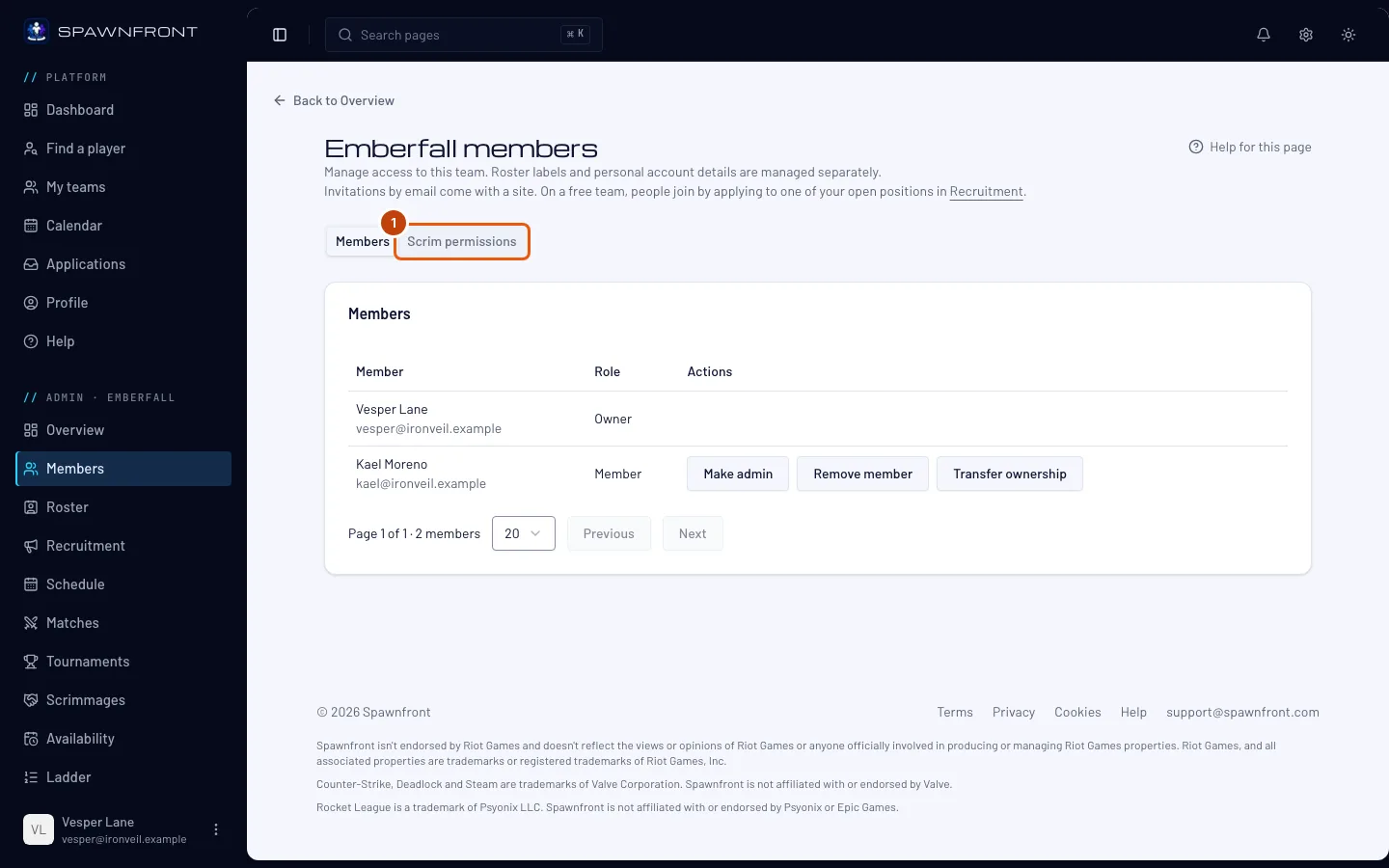
In the menu on the left, under Admin, press Members, then Scrim permissions.
You should see: For every member and For one member.
Step 2: Choose what every member may do
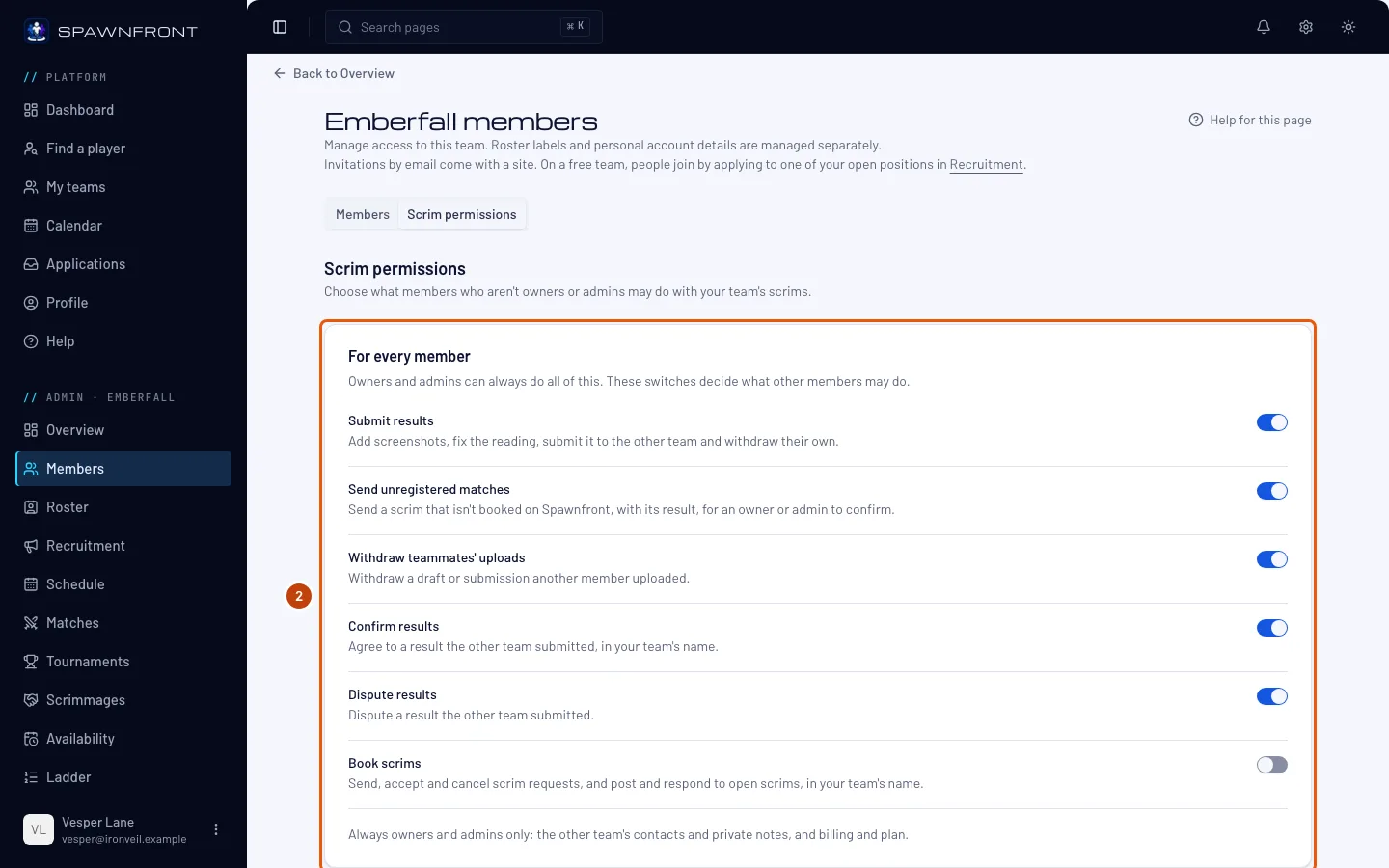
Under For every member, turn each switch on or off: Submit results, Send unregistered matches, Withdraw teammates' uploads, Confirm results, Dispute results and Book scrims. Each change is saved at once.
The five result switches start on, so any member can send and answer your scrim results until you turn something off. Send unregistered matches lets a member send a scrim that wasn't booked on Spawnfront, with its result; it counts only once an owner or admin confirms it — see Review an unregistered match. Book scrims starts off: a member who may book posts open scrims, sends and answers requests and responds to other teams in your team's name — see Book scrims for your team.
You should see: "Scrim permissions saved".
Step 3: Change one member's permissions
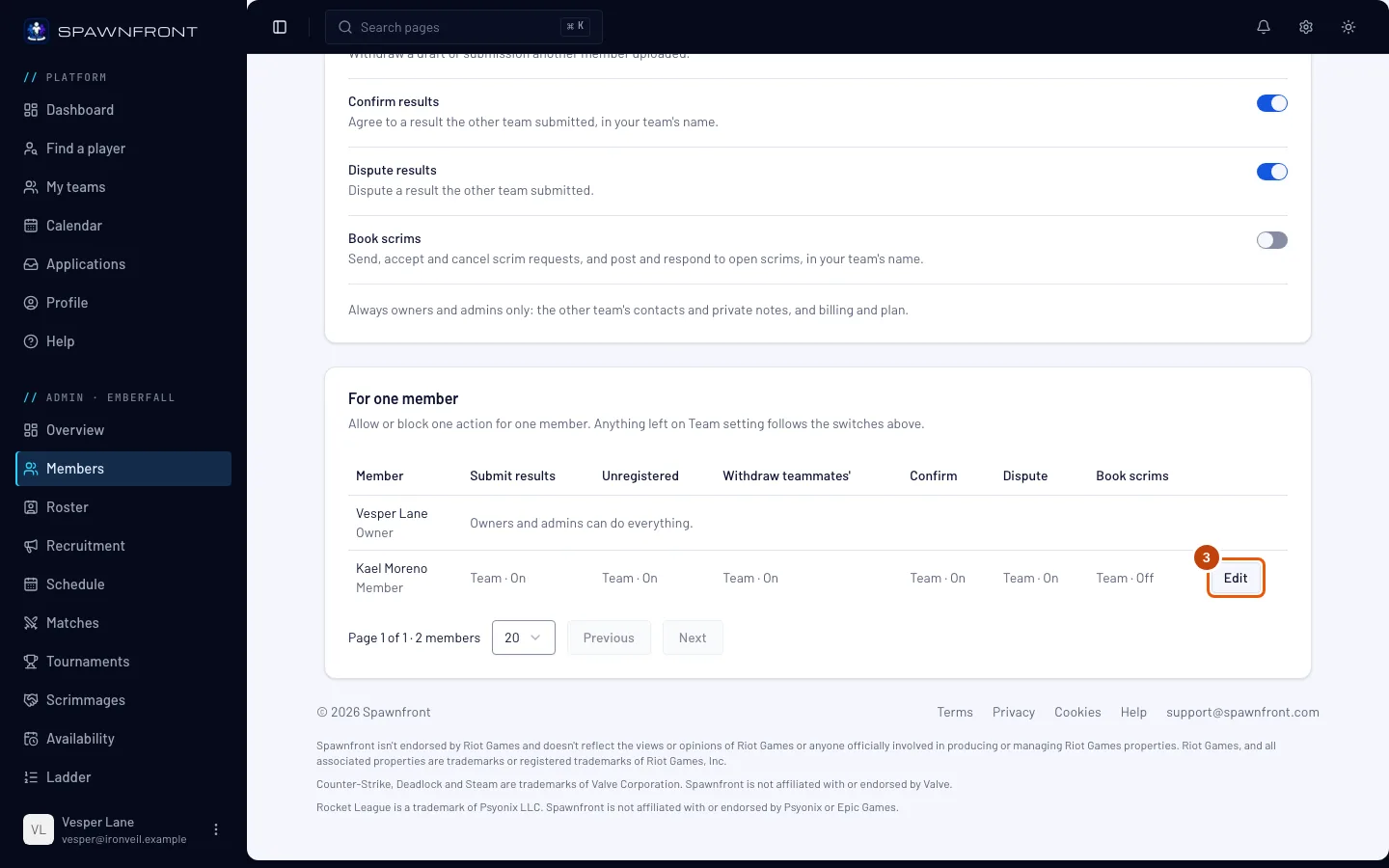
Under For one member, press Edit on the member's row.
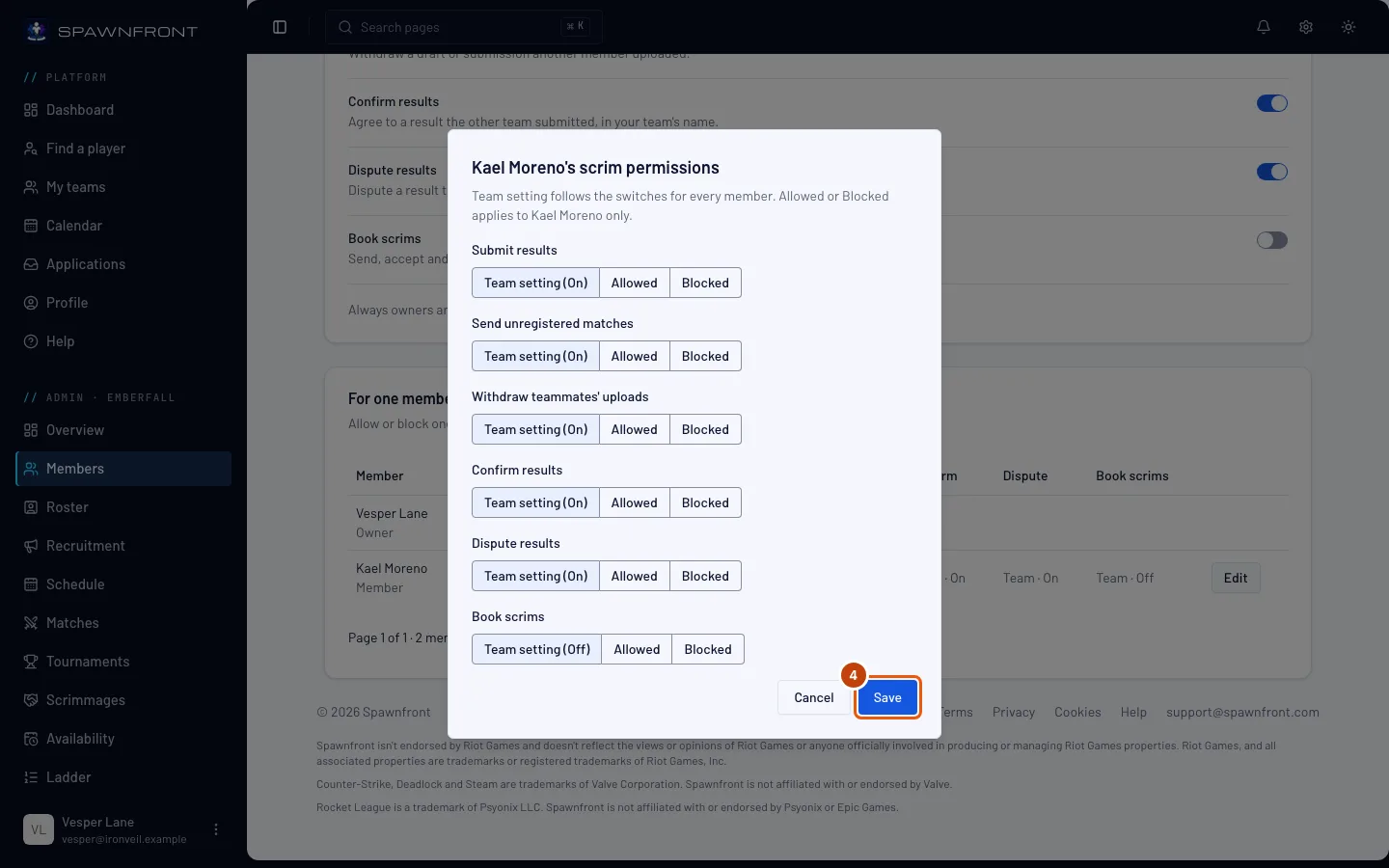
You should see: a box with each action and three choices: Team setting (On) follows the switches above, Allowed and Blocked apply to this member only.
Step 4: Save
Choose for each action, then press Save.
You should see: "Scrim permissions saved", and the member's row showing Allowed or Blocked where you changed it.
How to know it worked
- The member's row shows your choices, and the member sees only the actions they're allowed on their team's Scrims page.
Always owners and admins only, whatever you choose here: confirming, sending back or turning down an unregistered match. Never shown to members: the other team's contacts and private notes, and your team's billing and plan.
Something doesn't look right?
I can't set permissions for an admin
Owners and admins can always do everything, so they have no permissions to set.
Related articles
Still stuck? Contact support or email support@spawnfront.com — tell us the page you're on and the step number.