
Settle an Overwatch scrim with a Workshop log
Send the log ScrimTime wrote for an Overwatch scrim map, correct the draft, and let the other team confirm it.
For team owners and admins · 5 steps
What you need first
- You are an owner or admin of a team that plays Overwatch, and the scrim is linked: it was booked between your team and the other team on Spawnfront — registered with their team picked as the opponent, or booked through the scrimmage finder or an open scrim. Any team can settle a scrim this way, free or with a site.
- Not an owner or admin? Any member can send results too, unless the team turned it off — from the team's Scrims page (see Send your team's scrim results). Owners and admins choose what members may do in Set scrim permissions.
- The scrim was played in a custom game running ScrimTime, the Workshop code
DKEEHby Caldoran, and the lobby host turned on Enable Workshop Inspector Log File in Overwatch's options (Gameplay) before the map began. - You have the log the host's PC wrote: a Log-….txt file in Documents\Overwatch\Workshop, one file for each map. At most 5 MB.
- Your players' BattleTags are Verified on your roster (see Verify a player's UID or BattleTag) — that is how Spawnfront knows which line is whose.
Steps
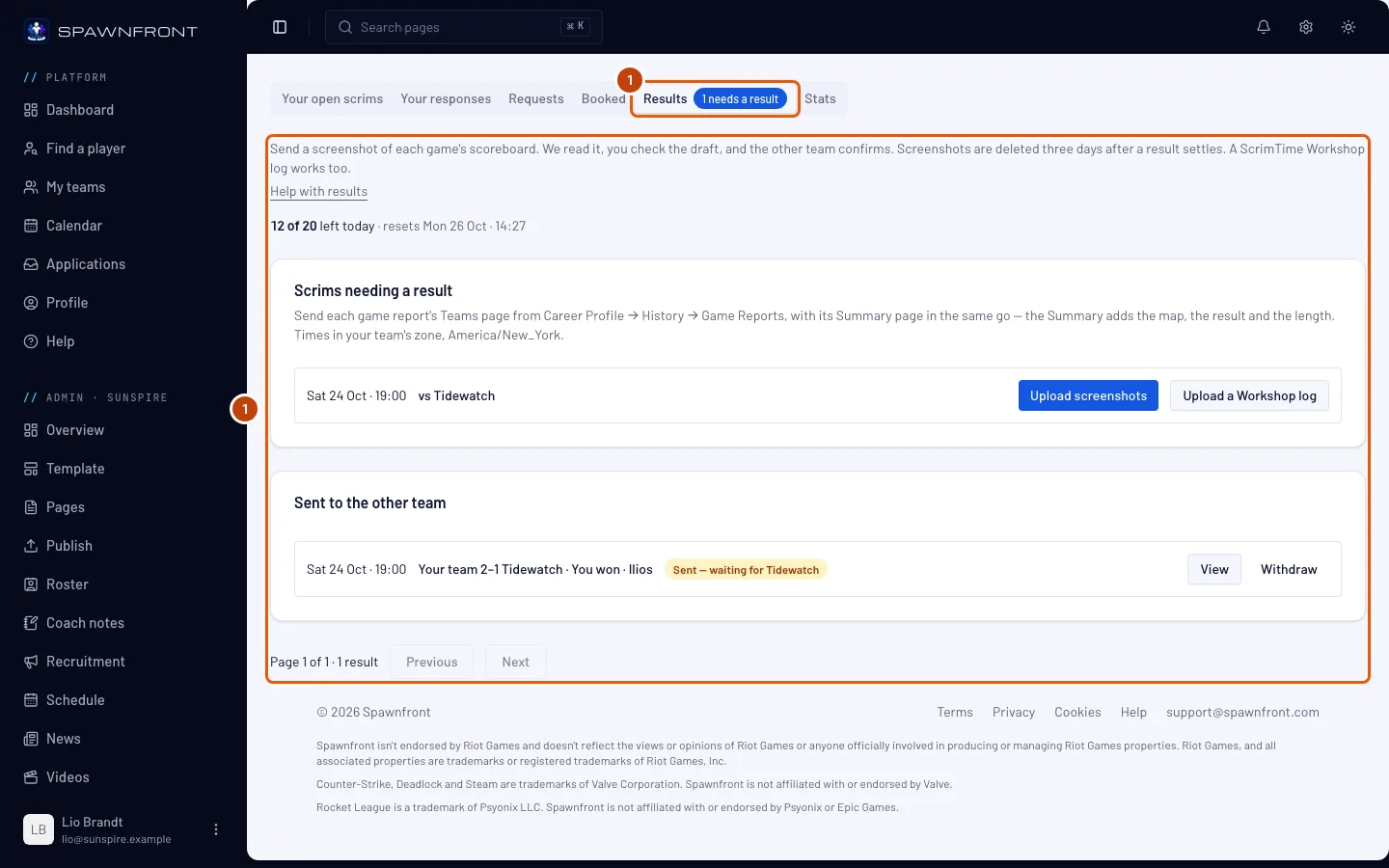
Step 1: Open Results on Scrimmages
In the menu on the left, under your team's admin menu (Admin · and your team's name), press Scrimmages, then press the Results tab under the finder. If you run several teams, open your team's name under Admin first. You can also press Settle with a Workshop log on a played scrim's row on your Matches page, which opens the same tab.
You should see: Results, with Scrims needing a result at the top.
Step 2: Upload a Workshop log
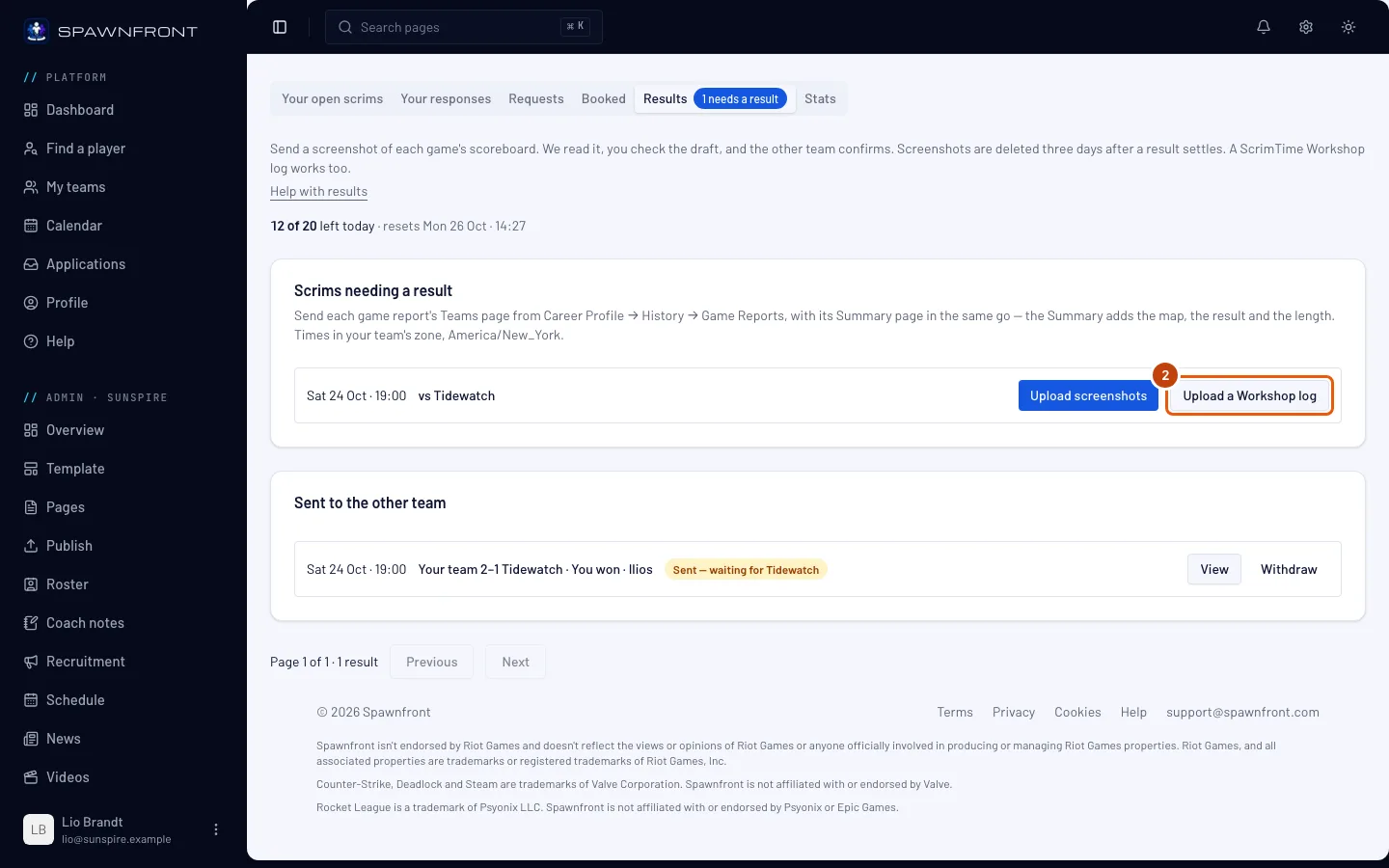
On the scrim's row, press Upload a Workshop log — beside Upload screenshots, which takes the game reports' screenshots instead (see Settle a scrim with a screenshot) — and choose the map's Log-….txt file. Send one log for each map of the scrim.
You should see: Reading the log…, then Log read. Check the draft, then send it.
Step 3: Correct the draft
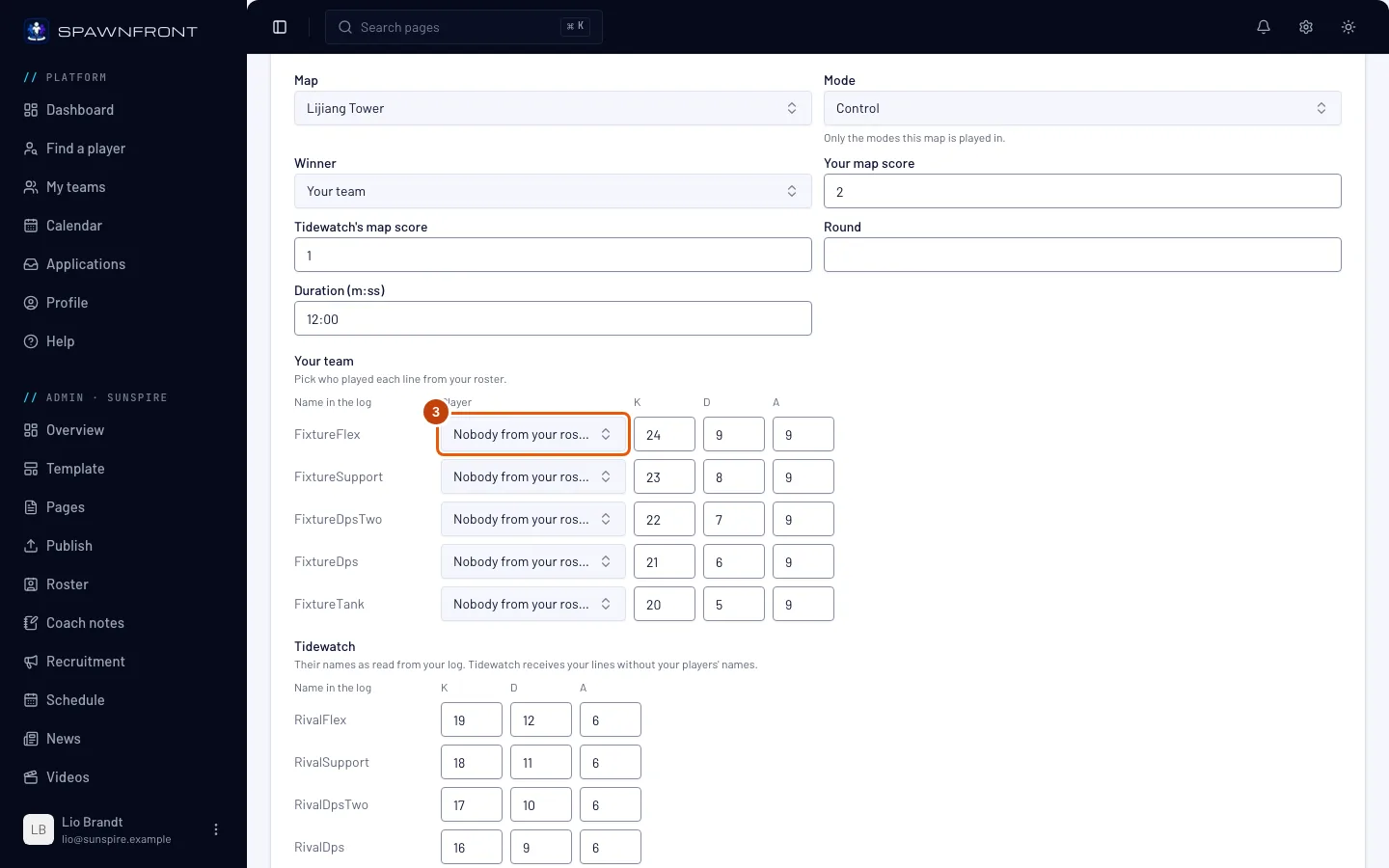
The Correct the draft box opens under the upload. If you closed it, press Correct the draft on its row under Drafts to correct — the row reads Draft — check it, then send it. Check the Map, the Mode — only the modes that map is played in are offered — the Winner, Your map score, the Round and the Duration (m:ss), and each player's kills, deaths and assists. A player whose verified BattleTag matches a name in the log is already chosen, with their rank beside them; choose any other player of yours yourself. If Your team's lines show the other team's names, press Swap the teams first: Spawnfront reads the log again the other way round, and any counts you typed are read again from the log. Press Save to keep your corrections for later.
Only your own team's players are yours to name. The other team's lines keep their counts and no player.
You should see: Draft saved.
Step 4: Send it to the other team
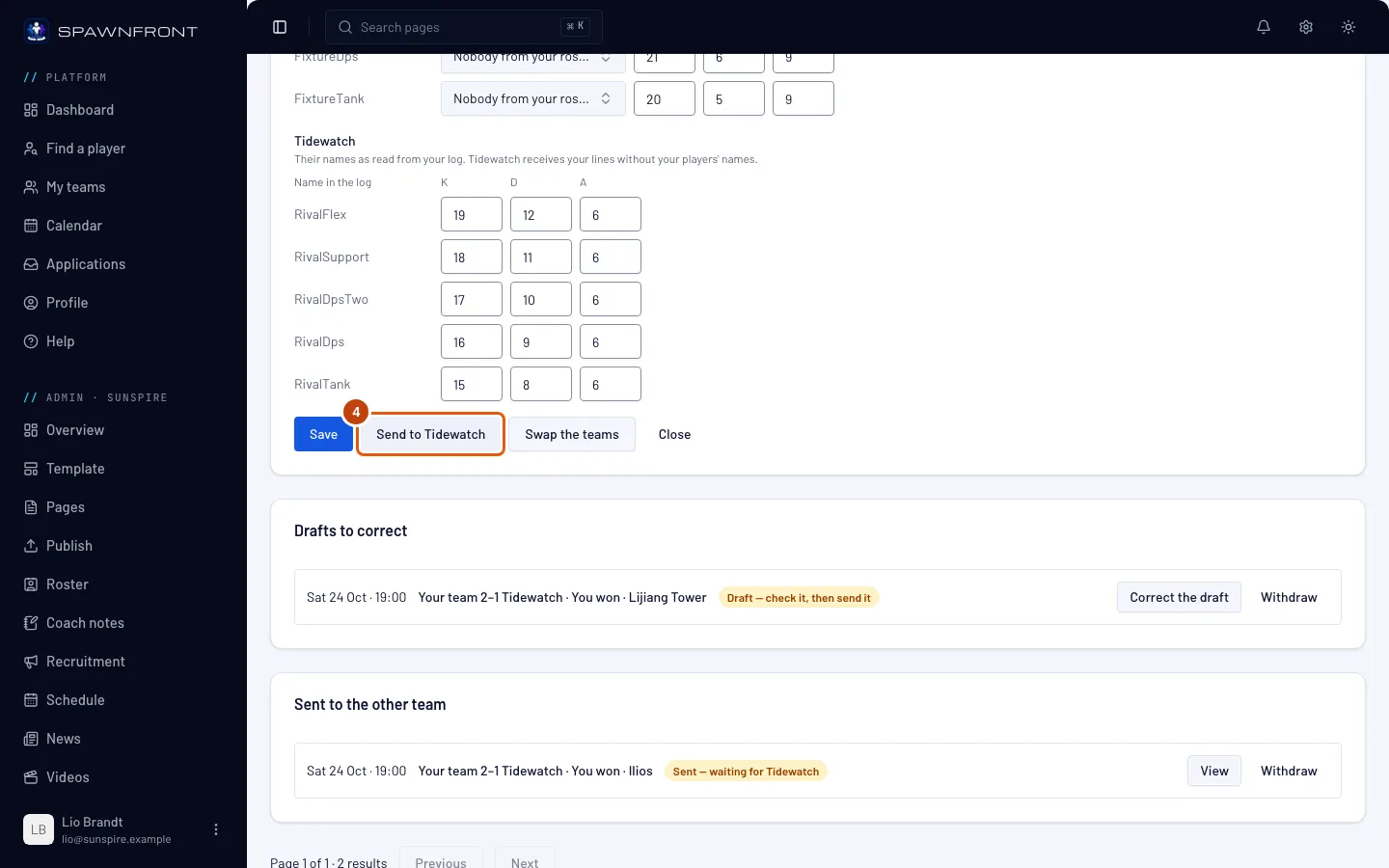
Press Send to and the other team's name — it saves your corrections too.
You should see: Sent for confirmation, and the row under Sent to the other team reads Sent — waiting for the other team. Their owner and admins get a notification.
Step 5: The other team confirms or disputes
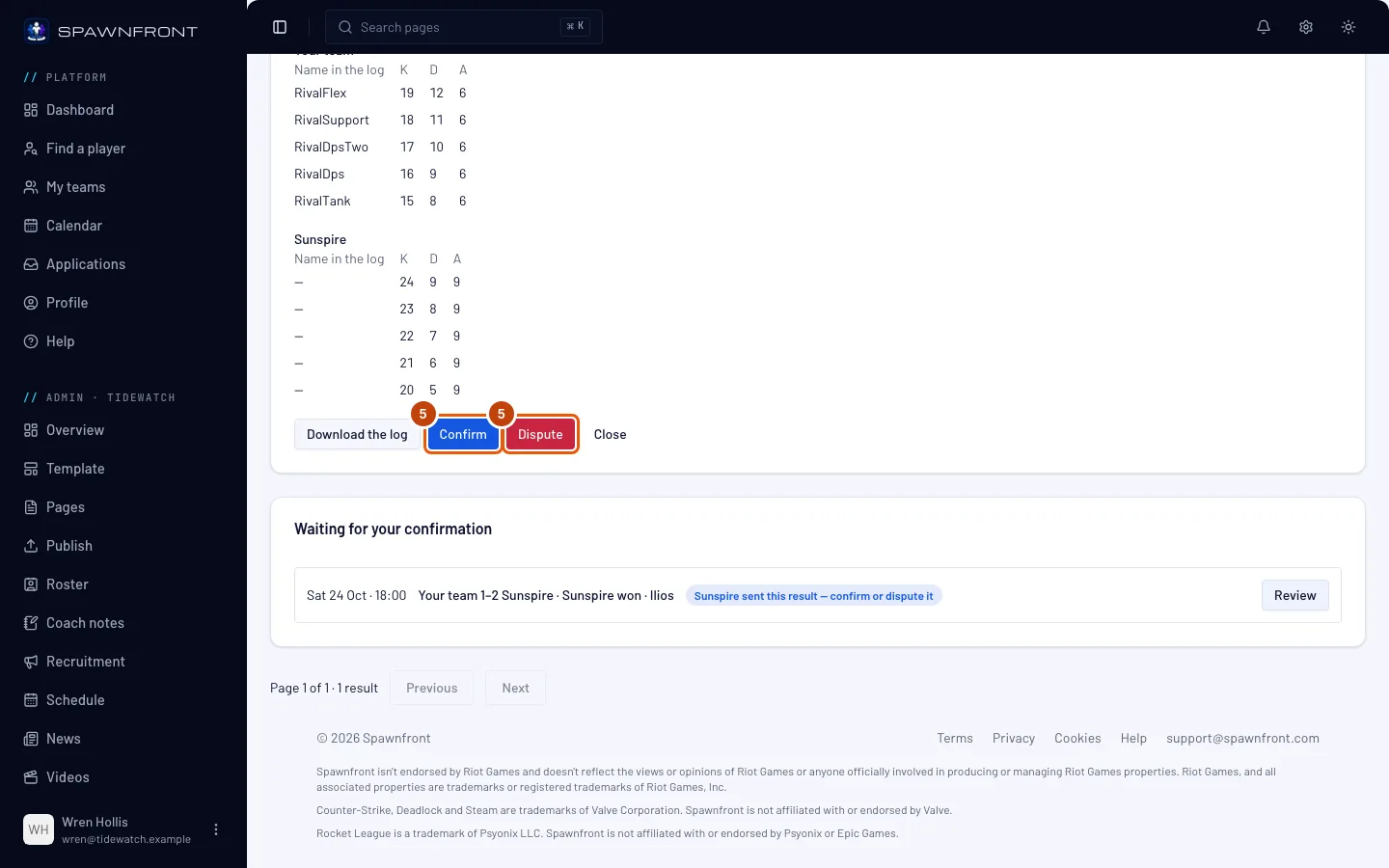
Under Results on their Scrimmages page, the result is under Waiting for your confirmation. The other team presses Review, then Confirm or Dispute. You get a notification when they answer.
You should see: your row under Settled reads Confirmed by the other team, and the map counts toward the scrim's result — or Disputed by the other team. A disputed result counts nowhere; each team can still enter its own result by hand on its Matches page.
How to know it worked
- The row reads Confirmed by the other team, under Settled.
- Your team's Matches page shows the map in the scrim's result.
Send it from Discord. In a Discord server your team is linked to, type /scrim log and attach the log file to the command. If several of your teams share the server, set the team option to your team's name. The team option takes your team's name or its full name, like Blades · Team 1; when two of your teams share a name, type the full one. Spawnfront reads it for your team's latest scrim waiting for a result, and answers only you: Read it for your team — check the draft., with a Check the draft button that opens Results on your Scrimmages page. Correct and send the draft there, as above. Your Discord must be linked to your Spawnfront account (see Sign in with Discord), and the server to your team (see Connect your Discord server).
The log is seen only by your team's members and the other team's owners and admins, who can download it from the result while it is kept, and it is deleted three days after the result is confirmed, disputed or withdrawn. Spawnfront reads the map, the score, the length and each player's eliminations, deaths and assists — never damage, healing or accuracy.
ScrimTime is Caldoran's Workshop code, not Spawnfront's. Spawnfront only reads the file it writes.
Something doesn't look right?
The log is refused
It must be the Log-….txt file ScrimTime wrote for one map, unchanged and at most 5 MB, and not one you already sent for this scrim — nor another log of a map already sent. If it says the log has no start of a game, the logging was not on when the map began: turn on Enable Workshop Inspector Log File before the next map.
It says the log has no end of a game
The message reads This log has no end of a game — the lobby closed before the map ended. The lobby closed, or the host left, before the map finished, so the file never got its last line. That map's log can't settle it: enter the result by hand on your Matches page, and keep the lobby open to the end of the next map.
It says the log holds more than one game
The message reads This log holds more than one game — upload one map's log at a time. The host played several maps without the file starting again. Ask the host for the file of the one map you want to send; each map should have its own Log-….txt.
It says your team has sent all its results for today
On a free team the message reads Free teams read 5 screenshots or Workshop logs a day. Get a site to read up to 20. On a team with a site it reads Your team has sent 20 results today. Try again tomorrow. Logs and screenshots count together, and every log Spawnfront reads counts, even one it then refuses. Send the rest tomorrow.
It says 'That scrim can't take a Workshop log result.'
The scrim is no longer open: it was cancelled, or it settled three days after its window. Enter the result by hand on your Matches page.
It says your team's owners and admins send scrim results
Your team's owners and admins turned off sending results for you. Ask one of them to turn on Submit results for you (see Set scrim permissions), or to send it themselves.
It says 'That scrim hasn't started yet.'
A result is sent once the scrim has started. Come back when it has — it shows under Scrims needing a result then.
It says 'That scrim can't take a result right now.'
The scrim was booked by the other team, and it can't take a result at the moment. Ask that team about it, or enter the result by hand on your Matches page.
Confirm and Dispute aren't there, and it says someone else has to answer
You sent the result, or you're also on the team that sent it. One team sends a result and the other answers it, so nobody can confirm their own. Ask a teammate who isn't on the team that sent it to press Confirm or Dispute.
I sent the wrong log
Press Withdraw on its row — on a draft, or on a result still Sent — waiting for the other team. The row reads Withdrawn and moves under Settled. Then upload the right log.
Nobody in the log is matched to my players
The log prints each player's in-game name, which is the part of the BattleTag before the #. Check that each player's BattleTag on your roster is right and Verified, then choose the players in the draft yourself.
My team's lines show the other team's players
When fewer than three of your players' BattleTags match names in the log, Spawnfront takes the log's Team 1 as your team. Press Swap the teams in the draft, then check it again.
There is no Workshop log file
Only the lobby host's PC writes the log, and only with Enable Workshop Inspector Log File on. Ask the host for the file in their Documents\Overwatch\Workshop folder.
/scrim log says your team sends its scrim results with /scrim result
That team doesn't play Overwatch, so it settles a scrim with a screenshot. See Settle a scrim with a screenshot.
/scrim log says only a team's owners and admins, and the members they let send results, can send a scrim result
The answer reads Only a team's owners and admins, and the members they let send results, can send a scrim result, in the server their team is linked to. You are not on a team linked to this server, your team turned off sending results for you, or the server isn't connected to your team yet. Ask your team's owner, or connect the server first (see Connect your Discord server).
There is no Upload a Workshop log button
The scrim must be linked to the other team, played, and still open: a scrim settles three days after its window. A cancelled scrim takes no result.
Related articles
Still stuck? Contact support or email support@spawnfront.com — tell us the page you're on and the step number.