
Record your matches
Add your scrims to Matches, publish them to your site, and enter each result after you play.
For team owners and admins · 10 steps
What you need first
- Your team has a site subscription. A free team's admin shows Get a site instead of Matches.
- You are the team's owner or an admin.
- Your team's time zone is right in Settings — every time you type here is read in it. See Edit your team settings.
- This page is for your scrims. Tournaments have their own page, Tournaments.
Steps
Step 1: Open Matches
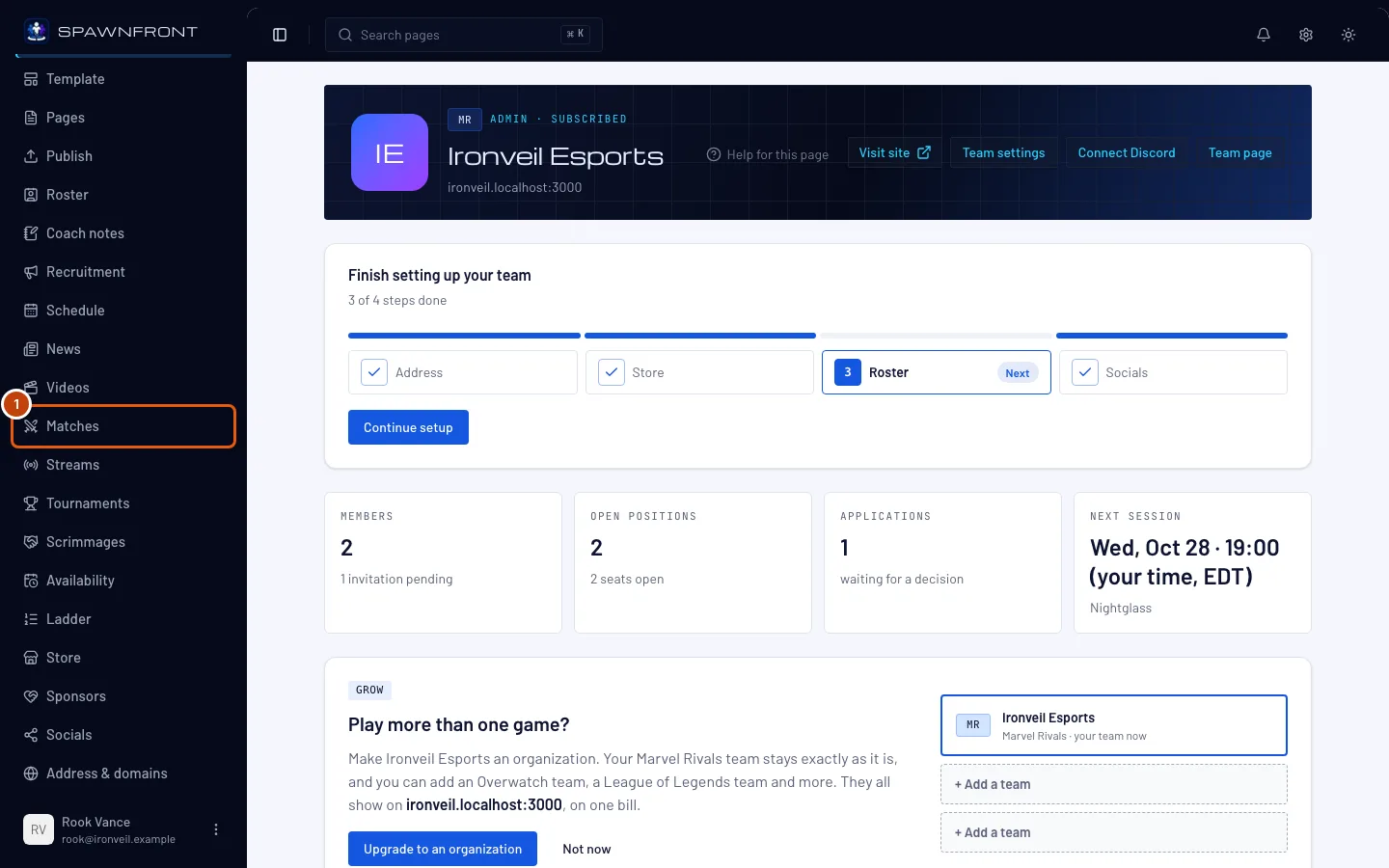
In the menu on the left, press Matches.
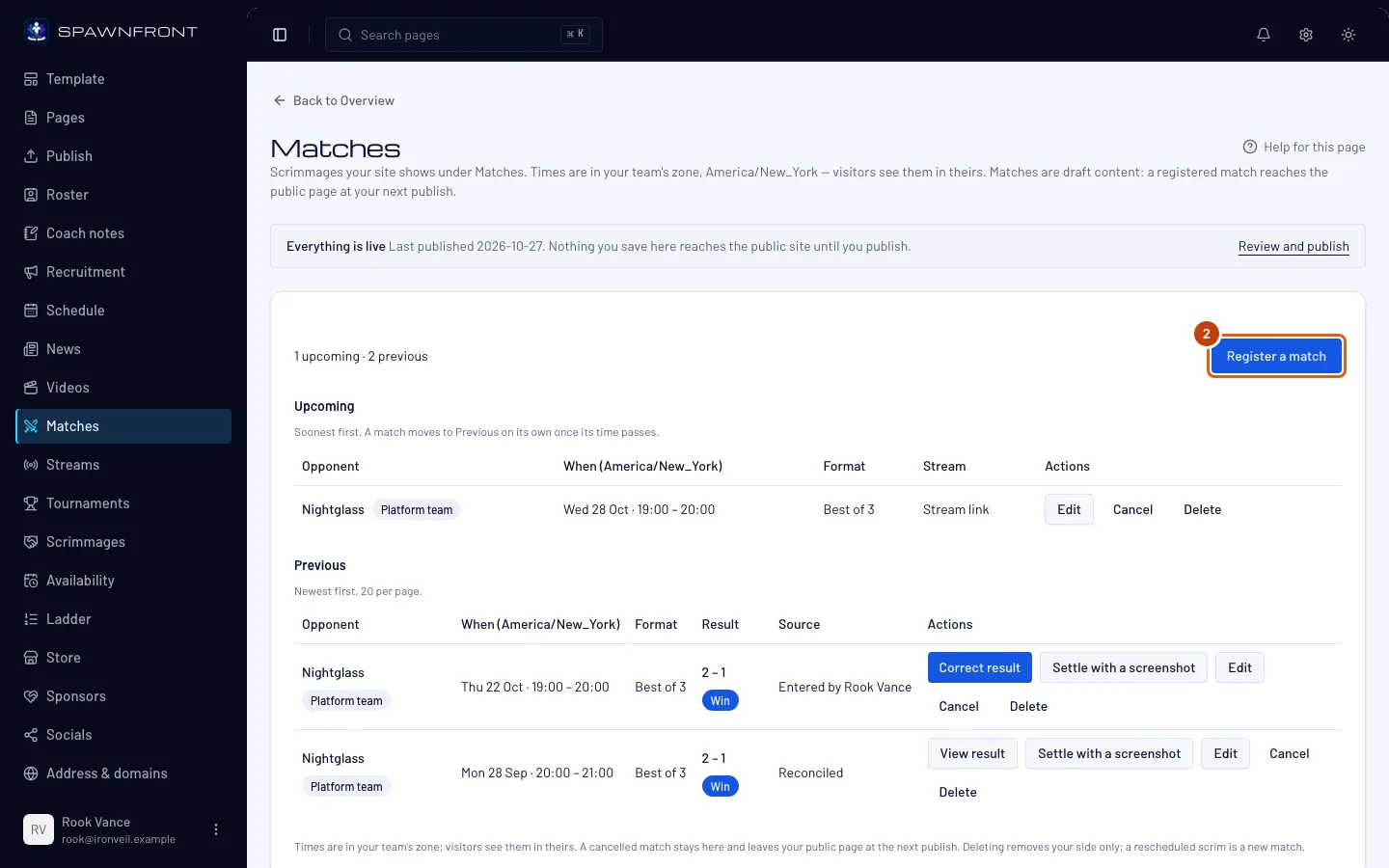
You should see: a page titled Matches, with your matches under Upcoming and Previous. If you have none yet, you see Register your first scrim.
Step 2: Press Register a match
Press Register a match.
You should see: a page titled Register a match, with an empty form.
Step 3: Choose the opponent
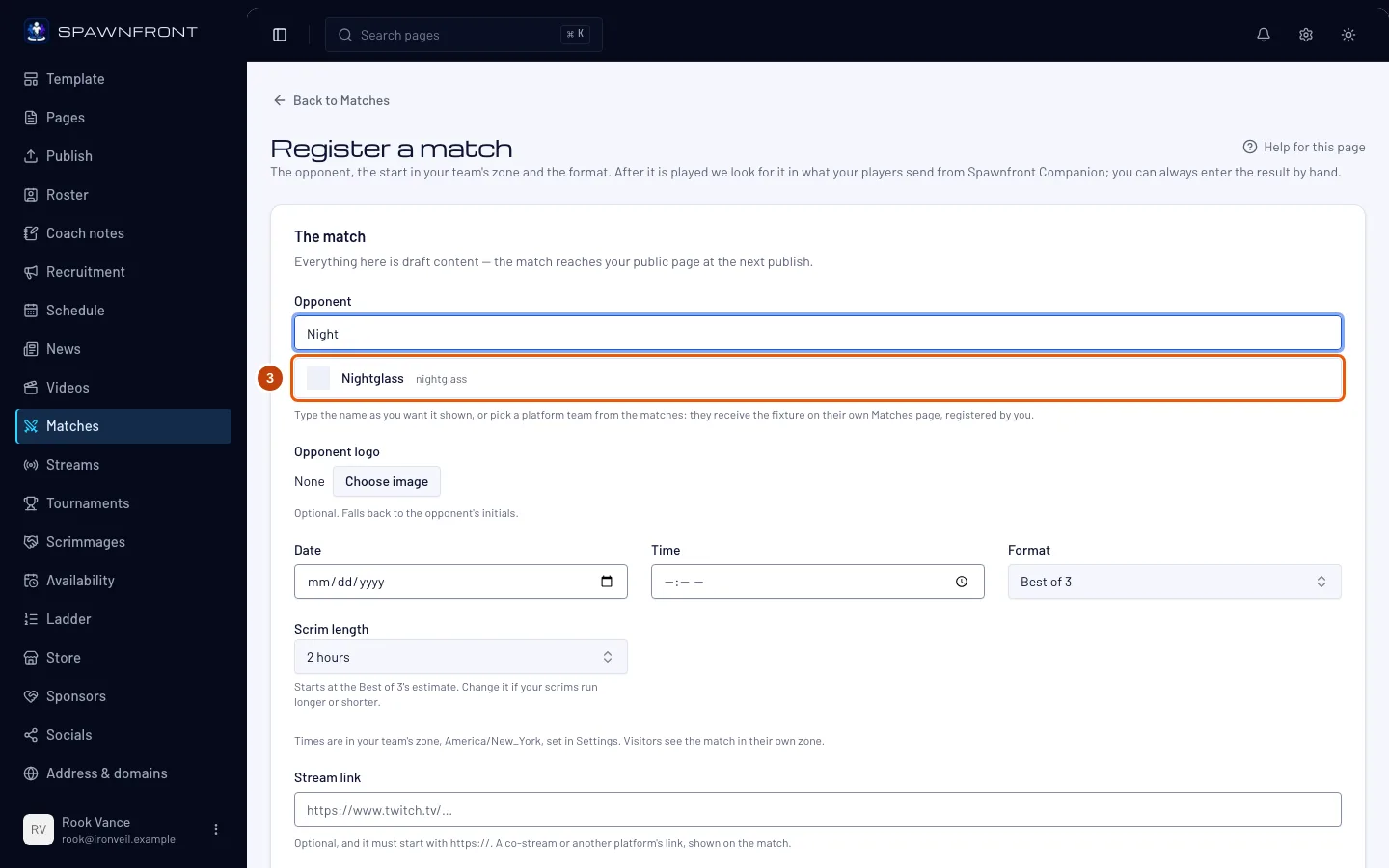
Under Opponent, type the other team's name. From the second letter, Spawnfront lists the teams on Spawnfront that have published a site. Press one to pick it — or keep typing, and the name is used exactly as you typed it.
Picking a team links the match: it appears on their own Matches page too, marked "Registered by" your team. The link can only be made now; later you can change the name, never the link. To undo a pick, press Clear.
You should see: the team you picked, with a Clear button beside it — or your typed name in the box.
Step 4: Set the date, time and format
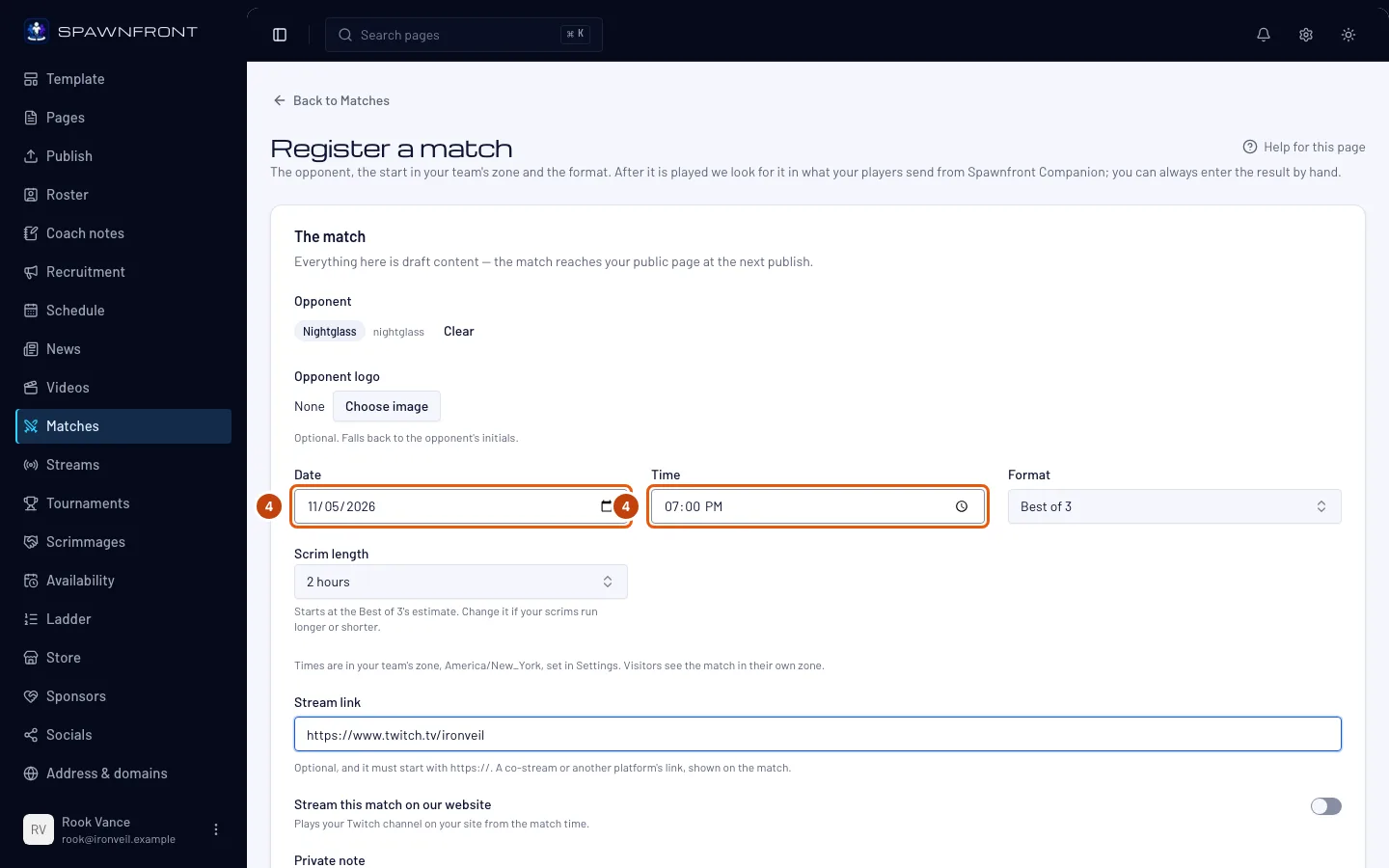
Fill in Date and Time, and choose the Format — it starts at Best of 3 — and the Scrim length, which starts at the format's estimate and sets when the match ends on your calendars. Besides the best-ofs you can choose Block of 2 games up to Block of 5 games: a block plays every game, so a block of 4 can end 2–2, which counts as a draw. A Valorant or Counter-Strike 2 team playing a block also sees All rounds: switch it on when every map plays all 24 rounds, so a map can end 12–12. A League of Legends team also sees Fearless draft: switch it on and a champion picked in one game cannot be picked again later in the series, by either team. You can also paste a Stream link (a co-stream or another platform's link; it must start with https://), switch on Stream this match on our website to play your Twitch channel on your site from the match time and choose how long under For (see Schedule a stream), add an Opponent logo, and write a Private note, which only your team sees.
The date and time are in your team's time zone, named in the line under the fields — not your computer's. Visitors see the match in their own time zone.
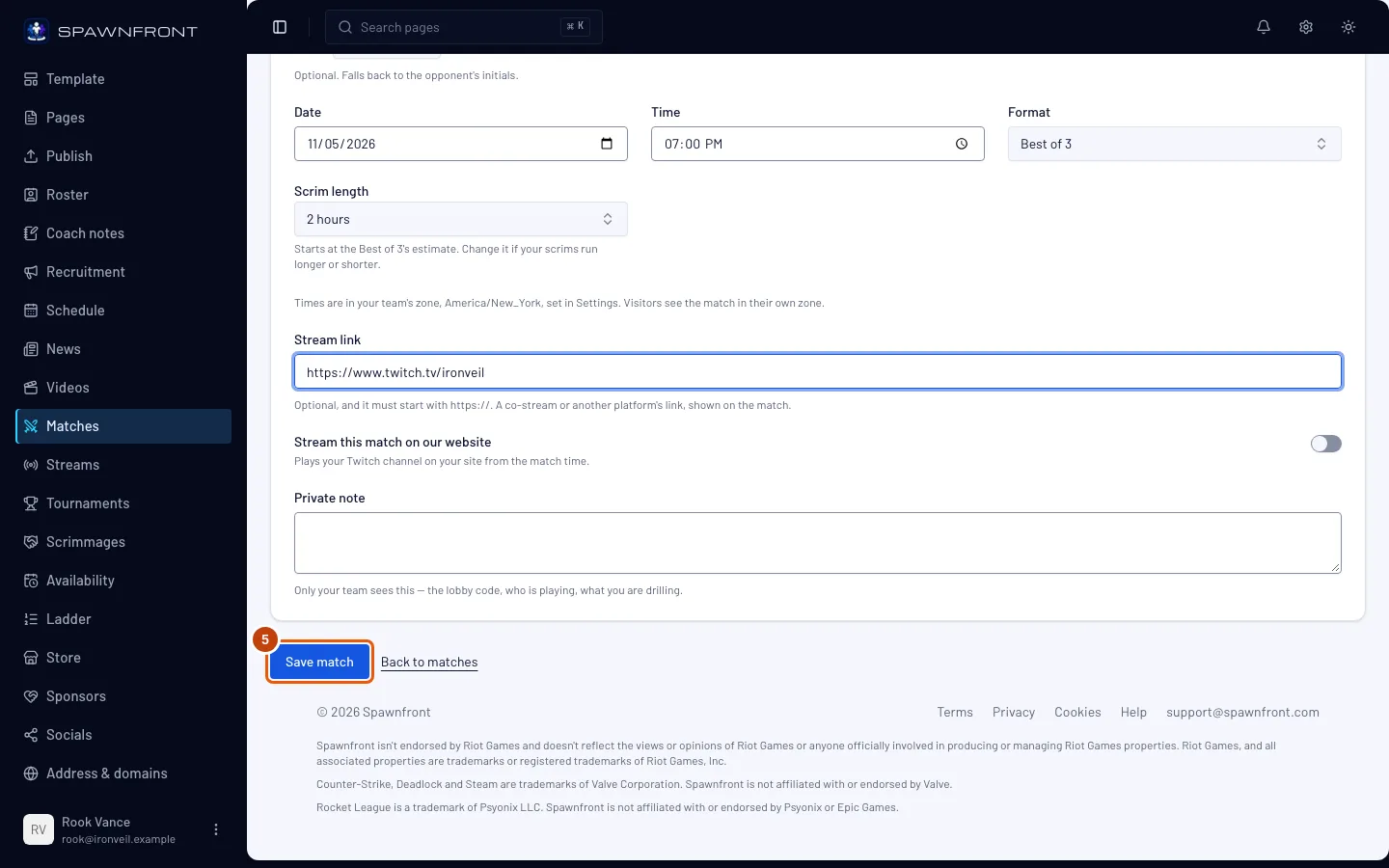
Step 5: Save the match
Press Save match.
You should see: "Match registered", and your match under Upcoming. If you entered a time that has already passed, the match's own page opens instead, ready for its result (step 9).
Your match is saved as a draft — visitors don't see it yet.
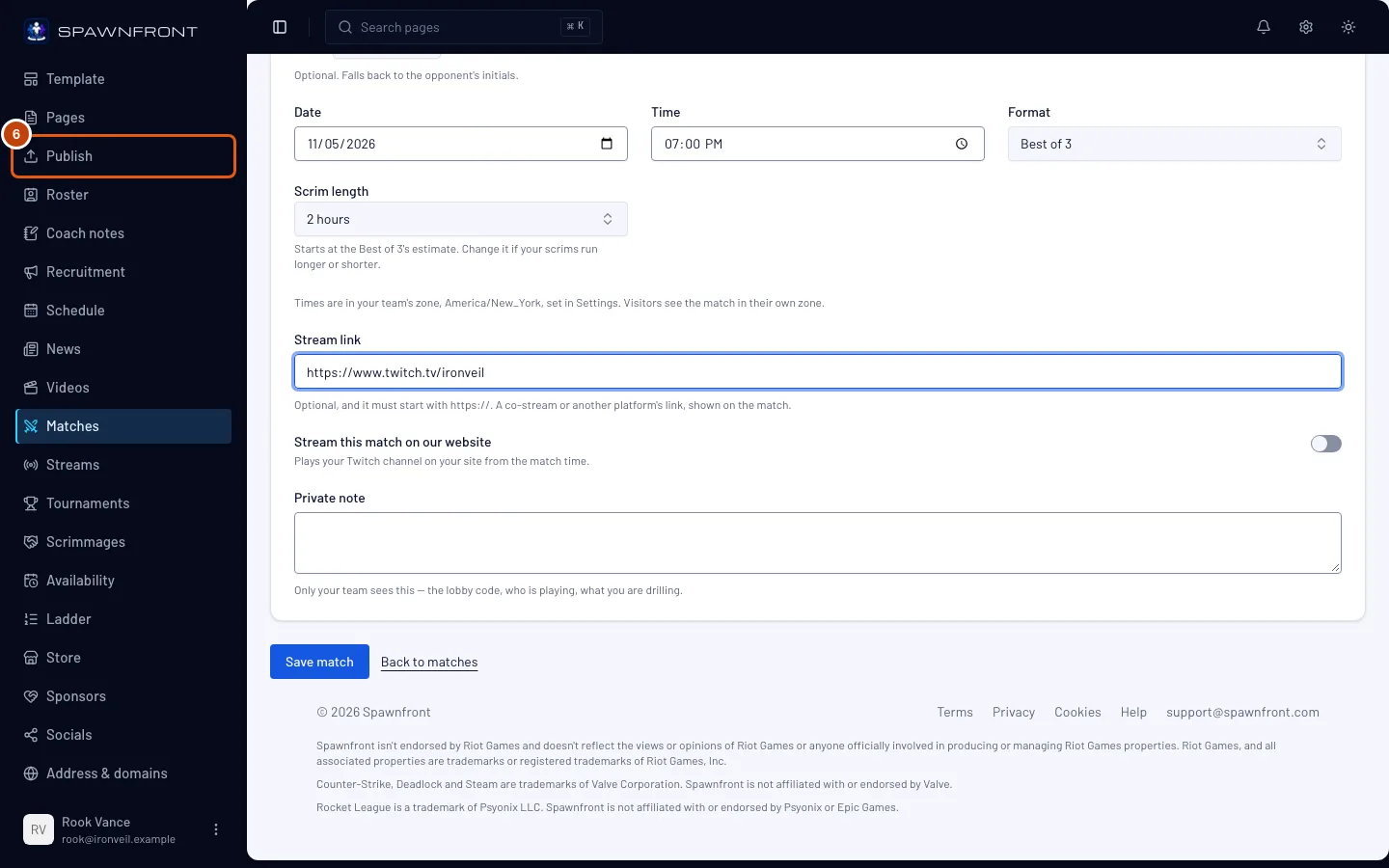
Step 6: Publish your site
Press Publish in the menu, then Publish on the page and Publish now in the box that opens. See Publish your site for the whole page.
This is the step that puts your match on your site. New matches, changed dates and times, and deleted or cancelled matches all wait for it.
You should see: Everything is live.
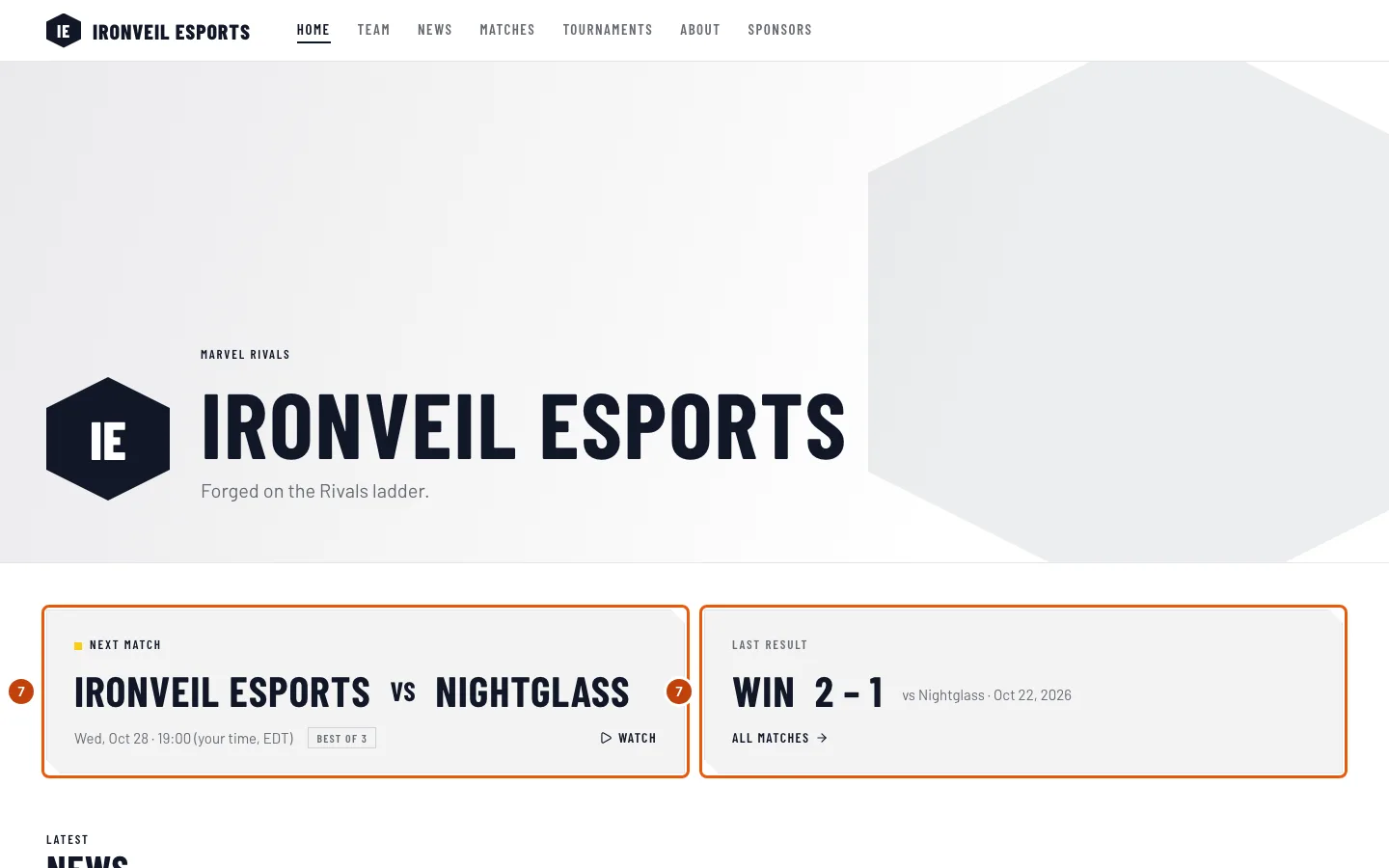
Step 7: Check your site
Open your site.
You should see: Next match on your home page, with your soonest upcoming match — and Watch if it has a stream link. Matches is now in your site's menu, and that page lists your matches under Upcoming and Previous. Once a played match has a result, your home page shows it as Last result.
A match moves from Upcoming to Previous on its own when its time passes — you don't need to publish for that.
Your site shows your next 50 matches and your 200 most recent played ones. When you publish, a played match older than those 200 leaves your site's Matches page; it stays on your Matches page here.
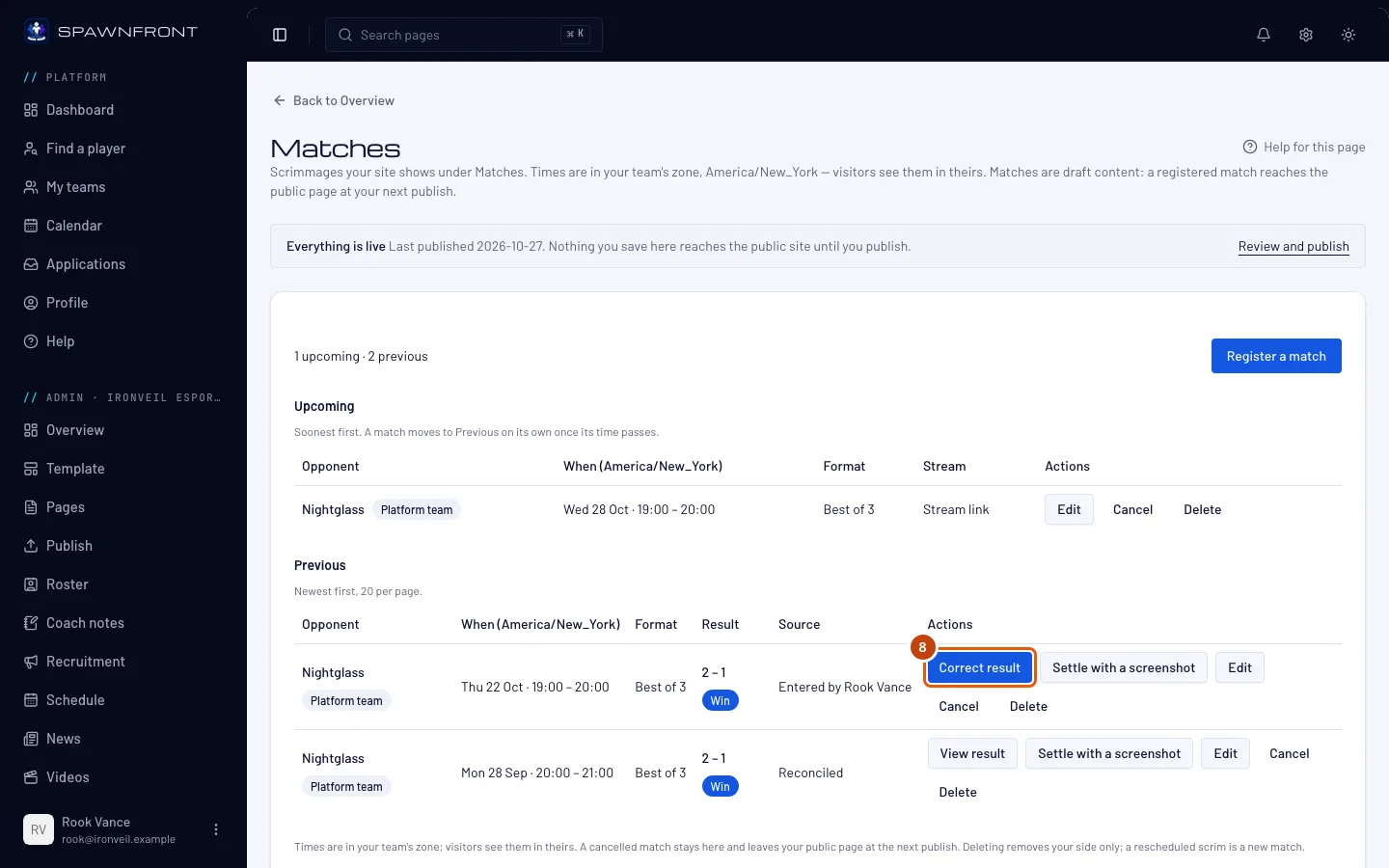
Step 8: Open the played match
After the match, go back to Matches. On its row under Previous, press Enter result.
The same button reads Correct result once someone has typed a result, as in the picture, and View result when your site shows the recorded result. For three days after the match, Spawnfront looks for it among the matches your players send from the Spawnfront Companion app, and fills in the result once a player on each team has sent the same winner — you can always enter it yourself. A Marvel Rivals match is found in your players' public match histories instead: from four hours after the start, Spawnfront reads the history of a player whose UID your team verified every six hours, for two days, and fills in each game once three verified players of each team are found in it. An Overwatch scrim settles from the ScrimTime Workshop log each map wrote, sent from Results on Scrimmages and confirmed by the other team (see Settle an Overwatch scrim with a Workshop log).
You should see: the match's page, with a Result section under the form. When Spawnfront filled the result in, it shows under Recorded from the match, and each game it filled in lists both teams' players with their kills, deaths and assists — yours by name, the other team's by their place.
A game whose replay code Spawnfront kept shows it beside the game — a Marvel Rivals Replay ID, an Overwatch Replay code or a Counter-Strike 2 Share code — with Copy, so you can paste it in the game to watch the game back. Both teams of a scrim see the same code.
Step 9: Enter the score
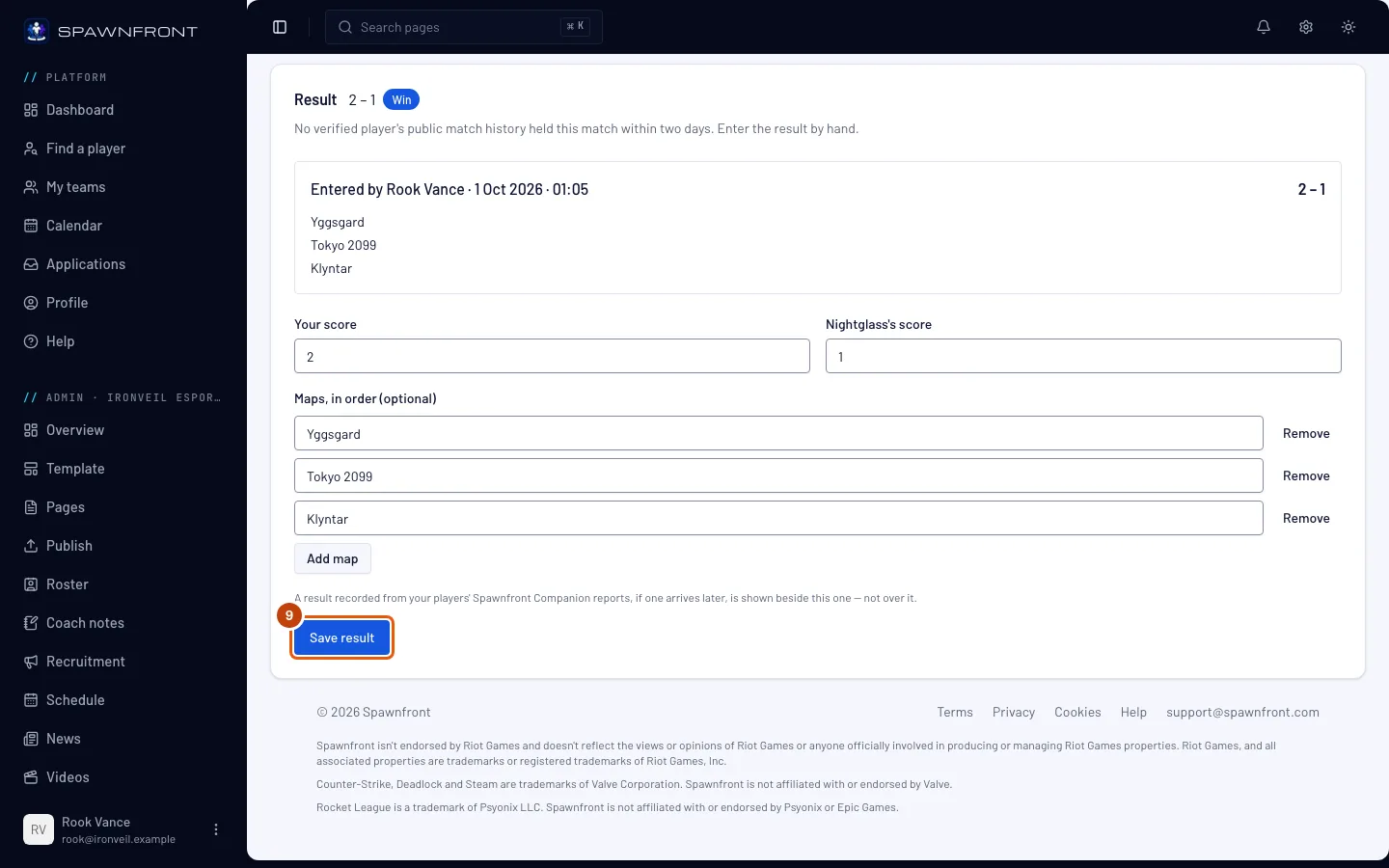
Type Your score and the other team's score — the box is named after them. To list the maps, press Add map once per map and type each name, in the order you played them. Then press Save result.
A League of Legends team enters games instead of a score. Press Add game once per game, in the order you played them. For each game, choose your side under Our side (Blue or Red) and who won under Winner. The score is counted from the winners — you don't type it. To add the picks and bans, press Draft (optional) and choose a champion in each slot you remember; leave the rest empty. In a fearless series, a champion picked twice is refused, and the message names the champion.
A Deadlock team enters games too. Press Add game once per game, in the order you played them. For each game, choose your side under Our side (Amber Hand or Sapphire Flame) and who won under Winner. The score is counted from the winners — you don't type it. To add the heroes, press Heroes (optional) and choose a hero in each of the six slots you remember, for your team and the other team; leave the rest empty. There are no bans, and a hero can appear only once in a game.
A Rocket League team enters goals for each game. Press Add game once per game, in the order you played them. For each game, type your goals in Us and the other team's in Them, tick Overtime if the game went to overtime, and choose the color you played under We played (Blue or Orange). The winner and the score are counted from the goals — you don't type them. A game can't end level, and an overtime game is won by one goal. Choosing an Arena is optional; a game without one is shown as Game 1, Game 2 and so on. To add your players' numbers, press Add a player line (optional), choose one of your players and type their goals, assists, saves and shots — up to three players. You enter only your own players: the other team adds theirs to the same result.
A Deadlock best-of-one can fill in from its match ID. After you play, open the match from your Matches page — or, in a hosted tournament, your next match on the tournament's page — and find Attach a Deadlock match. Copy the custom match's ID from Deadlock's match history, paste it in Match ID and press Attach — a stats site's address that holds the ID works too. You should see Deadlock match attached. Within the next hours Spawnfront reads the match from deadlock-api and fills in the game: the side your team played, the winner and both teams' heroes. It does this only when at least three confirmed players of each team played it, on opposite sides — a confirmed player is a roster player whose Deadlock identity was confirmed with Confirm with Steam on their profile. One match ID fills one game, so the field shows only on a best-of-one; enter a longer series by hand. Pasted the wrong ID? Either team can paste another until the game has filled in; after that the result stands. If the ID turns out to be a match your two teams didn't play against each other, it is cleared and the field shows again. If the other team sees a different result, they report a mismatch and enter their own; you can always enter the result by hand. If the result doesn't fill in, check that at least three of your players and three of theirs confirmed with Steam and played in that match.
A Valorant team enters maps. Under Map veto (optional), press Add veto step for each ban and pick in order — who made it, the map, and for a picked map who chose the side. Then press Add map once per map played: choose the map (this act's map pool is listed first), the side we started on (attack or defense), and both teams' rounds. A map is won at 13, or by two rounds in overtime (14–12, 15–13, …); with All rounds the two scores add up to 24. The score is the maps won — you don't type it. Open a map's compositions to choose the five agents each team played, and on your side which player played each.
A Counter-Strike 2 team enters maps too. Under Map veto (optional), add each ban and pick in order, as for Valorant, with CT or T as the side. Then press Add map once per map played: choose the map (the Active Duty maps are listed first, then the others), the side we started on (CT or T), and both teams' rounds. A map is played MR12: it is won at 13 with the other team on 11 or fewer. At 12–12 it goes to overtime, played in sets of six rounds (MR3): the first team to win four rounds of a set wins the map — 16–14, 16–13, 16–12, then 19–17 and so on — and a set that ends 3–3 starts another. In a scrim a map may also end as a draw, at 12–12 or 15–15, when the teams agree not to play on. A tournament map always has a winner: when you report a tournament match, enter the overtime rounds instead of a draw. With All rounds every map plays all 24 rounds and the two scores add up to 24. The score is the maps won — you don't type it. Open a map's player lines to choose, on your side, which player played each line and their kills, deaths and assists. You name only your own players — the other team names theirs.
Name your players after the other team entered. Either team can enter the result. If the other team entered it, open the match and use Name your players to say which of your players played each agent — or, in Counter-Strike 2, each line with its kills, deaths and assists. You can only name your own players.
For a block, enter every game. A block of 4 needs four games (or two scores that add up to 4).
A result doesn't wait for a publish. It shows on your site within a couple of minutes, on any match your site already shows.
You should see: "Result saved", and the score beside Result with Win, Loss or Draw. On a linked match the other team sees the same result.
Step 10: Delete a match
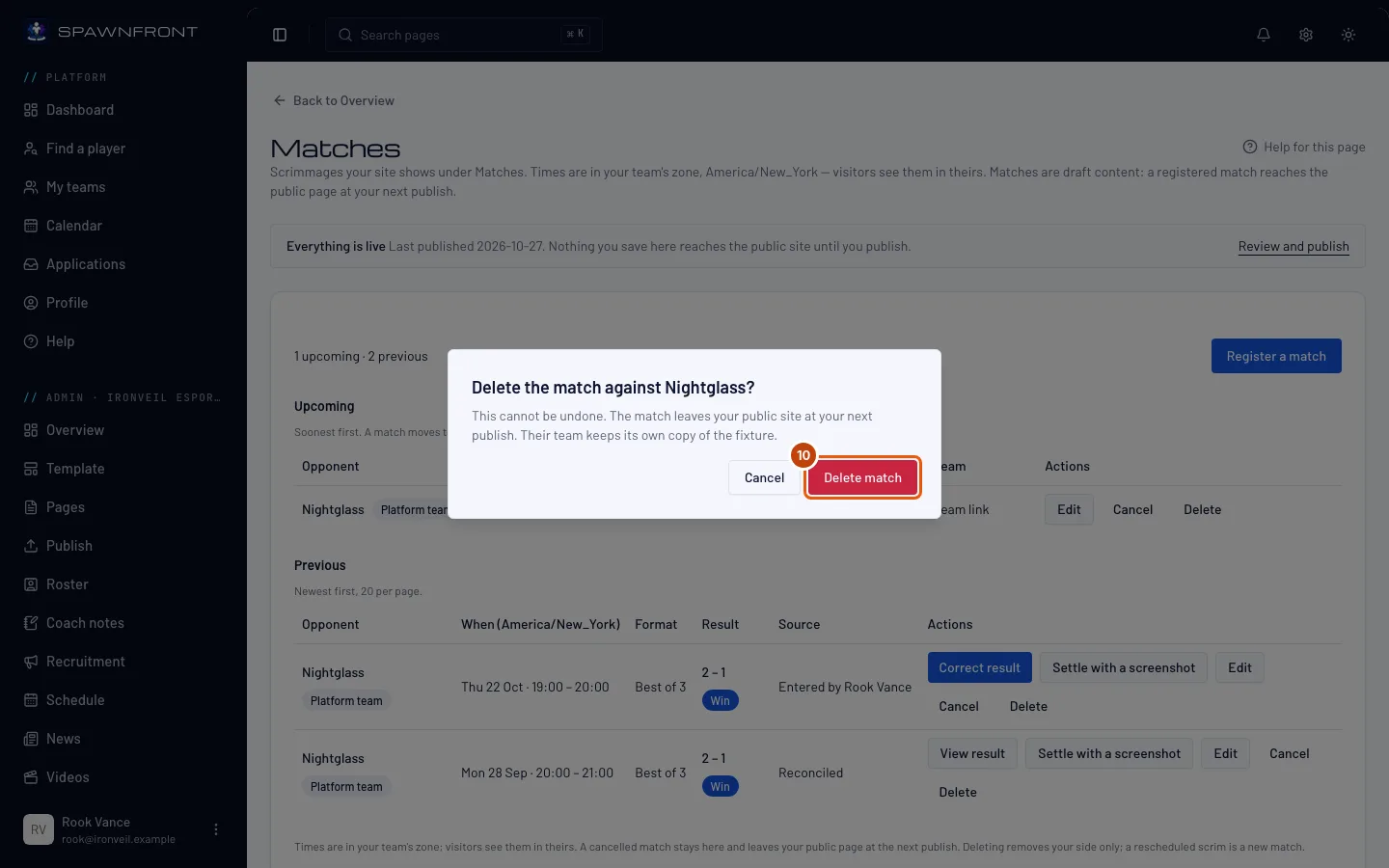
On the match's row, press Delete, then Delete match in the box that opens.
Deleting can't be undone, and it removes only your side. A linked team keeps its own copy. The match leaves your site at your next publish.
If the scrim was only called off, press Cancel on its row instead, then Cancel match: it stays on your list marked Cancelled, a linked team sees it cancelled too, and it leaves your site at your next publish.
You should see: "Match deleted", and the match gone from your list.
How to know it worked
- Your new match is under Upcoming on your Matches page.
- After you publish, your site's home page shows it as Next match, and your site's Matches page lists it.
- A played match with a result shows its score and Win, Loss or Draw under Previous on your site.
Something doesn't look right?
My match isn't on my site
Saving keeps a match in your draft. Publish your site (step 6). Your site's menu shows Matches only once a published match exists.
It says that team can't receive matches right now
That team can't take linked matches: its site subscription isn't active, or it has turned off Accept matches registered by other teams in its Settings. Press Clear and type their name instead.
I can't find Enter result
It appears once the match's start time has passed and the match has moved to Previous. A cancelled match has no result to enter.
It says "A best of 3 is won at 2"
The score has to fit the match's format. If you played a different format, change Format on the match's page and press Save first, then enter the score again.
It says a champion "was already picked in this fearless series"
The match is a fearless series, so each champion can be picked in one game only. Check the drafts of the earlier games — the message names the champion — and fix the slot. If the series was not fearless, switch off Fearless draft on the match's page, press Save, then save the result again.
Where do my Valorant maps show?
On your site's Matches page, a played Valorant match shows the veto line (who banned and picked each map) and each map as, for example, Ascent · 13–11 · started on attack, with both teams' agents. A player's name shows beside their agent only while they are on your public roster and have their stats switched on.
When players on both teams record the match with the Spawnfront Companion app on PC, Spawnfront fills in each map — the map, the side your team started on, the rounds and both teams' agents — once a player on each team has sent the same rounds. The rounds decide each map's winner. A map that ended early (a surrender or a remake) keeps its rounds with no winner, for you to enter.
Filling in maps from Riot's own records is on its way, not here yet. Once Riot approves Spawnfront, a PC Valorant match whose players on each team have confirmed their accounts with Riot fills in its maps from Riot's record, even when nobody ran the app. Until then, record with the app or enter the result yourself. A scrim can also be settled from a screenshot: press Settle with a screenshot on the scrim's row under Previous and send each game's scoreboard for the other team to confirm — see Settle a scrim with a screenshot.
Where do my Marvel Rivals games show?
On your site's Matches page, each game of a played match shows its map and score — for example Yggsgard · 2–1. When Spawnfront filled the game in from a public match history, open Players under it to see each team's players with their kills, deaths and assists. A player shows there only while they are on their team's public roster, their UID is verified and their stats are switched on; everyone else's line is left out. Damage and healing are never shown.
If no player on either team has a public match history with a UID your team verified, nothing is filled in. Press Settle with a screenshot on the scrim's row to send a scoreboard screenshot the other team confirms — see Settle a scrim with a screenshot — or enter the result yourself.
Where do my Overwatch maps show?
On your site's Matches page, each map of a played match shows its map and score. Spawnfront fills a map in from the ScrimTime Workshop log the lobby wrote, once the other team confirms it: press Settle with a screenshot on the scrim's row under Previous to open Results on Scrimmages and send the log with Upload a Workshop log — see Settle an Overwatch scrim with a Workshop log. Each game report's screenshots work too, confirmed the same way — see Settle a scrim with a screenshot. Without a confirmed log or screenshot, enter the result yourself.
Where do my Counter-Strike 2 maps show?
On your site's Matches page, a played Counter-Strike 2 match shows the veto line and each map as, for example, Mirage · 13–9 · started on CT. Open Players under a map to see each team's players with their kills, deaths and assists, for example 21-14-3. A player shows there only while they are on their team's public roster and have their stats switched on; a line that names nobody is not shown.
Players who record Counter-Strike 2 with the Spawnfront Companion app on PC get each map on their own card. The app sends only the player's own line, so a scrim's maps are not filled in from it yet: enter each map, or settle it from a screenshot. A 12–12 or 15–15 in a block that plays all rounds counts as a draw; any other score no map ends on keeps its rounds with no winner, for you to enter. FACEIT matches cannot be recorded by the app; they will come from FACEIT. A scrim can also be settled from a screenshot: press Settle with a screenshot on the scrim's row under Previous and send each game's scoreboard for the other team to confirm — see Settle a scrim with a screenshot.
It says a Counter-Strike 2 map "is not a final score"
A map is won at 13 with the other team on 11 or fewer, or in overtime by four rounds of a set of six (16–14, 19–17, …). 13–12 is not a final score: the map was still in overtime. Only 12–12 and 15–15 can be a draw. With All rounds switched on, the two scores must add up to 24.
Where do my sides and drafts show?
On your site's Matches page, each League of Legends game of a played match shows your side and W or L — for example Blue · W. Open Draft under a game to see both teams' bans and picks by champion name. A Deadlock game shows its side the same way — for example Amber Hand · W — and Heroes under it lists both teams' heroes by name. A Rocket League game shows its arena and the goals with your team's first — for example DFH Stadium 3 – 1 — with OT after an overtime game, the color you played, and the player lines your players chose to show. A League of Legends scrim can be settled from each game's Scoreboard tab: press Settle with a screenshot on the scrim's row under Previous — see Settle a scrim with a screenshot.
I need to move a match to another day
On its row, press Edit, change Date or Time, press Save, then publish your site. On a linked match the other team sees the new time, marked "Changed by" your team. A cancelled match can't be changed — register a new one.
My site shows a different result from the one I typed
The companion app recorded the match too — or, for Marvel Rivals, a player's public match history or a screenshot the other team confirmed, and for Overwatch a Workshop log the other team confirmed — and both results are kept. On the match's page, press Show this one on the public page on the result you want, then Save choice.
I don't see Register a match
Your team's subscription has lapsed. Your matches stay readable, each with View, but you can't add or change them until the subscription is active again. See Manage billing.
There's no way to choose a logo or a picture
Your team is part of an organization, and its pictures come from the organization's library. An organization admin chooses and uploads them; the picture field tells you which organization runs the library. Ask one of its admins — they are named on your team's Overview.
Related articles
Still stuck? Contact support or email support@spawnfront.com — tell us the page you're on and the step number.