
Send your team's scrim results
Played a scrim? Add the scoreboard screenshots on your team's Scrims page and check the other team's result — no admin needed.
For players · 3 steps
What you need first
- You are a member of a team, and the scrim was booked on Spawnfront between your team and the other team. Not booked on Spawnfront? Send it as an unregistered match instead: see Send an unregistered match.
- You have the screenshots of the games you played — which screen to take for each game is in Settle a scrim with a screenshot.
- Your team lets members send results. It does unless its owners and admins turned it off for you — see Set scrim permissions.
Steps
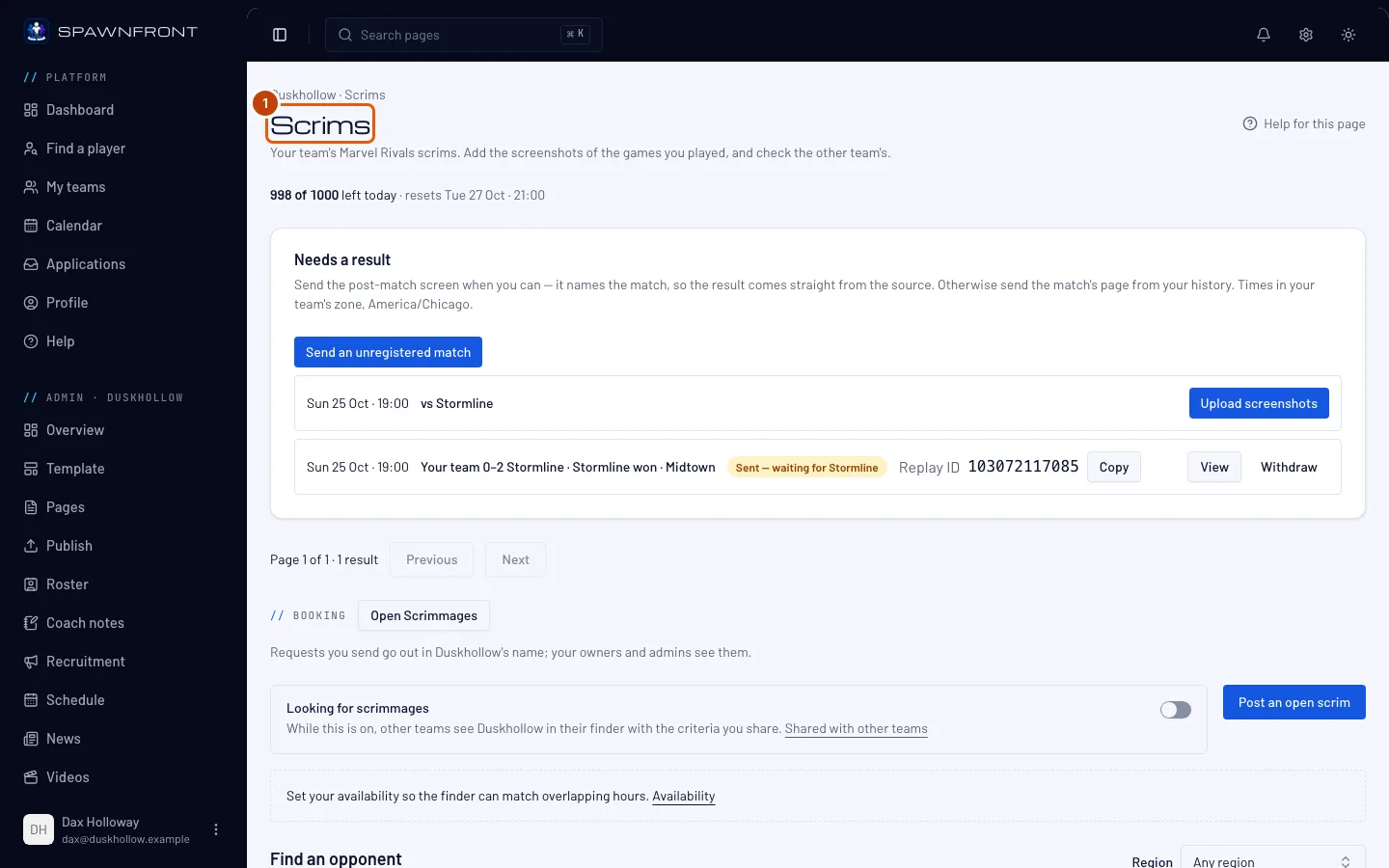
Step 1: Open your team's Scrims page
In the menu, press My teams, then Scrims on your team's card. From your team's page, press Scrims beside Recent scrims.
You should see: Needs a result, with your team's scrims that still need a result and the results your team sent. When the other team sent one for your team to check, Waiting for your team shows it below.
Step 2: Add your screenshots
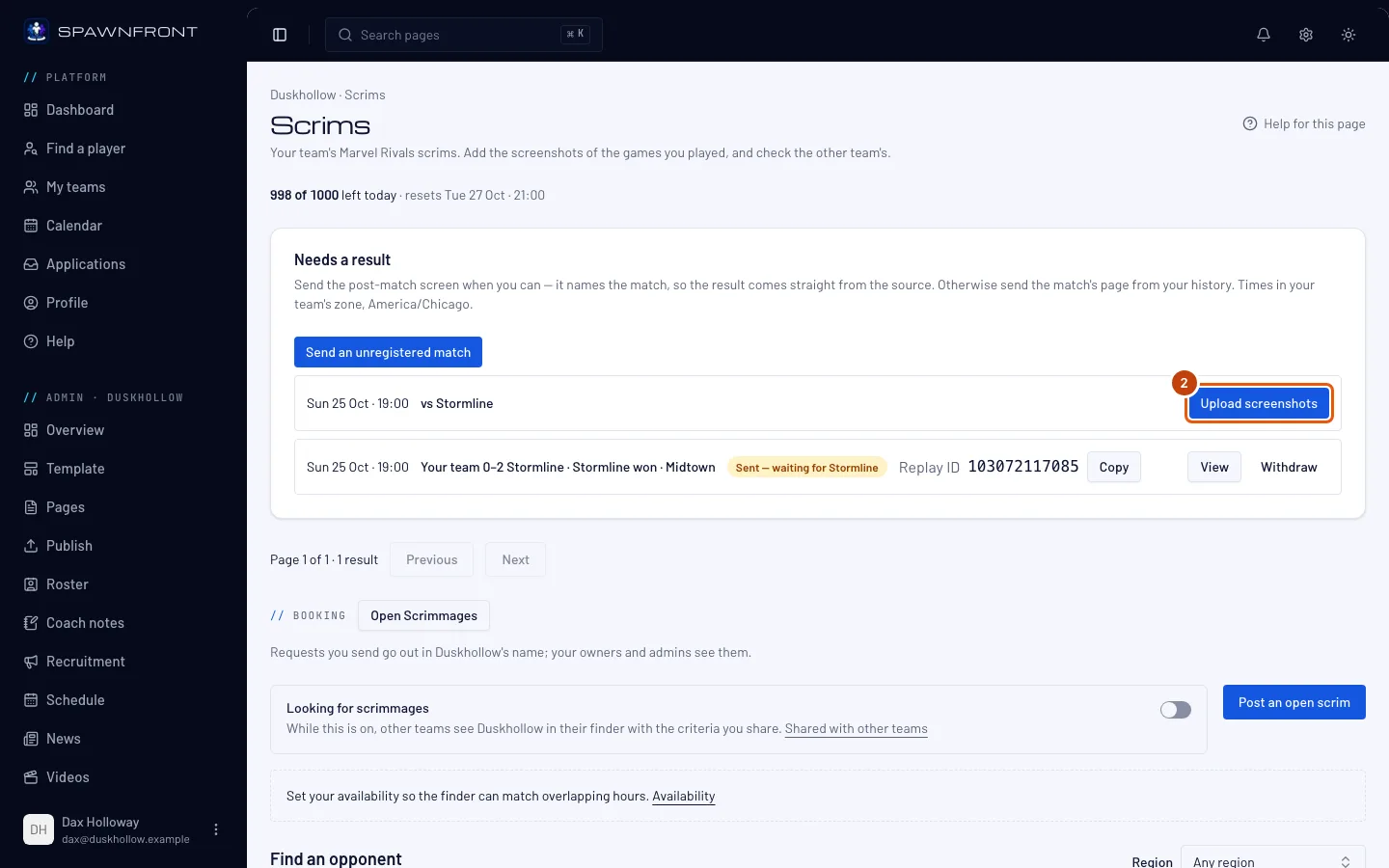
Under Needs a result, press Upload screenshots on the scrim you played and choose your screenshots. Spawnfront reads each one, and you check the draft and send it to the other team, exactly as in Settle a scrim with a screenshot.
You should see: each screenshot as a draft with your name on it. Your teammates see it too, so anyone on the team can finish it.
Step 3: Check the other team's result
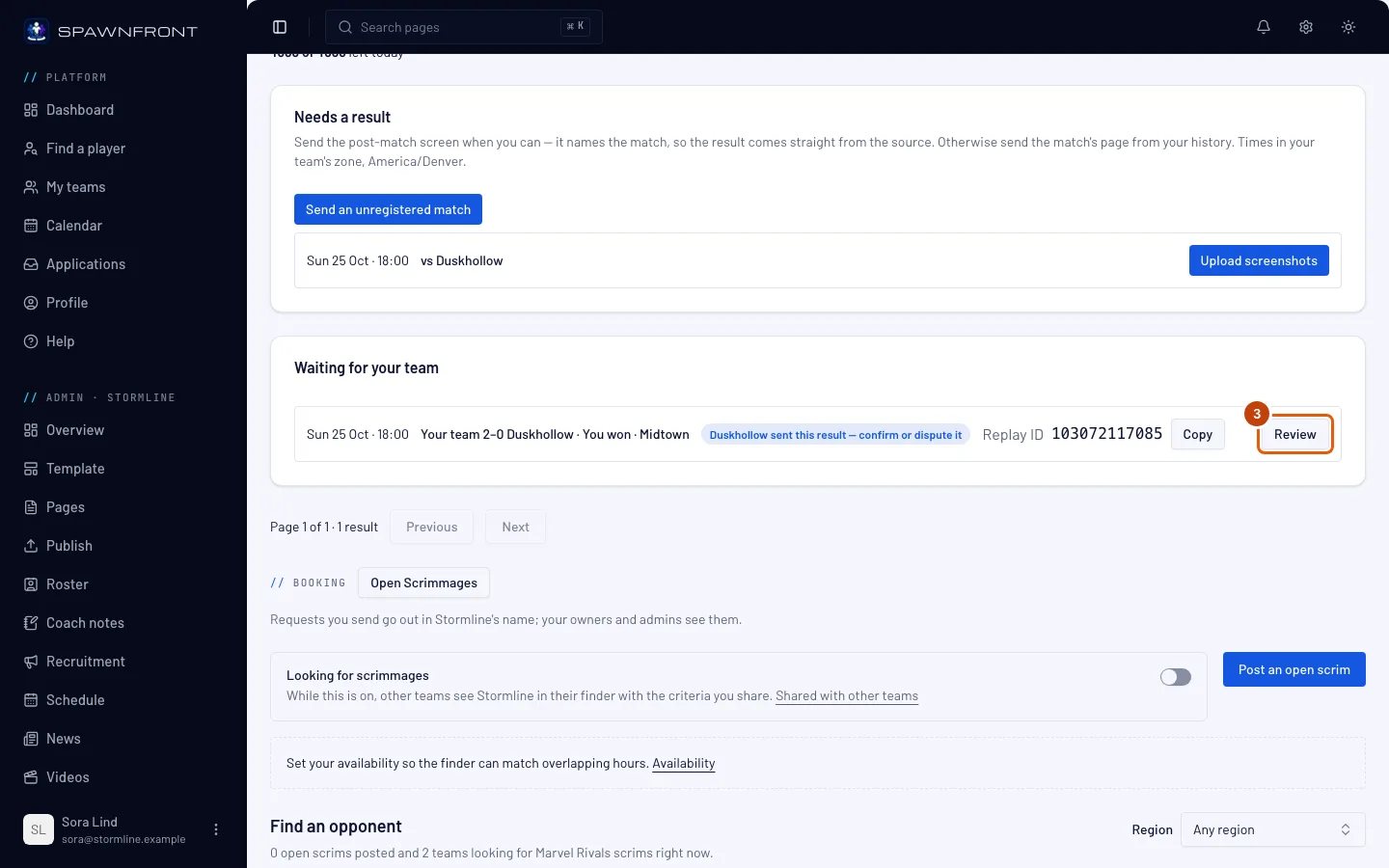
Under Waiting for your team, press Review on a result the other team sent, then confirm it or press Dispute.
You should see: the result move to Results once your team confirms it.
How to know it worked
- Your result shows under Results once the other team confirms it.
What your team decides. Owners and admins choose what members may do with results: send them, send unregistered matches, withdraw a teammate's upload, confirm and dispute. All of it is on unless they turn it off. Booking scrims is off unless they turn on Book scrims for you — see Book scrims for your team. A button you're not allowed to use isn't shown, and one line says who handles it instead.
A scrim that wasn't booked here. Press Send an unregistered match under Needs a result to send it with its result for your team's owners and admins to confirm — see Send an unregistered match.
From the app. Spawnfront Companion's scoreboard key sends a screenshot for you too — see Send a scoreboard from the app.
Something doesn't look right?
It says my team's owners and admins send scrim results
Your team turned off sending results for you. Ask an owner or admin to turn on Submit results for you, or to send it themselves.
The scrim I played isn't listed
Only scrims booked on Spawnfront are listed. Send any other scrim with Send an unregistered match — see Send an unregistered match.
I can't find the Scrims page
It's for members of the team. Check that you're on the team under My teams.
Related articles
Still stuck? Contact support or email support@spawnfront.com — tell us the page you're on and the step number.