
Connect your Discord server
Add the Spawnfront bot to your team's Discord server, choose where it posts, and let it run your poll and roles.
For team owners and admins · 5 steps
What you need first
- You are the team's owner or an admin on Spawnfront.
- You have Manage Server in the Discord server you want to connect. Discord only lets someone with it add an app.
Steps
Step 1: Open Discord
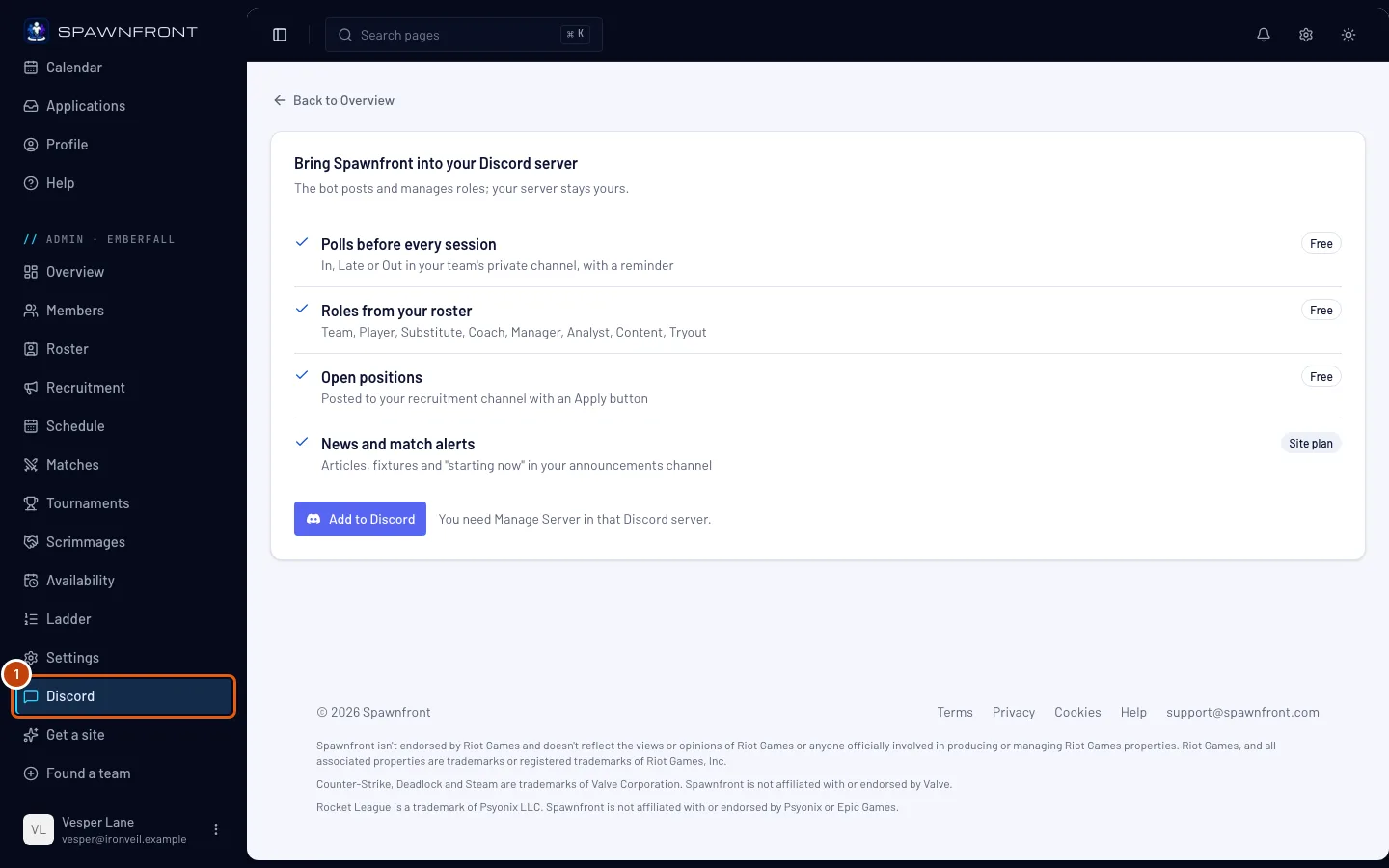
In the menu on the left, under your team's admin menu (Admin · and your team's name), press Discord. Or, on your team's Overview, press Connect Discord — once a server is connected, that button reads Discord.
You should see: what the bot does for your team, and an Add to Discord button.
Step 2: Add Spawnfront to your server
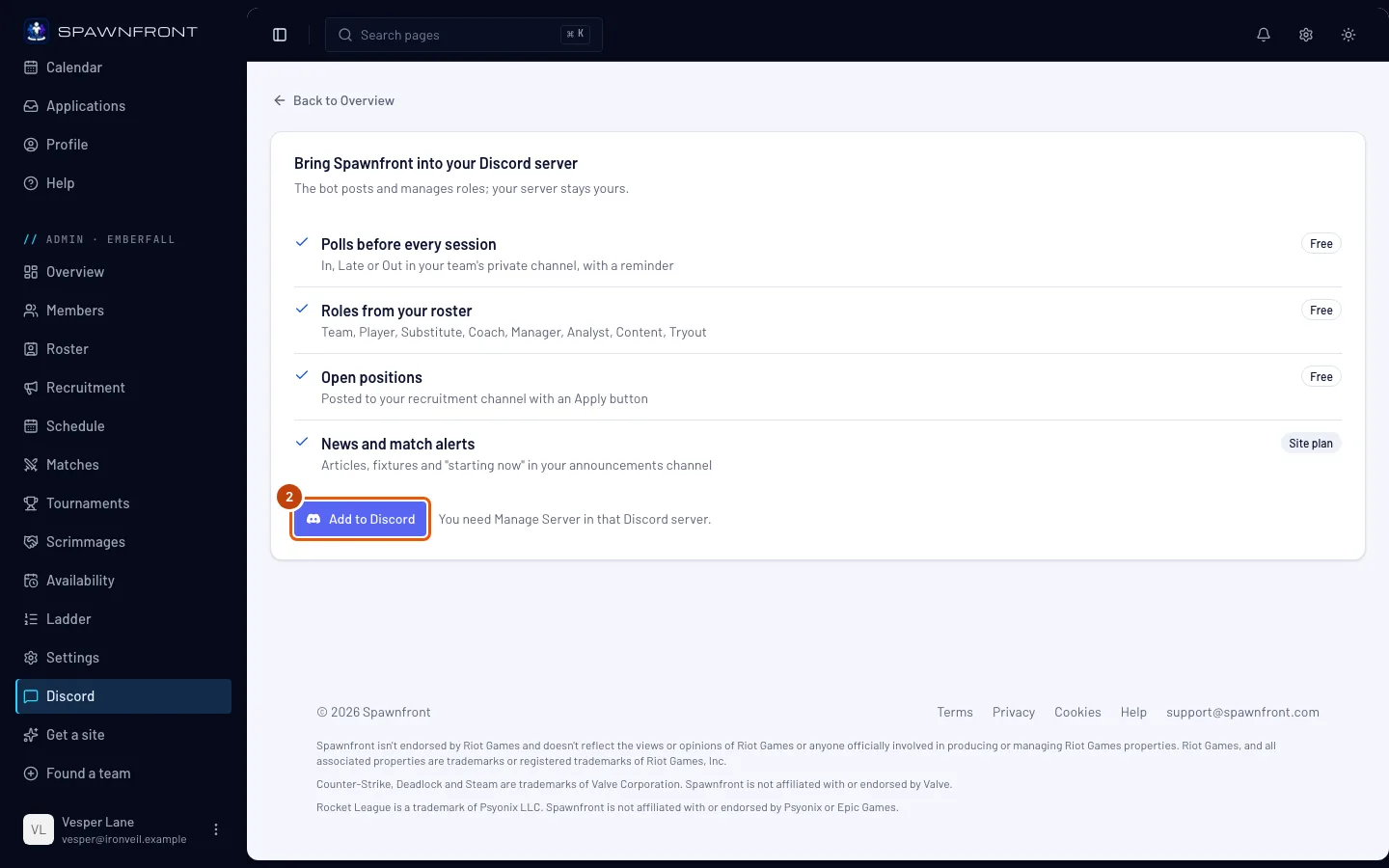
Press Add to Discord. On Discord's page, pick your team's server and approve the permissions.
You should see: your team's Discord page again, with your server's name, a Connected badge and the day you connected it.
Step 3: Choose the channels
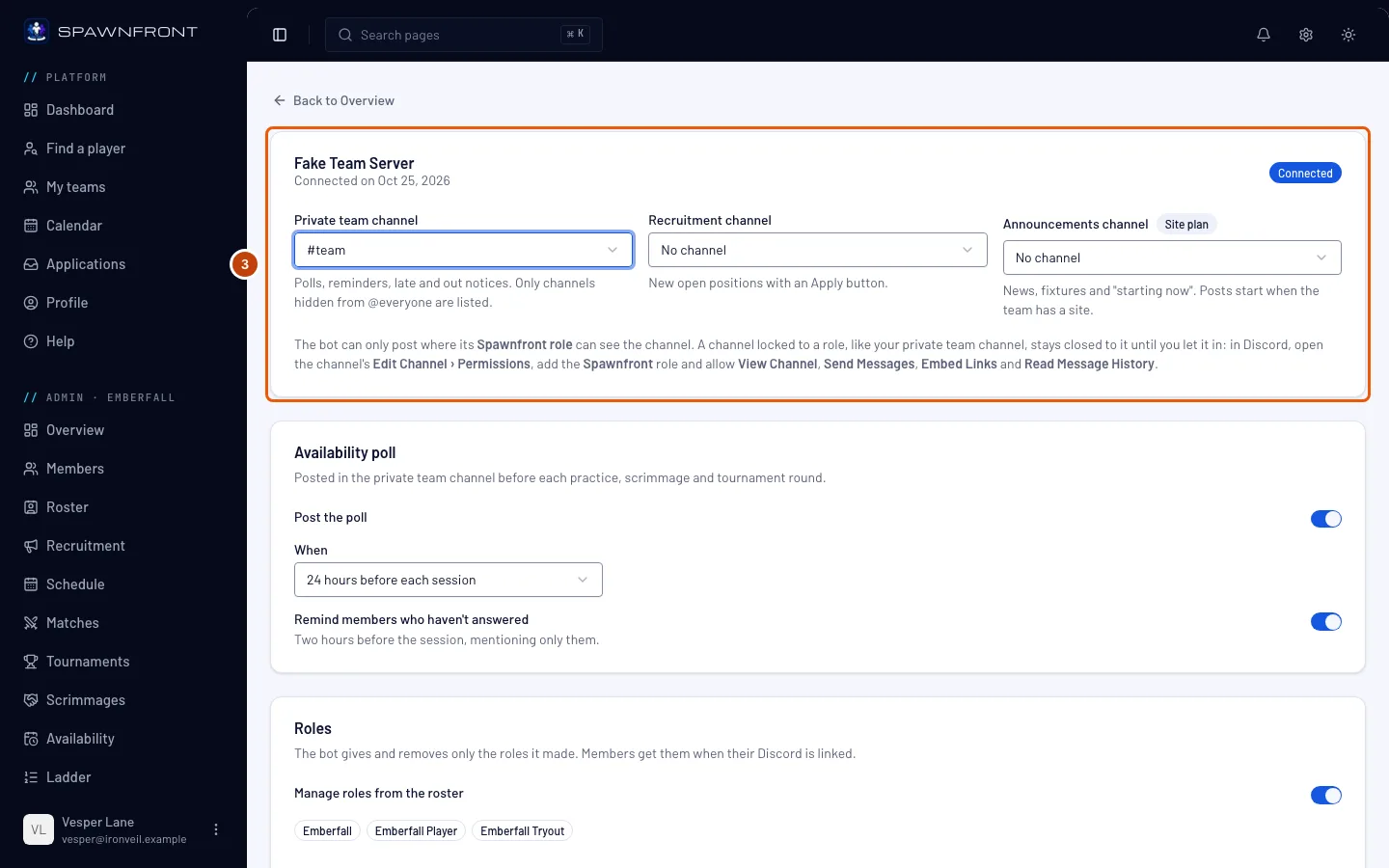
Choose where the bot posts:
- Private team channel: polls and late or out notices. Only channels your server hides from @everyone are offered, because these say who is coming.
- Recruitment channel: your open positions, with an Apply button.
- Announcements channel: news, fixtures, "starting now", and your streams — "goes live today" in the morning and LIVE NOW when a stream starts (see Stream from Discord). These post while your team has a site.
Each choice saves at once.
You should see: the channel's name, with its #, in each picker you set.
Step 4: Let the bot into your private channel
A channel locked to a role, like your private team channel, stays closed to the bot until you let its role in. In Discord, right-click the channel and choose Edit Channel, then Permissions. Add the Spawnfront role and allow View Channel, Send Messages, Embed Links and Read Message History. Press Save Changes.
Do the same for any other channel you chose that isn't open to everyone.
You should see: in Discord, the Spawnfront role listed under the channel's permissions with those four allowed.
Step 5: Turn on the poll and the roles
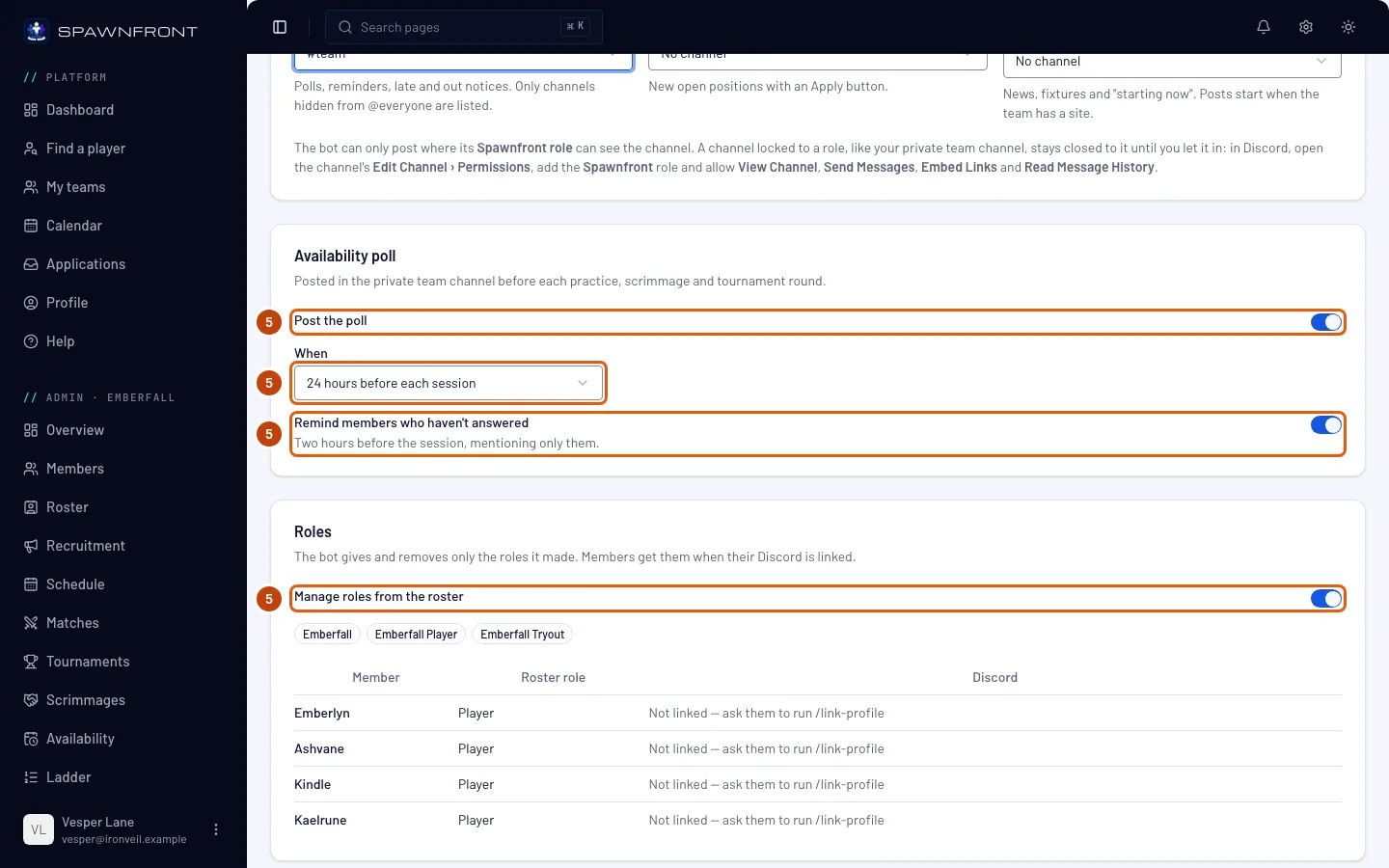
Leave Post the poll on and choose under When how long before each session it posts. Leave Remind members who haven't answered on, and two hours before the session the bot mentions only the members who haven't answered.
Leave Manage roles from the roster on, and the bot gives your members their team and roster roles once they link Discord to their Spawnfront account. It only gives and removes the roles it made.
You should see: the roster below the switch, each member marked linked or Not linked — ask them to run /link-profile.
How to know it worked
- Your server's name shows with Connected.
- After a few minutes, members who linked Discord have your team's roles in the server.
Something doesn't look right?
Add to Discord is grayed out and says 'The Discord bot isn't available right now.'
Spawnfront's bot is switched off for a moment. Try again later; nothing on your side needs to change.
I came back from Discord and it says 'Spawnfront wasn't added. Only someone with Manage Server in that server can add it.'
The install didn't finish. Usually your Discord account doesn't have Manage Server in that server: ask someone who does to give it to you, or have them press Add to Discord while signed in to Spawnfront as one of your team's admins. The same message shows if you cancelled on Discord's page or took longer than ten minutes, so press Add to Discord again.
The bot doesn't post in my private channel
The channel is locked to a role the bot doesn't have. In Discord, open the channel's Edit Channel › Permissions, add the Spawnfront role and allow View Channel, Send Messages, Embed Links and Read Message History. Spawnfront's Discord page says the same under the channel pickers.
What does the bot post on Mondays?
Every Monday, if your server has a private channel chosen, the bot posts last week's summary there: the practice hours on your schedule and how many times members answered I'm in, Late or Can't make it. A team with a site also sees its scrims played, its record and its ladder move; a free team's summary ends with a line about them instead (scrims themselves are free for every team). A week with nothing on it gets no post.
Why do the bot's posts end with 'Run by Spawnfront'?
Posts the bot makes for a team without a site end with one small line, "Run by Spawnfront · Get your team's site". A team with a site has no line on its posts.
It says 'The bot couldn't give' a role
Discord only lets the bot give roles listed below its own. In Discord, open Server Settings › Roles and drag the Spawnfront role above the role it names.
A member reads 'Not linked — ask them to run /link-profile'
That member hasn't linked Discord to their Spawnfront account, so the bot can't tell who they are. They run /link-profile in your server, or link Discord from their profile — see Sign in with Discord.
Related articles
Still stuck? Contact support or email support@spawnfront.com — tell us the page you're on and the step number.