
Send an unregistered match
Played a scrim that wasn't booked on Spawnfront? Send it with its result from your team's Scrims page, and your owners and admins confirm it.
For team members · 9 steps
What you need first
- You are a member of a team, and your team played a scrim that wasn't booked on Spawnfront — against a team on Spawnfront that nobody registered it with, or against a team that isn't on Spawnfront at all. A scrim booked on Spawnfront is sent the usual way: see Send your team's scrim results.
- It was played in the last 30 days, and you know when it started.
- You have the result: the screenshots of the games (which screen to take for each game is in Settle a scrim with a screenshot), or the score to type in.
- Your team lets you send unregistered matches. It does unless its owners and admins turned off Send unregistered matches for you — see Set scrim permissions.
Steps
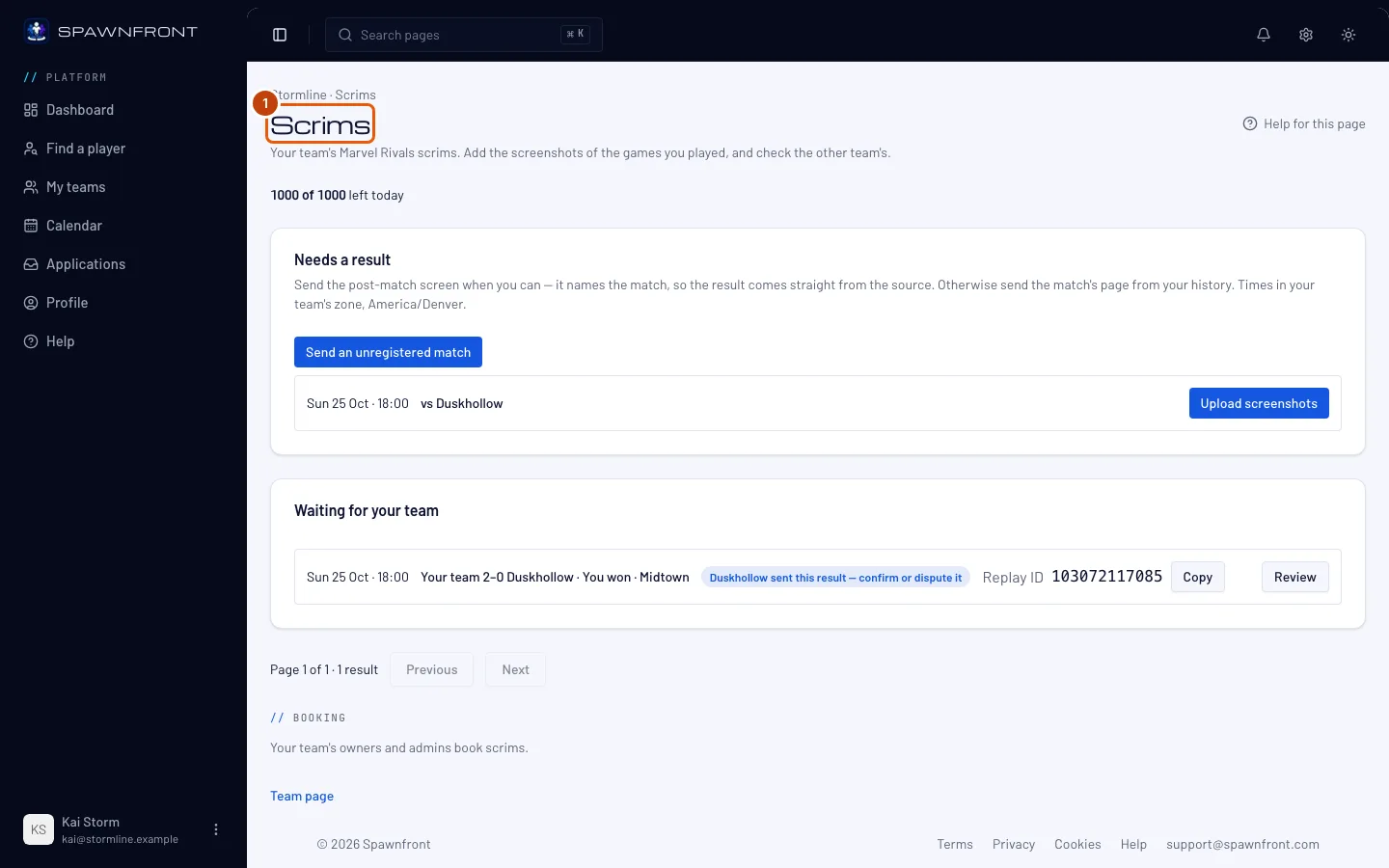
Step 1: Open your team's Scrims page
In the menu, press My teams, then Scrims on your team's card. From your team's page, press Scrims beside Recent scrims. An owner or admin can use the Results tab of the team's Scrimmages page instead: it has the same button.
You should see: Needs a result. With no booked scrim waiting, it reads No booked scrim is waiting for a result..
Step 2: Press Send an unregistered match
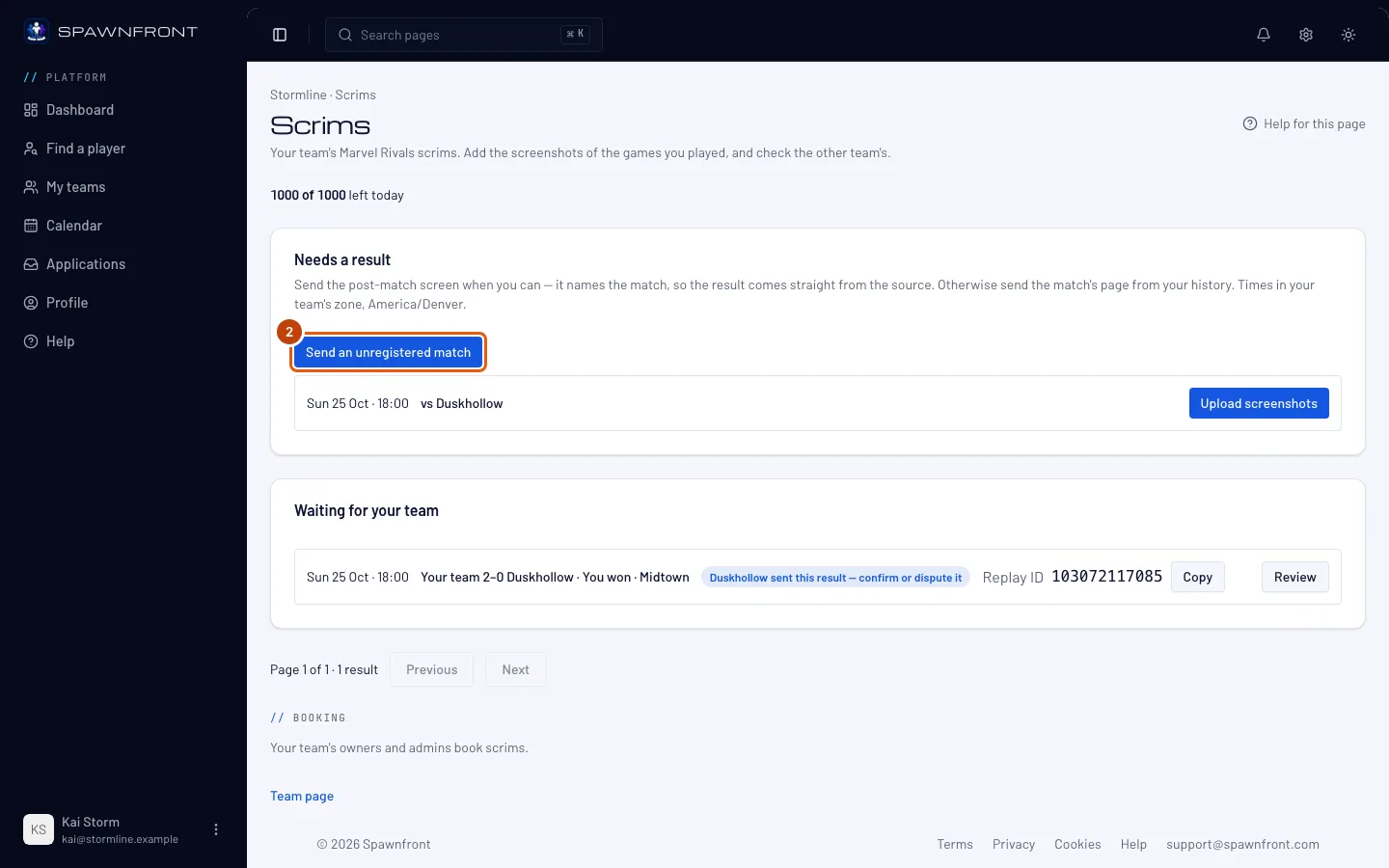
Press Send an unregistered match — under Needs a result, or in its empty box.
You should see: the Send an unregistered match box.
Step 3: Choose the opponent
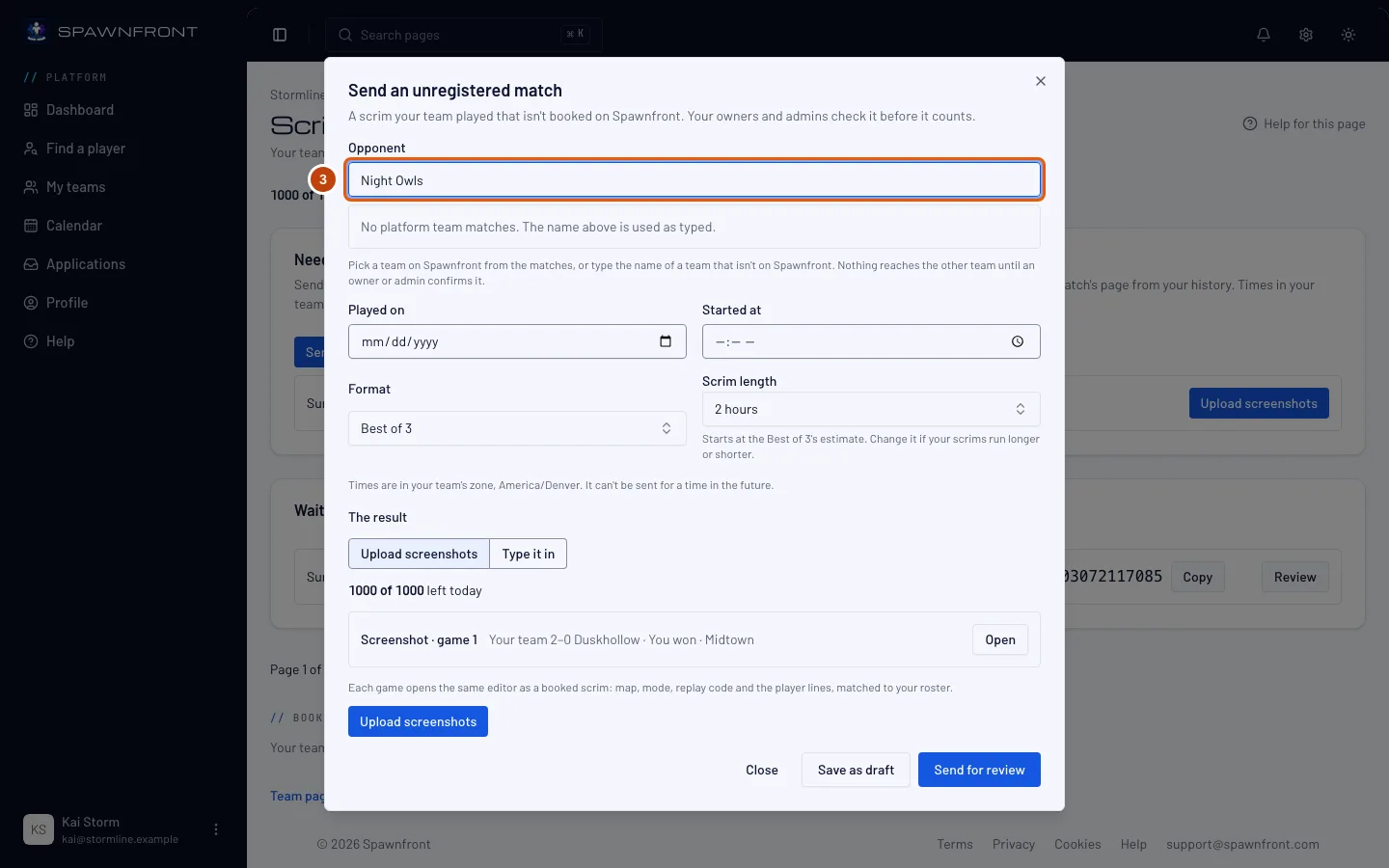
Under Opponent, type the other team's name. If the team is on Spawnfront, pick it from the teams of your game listed under the name. If it isn't, keep the name as you typed it.
You should see: the team you picked, or No platform team matches. The name above is used as typed. Nothing reaches the other team now: it hears of the match only once an owner or admin of your team confirms it.
Step 4: Say when it was played
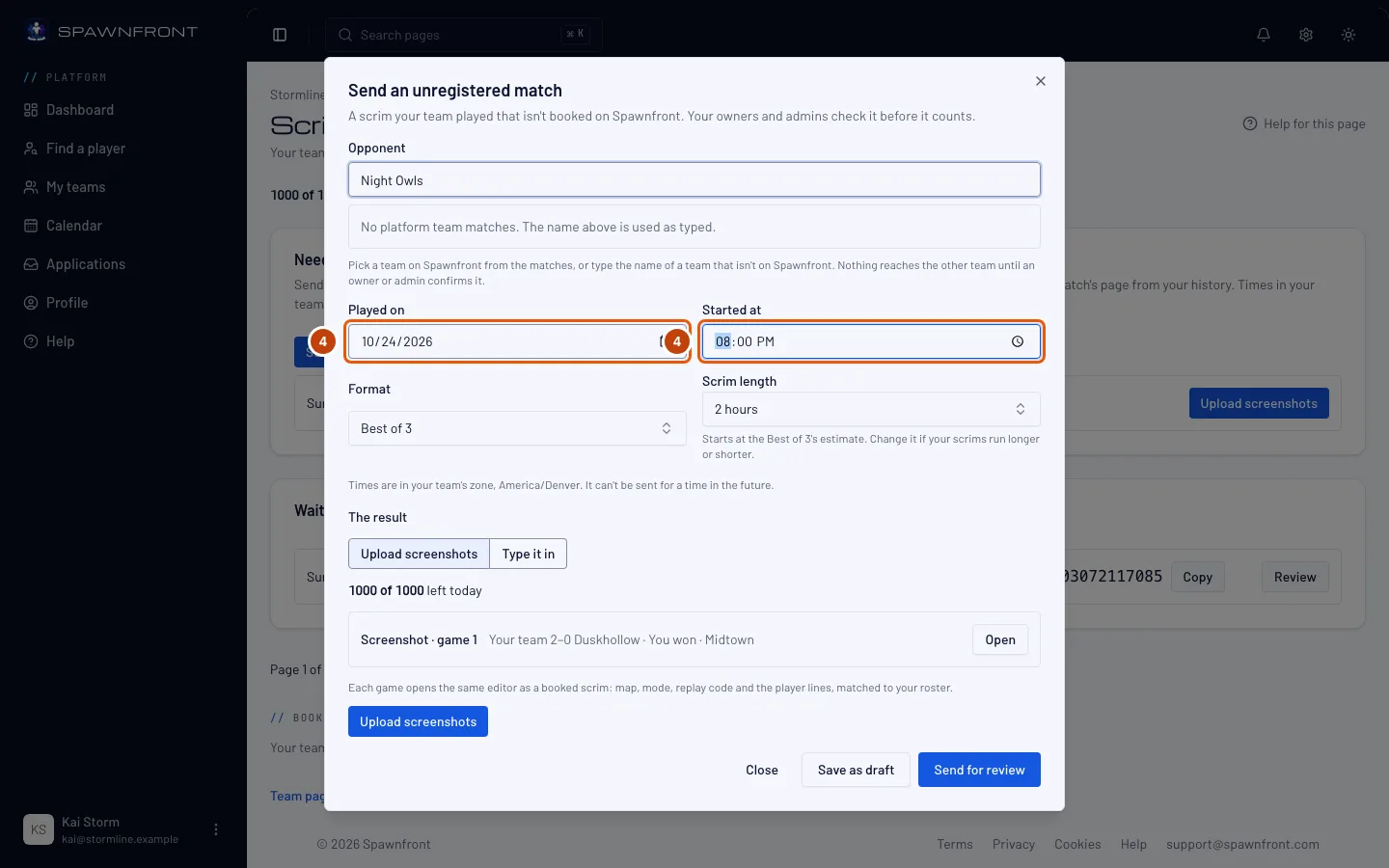
Fill in Played on and Started at. Times are in your team's time zone, which the box names under the fields.
You should see: the date and time as you typed them. A time later than now is refused: It can't be sent for a time in the future.
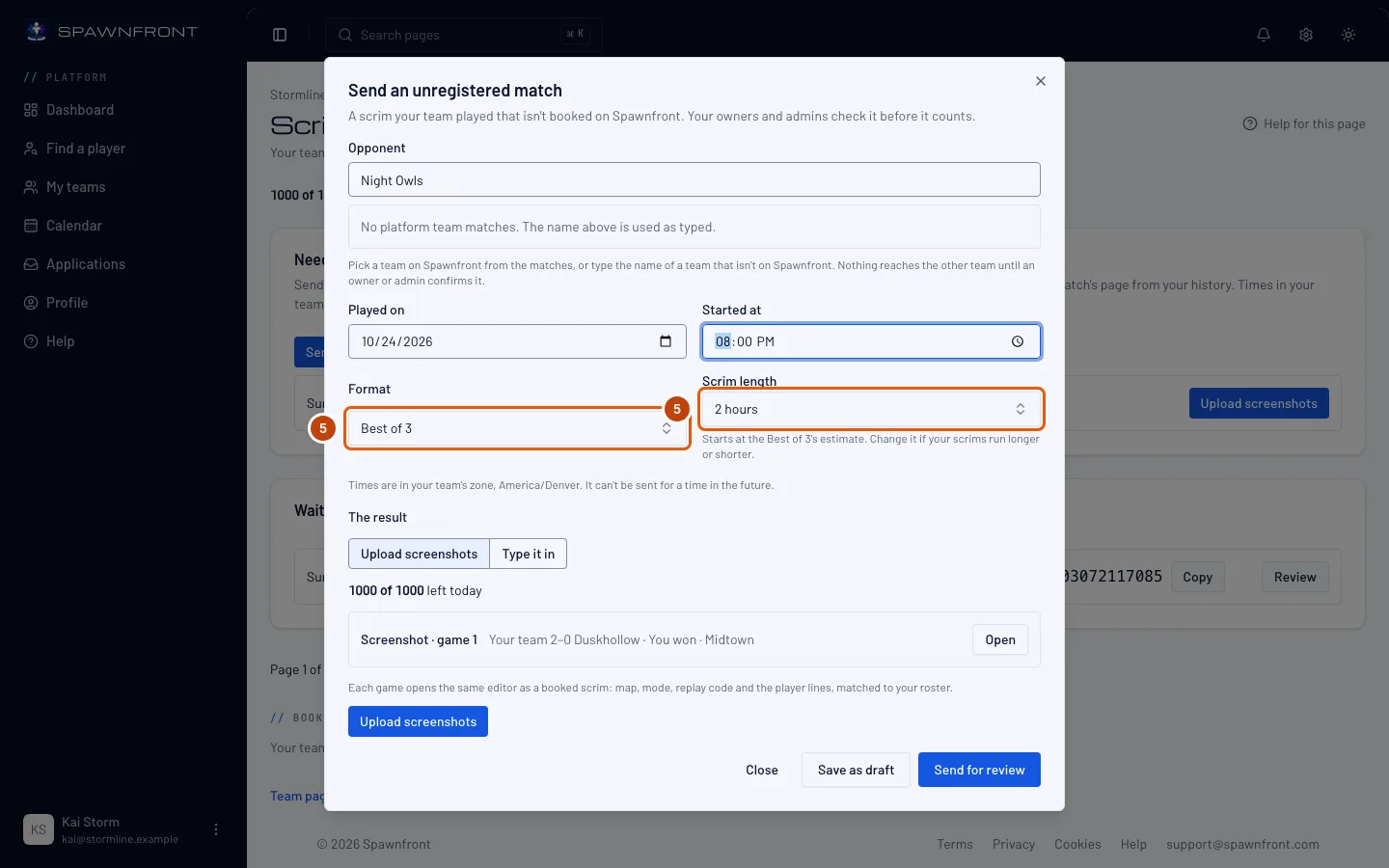
Step 5: Choose the format and the scrim length
Choose the Format, like Best of 3. Scrim length starts at that format's usual length; change it if the scrim ran longer or shorter.
You should see: the format and the length you chose.
Step 6: Add the result
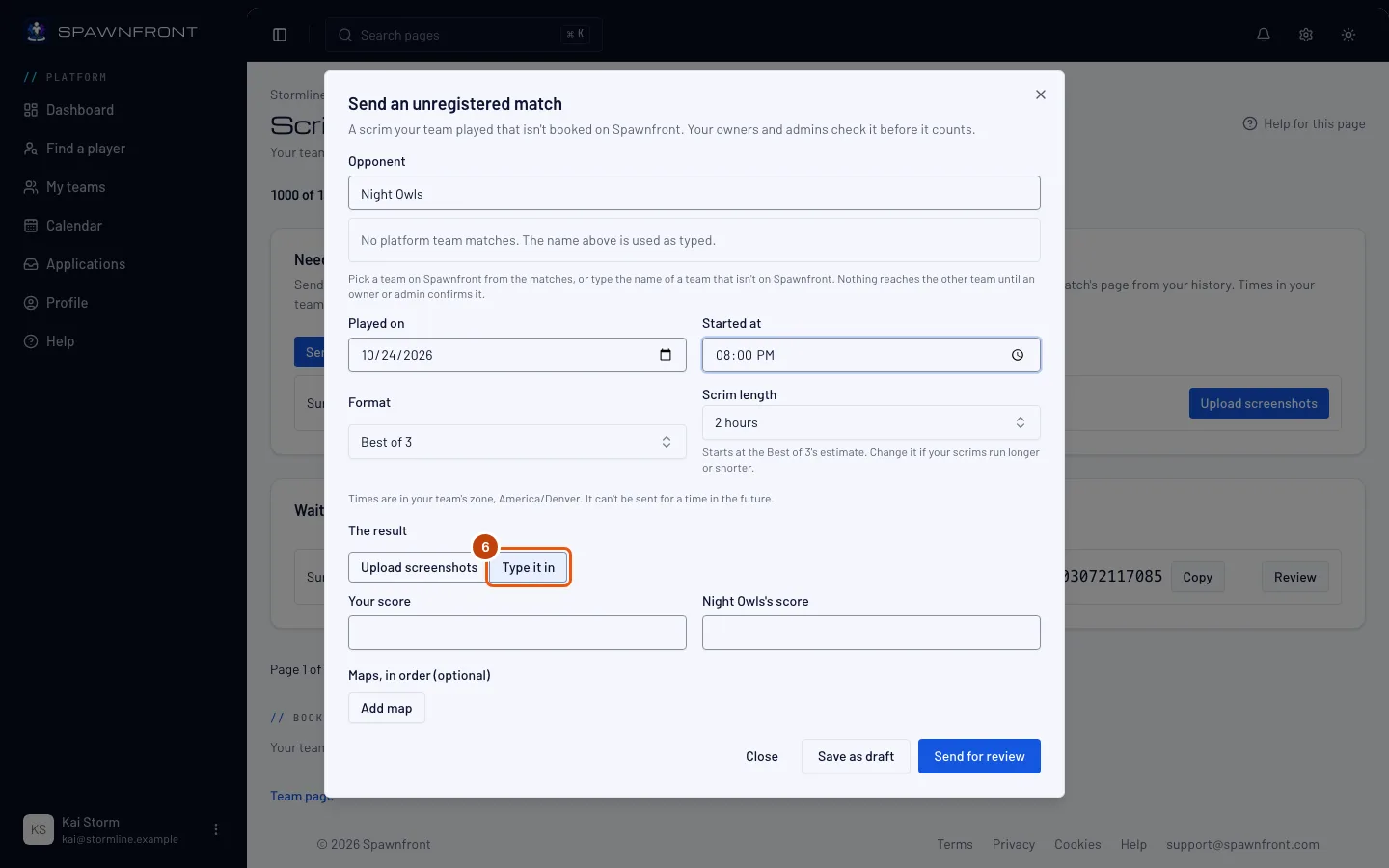
Under The result, choose one way:
- Upload screenshots — press Upload screenshots, then Choose files and choose one screenshot for each game. Spawnfront reads each one into a draft; press Check the draft, correct it as in Settle a scrim with a screenshot and press Save. Each screenshot counts toward your team's readings for the day, like any scrim screenshot.
- Type it in — fill in each game's result, the same fields as a match's result on Matches (see Record your matches).
You should see: your screenshots listed one per game, or the typed result.
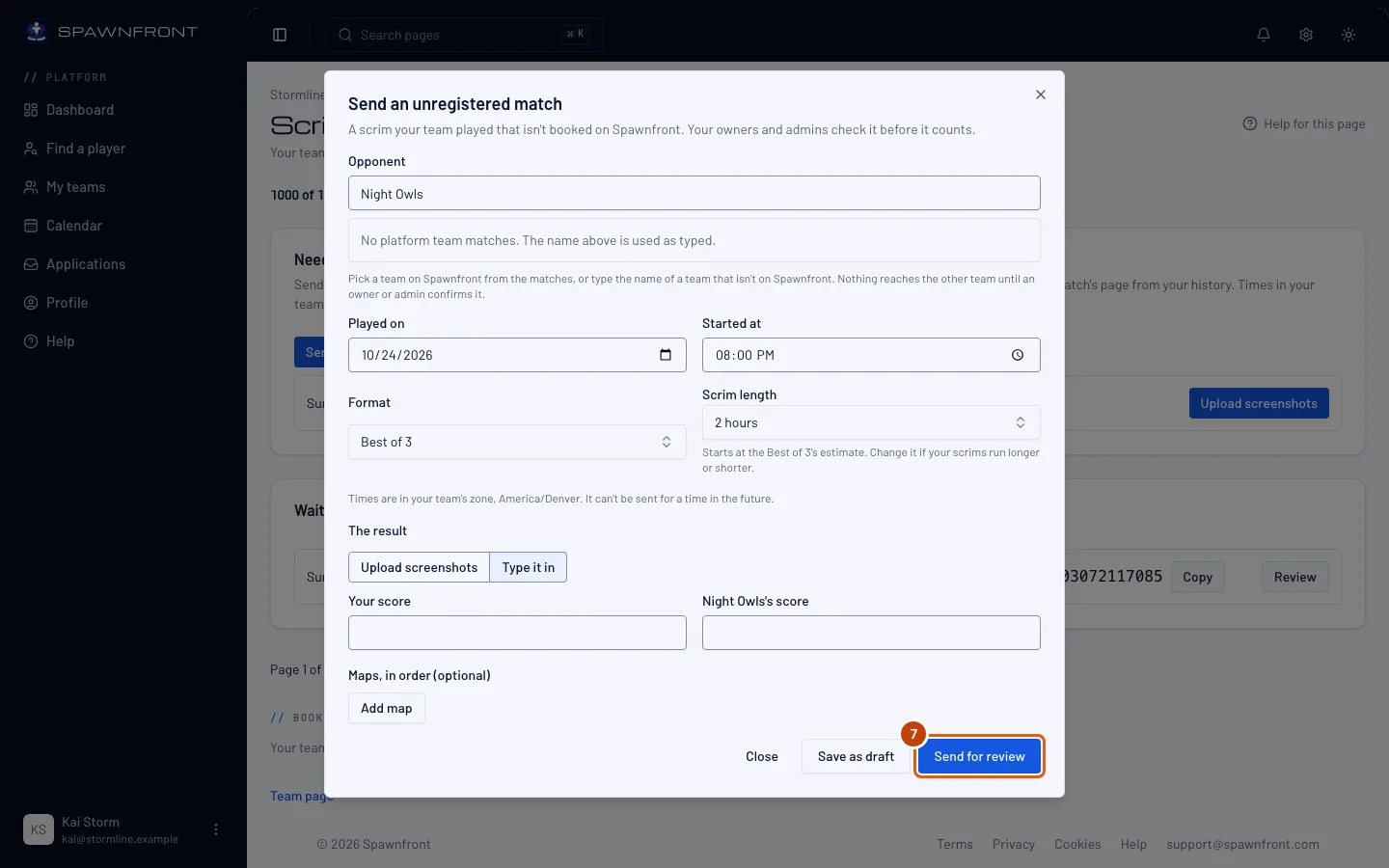
Step 7: Send it for review
Press Send for review. To finish it later, press Save as draft instead.
You should see: Sent for review (or Draft saved). Your team's owners and admins get a notification to review it.
Step 8: Follow it under Sent by you
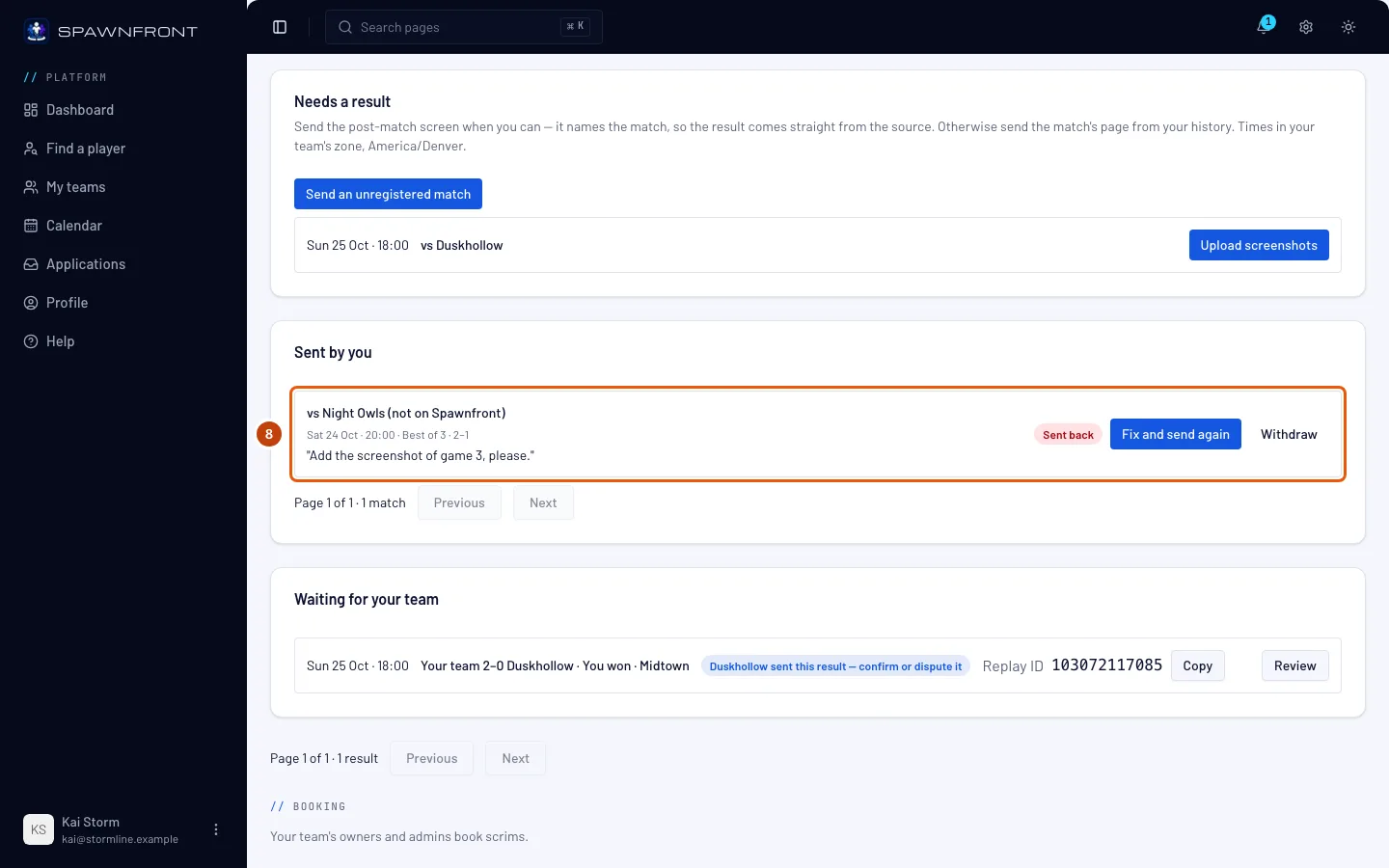
Under Sent by you, each match you sent shows its state: Draft, Waiting for review, Sent back, Confirmed, Turned down, Expired or Withdrawn. Press Continue on a draft to finish it, or Withdraw to take back one that is still open. If an owner or admin has turned off your permission to send unregistered matches, a draft or a match sent back shows a line saying you can't send right now instead of Continue or Fix and send again: withdraw it, or ask an owner or admin.
You should see: a notification each time an owner or admin decides. Once it reads Confirmed, the match is on your team's Matches like any registered match.
A match nobody reviews closes after 14 days and reads Expired. So does a draft you never send.
Step 9: Fix a match that was sent back
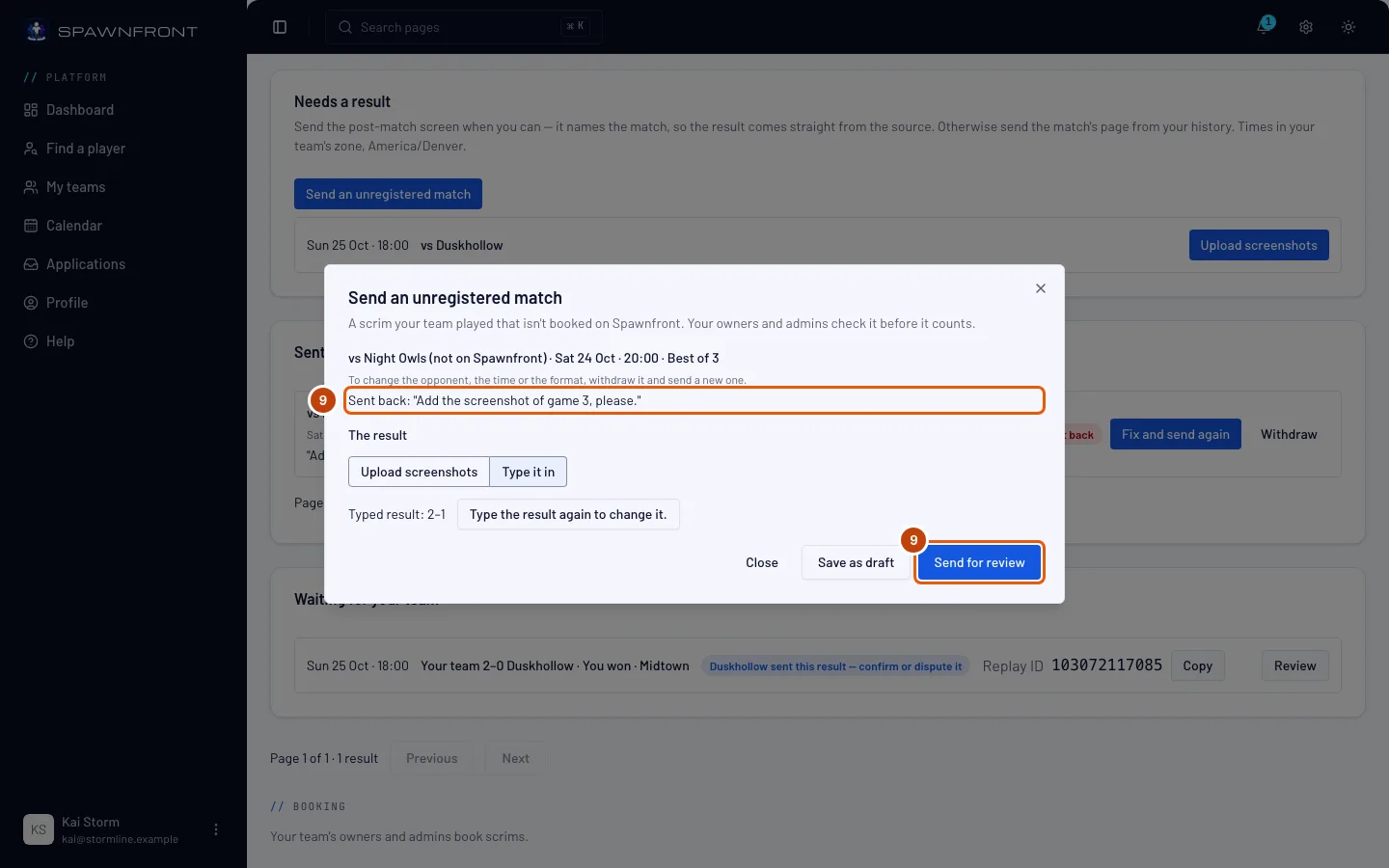
When an owner or admin sends it back, its row reads Sent back with their note in quotes. Press Fix and send again, change what the note asks — add a screenshot, or press Type the result again to change it. — then press Send for review.
You should see: the row reading Waiting for review again.
How to know it worked
- Your match reads Waiting for review under Sent by you, and once confirmed it shows on your team's Matches.
Send it from Discord. In a Discord server your team is linked to, type /scrim result and attach the screenshots. When your team has no booked scrim waiting for a result, the answer — only you see it — offers Send as an unregistered match and Cancel. Press Send as an unregistered match and fill in the box: Opponent's team name (when exactly one team of your game on Spawnfront has that name — capitals don't matter — the match is against that team; otherwise the name is kept as typed), Played on (your team's time) and Time (24-hour, your team's time zone), like 20:00. The format follows how many screenshots you attached: one is a best of 1, two or three a best of 3, four or five a best of 5, more a best of 7. Spawnfront reads the screenshots and sends the match for review at once; the answer reads Sent for review, with Results on Scrimmages. If none of the screenshots could be read, the match waits as a draft under Sent by you: add the result there and send it.
Until an owner or admin confirms it, the match is your team's alone. You see your own, your team's owners and admins see every one, and the other team sees nothing. Once confirmed, a match against a team on Spawnfront reaches that team, which confirms or disputes the result like any scrim's. An unregistered match never counts on the ladder.
Something doesn't look right?
There is no Send an unregistered match button
Your team's owners and admins turned off Send unregistered matches for you. Ask one of them to turn it on for you (see Set scrim permissions), or to send the match themselves.
It says 'It can't be sent for a time in the future.'
The date and time you typed are later than now in your team's time zone, which can differ from yours. Check Played on and Started at against the zone the box names.
It says to send a match played in the last 30 days
The answer reads Send a match played in the last 30 days. Only a scrim played in the last 30 days can be sent as an unregistered match.
It says to add the result first
The answer reads Add the result first: type the score or upload a screenshot. A match is sent for review only with a result. Add a screenshot, or choose Type it in and fill it in. Save as draft keeps it without one.
I picked the wrong opponent, time or format
They can't be changed once the match is saved. Press Withdraw on it under Sent by you, then send a new one.
My match reads Expired
Nobody reviewed it within 14 days, or you left it as a draft for 14 days. Send it again with Send an unregistered match if it was played in the last 30 days, and tell an owner or admin it is waiting.
/scrim result says only owners and admins, and the members they let send unregistered matches, can send one
The answer reads Only a team's owners and admins, and the members they let send unregistered matches, can send one. Your team turned off Send unregistered matches for you, or you aren't on the team linked to this server. Ask an owner or admin.
/scrim result says those screenshots aren't waiting anymore
The answer reads Those screenshots aren't waiting anymore. Send them with /scrim result again. The box was opened too late, or those screenshots were already sent or cancelled. Send /scrim result with the screenshots again.
Related articles
Still stuck? Contact support or email support@spawnfront.com — tell us the page you're on and the step number.