
Publish your site
See what will go live, pass the checks, preview your draft, publish — or take your site offline.
For team owners and admins · 6 steps
What you need first
- Your team has a site subscription, and you have chosen a template.
- You are the team's owner or an admin.
- Everything you save in your admin is a draft. Your pages, news, roster, store picks and look reach visitors only when you publish, all together.
Steps
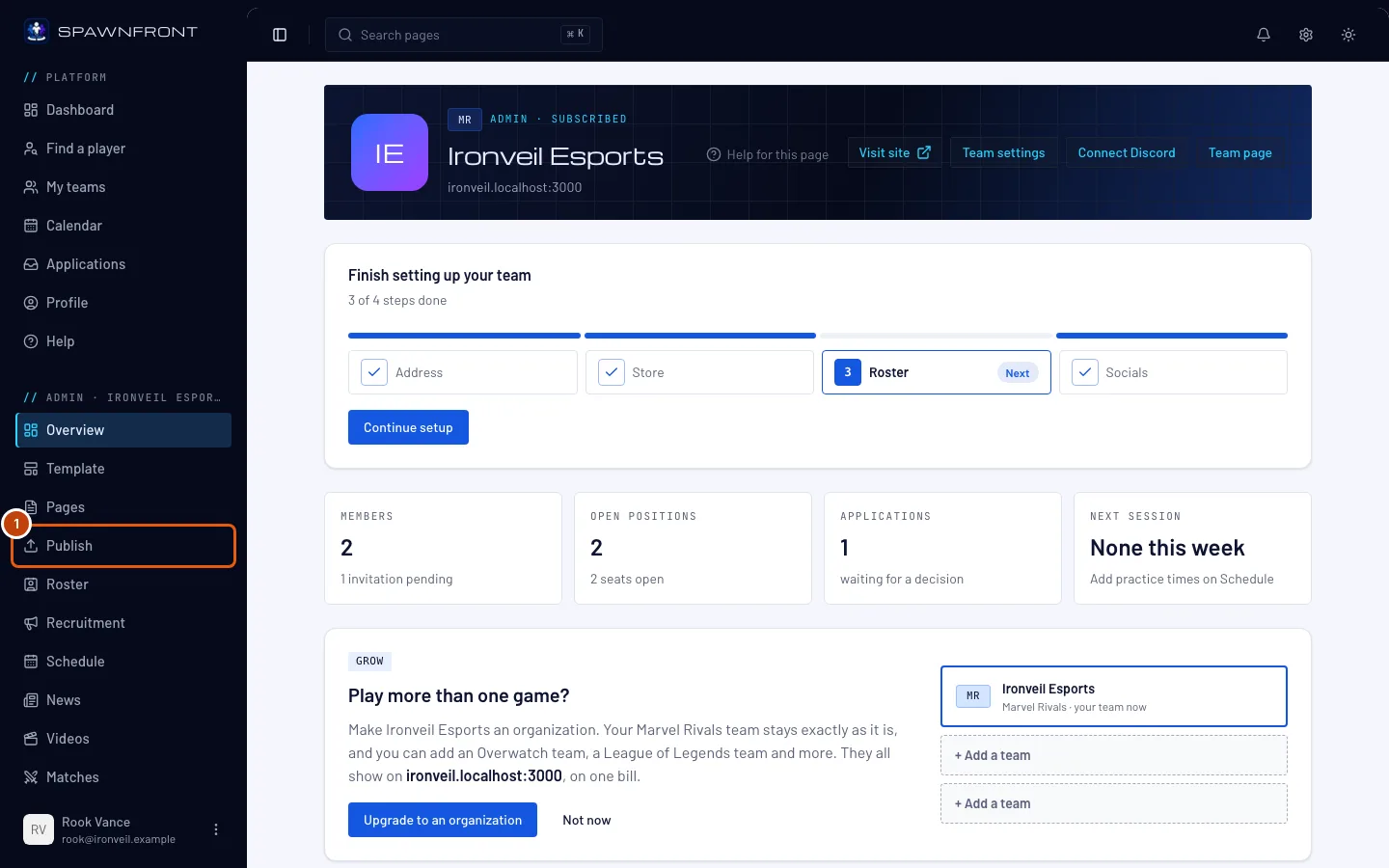
Step 1: Open Publish
In the menu on the left, press Publish.
You should see: a page titled Publish. Under Status it says when your site was last published and by whom — or Never published.
Step 2: See what will go live
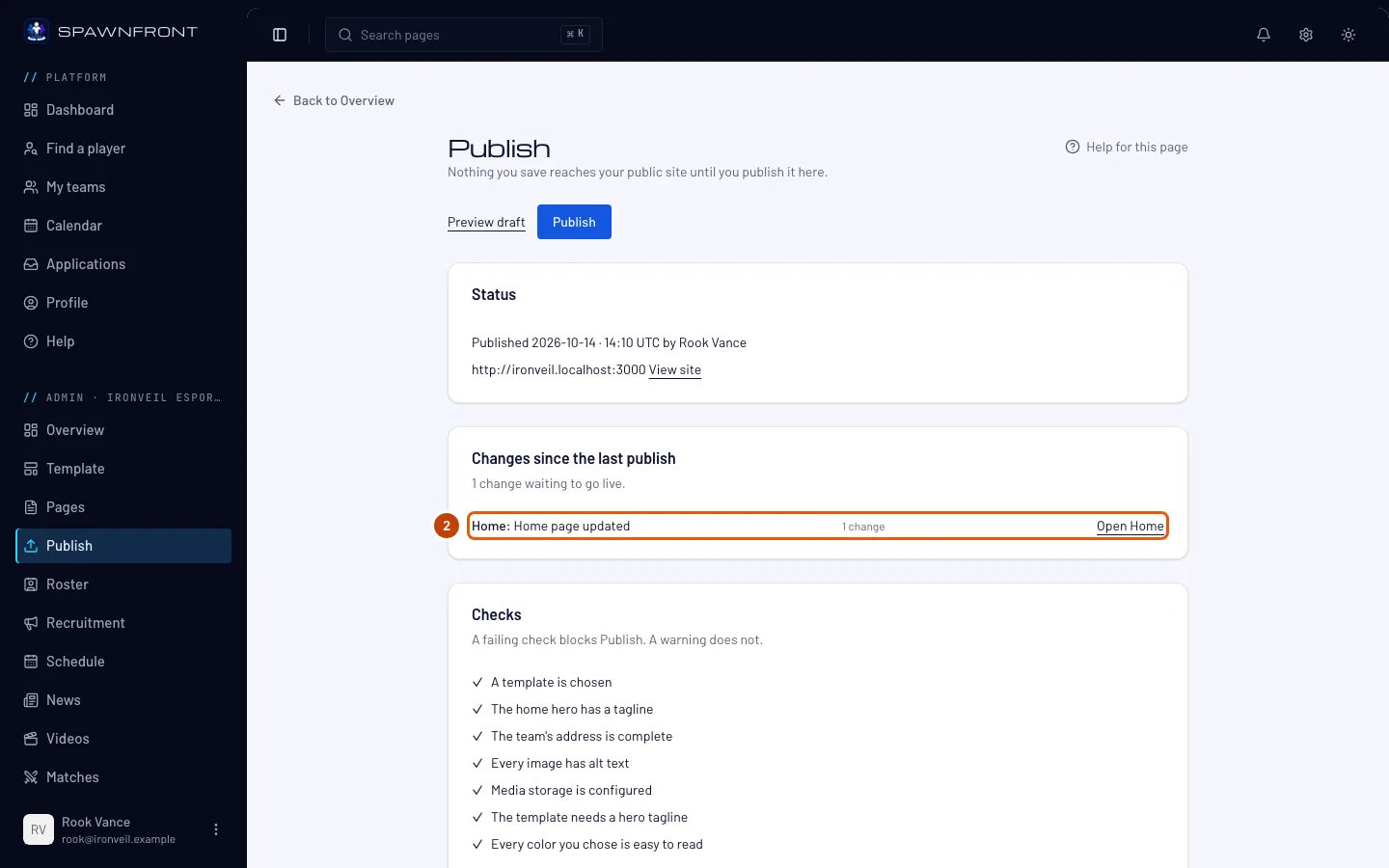
Read the list under Changes since the last publish. Each line names a part of your site you changed, how many changes it has, and a link to open it.
You should see: the changes you expect. Everything is live means there is nothing new to publish.
Step 3: Read the checks
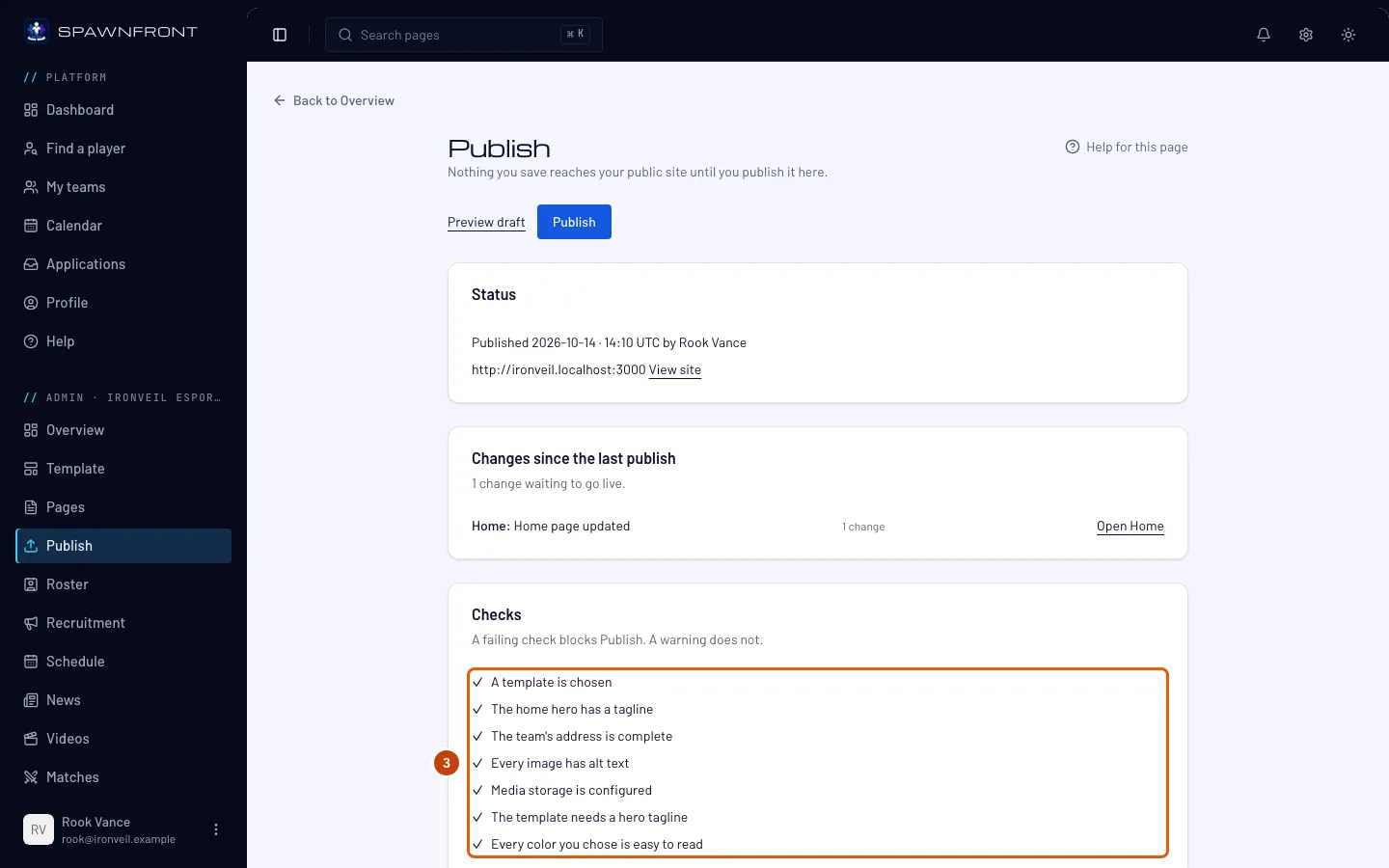
Look at the list under Checks. Each check has a ✓ when it passes and a ✗ when it fails; a failing check has Fix this beside it, which opens the page that fixes it — or Ask Spawnfront support when only Spawnfront can fix it. A ! is a warning: Every color you chose is easy to read gets one when a color you picked is hard to read, and its Fix this opens Appearance.
A failing check blocks Publish. A warning does not — your visitors see a readable shade of that color instead. Fix every ✗ first.
Step 4: Preview your draft
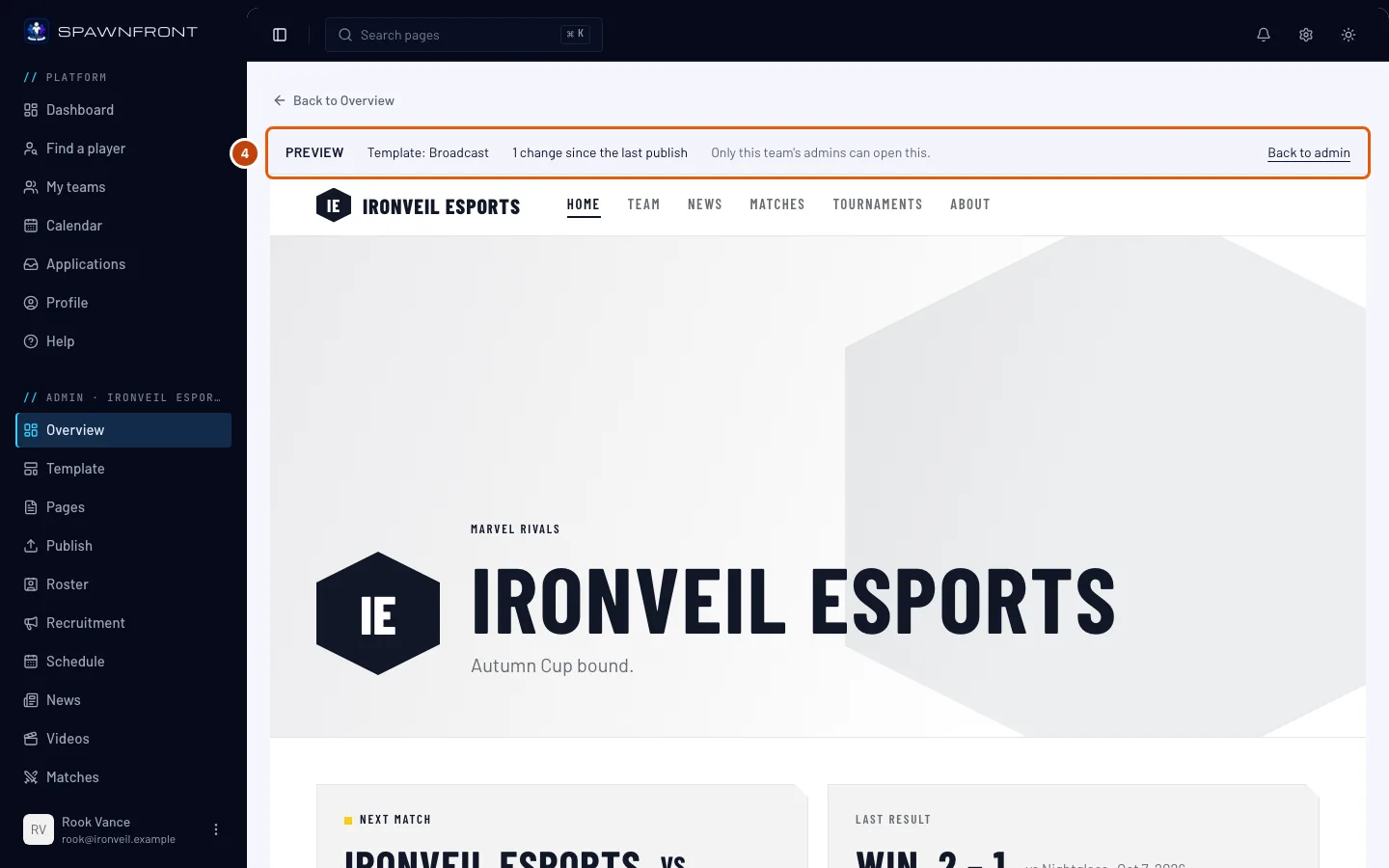
Press Preview draft. Press the menu links inside the preview to look at every page, then go back to the Publish page.
You should see: your site exactly as it will look once published, under a bar that reads Preview and "Only this team's admins can open this." Visitors can't open this address.
Step 5: Publish
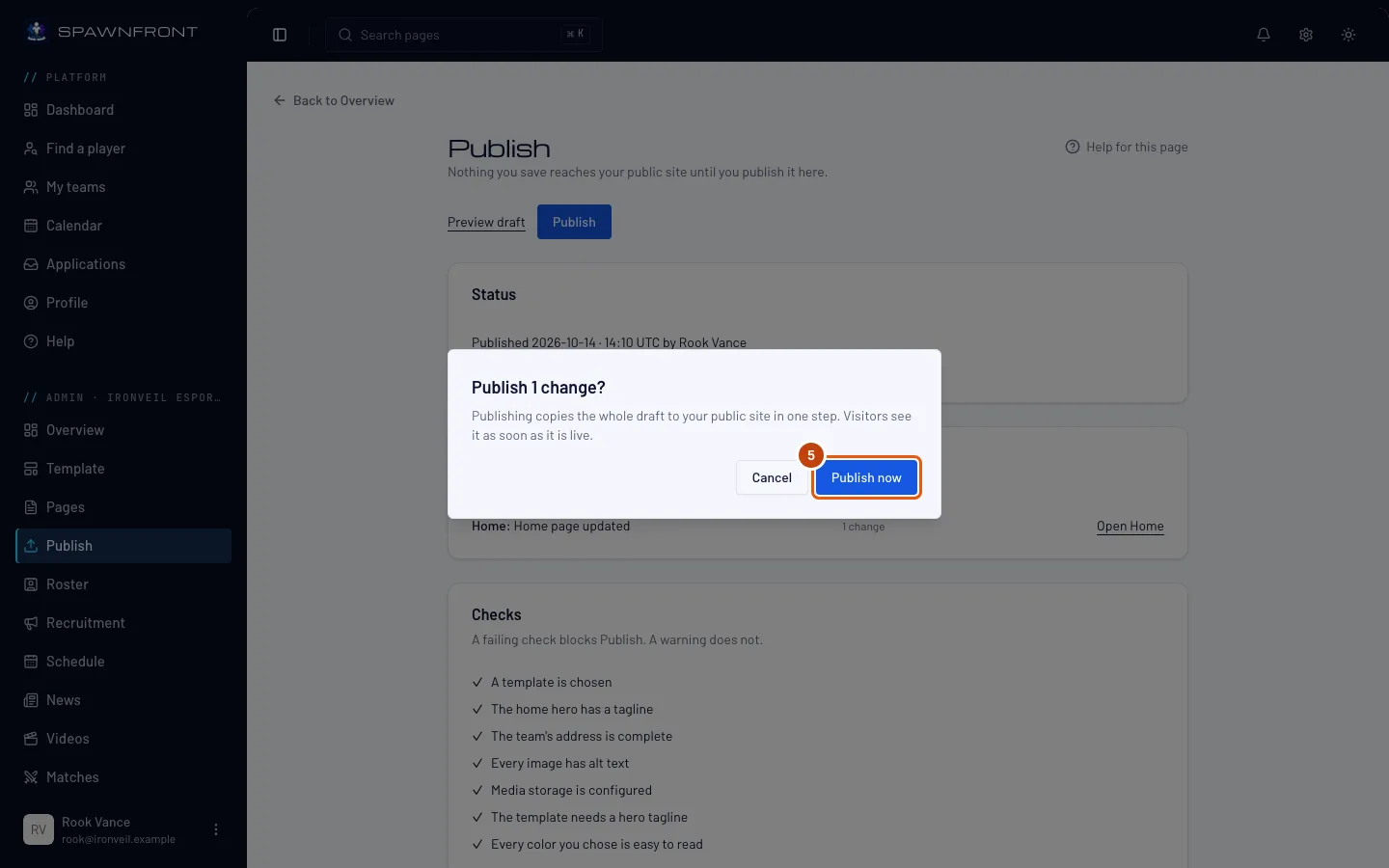
Press Publish, then Publish now in the box that opens. If you took your site offline before, the button reads Publish and go live.
Publishing copies your whole draft to your site in one step — every saved change goes live together. While your site is live and nothing has changed since, the button is grayed out.
You should see: "Live — published just now", and Everything is live under the changes.
Step 6: Take your site offline
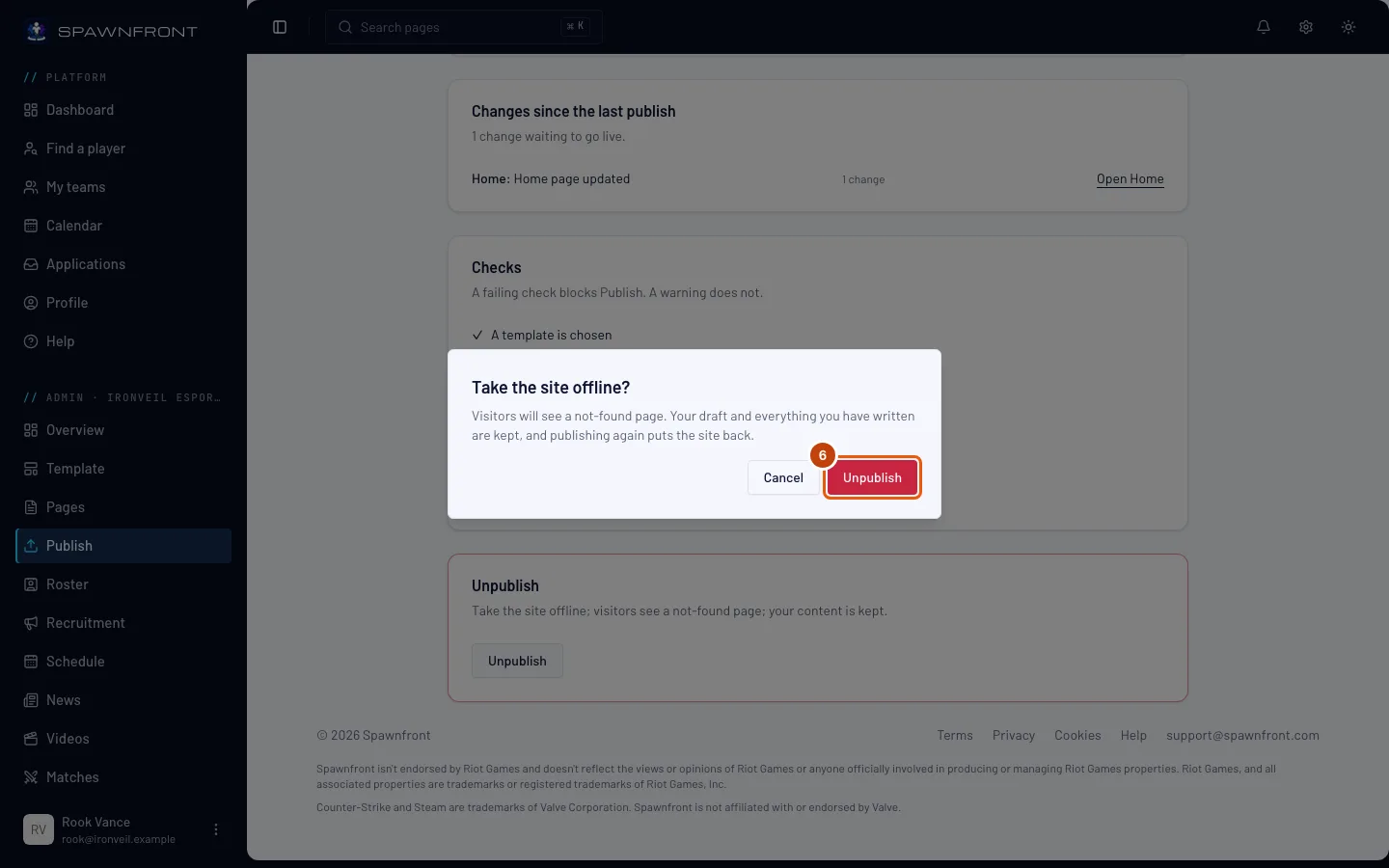
Only if you want your site gone for now: press Unpublish at the bottom of the page, then Unpublish in the box that opens.
Visitors then see a not-found page. Your draft and everything you wrote are kept, and pressing Publish and go live puts your site back.
How to know it worked
- Status reads Published with today's date and your name.
- Your site's address is shown under it; press View site and your changes are there.
Something doesn't look right?
Publish is grayed out
Either your site is live with nothing new to publish (the changes list says Everything is live), or a check fails — the Checks list shows it with a ✗. A hold from Spawnfront, or a subscription that has ended, grays it out too.
I saved my changes but my site hasn't changed
Saving keeps changes in your draft. Open Publish and publish them (step 5).
It says "Another admin published first"
Someone else on your team published while you had the page open. The page now shows their publish; check the changes list again and publish if anything is left.
It says "Taken offline by Spawnfront"
Spawnfront has put a hold on your site, with the reason under it. You can keep editing your draft; publishing works again once the hold is lifted. Press Contact support on the card to write to Spawnfront's support — your team and the Publish page go with your message — or write to the support address beside it.
My site shows a not-found page
Your site was unpublished. Open Publish and press Publish and go live.
Related articles
Still stuck? Contact support or email support@spawnfront.com — tell us the page you're on and the step number.