
Find a scrimmage
Get listed in the scrimmage finder, find teams whose hours overlap yours, send a request and answer the ones you receive.
For team owners and admins · 5 steps
What you need first
- Any team can use the finder, free or with a site, and can ask any team looking for scrims in its game.
- You are the team's owner or an admin. A member your team lets book scrims does the same from the team's Scrims page — see Book scrims for your team.
- Your team's hours are saved on the Availability page — see Set when you can scrim. Without them the finder can't match overlapping hours.
Steps
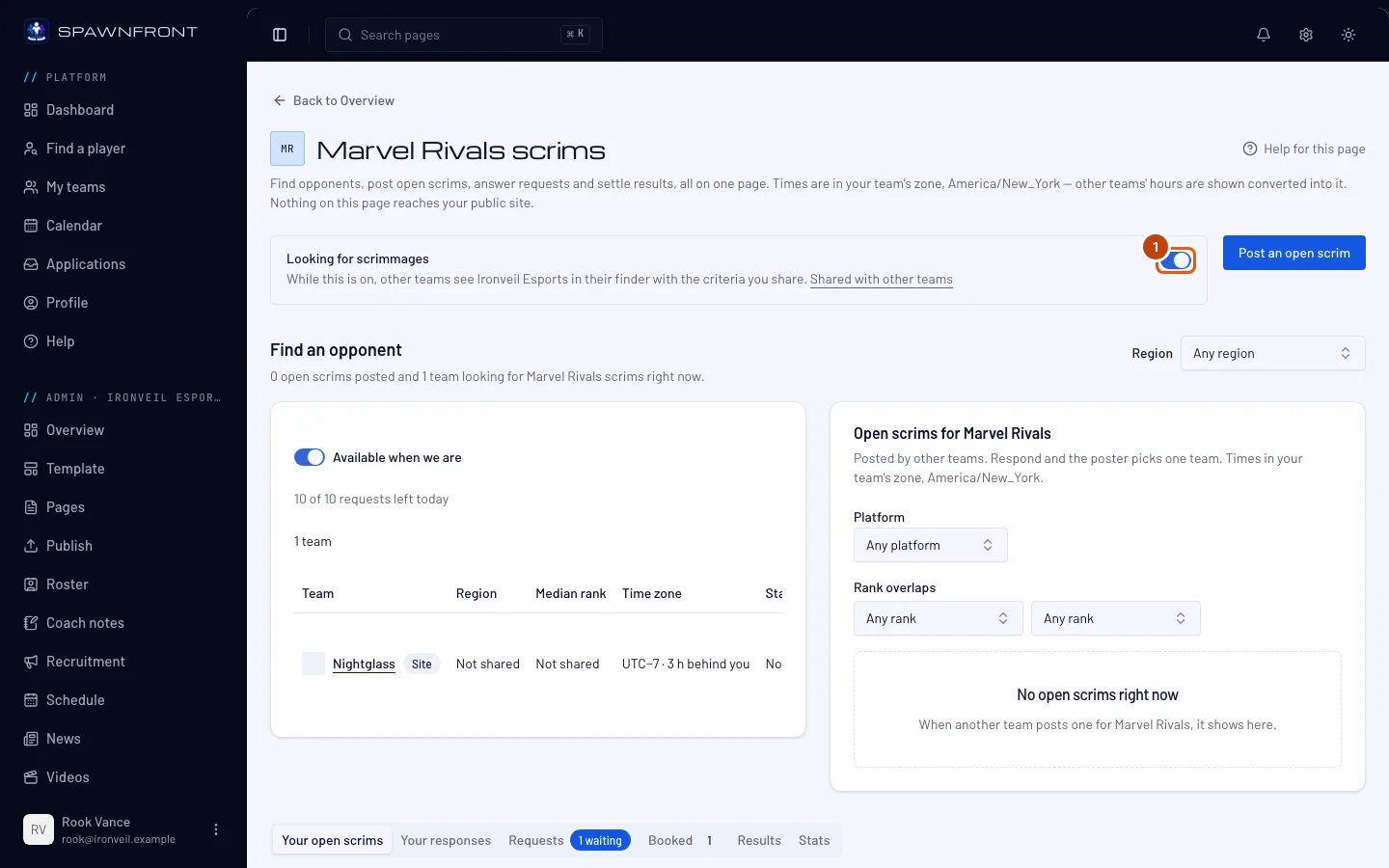
Step 1: Turn on Looking for scrimmages
In your team's admin, press Scrimmages in the sidebar, then turn on Looking for scrimmages at the top of the page. The page is titled with your team's game, like Marvel Rivals scrims; if you run teams in other games, switch with Game beside the title.
Other teams find you only while this is on. Turning it off takes you out of their finder and expires every request still waiting for your answer.
You should see: "You're listed in the finder".
Step 2: Find a team that plays when you do
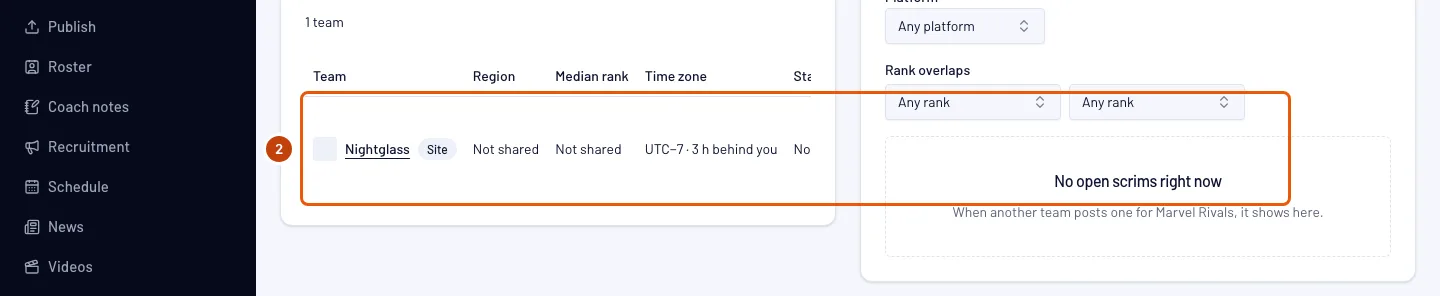
Under Find an opponent, the finder sits beside other teams' open scrims (see Find and post open scrims). In the finder, keep Available when we are on. The Region above both lists starts on the region your team shares; choose another, or Any region, to change both lists at once. The finder also says how many requests your team has left today.
You should see: the teams looking for scrimmages whose hours overlap yours in the next seven days. The hours you share are marked ●, and every time is in your team's zone. A team that is part of an organization shows as Organization · Team — for example Blades · Team 2. Two teams of one organization can scrim each other, so your organization's other teams can show in the list too. Teams with a site are listed first, with a Site badge.
Step 3: Send a request
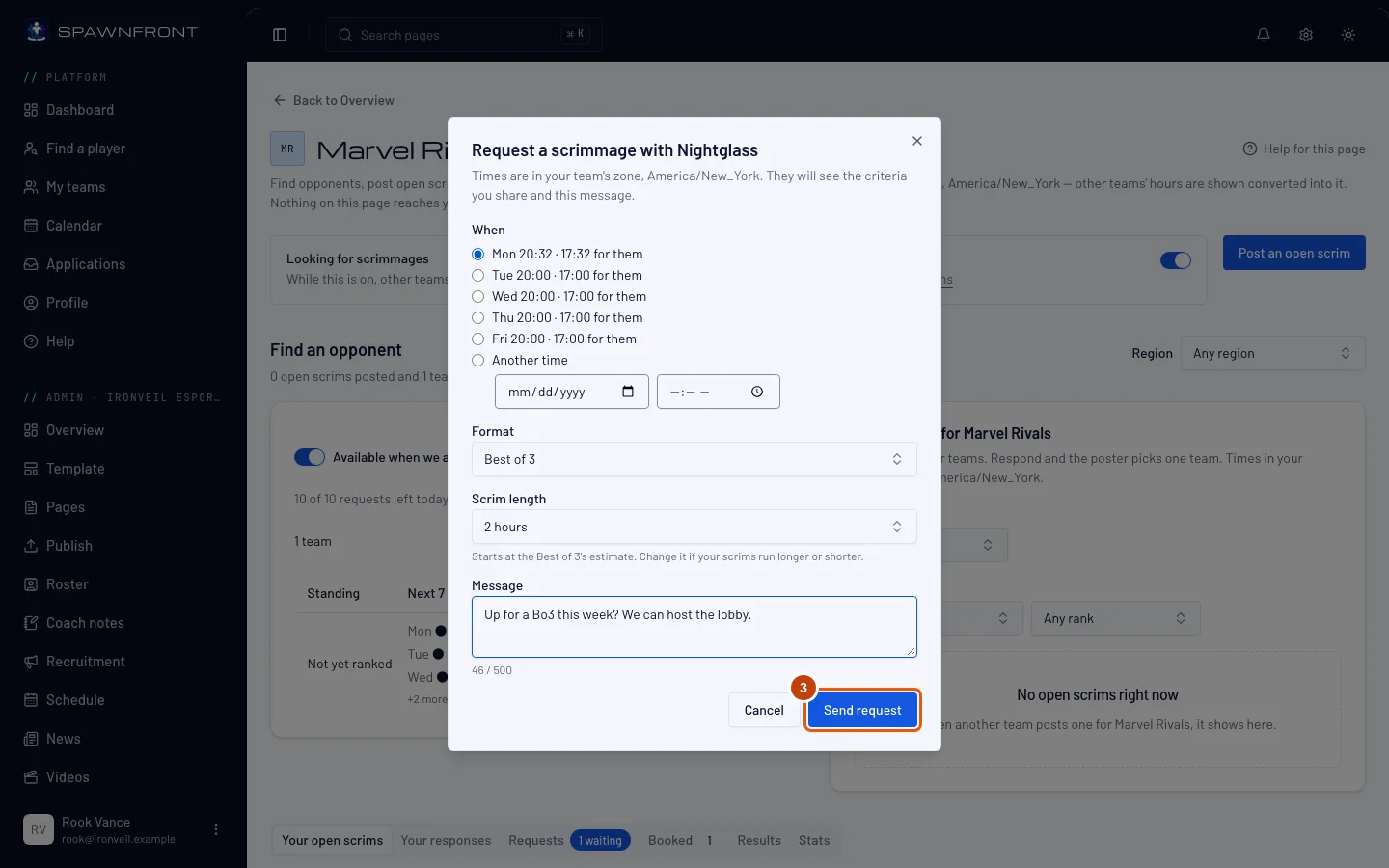
Press Request a scrimmage on the team's row. In the box that opens, pick a time under When (or Another time), choose the Format and the Scrim length (it starts at the format's estimate), write a Message if you want, then press Send request.
A format can be a block. Besides the best-ofs, Format offers Block of 2 games up to Block of 5 games — a practice block where every game is played and a tie is a draw. For a Valorant block you can also switch on All rounds: every map plays all 24 rounds. A League of Legends team can also switch on Fearless draft: a champion picked in one game cannot be picked again later in the series. The other team sees both before they accept.
The other team sees the criteria you share and your message. A request waits up to three days for an answer — less if the time you proposed comes sooner — and a free team can send five a day, a team with a site ten (the count resets at midnight UTC).
You should see: "Request sent", and the row's button now reads Pending.
Step 4: Open your requests
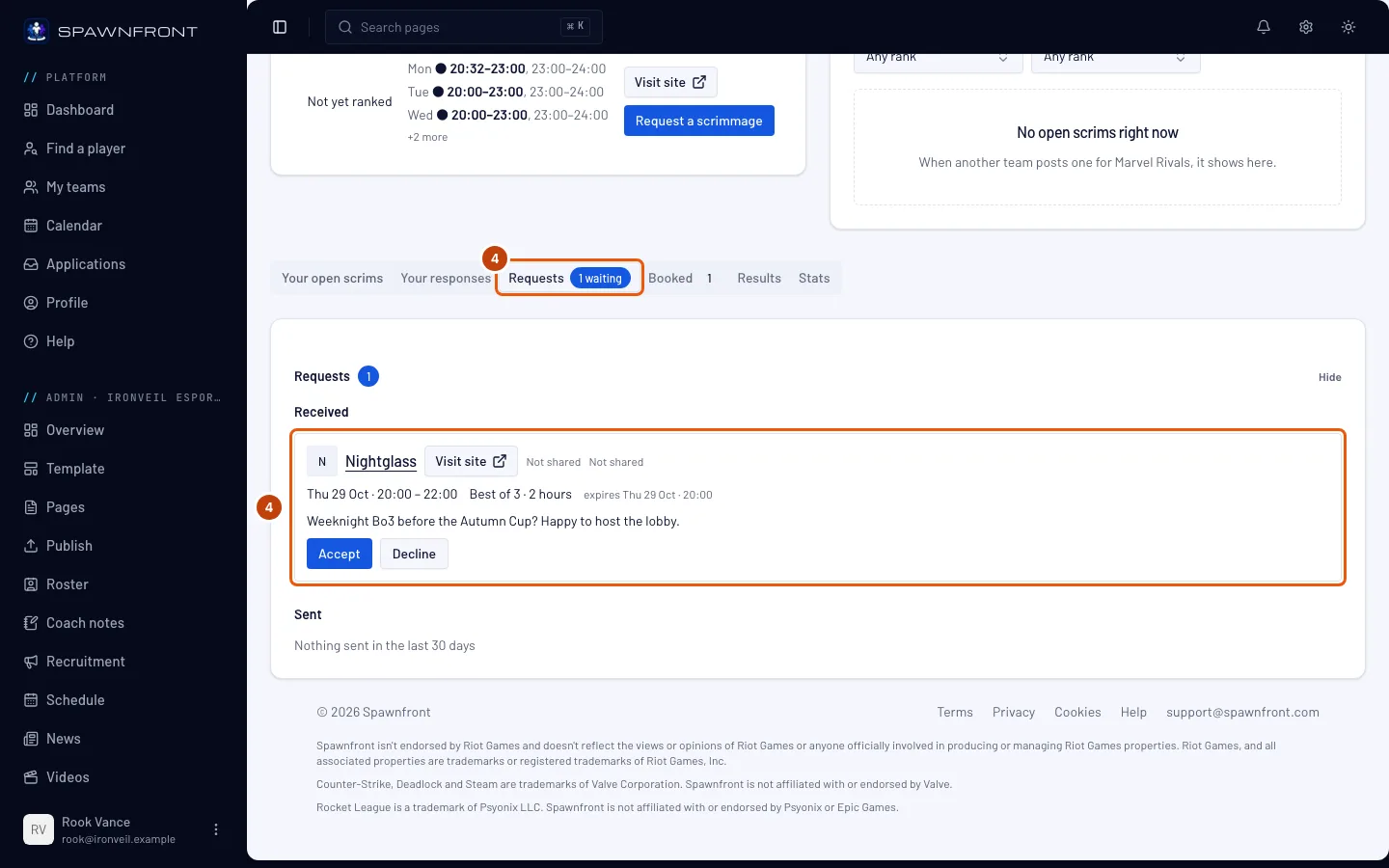
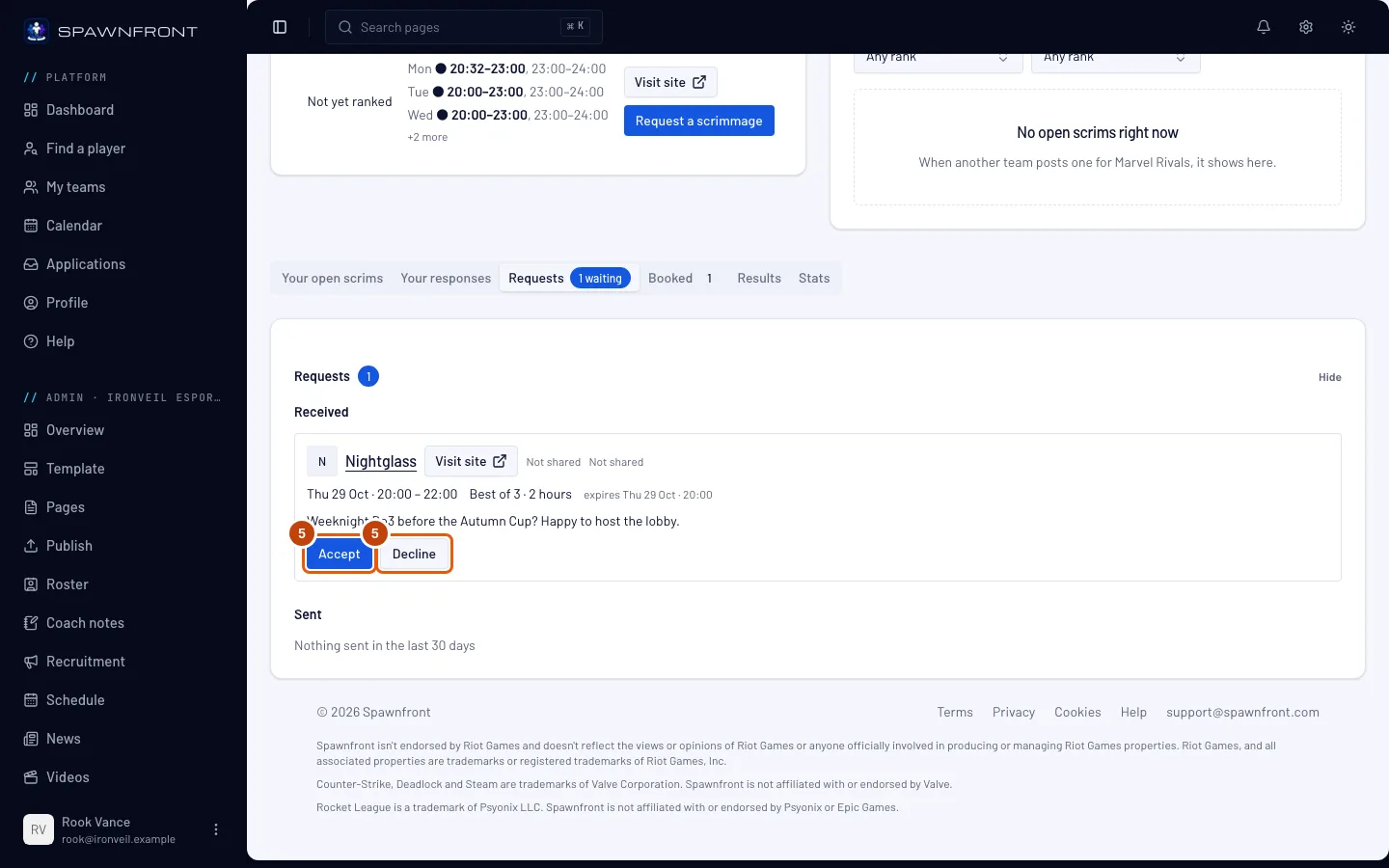
Under the finder, press the Requests tab. The number on it counts the requests waiting for your answer. Then press Requests to open the card.
You should see: Received — the requests other teams sent you, with the proposed time, the format and when each expires — and Sent, your own requests from the last 30 days with their status.
Step 5: Accept or decline
On a received request, press Accept, or Decline — write a reason if you want, then press Send decline (or Keep it waiting to change your mind).
Accepting puts the scrimmage on both teams' Matches pages at once.
You should see: "Scrimmage registered on Matches", with a View on Matches link — or "Request declined". An accepted scrimmage is also listed on the Booked tab, where you can cancel it.
How to know it worked
- The switch Looking for scrimmages is on.
- A request you sent shows under Sent in Requests, and you can press Withdraw while it waits.
- An accepted scrimmage is on your Matches page.
A request reaches the bell. When another team asks you for a scrimmage, each of your owners and admins gets a notice as it arrives, with the proposed time in UTC — open it to come to your Scrimmages page. A request you send reaches the other team's admins the same way. See Your notifications.
Something doesn't look right?
The finder says 'No flagged team is available in these hours'
No team looking for scrimmages overlaps your hours this week. Press Show all flagged teams to see every team that is looking, or turn Available when we are off and search a day and hour range instead.
Request a scrimmage is grayed out
It reads Pending when you already have a request waiting with that team — one at a time. It is also grayed out once your team has sent its requests for the UTC day: five on a free team, ten on a team with a site. To send up to ten a day, see Get a site for your team.
Available when we are is grayed out
Your team has no hours saved. Add them on the Availability page, then come back.
Send request says 'Propose a time at least 30 minutes ahead'
The time you picked is too soon. Pick a later slot under When, or a time at least 30 minutes away (and within the next 30 days) under Another time.
Related articles
Still stuck? Contact support or email support@spawnfront.com — tell us the page you're on and the step number.