
Schedule a stream
Set when your Twitch stream goes live so your site counts down to it and plays it at the top of your home page — or go live now.
For team owners and admins · 9 steps
What you need first
- Your team has a site subscription, or it is one of an organization's teams and the organization has the Organization plan.
- You are the team's owner or an admin (an organization's owner and admins can do this for any of its teams).
- You stream on Twitch. Your site plays your Twitch channel; the video never leaves Twitch.
Steps
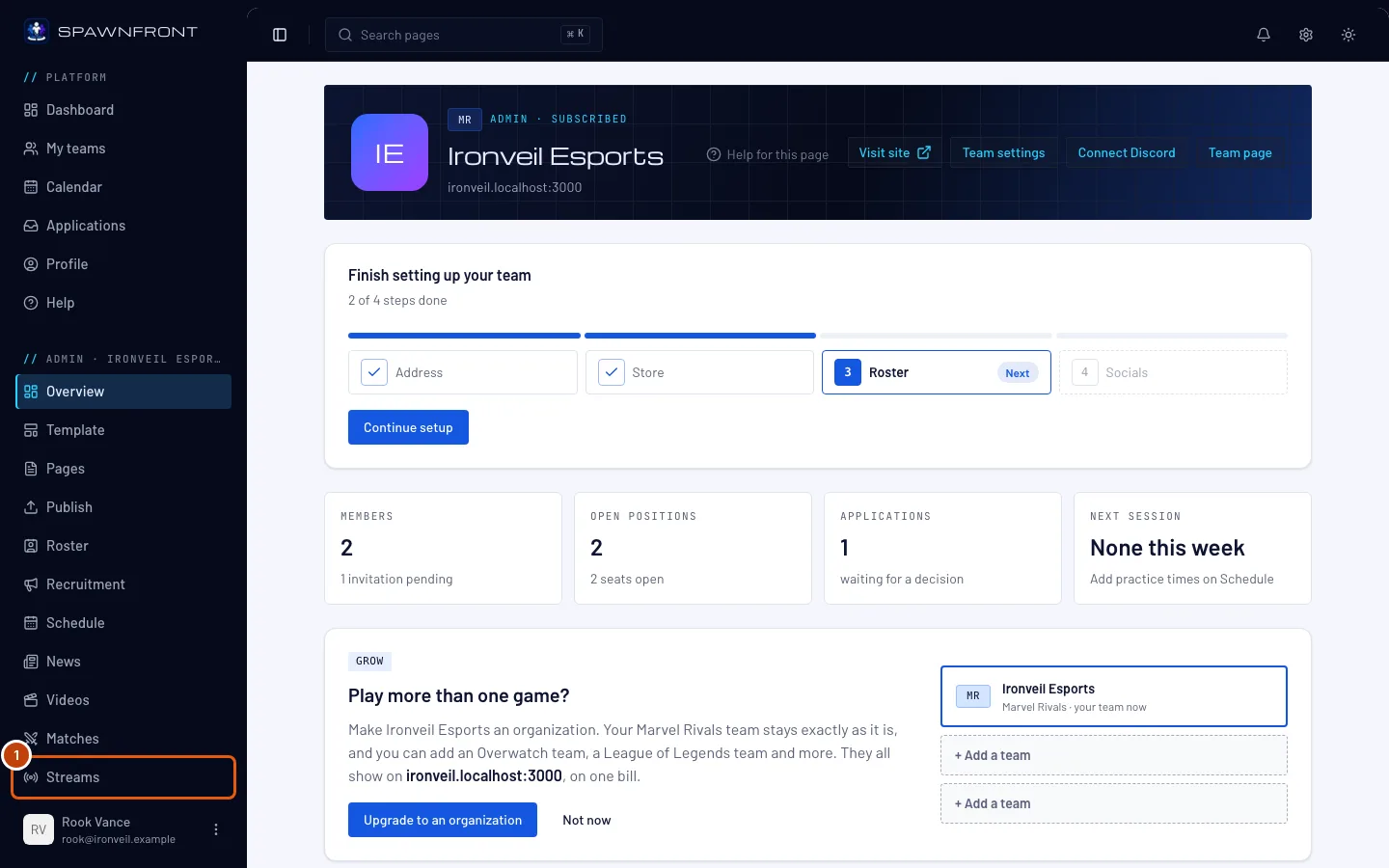
Step 1: Open Streams
In your team's admin menu, under your site, press Streams. A team in an organization is listed in the menu on the left under the organization's name.
You should see: the Streams page, with Up next and either a Channel card naming your Twitch channel or a card asking you to Add your Twitch channel. Past streams appears once a stream has ended.
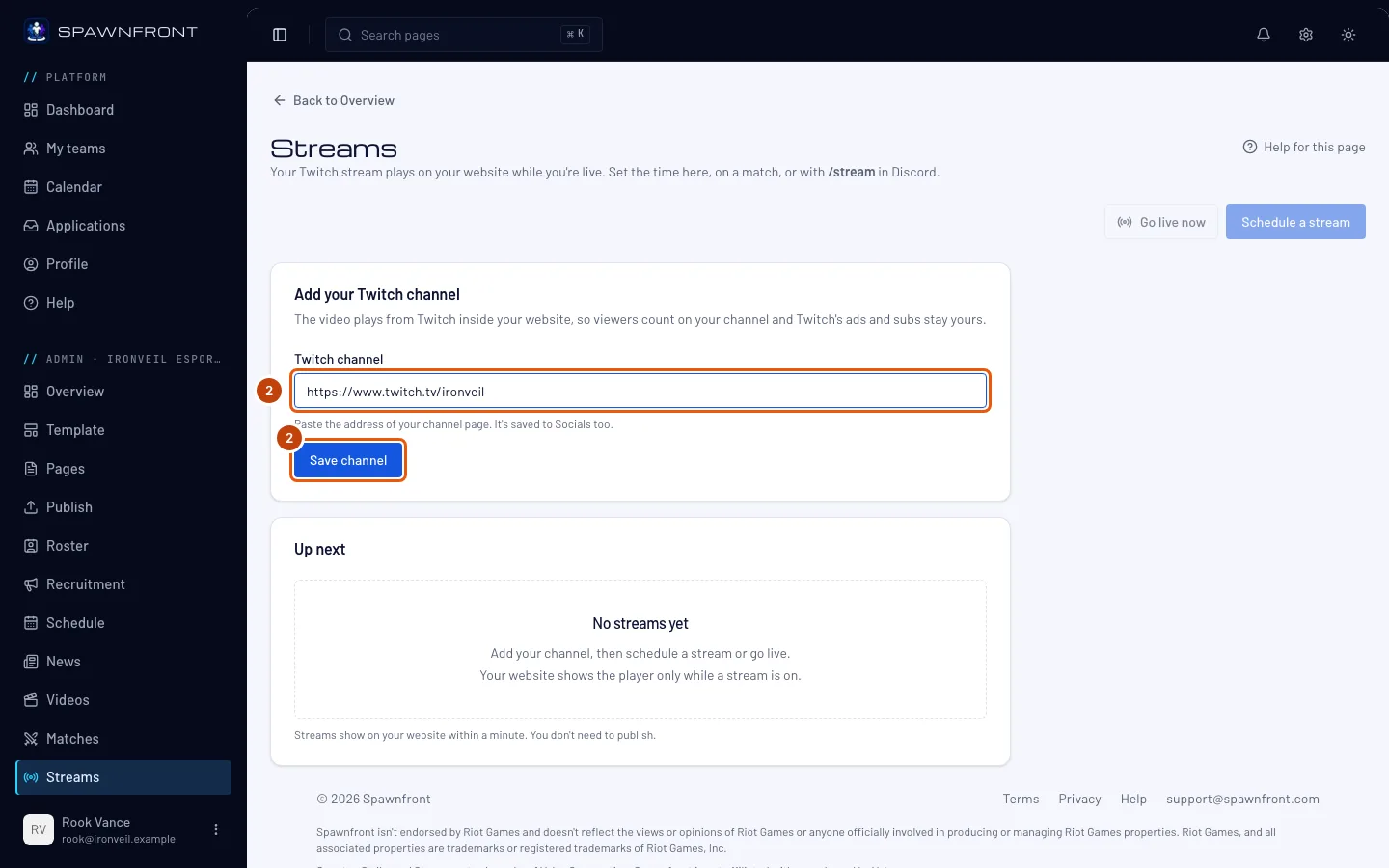
Step 2: Add your Twitch channel
If the page shows Add your Twitch channel, paste your channel's address — for example
https://www.twitch.tv/yourchannel— into Twitch channel and press Save channel. It is saved to your Socials too. An organization's team has no Socials of its own: skip this step and name the channel on the stream instead (step 6).You should see: the Channel card with your channel, and Schedule a stream ready to press.
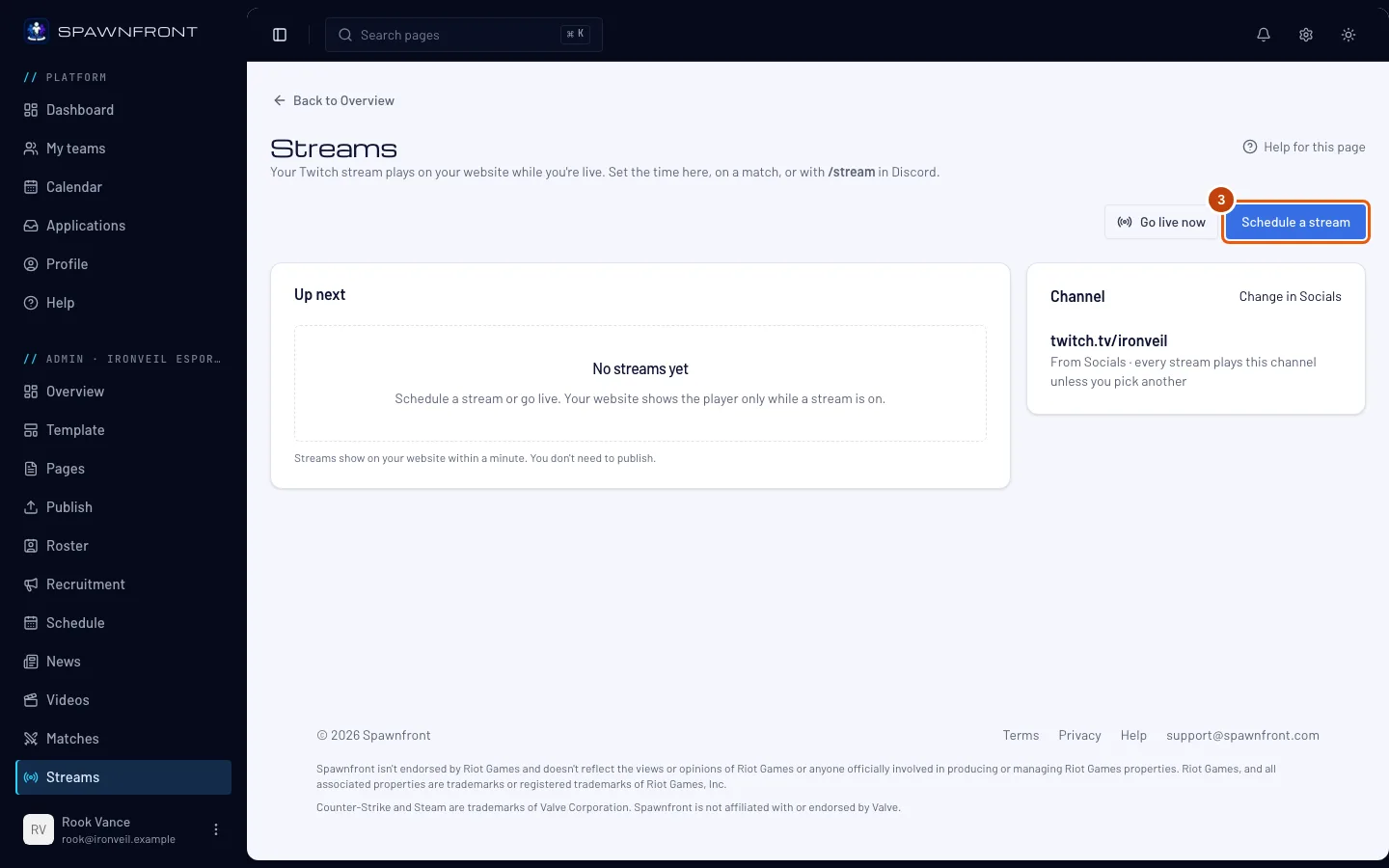
Step 3: Press Schedule a stream
Press Schedule a stream.
You should see: a box titled Schedule a stream.
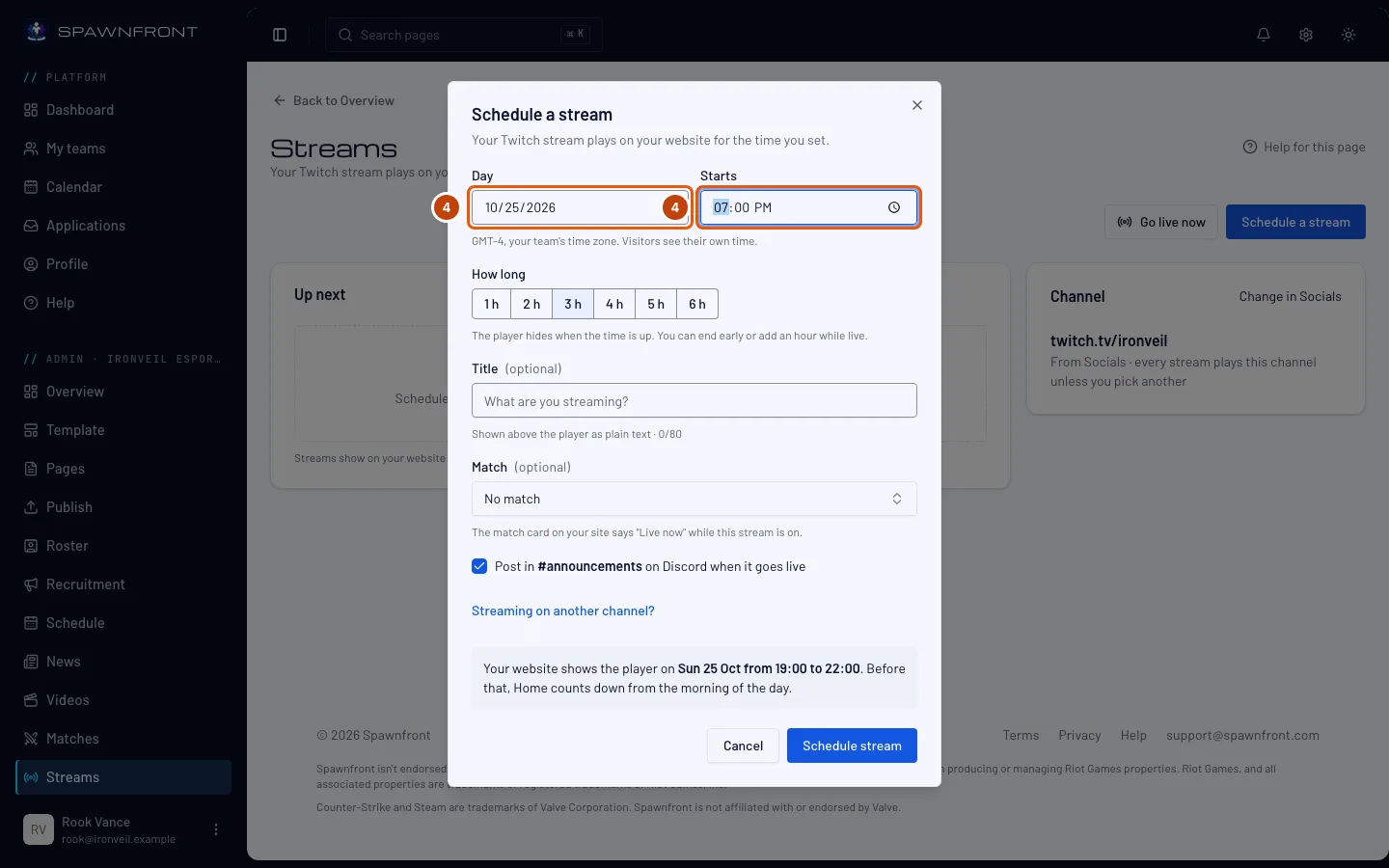
Step 4: Choose the day and the start
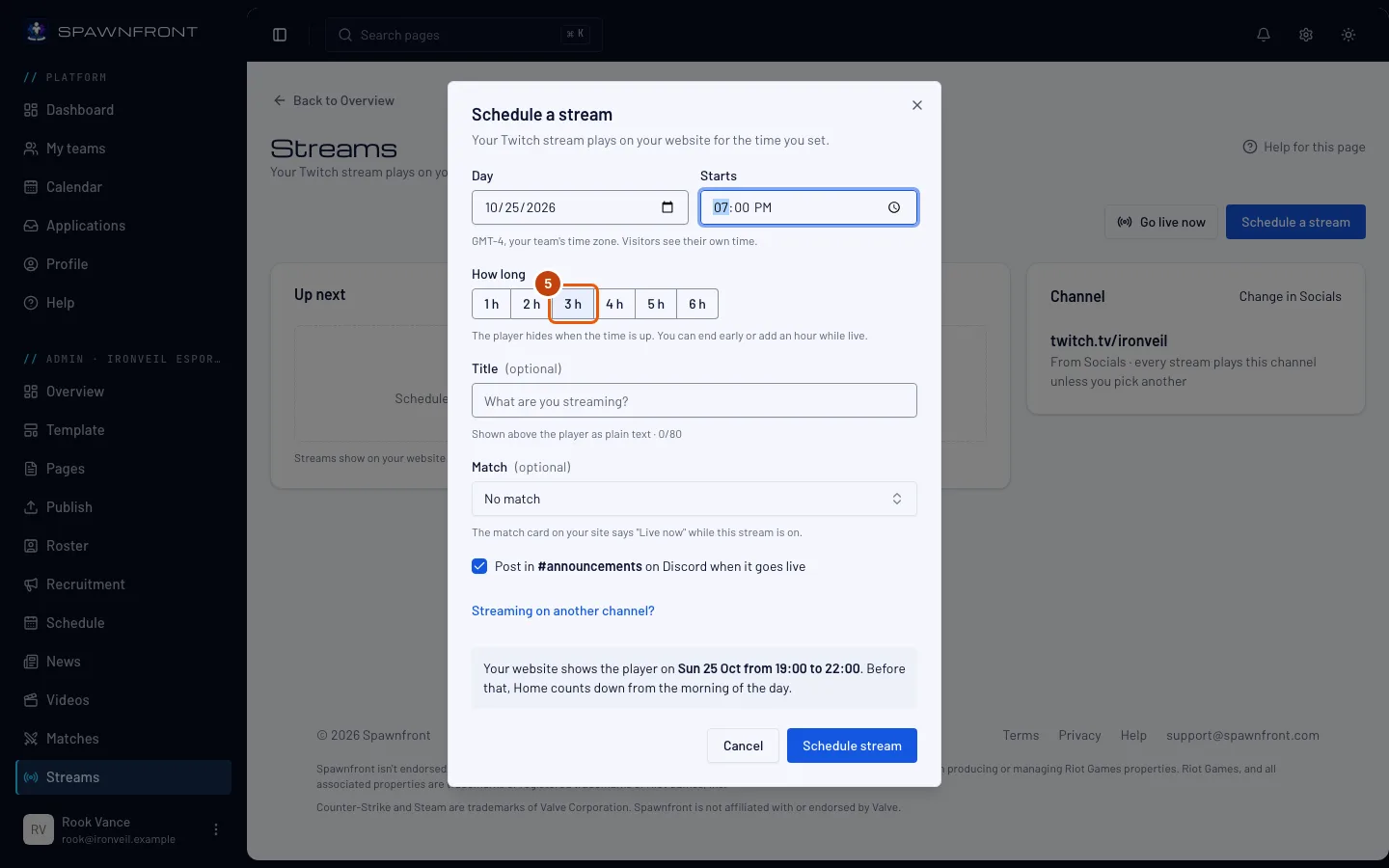
Pick the Day and the time it Starts. Times are in your team's time zone, named under the field; visitors see the time in their own.
Step 5: Choose how long
Under How long, press a length from 1 h to 6 h — it starts at 3 h. The player comes off your site when the time is up, so pick a length that covers the whole stream. While you are live you can add an hour or end early.
Step 6: Add a title, a match or another channel
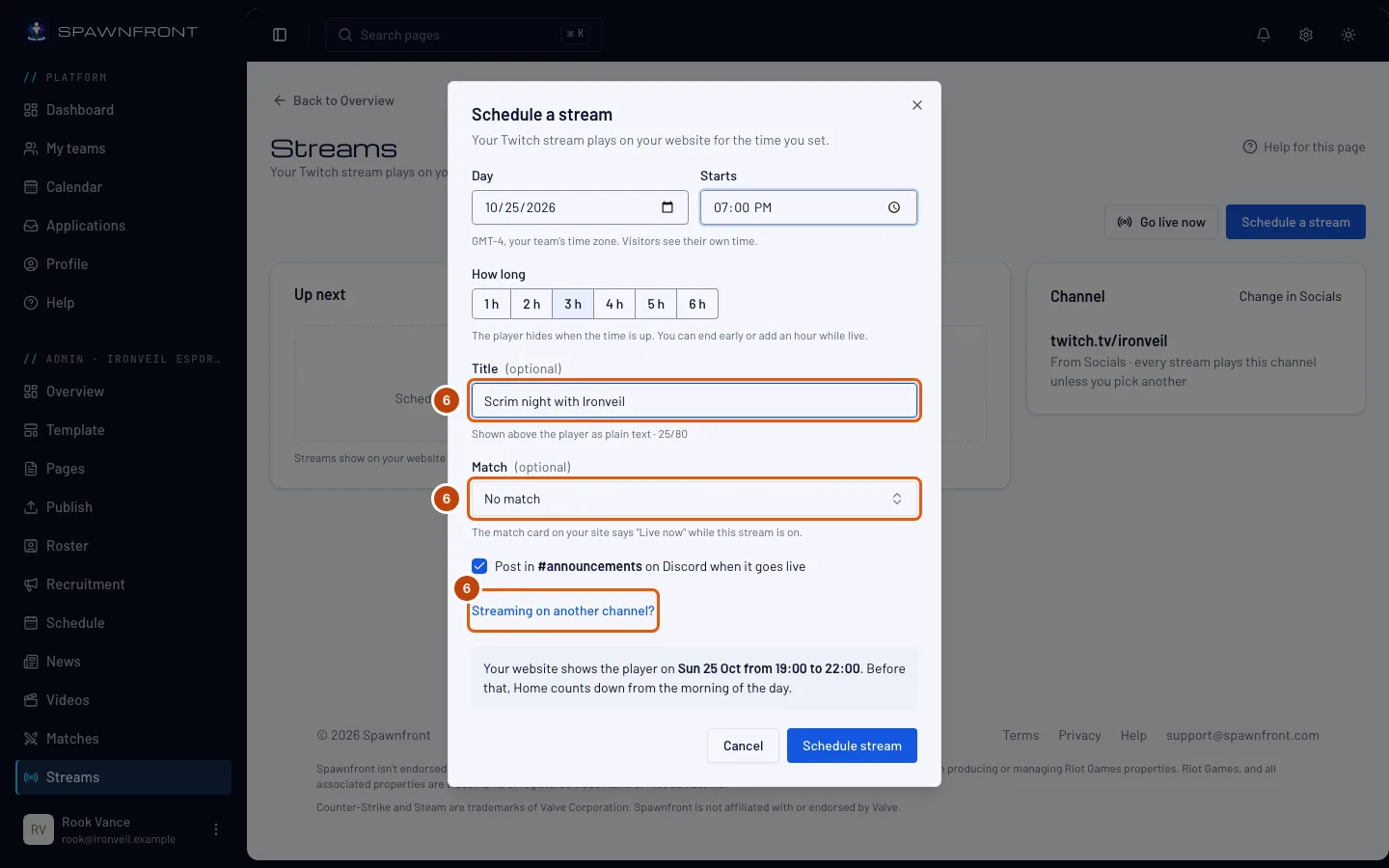
Optionally type a Title (optional) your visitors see above the player, and pick the Match (optional) you are streaming — that match's card on your site says Live now while the stream is on. To play a different Twitch channel for this stream only, press Streaming on another channel? and paste that channel's address.
Step 7: Choose whether Discord announces it
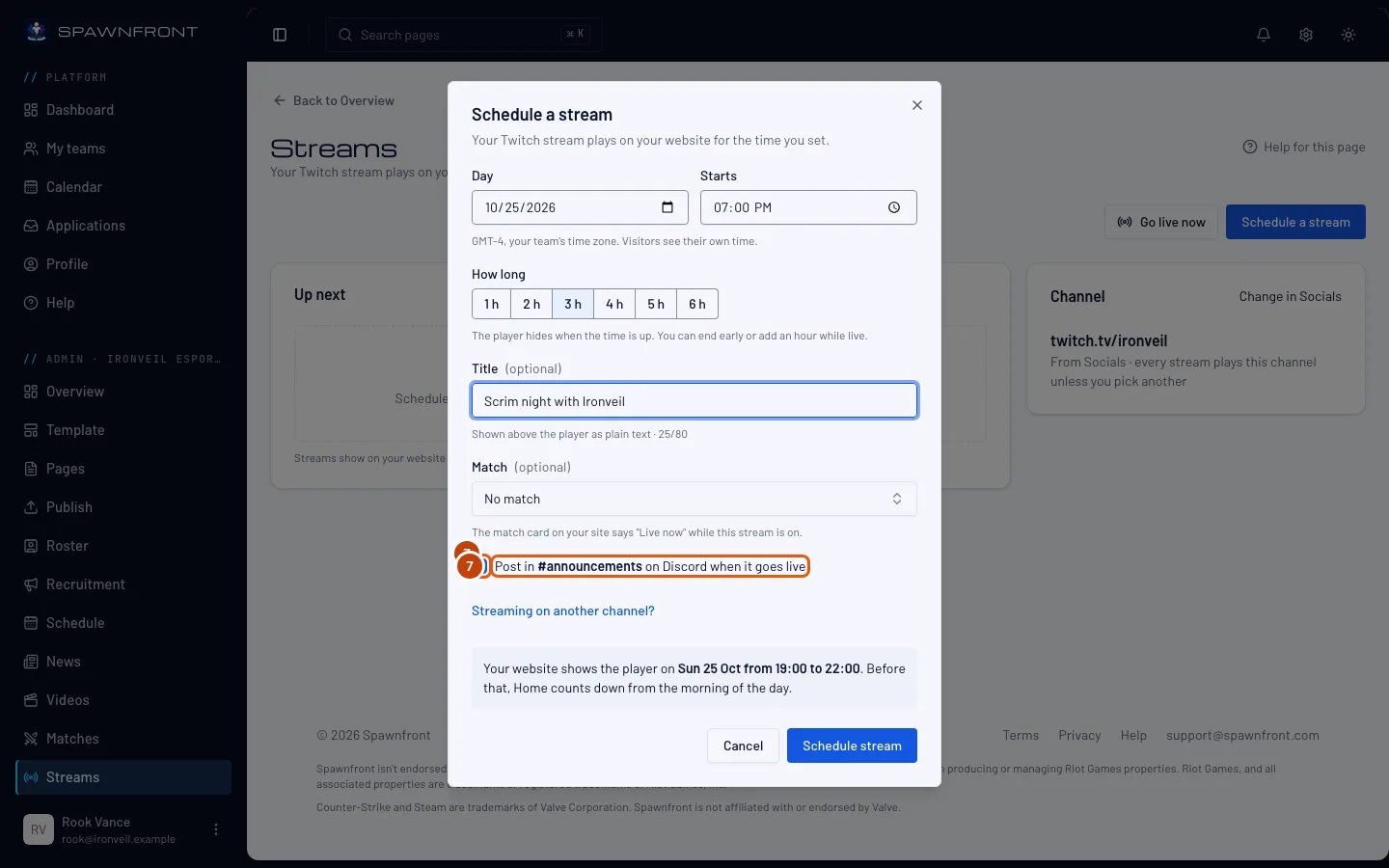
Leave Post in #announcements on Discord when it goes live ticked to have the Spawnfront bot announce the stream in your Discord server: in the morning on the day, and again when it starts. It needs your Discord server connected with an announcements channel.
Step 8: Schedule it
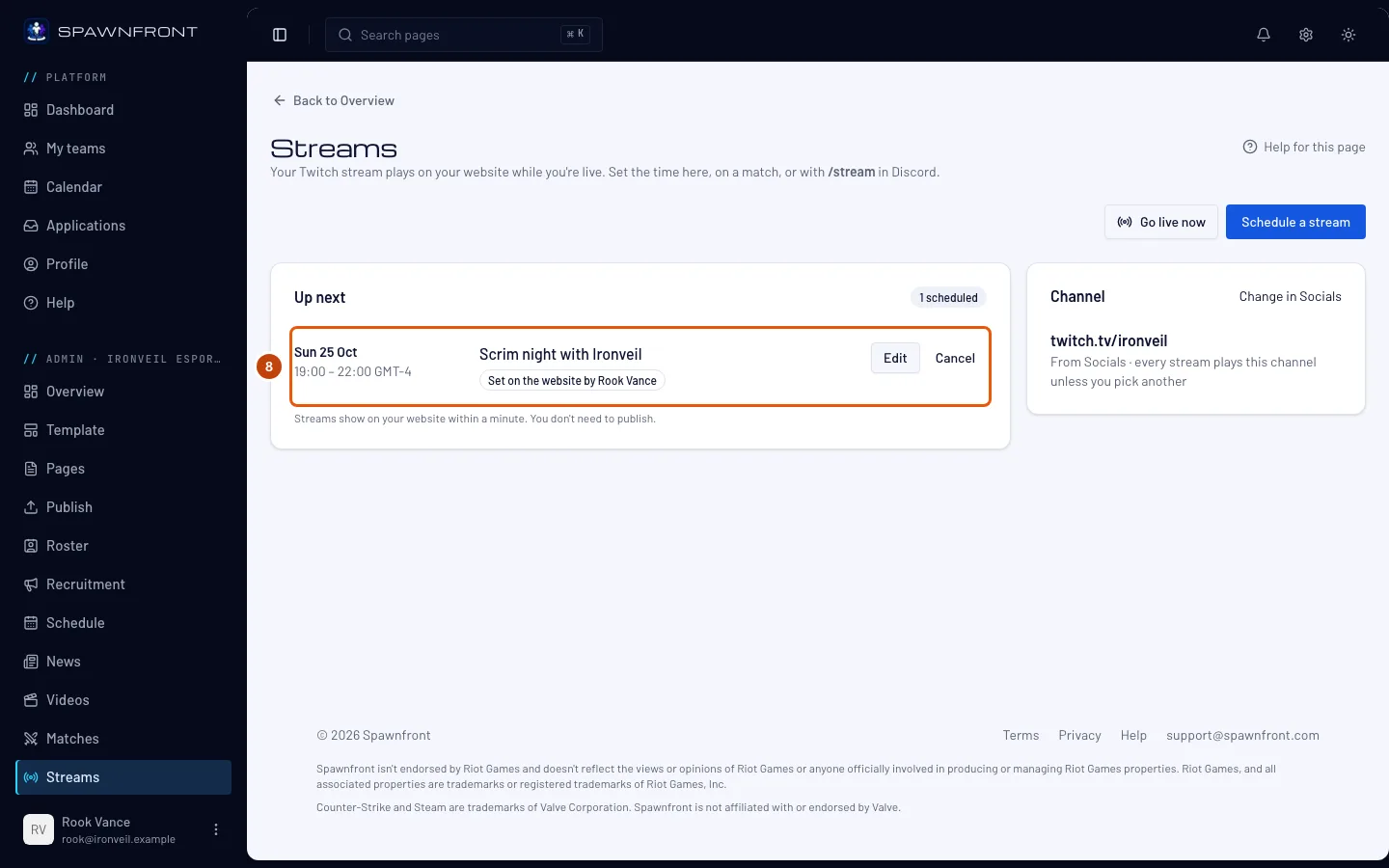
Press Schedule stream.
You should see: the stream under Up next, and the toast Stream scheduled. There is nothing to publish: your site shows a countdown on the day and the player when the stream starts, within a minute of saving.
Step 9: While you're live
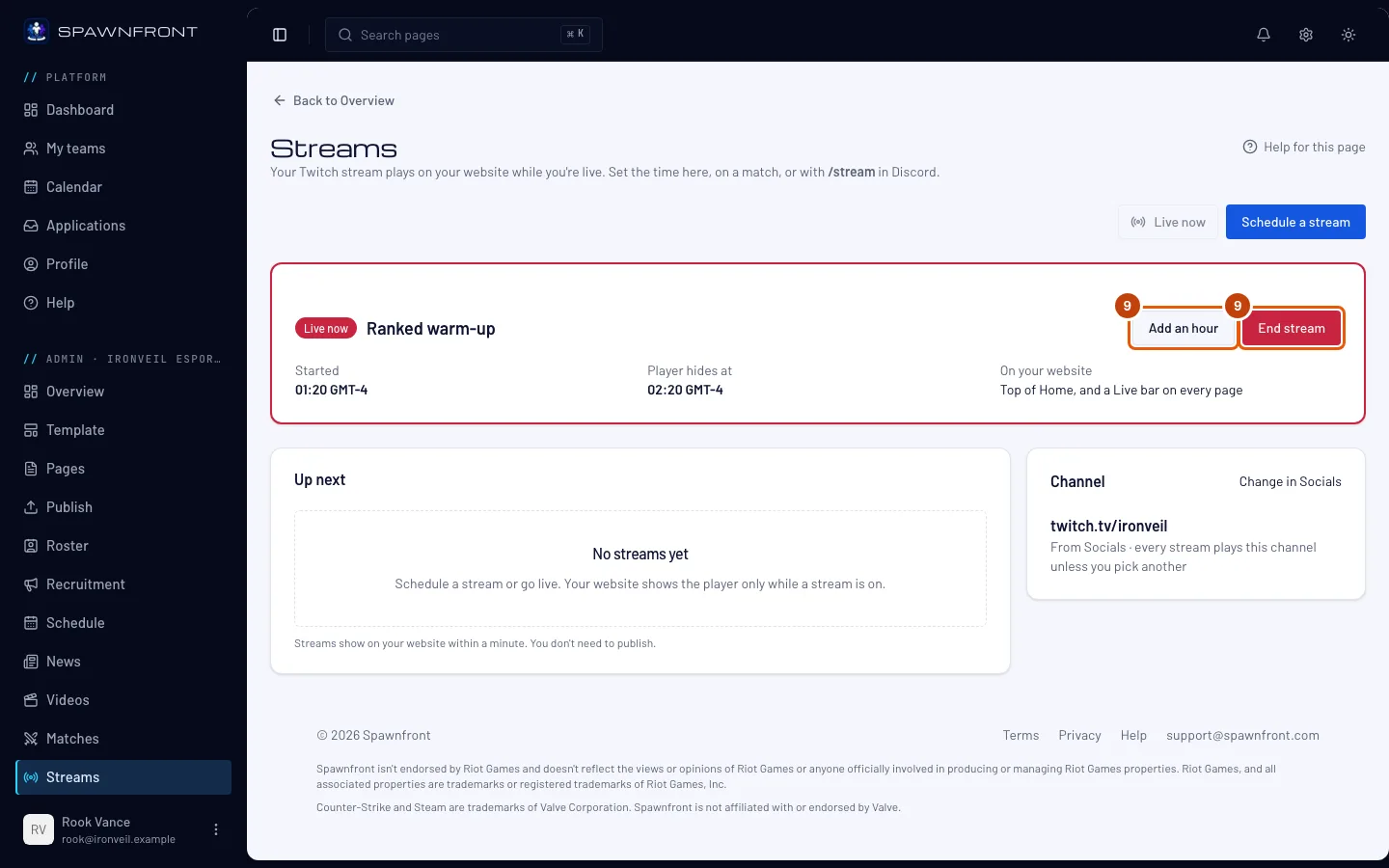
When the stream starts, the Streams page shows it under Live now. Press Add an hour if you need longer, or End stream when you finish early, then End stream again in the box that opens. Ending here takes the player off your site; it does not stop your stream on Twitch.
How to know it worked
- On the day, your site's home page counts down to the stream.
- When it starts, your home page shows Twitch's player at the top, and every other page has a red Live bar.
- When the time is up, or after End stream, the player is gone.
Something doesn't look right?
It says Add your Twitch channel first
Neither your Socials nor the stream names a Twitch channel. Add your channel on the Streams page (step 2), or press Streaming on another channel? in the box and paste one.
It says This overlaps, naming another stream
Your team can have one stream at a time. The message names the other stream (or says "another stream" when it has no title) and its times: change this one's start or length, or edit or cancel the other.
It says That match already has a stream
A match carries one stream. Edit the one already on Up next, or switch it on or off from the match itself.
I want to go live right now
Press Go live now at the top of the Streams page, choose how long, and press Go live. Your site shows the player from now.
My stream started late and my site showed Twitch's offline screen
Your site shows the player for the time you set, whether or not you are live on Twitch yet. Set the start to when you actually go live, or press Go live now when you do.
How do I stream a match?
Open the match on Matches and switch on Stream this match on our website. Its stream starts at the match time and appears on Streams too.
Related articles
Still stuck? Contact support or email support@spawnfront.com — tell us the page you're on and the step number.