
Add a tournament you play in
List a tournament run somewhere else — its dates, your status and its links — on your site's Tournaments page.
For team owners and admins · 10 steps
What you need first
- Your team has a site subscription. A free team's Tournaments page has no Add a linked tournament, because a linked tournament is shown on your site.
- You are the team's owner or an admin.
- The tournament is run somewhere else — another organizer's bracket, a league, a cup. To enter a tournament another team hosts on Spawnfront, see Enter a hosted tournament instead.
Steps
Step 1: Open Tournaments
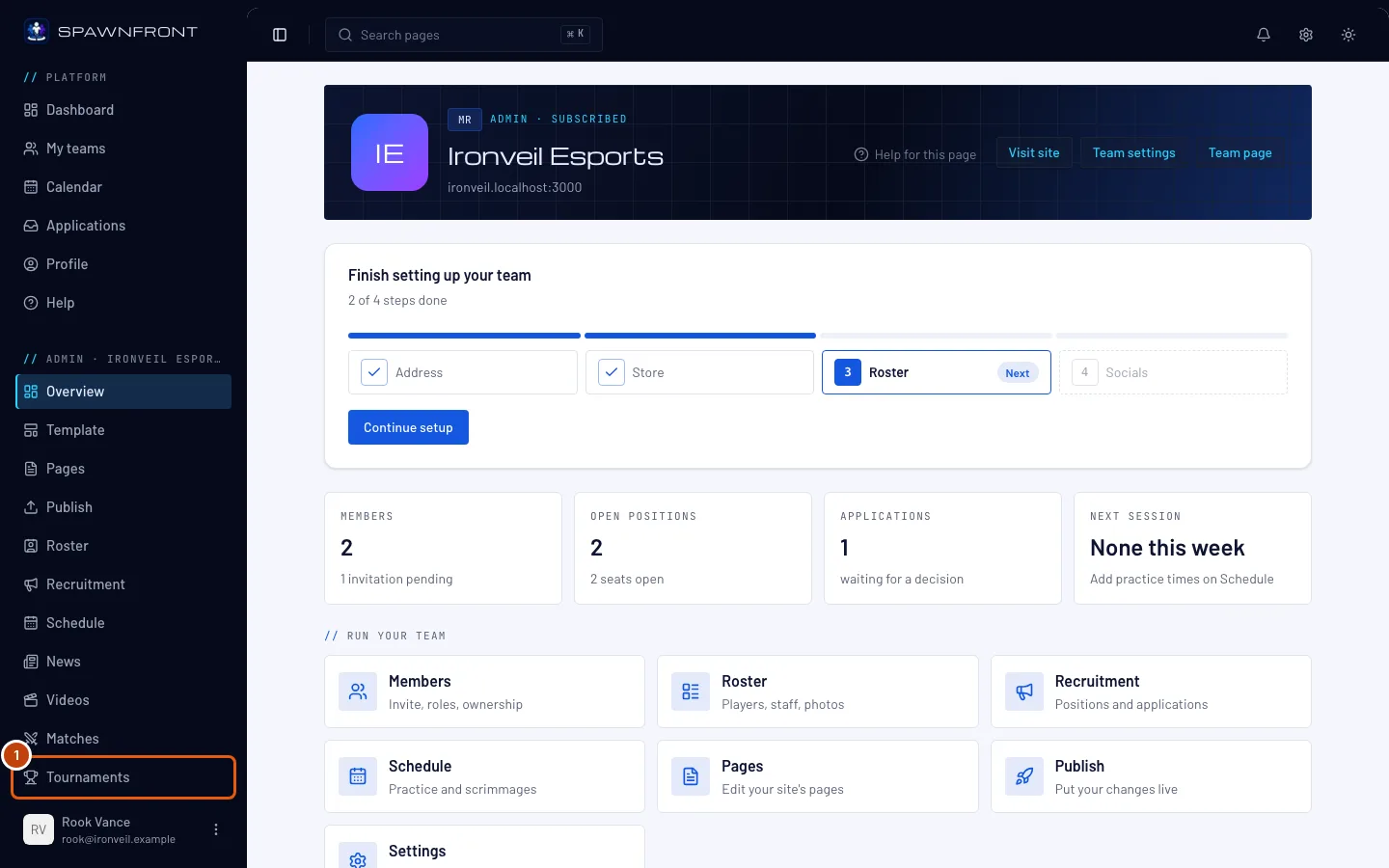
In the menu on the left, under Admin, press Tournaments.
You should see: a page titled Tournaments, with three buttons at the top and a Linked list at the bottom.
Step 2: Press Add a linked tournament
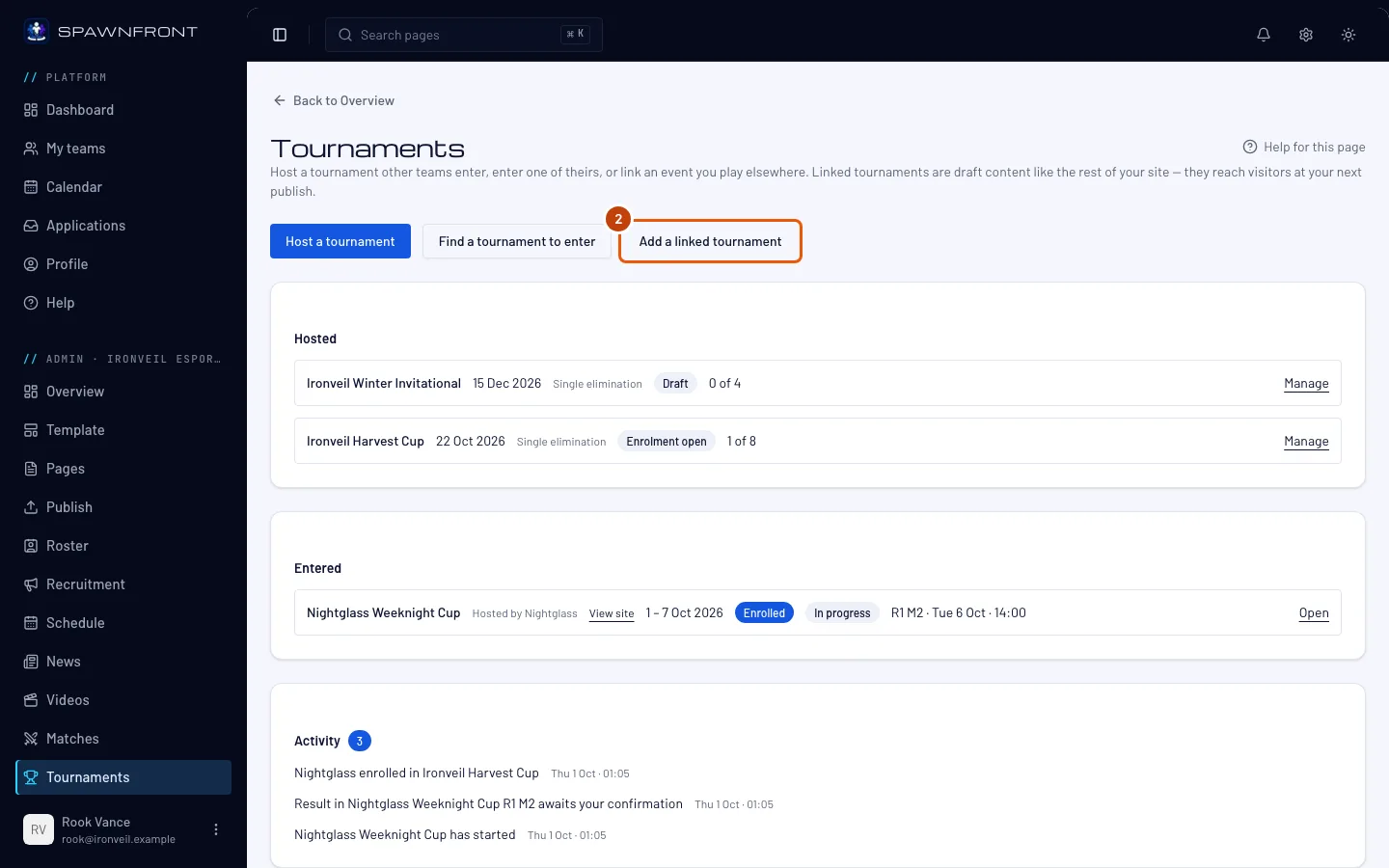
Press Add a linked tournament.
You should see: a page titled Add a tournament, with an Event card and a Links card.
Step 3: Name the event and its organizer
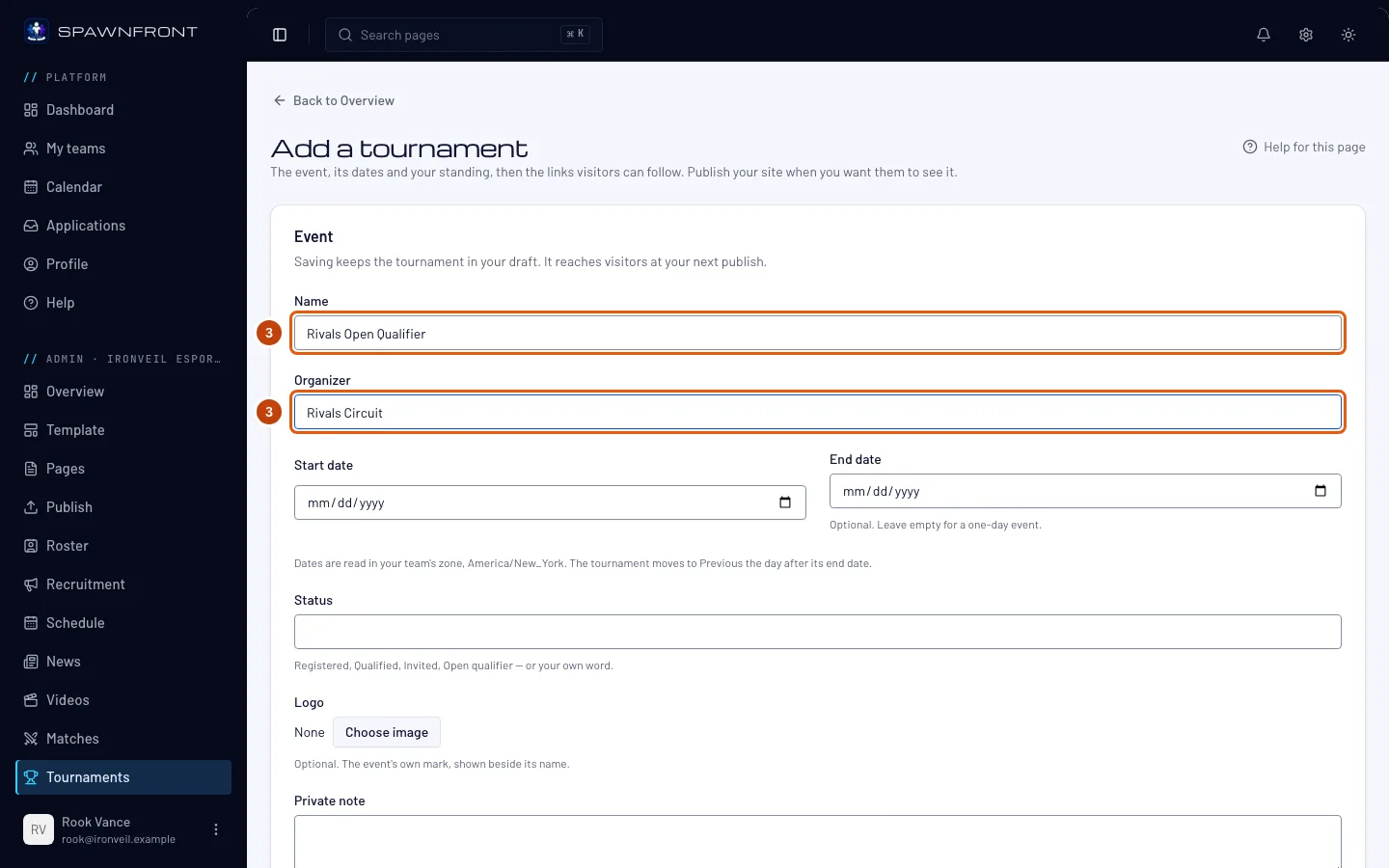
Type the tournament's name in Name and who runs it in Organizer — up to 80 characters each. Both are required.
Step 4: Set the dates
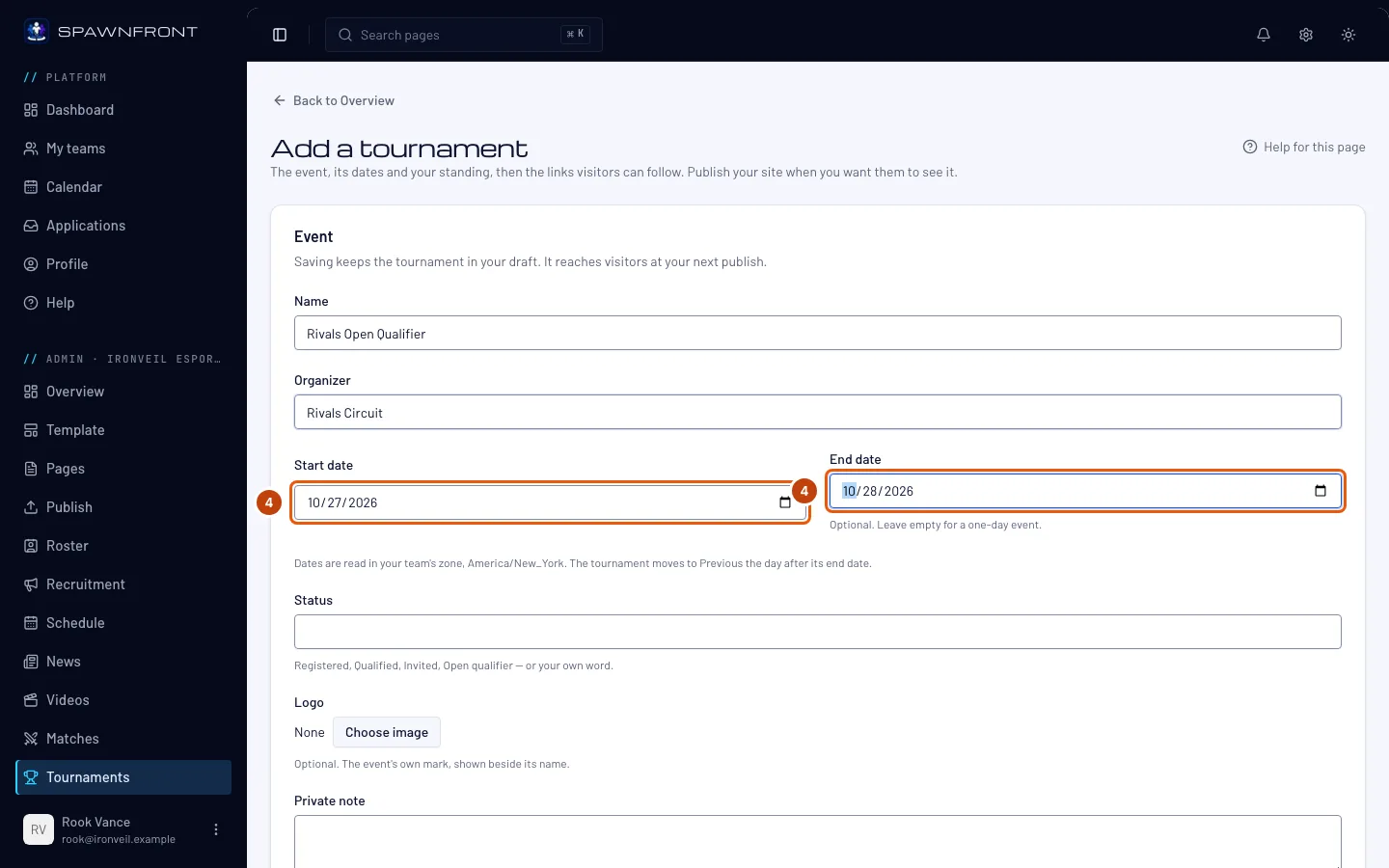
Choose the first day in Start date. For an event of more than one day, choose the last day in End date; leave it empty for a one-day event.
The dates are read in your team's time zone, which the line under them names — not the zone of the computer you're on.
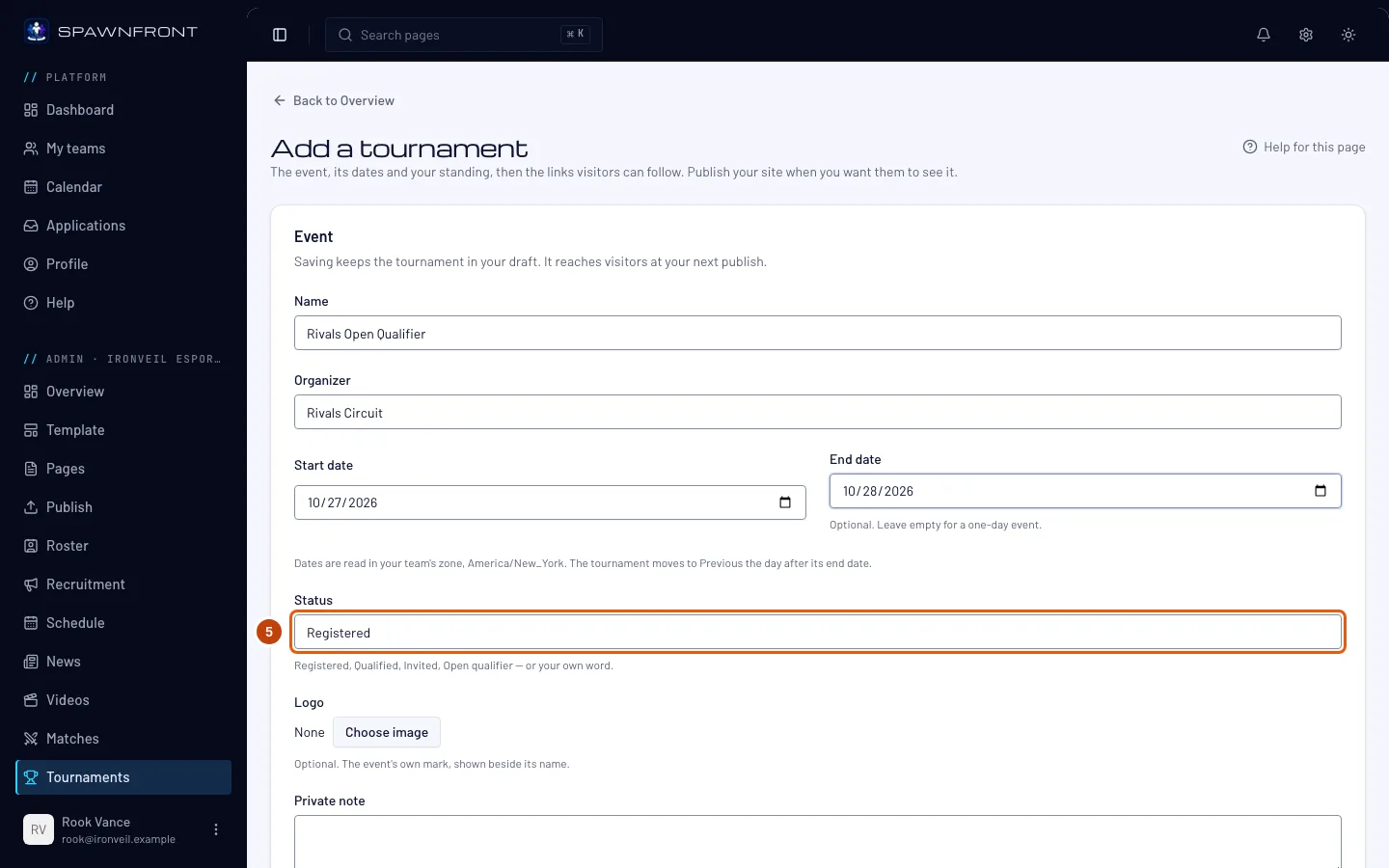
Step 5: Set your status
In Status, say where your team stands: pick Registered, Qualified, Invited or Open qualifier from the suggestions, or type your own word (up to 40 characters).
Step 6: Add a link
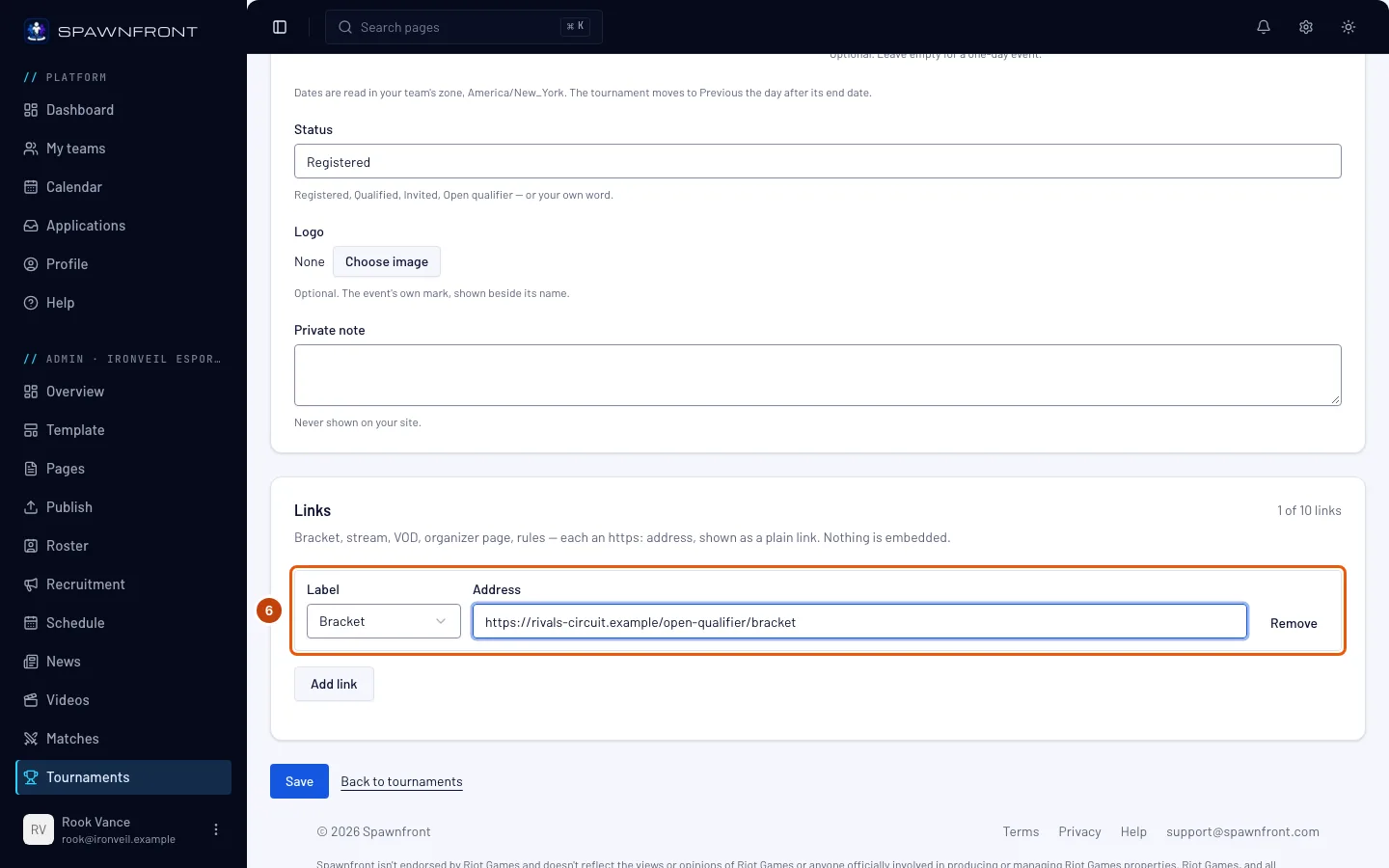
Press Add link. In the row that appears, choose a Label — Bracket, Stream, VOD, Organizer page, Rules or Other (which asks for a Link name) — and paste the web address in Address.
Every address must start with https://. Your site shows each link as a plain button to the other site; nothing is embedded. You can add up to 10.
You should see: the counter beside the Links title go up, for example 1 of 10 links.
Step 7: Save
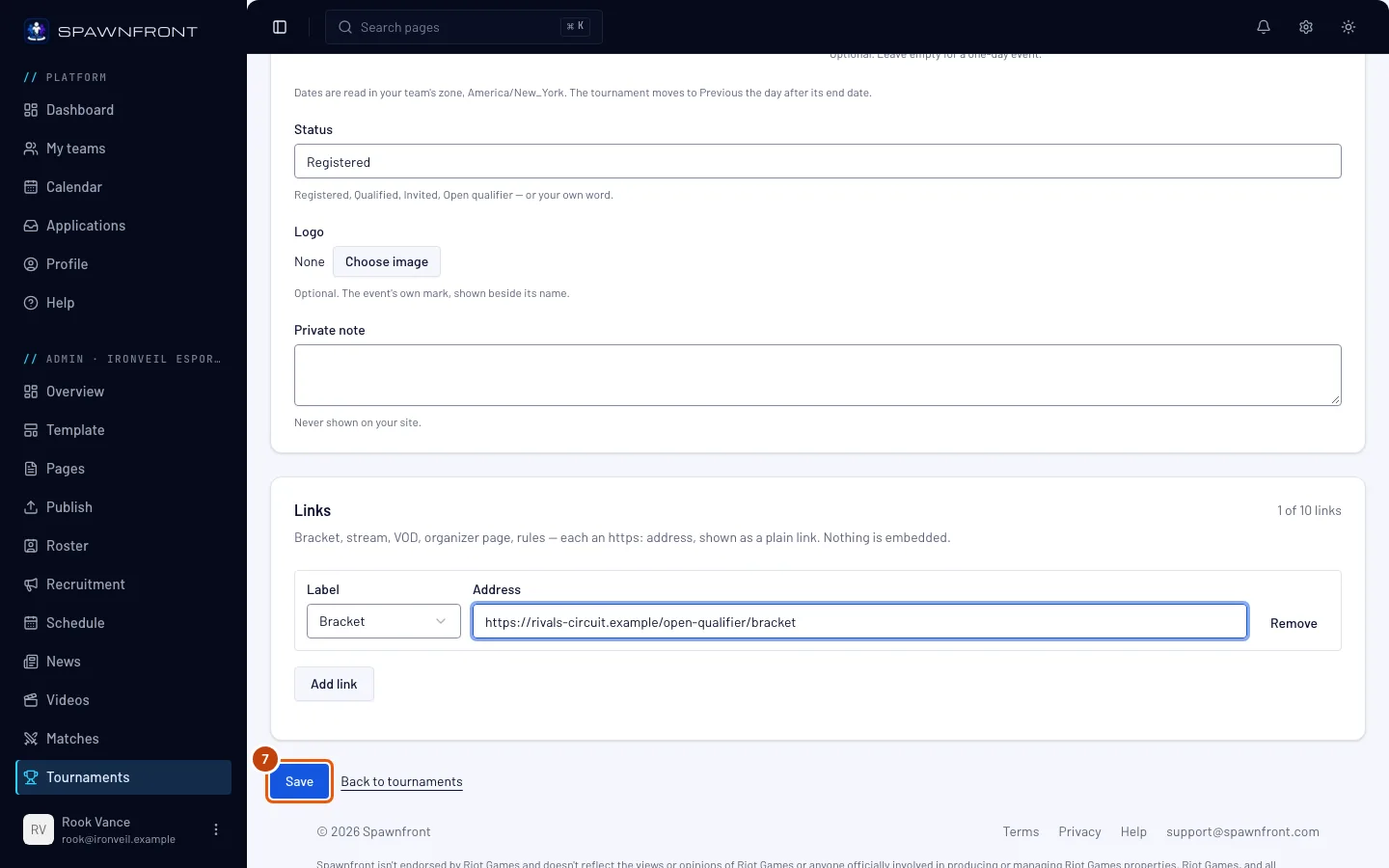
Press Save.
You should see: the Tournaments page, a message Tournament added, and your event under Upcoming in the Linked list.
Saving keeps the tournament in your draft — visitors don't see it yet. Logo and Private note are optional; the private note is never shown on your site.
Step 8: Publish your site
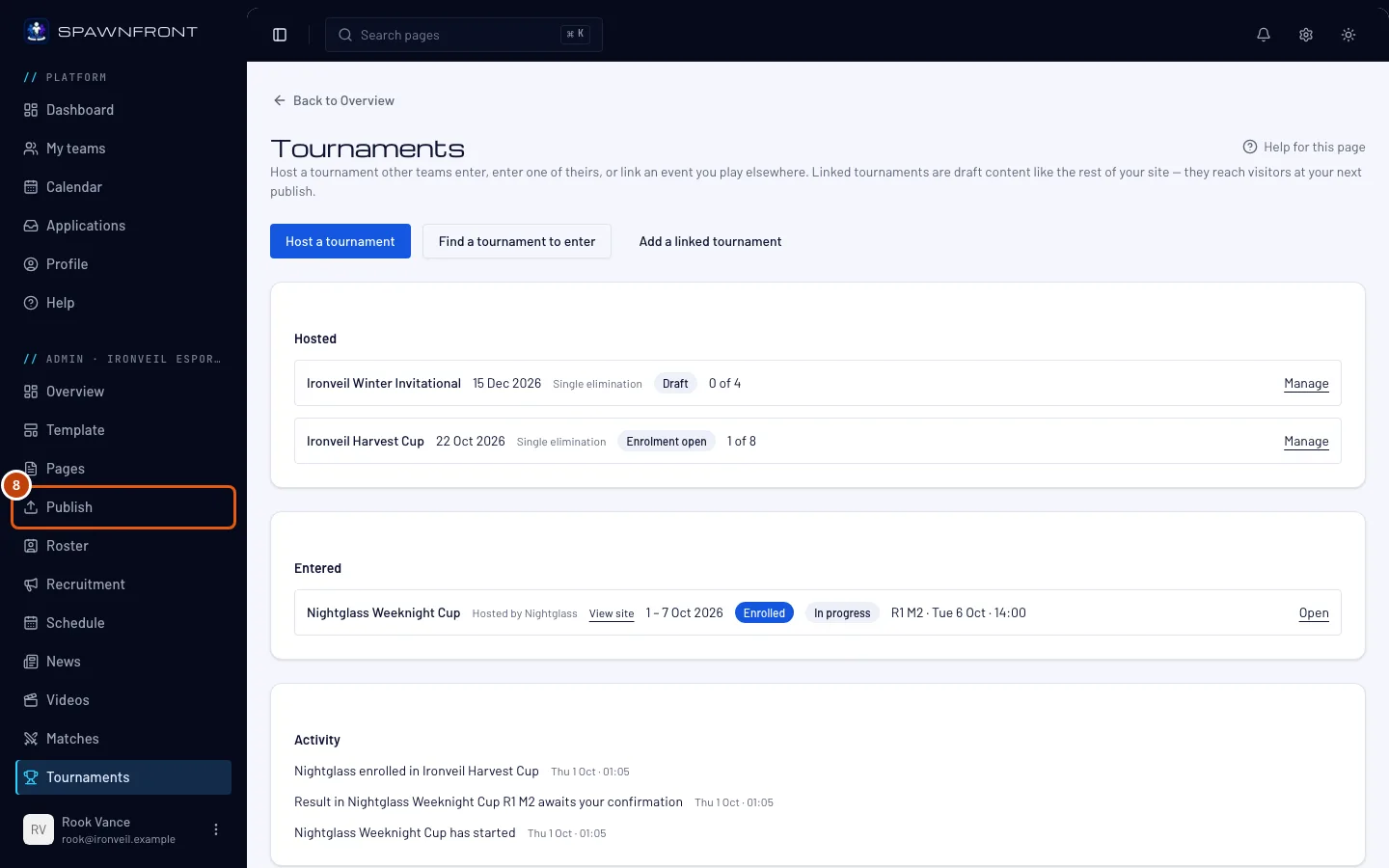
In the menu on the left, press Publish and publish your site — see Publish your site.
This is the step that puts the tournament on your site. Your site's Tournaments page lists it with its organizer, dates, status and links; the page stays out of your site's menu until it has something on it.
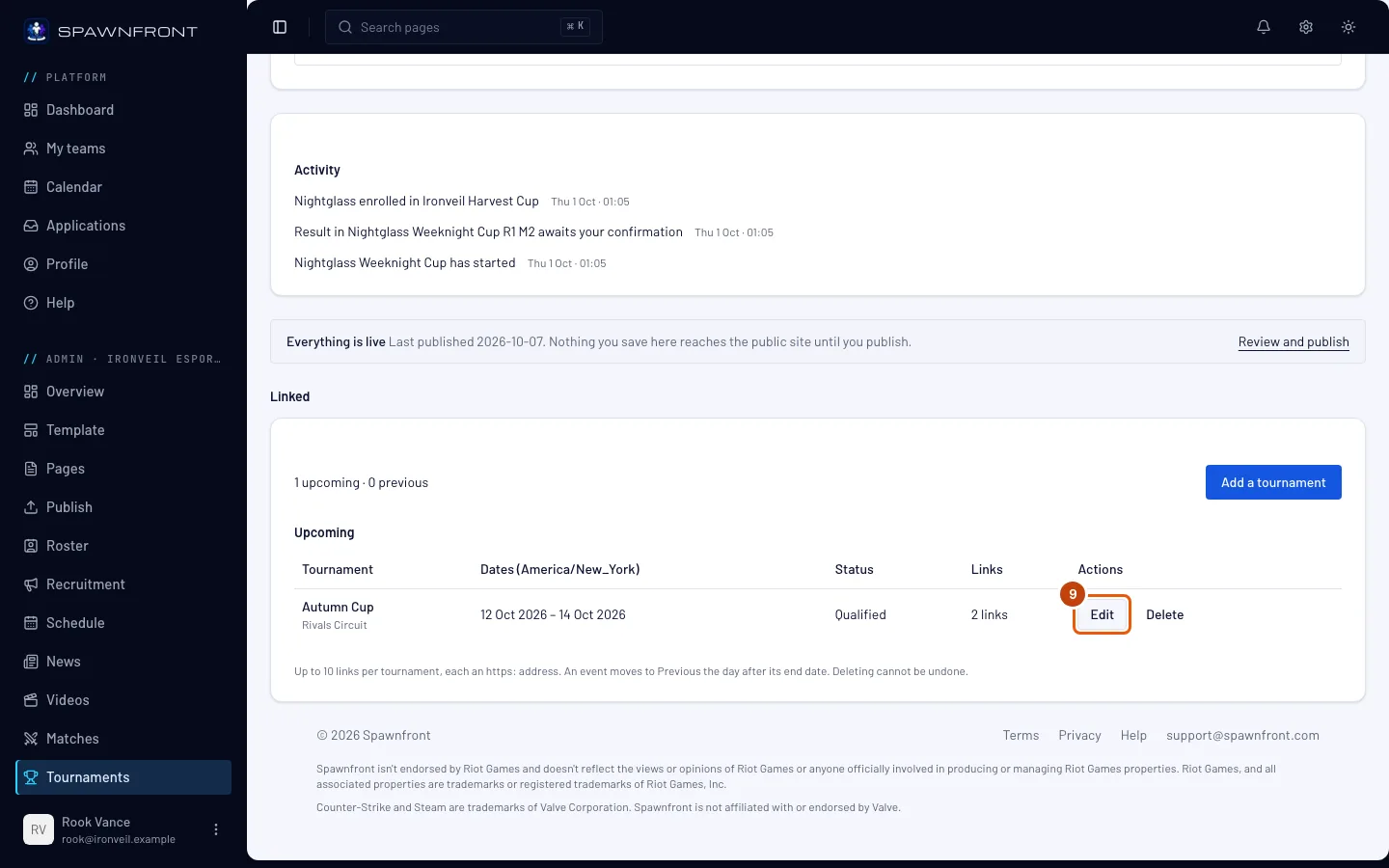
Step 9: Change it later
On the tournament's row, press Edit. Change what you need, press Save, then publish again.
Once the end date has passed, the form adds a Placement field ("2nd of 16", as you type it). The day after the end date the event moves from Upcoming to Previous, where your site shows the placement instead of the status.
Step 10: Remove it
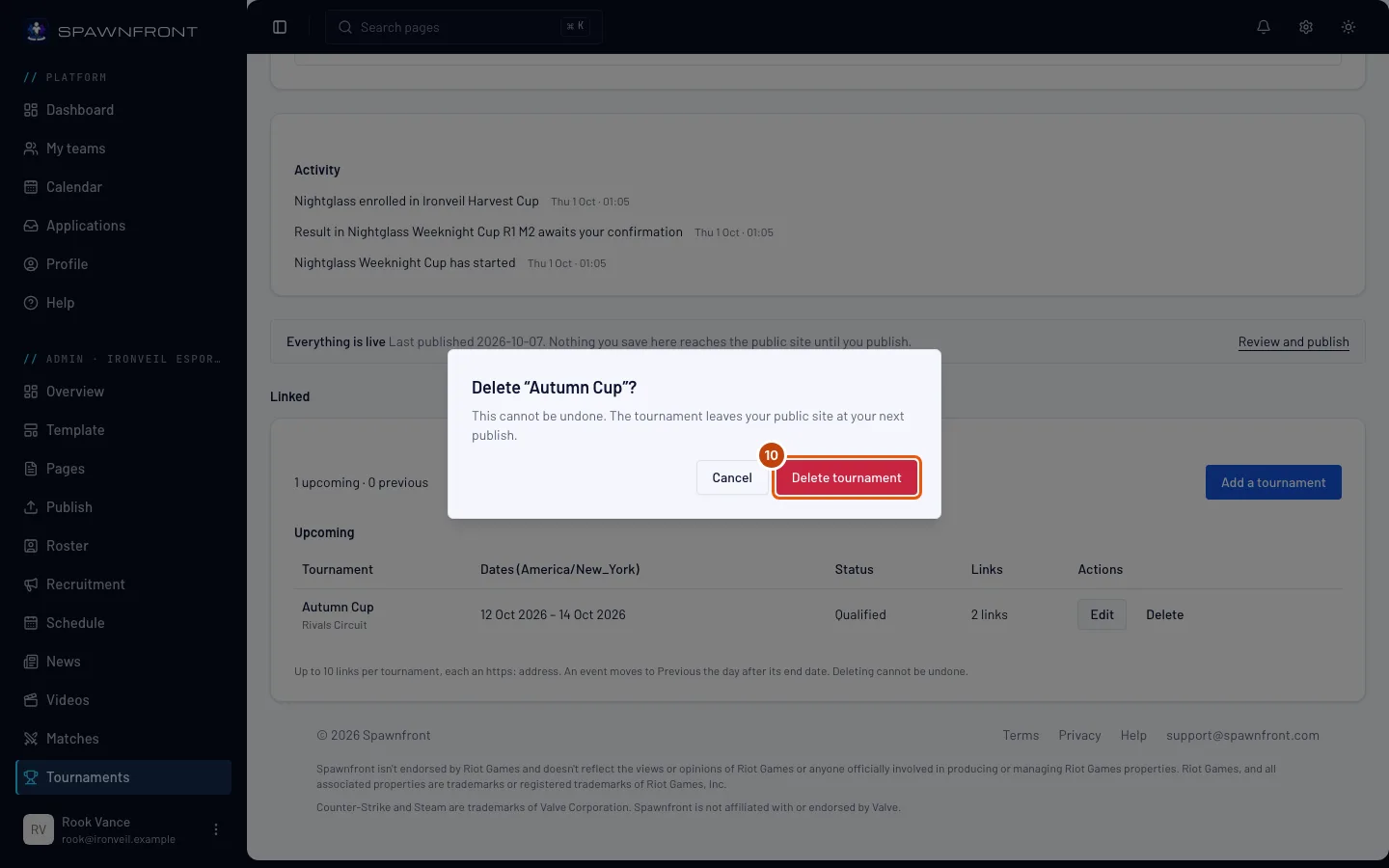
On the tournament's row, press Delete, then Delete tournament in the box that opens.
Deleting can't be undone. The tournament leaves your site at your next publish.
How to know it worked
- The event is listed under Upcoming on the Tournaments page, with its dates, status and number of links.
- After you publish, it appears on your site's Tournaments page. Your site shows your 100 newest tournaments by start date; an older one leaves the site at your next publish and stays in your list here.
Something doesn't look right?
I saved the tournament but it isn't on my site
Saving only changes your draft. Publish your site (step 8) and it appears.
I can't find the Placement field
It appears only once the event's end date — or its start date, for a one-day event — has passed in your team's time zone. Edit the tournament after it ends (step 9).
It says "Must be an https:// address"
The link has to start with https://. Copy the address from your browser's address bar on the other site and paste it again.
I want to enter a tournament another team runs on Spawnfront
That's not a linked tournament. Press Find a tournament to enter on the Tournaments page — see Enter a hosted tournament.
Related articles
Still stuck? Contact support or email support@spawnfront.com — tell us the page you're on and the step number.