
Edit your team settings
Change your team's name, tagline, About, region, platform, language, time zone and your site's language.
For team owners and admins · 4 steps
What you need first
- You are the team's owner or an admin.
Steps
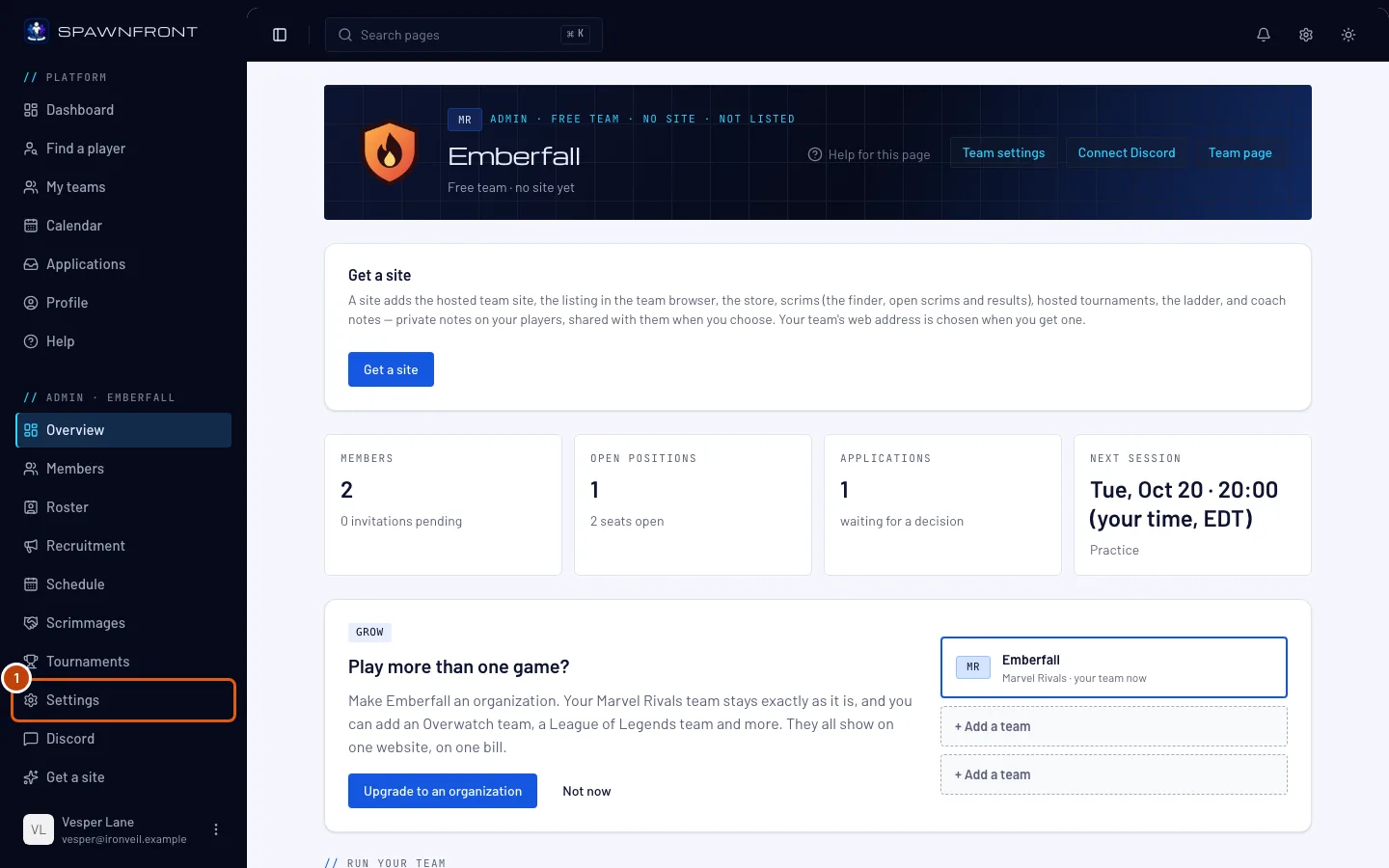
Step 1: Open Settings
In the menu on the left, under Admin, press Settings.
You should see: your team's name at the top, and its details below.
Step 2: Describe your team
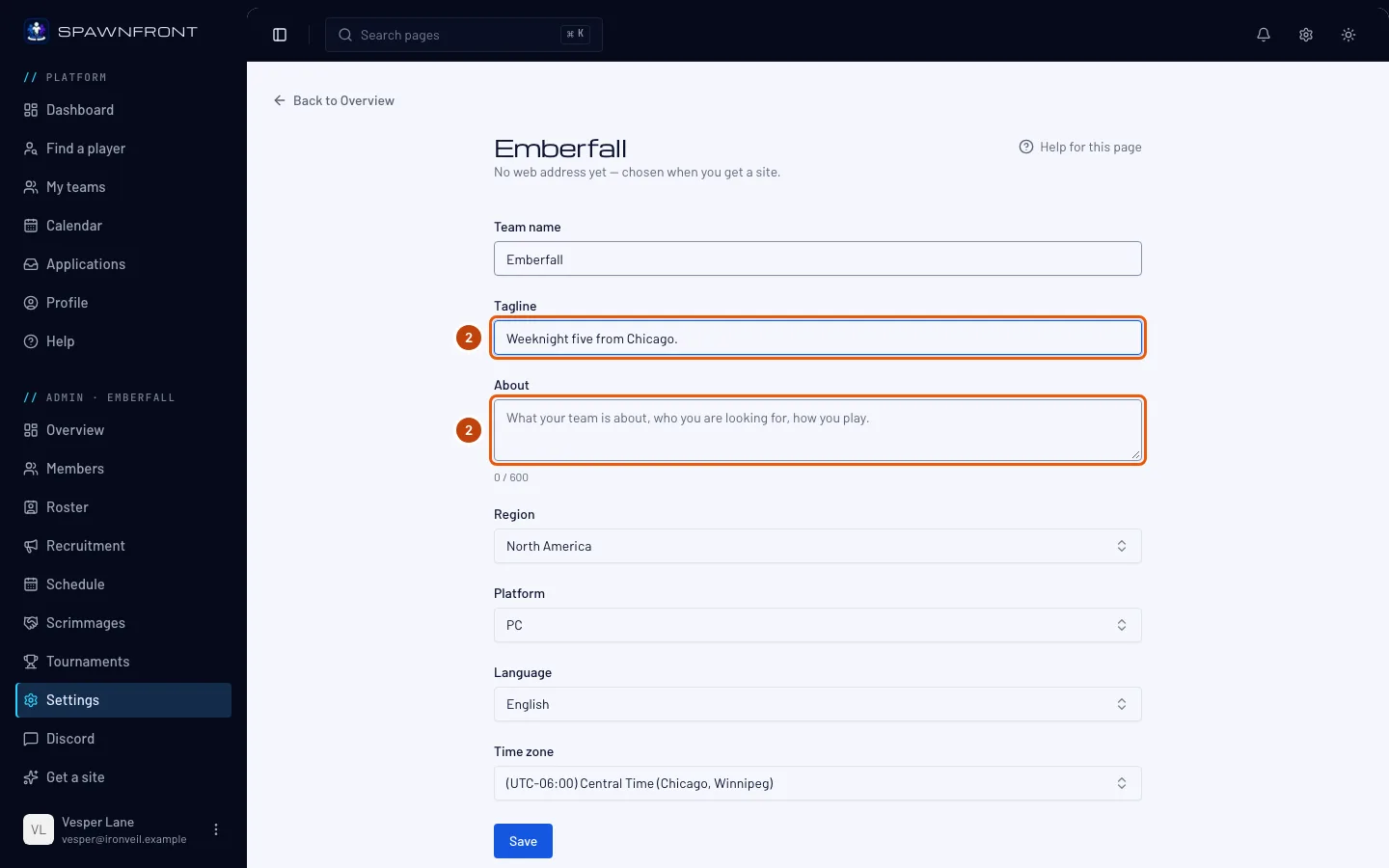
Change the Team name if you need to, and fill in a Tagline and About (up to 600 characters): what your team is about, who you're looking for, how you play.
Players read these on your team page before they apply.
Is your team one of an organization's? Under the name it says "You or the organization's admins can rename it." — with "Default name." first while the team is still called Team 2, Team 3 and so on. No two of the organization's teams in your game can have the same name.
Step 3: Check where and how you play
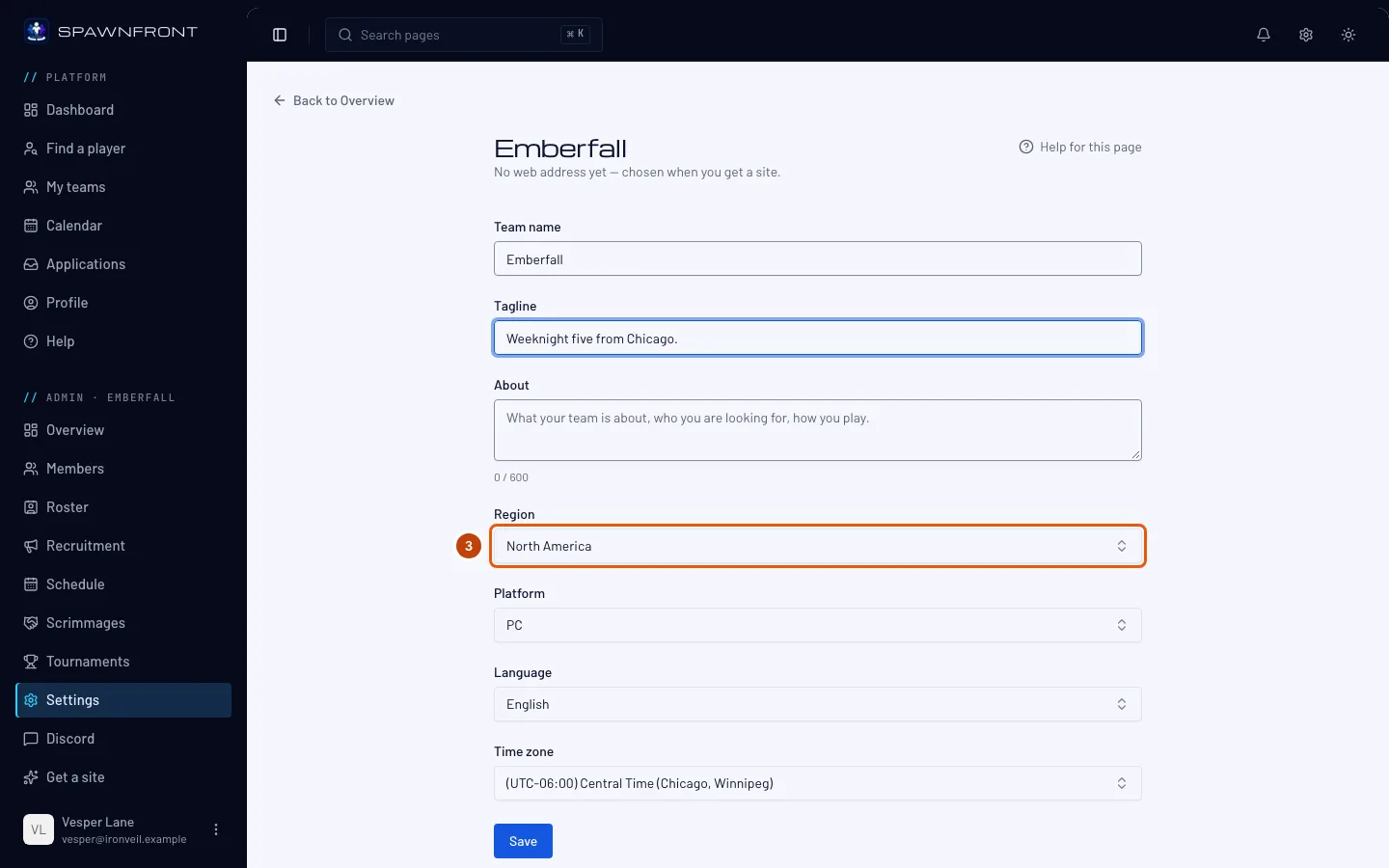
Check your Region, Platform, Language and Time zone. The time zone sets your practice schedule.
Has your team a site? Further down, under the site's settings, choose the Site language — the language your site's own words (its menus, buttons and dates) are shown in — and press Save site language. Your site shows the new language from your next publish, and what your team wrote stays as written.
Step 4: Save
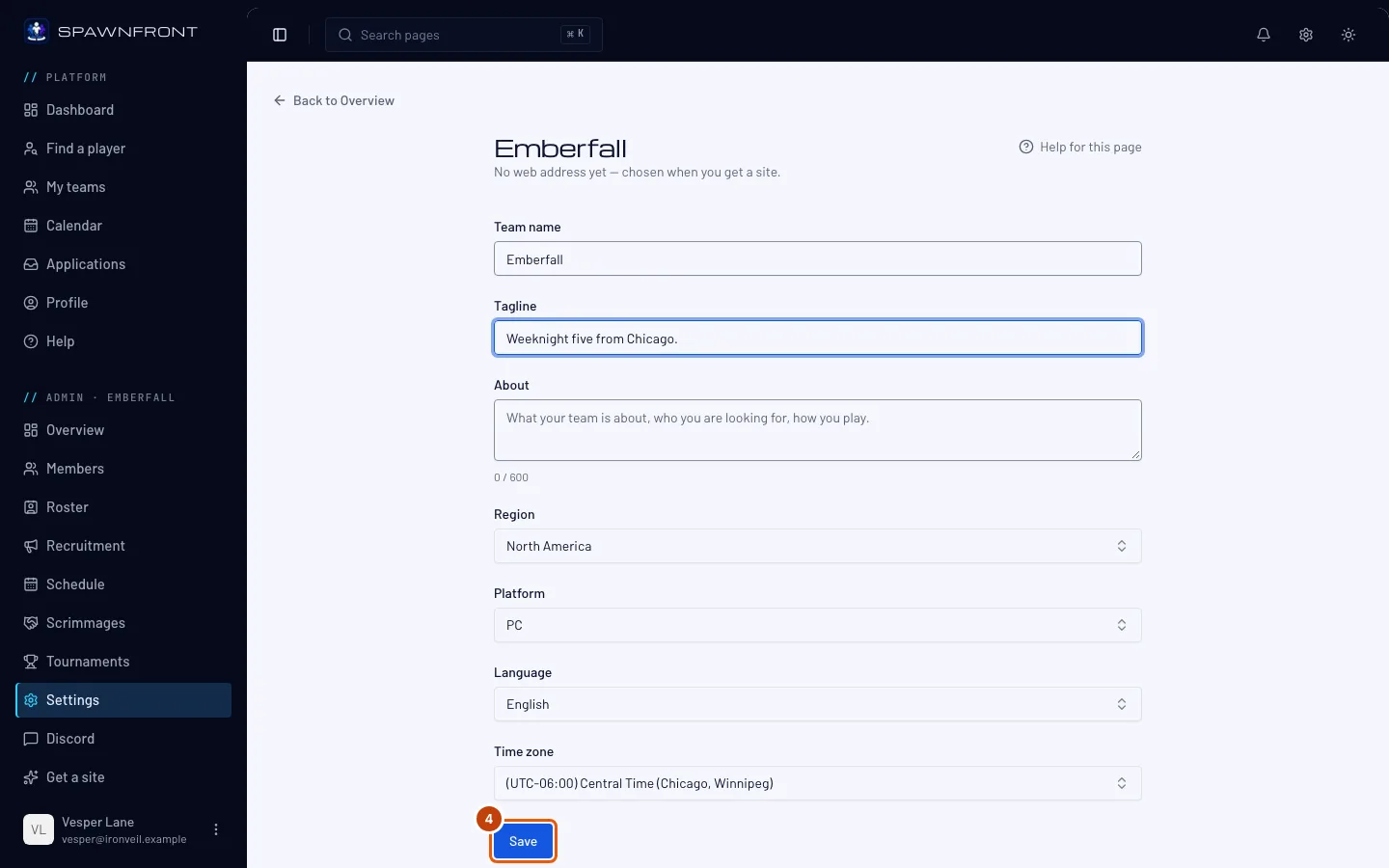
Press Save.
You should see: "Team updated".
How to know it worked
- Your team page shows the new tagline and details.
Something doesn't look right?
I can't change the game
A team's game is set when it is founded and can't be changed.
It says "Another … team in … is called …"
Your team is in an organization, and another of its teams in your game already has that name — capitals don't count. Type a different name and press Save again.
Someone else renamed my team
In an organization, the organization's owner and admins can rename its teams too, with Rename on its Teams page. Change the name back here if you need to.
Related articles
Still stuck? Contact support or email support@spawnfront.com — tell us the page you're on and the step number.