
Choose a template and its look
Preview templates, then set your site's colors, fonts, layout options and logo.
For team owners and admins · 11 steps
What you need first
- Your team has a site subscription. A free team's admin shows Get a site instead of Template.
- You are the team's owner or an admin.
Steps
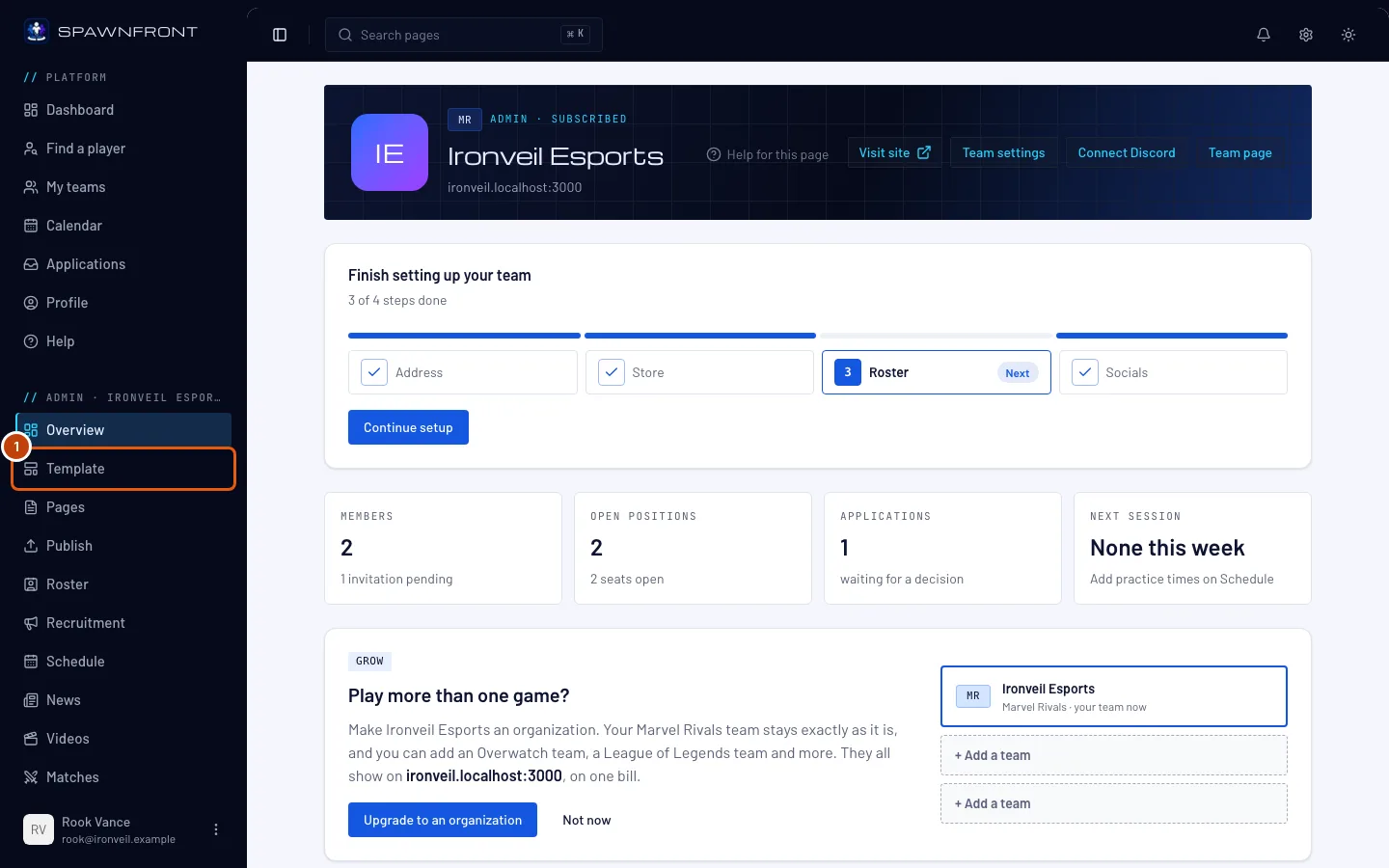
Step 1: Open Template
In the menu on the left, press Template.
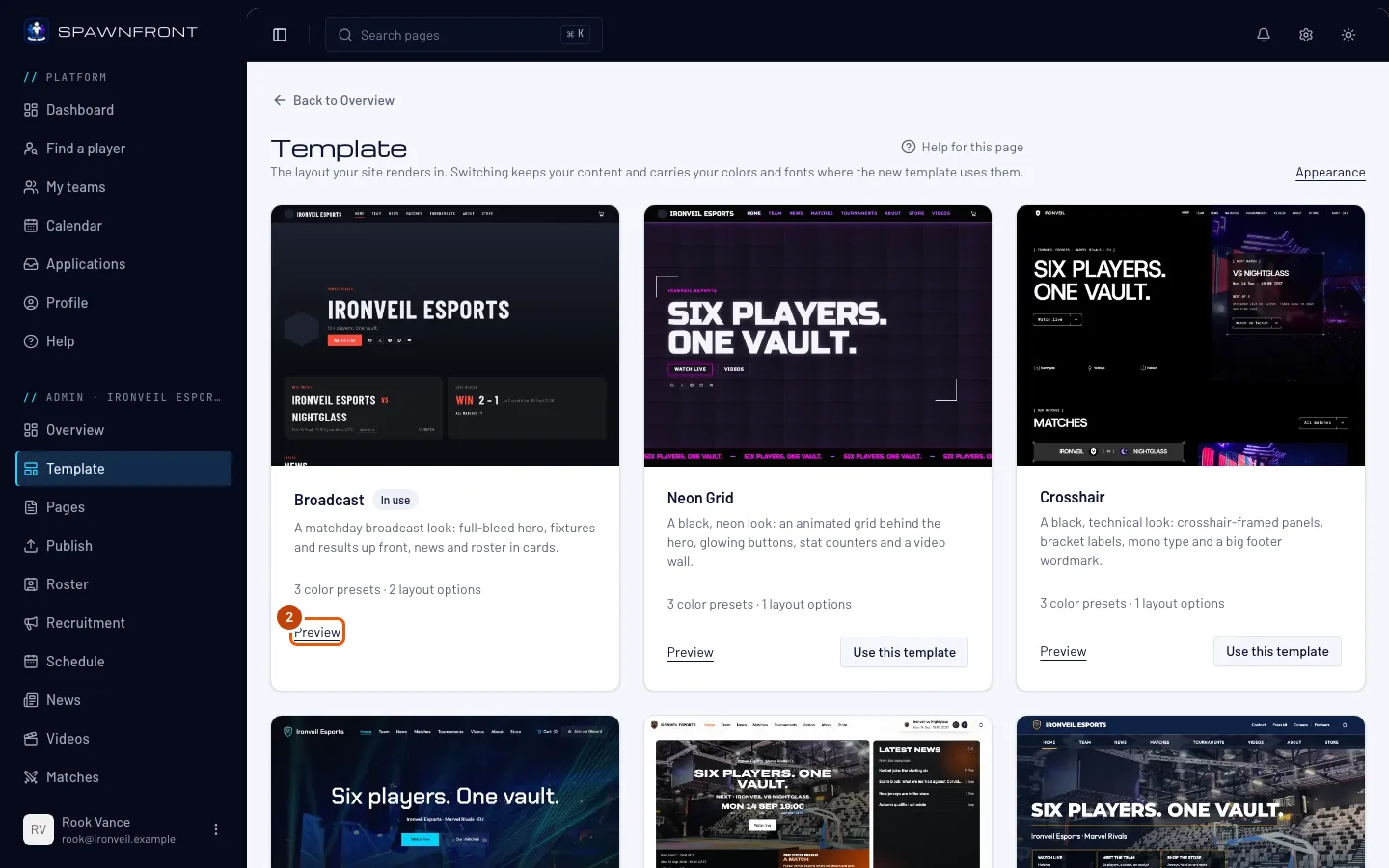
You should see: a page titled Template, with one card per template. The one your site uses is marked In use. If your site has no template yet, each card shows Choose instead — pressing it picks that template, with its first palette, and opens Appearance.
Step 2: Preview a template
On a template's card, press Preview.
You should see: your own site, in that template, under a bar that says Preview. Only your team's admins can open it. Press Back to admin when you're done.
Step 3: Open Appearance
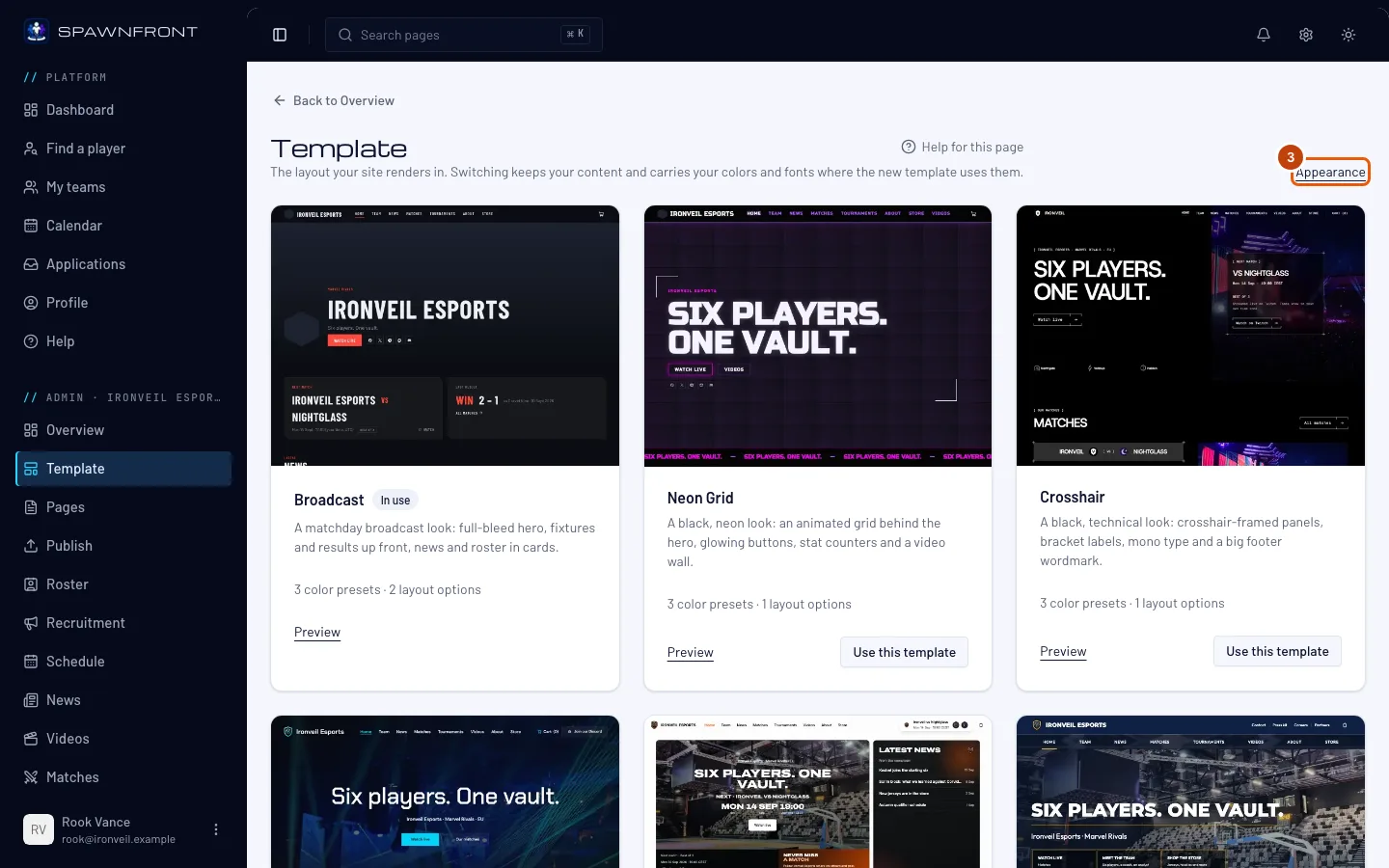
Back on the Template page, press Appearance at the top right.
You should see: a page titled Appearance — the form on one side and a live picture of your site beside it (below it on a narrow screen).
Step 4: Pick a palette
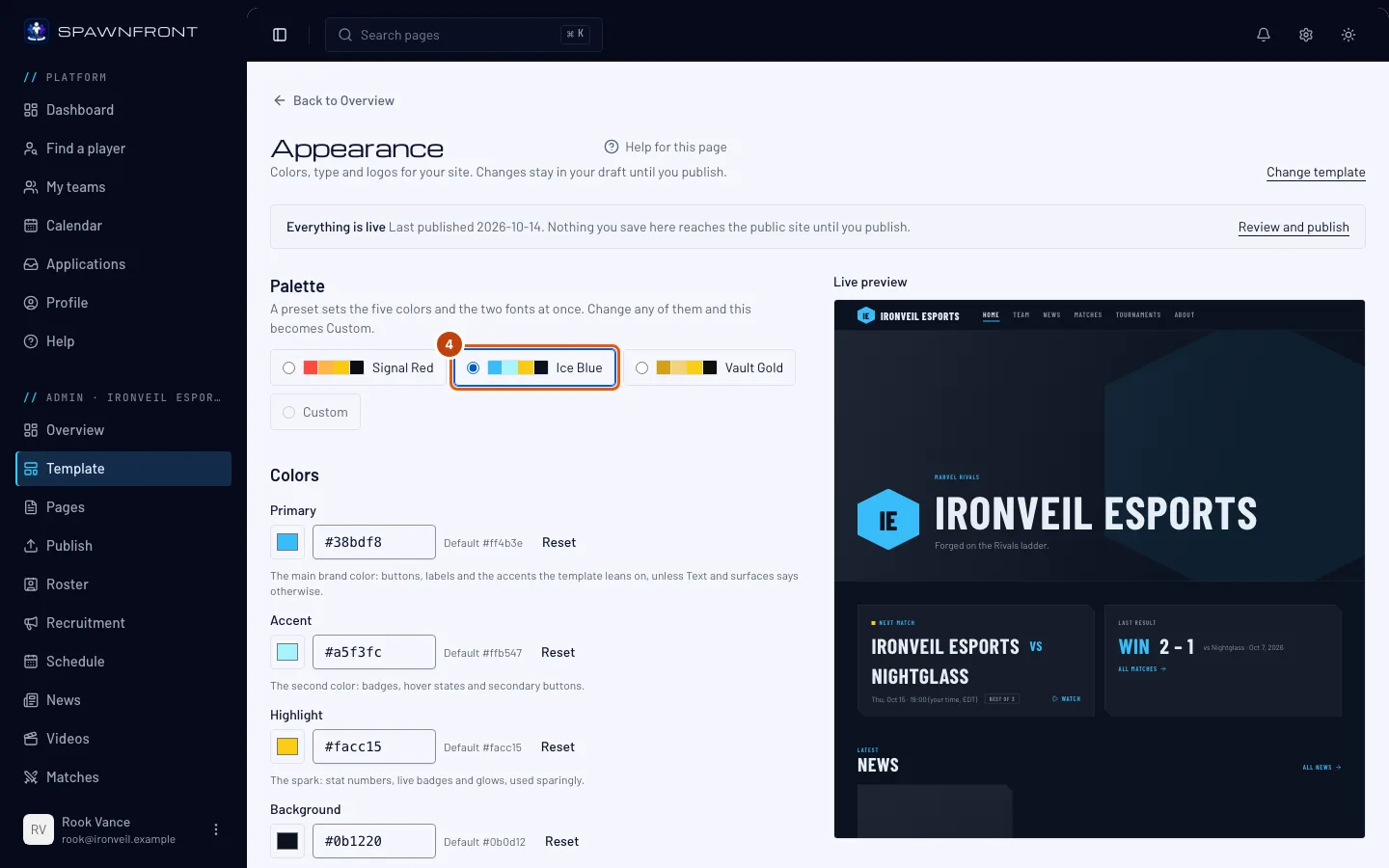
Under Palette, pick one of the template's presets.
You should see: the preset outlined, and the picture of your site in its colors. A preset sets the five colors and both fonts at once.
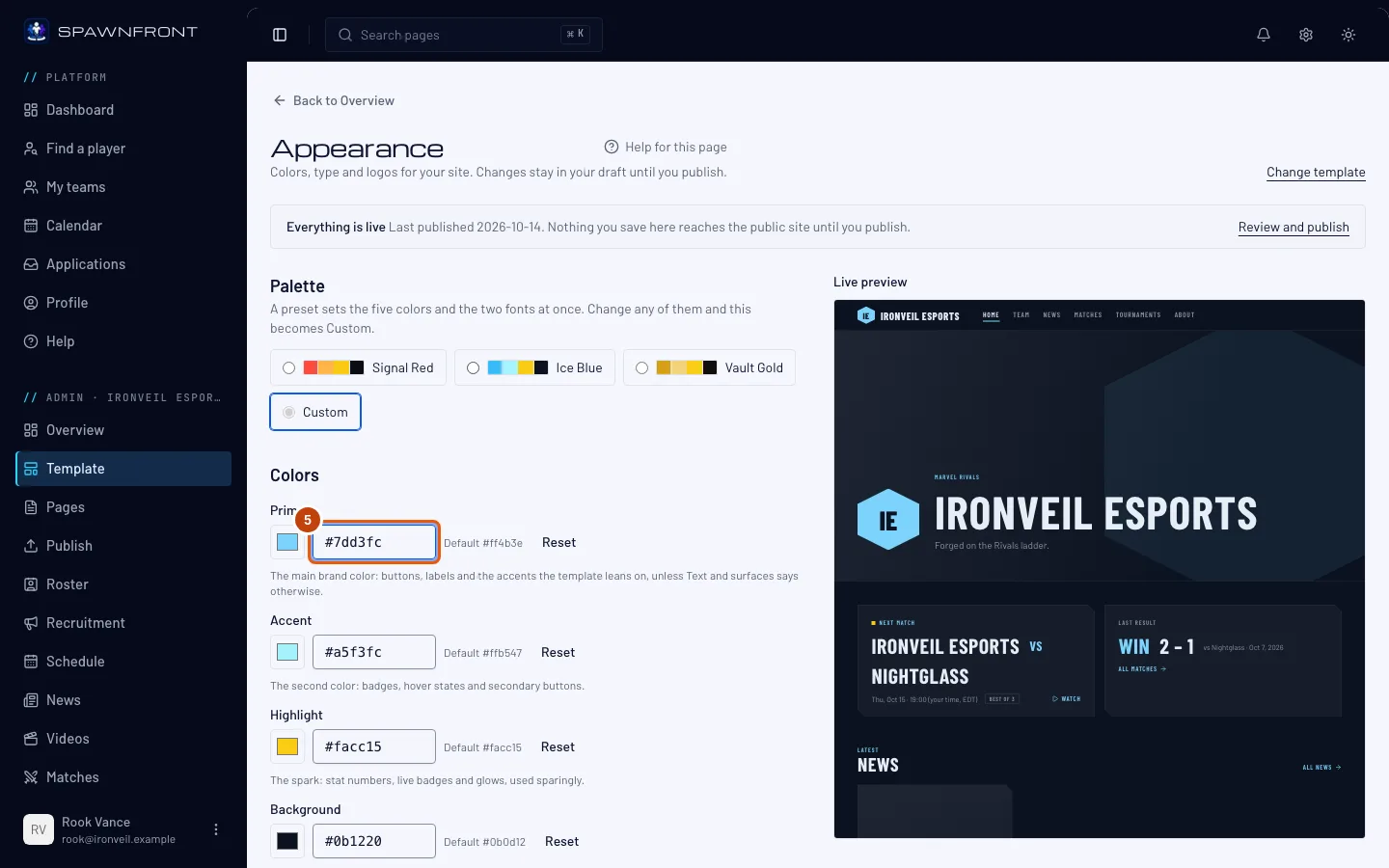
Step 5: Change a color
Under Colors, type a color code such as
#7dd3fcinto Primary, Accent, Highlight, Background or Text — or press the square beside it to pick one.You should see: the picture of your site change, and Custom outlined under Palette. Each color shows its template default; Reset puts that one back.
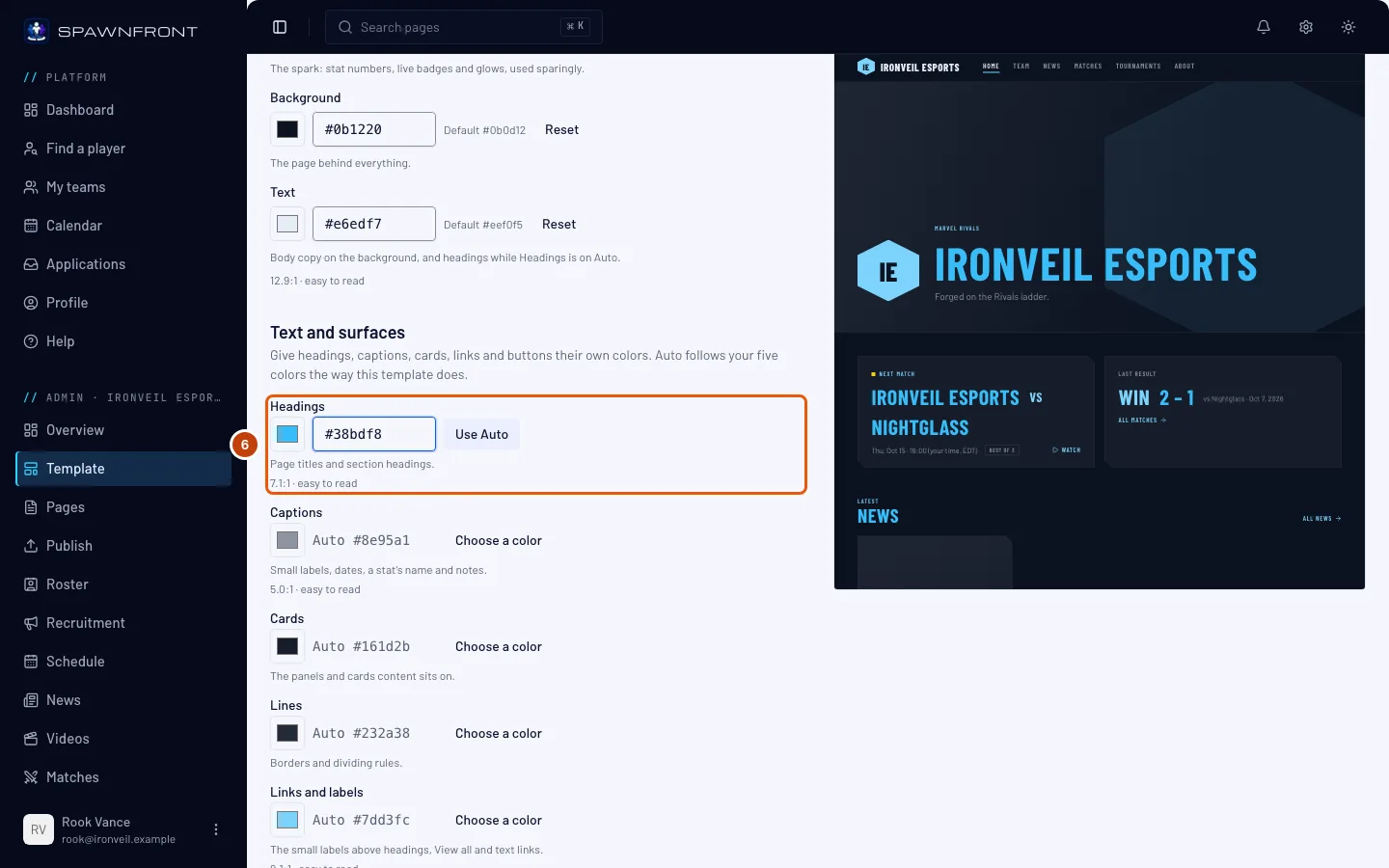
Step 6: Give text and surfaces their own colors
Under Text and surfaces, press Choose a color beside Headings, Captions, Cards, Lines, Links and labels, Button or Button text, then type a color code or press the square beside it. Each one starts on Auto, which follows your five colors the way your template does; Use Auto puts it back.
You should see: the picture of your site change, and under each color that carries words a number like 7.2:1 · easy to read — how clearly it stands out from your background and your cards. Below 4.5:1 (3:1 for headings) it says hard to read, shows the color visitors will see instead, and offers Make it readable, which puts that color in the field.
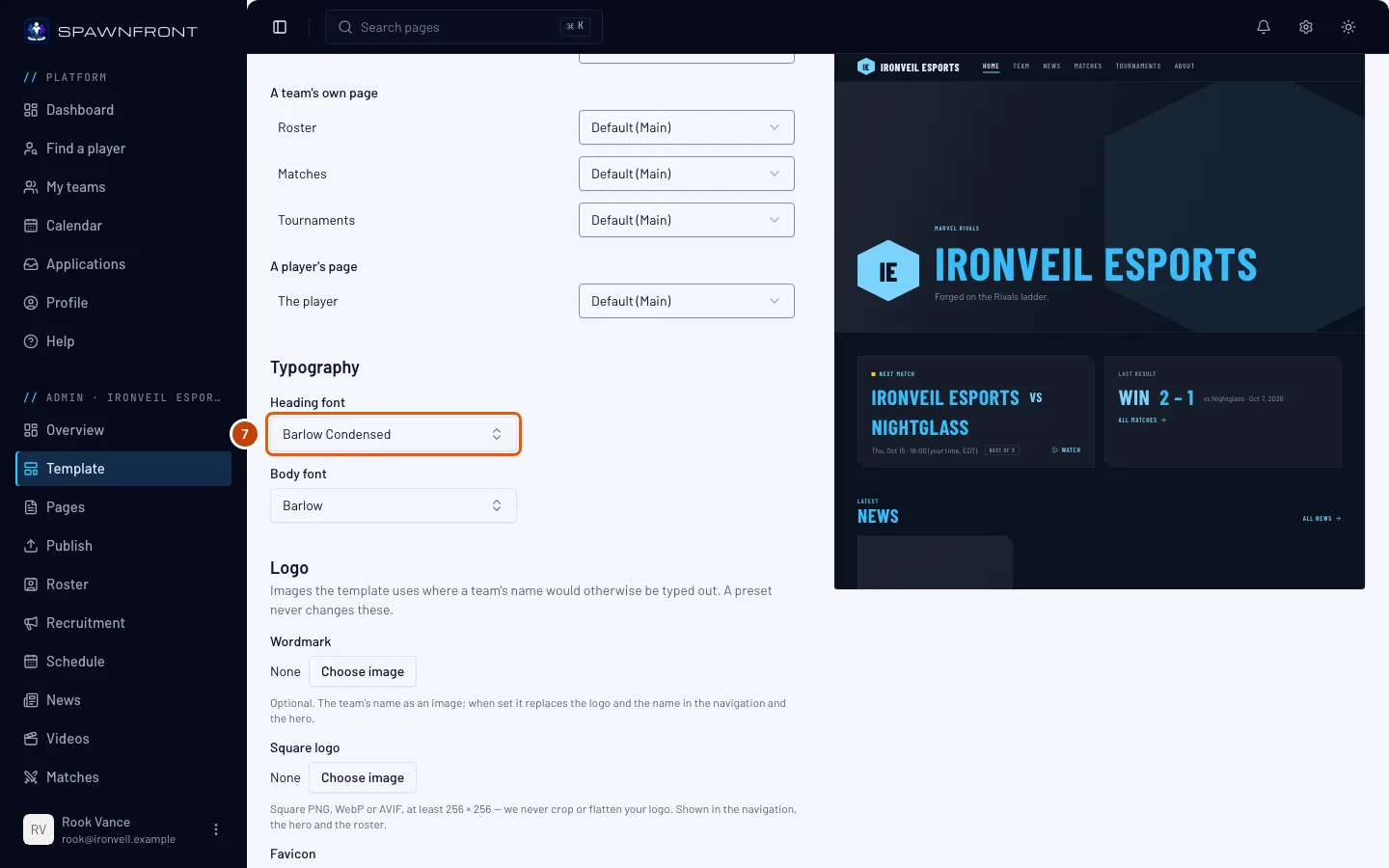
Step 7: Choose your fonts
Under Typography, open Heading font or Body font and pick a font. Each font is shown in itself and filed under a group — Heavy display, Condensed, Tech, Clean sans, Serif, Handwritten, Monospace — and you can type a name to find it.
You should see: the picture of your site in that font. Changing a font also makes the palette Custom.
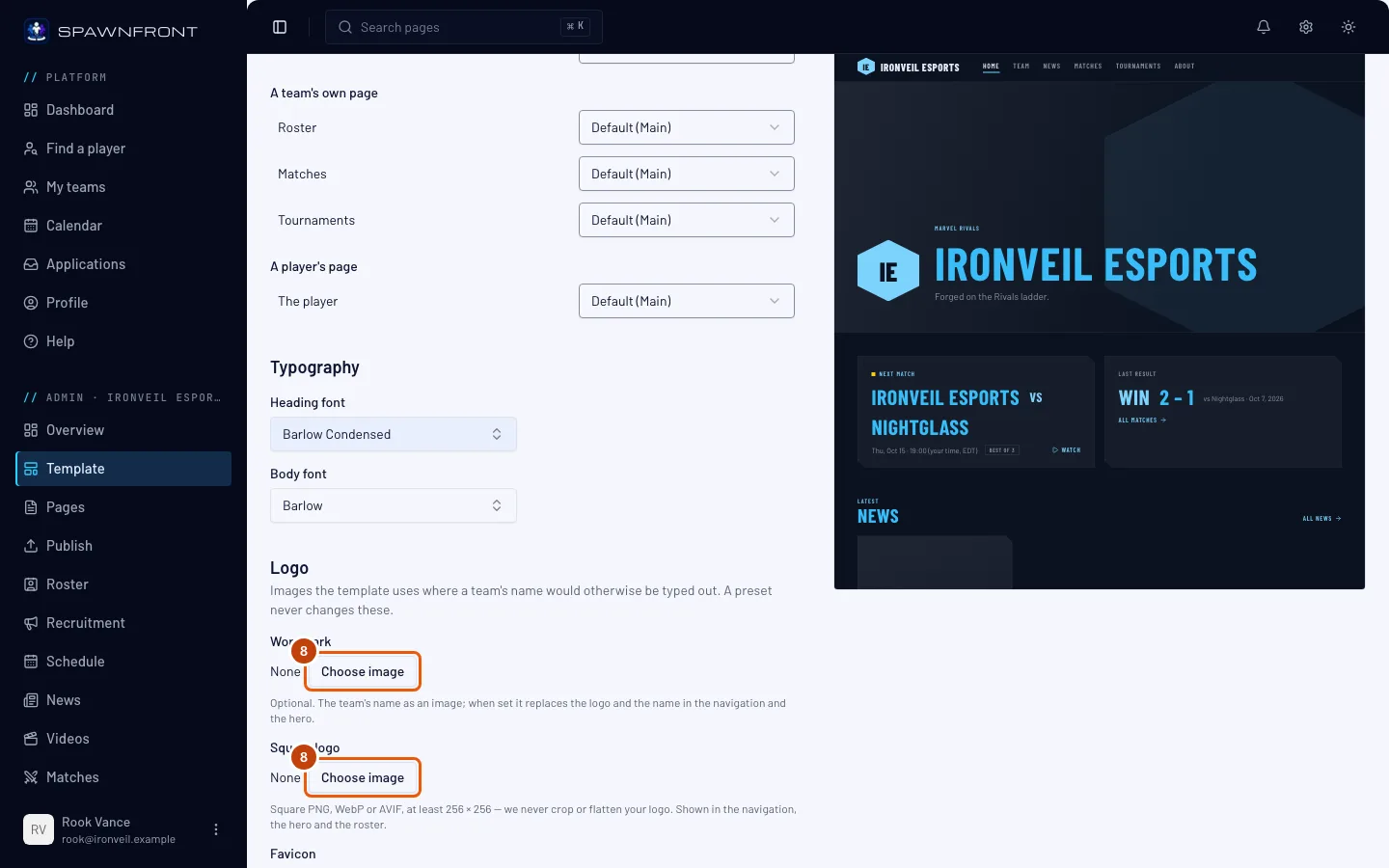
Step 8: Add your logo
Under Logo, press Choose image beside Wordmark, Square logo or Favicon (it reads Replace once one is set). In the Insert image box, pick an image or upload one — JPEG, PNG, WebP or AVIF, up to 5 MB — and press Insert. A logo needs no alt text.
- Square logo is shown in your site's navigation, at the top of Home and on your roster.
- Wordmark is optional: your team's name as an image, any shape. When you set one, it replaces the square logo and the name in the navigation and at the top of Home.
- Favicon is the small icon in the browser tab.
Your logos are never cropped or changed. Every image is shown whole, and a transparent background stays transparent. That is why the square logo and the favicon must be square, at least 256 × 256 pixels — a picture of another shape is refused when you save, with a message giving its size. A logo you chose before this rule keeps showing until you change it.
You should see: the image's name beside the slot. A preset never changes these.
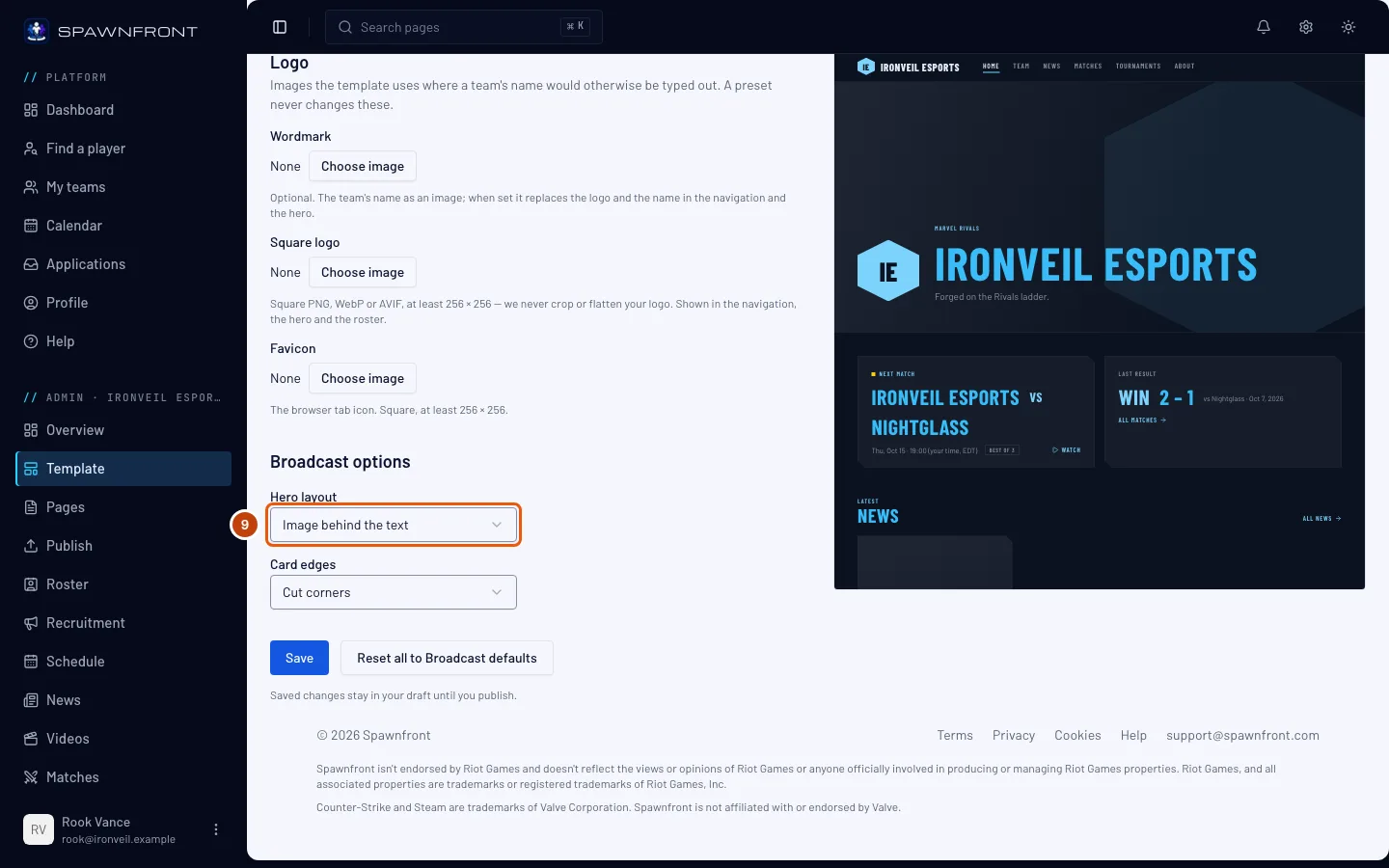
Step 9: Set the template's options
Further down, under Broadcast options, choose Hero layout (Image behind the text or Image beside the text) and Card edges (Cut corners or Square corners). Other templates list their own options here: Neon Grid's Motion is Full motion or Calm (everything still), and its Hero glow is Bright (the top of your home page fades from your background color to your accent) or Dark (to a dark gray mixed from your main color and your accent, for a darker look); Crosshair's Hero layout is Split (your words on the left, your image on the right with your next match over it) or Full-width image; Faceoff's Hero alignment is Centered or Left, and its Home roster is Scattered (your players' cards around a big "Meet the squad") or Grid; Clutch's Hero layout is Bento (your hero beside a Latest news panel) or Full width, and its Corners are Rounded or Square; Varsity's Background is Pinstripe (a faint diagonal stripe behind every page) or Plain, and its Hero size is Full (a tall photo with the menu over it) or Banner (a shorter one); Redline's Photo tint is Duotone (your photos washed in your main color) or Natural (their own colors), and its Panels are Offset (dark blocks set behind your photos and sections) or Flat.
You should see: the picture of your site change its layout.
Step 10: Save
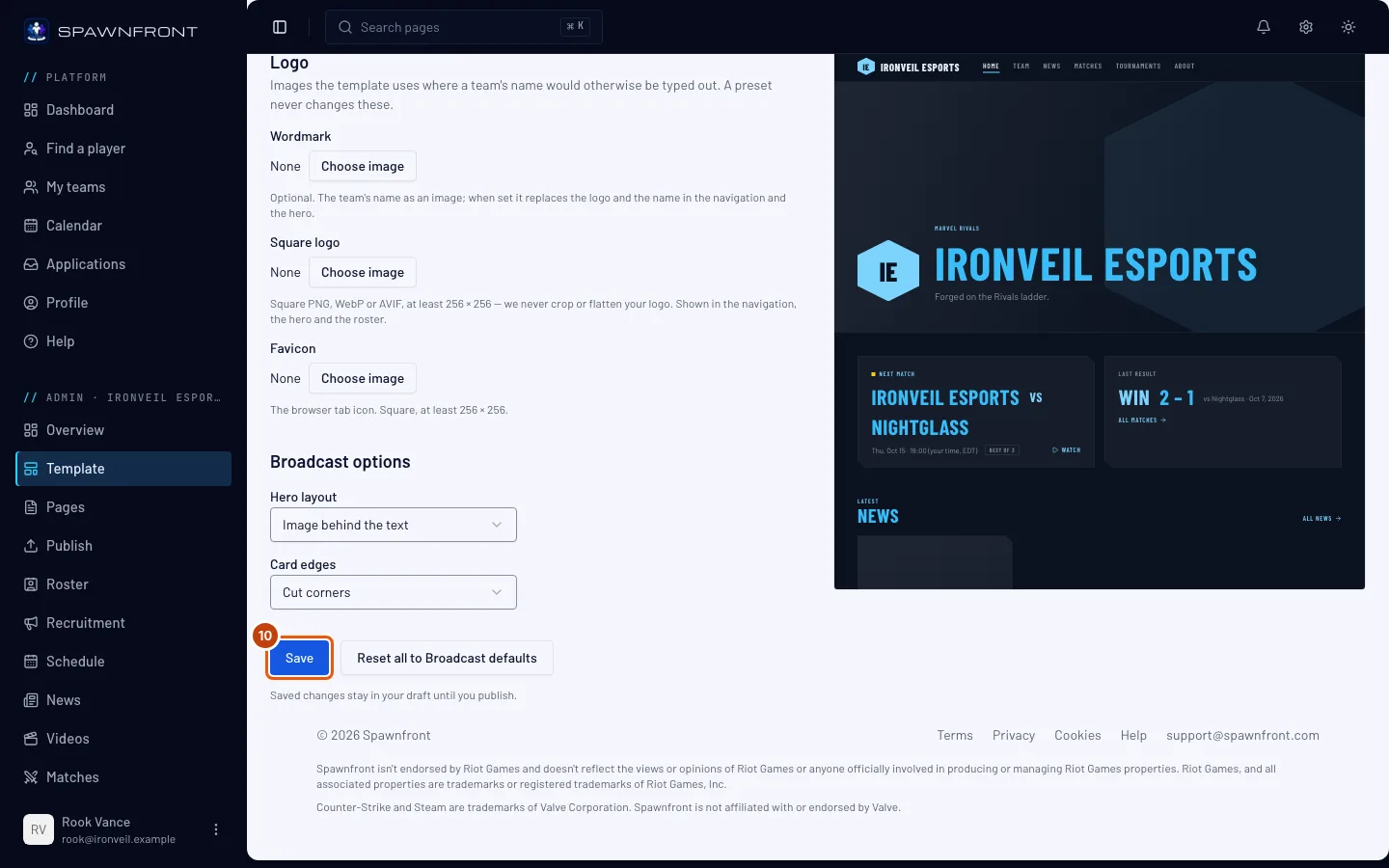
Press Save at the bottom of the form.
You should see: "Appearance saved". Visitors don't see it yet — saved changes stay in your draft until you publish.
Step 11: Publish your site
Press Publish in the menu on the left and publish — see Publish your site.
You should see: Appearance in the list of changes before you publish, and your site in its new look after.
How to know it worked
- The Template page marks your template In use.
- After publishing, your site shows your colors, fonts and logo — whole, never cropped.
- Every color that carries words says easy to read, or you've accepted the readable shade visitors see instead.
Something doesn't look right?
I changed my colors but my site looks the same
Saving keeps them in your draft. Press Publish in the menu and publish (step 11).
A color says "hard to read"
Words in that color don't stand out enough from your background or your cards for everyone to read them — normal text needs 4.5:1 and headings 3:1. Your visitors never see the hard-to-read color: your site shows the nearest readable shade instead, and the form names it. Press Make it readable to use that shade, or pick your own until it says easy to read. A color left on Auto is adjusted the same way without asking. Publish also shows a warning, but it never stops you publishing.
My site is hard to read in one color everywhere
Give each kind of text its own color under Text and surfaces (step 6): for example red Headings, light gray Text for paragraphs, and a slightly lighter Cards color so panels stand out from the page. To color whole parts of a page differently — a light store under a dark site, a band of your accent color — see Give parts of your site their own colors.
Will switching templates delete my content?
No. Your content belongs to your site, not the template: your colors and fonts carry over where the new template uses them, its own options go back to its defaults, and a section it can't show is hidden, not deleted. The box that opens before a switch lists all three, and you can cancel it. If your site still has the platform's default colors and fonts — you never picked a palette or changed a color — the new template's first palette is used instead, so your site looks like the template's picture; the box says so under Colors and fonts. There are seven templates: Broadcast, a matchday look; Neon Grid, a black neon look with an animated grid and a glowing gradient behind the hero, your logo floating over it, stat counters and a video wall; Crosshair, a black, technical look with framed panels, bracket labels, a big footer wordmark and photos front and center; Faceoff, a blue-black and ice-cyan look where your logo faces your opponent's on every match card, with a big hero and your squad scattered around a giant headline; Clutch, a light look with white rounded cards, wide uppercase headings and one bright color, your next match in the hero and, on a wide screen, at the top of every page; Varsity, a campus look with navy bands, one gold, your best tournament placements above your roster, and your matches as a schedule table; and Redline, one red on near-black with your photos tinted in your main color (red by default), square buttons and your matches as photo rows with both logos across a VS. Clutch's headings are in Archivo Expanded, which you can pick in any template under Heavy display. On a computer or tablet, Faceoff's Join our Discord button at the top of every page appears only when you've added your Discord link under Socials (Add your socials). Every template shows your live stream the same way: a countdown on the day, Twitch's player at the top of your home page while you're live, and a Live bar on every other page (Schedule a stream).
It says "This site changed since you opened it"
Another admin saved first, and nothing of yours was saved. Press Reload, then make your change again.
It says "This logo is … Upload a square image"
The square logo and the favicon must be square — the same width and height — and at least 256 × 256 pixels, because we never crop them. The message gives your picture's size. Make a square version (add empty, transparent space around a wide logo), upload it, and save again. A logo that isn't square belongs in Wordmark.
It says "This logo has no size on record"
We don't know that picture's size, so we can't check that it's square. Upload it again, pick the new copy, and save.
The fields and Save are grayed out
Your team's subscription has lapsed, so its site pages are read-only until it's active again. Renew it — see Manage billing.
Related articles
Still stuck? Contact support or email support@spawnfront.com — tell us the page you're on and the step number.