
Give parts of your site their own colors
Add color schemes beside your main colors and choose which sections of each page use them.
For team owners and admins · 6 steps
What you need first
- Your team has a site subscription and has chosen a template — see Choose a template and its look.
- You are the team's owner or an admin.
Steps
Step 1: Open Appearance
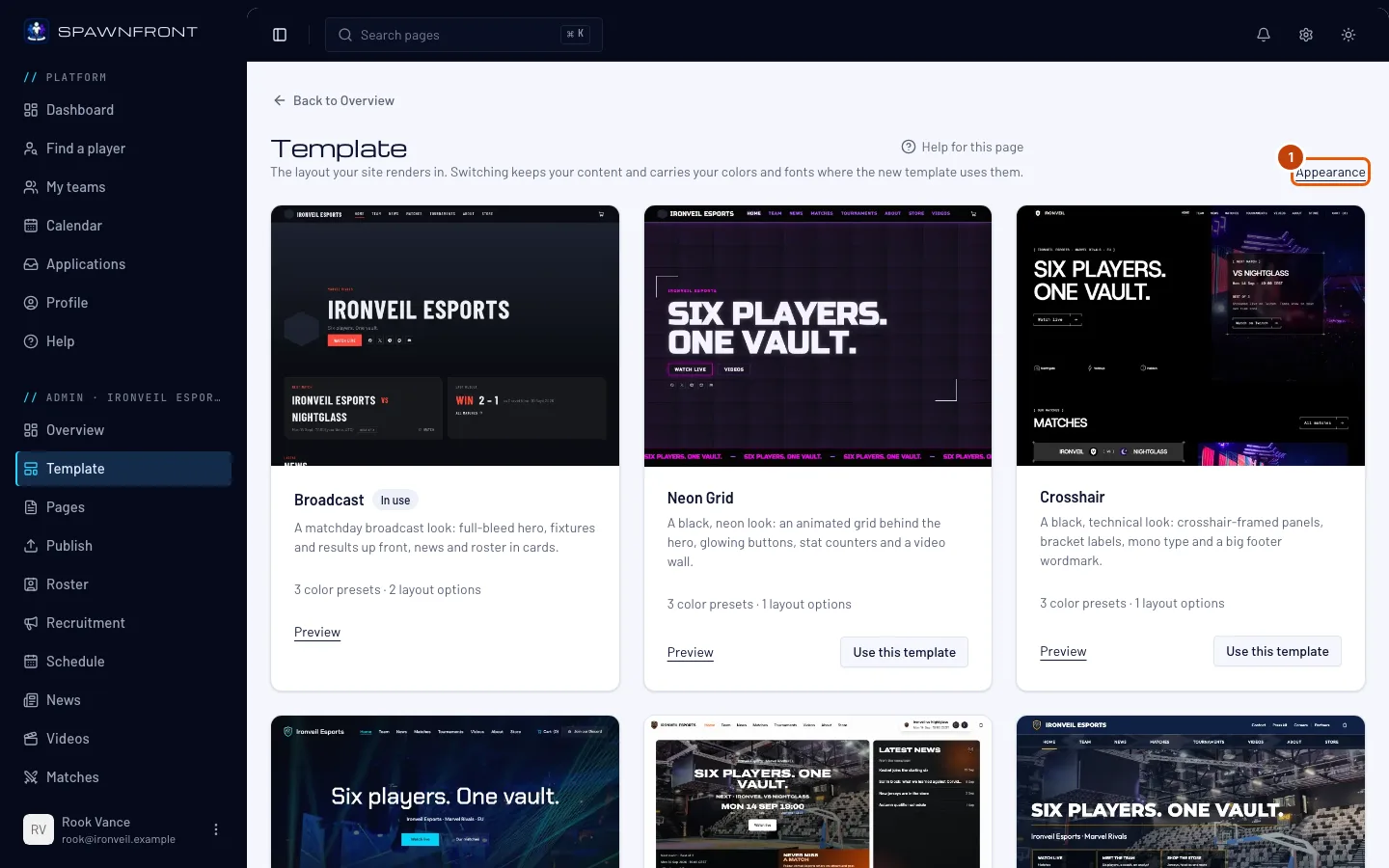
In the menu on the left, press Template, then Appearance at the top right.
You should see: the Appearance form, with a live picture of your site beside it.
Step 2: Add a color scheme
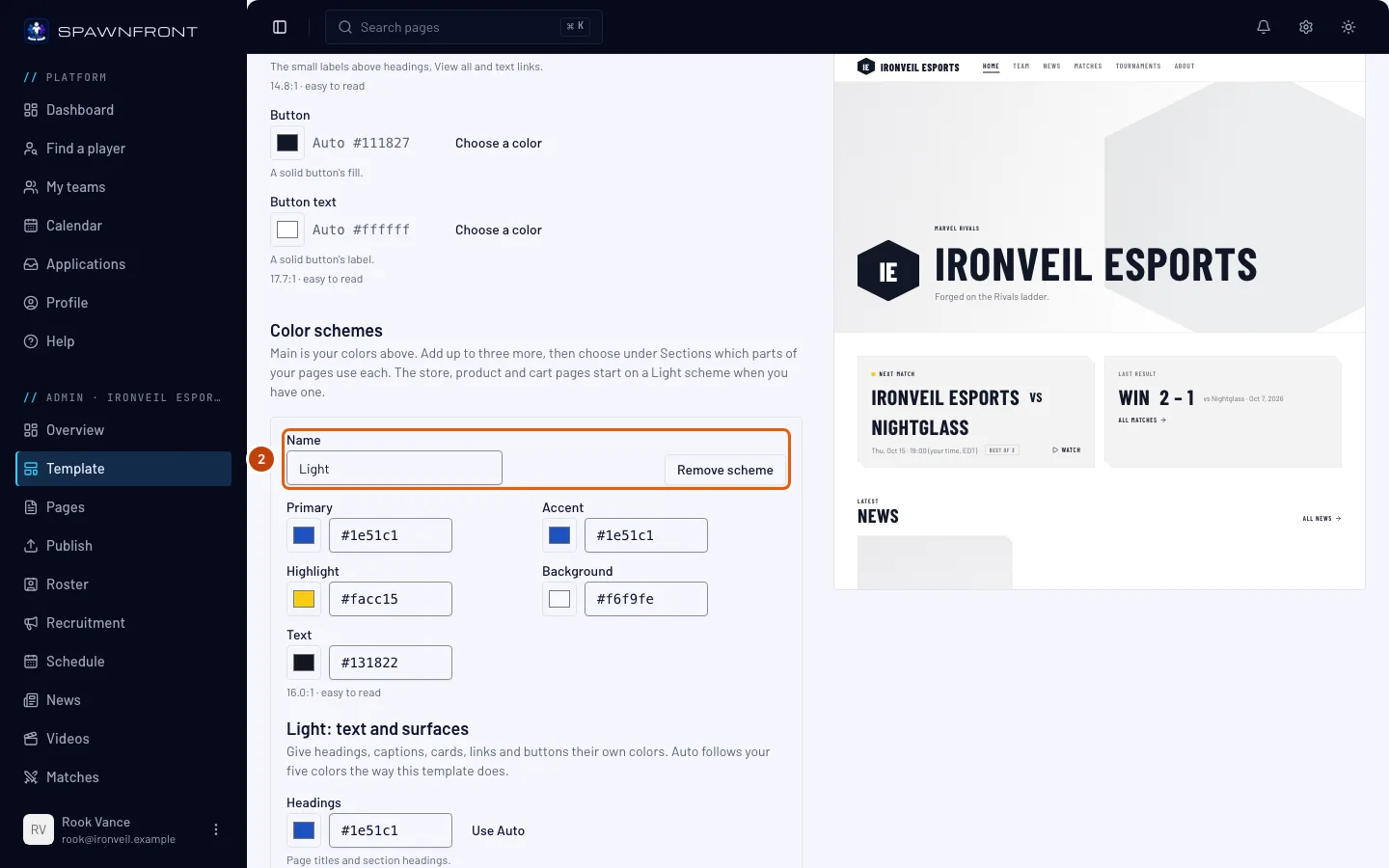
Under Color schemes, press Add a Light scheme. Your colors above are Main; you can add up to three more schemes. The button offers a Light scheme first, then an Accent band, then a copy of Main to start from.
You should see: a new scheme with its name, its five colors and its own text and surfaces, each with the same readability number as Main. Your store, product and cart pages start on your Light scheme as soon as you have one — the rest of your site stays on Main until you choose otherwise.
Step 3: Set the scheme's colors
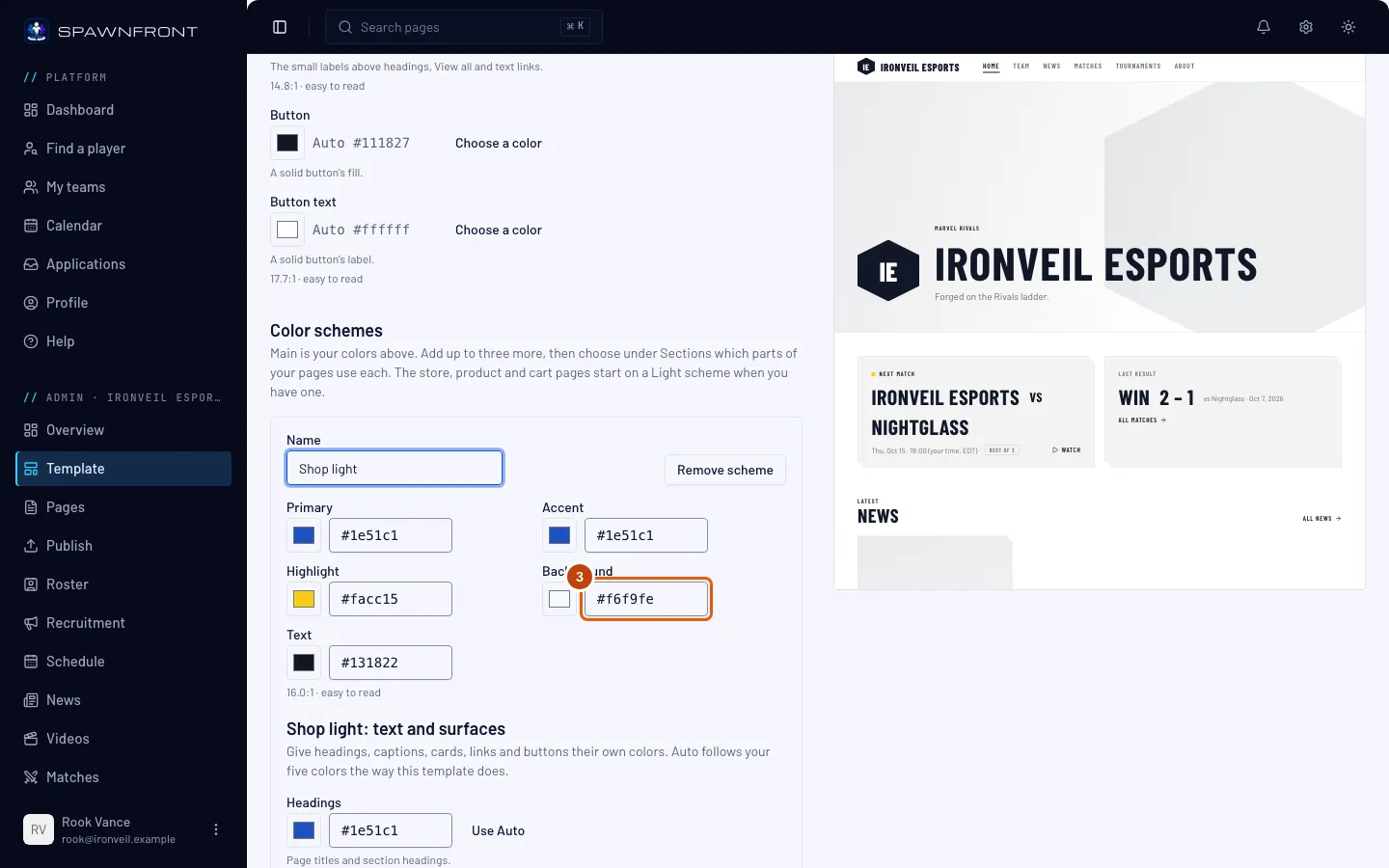
Type a name for the scheme, then change any of its colors the way you change Main's. Every color that carries words shows a number like 7.2:1 · easy to read; below the minimum it names the shade visitors will see and offers Make it readable.
You should see: the scheme's name in every section's menu below.
Step 4: Choose a scheme for a section
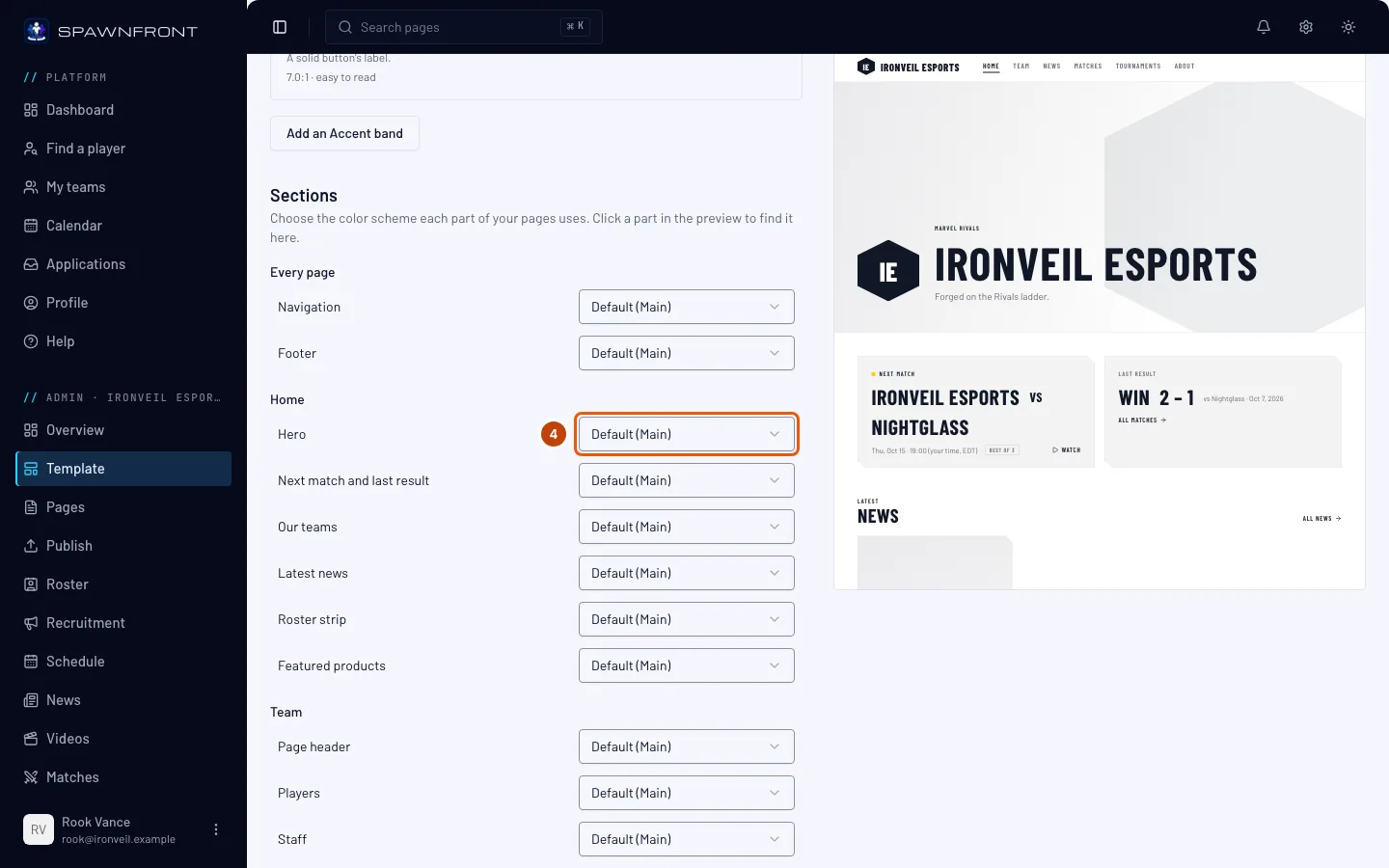
Under Sections, find the part of your site you want to change — they are listed by page, from Every page (the navigation and footer) to Home, Store and the rest — and pick a scheme in its menu. Default follows Main, or your Light scheme for the store, product and cart. You can also click a part of the live picture to find its row.
You should see: the live picture switch to that page, the part outlined, and drawn in the scheme you picked.
Step 5: Save
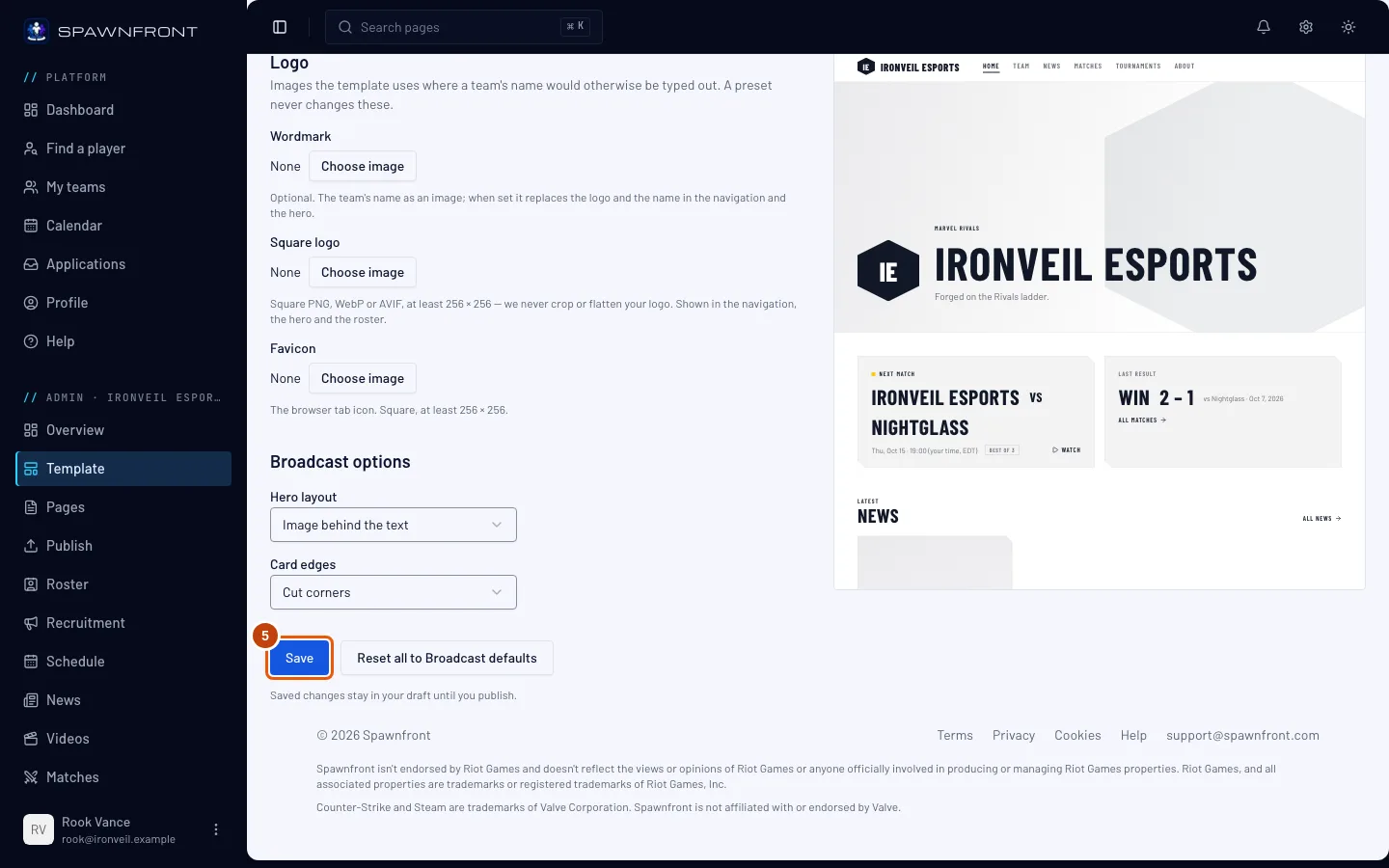
Press Save at the bottom of the form.
You should see: "Appearance saved". Visitors don't see it yet — saved changes stay in your draft until you publish.
Step 6: Publish your site
Press Publish in the menu on the left and publish — see Publish your site.
You should see: Appearance in the list of changes, and the sections in their schemes after you publish.
How to know it worked
- Each section you chose is drawn in its scheme on your site.
- Your store and cart are on your Light scheme, or on the scheme you chose for them.
Something doesn't look right?
Add a Light scheme is grayed out
Main's colors come first. Each of Main's five colors needs a full color code, like #0a0a0a: fix the one that isn't, and Add a Light scheme — or Add a scheme — can be pressed again.
My store turned light as soon as I added a scheme
The store, product and cart pages use your Light scheme by default, so shoppers can read prices and the cart easily. To keep them on Main, set their rows under Sections to Main.
I removed a scheme — what happened to its sections?
They went back to their default: Main, or your Light scheme for the store. Nothing is deleted.
I picked a preset and my schemes changed
Each preset comes with its own Accent band and Light schemes, which replace the ones you had. Sections that used a scheme the preset doesn't have go back to their default. Pick your own colors again under Color schemes if you'd rather keep yours.
A section I want isn't in the list
The list shows the parts your template draws. Some templates draw a few parts of a page together; those share one row.
The checkout page is still dark
Checkout is Fourthwall's own page. Its colors come from your shop's theme on Fourthwall — see Open your team's store.
Related articles
Still stuck? Contact support or email support@spawnfront.com — tell us the page you're on and the step number.