
Arrange your page headers
Give each page of your site a header: place its image and text on a grid of nine squares, and choose the words, fonts, sizes and colors.
For team owners and admins · 14 steps
What you need first
- Your team has a site subscription. A free team's admin shows Get a site instead of Pages.
- You are the team's owner or an admin.
- You have chosen a template — see Choose a template. Until you do, Pages has no Page headers link.
Steps
Step 1: Open Pages
In your team's admin, press Pages in the menu on the left.
You should see: a page titled Pages, listing every page of your site.
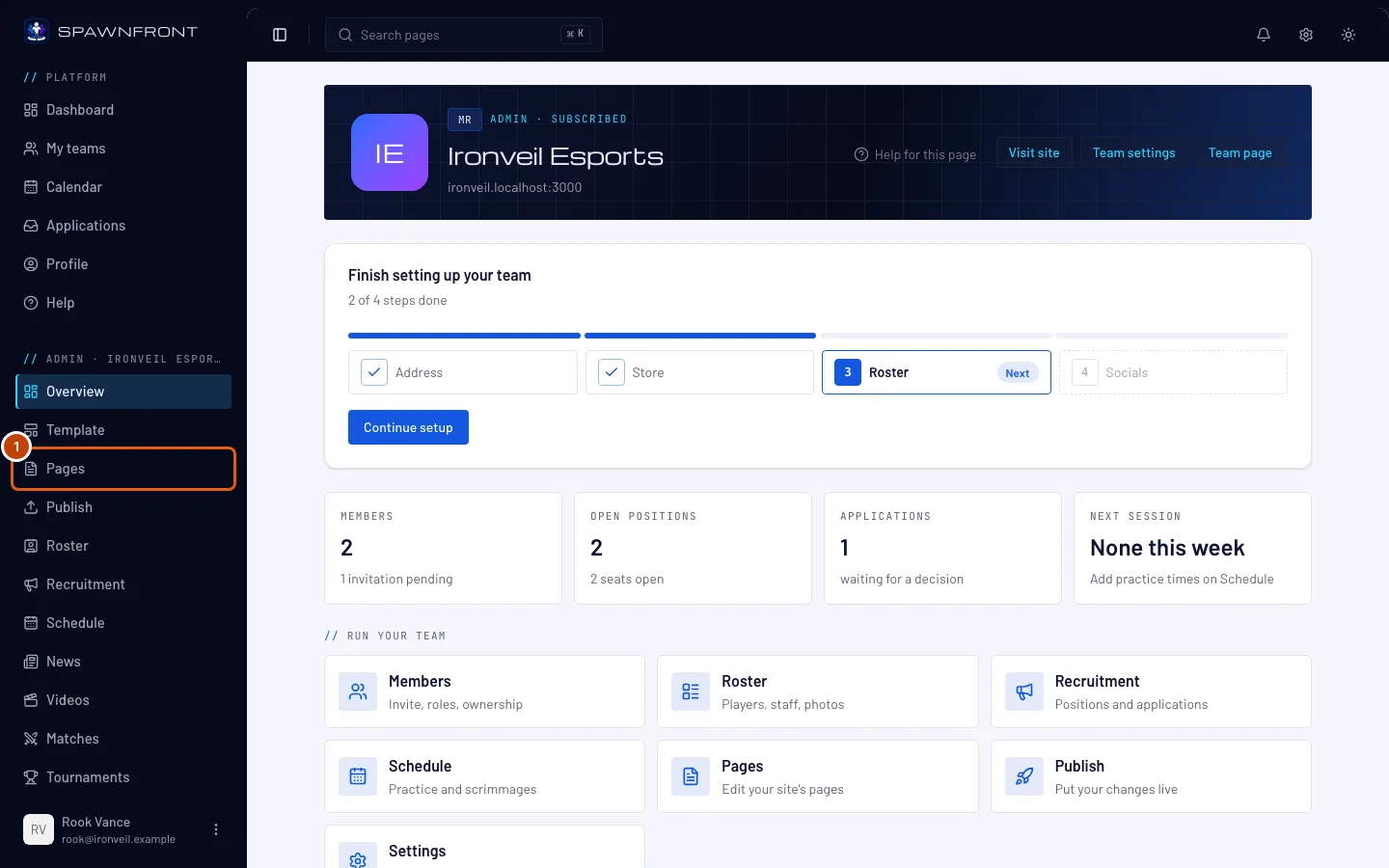
Step 2: Open Page headers
Press Page headers at the top of the page. Each page editor has a shortcut too: Edit this page's header.
You should see: a page titled Page headers, with a tab for each page of your site — Home, Team, News, Matches, Tournaments, Videos, About and Store — and below them the page's header as your site draws it, over a grid of nine squares.
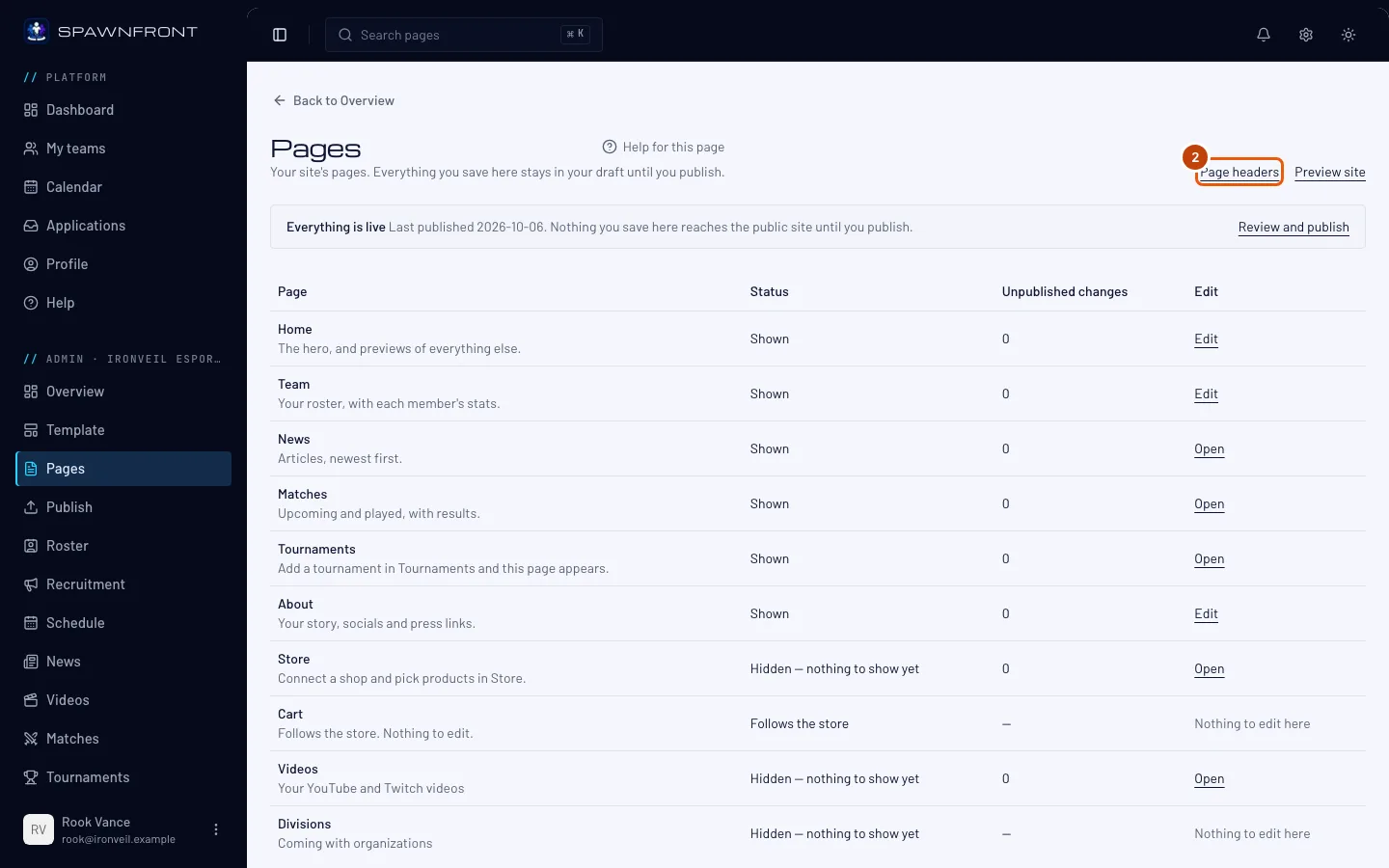
Step 3: Choose a page
Press the tab of the page you want to change, for example Home.
Every page has its own header: an image and a block of text, the first thing the page shows. An empty title shows the page's own name — on Home, your team's name. Until you save a Home header, it starts from your Home page's image and tagline.
You should see: that page's header, with a Text handle on its text block.
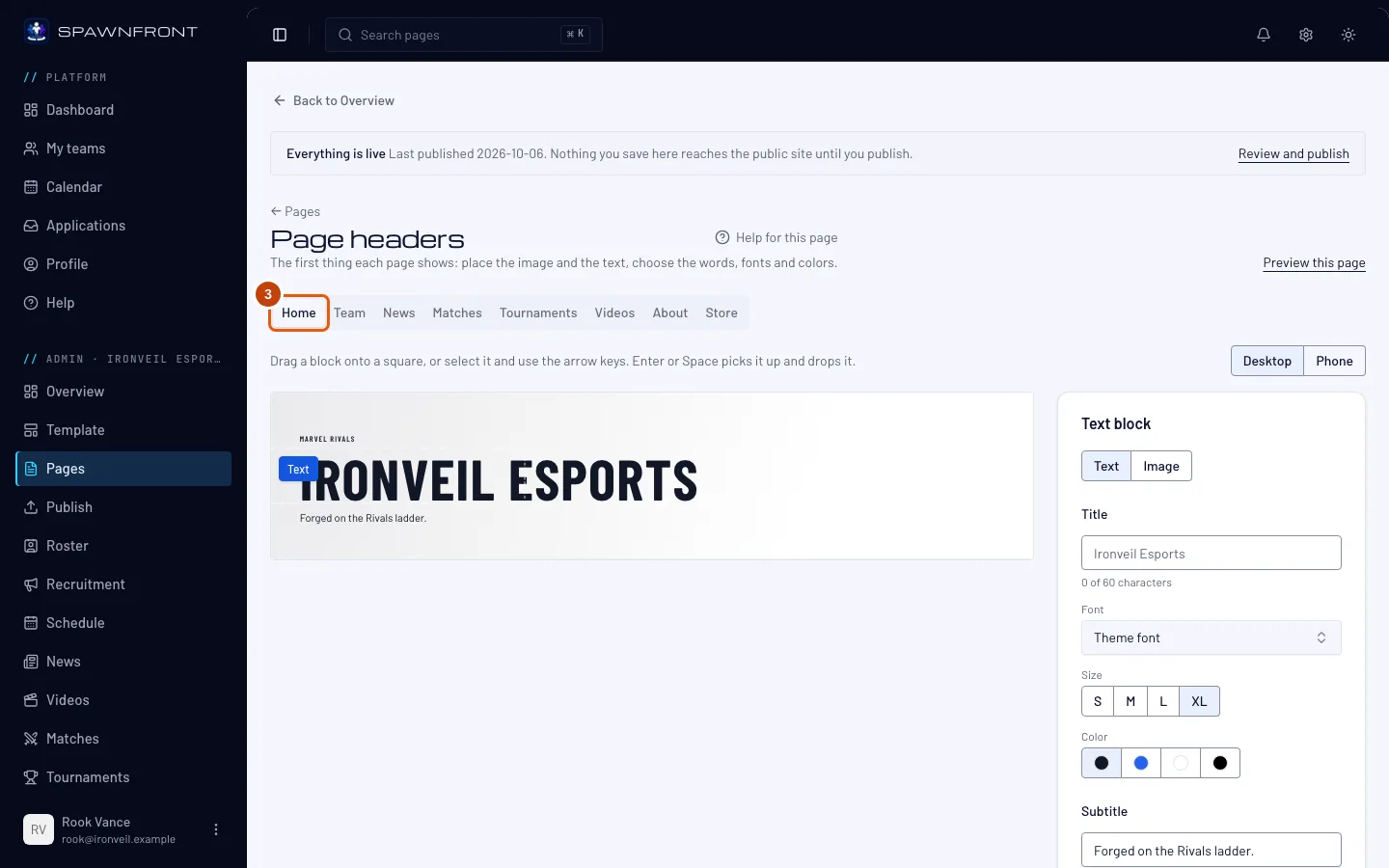
Step 4: Select the image
In the panel on the right, press Image.
You should see: the panel's title change to Image block, with the image's field below it.
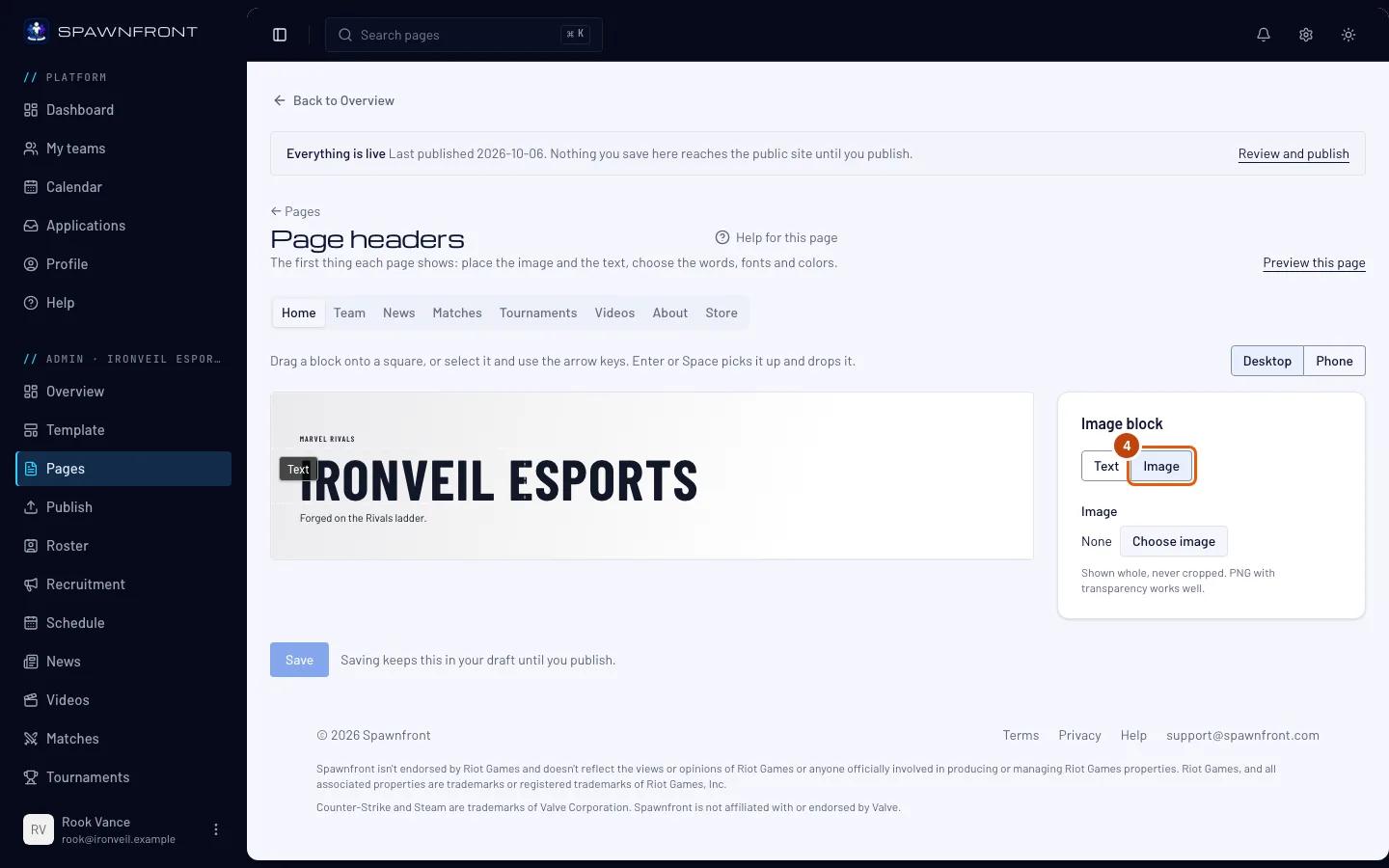
Step 5: Choose an image
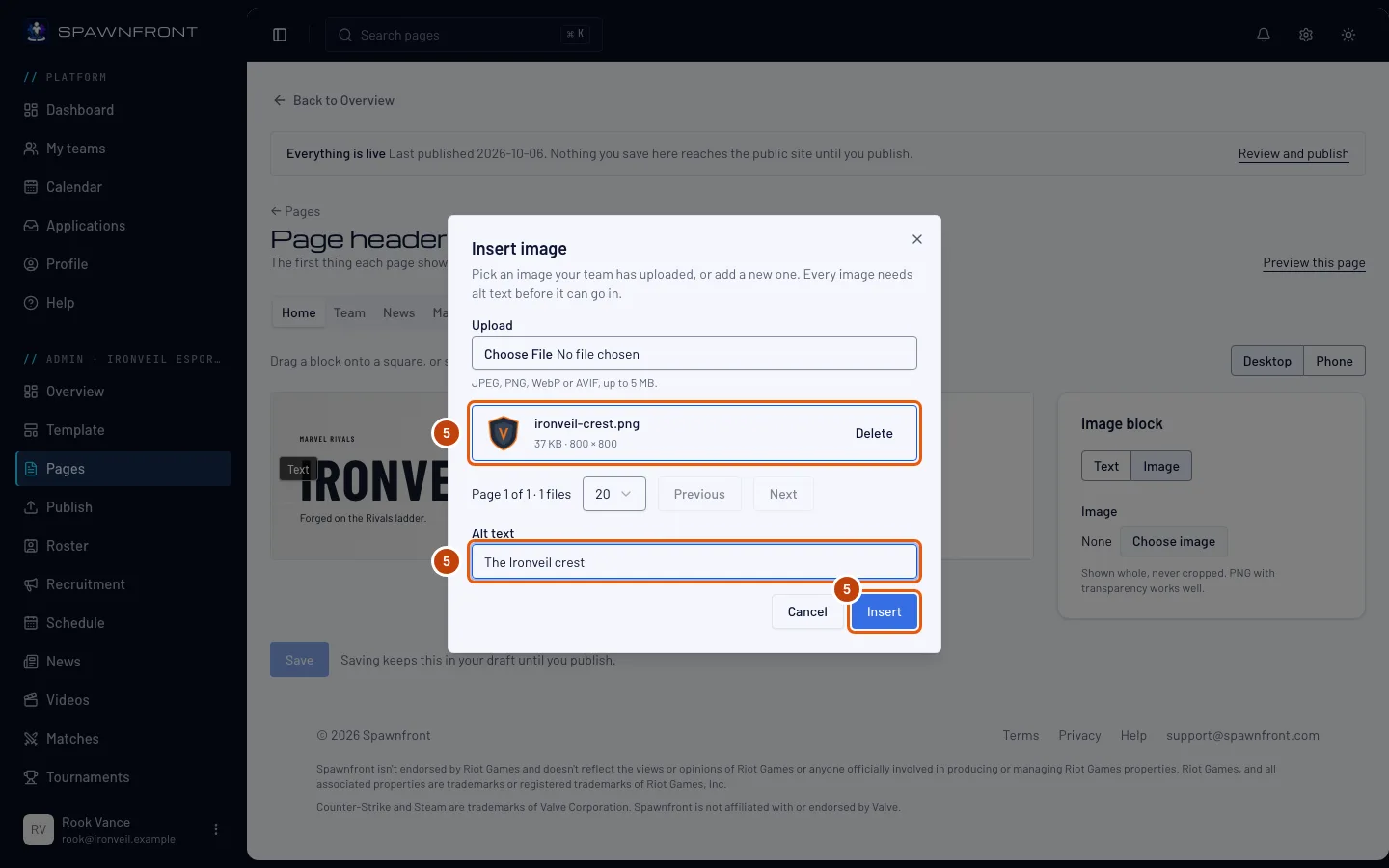
Press Choose image (it reads Replace once an image is set). In the box that opens, pick an image your team has already uploaded, or add one with Upload — JPEG, PNG, WebP or AVIF, up to 5 MB. Type the Alt text, then press Insert.
Your image is shown whole — never cropped, and a transparent background stays transparent, so a PNG with transparency works well. To take the image off the header, press Remove.
You should see: the image in the header, with an Image handle on it.
Step 6: Choose the image's size
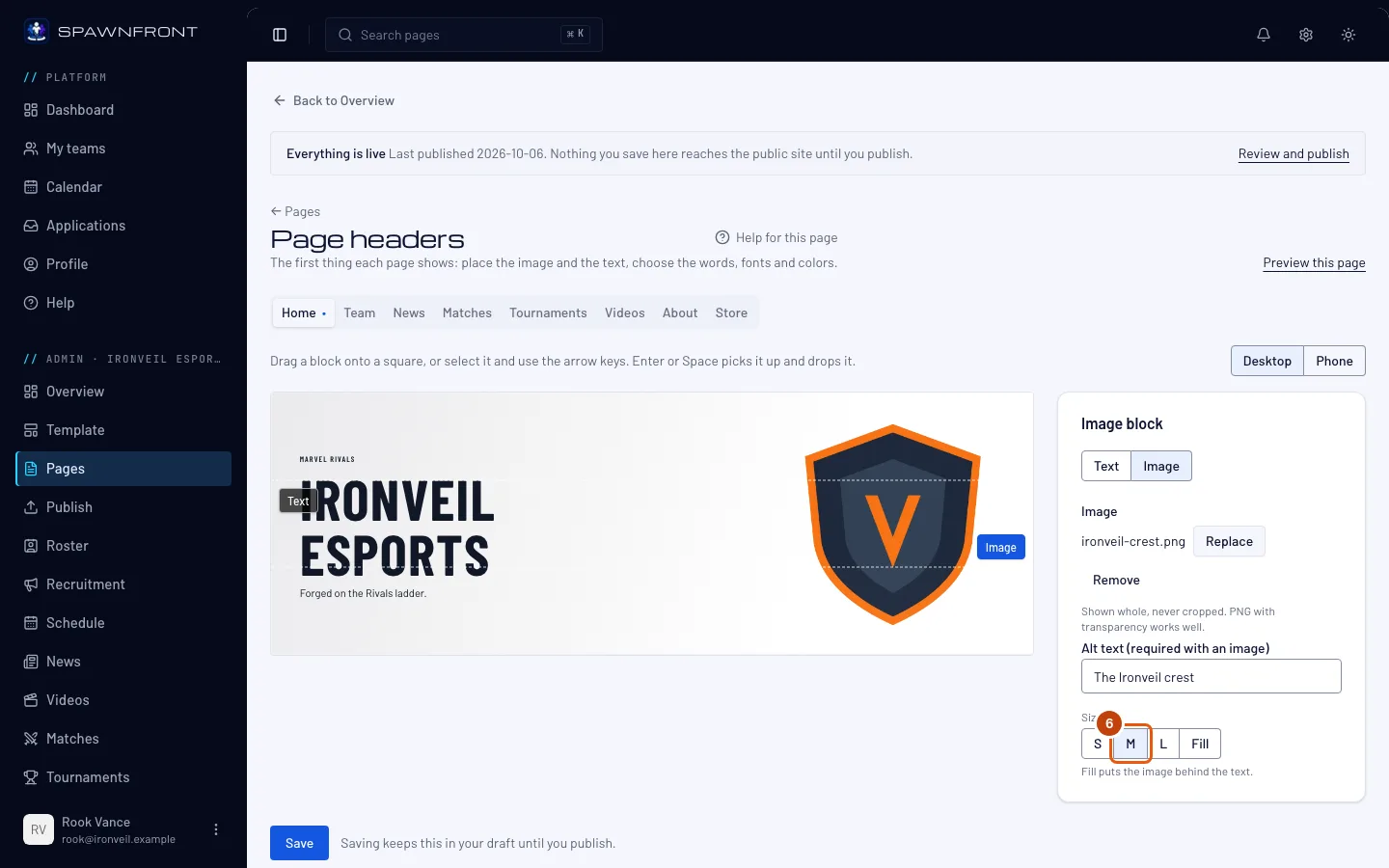
Under Size, press S, M, L or Fill.
Fill puts the image behind the text, across the whole header.
You should see: the image grow or shrink in the header.
Step 7: Move the image
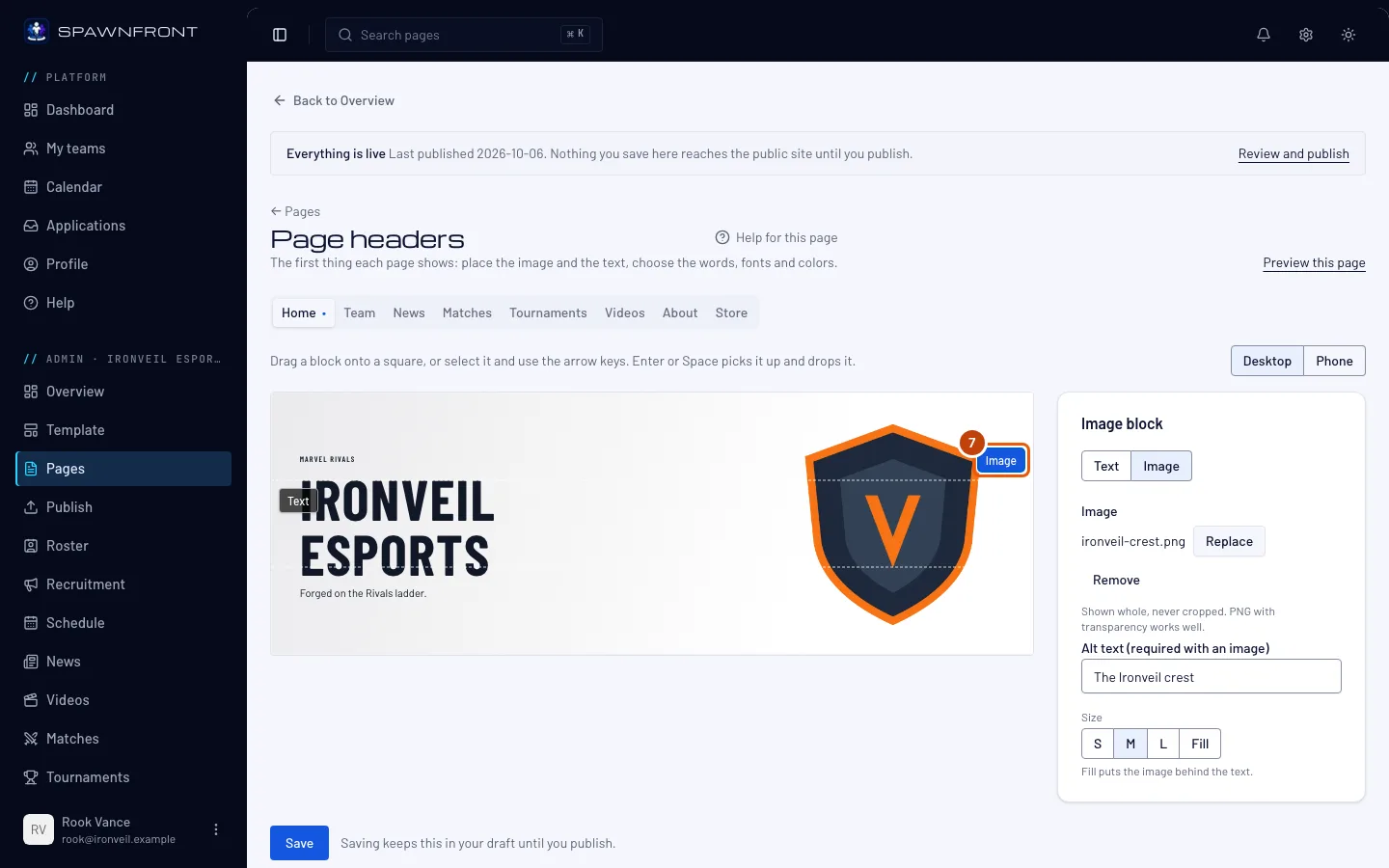
Drag the image's handle onto one of the nine squares. Or press the handle, then use the arrow keys: each press moves it one square. You can also press Enter or Space to pick it up, walk it with the arrow keys, and press Enter or Space again to drop it.
The text block moves the same way. If you put both on the same side, they overlap — the editor shows you exactly how.
You should see: the image in its new square, for example top right.
Step 8: Write the title and subtitle
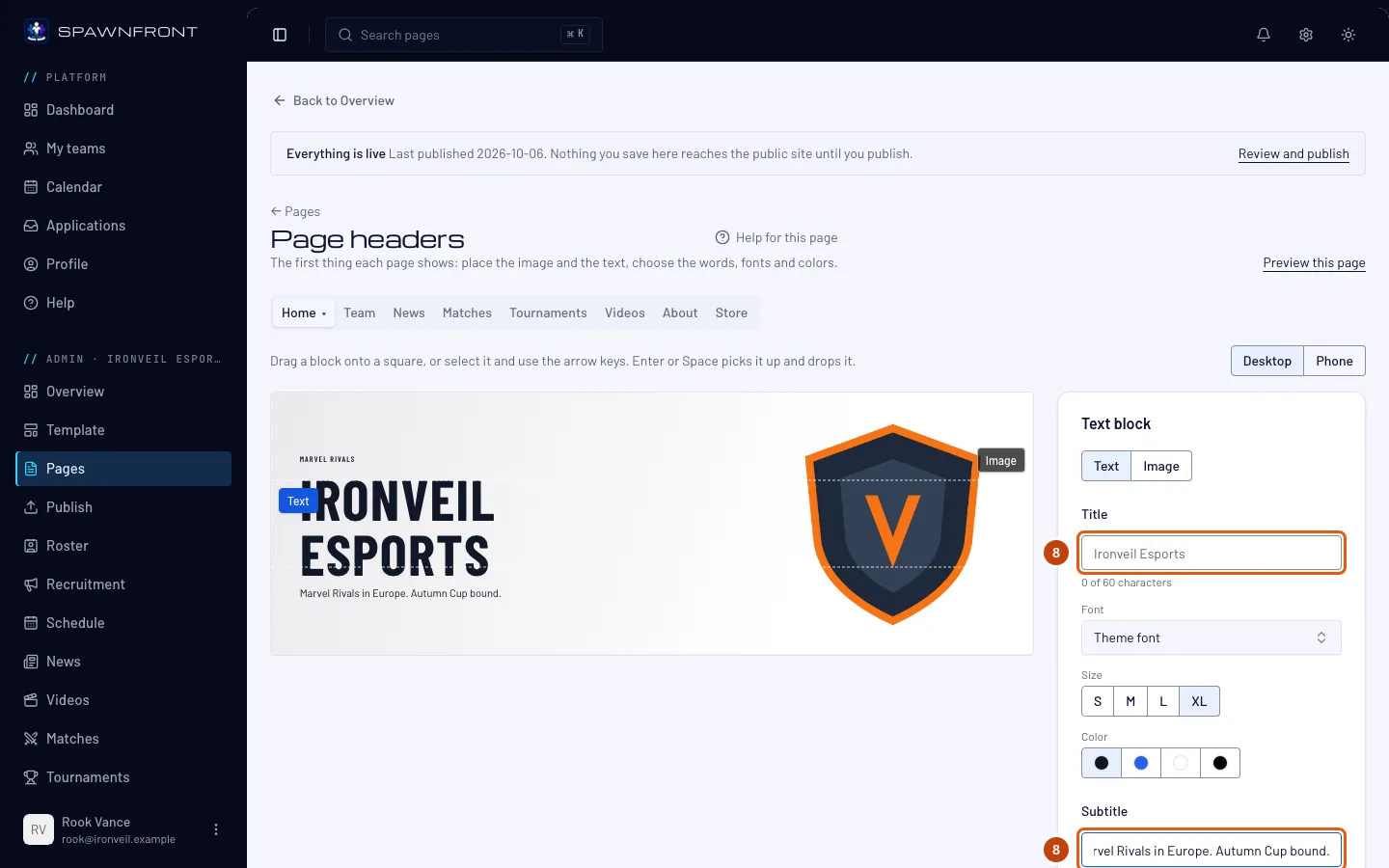
In the panel, press Text. Type the title (up to 60 characters) and the subtitle (up to 120).
Leave the title empty to show the page's own name. The subtitle is optional — except on Home: once you've saved a Home header, your site can't be published without its subtitle.
You should see: your words in the header as you type, and the count under each field.
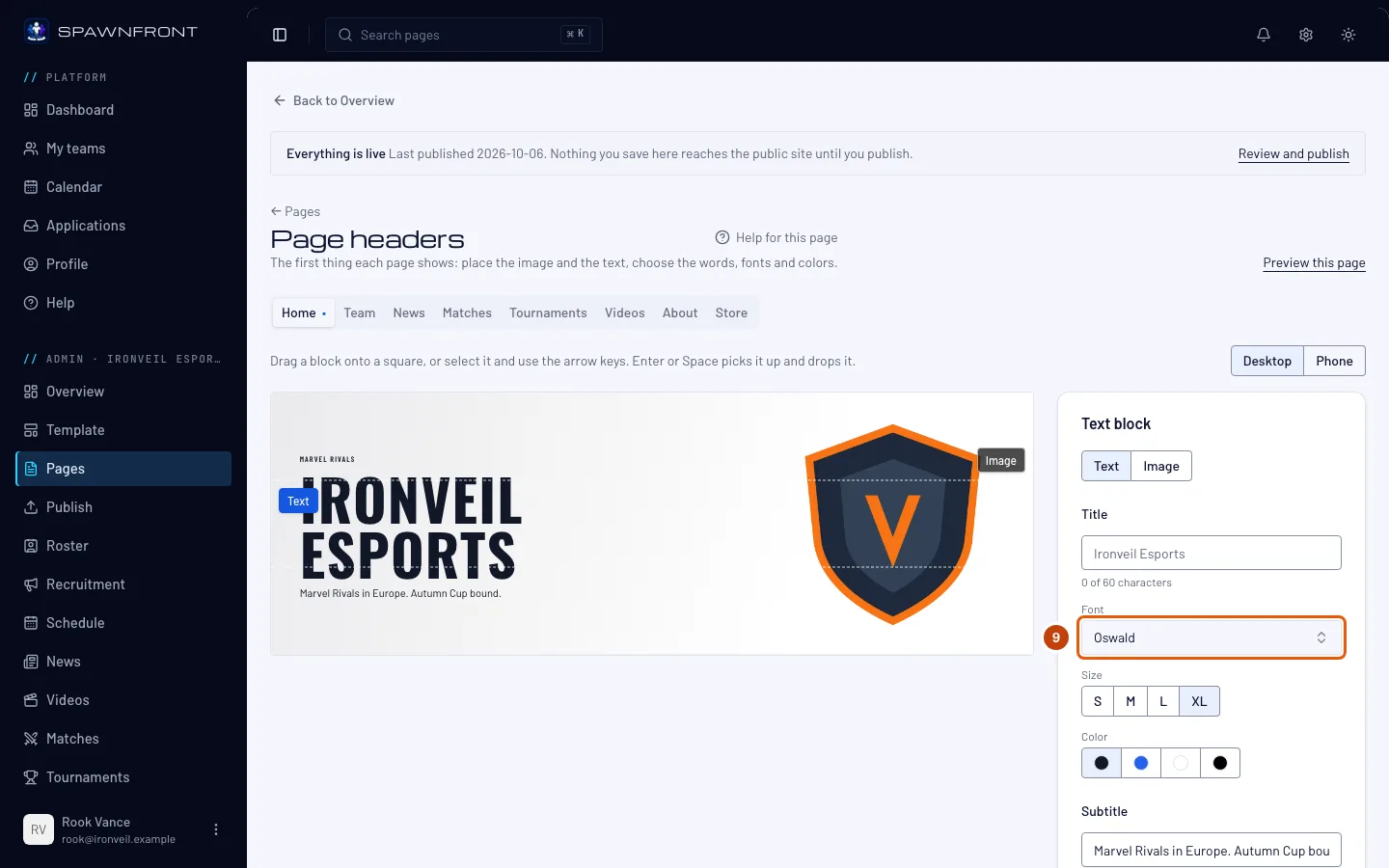
Step 9: Choose a font
Under Font, open the list and pick a font. Theme font keeps the font your template uses.
The title and the subtitle each have their own font.
You should see: the header's text in the new font.
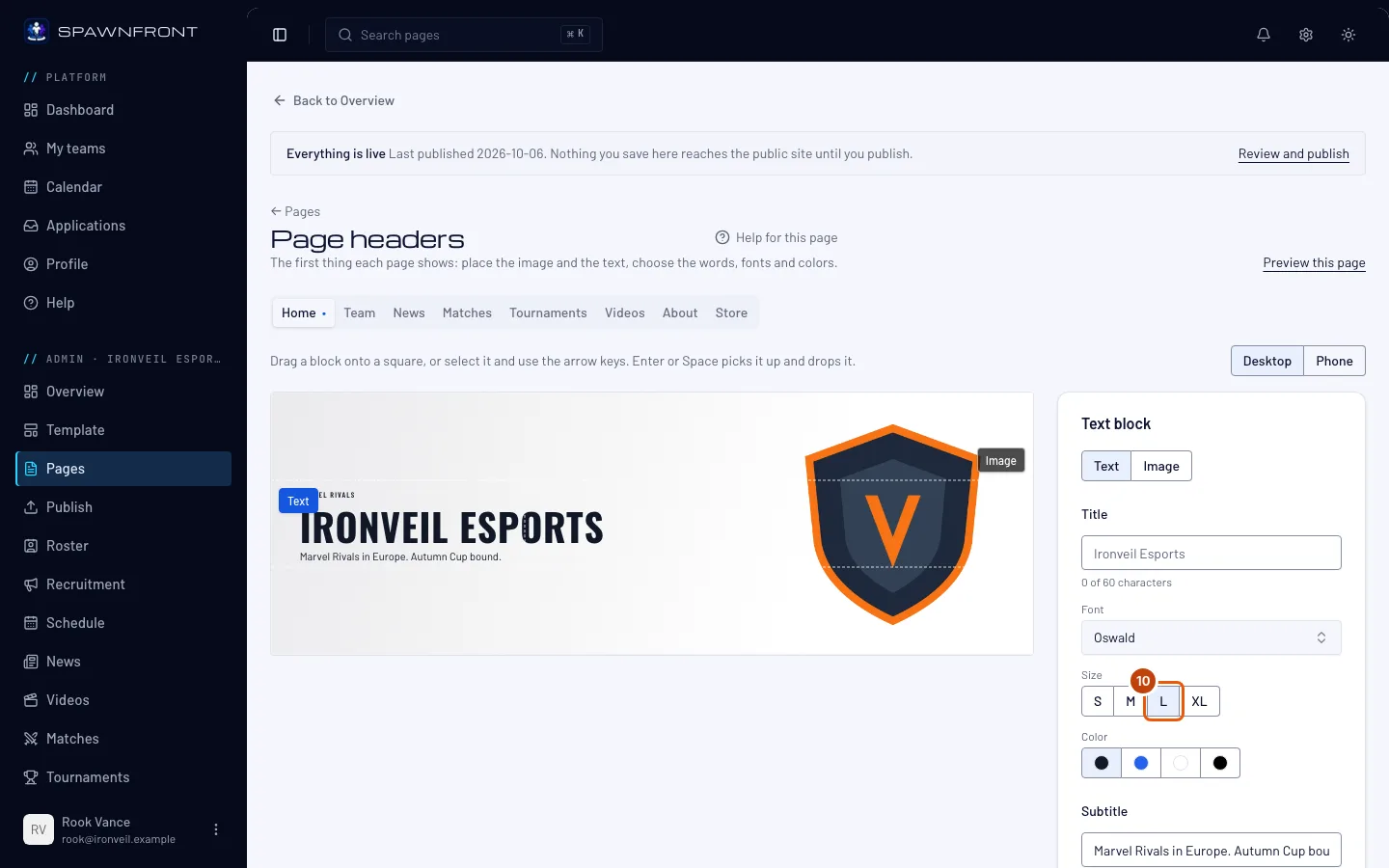
Step 10: Choose a size
Under Size, press S, M, L or XL.
You should see: the text grow or shrink in the header.
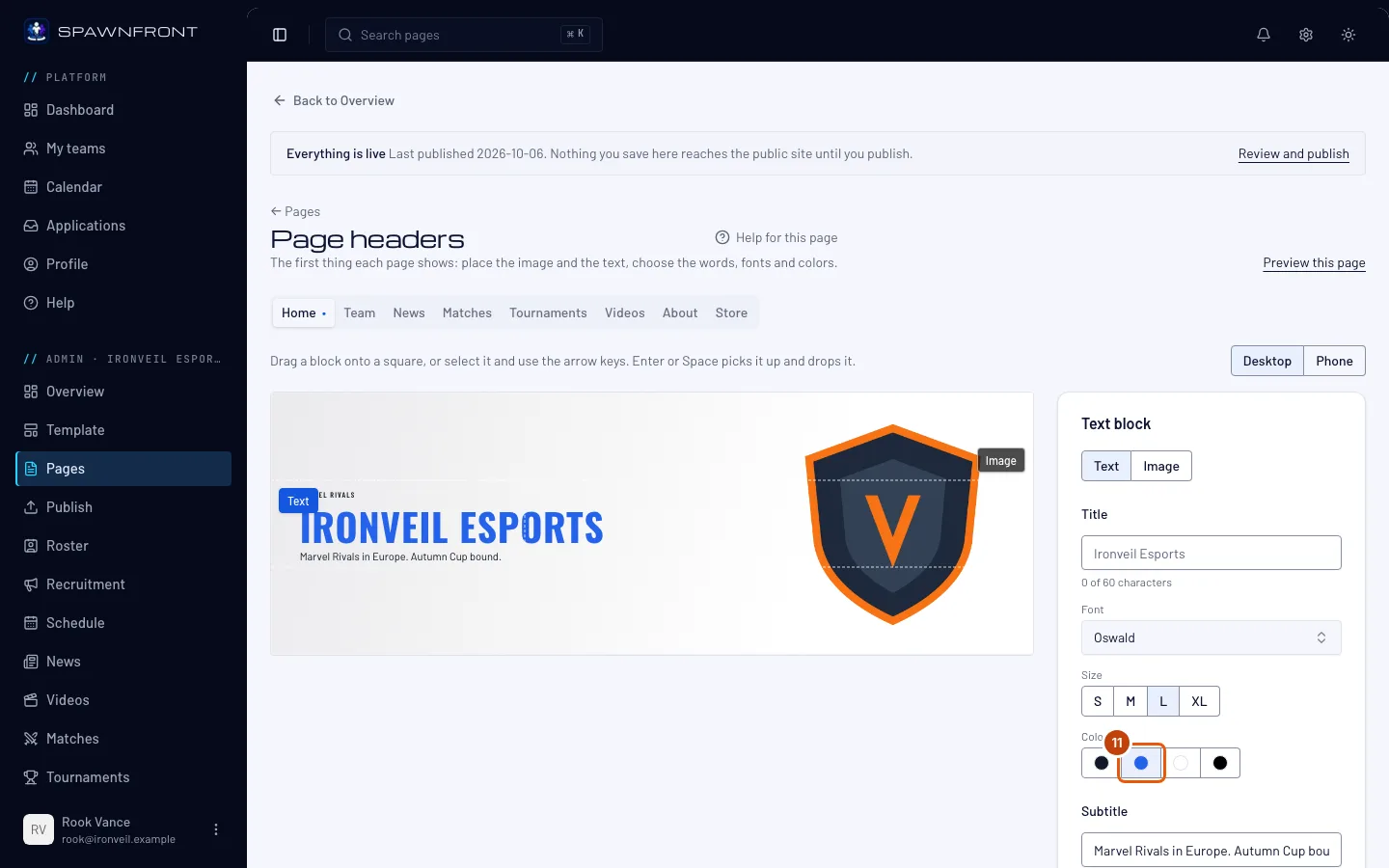
Step 11: Choose a color
Under Color, press one of the four swatches: Theme text, Accent, White or Black.
Theme text and Accent follow your colors in Appearance; white or black reads well over a dark or a light image.
You should see: the text in the new color.
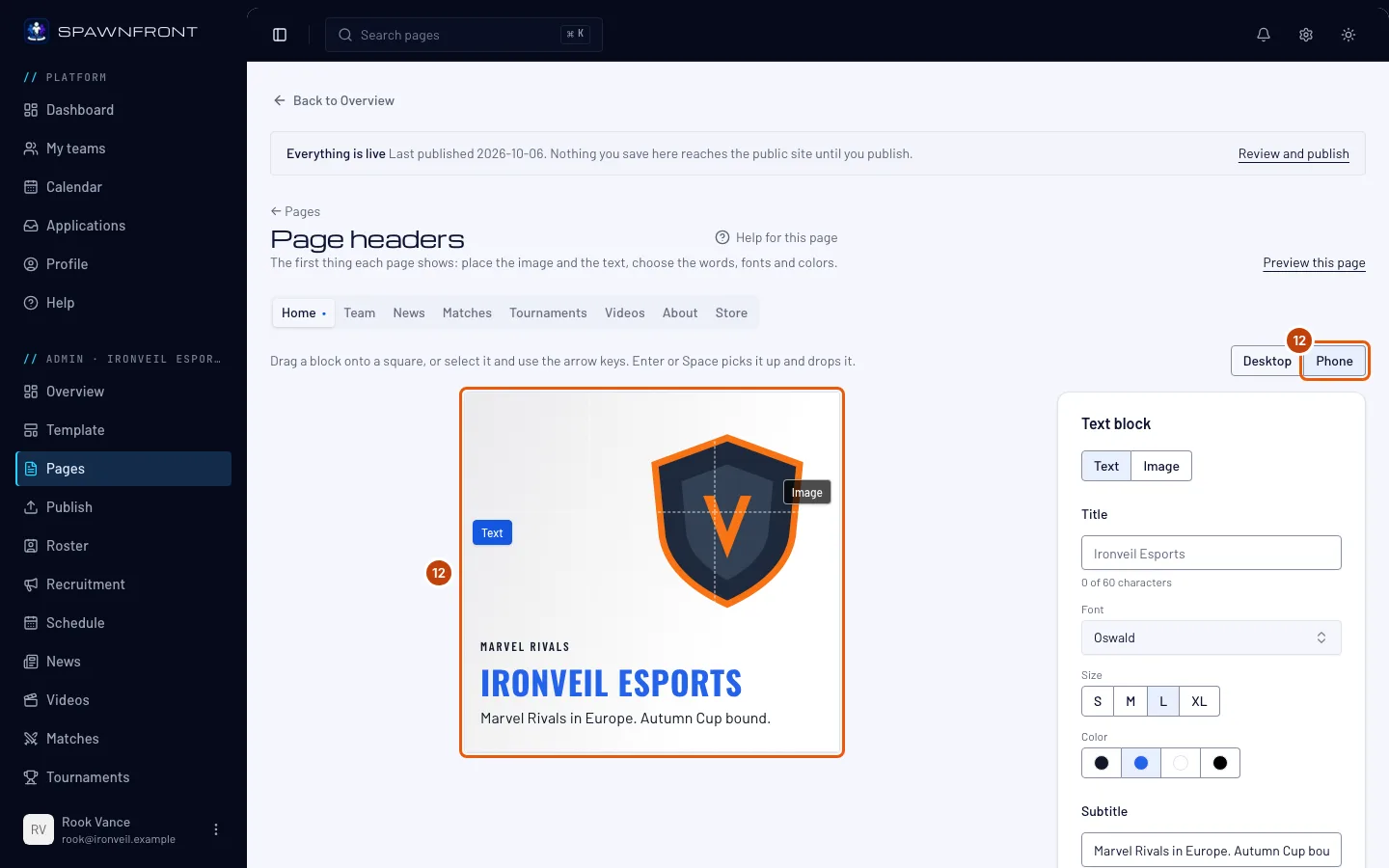
Step 12: Check it on a phone
Above the header, press Phone. Press Desktop to go back.
On a phone, the image sits above the text, whatever squares you chose.
You should see: the header narrowed to a phone's width.
Step 13: Save
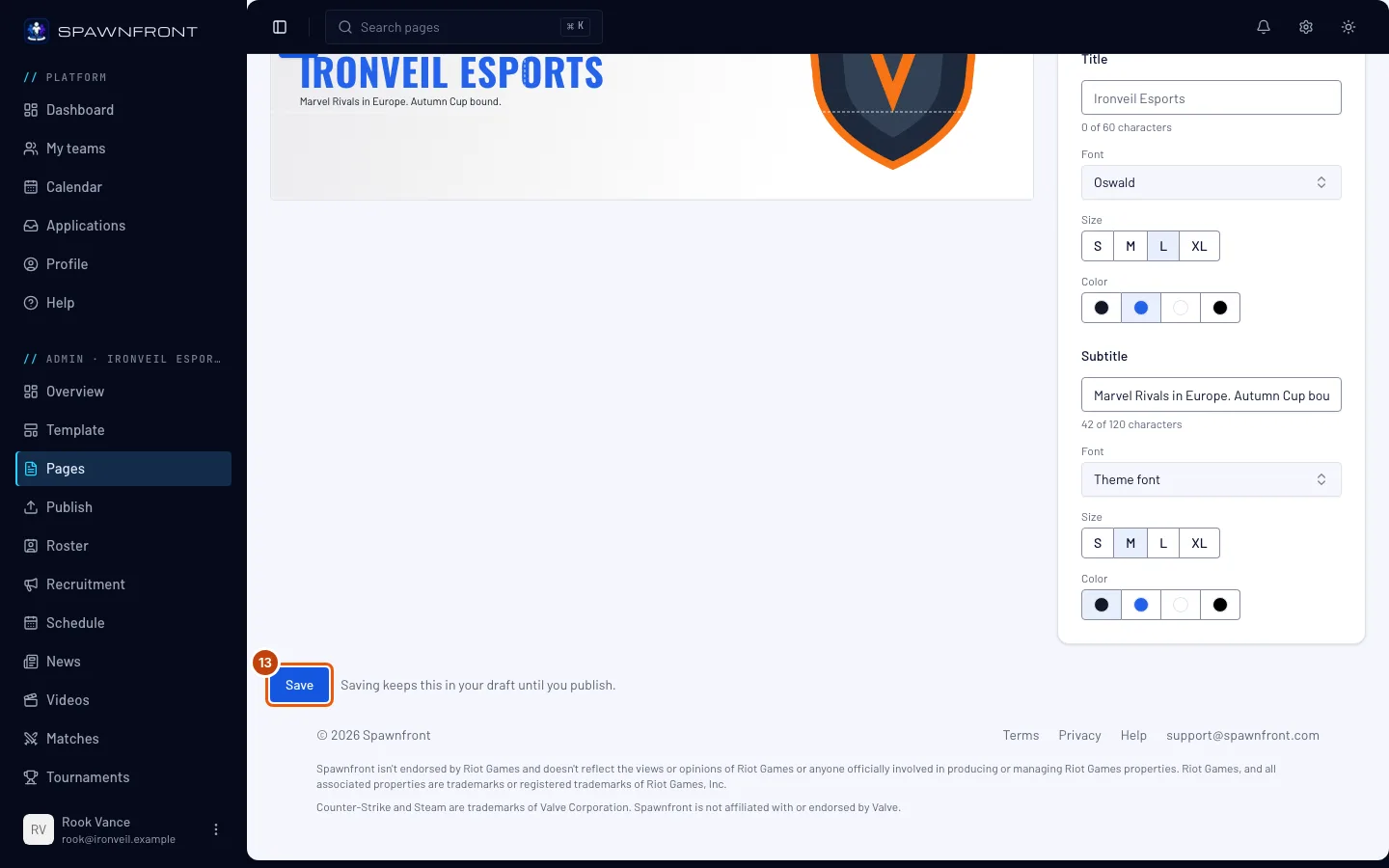
Press Save at the bottom of the editor. It saves every tab you changed — a dot on a tab marks unsaved changes.
Saving keeps your headers in a draft — visitors don't see them until you publish. Once you save a Home header, Home's image and tagline live here: the Home editor shows Edit the header in their place, and the button stays in the Home editor.
You should see: "Saved".
Step 14: Publish your site
Press Publish in the menu on the left and publish — see Publish your site.
You should see: Page headers in the list of changes before you publish, and your new headers on your site after.
How to know it worked
- Preview this page at the top of the editor shows the saved header on its page.
- After you publish, every page you changed opens with its new header.
Something doesn't look right?
I saved, but my site hasn't changed
Saving keeps your headers in a draft. Press Publish in the menu to put them on your site (step 14).
I can't find the tagline and image in the Home editor any more
You saved a Home header, so they moved here: edit them on the Home tab of Page headers. The Home editor's Edit the header link takes you there. The button stays in the Home editor.
Save is grayed out
The image is missing its alt text (step 5), or nothing has changed since you last saved. If your subscription has lapsed, your admin is read-only and nothing can be saved until payment resumes.
My site won't publish after I saved a Home header
The check The home hero has a tagline fails: once you've saved a Home header, its subtitle is the line under your team's name, so it can't be empty. Type one on the Home tab (step 8), save, then publish again.
It says "This page changed since you opened it"
The headers were saved somewhere else while you had them open — by another admin, or by you in another tab — so nothing of yours was saved. Press Reload, then make your changes again.
Related articles
Still stuck? Contact support or email support@spawnfront.com — tell us the page you're on and the step number.