
Edit your site's pages
Write your Home, About and Team pages — tagline, image, button and sections — then save them to your draft.
For team owners and admins · 8 steps
What you need first
- Your team has a site subscription. A free team's admin shows Get a site instead of Pages.
- You are the team's owner or an admin.
- You have chosen a template — see Choose a template. Until you do, Pages asks you to pick one first.
Steps
Step 1: Open Pages
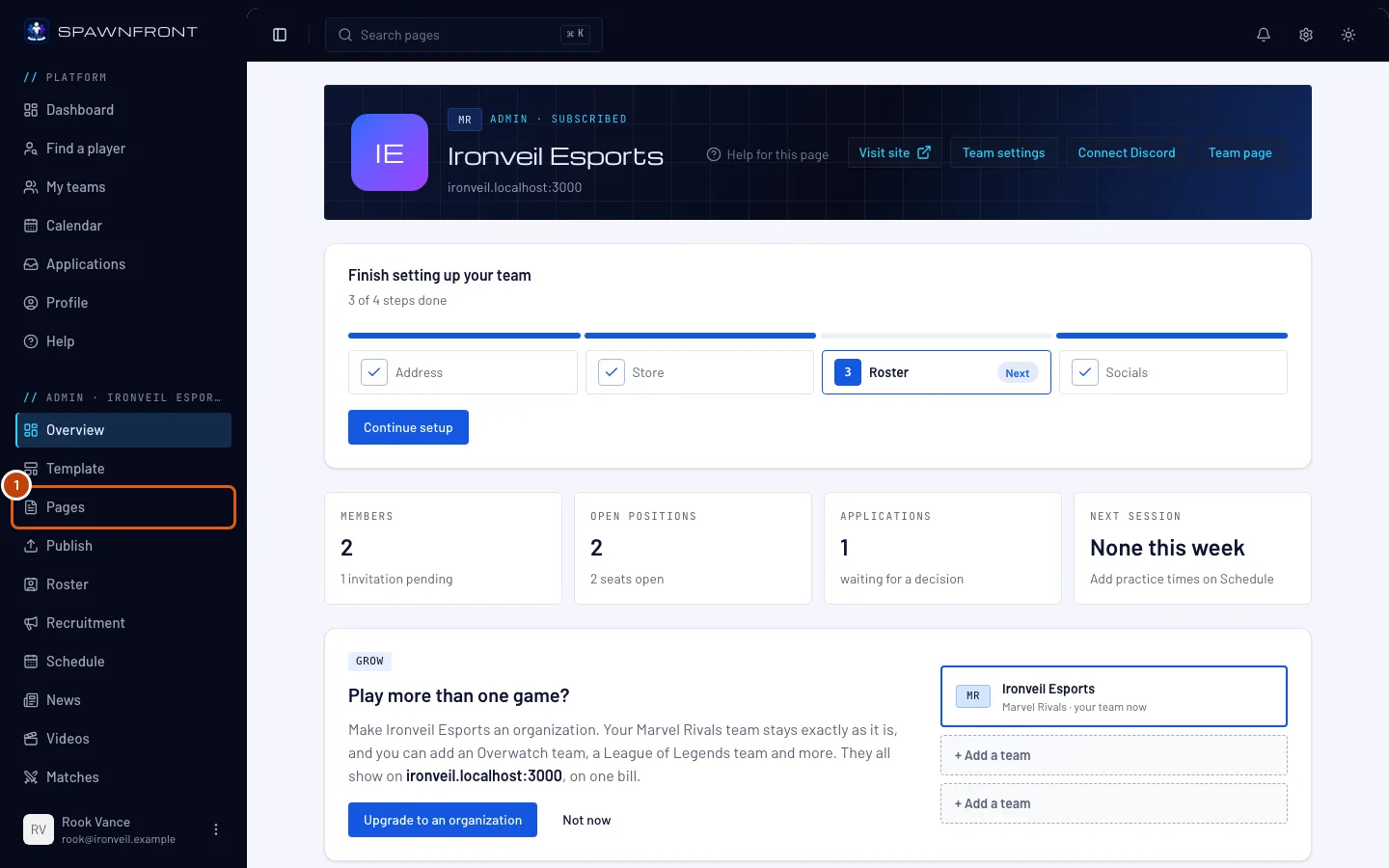
In your team's admin, press Pages in the menu on the left.
You should see: a page titled Pages listing every page of your site — Home, Team, News, Matches, Tournaments, About, Store and Cart — each with its Status and its Unpublished changes. Above the list, Page headers opens the header every page starts with — its image, title and subtitle — see Arrange your page headers.
Step 2: Open the Home editor
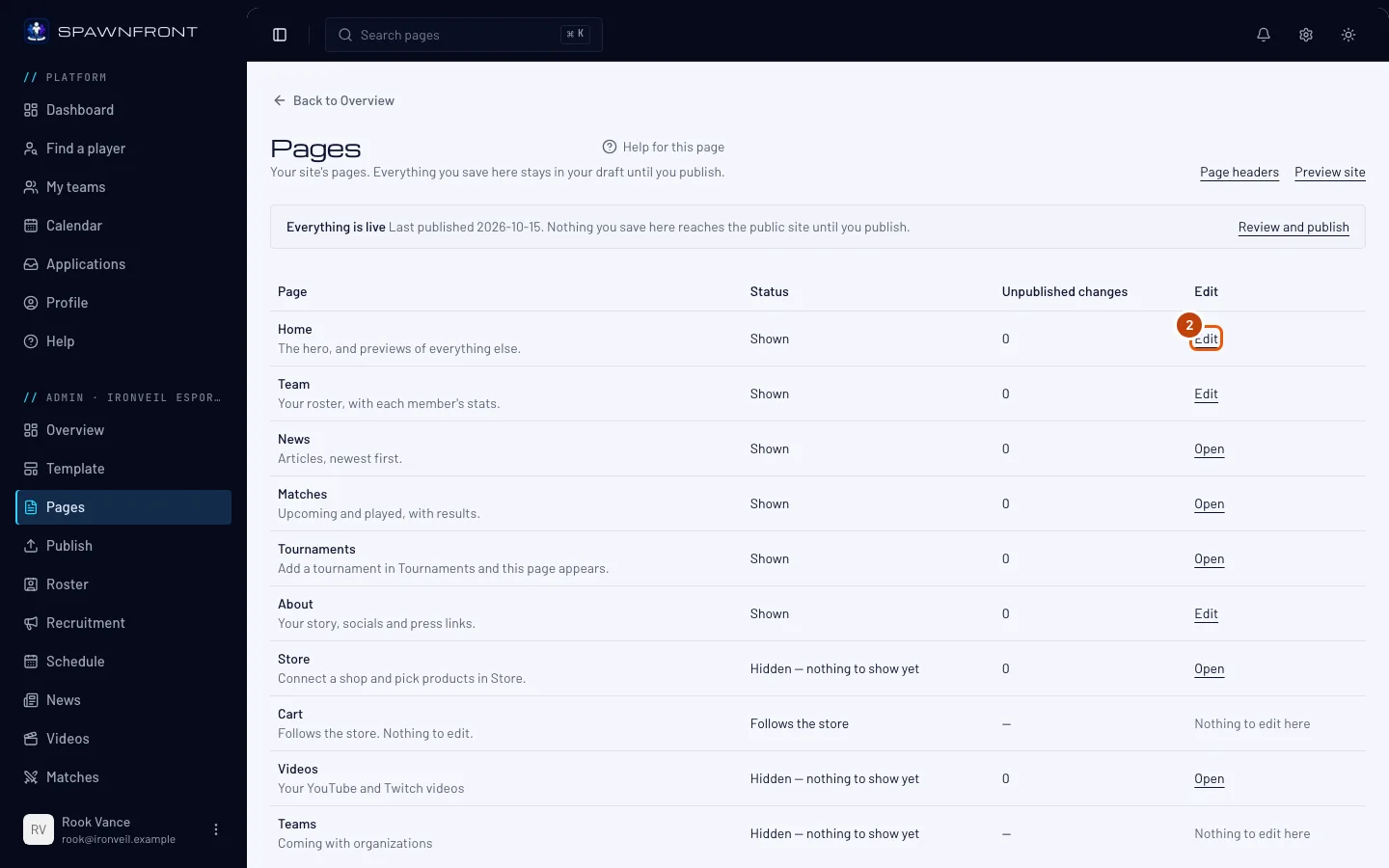
On the Home row, press Edit.
You write three pages here: Home, Team and About. The others fill themselves from other parts of your admin: News, Tournaments, Store and Matches have Open, which takes you there; Cart says Nothing to edit here, because it follows your store. A page with nothing on it reads Hidden — nothing to show yet and stays out of your site's menu until it has something to show. Pages can't be added, removed or renamed.
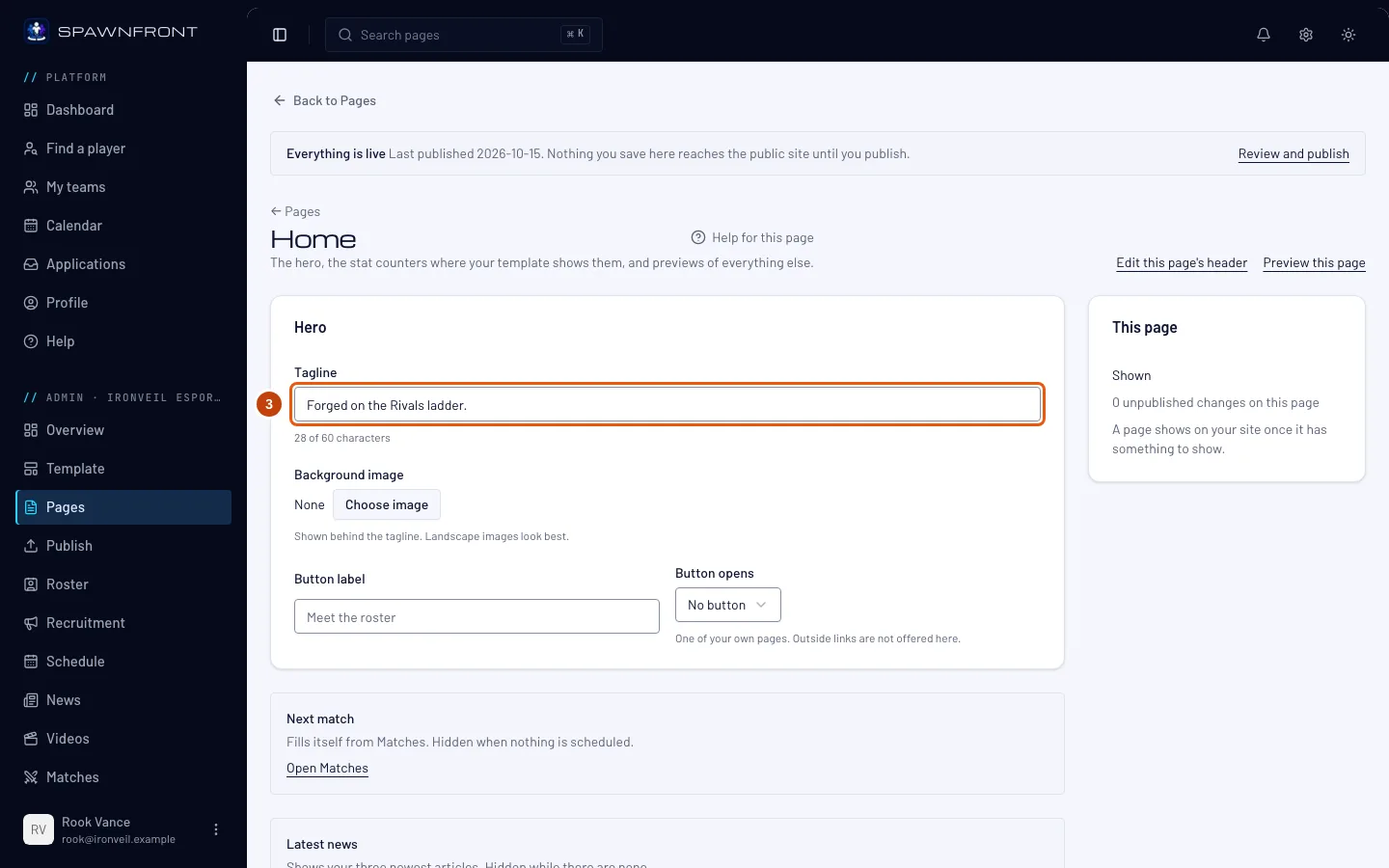
You should see: the Home editor, with a Hero card at the top and, below it, one note for each section that fills itself — Latest news, Roster strip and the rest — saying where its content comes from, with a link to that part of your admin.
Step 3: Write your tagline
In the Hero card, type one line about your team in Tagline.
Once you save a Home header, your tagline and image are edited there instead. The Hero card then says "The Home header now holds the image and the words" with an Edit the header link, and keeps only the button (step 5). Until then, the Home header starts from this tagline and image.
You should see: the count under the field, up to 60 characters.
Step 4: Choose a background image
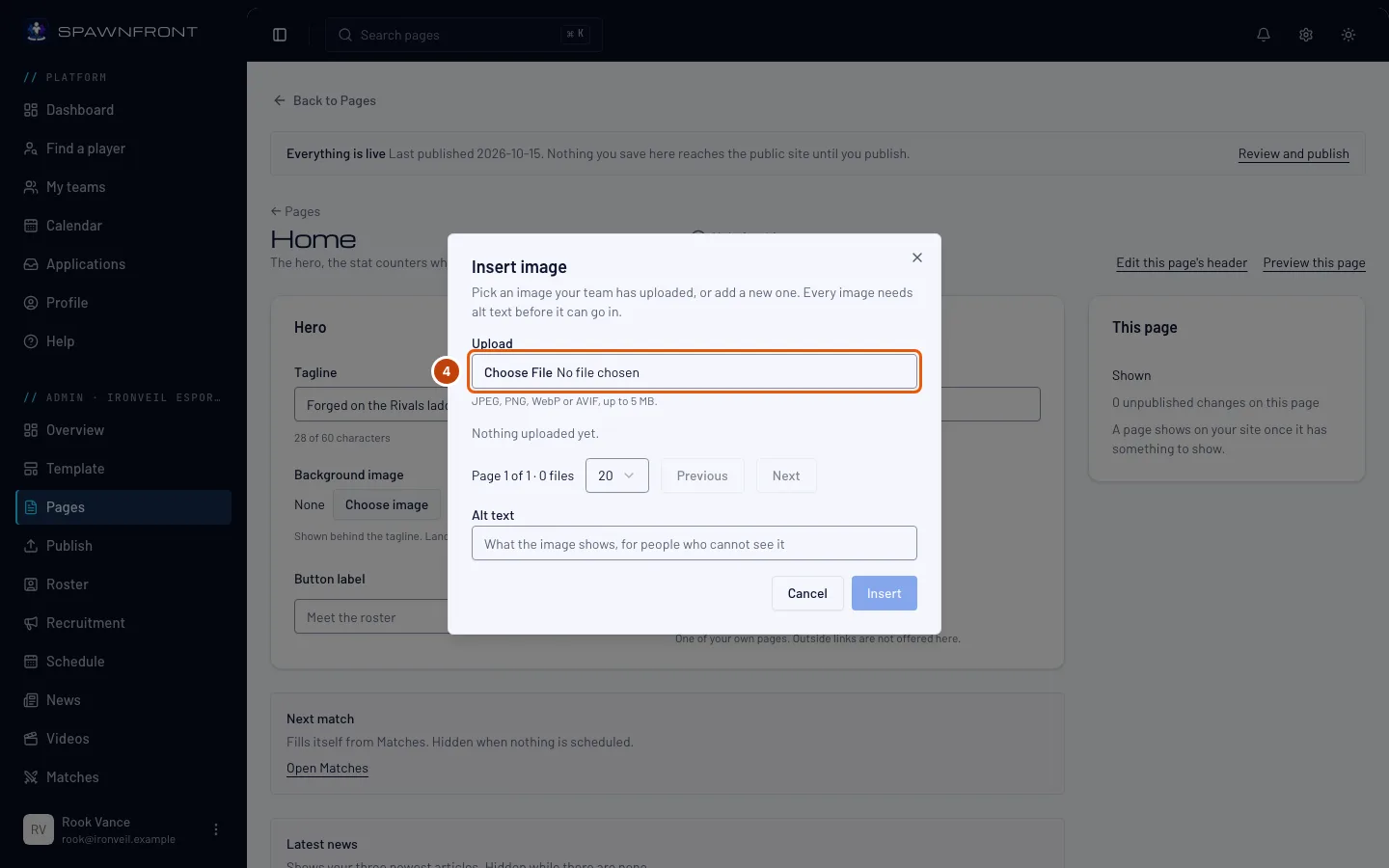
Under Background image, press Choose image (it reads Replace once an image is set). In the box that opens, pick an image your team has already uploaded, or add one with Upload — JPEG, PNG, WebP or AVIF, up to 5 MB. Type the Alt text, then press Insert.
Every image needs alt text — a short description for people who can't see it. Insert stays grayed out until you type it, and Save stays grayed out if you empty it afterwards.
You should see: the image's file name under Background image, with Replace, Remove and its alt text below.
Step 5: Add a button
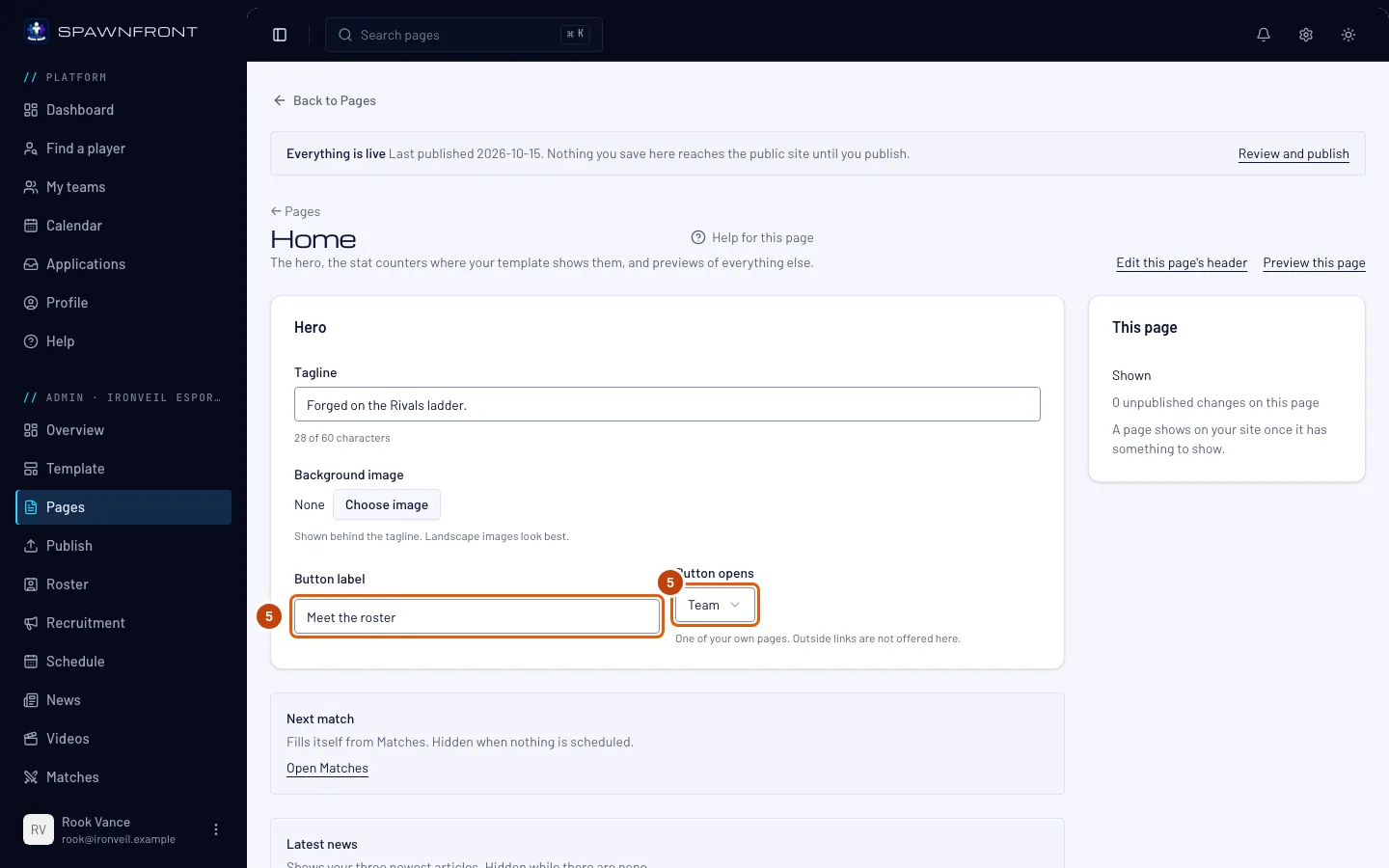
Type the button's words in Button label (up to 30 characters), then choose the page it opens in Button opens.
The button can only open one of your own pages. To have no button, choose No button and leave the label empty.
You should see: both fields filled. A label without a page, or a page without a label, is refused beside the field when you save.
Step 6: Save the page
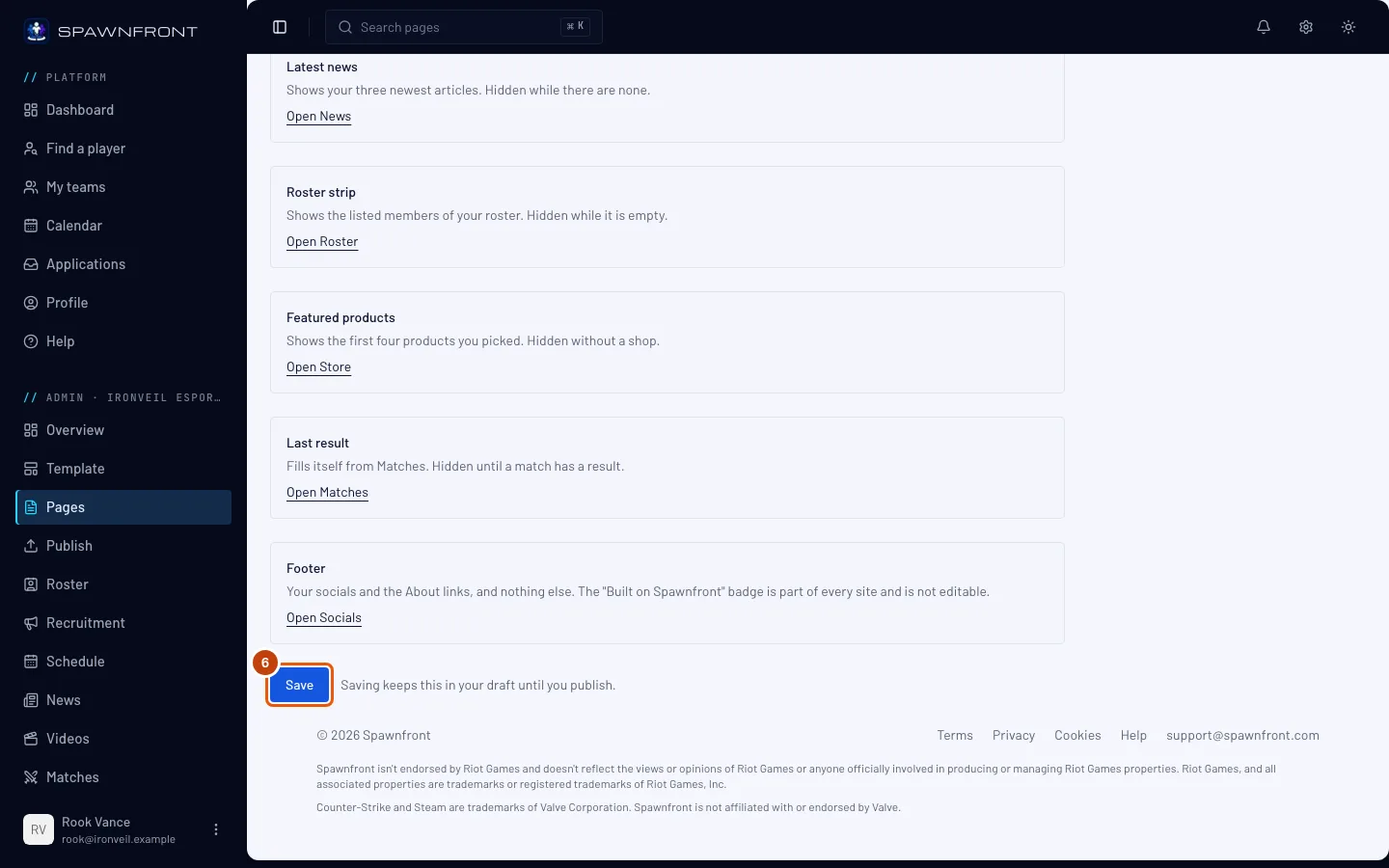
Press Save at the bottom of the editor.
Saving keeps your changes in a draft — visitors don't see them until you publish. The This page card on the right counts the unpublished changes on this page.
You should see: "Saved".
Step 7: Preview the page
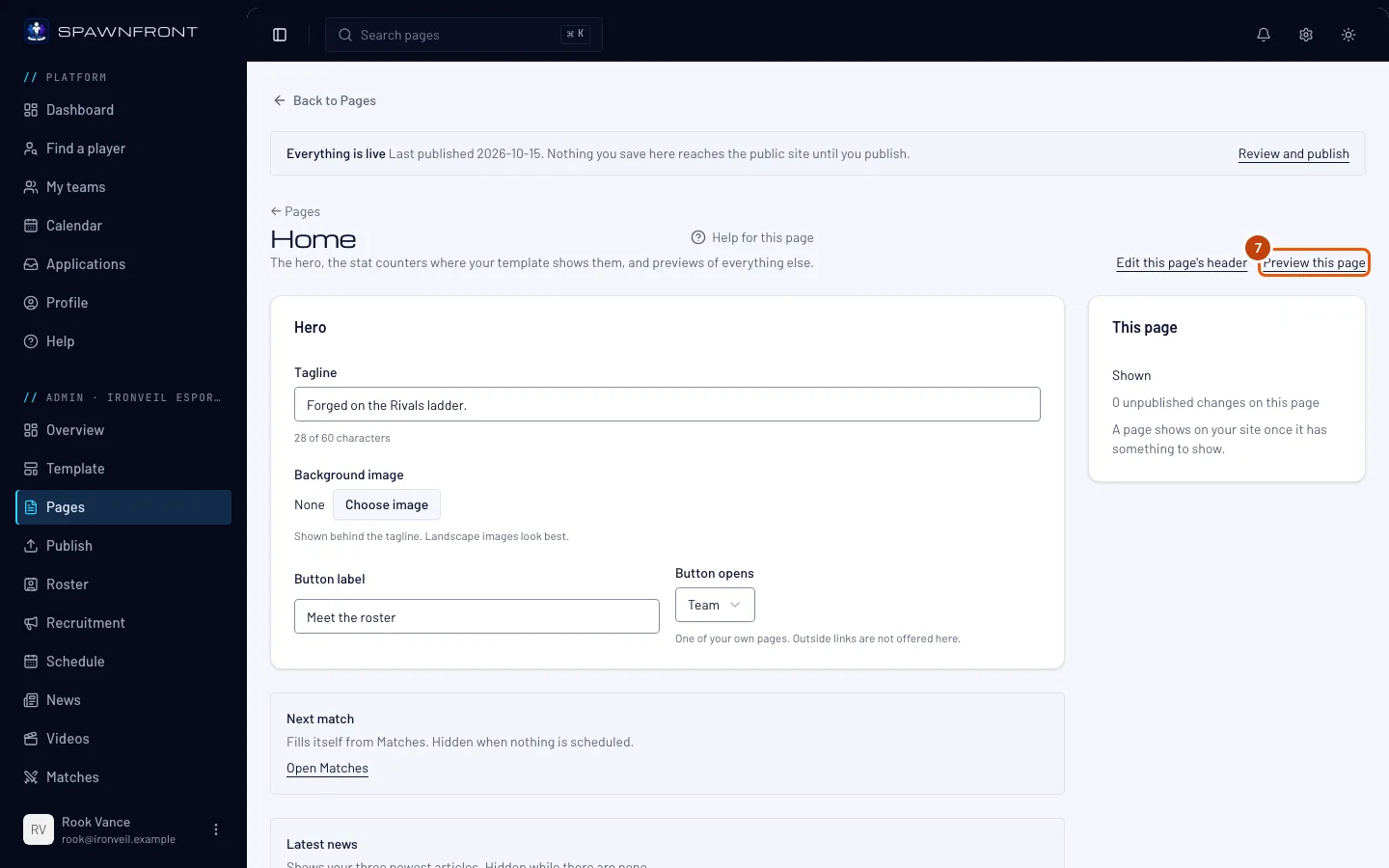
Press Preview this page at the top of the editor. Beside it, Edit this page's header opens this page's header.
It shows your saved draft as your site would look, so save first — changes still in the form don't appear.
You should see: your Home page with the new tagline, image and button.
Step 8: Fill in About and Team
Go back with ← Pages and press Edit on About or Team. Each has its own Save.
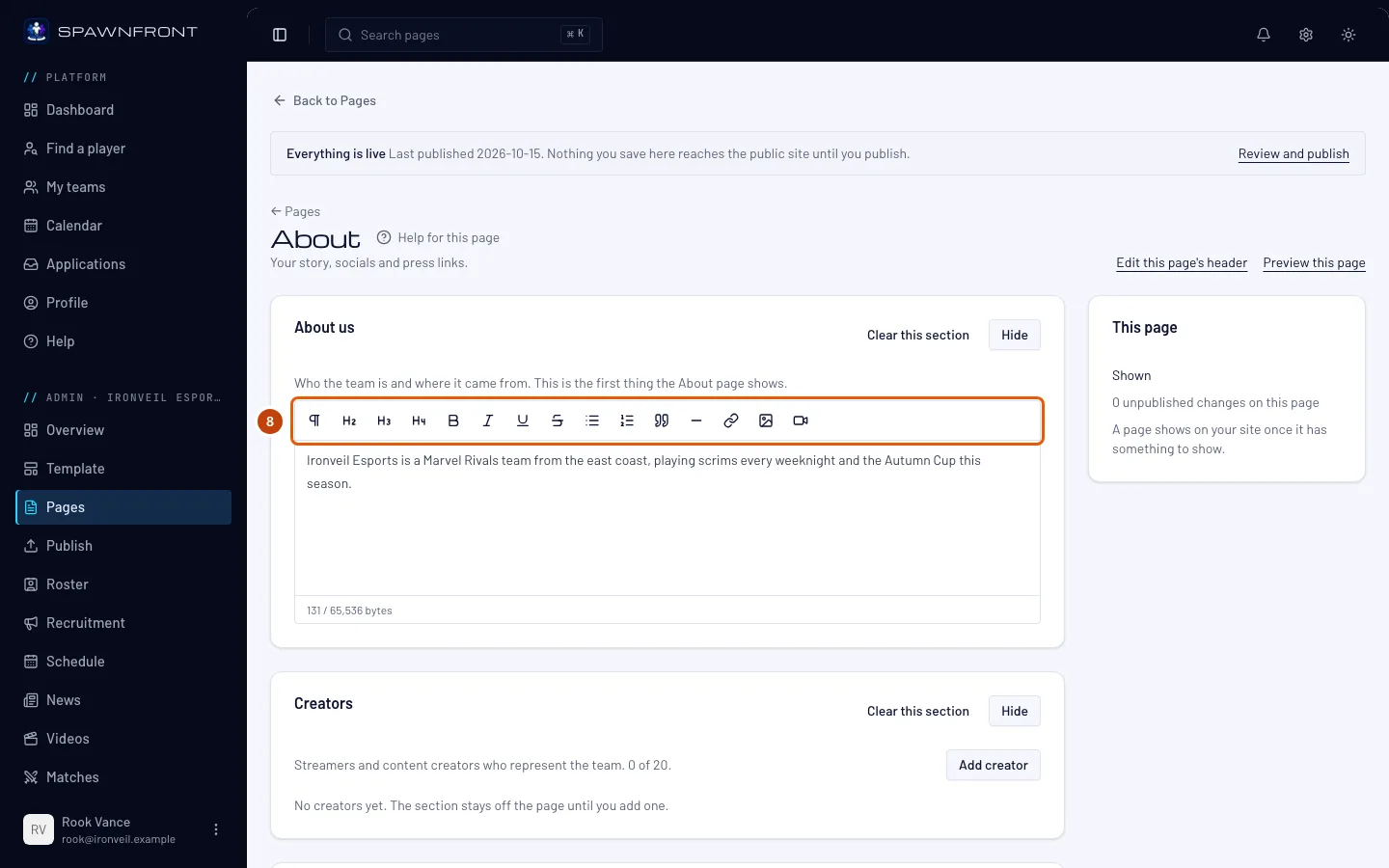
- About has five sections, each with Clear this section and Hide to fold it: About us (your story), Creators (up to 20, each with a name, photo, one line and their socials), Contact (a general and a business email — both public), Press kit (a boilerplate paragraph and up to 10 files to download) and Careers (the roles you're hiring for). Contact and Press kit also have a text box of their own. A section you leave empty doesn't show on your site. Your sponsors have their own page — see Show your sponsors on your site.
- Team has one Team description, shown above your roster. The roster itself comes from the Roster page — see Manage your roster.
The text boxes use a small toolbar: headings, bold, italic, underline, strikethrough, lists, quotes, a divider, links, images from your team's uploads, and YouTube or Twitch videos. A button stays highlighted while its formatting is on, so you can see it before you type. Ctrl+B, Ctrl+I and Ctrl+U (⌘B, ⌘I and ⌘U on a Mac) work too. Links must start with https:// or mailto:, and formatting the toolbar doesn't offer is removed when you paste.
You should see: the counter under each text box, which turns red with "too long to save" if a section runs over its limit.
How to know it worked
- The This page card counts your saved changes.
- Preview this page shows them.
- After you publish — see Publish your site — your site shows them too.
Something doesn't look right?
I saved, but my site hasn't changed
Saving keeps your changes in a draft. Press Publish in the menu to put them on your site — see Publish your site.
Save is grayed out
An image is missing its alt text (step 4), or a text box is over its limit — its counter says "too long to save". If your subscription has lapsed, your admin is read-only and nothing can be saved until payment resumes.
It says "This page changed since you opened it"
The page was saved somewhere else while you had it open — by another admin, or by you in another tab — so nothing of yours was saved. Press Reload, then make your changes again.
The Tagline and Background image fields are gone
Your team saved a Home header, so the tagline and image moved into it. Press Edit the header in the Hero card — see Arrange your page headers. The button stays here.
A page is missing from my site's menu
A page with nothing on it stays out of the menu. Its row on Pages says Hidden — nothing to show yet — add its content, save, then publish.
Related articles
Still stuck? Contact support or email support@spawnfront.com — tell us the page you're on and the step number.