
Add your socials
Link your Facebook, X, Telegram, Reddit, Discord and Twitch from your site's hero and footer.
For team owners and admins · 7 steps
What you need first
- Your team has a site subscription. A free team's admin shows Get a site instead of Socials.
- You are the team's owner or an admin.
- The address of each page you want to link: your Facebook page, X account, Telegram channel, subreddit, Discord invite or Twitch channel.
Steps
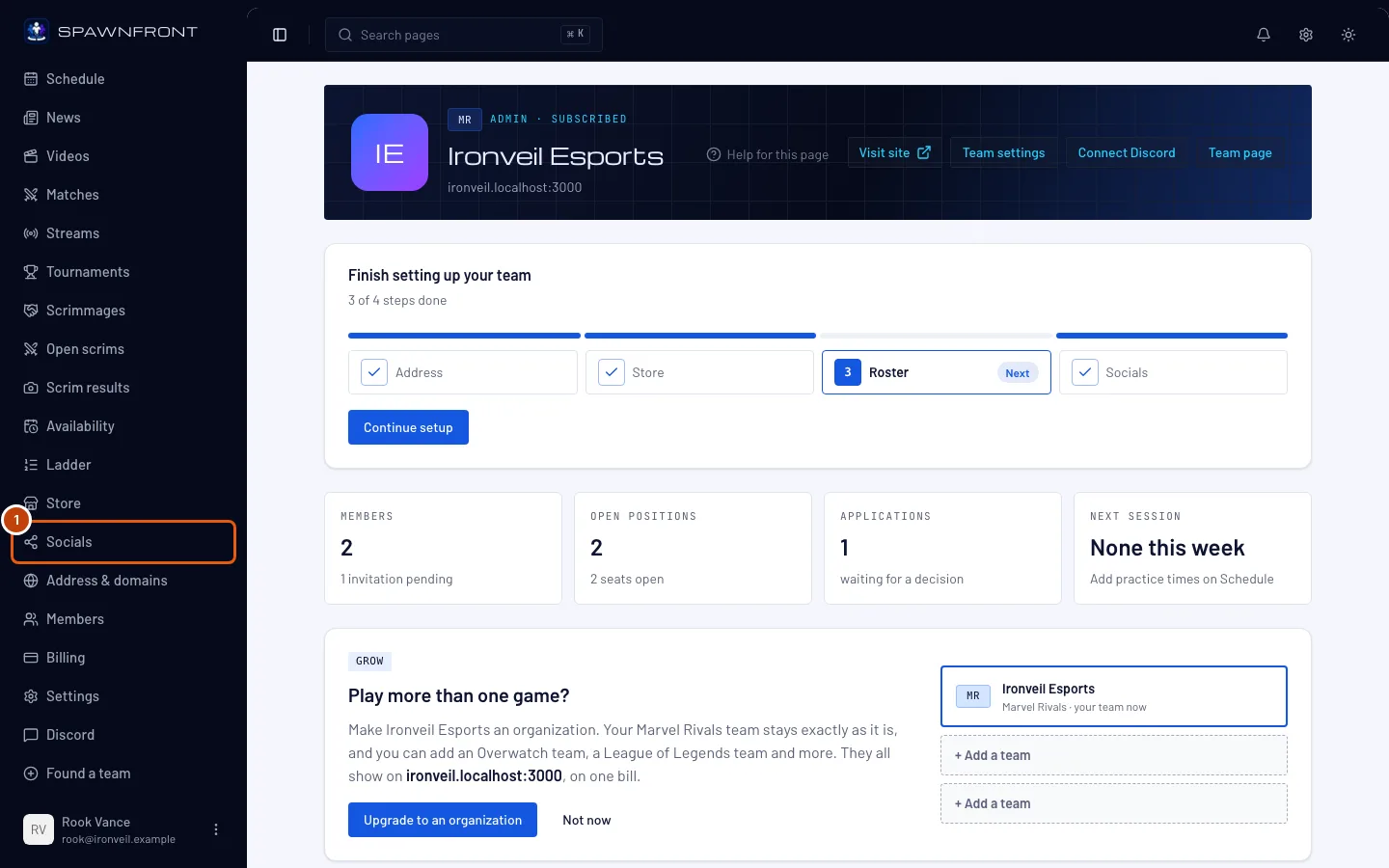
Step 1: Open Socials
In the menu on the left, press Socials.
You should see: a page titled Socials, with a field for Facebook, X, Telegram, Reddit, Discord and Twitch. The site setup's Socials step is this same form, with Finish in place of Save links.
Step 2: Paste a link
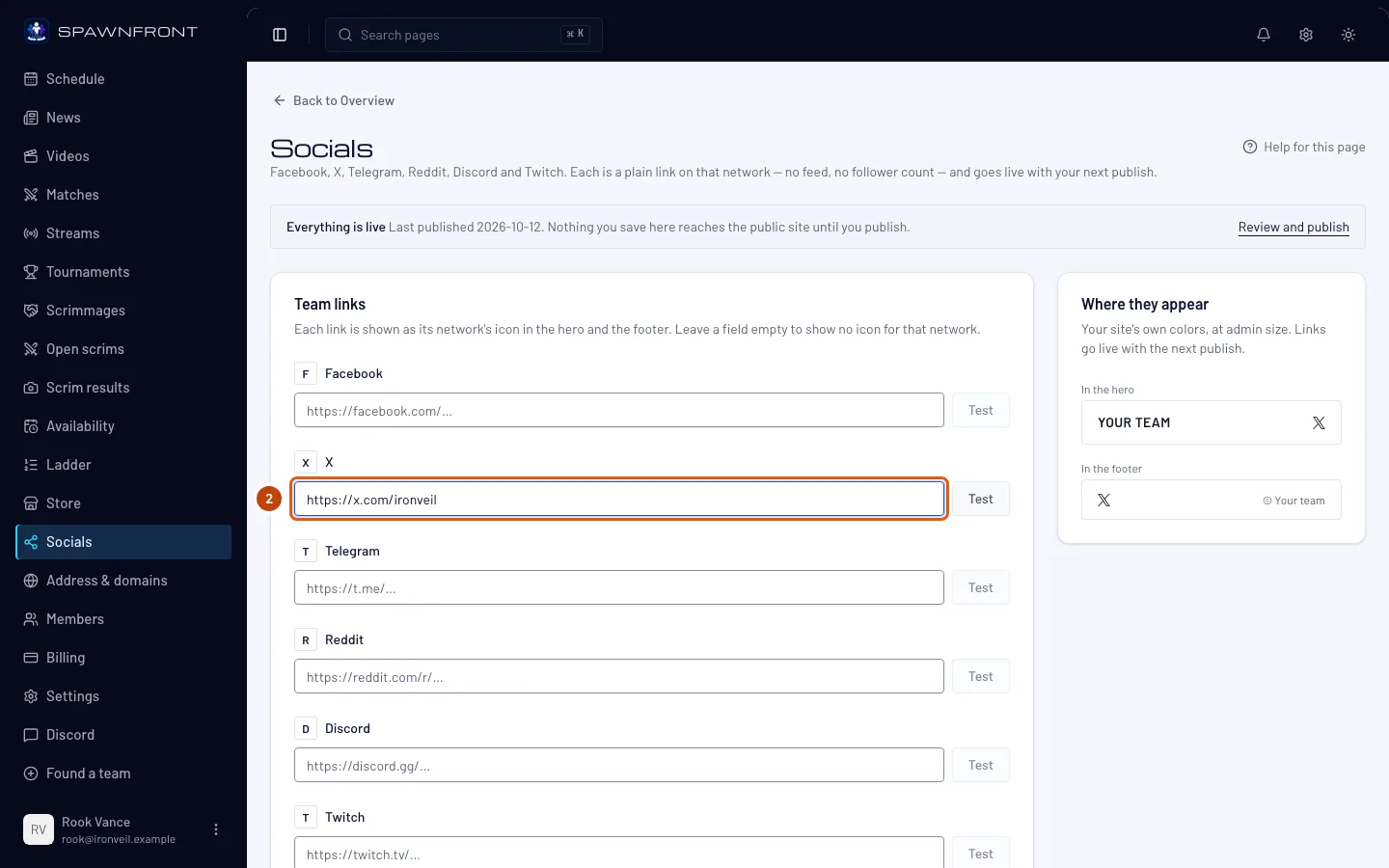
Paste the full address of your page into its network's field, starting with
https://— for examplehttps://x.com/yourteaminto X. Leave a field empty to show no icon for that network.You should see: the address in the field. Each field only takes an address on its own network — a Discord field won't take a Facebook link.
Step 3: Or type just a handle
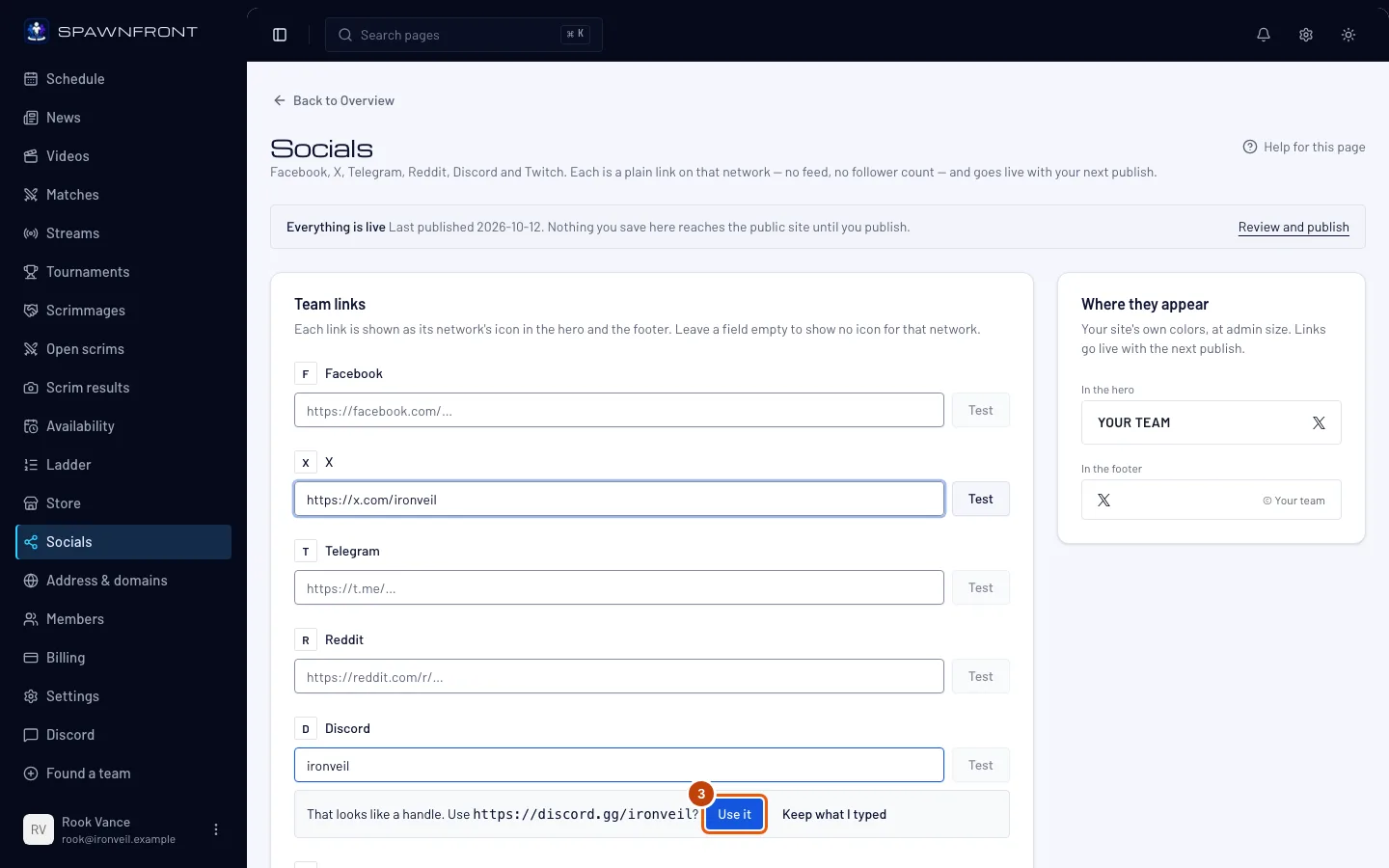
Type only your name on that network, such as
ironveil, then press Use it in the line that appears under the field. Keep what I typed leaves it as it is.You should see: "That looks like a handle. Use …?" with the full address, and the address in the field once you press Use it. Spawnfront doesn't look the handle up — check that the address is really yours.
Step 4: Test a link
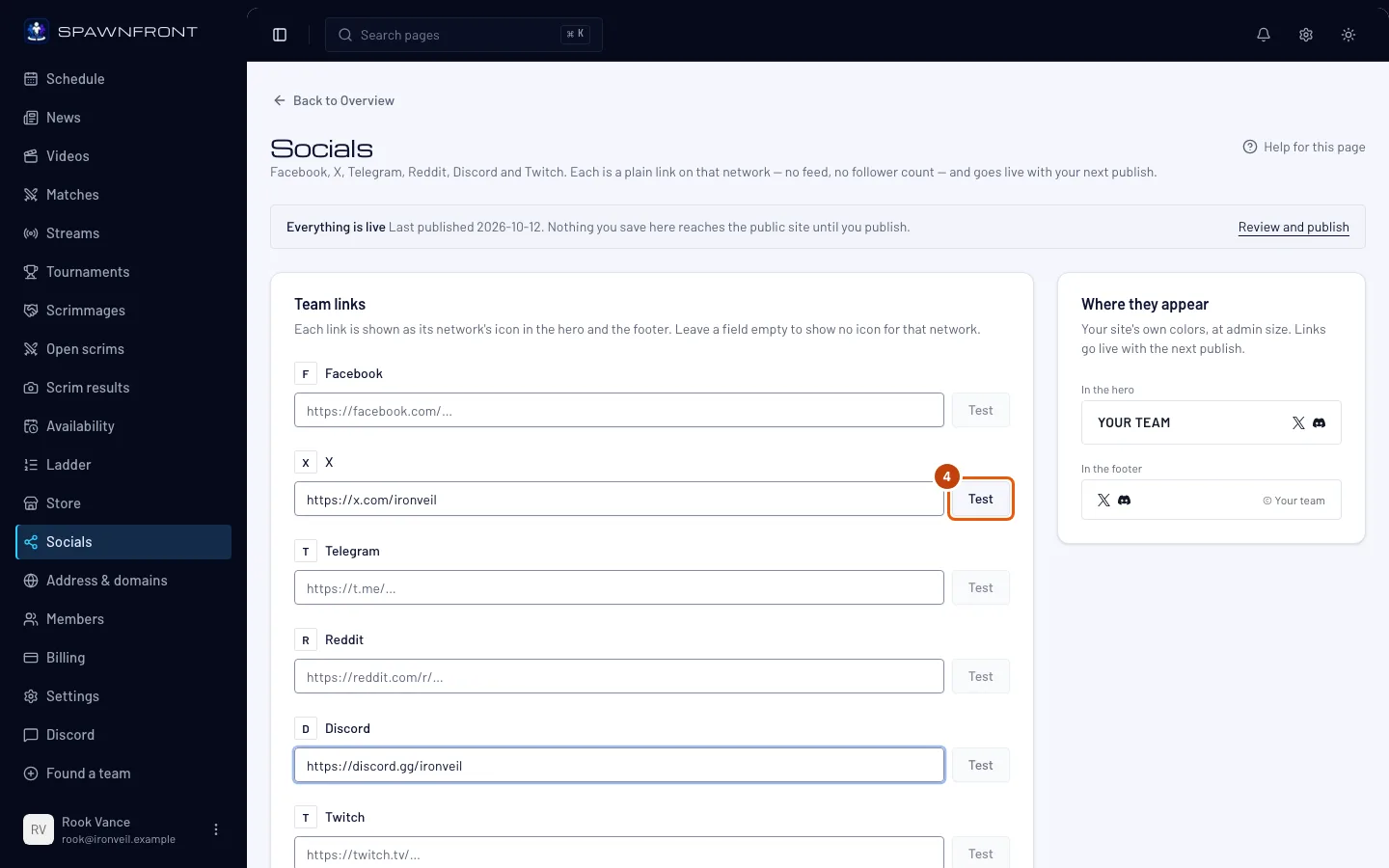
Press Test beside a field.
You should see: that page open in a new tab. Test stays grayed out while the field is empty or holds an address the site won't take.
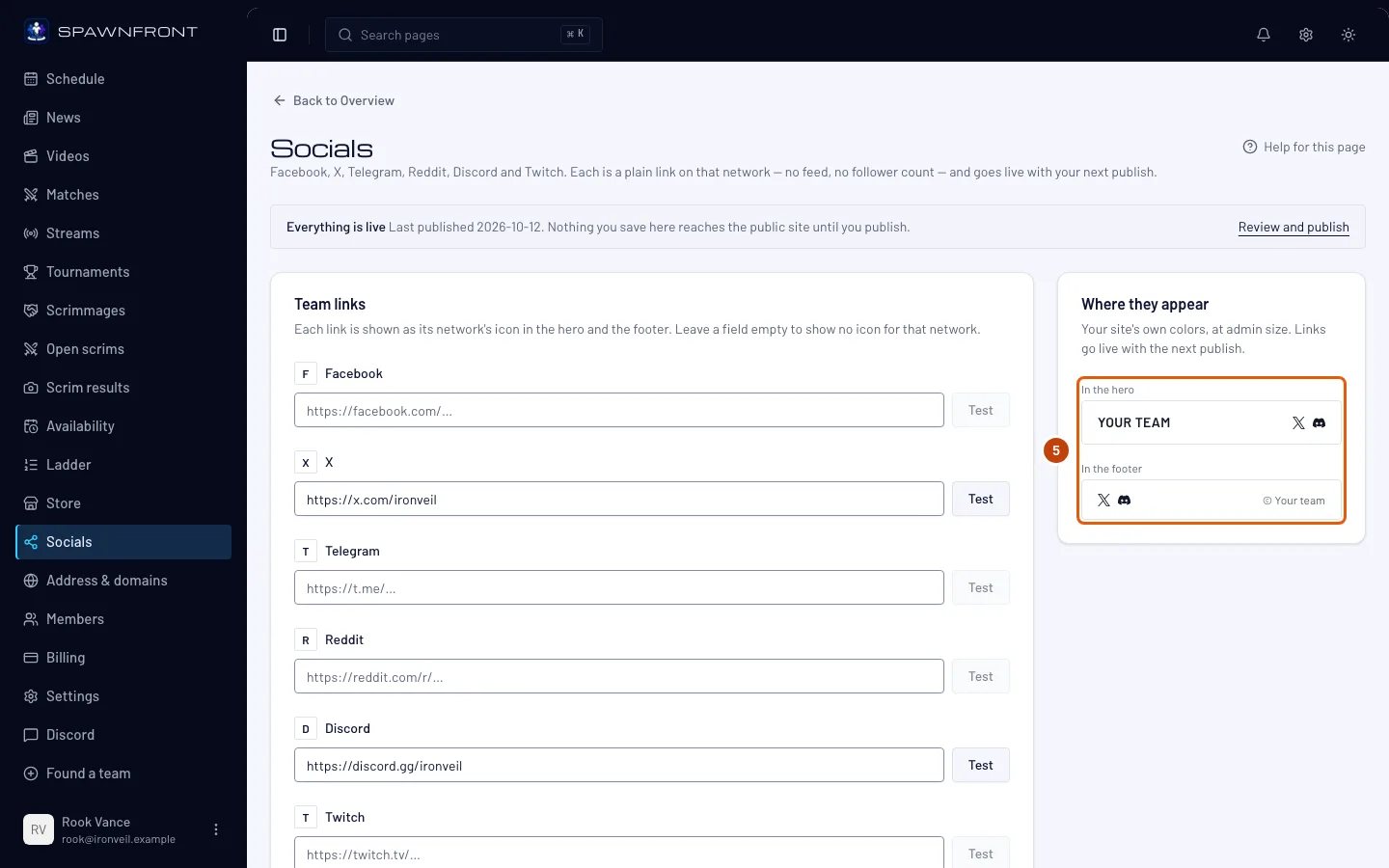
Step 5: Check where they appear
Look at the Where they appear card beside the form.
You should see: an icon for each link, In the hero — the top of your home page — and In the footer, on your site's own colors.
Step 6: Save links
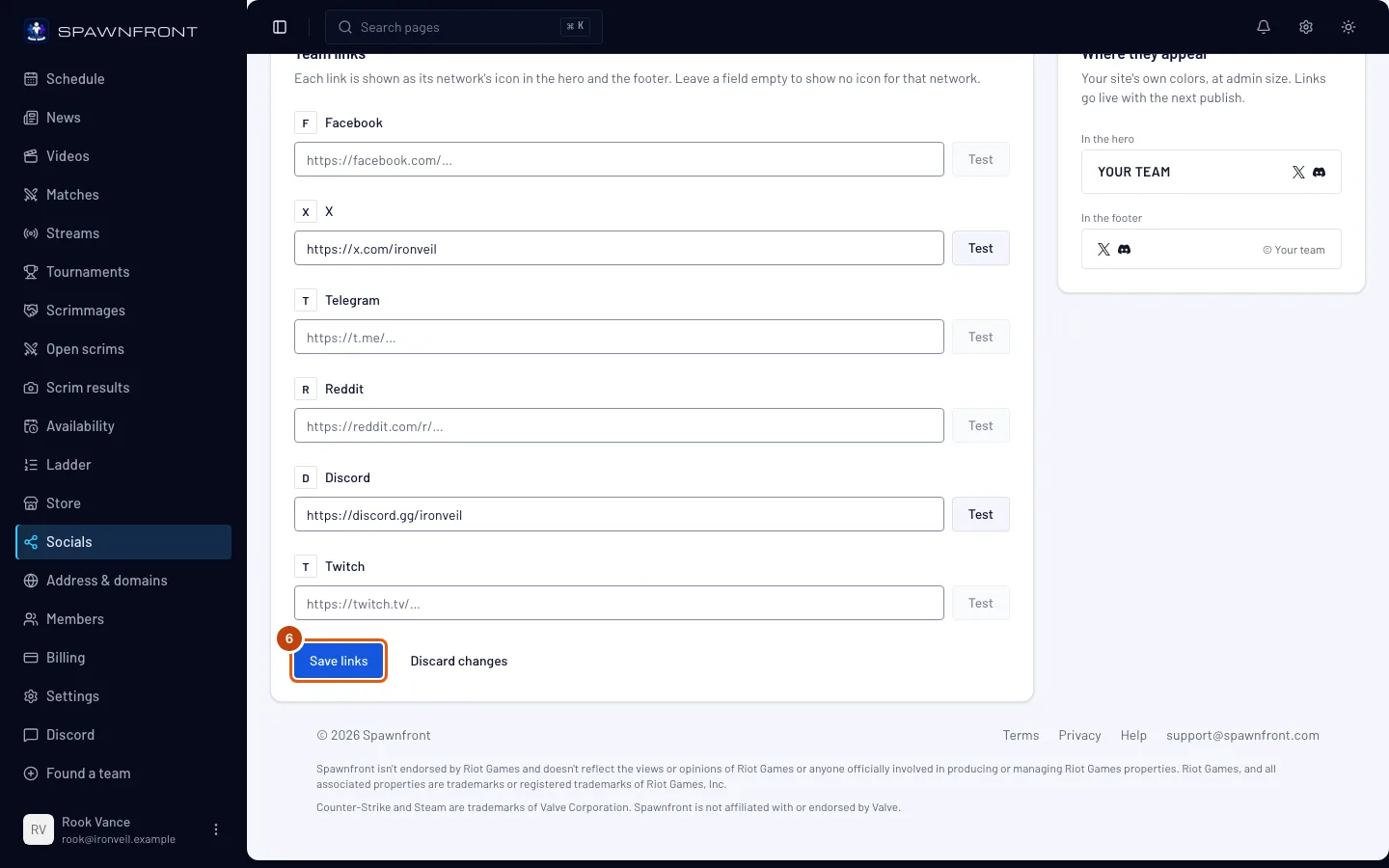
Press Save links. Discard changes puts the fields back the way they were.
You should see: "Socials saved". Visitors don't see your links yet — they go live with your next publish.
Step 7: Publish your site
Press Publish in the menu on the left and publish — see Publish your site.
You should see: Social links in the list of changes before you publish, and the icons on your site after.
How to know it worked
- Every page of your site shows an icon for each link in its footer, and so does your home page's hero.
- Each icon opens the right page.
Something doesn't look right?
It says "Use a Discord link"
The address isn't on that network. Each field takes its own: Facebook facebook.com or fb.com, X x.com or twitter.com, Telegram t.me or telegram.me, Reddit reddit.com, Discord discord.gg or discord.com, Twitch twitch.tv. Copy the address from your browser's address bar on that page.
It says "Links must start with https://"
The address starts with http://. Change it to https:// and press Save links again.
My icons don't show on my site
Saving keeps your links in your draft. Press Publish in the menu and publish (step 7).
I cleared a link but its icon is still on my site
Clearing a field and saving removes the link from your draft; your site changes when you publish (step 7).
Related articles
Still stuck? Contact support or email support@spawnfront.com — tell us the page you're on and the step number.