
Set up your site with the wizard
Four steps after paying: your address, your store, your roster and your team's links.
For team owners and admins · 6 steps
What you need first
- Your team has a site subscription. A free team's admin shows Get a site instead — see Get a site for your team.
- You are the team's owner or an admin.
- For the store step: a Fourthwall shop you own. You can skip that step and connect a shop later. No shop yet? You make it on Fourthwall — Open your team's store links Fourthwall's guide.
Steps
Step 1: Open the wizard
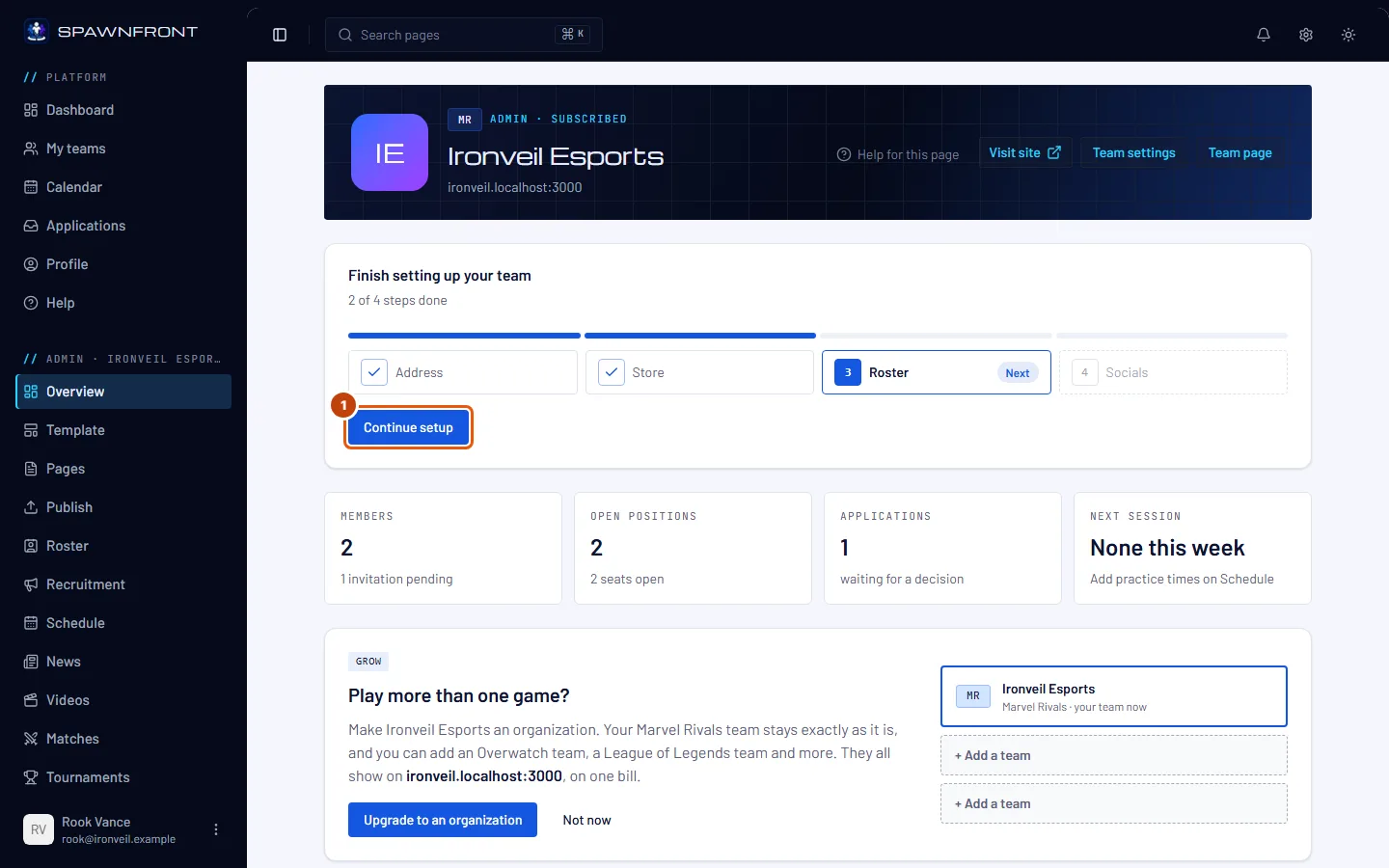
Right after paying, press Start the wizard on Get a site. Any time later, open your team's Overview: the card Finish setting up your team lists the steps, with the ones you've finished checked and the next one marked Next. Press Continue setup, or press a step you've finished to change it.
You should see: Set up your team, with a progress bar and the numbered steps — 1 Address, 2 Store, 3 Roster, 4 Socials — the ones you've finished checked and the one you are on outlined. The wizard opens at the first step you haven't finished.
Step 2: Choose your address
Type your site's address in Address. The list under the field checks each rule as you type — 3 to 40 characters, only letters a–z, numbers and hyphens, no hyphen at the start or end, no two hyphens in a row, not a name Spawnfront keeps for itself. When every rule has a check, press Save and continue.
This label becomes your site's web address. Saving moves your public address at once, and the old one stops working. Your own domain comes later, from Address & domains, on the Team Pro plan.
You should see: "Address saved", then the next step — Store on a new site.

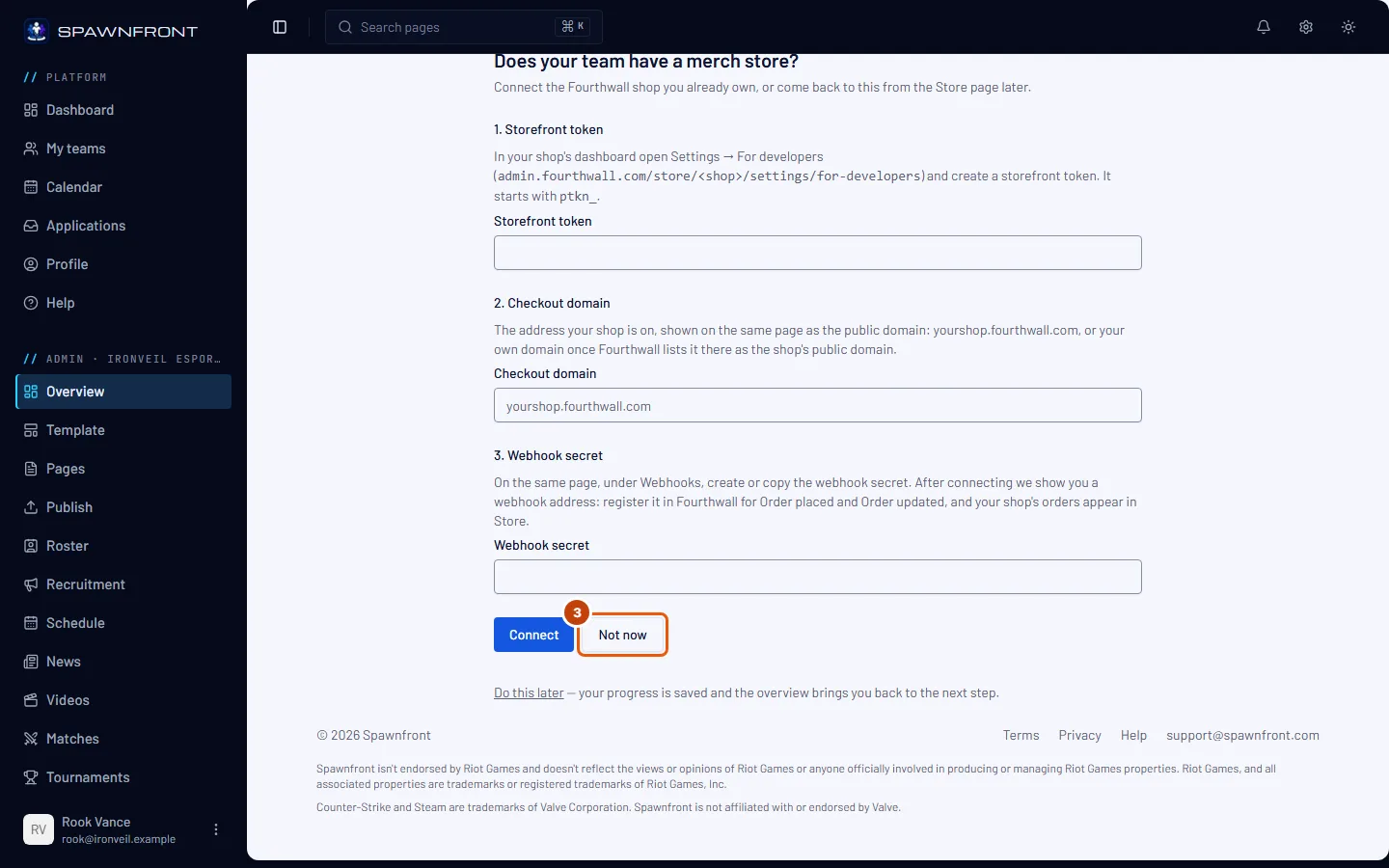
Step 3: Connect your store, or skip it
If your team has a Fourthwall shop, fill in the form and press Connect — see Open your team's store for where each value comes from. If not, press Not now.
You should see: the next step — Roster on a new site.
Step 4: Add your players
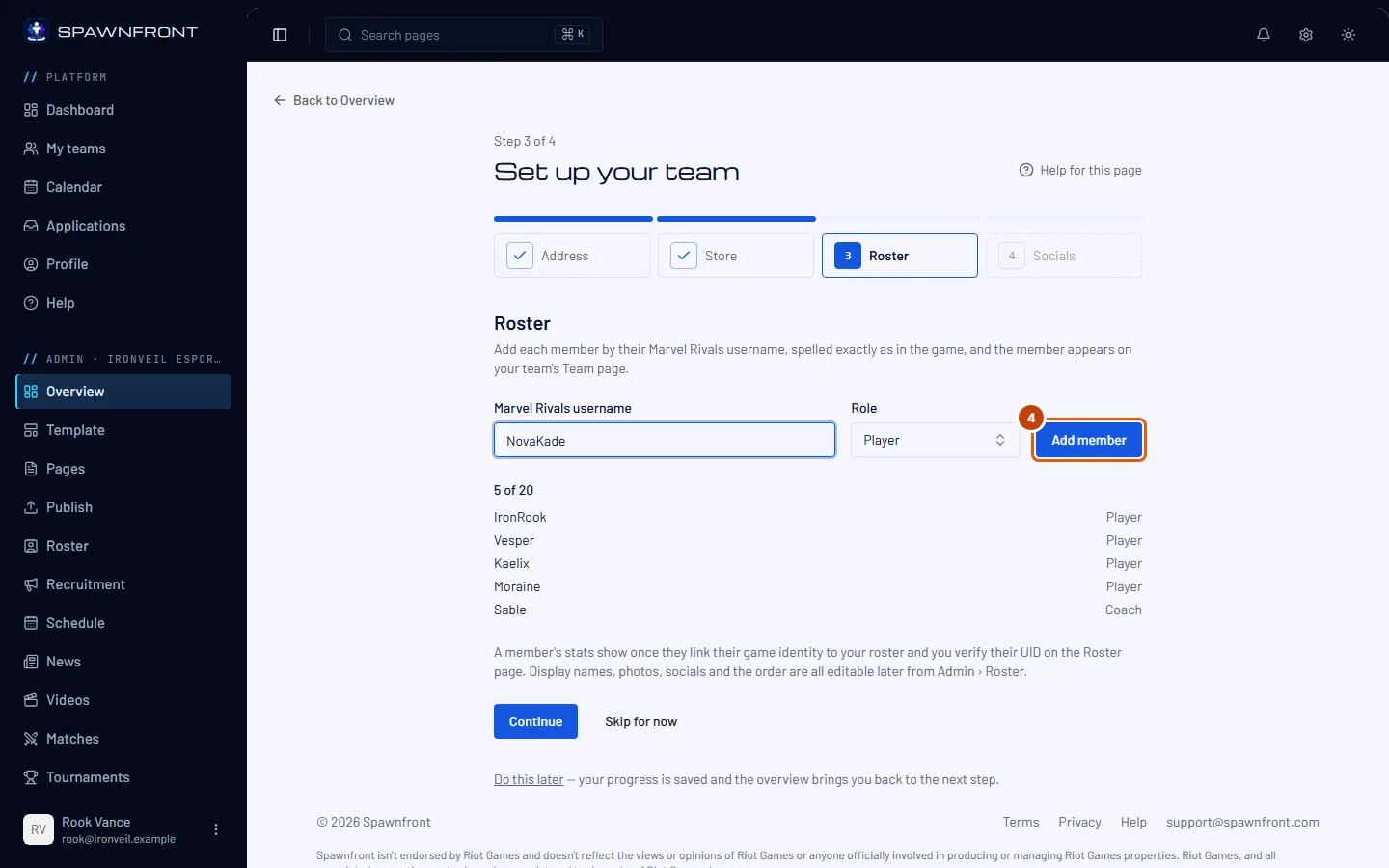
Type a player's Marvel Rivals username, choose their Role, then press Add member. Repeat for each player, up to 20.
Spell each username exactly as in the game. A player's stats show once they link their game identity to your roster and you verify their UID on the Roster page. Display names, photos and the order are edited later there too.
You should see: the player in the list below the form, and the count going up.
Step 5: Continue to socials
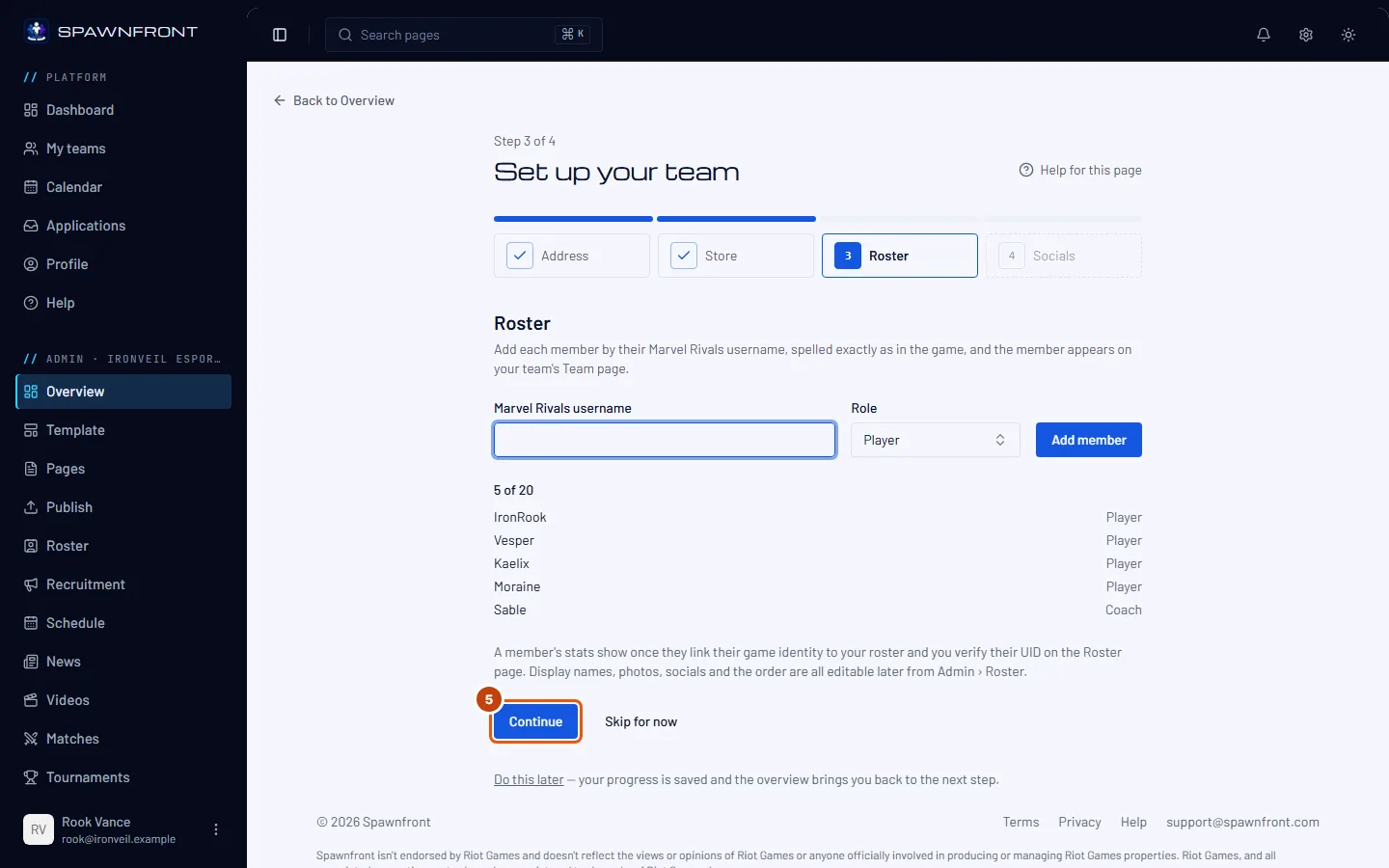
Press Continue. With nobody added yet, Continue is grayed out — press Skip for now instead.
Adding players doesn't finish this step — pressing Continue or Skip for now does.
You should see: Step 4 of 4, Team links.
Step 6: Add your socials and finish
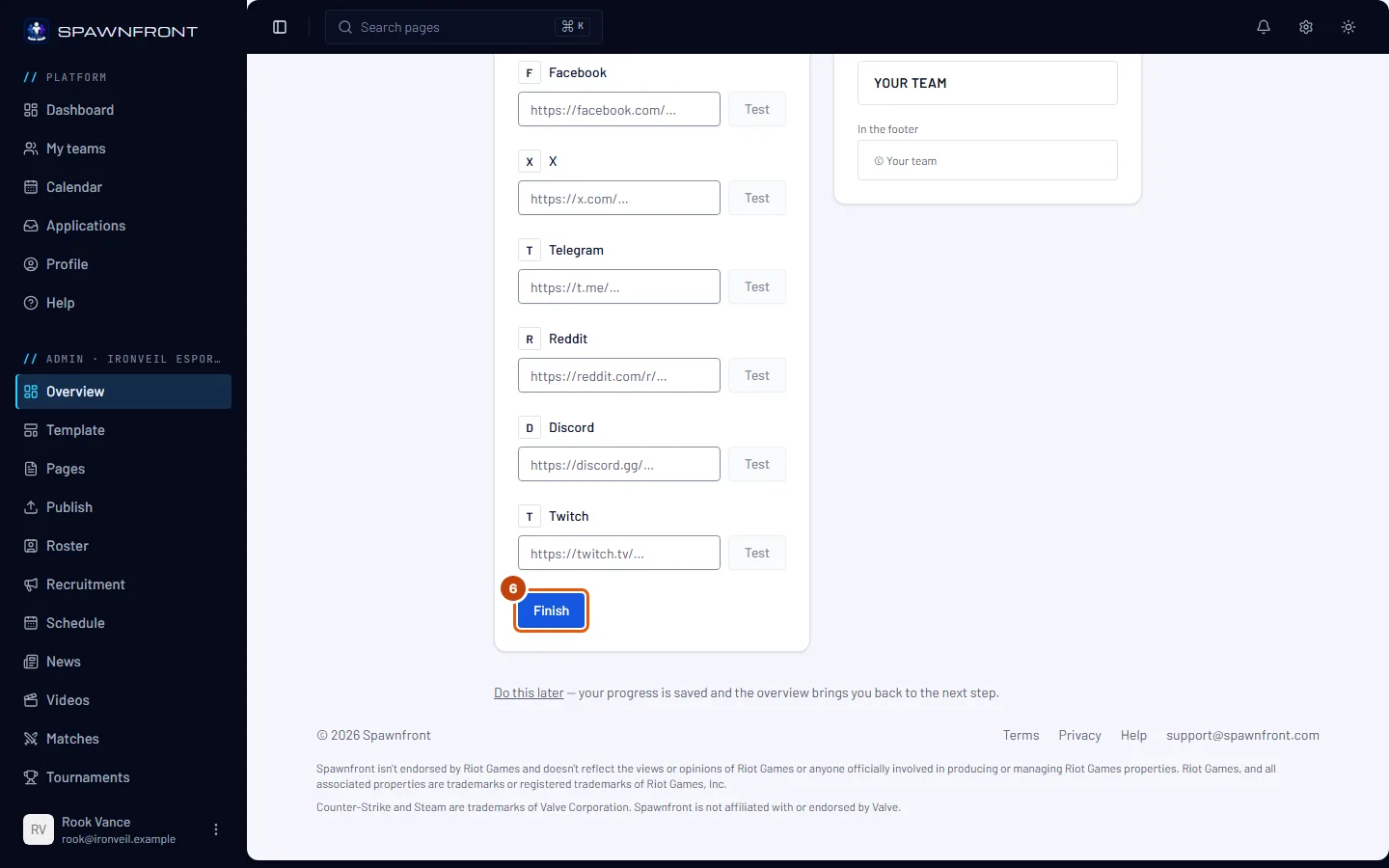
Paste your team's links into Facebook, X, Telegram, Reddit, Discord and Twitch — leave a field empty to show no icon for that network — then press Finish.
Finishing the wizard doesn't put your site online. Your roster and your links wait in your draft until you publish — see Publish your site.
You should see: your team's Overview, without the Finish setting up your team card.
How to know it worked
- Your team's Overview no longer shows Finish setting up your team.
- Address & domains shows your site's address.
- Roster lists the players you added.
Something doesn't look right?
It says "That address is already taken."
Another team has that address. Try a variation — your team's name with a region or a word like "esports" — and press Save and continue again.
It says "That address is reserved"
Spawnfront keeps some words for itself. Choose another address.
I left the wizard halfway
Your progress is saved — Do this later, under every step, leaves the same way. Open your team's Overview and press Continue setup — the wizard opens at the next step you haven't finished.
My site isn't online after Finish
The wizard fills your draft; your site goes online only when you publish it. Press Publish in the menu — see Publish your site.
I want to change something I entered
Everything the wizard asks for has its own page in your admin menu: Address & domains, Store, Roster and Socials.
Related articles
Still stuck? Contact support or email support@spawnfront.com — tell us the page you're on and the step number.