
Find and post open scrims
Respond to another team's open scrim or post your own for other teams to answer — free for every team.
For team owners and admins · 9 steps
What you need first
- You are the team's owner or an admin on Spawnfront. A member your team lets book scrims does the same from the team's Scrims page — see Book scrims for your team.
- Any team can post and respond to open scrims, free or with a site. A free team can have two open scrims at once; a team with a site, five.
- To respond to an open scrim, see steps 1–3. To post your own and choose who plays, see steps 4–9.
- You only see open scrims for your team's game. If you run teams in other games, switch with Game at the top of the page.
Steps
Step 1: Open Scrimmages
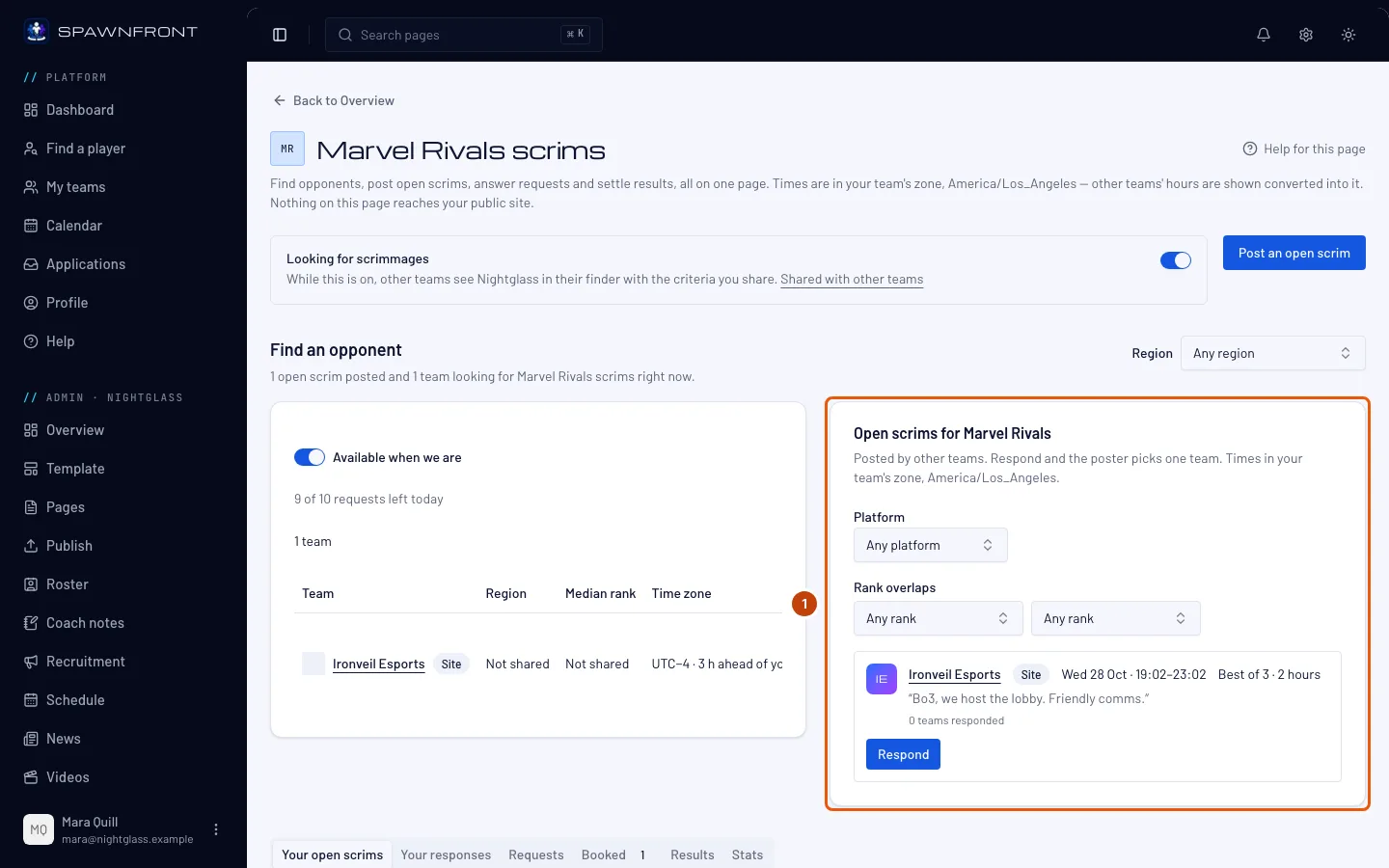
In your team's admin, press Scrimmages in the menu on the left.
You should see: Find an opponent, with the scrimmage finder on one side and Open scrims for your game on the other (one under the other on a phone). Each open scrim shows the team, then one line with its region, platform, rank range and time window in your team's time zone, like "NA · PC · Diamond 2–Grandmaster 1" and the window; then the format, its note and a Respond button. Use Region, Platform and Rank overlaps to narrow the list. A rank filter keeps every open scrim whose range overlaps yours. Teams with a site are listed first, with a Site badge.
Step 2: Respond to an open scrim
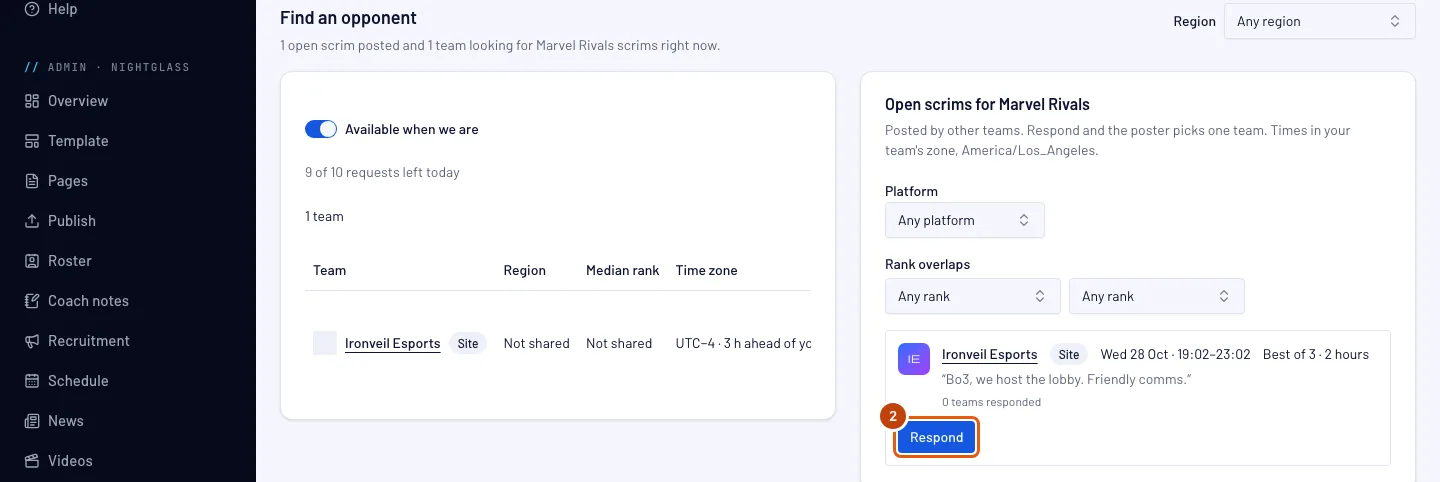
Press Respond on the one that suits you. In the box, under Start, pick when you want to start. The top of the box shows the Format and the Length the posting team chose, and every start offered leaves room for the whole scrim inside their window: free from 12:30 to 4:30 PM with a 2-hour scrim offers 12:30 to 2:30 PM, every 30 minutes. The first start is chosen to start with, and the line under the starts shows your scrim from its start to its end. You can add a short note to the team. Then press Send response.
Your team has one response to each open scrim. To change its start, withdraw it and respond again. The team that posted it gets a notification on Spawnfront, with the start you picked.
You should see: "Sent. [team] will confirm one team.", and Waiting in place of the Respond button.
Step 3: Wait for the poster to confirm
Under the finder, press the Your responses tab: your response is listed with the status Waiting. To take it back while it waits, press Withdraw on that row.
The team that posted it confirms one team. If they choose yours, the status reads Confirmed and the scrimmage is on both teams' calendars. If they decline yours, choose another team or withdraw the open scrim, it reads Passed and you get a notification.

Step 4: Press Post an open scrim
To post your own: at the top of the Scrimmages page, press Post an open scrim.
You should see: the Post an open scrim box, with its times in your team's time zone.

Step 5: Set the time and format
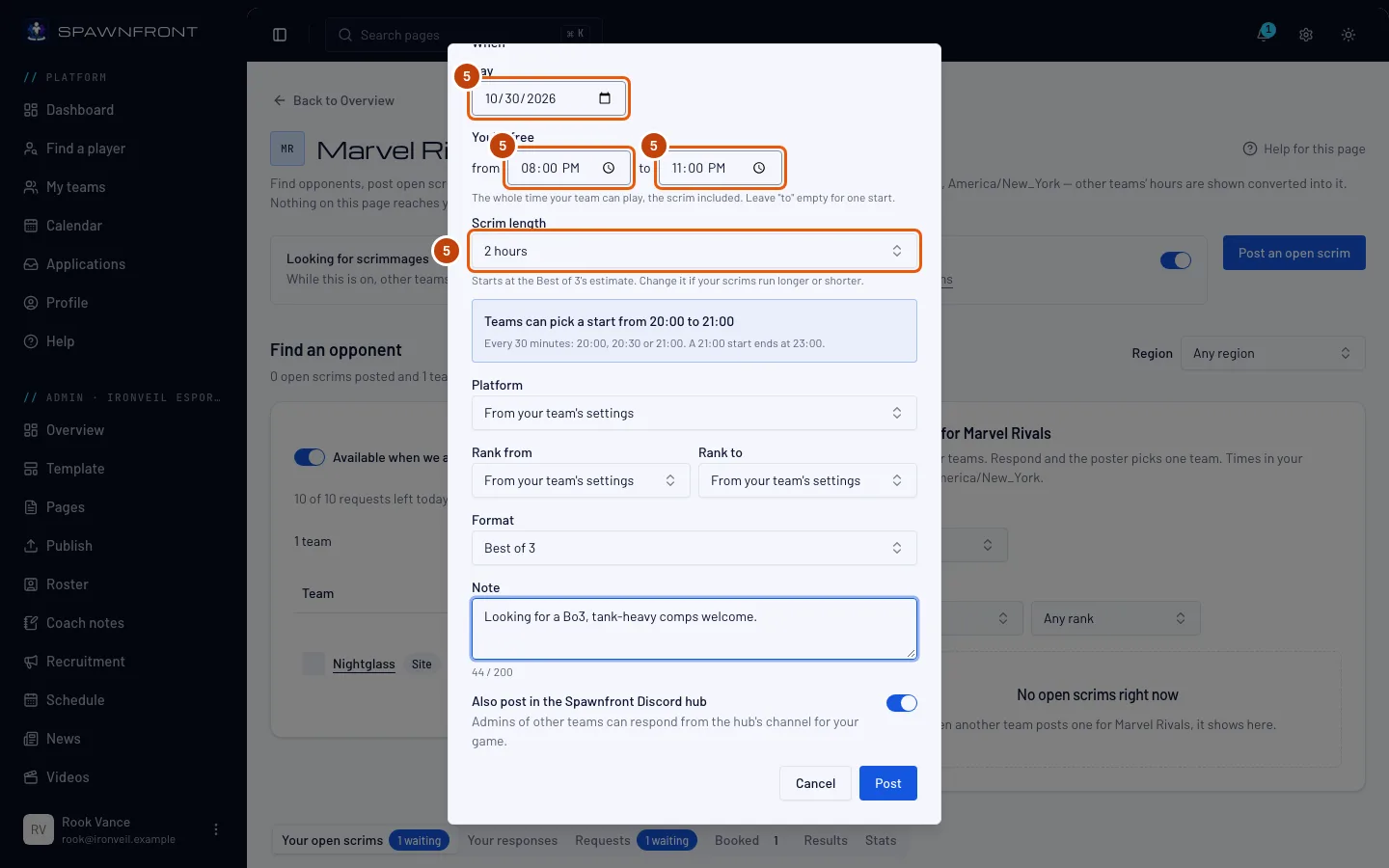
Under When, pick the Day. Under You're free, set from and to: the whole time your team can play that day, the scrim included, up to eight hours. Leave to empty to offer one start. Choose the Format, then the Scrim length, from 1 to 4 hours: it starts at the format's estimate (2 hours for a Best of 3) until you change it.
Other teams only get starts that fit the whole scrim. The box under the length names them: free from 12:30 to 4:30 PM with a 2-hour scrim, teams can start from 12:30 to 2:30 PM, every 30 minutes, so the scrim always ends by 4:30 PM. If the time you're free is shorter than the scrim, the box says so and you can't post until you make it longer or the scrim shorter. You can also write a Note of up to 200 characters.
Platform and rank start from your team's settings. Platform and the rank range (Rank from and Rank to) read From your team's settings until you choose; then your open scrim uses what your team shares with other teams. Your region always comes from your team's settings.
Also post in the Spawnfront Discord hub is on to start with. Leave it on to put your open scrim in the Spawnfront hub's looking-for-scrim channel for your game and your team's region, or for your console when you play on Xbox or PlayStation, where other teams can respond too.
Step 6: Post it
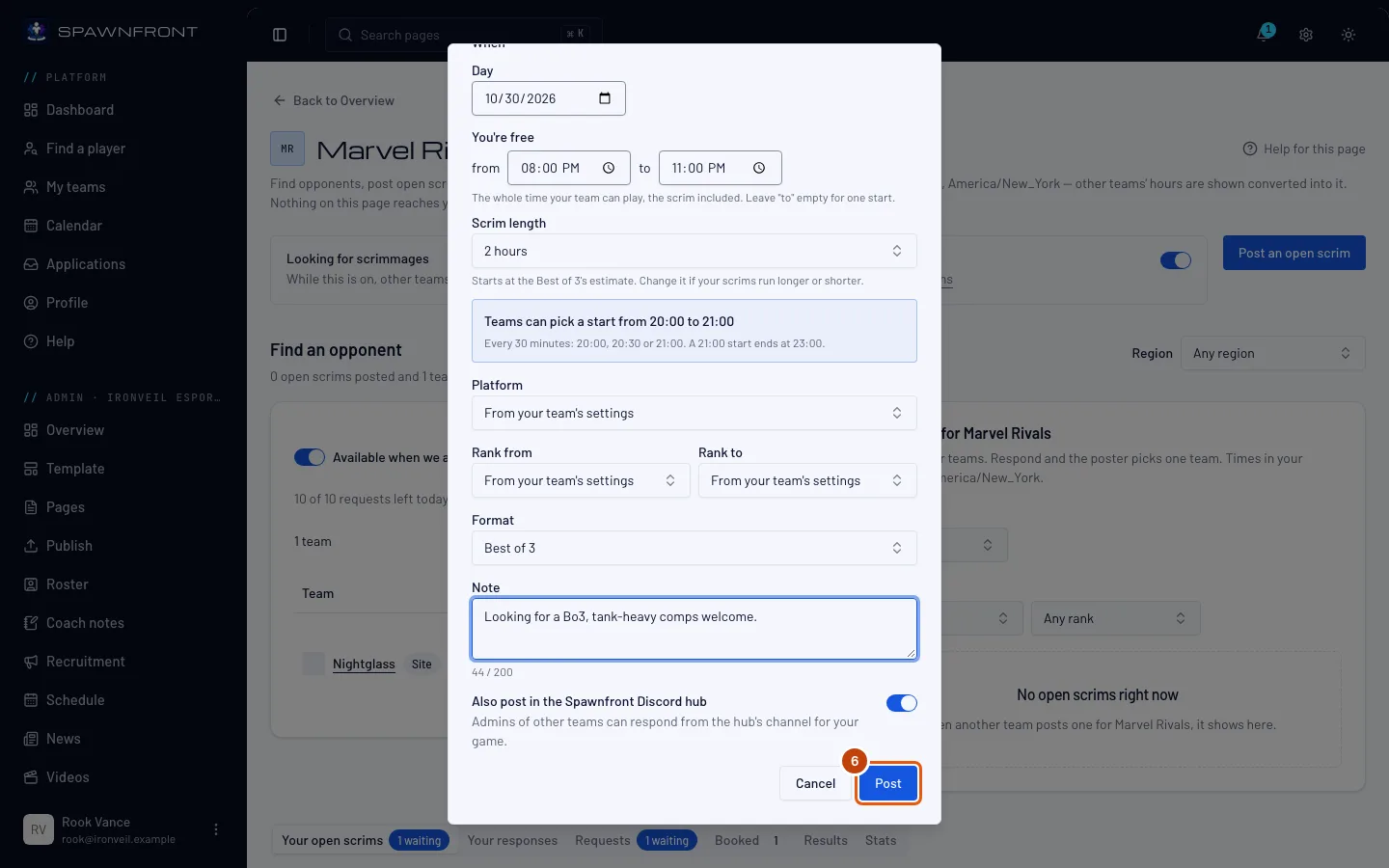
Press Post.
A free team can have two open scrims at once, and a team with a site five. Every team can post ten a day.
You should see: "Open scrim posted." ("Open scrim posted, and in the Spawnfront hub." when it went to the hub). The open scrim is now listed under Your open scrims.
Step 7: Check the responses
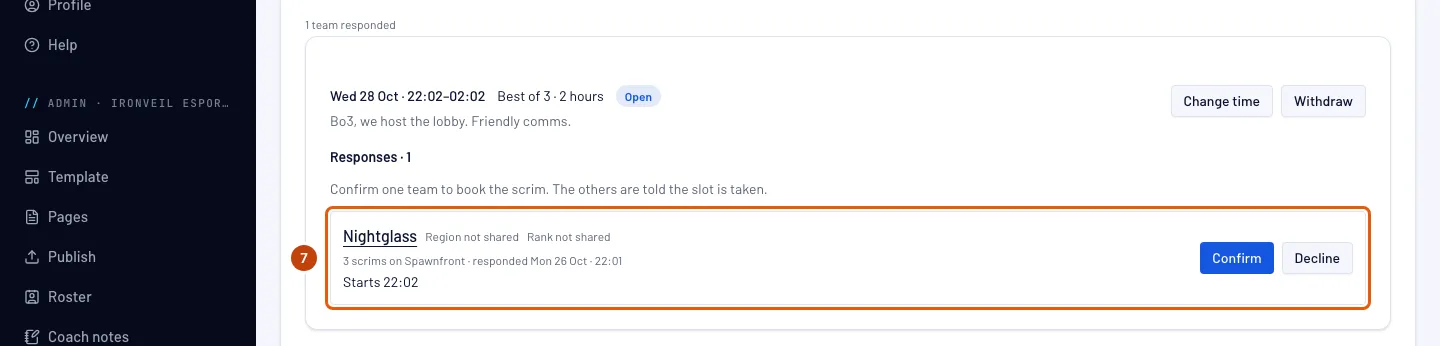
When a team responds, you get a notification, and the Your open scrims tab under the finder counts the responses waiting. On that tab, each of your open scrims lists the teams that responded; press a team's name to open its team page.
You should see: each team's region and rank, how many scrims it has played on Spawnfront, when it responded, the start it picked and its note, with Confirm and Decline beside it.
Step 8: Decline a team
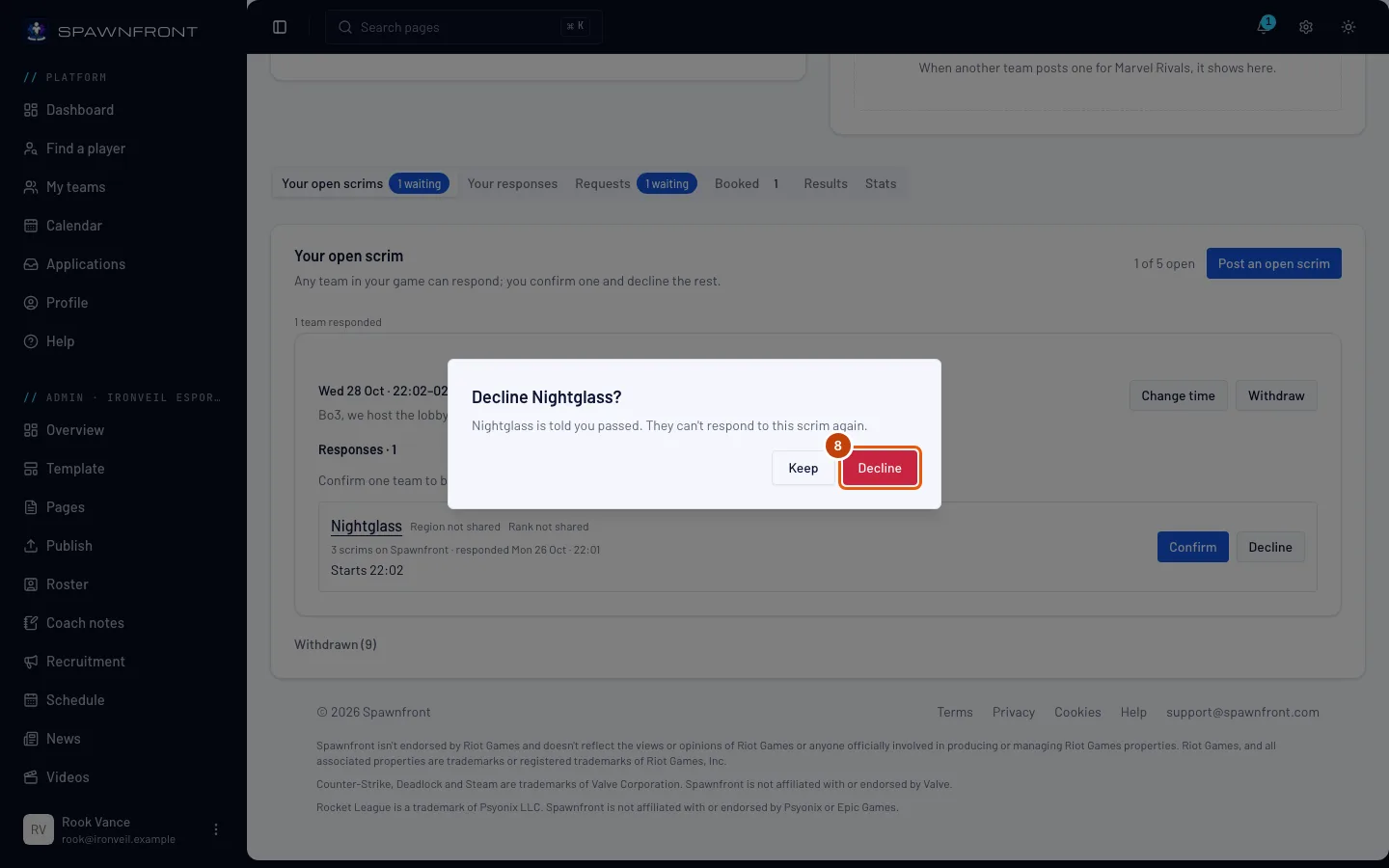
To pass on a team, press Decline on its row, then Decline in the box that asks. Press Keep to change your mind.
A team you decline can't respond to this open scrim again. It is told you passed.
You should see: "[team] declined. They have been told." The team moves into the closed Passed group under that open scrim; open it to see the teams you passed on.
Step 9: Confirm one team
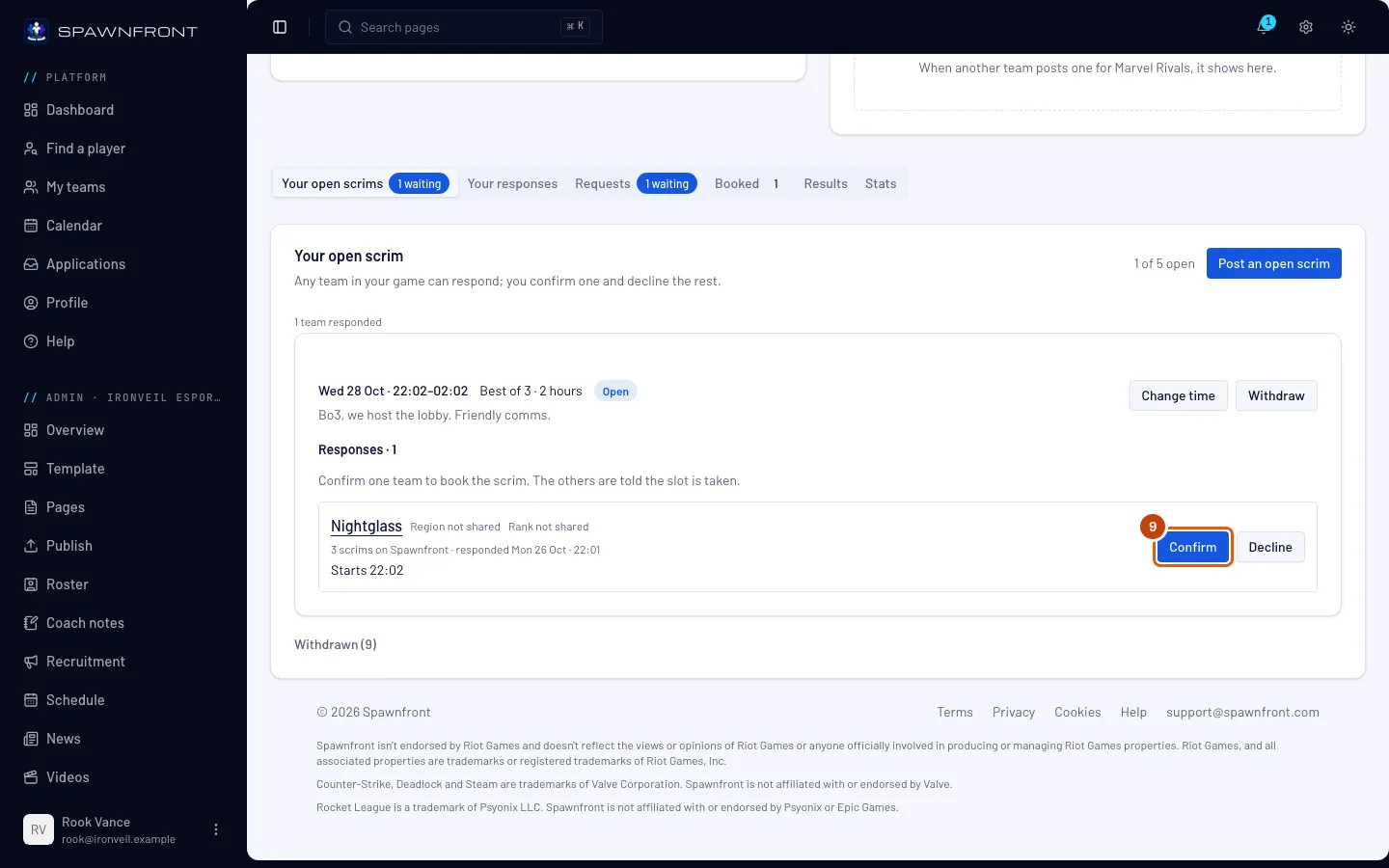
Press Confirm on the team you want to play.
Confirming books the scrimmage at once, at the start that team picked. It goes on both teams' calendars and your Matches page. The other teams that responded are told the slot is taken.
You should see: "Booked with [team]. It's on both teams' calendars." The scrim is also listed under Booked. If your open scrim was in the Spawnfront hub, a private thread for the two teams' admins opens there too. Press Open the thread in the Spawnfront hub to go to it.
How to know it worked
- A response you sent shows under Your responses as Waiting, then Confirmed or Passed.
- An open scrim you posted shows under Your open scrims as Open, then Booked. To withdraw it, press Withdraw and confirm in the box that asks: the teams still waiting are told, and the scrim moves into the closed Withdrawn group at the foot of the tab for a week.
- A confirmed scrimmage is on the Booked tab and on your team's calendar. Its row says who is coming — for example 5 coming · 1 late — from what your members marked on the Calendar.
Change the time of your open scrim. Under Your open scrims, press Change time on it. In the box, change the day, the time you're free or the scrim's length; before you save, it lists each team that responded and whether its start still fits. Press Save the new time. A team whose start still fits keeps its response as it is. A team whose start no longer fits is told: its response reads Start no longer offered, you can't confirm it until that team picks a new start, and the team sees Pick a new start. A booked scrim's time is changed on Matches instead.
Open scrims in Discord. An open scrim posted to the Spawnfront hub shows up as a card in its game's looking-for-scrim channel for the poster's region (like na-looking-for-scrim), or its console's (like xbox-looking-for-scrim) for an Xbox or PlayStation open scrim. An owner or admin of any team in that game, or a member whose team lets them book scrims, can press Respond on the card. The card shows when the team is free, the format with the scrim's length, the starts offered, the rank range and the region and platform. A response from Discord takes the first start still ahead in the window; to pick a later one, withdraw it and respond again on Spawnfront. A card from a team with a hosted site shows a Site badge and a link to its site. A card from a team without one ends with "Run by Spawnfront". If your Discord is linked, Join the Spawnfront hub on your dashboard opens the hub's invite. You can also post an open scrim from Discord: type /scrim find and fill in the box that opens (with one team, it has an Until field for the end of the time you're free). To set the scrim's length, add the length option to /scrim find; without it, the scrim takes the format's estimate. To change the time of one of your open scrims from Discord, type /scrim move and pick it. Confirming or declining a team always happens on Spawnfront. After a scrim, /scrim result sends each game's scoreboard screenshot: see Settle a scrim with a screenshot. After an Overwatch scrim, /scrim log sends a map's Workshop log: see Settle an Overwatch scrim with a Workshop log. To respond or post from Discord, your Discord must be linked to Spawnfront. See Sign in with Discord.
Something doesn't look right?
Respond says 'That open scrim is no longer available'
Another team was confirmed, the poster withdrew it, or its time has already started. Pick another one from the list.
Respond says 'Your team already responded to this open scrim'
Your team already has a response waiting. Find it under Your responses; to pick another start, withdraw it there and respond again.
Post says you already have the most open scrims
A free team can have two open at once, and a team with a site five. Press Withdraw on one under Your open scrims, or wait until one is booked. To keep up to five open, get a site for your team: see Get a site for your team.
Post says 'You can post 10 open scrims a day'
You've used today's ten posts. Try again tomorrow.
Post says 'Propose a time at least 30 minutes ahead'
The start is too soon. Pick a time at least 30 minutes away. If it says "Propose a time within the next 30 days", pick a time sooner.
Confirm says 'That team can't scrimmage right now'
The two teams no longer play in the same place. For example, one team changed its League of Legends server, or its Valorant region or platform. Confirm a different team or withdraw the open scrim.
Discord says 'Responding needs a … team you book scrims for on Spawnfront.'
You don't book scrims for a team in that open scrim's game on Spawnfront. Owners and admins of a team in the same game can respond, and so can its members when the team turns on Book scrims for them — see Book scrims for your team.
I don't see Open scrims in the menu
Open scrims are on the Scrimmages page, under Find an opponent and Your open scrims, for free teams and teams with a site alike.
Discord says 'Link your Discord to Spawnfront first'
Your Discord isn't linked to your Spawnfront account yet. Press Sign in with Discord under that message, then try again.
Related articles
Still stuck? Contact support or email support@spawnfront.com — tell us the page you're on and the step number.