
Book scrims for your team
When your team lets you book, post open scrims, find an opponent and respond to other teams from your team's Scrims page.
For players · 3 steps
What you need first
- You are a member of a team, and its owners and admins turned on Book scrims for the team or for you — see Set scrim permissions.
Steps
Step 1: Open your team's Scrims page
In the menu, press My teams, then Scrims on your team's card.
You should see: Booking, marked Allowed for you, below your team's scrim results.
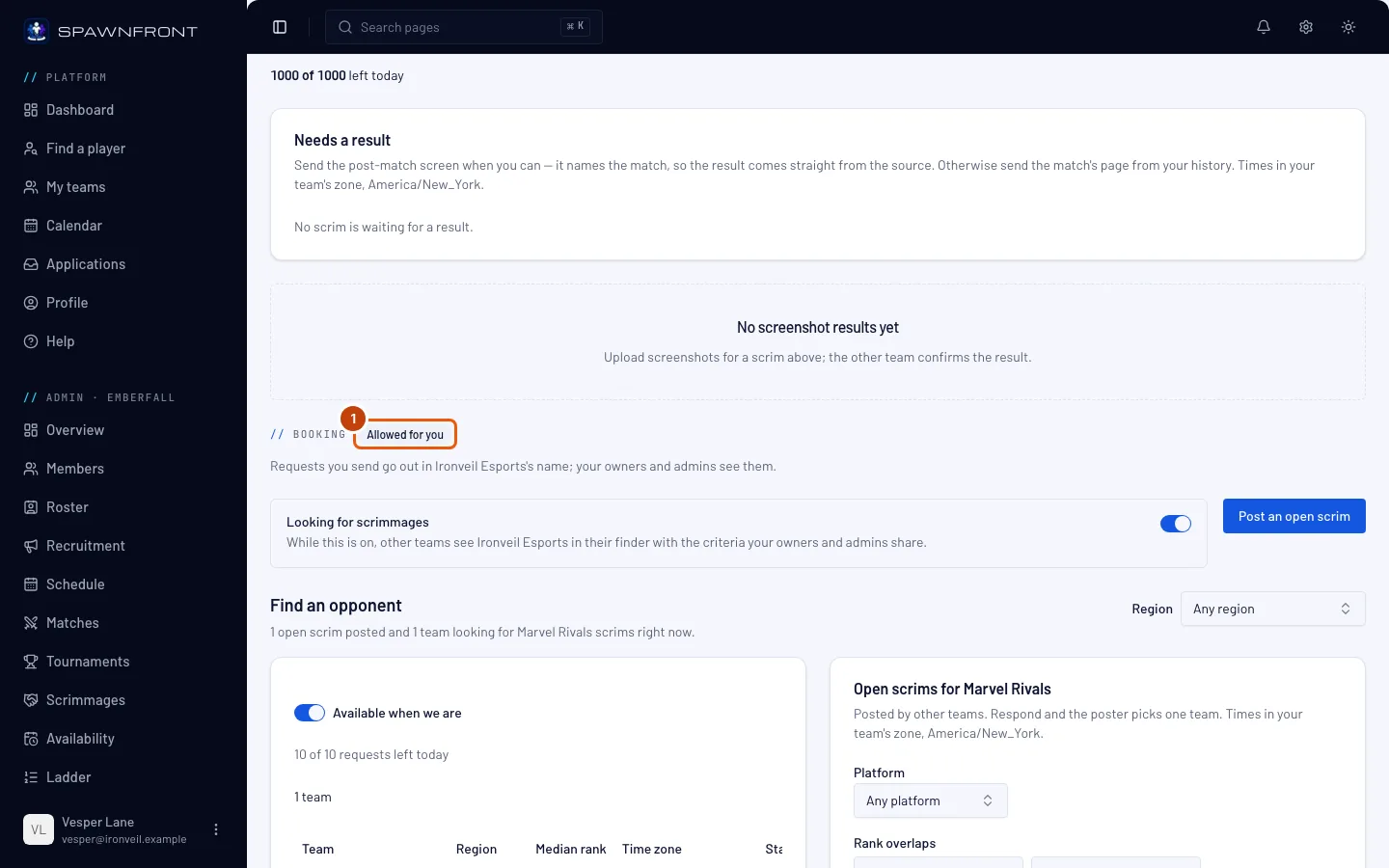
Step 2: Post an open scrim or find an opponent
Under Booking, press Post an open scrim to offer a time any team in your game can take, or use Find an opponent to ask a team looking for scrims. Both work as they do for owners and admins — see Post an open scrim and Find a scrimmage.
You should see: your open scrim or your request listed in the section. It goes out in your team's name, and your owners and admins see it too.
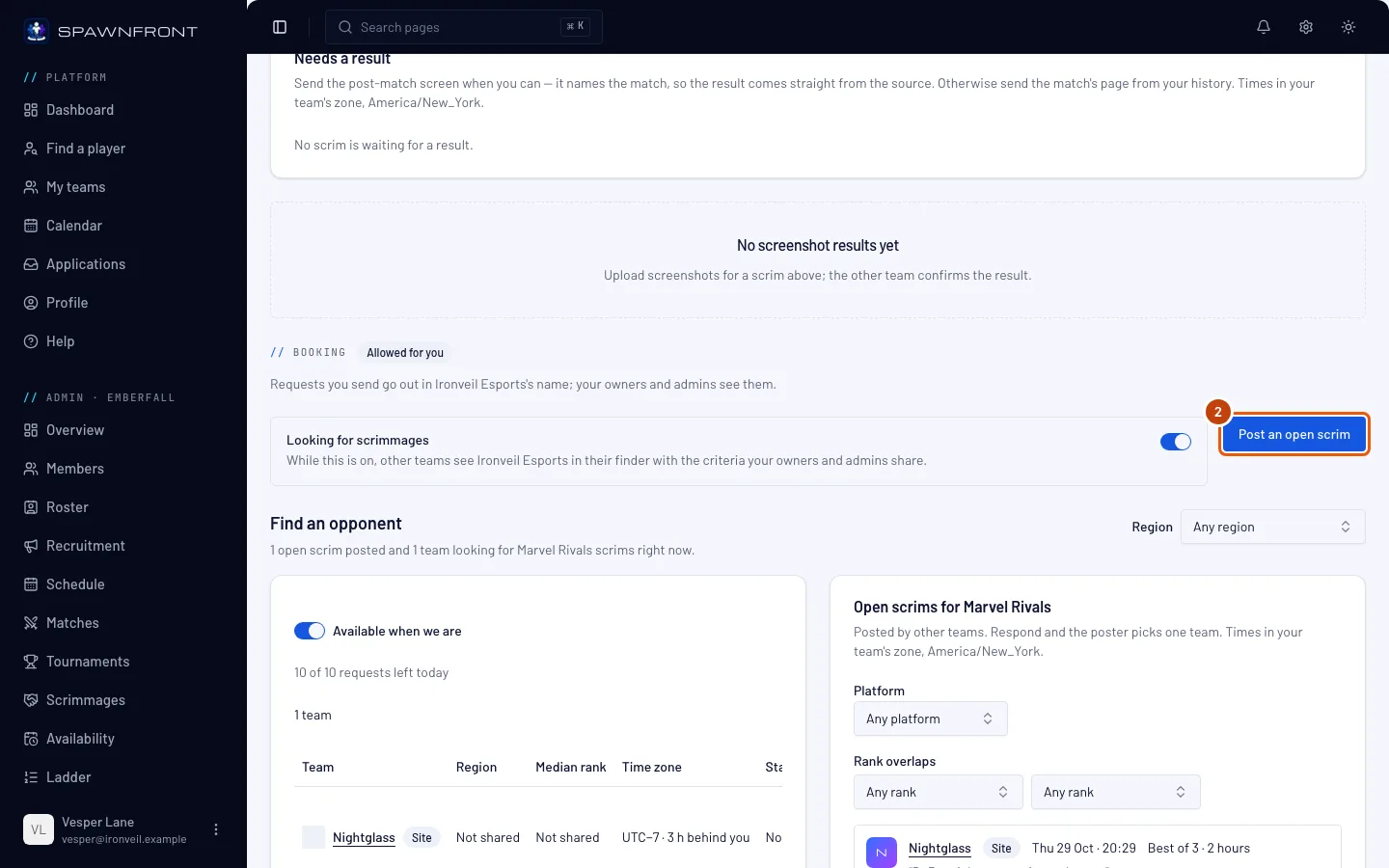
Step 3: Respond to another team's open scrim
Under the open scrims of your game, press Respond on one that suits your team, pick a start (each one leaves room for the whole scrim inside their window) and press Send response.
You should see: your response waiting for the posting team to choose. Once a scrim is booked, it's on your team's calendar.
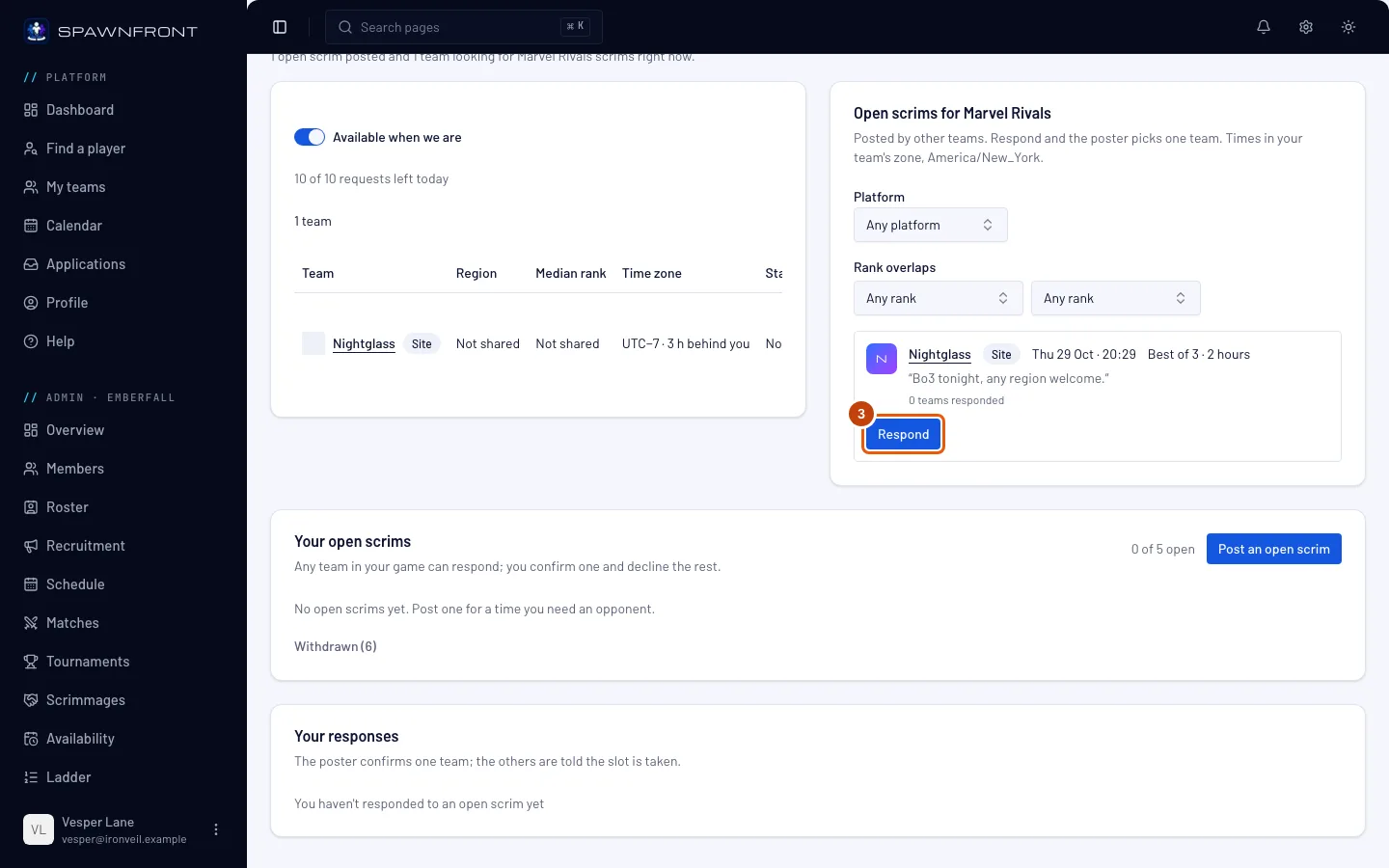
How to know it worked
- A booked scrim shows on your team's calendar, and its result is sent from the same Scrims page — see Send your team's scrim results.
What stays with owners and admins. Cancelling a booked scrim, a request's message and a team's reason for declining. When booking isn't allowed for you, the page says your team's owners and admins book scrims.
Something doesn't look right?
I don't see the Booking section
Your team hasn't turned on Book scrims for you. Ask an owner or admin, or ask them to book the scrim.
Related articles
Still stuck? Contact support or email support@spawnfront.com — tell us the page you're on and the step number.