
Manage your roster
Add players and staff to your roster, order them, hide or remove entries, and give a card your team's bio.
For team owners and admins · 8 steps
What you need first
- You are the team's owner or an admin. A roster holds up to 20 people.
Steps
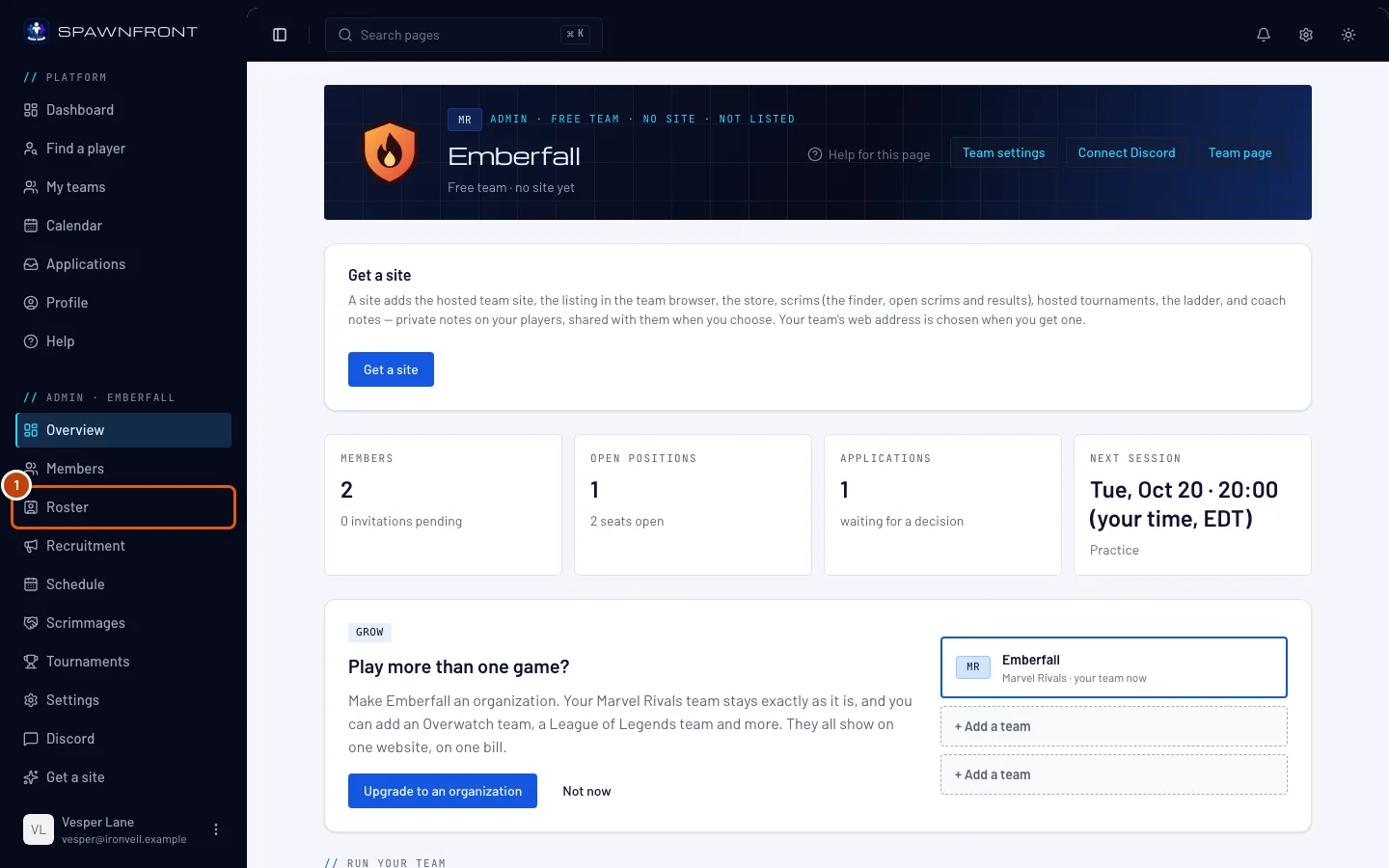
Step 1: Open Roster
In the menu on the left, under Admin, press Roster.
You should see: your Players and Staff, with how many of 20 places are used. The sentence under Roster and the line under the member count say where your players' stats come from and how often they update — for Marvel Rivals and Overwatch, once a day on a team with a site, once a week on a free team.
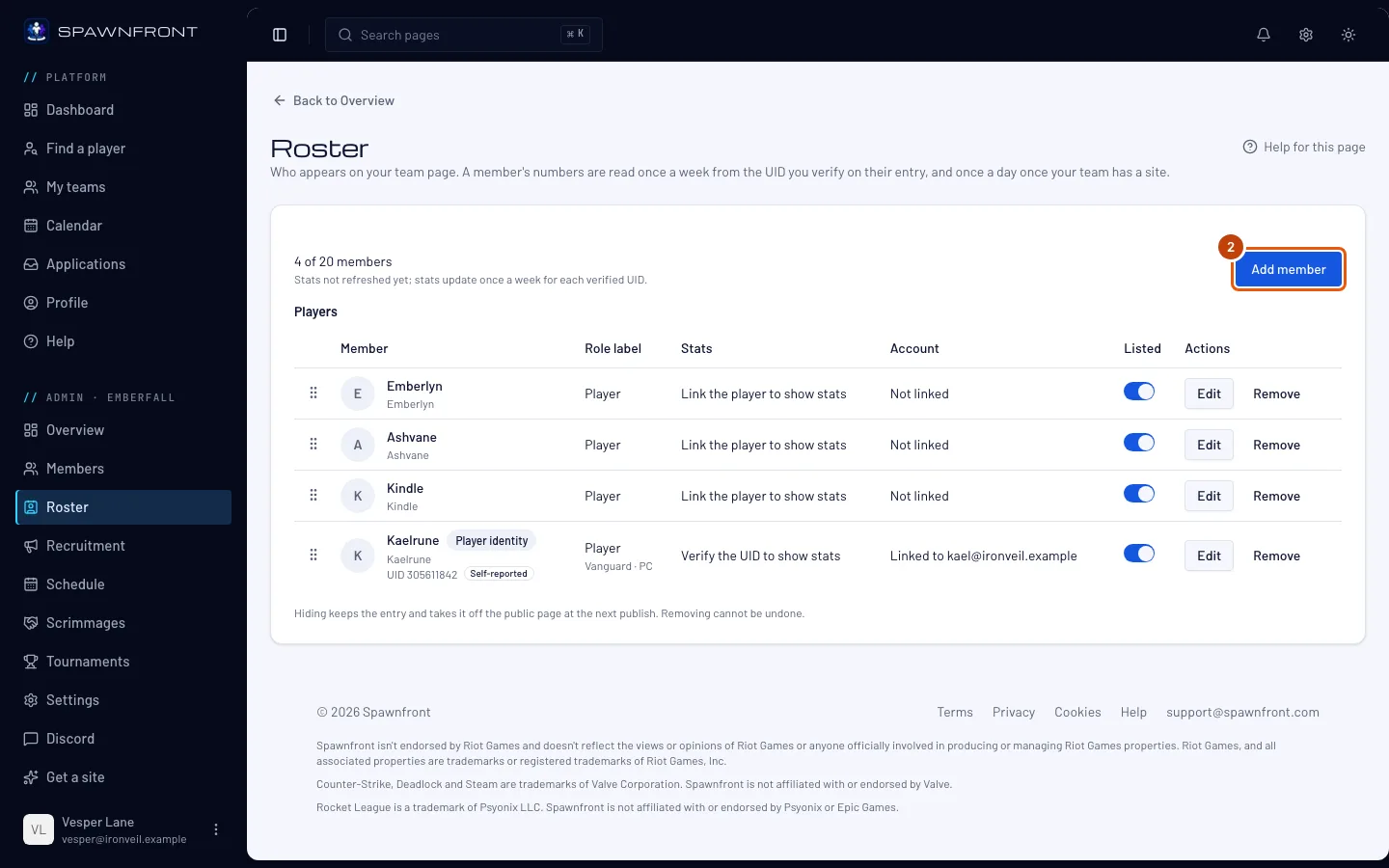
Step 2: Press Add member
Press Add member.
You should see: a box titled Add member.
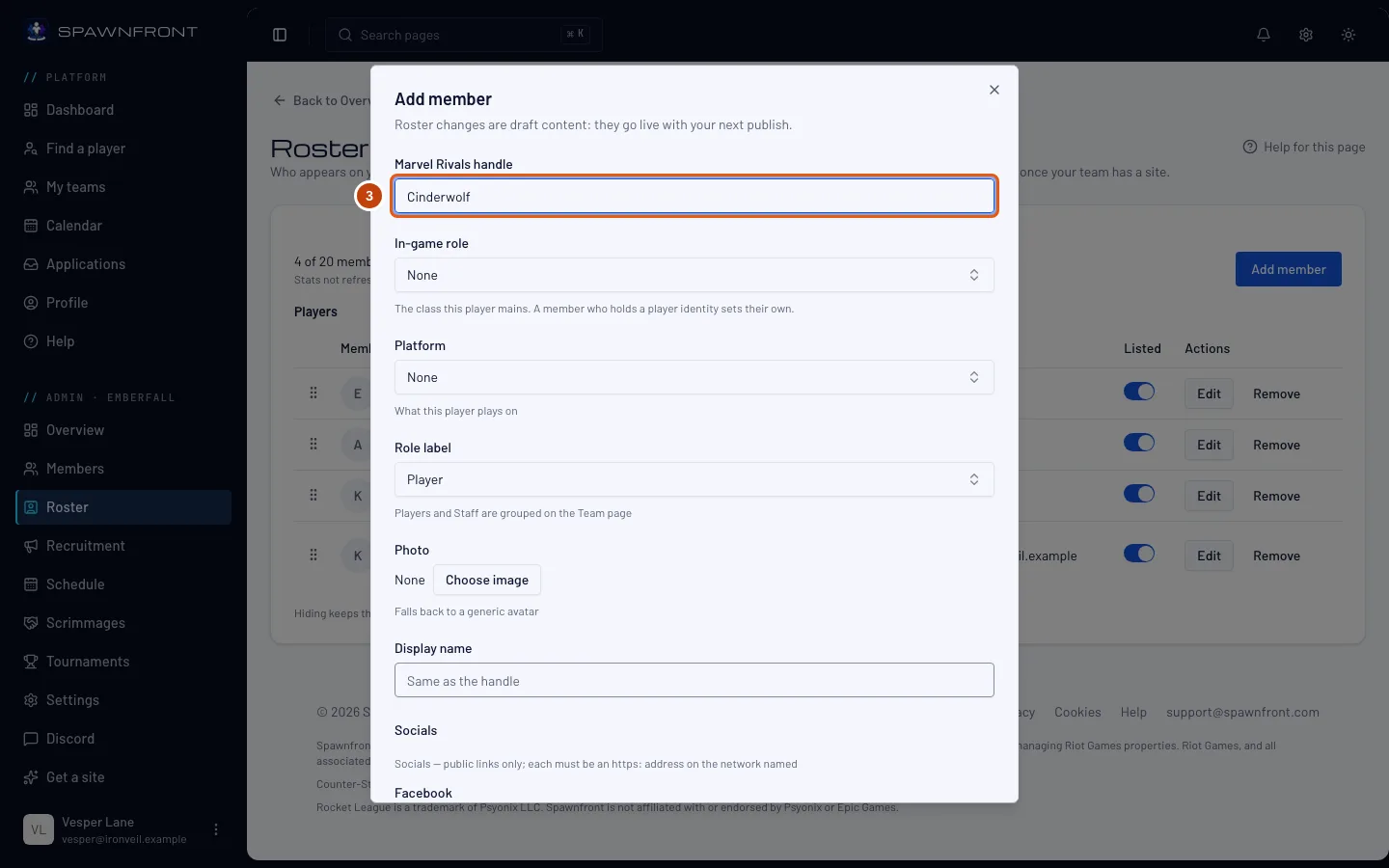
Step 3: Type the handle
Type the player's handle in the box named after your team's game — Marvel Rivals handle, for example — as it shows in the game.
You should see: the handle in the box.
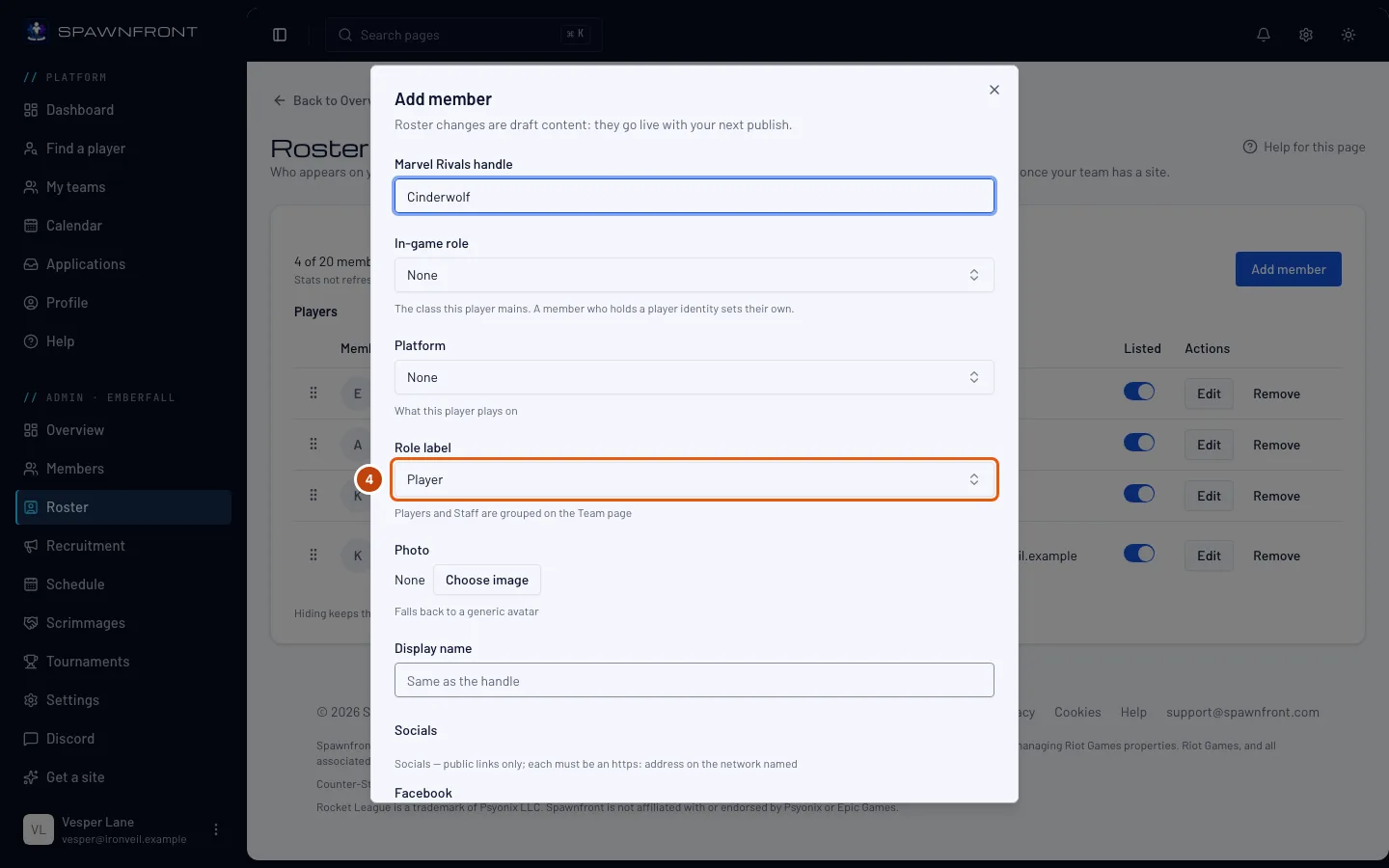
Step 4: Choose the role label
Choose a Role label. Players and staff are grouped separately on your team page. You can also set an in-game role, platform, display name and socials — and, once your team has a site, a photo.
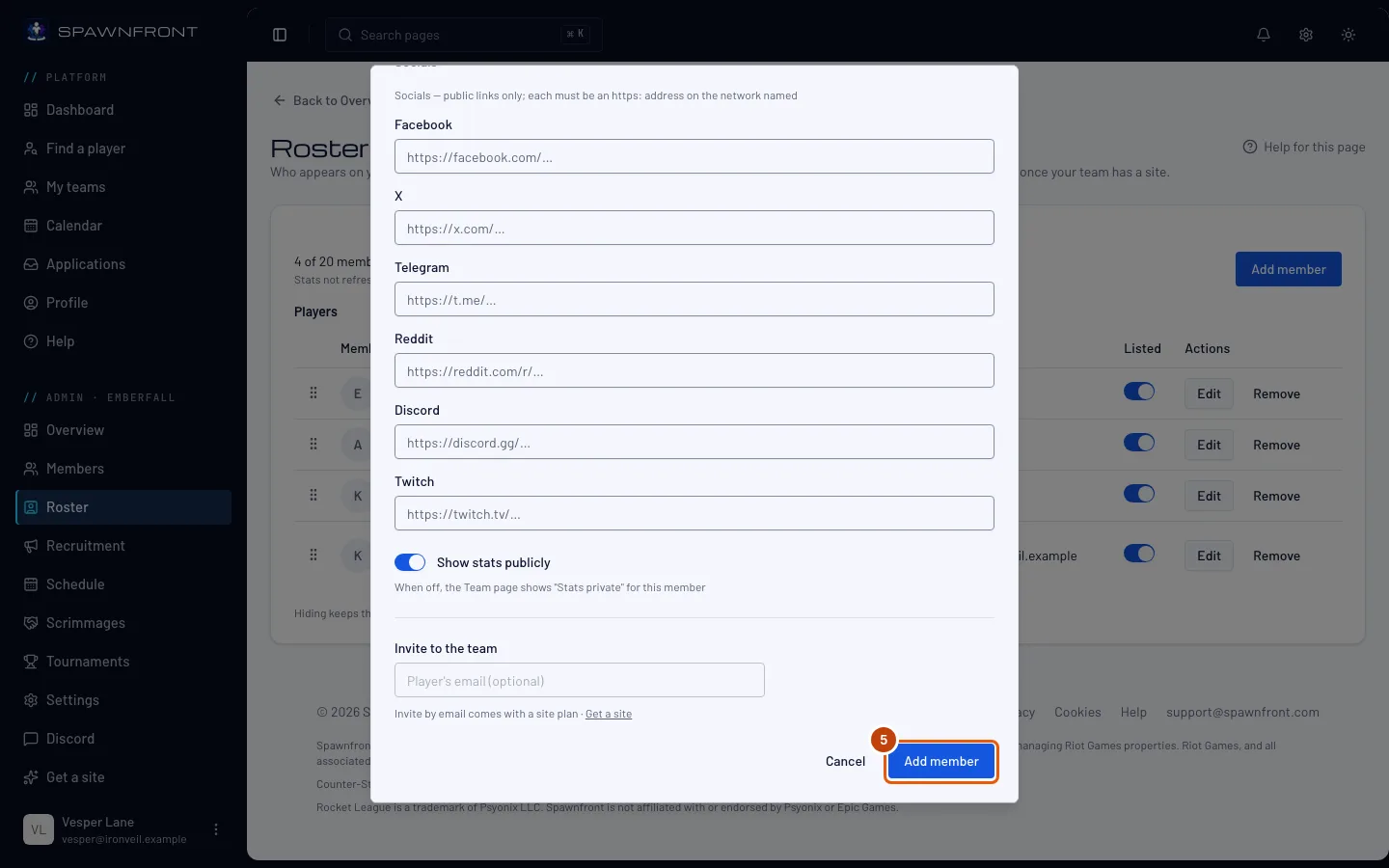
Step 5: Add them
If your team has a site, you can invite the player in the same step: type their email under Invite to the team and leave Send an invitation to join the team ticked. They get an email with a link to accept, and their card links to their account when they join. A free team's email box is locked — inviting by email comes with a site plan.
Press Add member in the box.
You should see: "Member added" — or "Member added and invited" — and the new row on the roster.
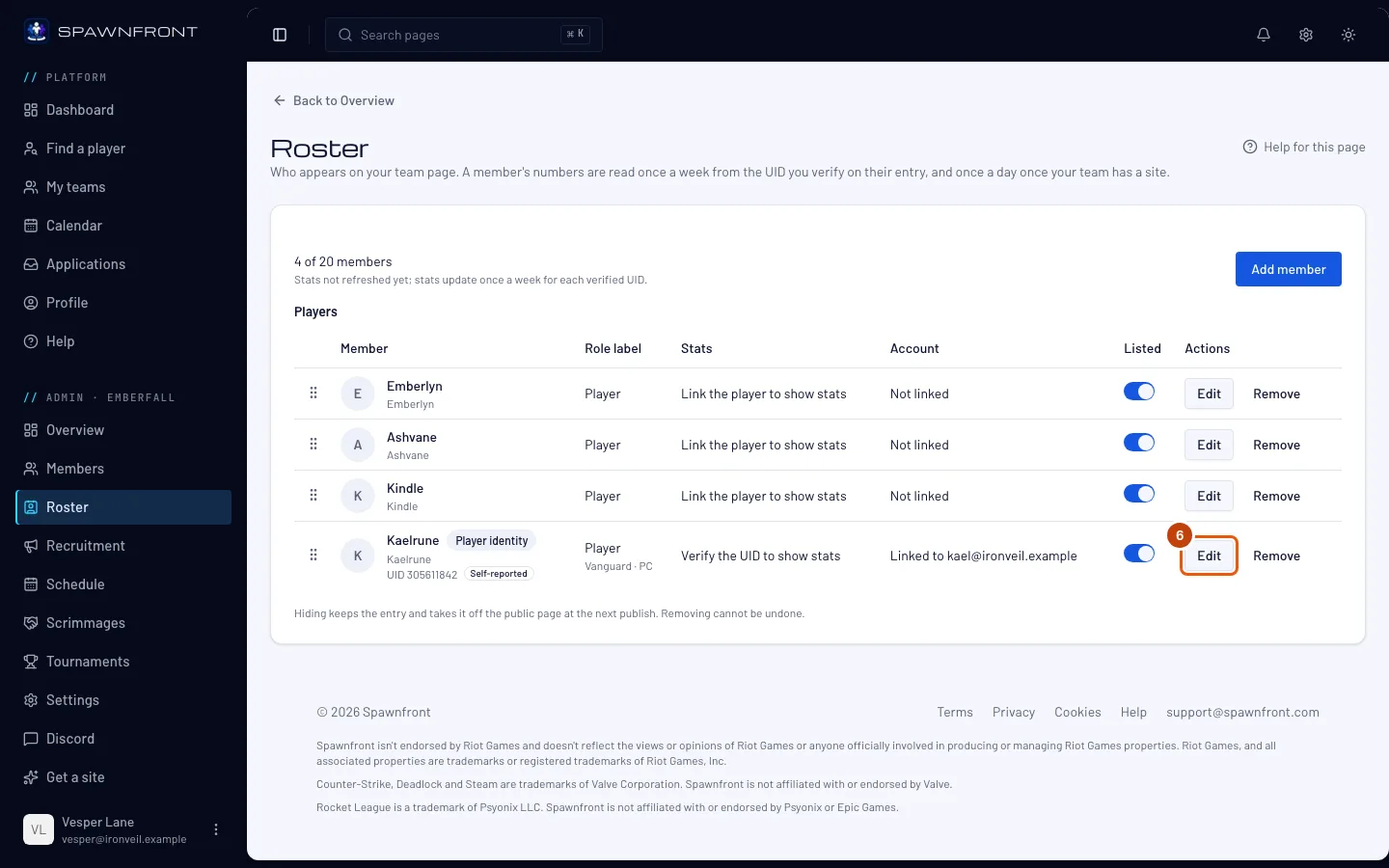
Step 6: Open an entry to give it a team bio
Each roster entry has a player card, and its back shows a bio — see Your player card. A linked player writes their own. Give an entry your team's bio when the player has no account, or when your site needs its own words on the card. Press Edit on the entry's row.
You should see: the entry's box, with a Team bio section under the photo. On a linked entry it shows The player's bio first — or "No bio from the player".
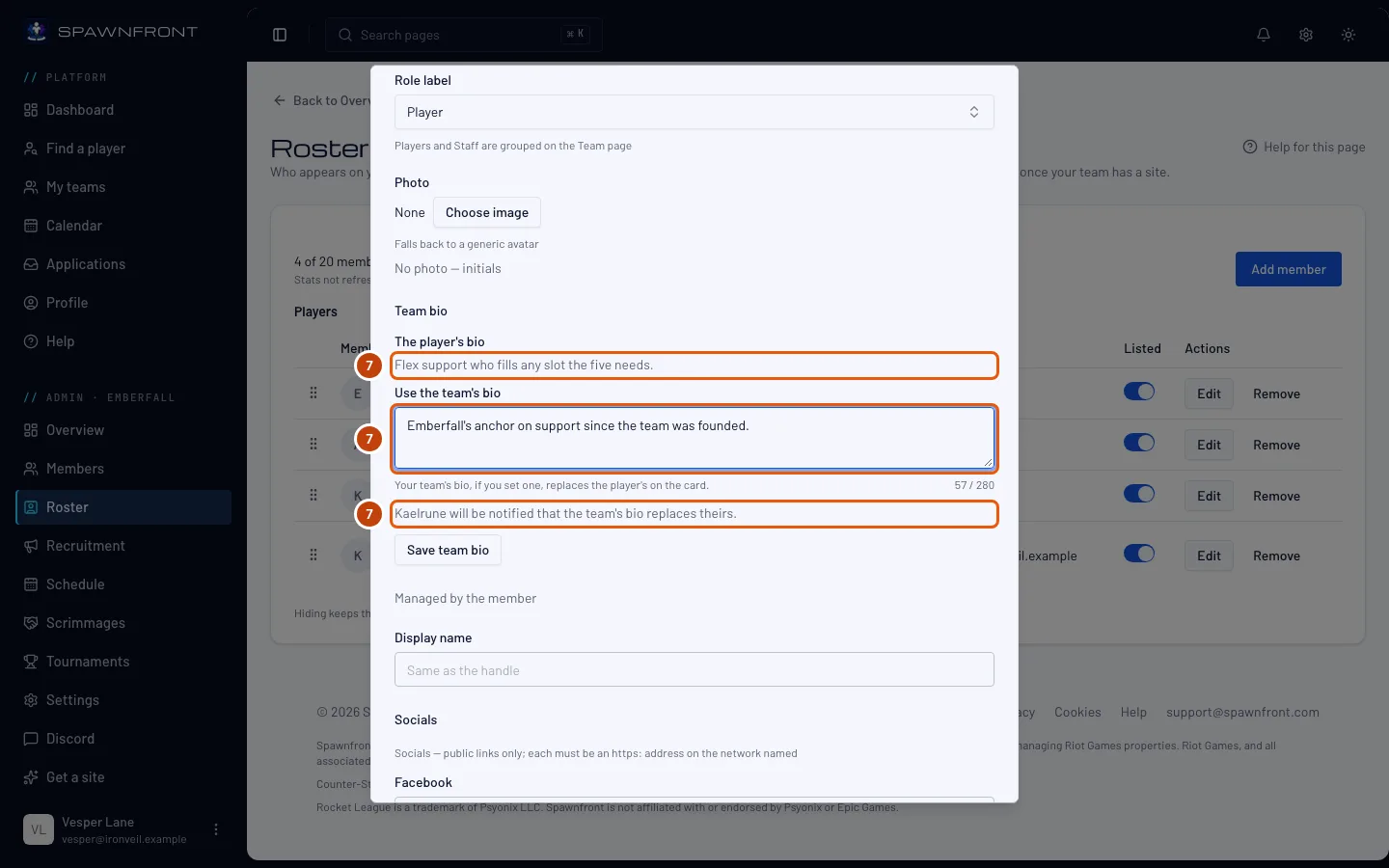
Step 7: Write the team's bio
Type up to 280 characters of plain text in the box. When the player has a bio, the box is named Use the team's bio; otherwise it is Team bio.
Your team's bio replaces the player's on their card, and the player is told. The line under the box says so — "… will be notified that the team's bio replaces theirs." — and they get a notice in the bell and by email.
You should see: your words in the box, and the count under it.
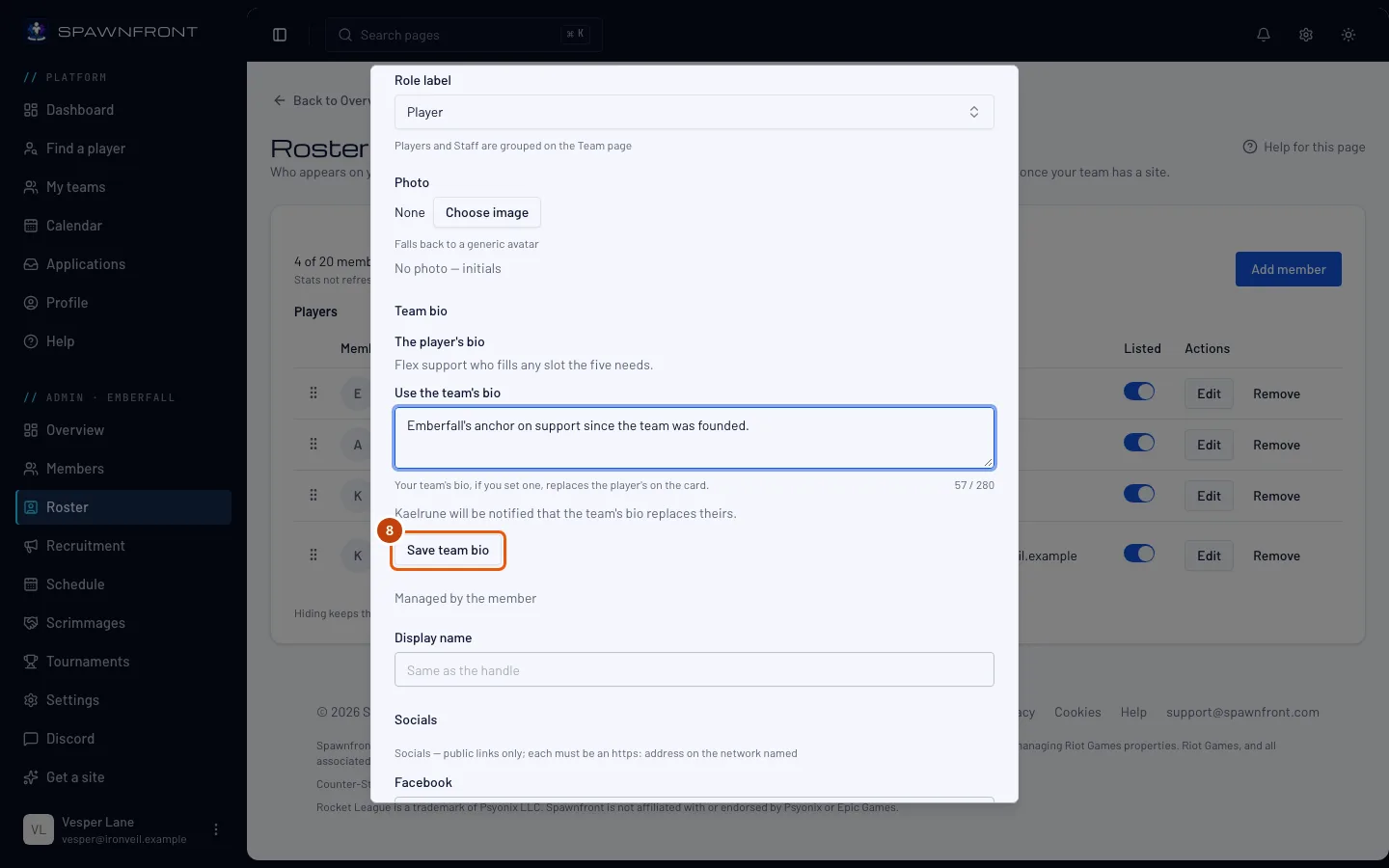
Step 8: Save the team bio
Press Save team bio. It saves the bio on its own — Save changes at the bottom of the box does not save it.
You should see: "Team bio saved — … was notified", or "Team bio saved" when there was no bio of theirs to replace. The card shows it on your site within a minute, without a publish.
To give the card back to the player, press Use the player's bio under the box. You should see: "The player's bio is back on the card". On an entry with no account, empty the box and press Save team bio.
How to know it worked
- The new entry is on the roster. Drag the handle at a row's left to change the order.
On a team with a site, each player's row has Notes with the number of coach notes about them; press it to read and write them — see Write coach notes. Removing an entry keeps its notes in the Coach notes Archive.
The Listed switch hides an entry from your team page without removing it — at once in the app, and on your site with your next publish. A member who joined through an application is linked to their own account and keeps their own handle. In Marvel Rivals and Overwatch, a player's stats show once their entry is linked to their game identity and you verify their UID or BattleTag — read once a day on a team with a site, once a week on a free team. The stats column says which of these is missing.
A linked member's entry is partly theirs. Press Edit on a member's row to open it. When the entry is linked to their account, it says Managed by the member: their display name, socials and stats switch are grayed out, because the member sets them on their own card — see Your member card. With a game identity, their handle comes from it, and for Marvel Rivals their UID shows beside it, marked Self-reported, Verified once your team checked it, or Confirmed by the game. In Overwatch the handle is their BattleTag, and the mark sits under it. In Counter-Strike 2 and Deadlock, a player who confirmed their account with Steam shows Verified with Steam beside their name, on the row and in Edit: they proved it themselves, so there is nothing for your team to verify. In League of Legends, a player whose Riot account Spawnfront Companion confirmed from the League client shows Verified with League of Legends the same way, and in Rocket League a player whose account the app confirmed from a recorded match shows Confirmed by Rocket League. To check a player's UID or BattleTag, see Verify a player's UID.
Which photo shows. A linked member's card shows, in this order: a team photo you set, else the member's photo for your team, else their profile photo, else their initials. The line under the photo field says which one is showing now, such as "Showing the member's profile photo". To put your own photo on their card, press Choose image under Use a team photo instead. To go back to theirs, press Use the member's photo. Then press Save changes. A team photo needs your team to have a site.
Substitutes stand in when a player can't make it. An entry with the role label Substitute, linked to a member's account, is told in the bell and by email when a player will be late or can't make a session, and can press I'll cover — see Cover for a teammate. To link an entry, press Edit on its row, choose the member under Link an existing member and press Link; the row then reads "Linked to" their email. A Substitute entry that reads "Not linked" is told nothing.
Something doesn't look right?
My substitute isn't told when a player is out
Their entry must be Substitute and linked to their account. Open it with Edit and check it, or link it under Link an existing member.
A player says their card shows a bio they didn't write
Your team's bio shows over theirs. Open their entry with Edit and press Use the player's bio under Team bio to give the card back to them.
Add member is grayed out
The roster is full — 20 entries. Remove one first.
A member's photo is gone from the roster
The member left your team, or the entry was unlinked from their account. Their photos are theirs and come off your roster with them; set a team photo on the entry if you want one there.
I can't change a member's socials
The entry is linked to their account, so the member sets their own display name and socials. Ask them to change it on their card.
A player's stats don't show
In Marvel Rivals, read the row's stats column — it names what is missing: Link the player to show stats, The player hasn't set a UID, Verify the UID to show stats (Verify a player's UID), Stats update daily or Stats update weekly. The last two mean the first read has not happened yet; it usually comes within the hour, then once a day on a team with a site, once a week on a free team. Match history private means the player hides their matches in the game.
In Overwatch the column reads Not a BattleTag, Add a career link to show stats, Verify the BattleTag and career to show stats (Verify a player's UID), Career doesn't match BattleTag, Career not found, Stats update daily or Stats update weekly, and Career profile private when the player keeps their career private — see Make your Overwatch career profile public. A row with no account gets stats too: open it with Edit, paste the player's career link in Career link (Find my career opens Blizzard's search for the BattleTag's name), press Save changes, then verify it.
League of Legends, Counter-Strike 2 and Rocket League rows show the numbers from the matches each player records with Spawnfront Companion; until they do, and in Valorant and Deadlock, rows show the handle and the rank the player chose, labeled self-reported.
Related articles
Still stuck? Contact support or email support@spawnfront.com — tell us the page you're on and the step number.