
Write coach notes
Keep dated notes on each player, private to your coaching staff, and share the ones you choose with the player.
For team owners and admins · 7 steps
What you need first
- Your team has a site plan. Coach notes come with every plan; without one, an owner or admin sees Get a site to unlock this page, and a coach sees Coach notes need a site plan — ask your team's owner to get a site.
- You are the team's owner or an admin, or a member whose roster entry is linked to your account and labelled Coach, Manager or Analyst. An owner or admin sets the label on the roster.
Steps
Step 1: Open Coach notes
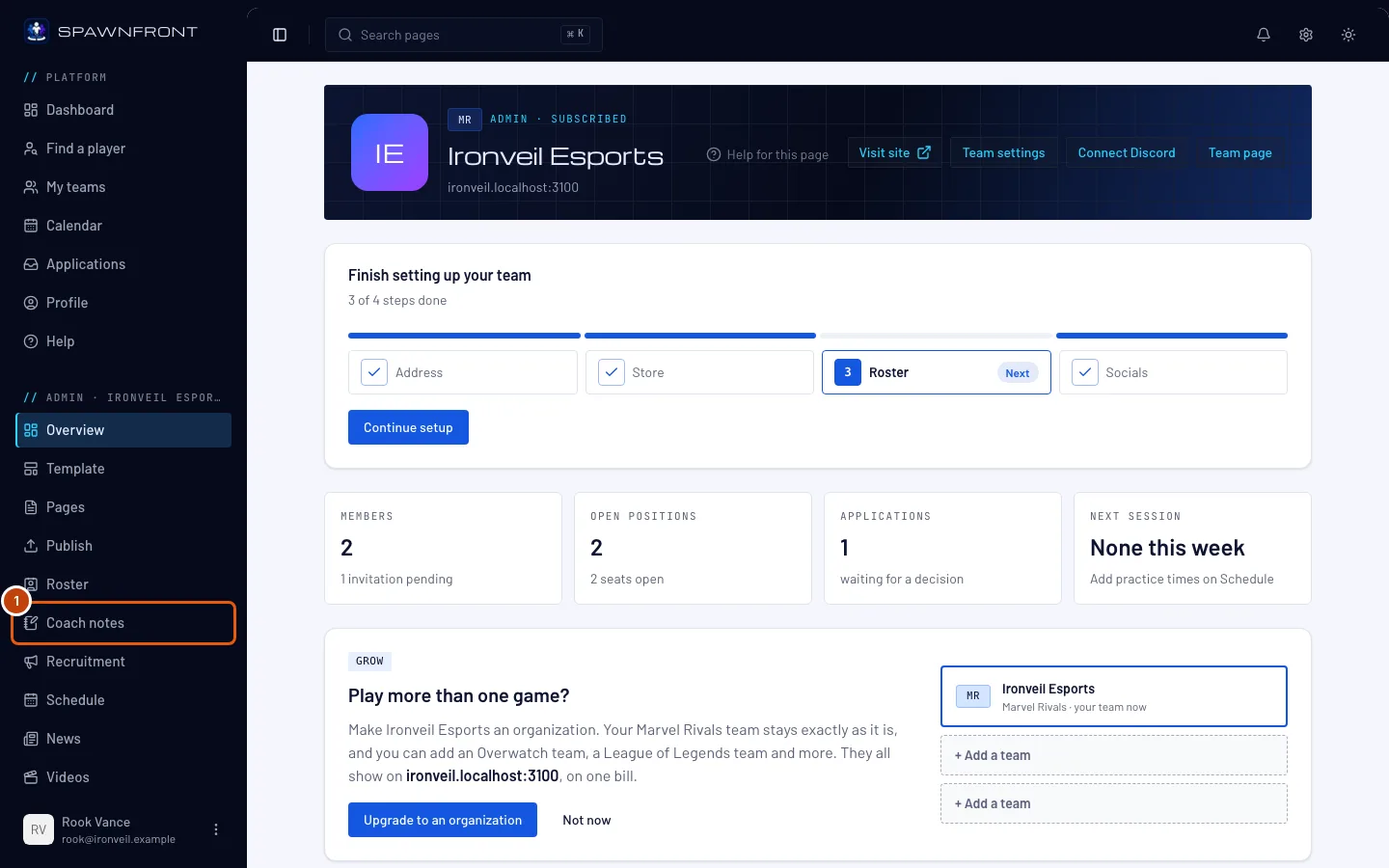
In the menu on the left, under Admin, press Coach notes. A coach who is not an admin finds it under My teams, under the team's name.
You should see: the Coach notes page, with your roster on the left under Players, Substitutes and Staff, each person with their photo and how many notes they have — "2 shared" when some are visible to the player, "not seen yet" when the player has not opened one.
Step 2: Choose a player
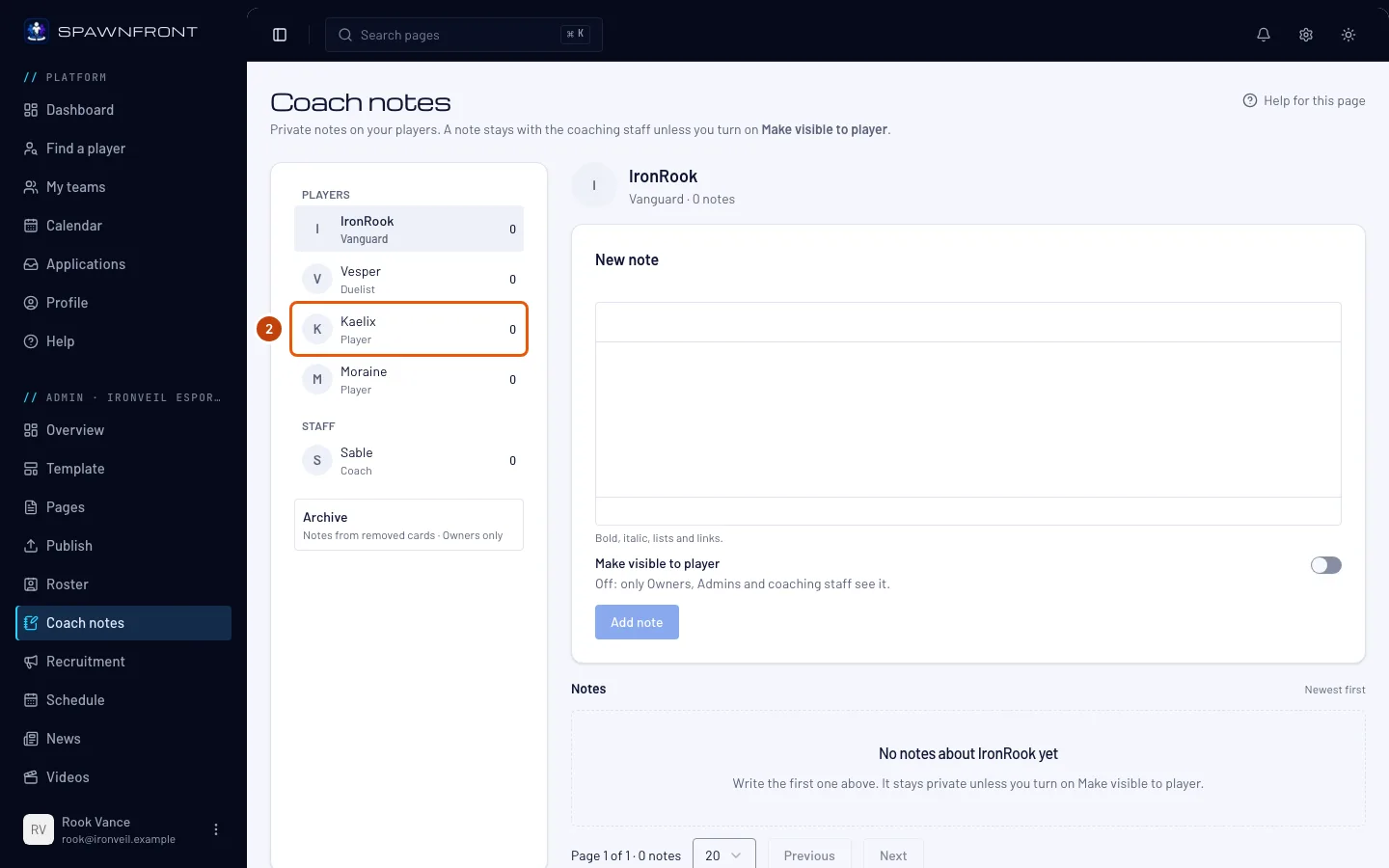
Press the player's name under Players or Substitutes. You can also press Notes on their row of the Roster page.
You should see: their photo and name at the top, New note under it and their Notes, newest first.
Step 3: Write the note
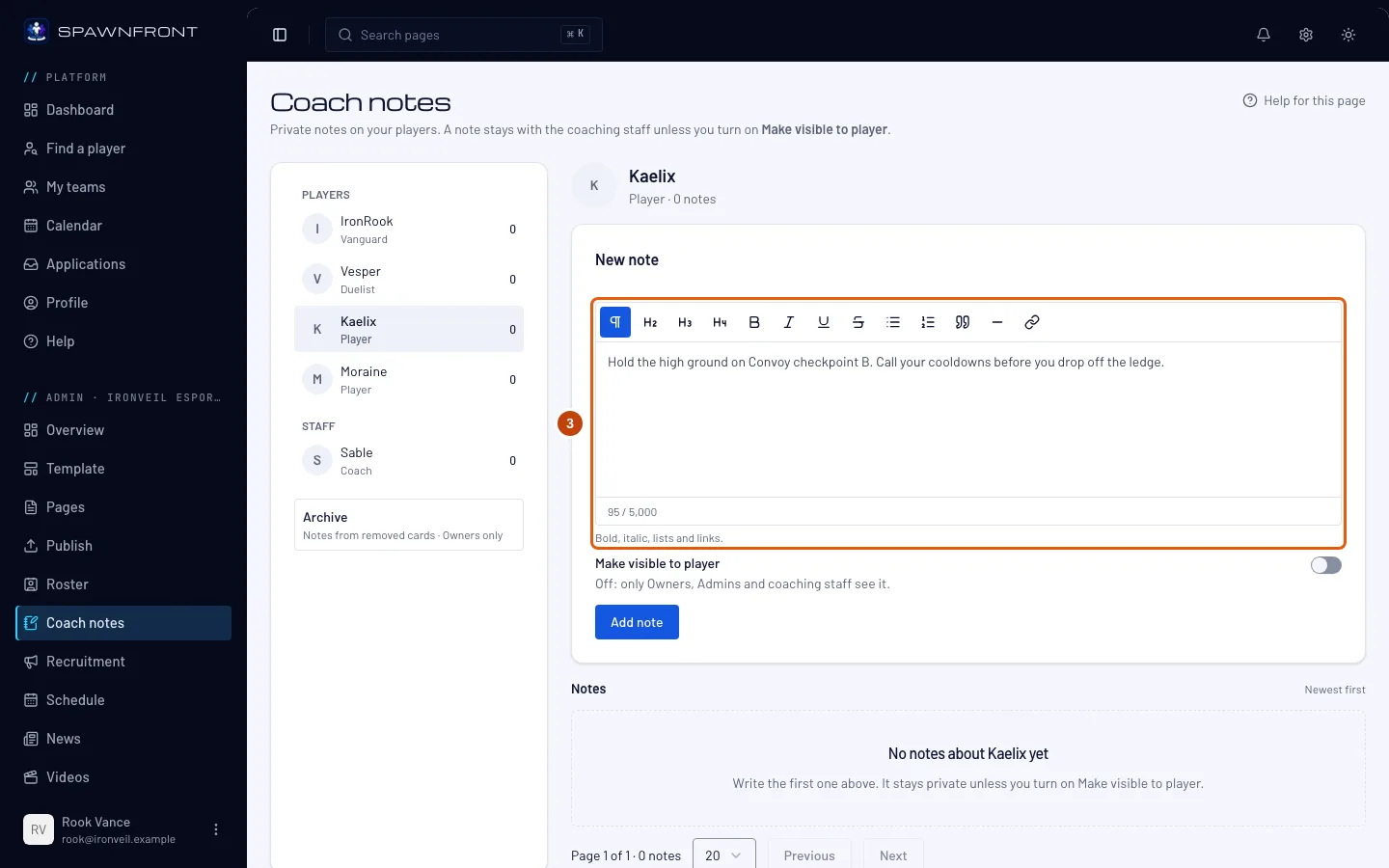
Type your note in the box under New note. Bold, italic, lists and links are kept; a note holds no pictures or videos.
You should see: your words in the box, and the count under it — up to 5,000 characters.
Step 4: Choose who sees it
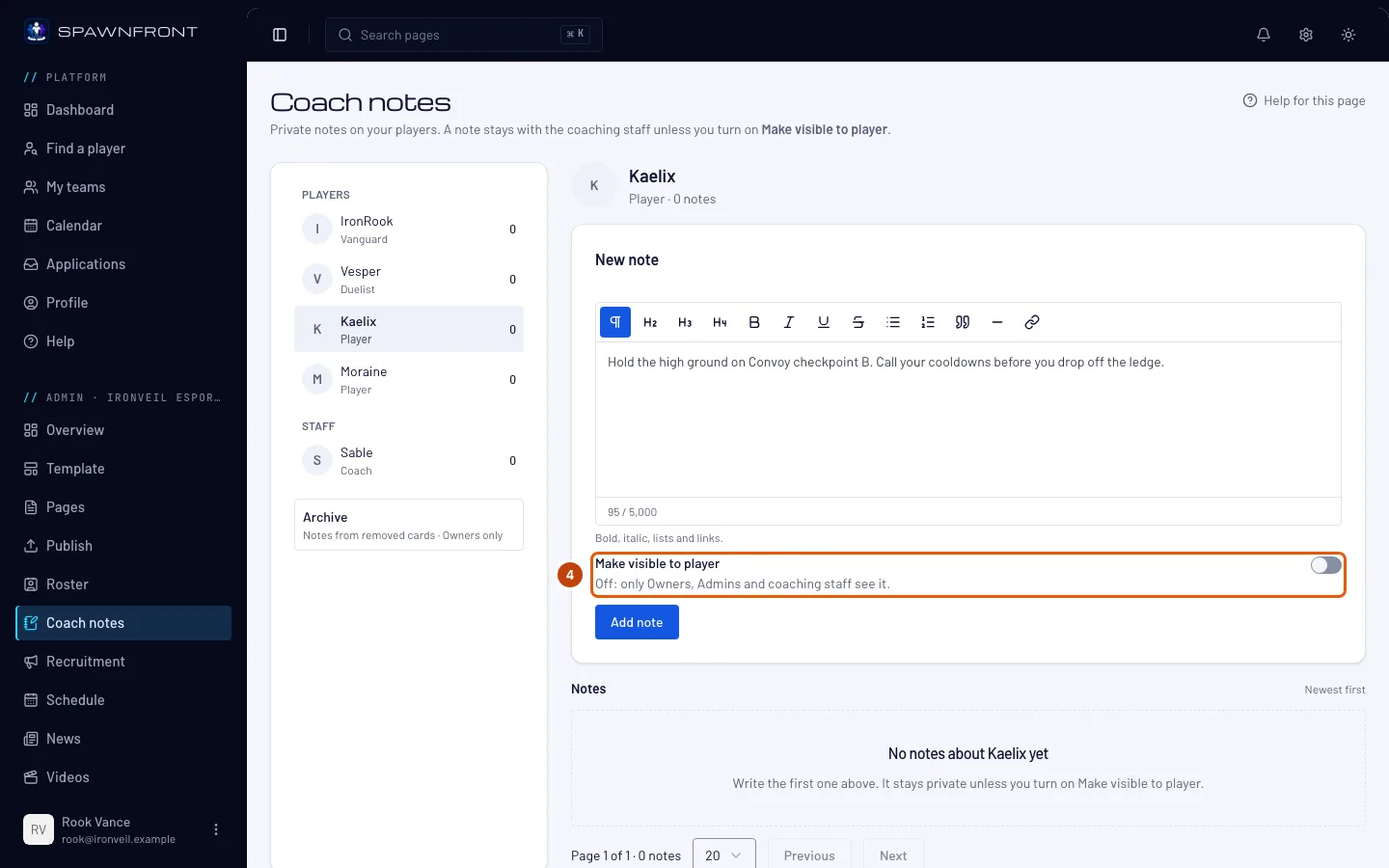
Leave Make visible to player off to keep the note with the coaching staff — owners, admins and the coaches, managers and analysts on your roster. Turn it on to share it with the player.
A shared note is read by the player on your team's page, and they get a notice. They can read it, never answer it. A player whose entry is not linked to an account sees it once the entry is linked.
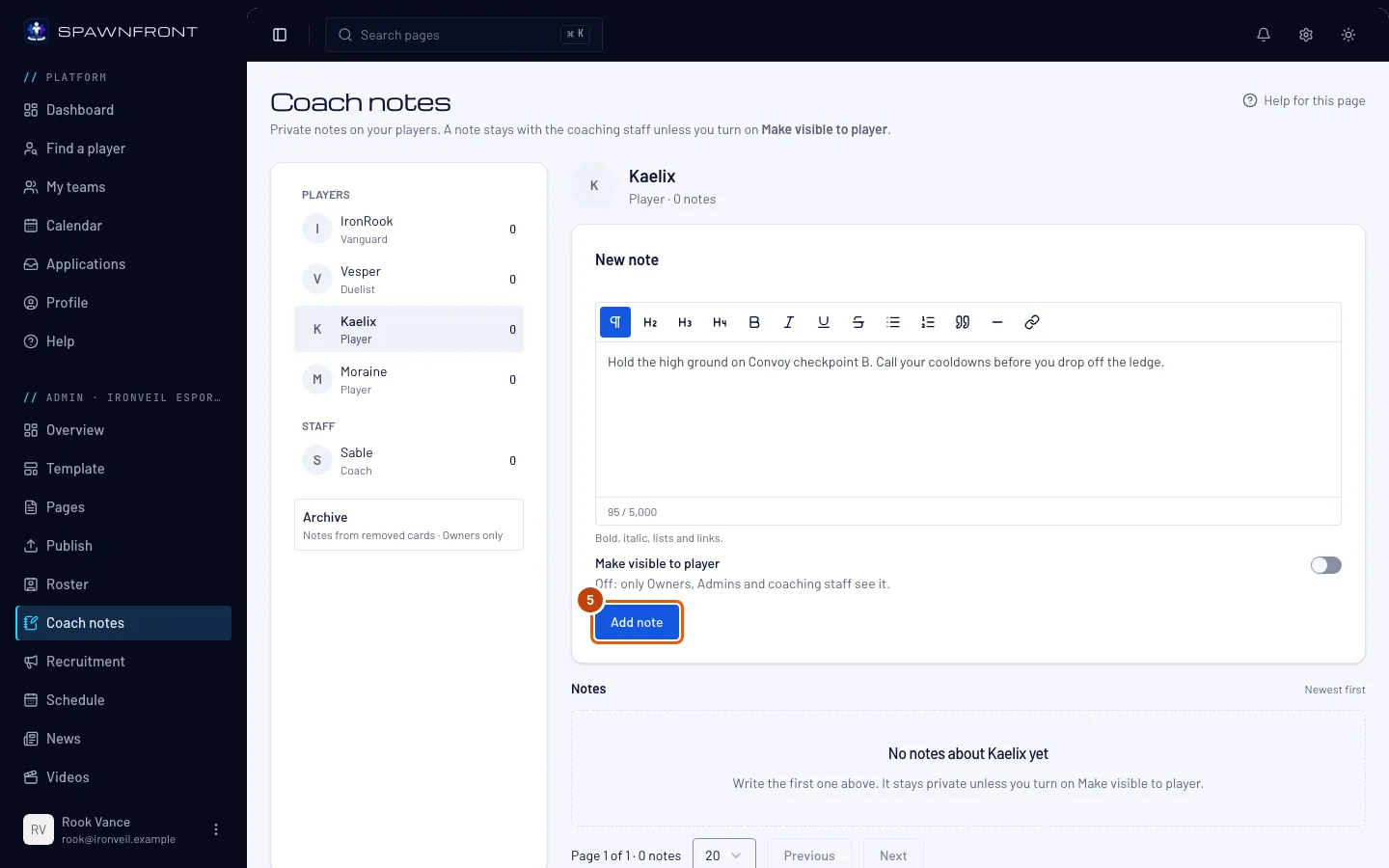
Step 5: Add the note
Press Add note.
You should see: "Note added" — "Note added and shared with" the player when you turned the switch on — and your note at the top of Notes, marked Private or Shared with the player. Once the player opens a shared note it reads Seen with the date.
Step 6: Change a note later
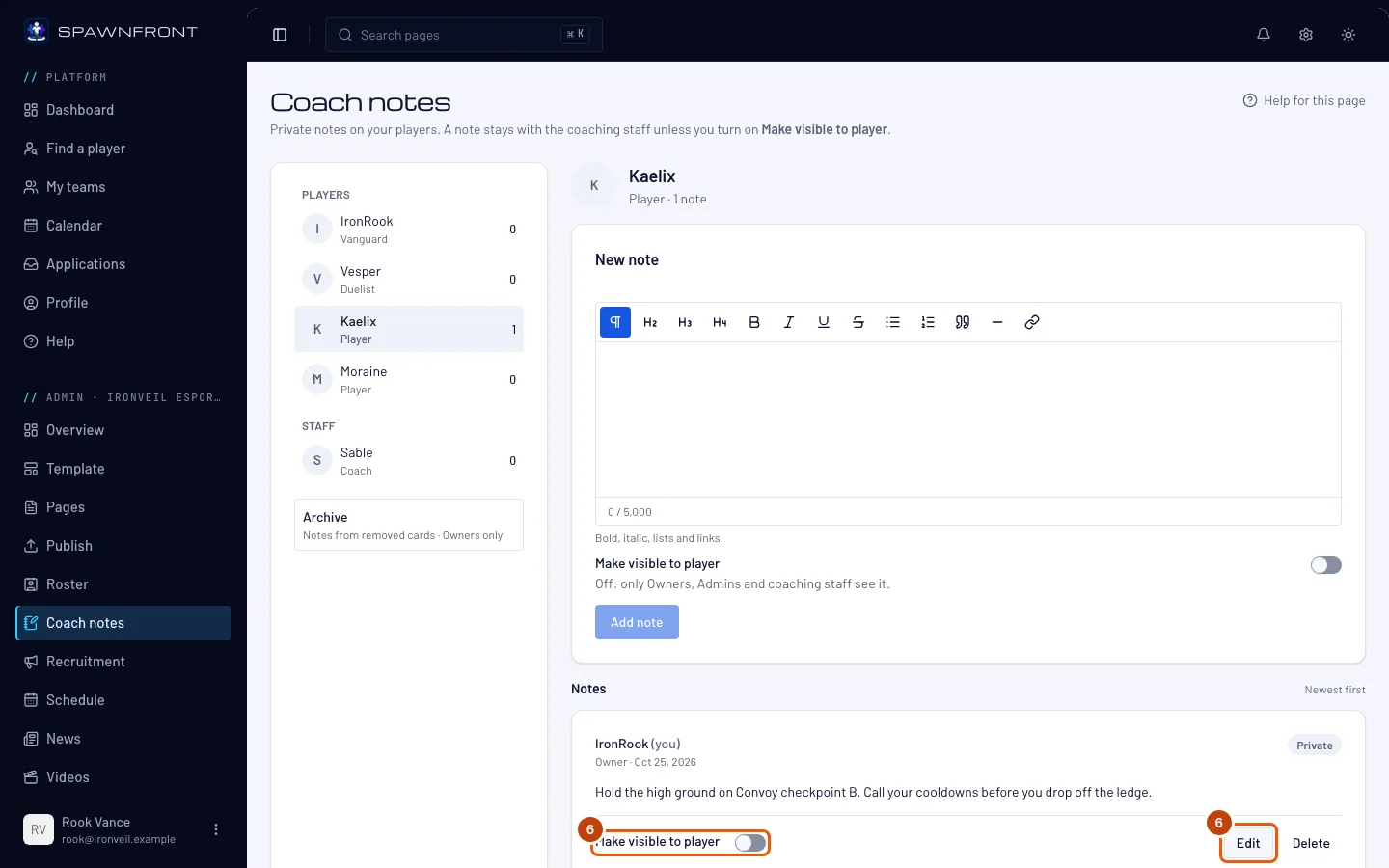
On a note you wrote, turn Make visible to player on or off to share it or take it back. To rewrite it, press Edit, change the words and press Save.
The person who wrote a note can edit it and change who sees it, and so can owners and admins — except on a note about themselves. Coaches edit only their own notes; on the others they see "Only …, owners and admins can edit this note or change who sees it, and never on their own card." Editing a shared note warns "… already saw this note. Saving shows them it was edited." — the player sees it marked edited.
You should see: "Note saved" after Save. Turning the switch shows "… can see this note" or "Only the coaching staff see this note".
Step 7: Delete a note
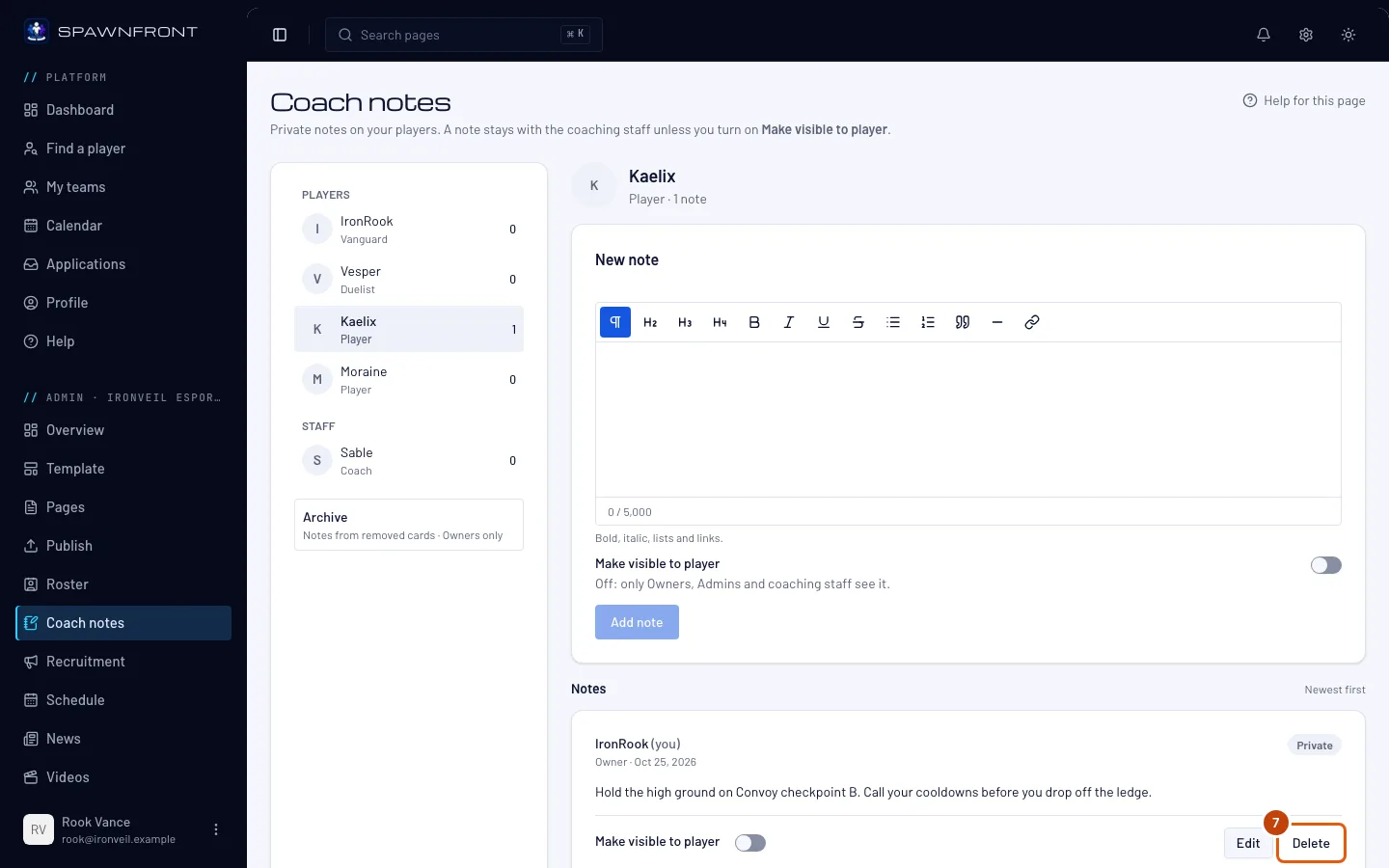
Press Delete on the note, then Delete in the box Delete this note?. Owners and admins can delete any note; a coach deletes only their own.
You should see: "Note deleted", and the note gone. A deleted note cannot be brought back.
How to know it worked
- Your note is under Notes, with the visibility you chose.
Removing a player from the roster keeps their notes. They move to the Archive, which only owners see: press Archive under Players. Each removed entry's notes stay together under its handle. To bring them back, press Move to a card, choose the entry under Card and press Move notes. Shared notes become visible to the player on that entry again.
A coach who leaves the team keeps their notes on it, marked "former staff".
Something doesn't look right?
I don't see Coach notes in the menu
Your team needs a site plan, and you must be an owner or admin, or have a roster entry labelled Coach, Manager or Analyst linked to your account. Ask an owner or admin to check your entry on the Roster page.
I can't change a note
The person who wrote a note, owners and admins can edit it or change who sees it; a coach edits only their own notes. An owner or admin can't edit what the staff wrote about them on their own roster entry. Owners and admins can delete any note.
Add note is grayed out
The box is empty, the note is over 5,000 characters, or your team's subscription has ended — a team whose subscription ended reads its notes and writes nothing until it pays again.
My player says they can't see a note
Check the note says Shared with them. Their roster entry must be linked to their account; an unlinked entry's shared notes show once it is linked.
Related articles
Still stuck? Contact support or email support@spawnfront.com — tell us the page you're on and the step number.