
Host a tournament
Set up a tournament and its whole page on one screen — banner, rules, prizes, contact — save it with Confirm & Save, open it to teams, draw the bracket, settle the results.
For team owners and admins · 19 steps
What you need first
- Your team has a site subscription. A free team's Tournaments page shows Host your own tournament with a Get a site link instead of Host a tournament. Entering another team's tournament is free.
- You are the team's owner or an admin.
- At least four teams must enter before the tournament can start.
- Your team runs at most five tournaments at a time that are not complete or cancelled.
- A Counter-Strike 2 tournament needs Valve's license. Valve licenses every Counter-Strike 2 tournament to the team that runs it. Before you open enrolment, apply on Steam for Valve's free Limited Game Tournament License — one for each tournament. Its rules for an Unranked event: prizes of at most $100,000 for the event and $250,000 a year for everything you run; no sponsors that offer skin gambling, case opening or skin trading; and nothing about your tournament may look official or endorsed by Valve. In Basics you confirm that you hold the license. Spawnfront records your confirmation; it doesn't check it with Valve — keeping to the license is up to you.
Steps
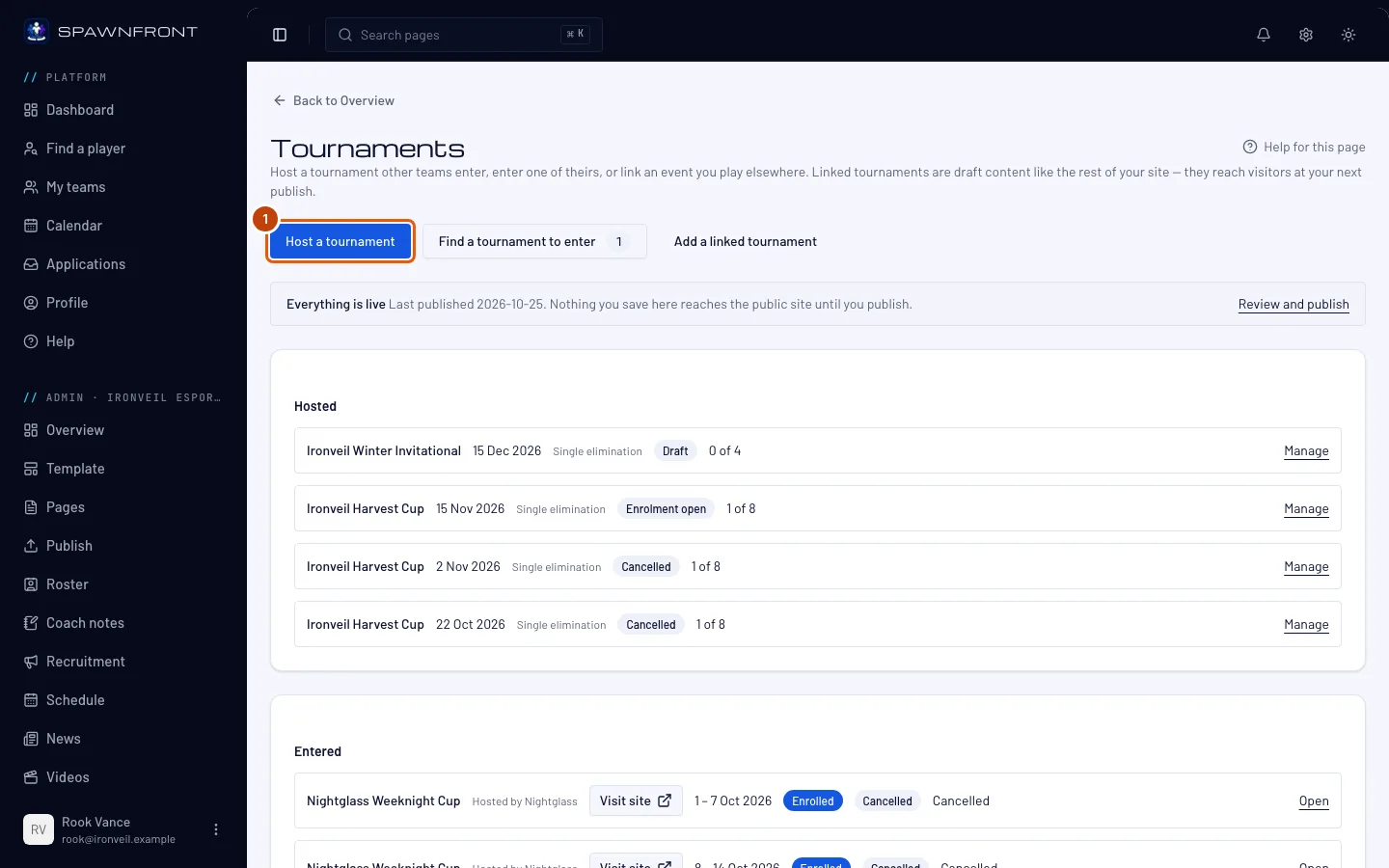
Step 1: Open Host a tournament
Open your team from the sidebar, press Tournaments, then Host a tournament.
You should see: a page titled Host a tournament, with every section of the tournament listed down the side — Basics, Page & images, About, Rules, Prizes, Schedule & check-in, Entry, Streams, Contact & questions and Partners — a Preview card beside the sections (below them on a narrow window), and Confirm & Save at the bottom.
The tournament isn't saved until you press Save as draft or Confirm & Save. Fill the sections in any order; the dot beside a section fills in as you type, and the preview follows what you enter.
Step 2: Describe the event
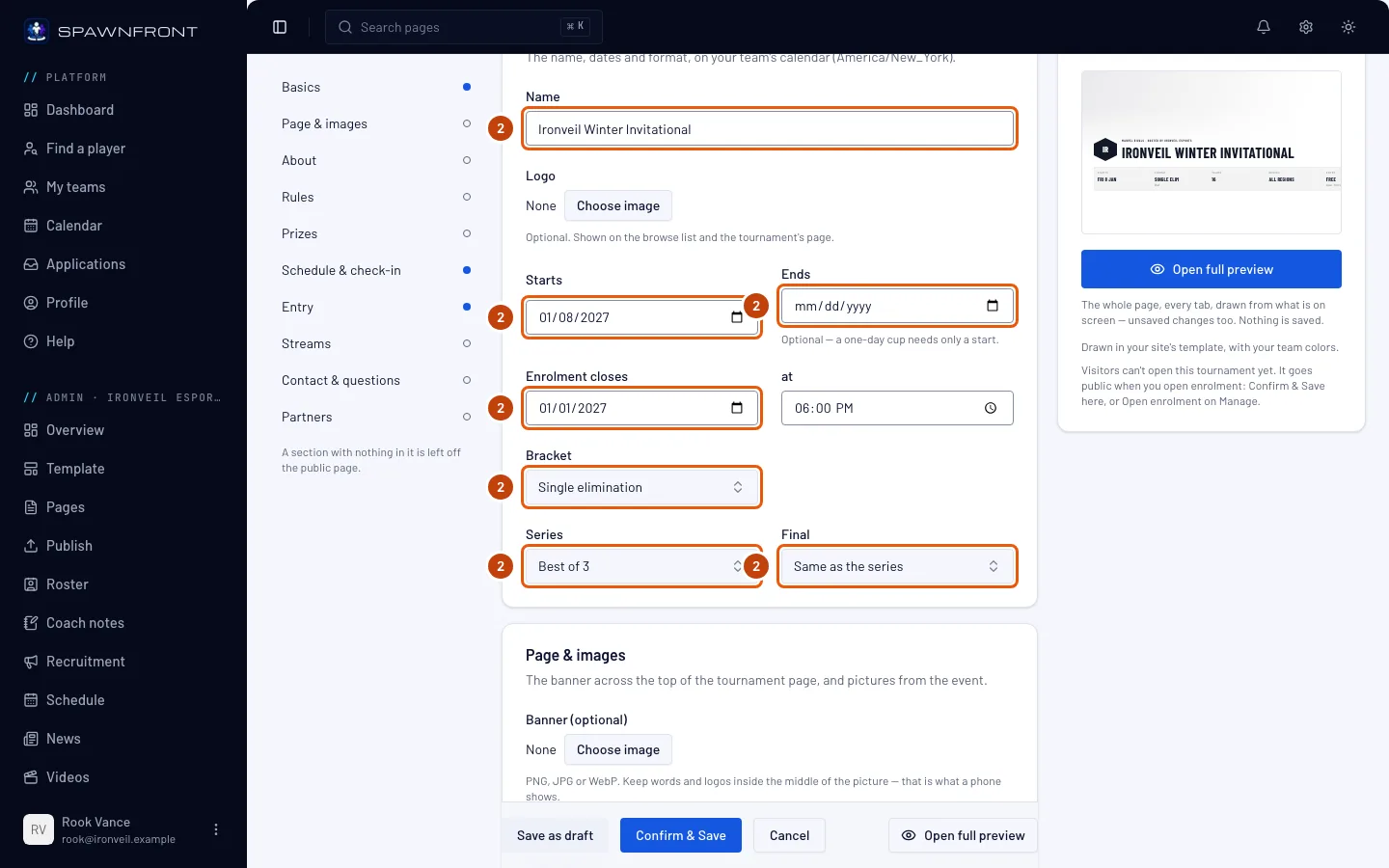
In Basics, type a Name and add a Logo if you like. Pick the Starts date, the Ends date (leave it empty for a one-day cup), and when Enrolment closes — a date and a time. Choose the Bracket (Single elimination or Double elimination), the Series every match is played at, and the Final: the same, or one step longer.
Dates are your team's calendar, in your team's time zone — entrants and visitors see them in their own. Enrolment must close by midnight at the start of the tournament's first day — the day before, at the latest.
You should see: every field filled, with no red message under any of them.
Step 3: Build the tournament's page
Fill in the sections your tournament's page shows:
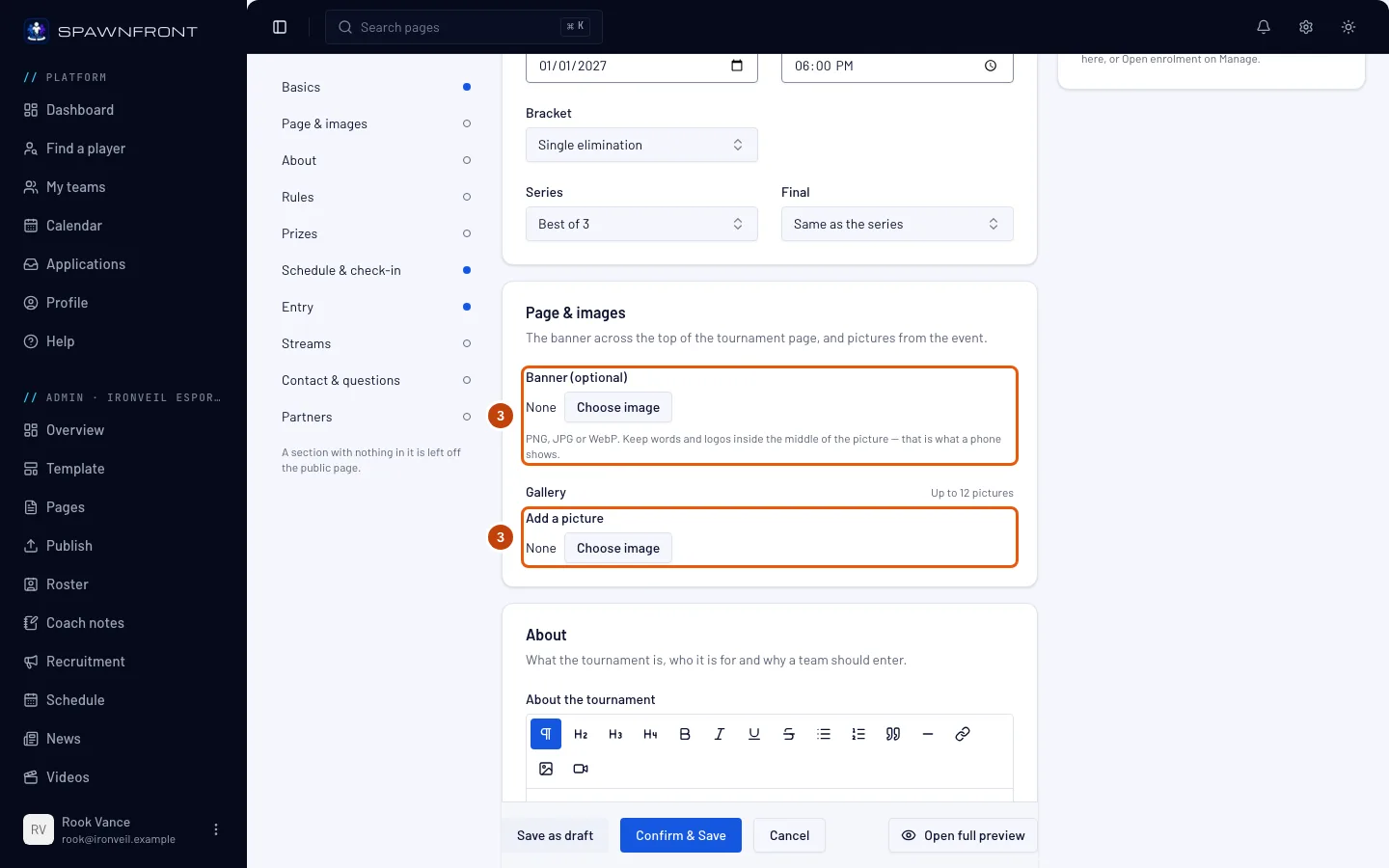
- Page & images: a Banner (optional) — drag the dot to the part that must always show, and keep words and logos in the middle, which is what a phone shows — and a Gallery of up to twelve pictures, each with a description. A banner needs a description: fill in its Alt text (required with an image) for people who can't see it, or saving is refused with "Describe the banner for people who can't see it".
- About: what the tournament is, in your own words.
- Rules: up to eight Critical rules — the few that can cost a team the cup; a team ticks that it has read them to enrol — then your full Rules. Once a tournament is saved, Copy from another tournament on its Edit page fills About, rules, prizes, questions and contact from one you hosted before.
- Streams: your Official stream and up to four co-streams.
- Contact & questions: a Discord invite, a Contact email (shown to everyone), a Website or other link, and answers to the questions teams ask.
- Partners: up to eight partners. Press Add partner for each one, then choose its Logo, type its Name and, if you like, a Link (optional). Every partner needs a logo; a partner without one is refused with "Choose the partner's logo".
The Preview card shows the top of your tournament's page — the banner, logo, name and facts — in your site's template and colors, as you type. A section with nothing in it is left off the page.
See the whole page before you save. Press Open full preview under the Preview card, or beside Cancel at the bottom of the window from anywhere on the page: your tournament's page covers the editor, every tab, drawn from what is on screen — changes you haven't saved too. Press a tab to open it, choose Desktop or Phone to see it at that width, and press Close preview to go back to where you were. Until the tournament starts, its Bracket tab shows an example bracket for your team limit — the real one is drawn from the teams that entered when you start it. Nothing is saved, and visitors see nothing until you press Confirm & Save and the tournament is open and published.
You should see: a filled dot beside each section you filled in.
Step 4: Add the prizes
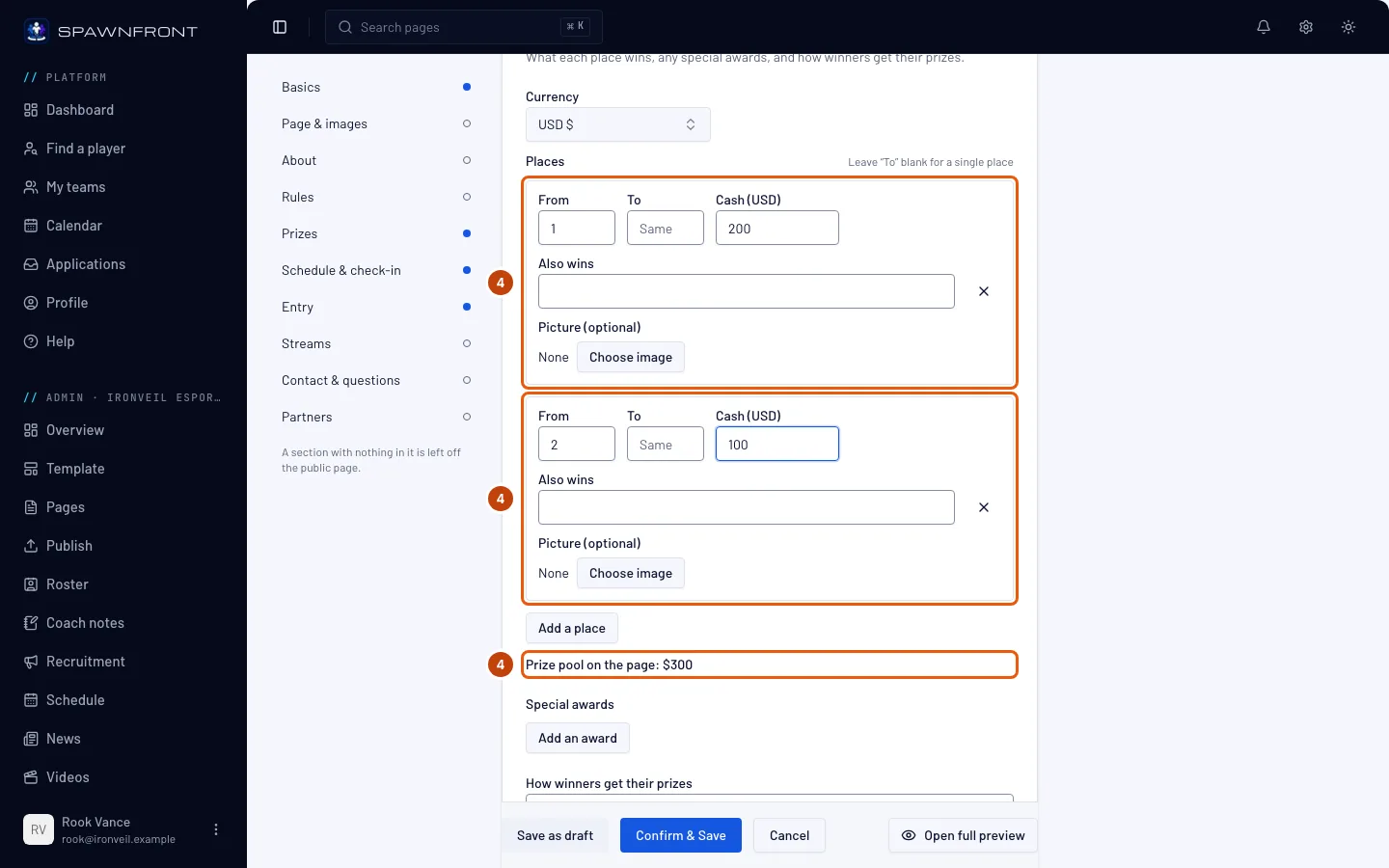
In Prizes, check the Currency — it starts in your own country's currency, as set on your profile — then Add a place for each prize: the place (From, and To for a range such as 3rd–4th), the cash, and what else it Also wins. Add an award for prizes like a most valuable player. Say How winners get their prizes, and tick We provide these prizes. Spawnfront lists them and does not hold or pay prize money. — cash prizes can't be saved without it.
The prize pool is added up for you from the places — you never type it.
You should see: Prize pool on the page with the total.
Step 5: Set check-in and the confirmation window
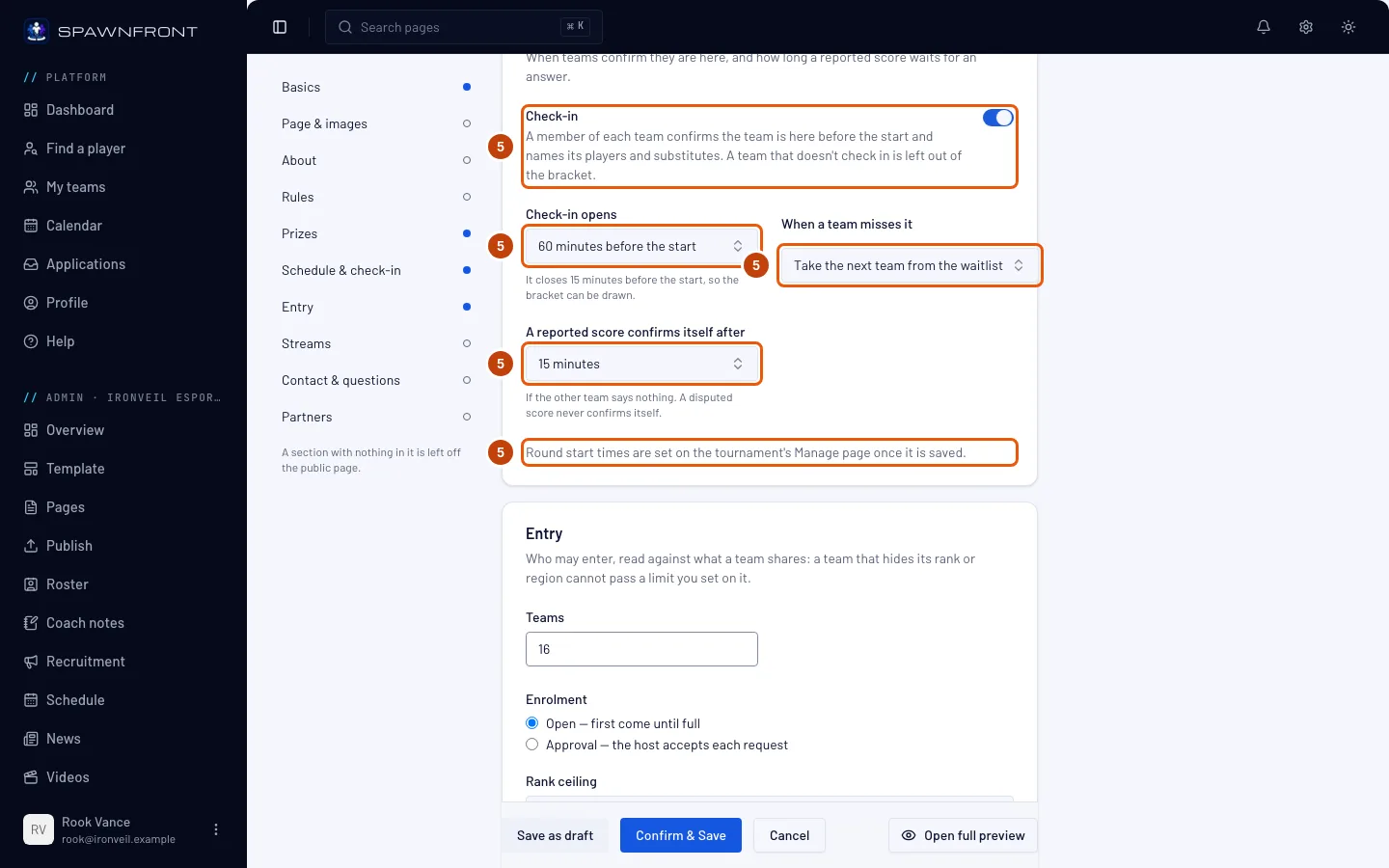
In Schedule & check-in, switch on Check-in. Pick when Check-in opens — 30, 45, 60 or 90 minutes before the start — and When a team misses it: Take the next team from the waitlist or Leave the spot empty (a bye). Then pick how long A reported score confirms itself after: 15, 30 or 60 minutes.
Check-in closes fifteen minutes before the first round starts, so the bracket can be drawn. A member of each team confirms the team is there and names its players; a team that doesn't is left out. These settings are fixed once enrolment is open — entrants enrolled against them. See Check in for a tournament for what the teams do.
A reported score confirms itself when the other team says nothing for that long after the last report, and stands as the result. A disputed score never confirms itself, and a match your own team plays has no window. Choose a longer window when teams may need time to answer.
You should see: "It closes 15 minutes before the start, so the bracket can be drawn." under Check-in opens, "If the other team says nothing. A disputed score never confirms itself." under the confirmation window, and "Round start times are set on the tournament's Manage page once it is saved."
Step 6: Choose who may enter and save a draft
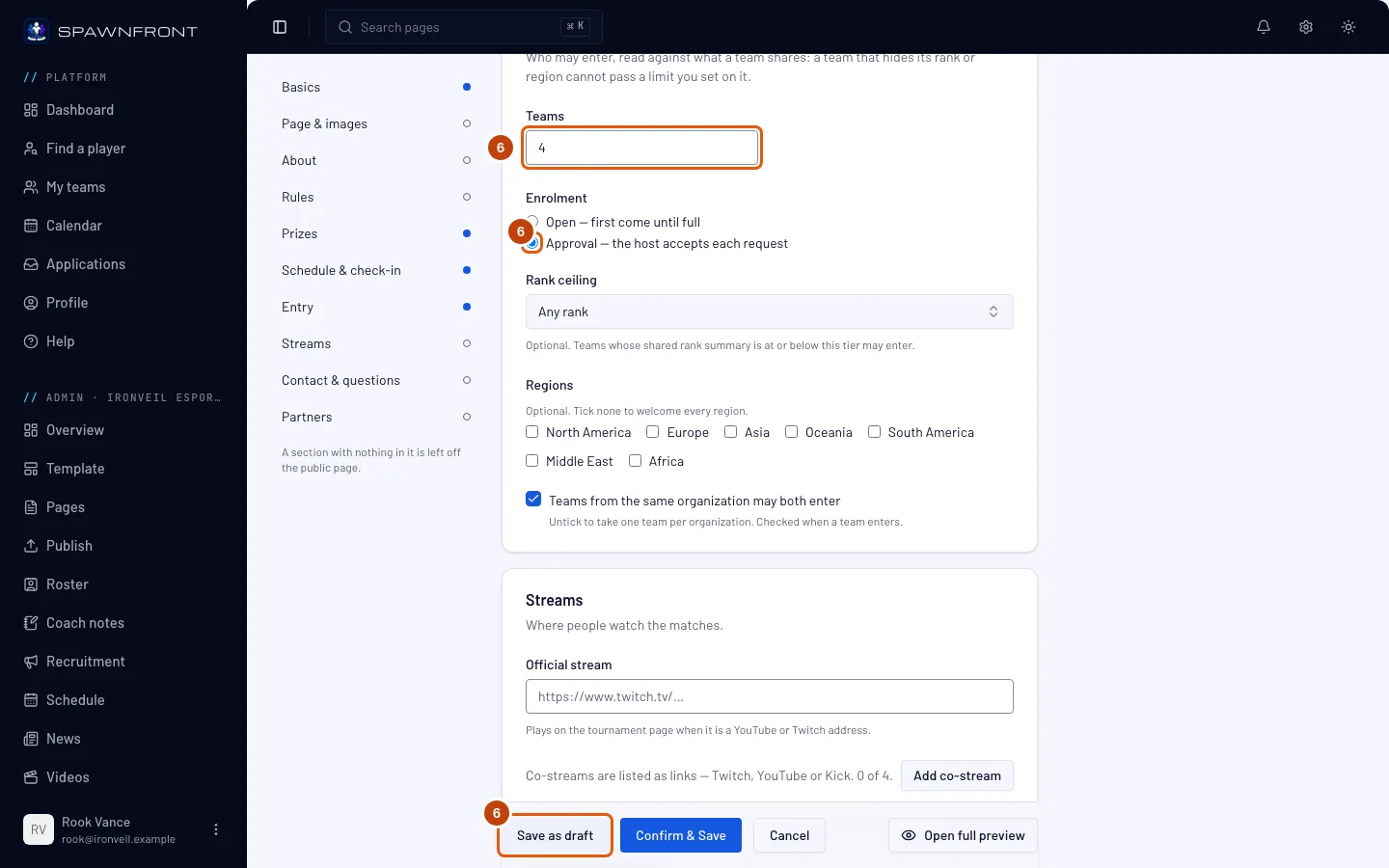
In Entry, set how many Teams may enter (4 to 64) and pick the Enrolment rule: Open — first come until full, or Approval — the host accepts each request. Set a Rank ceiling or tick Regions only if you want limits — tick none to welcome every region. Teams from the same organization may both enter is ticked: untick it to take one team per organization. It's checked when a team enters: a team that joins an organization after entering keeps its place. Then press Save as draft at the bottom of the page.
A limit is checked against what a team shares. A team that hides its rank or its region can't pass a limit you set on it.
If something needs fixing, nothing is saved. The message sits under the field that has to change, or above the buttons at the bottom, and the page keeps everything you typed. To leave without saving, press Cancel — if you changed anything, confirm with Leave without saving, or press Keep editing.
You should see: "Tournament saved as a draft", and the tournament's Manage page. Only your team sees a draft — nothing is open to teams yet.
Ready to open it now? Press Confirm & Save instead: it asks Open enrolment? and names what stays fixed from then on, and Open enrolment saves the tournament and opens enrolment in one go — skip step 7.
Step 7: Open enrolment
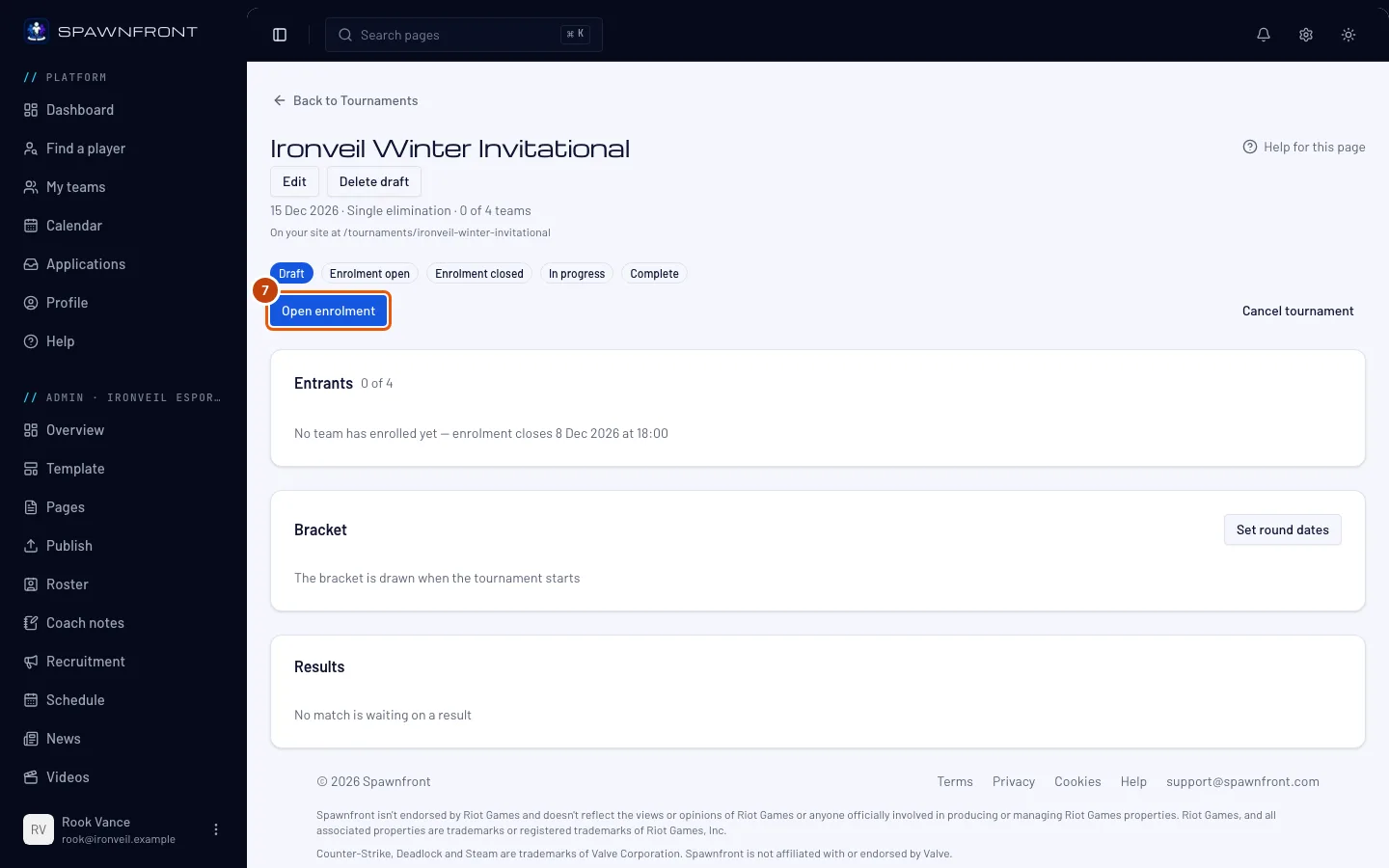
On the tournament's Manage page, press Open enrolment. The box Open enrolment? names what can't change once teams can enter — the name, the start date, the bracket, the series and the final, Schedule & check-in, and Entry. Check them, then press Open enrolment.
A Counter-Strike 2 tournament opens only once you've confirmed Valve's license in Basics (see the list at the top of this page).
You should see: "Enrolment open", and Enrolment open marked in the row of states. Teams can now find your tournament and enter it from their own team's admin.
Step 8: Publish your site
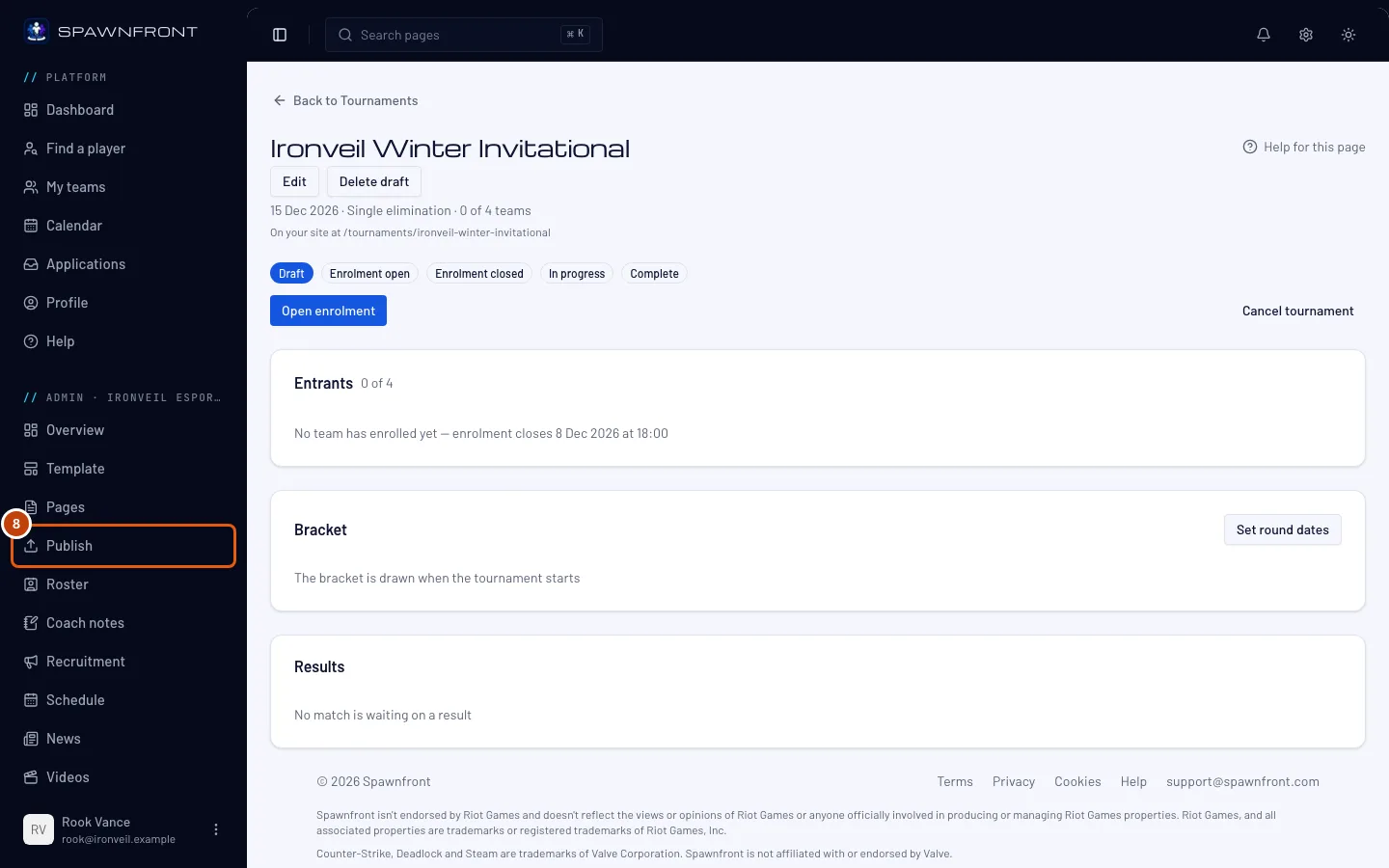
Press Publish in the sidebar, then Publish and Publish now in the box that opens. See Publish your site.
Your tournament reaches your site only when you publish. Opening enrolment puts it on the list of changes; visitors don't see it until then.
Publishing also lists it on Spawnfront's public list of tournaments, spawnfront.com/tournaments, where players of your game find it, until it is complete or cancelled. See Find a tournament.
A team in an organization hosts on its organization's site. Its tournaments appear under the team's page there, at
/teams/<game>/<team>/tournaments/<name>, once someone who runs the organization publishes the organization's site. Your team's old address for a tournament sends visitors there. See Get an organization.You should see: Everything is live.
Step 9: Check your tournament's page
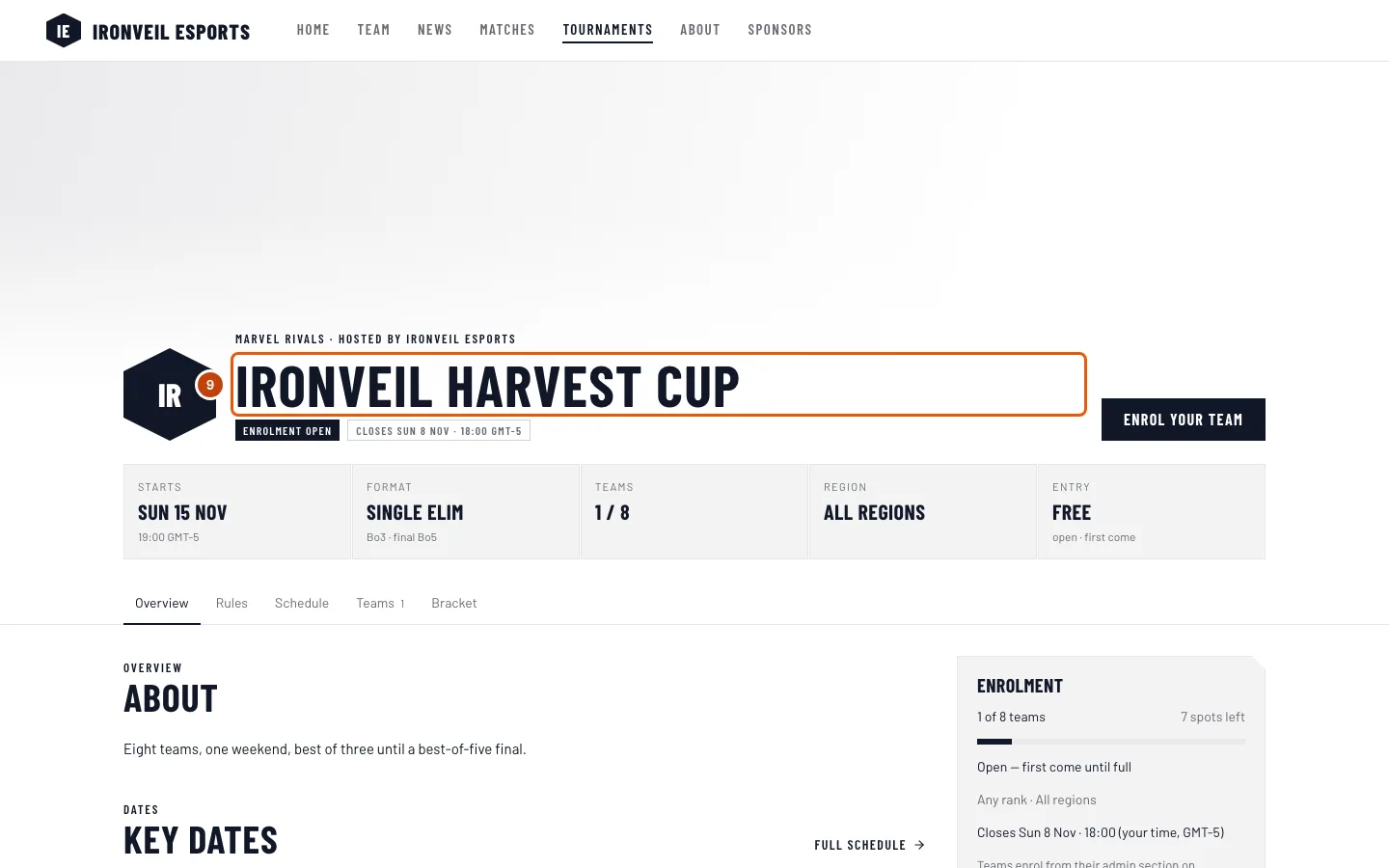
Open your site and press Tournaments in its menu, then your tournament. The Manage page shows its address under the title: On your site at /tournaments/….
You should see: your banner and name, the facts strip (start, format, teams, region, entry and — once you confirmed them — prizes), Enrolment open with the closing time, and the tabs: Overview, Rules, Prizes, Schedule, Teams, Bracket, Streams and Contact. A tab with nothing in it is left out — fill the section in the editor and it appears. Visitors can't enter here: Enrol your team opens Spawnfront, where teams enter from their admin.
Step 10: Answer the teams that enter
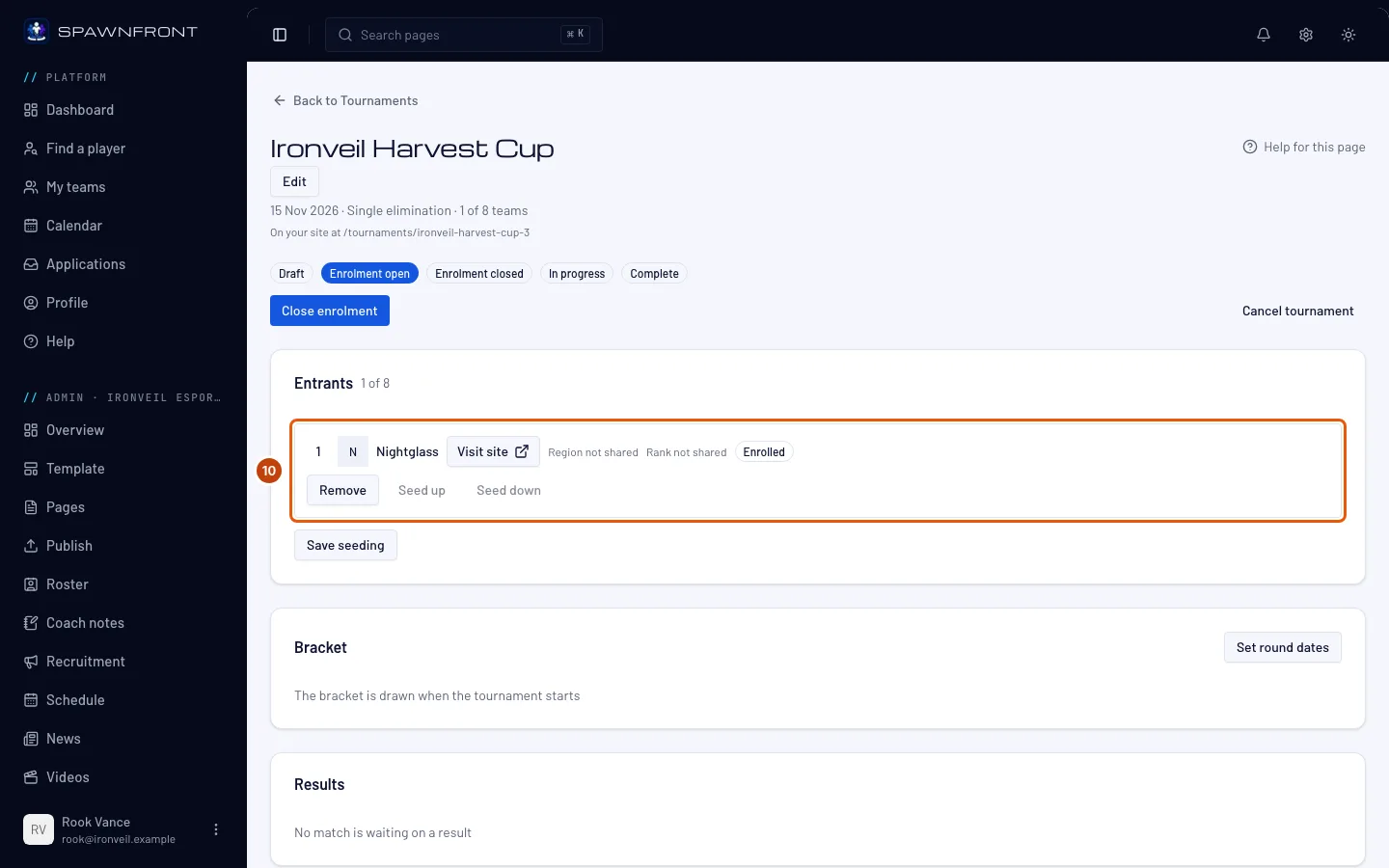
Watch the Entrants card on the Manage page. With Approval, press Accept or Decline on each request; a decline asks for an optional reason the team reads, then Send decline. Remove takes an entered team out (then Remove team). To choose who meets whom, press Seed up or Seed down, then Save seeding.
A removed team can't enter this tournament again. Requests you never answer are declined when the tournament starts.
You should see: each team with its status — Enrolled, Requested, Declined, Withdrawn or Removed — and the count, like "1 of 8".
Step 11: Close enrolment
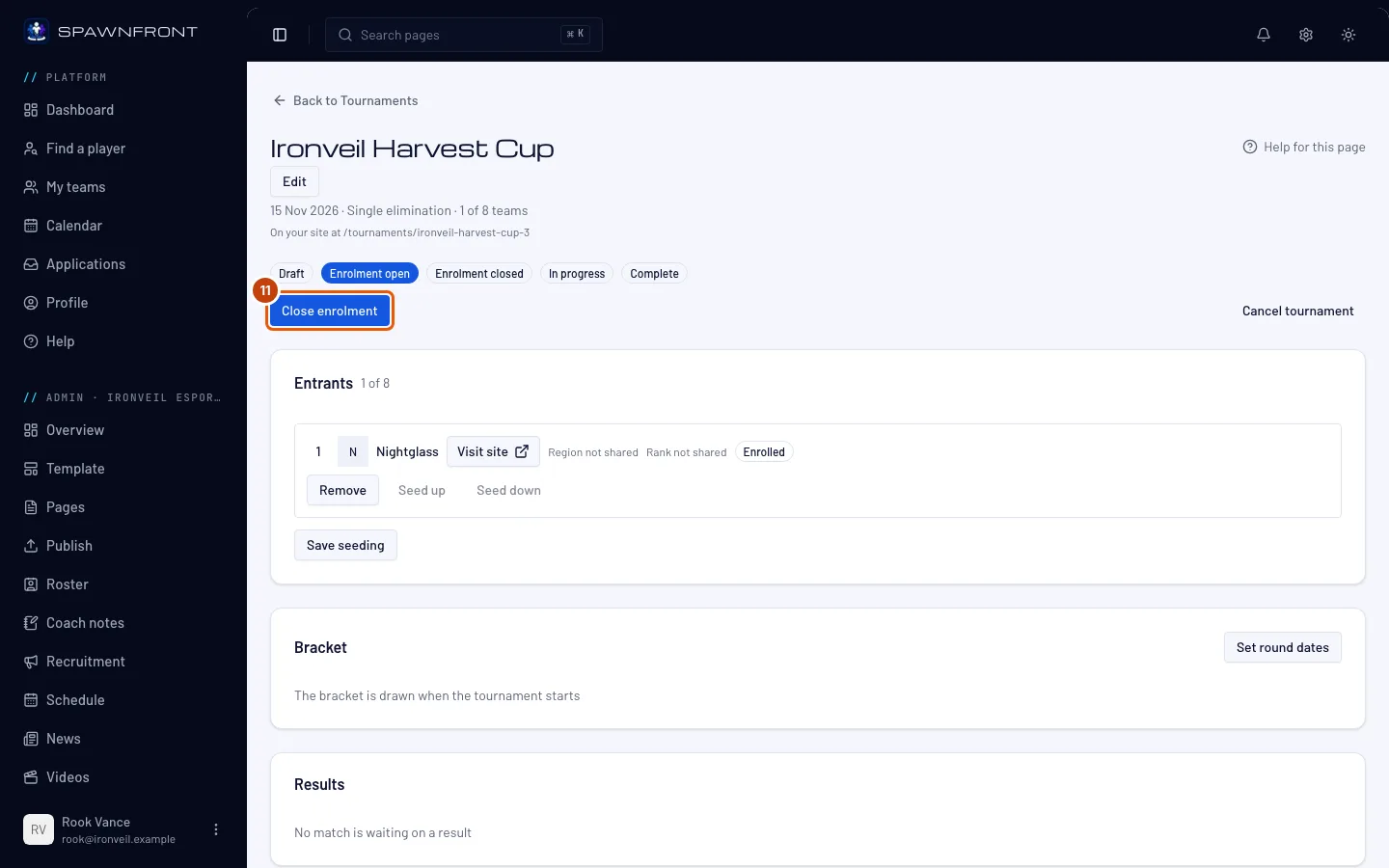
Press Close enrolment when you have your teams. If you don't, enrolment closes by itself at the time you set.
You should see: "Enrolment closed". Until the tournament starts, Reopen enrolment lets you pick a new closing date and time, then Reopen.
Step 12: Set the round dates
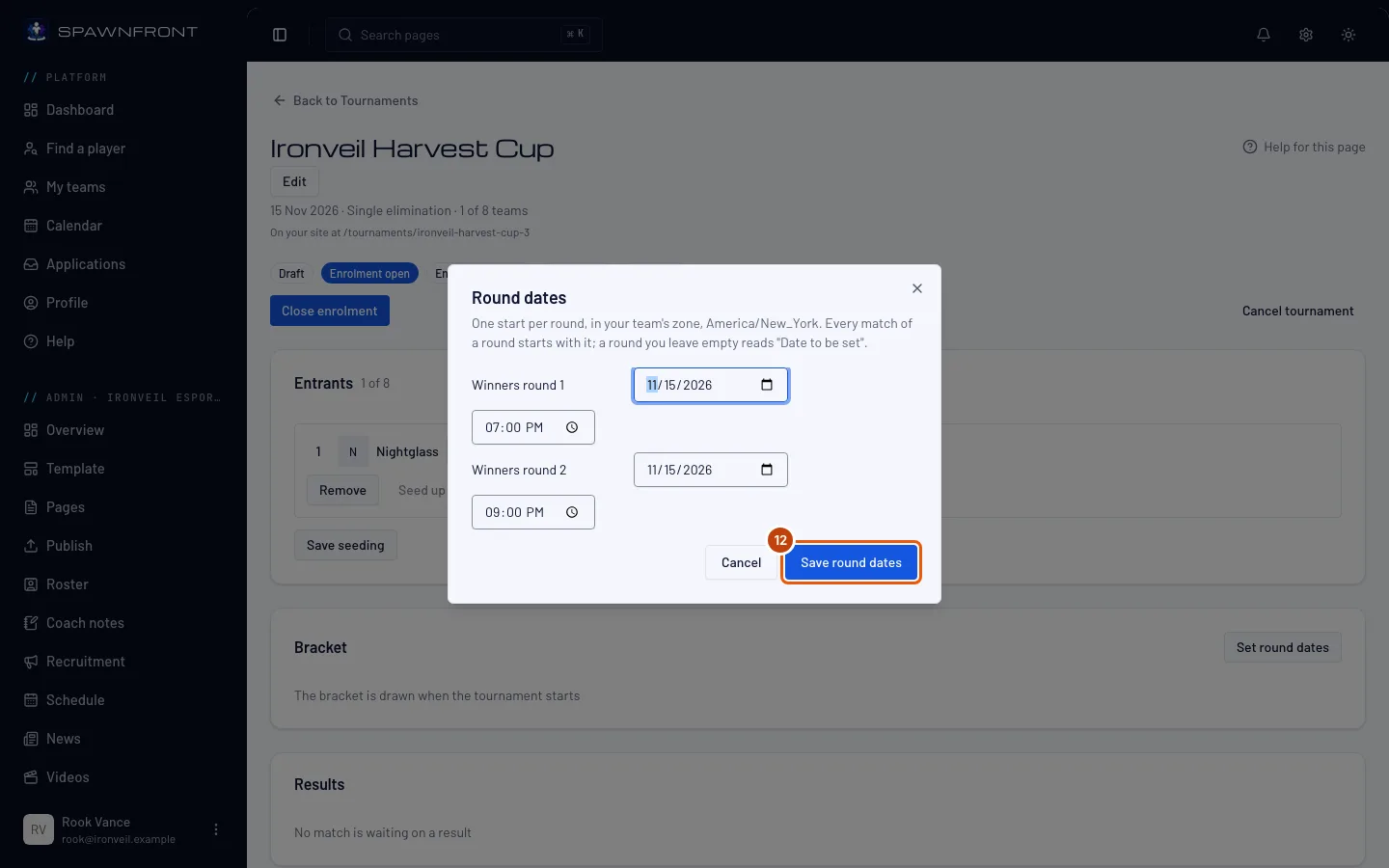
In the Bracket card, press Set round dates. Give each round a date and a start time, then press Save round dates.
The first round needs a start before you can start the tournament. Every match of a round starts at its round's time; a round left empty reads "Date to be set". The rounds listed follow how many teams have entered, so set them once enrolment has closed.
You should see: "Round dates saved".
Step 13: Watch check-in
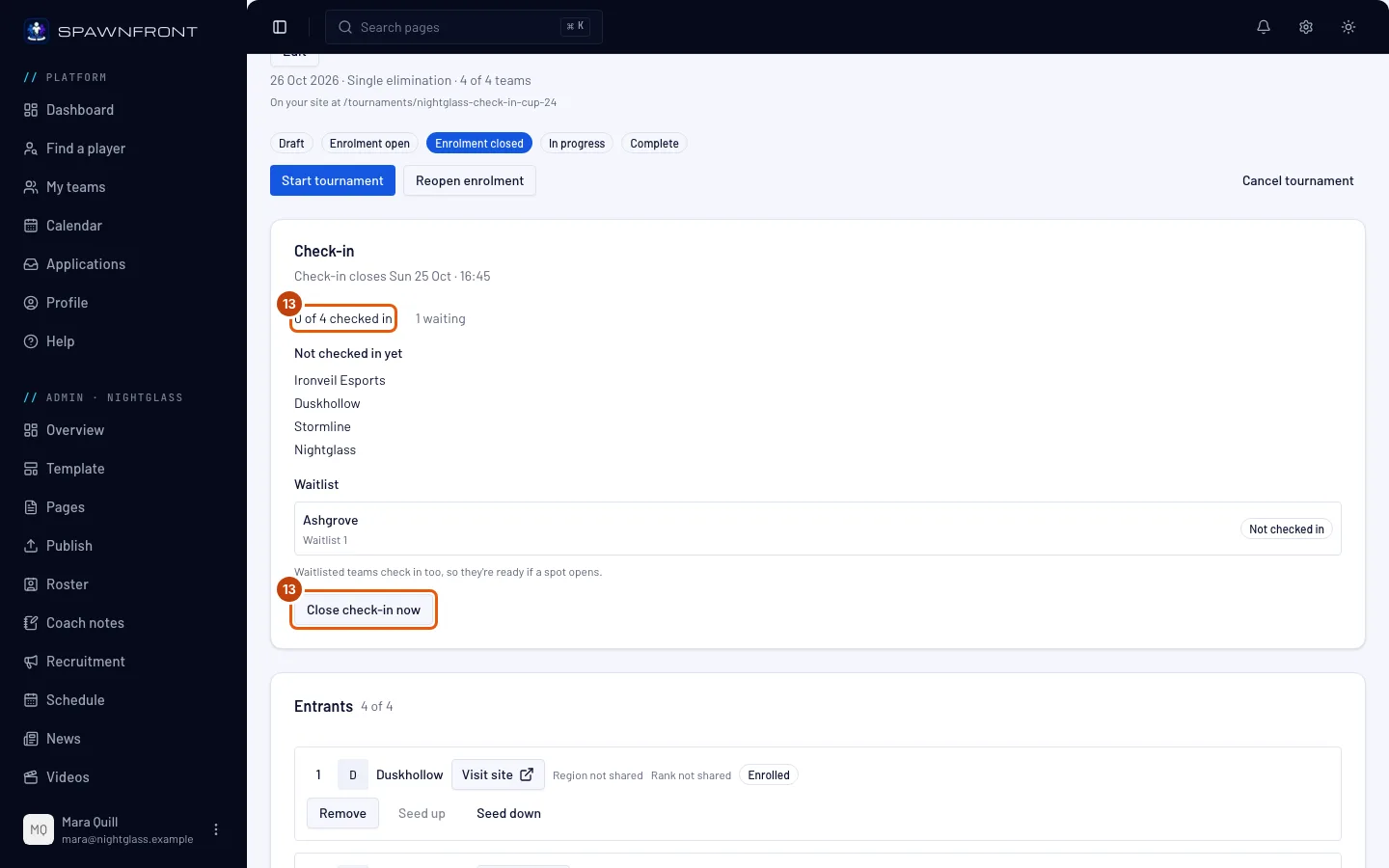
When check-in opens, the Manage page shows a Check-in card: the count, like 3 of 4 checked in, how many teams are waiting, and the teams under Not checked in yet, Checked in (with each lineup) and Waitlist. Undo takes back a team's check-in while the window is open.
To end check-in early, press Close check-in now, then Close check-in in the box that opens. Closing is final: every entered team that hasn't checked in reads Missed check-in. With Take the next team from the waitlist, each freed spot goes to the first checked-in team on the waitlist; with Leave the spot empty (a bye), the spot stays empty and the bracket gives a bye. Check-in also closes by itself fifteen minutes before the start.
When the tournament is full, teams that enter after it wait on the waitlist in order, and move up when an entered team withdraws or you remove or decline one.
You should see: Check-in closes … while it is open, then Check-in closed.
Step 14: Start the tournament
Press Start tournament.
This is the step that draws the bracket, from your seeding. It needs at least four entered teams and the first round's start. With check-in on, Start closes check-in first if it is still open, exactly as Close check-in now does — teams that haven't checked in miss it.
You should see: "Tournament started", In progress marked, and the bracket drawn in the Bracket card.
Step 15: Settle each match
The teams report their own results. Matches still waiting are listed in the Results card, with what each side reported. A match whose result is disputed shows Disputed there and Under review in the bracket.
While the tournament runs, the Results card sorts the matches into Needs you, Live, Up next and Done, and each reported score shows when it confirms itself. Run tournament day walks through that card and the Announcements card, where you post news to every entered team.
To settle one, press Open on the match, type both scores and press Save result. For a no-show, press Record forfeit by …, then Confirm forfeit by …. In a match your own team plays, your opponent's report is the result: you can't enter it yourself, only record a forfeit by your own team.
Your entry is the result of record and moves the winner on. You can't correct a match once a later match has a result.
You should see: "Result saved", and the winner in the next round.
Step 16: Mark it complete
When every match has a result, press Mark complete.
You should see: "Tournament complete", Complete marked, and each team's placing in the Entrants card. Your tournament's page shows the winner and the results.
Step 17: Cancel it if you must
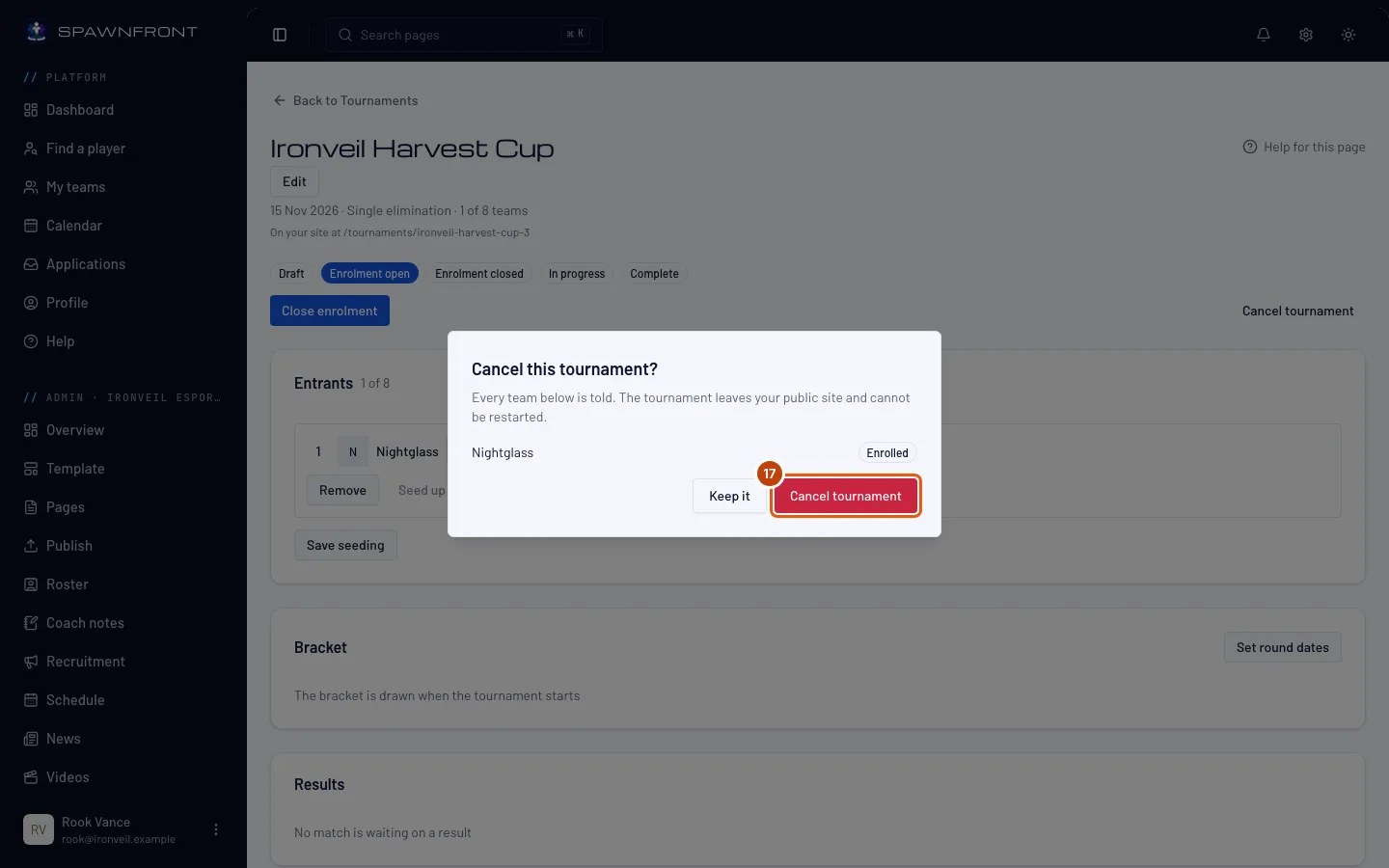
To call the tournament off, press Cancel tournament. The box that opens lists every team that entered; press Cancel tournament in it to confirm, or Keep it.
A draft you no longer need is simpler: press Delete draft on its Manage page instead, then Delete draft in the box that opens — a draft has no entrants, and you land back on the Tournaments page with the draft gone.
Cancelling can't be undone. Every enrolled team is told, the tournament leaves your site and it can't be restarted. A completed tournament can't be cancelled.
You should see: "Tournament cancelled", and Cancelled marked.
Step 18: Change it later, or move the end date
On the tournament's Manage page, press Edit. The same page opens with everything you saved. Change what you need, then press Save as draft on a draft — Confirm & Save there opens enrolment too, after asking — or Confirm & Save once enrolment is open; or press Cancel to leave it as it was: if you changed anything, then Leave without saving.
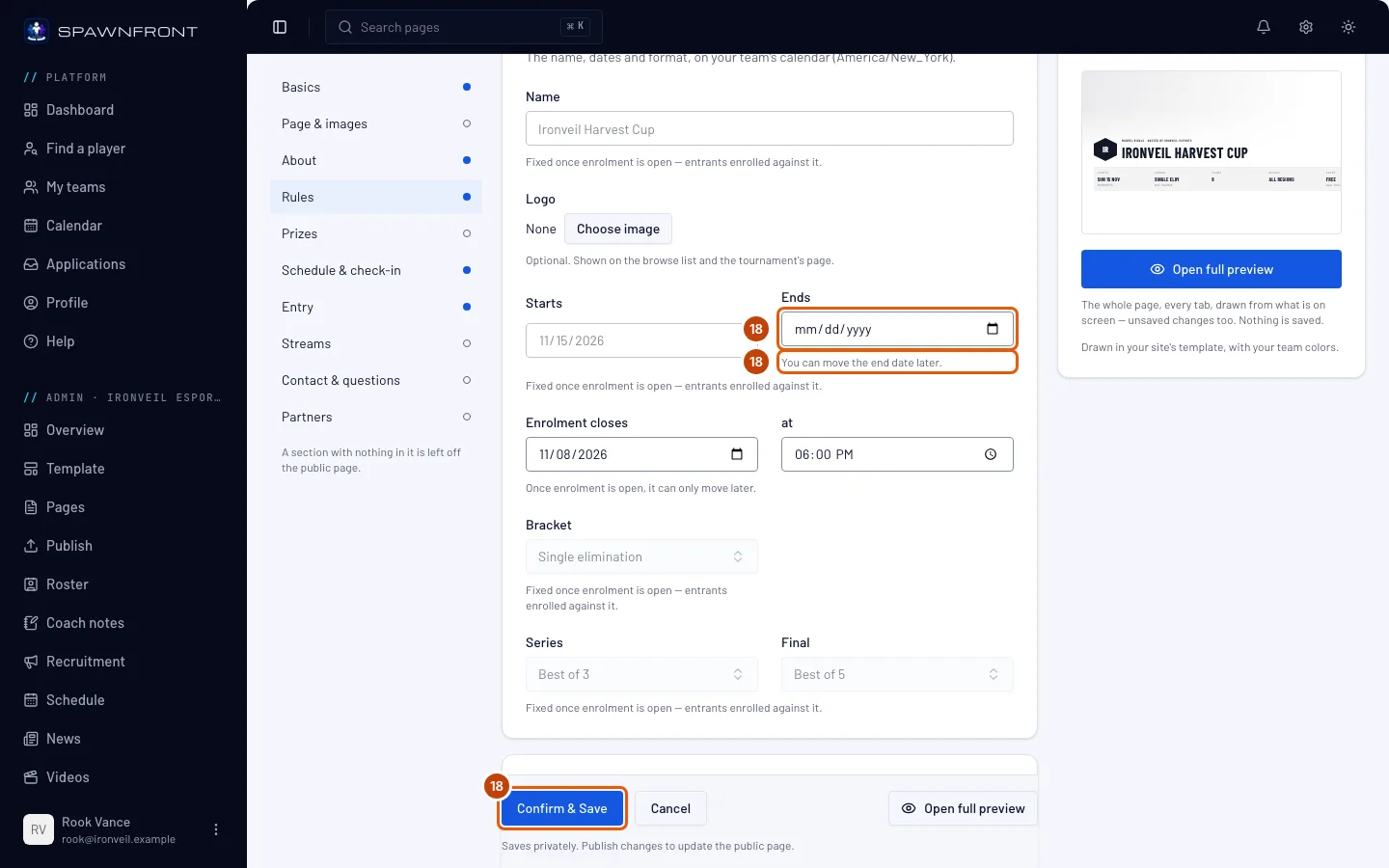
Once enrolment is open, the terms teams entered on stay fixed: the name, the start date, the bracket, the series, the entry rules and everything in Schedule & check-in. The page's content can still change. Enrolment's closing time can move later while enrolment is open or closed, and the end date can move later until the tournament is complete — under Ends you see "You can move the end date later." It can't move earlier, and it can't be cleared.
Once enrolment is open, what you save stays private until you publish it — see the next step. Round times and check-in change on the Manage page and take effect at once.
If another admin saved first, nothing of yours is saved: you see "Another admin saved this tournament first." Press Reload to see their version, then make your change again.
You should see: "Tournament saved" and the Manage page on a draft, "Saved — not published yet" once enrolment is open — or just the Manage page, if you changed nothing.
Step 19: Publish your changes once enrolment is open
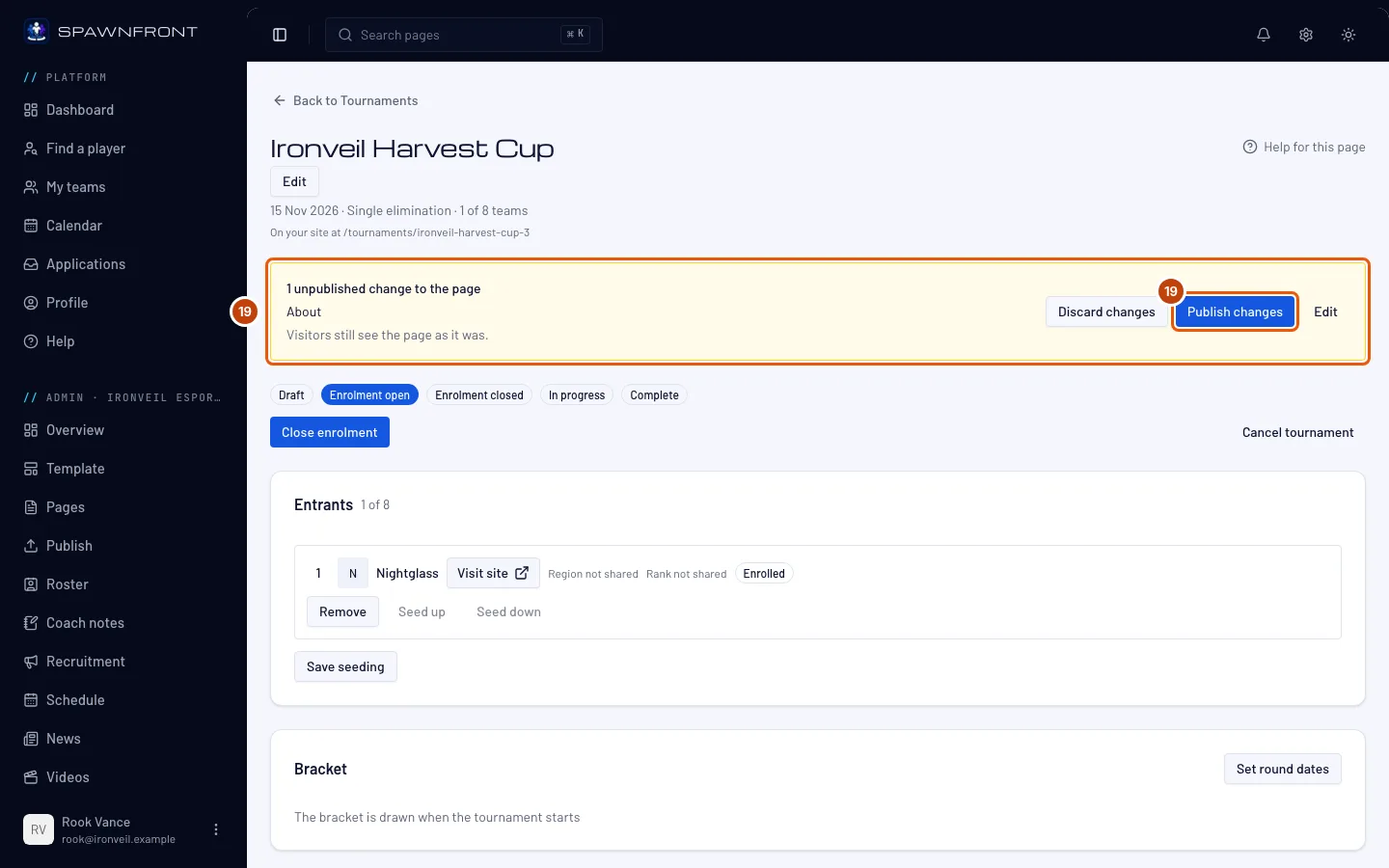
Once enrolment is open, the Edit page says Enrolment is open. Changes you save stay private until you publish them. What you change on the tournament's page — the name aside, which stays fixed — is saved for your team only, and visitors keep seeing the page as it was. Each section you changed shows Saved · not published, and changed beside it in the list of sections; under Confirm & Save you read "Saves privately. Publish changes to update the public page."
The Manage page shows the same: N unpublished changes to the page, the sections, and "Visitors still see the page as it was." Open full preview on the Edit page shows the page with them, as visitors would see it after you publish.
Press Publish changes — on the Edit page or the Manage page — to put them on the public page at once. To throw them away instead, press Discard changes, then Discard changes in the box that opens, or Keep changes. The public page stays as it is, and round times and check-in are not affected.
Changed the rules? Entered teams have read them. After you publish changes, post what changed as an announcement — see Run tournament day.
Save first, then publish. While the Edit page holds changes you haven't saved, Publish changes and Discard changes wait: press Confirm & Save first.
You should see: "Changes published", and your tournament's page showing them. After a discard: "Changes discarded".
How to know it worked
- Your tournament's Manage page shows Enrolment open while teams can enter.
- Your site's menu shows Tournaments, and your tournament's page lists the enrolled teams.
- Once started, the Bracket card shows every round, and the Results card what still needs a result.
Something doesn't look right?
Start tournament says "A tournament starts with at least 4 enrolled teams"
Only Enrolled teams count — requests you haven't accepted don't. Accept waiting requests (step 10), or reopen enrolment for more teams (step 11). With check-in on, a team that missed check-in no longer counts.
Start tournament says 'Set the first round's start first.'
Press Set round dates and give the first round a date and a time (step 12).
Open enrolment says "Enrolment must close on or before the start date begins."
The closing time you picked is after the start day begins (a closing time already past reads "Enrolment must close at a future instant." instead). While the tournament is a draft, press Edit on its Manage page, move the closing time in Basics, then press Save as draft — or Confirm & Save to open enrolment at once.
My tournament isn't on my site
A draft never shows. Open enrolment (step 7), then publish your site (step 8).
Mark complete says "Every match needs a result first"
The Results card lists the matches still waiting. Settle each one (step 15).
It says "The end date can only move later" under Ends
Once enrolment is open, the end date can't move earlier than the one you saved, and can't be cleared. Pick a later Ends date (step 18), or press Cancel.
I saved a change but my tournament's page hasn't changed
Once enrolment is open, a save stays private until you publish it. Press Publish changes on the Edit page or the Manage page (step 19).
I can't host another tournament
Your team already runs five that are not complete or cancelled. Complete or cancel one first.
Open enrolment says 'Confirm you hold Valve's tournament license before publishing'
Your team plays Counter-Strike 2, and Valve licenses every Counter-Strike 2 tournament. Apply on Steam for Valve's free Limited Game Tournament License for this tournament. Basics asks you to confirm that you hold it before Confirm & Save saves a Counter-Strike 2 tournament, so a tournament created there already carries the confirmation; if you see this message anyway, press Edit on its Manage page, tick the box in Basics and press Confirm & Save. Once enrolment is open, the confirmation can't be taken back.
Does a League of Legends tournament get Riot tournament codes?
Not yet. Once Riot approves Spawnfront for its Tournament API, each game of a League of Legends match gets a tournament code, shown to the match's two teams — and to you, when you open the match in the Results card. The teams join the game's lobby with it, and the result fills in by itself once the game ends. Until then, the teams report their results as they do today (step 15).
There's no way to choose a logo or a picture
Your team is part of an organization, and its pictures come from the organization's library. An organization admin chooses and uploads them; the picture field tells you which organization runs the library. Ask one of its admins — they are named on your team's Overview.
Related articles
Still stuck? Contact support or email support@spawnfront.com — tell us the page you're on and the step number.