
Run tournament day
While your tournament is in progress: settle disputes, watch reported scores confirm themselves, post announcements to every entered team, and move the end date later.
For team owners and admins · 12 steps
What you need first
- Your team hosts a tournament on Spawnfront that has started — its Manage page shows In progress. To start one, see Host a tournament.
- You are the team's owner or an admin, and the team has an active site subscription. While a subscription has lapsed, the Manage page stays readable and its buttons don't work.
Steps
Step 1: Open the Manage page
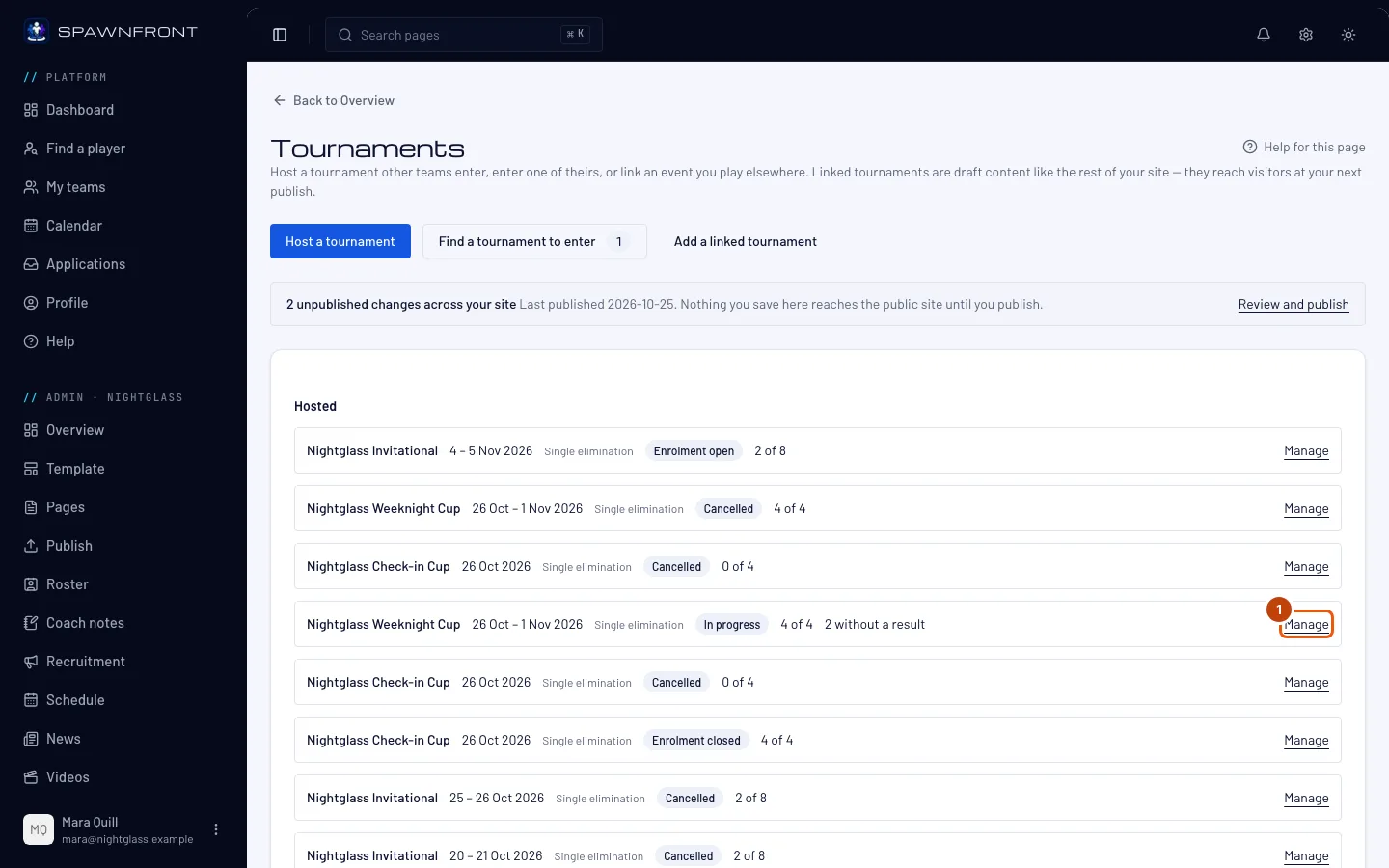
In the menu on the left, under Admin, press Tournaments, then Manage on the tournament's row in the Hosted card.
You should see: the tournament's Manage page, with In progress marked in the row of states, the Results card and the Announcements card.
Step 2: Read the Results card
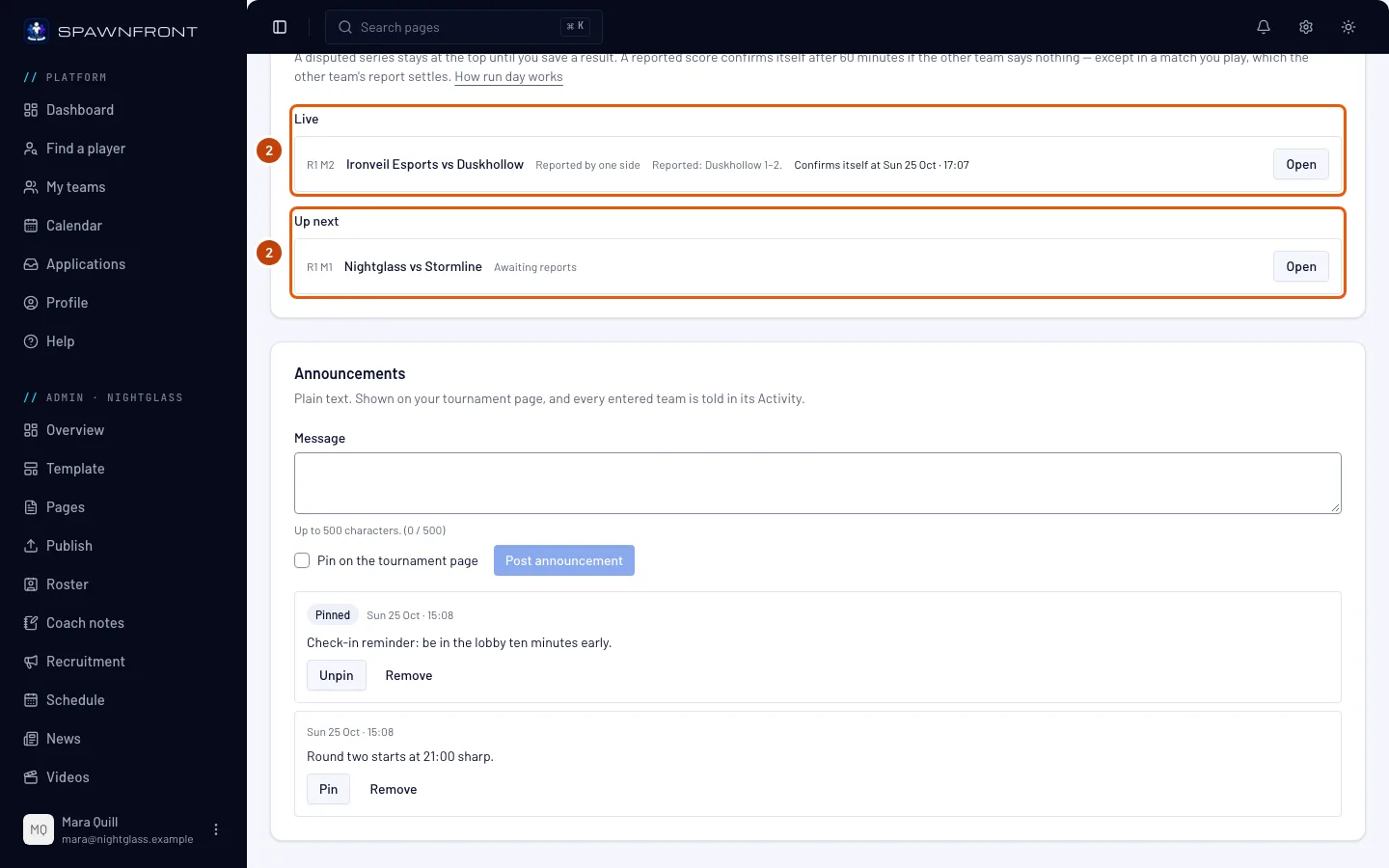
Read the Results card from the top. While the tournament runs it sorts every match into four groups, and leaves out a group with nothing in it:
- Needs you: matches whose result is disputed, oldest dispute first. Each one waits for you.
- Live: a score one team reported, with what each side reported and when it confirms itself.
- Up next: matches whose two teams are known and can be played now.
- Done: finished matches, newest first, with how the result stood — for example Confirmed by both sides or Confirmed automatically.
You should see: under the card's title, "A disputed series stays at the top until you save a result. A reported score confirms itself after … minutes if the other team says nothing — except in a match you play, which the other team's report settles.", followed by a How run day works link to this page.
Step 3: Settle a disputed match
Under Needs you, press Open on the match. In the box that opens, read what each side reported, type both scores and press Save result. Forfeits and the other choices in that box are in Host a tournament, step 15.
A disputed match never confirms itself. It stays under Needs you until you save a result.
You should see: the match leaves Needs you and shows under Done with Entered by the host.
Step 4: Watch a reported score's clock
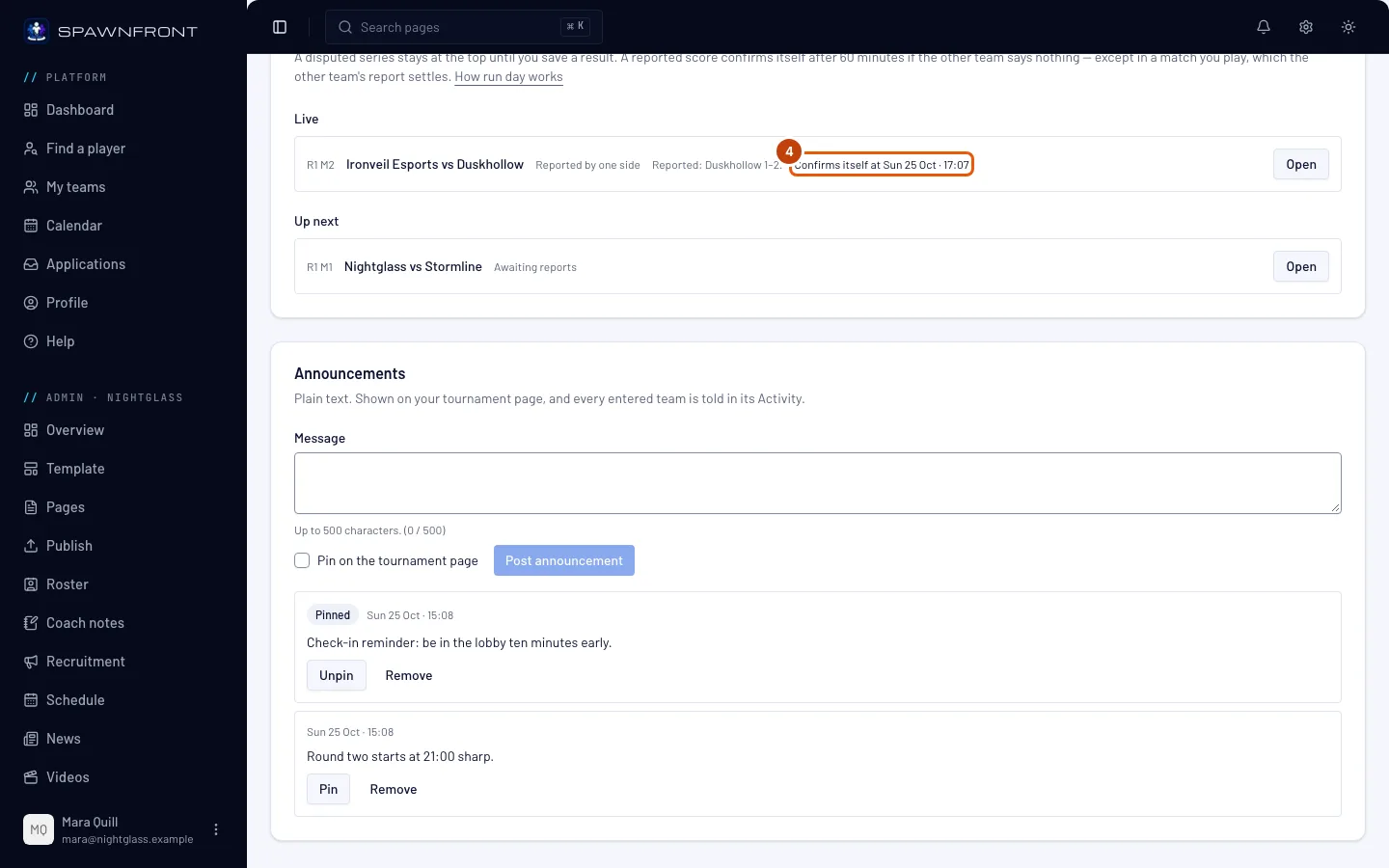
Under Live, read Confirms itself at … on each row, in your team's time zone.
A reported score confirms itself when the other team says nothing in time: once the window you chose in the tournament's settings has passed since the last report — 15, 30 or 60 minutes — the reported score becomes the result. A new report from either team starts the clock again. A match your own team plays has no clock, because your opponent's report already decides it. Once the time has passed the row reads Due to confirm itself at the next check: Spawnfront checks every few minutes. A row with no time at all — a match reported before this feature, or one a disputed earlier match holds up — waits for you or the other team to settle it.
To decide a Live match yourself before then, press Open on its row and save a result, as in step 3.
You should see: the match moves to Done with Confirmed automatically once it has confirmed itself.
Step 5: Write an announcement
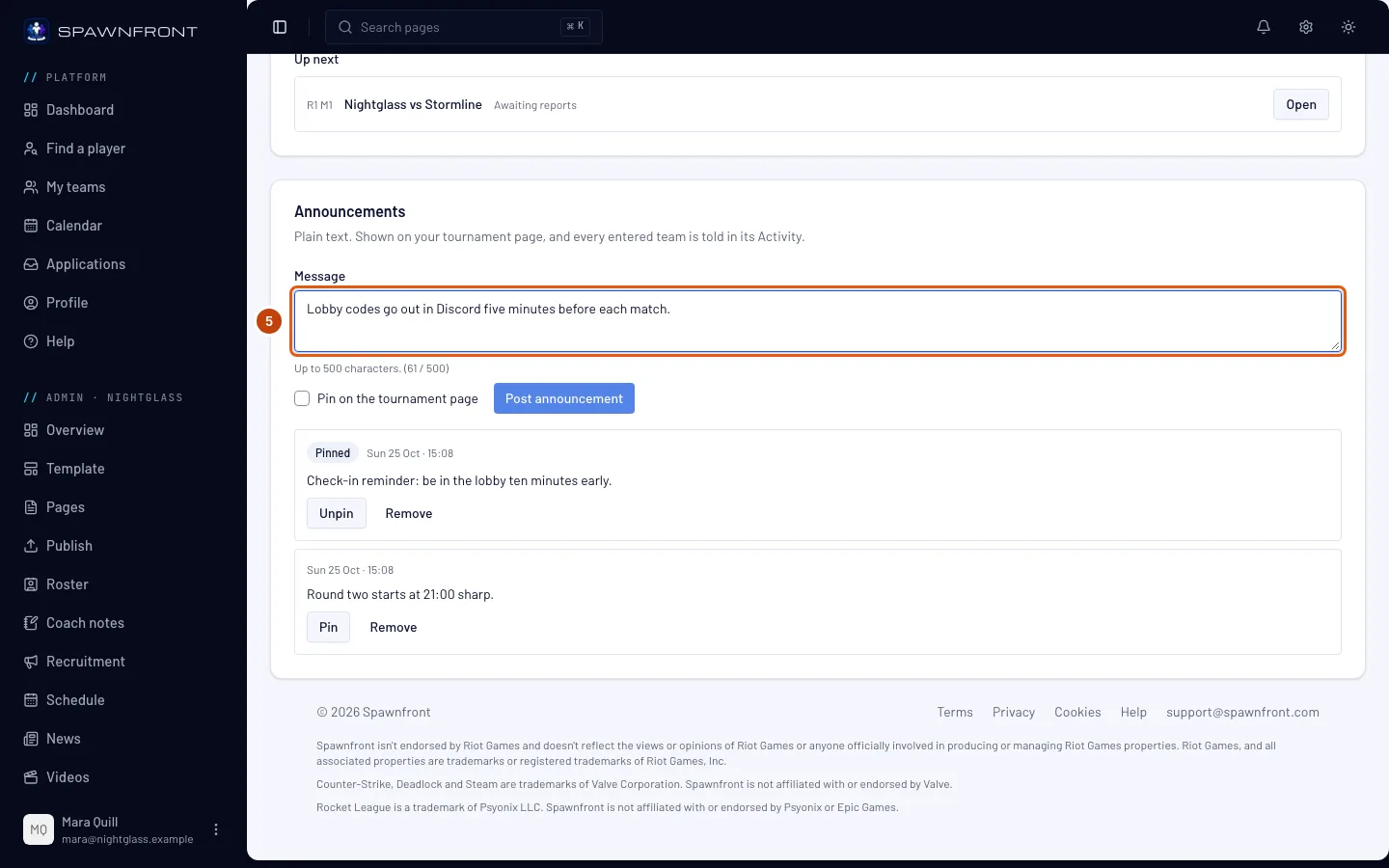
In the Announcements card, type your message under Message — for example a round that starts later, or a map swap.
Announcements are plain text, up to 500 characters: a link or formatting shows exactly as you typed it.
You should see: the count under the box, for example (52 / 500).
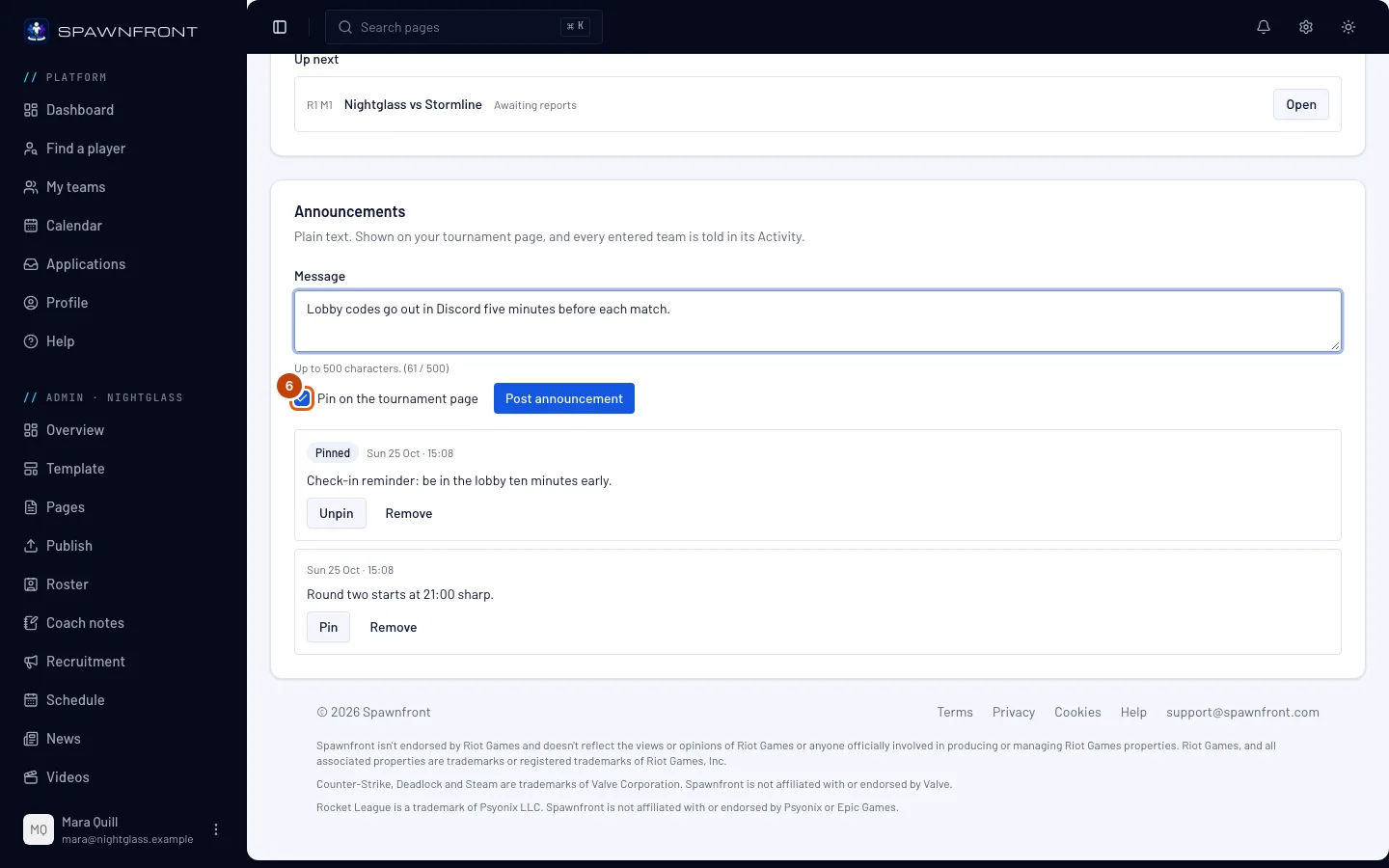
Step 6: Choose whether to pin it
To keep the message at the top, tick Pin on the tournament page. Leave it clear for a message that matters only for now.
Pinned announcements come first on your tournament's page and on every entered team's board; the rest follow, newest first.
You should see: the box ticked.
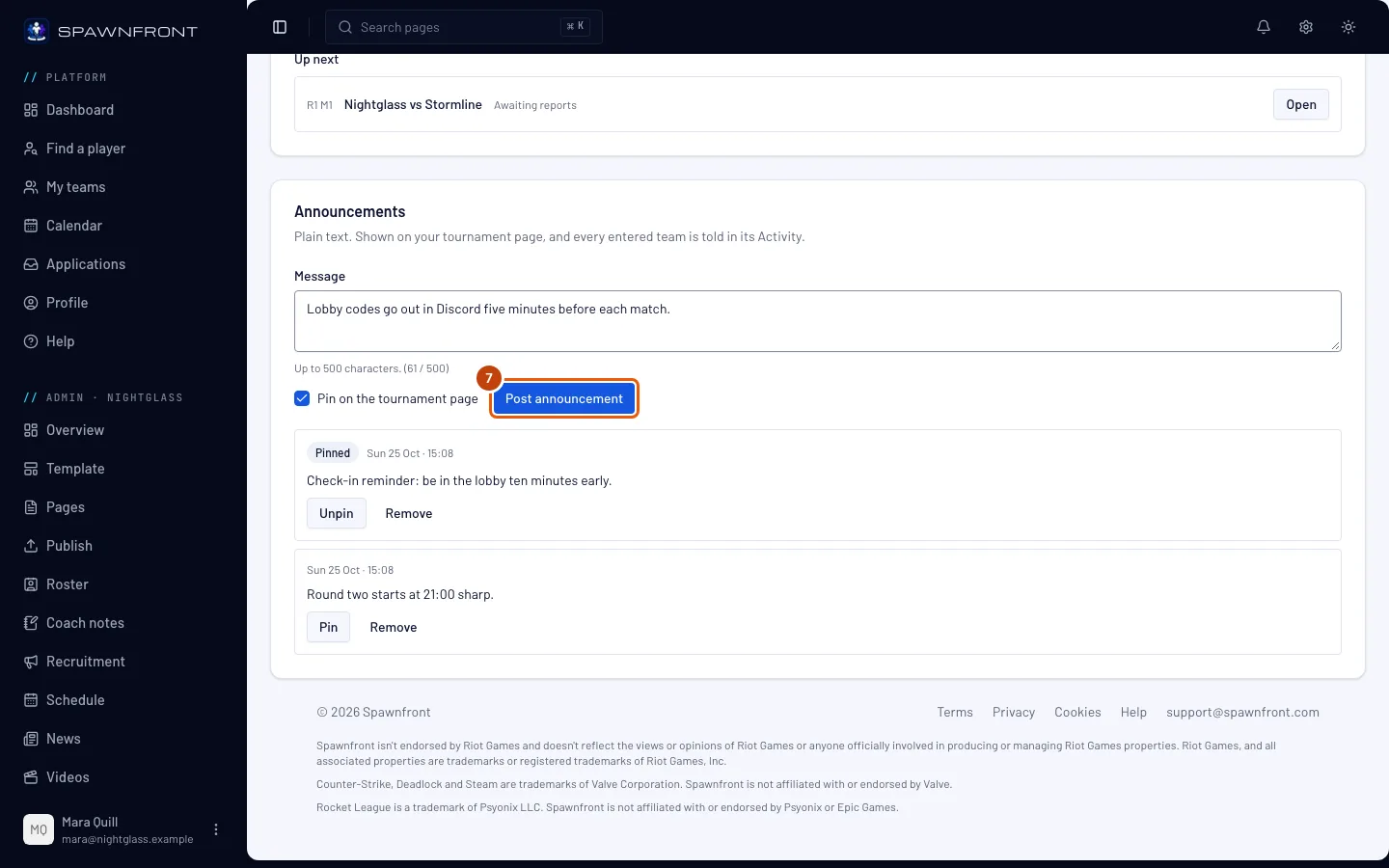
Step 7: Press Post announcement
Press Post announcement. It stays gray until the message has text.
Every entered team is told at once: the message appears under From the organizer on your tournament's page and on each entered team's board, and each entered team gets a notice in its Activity. Nobody is sent an email.
You should see: the message Announcement posted, and your announcement in the card's list — pinned ones first, then the newest.
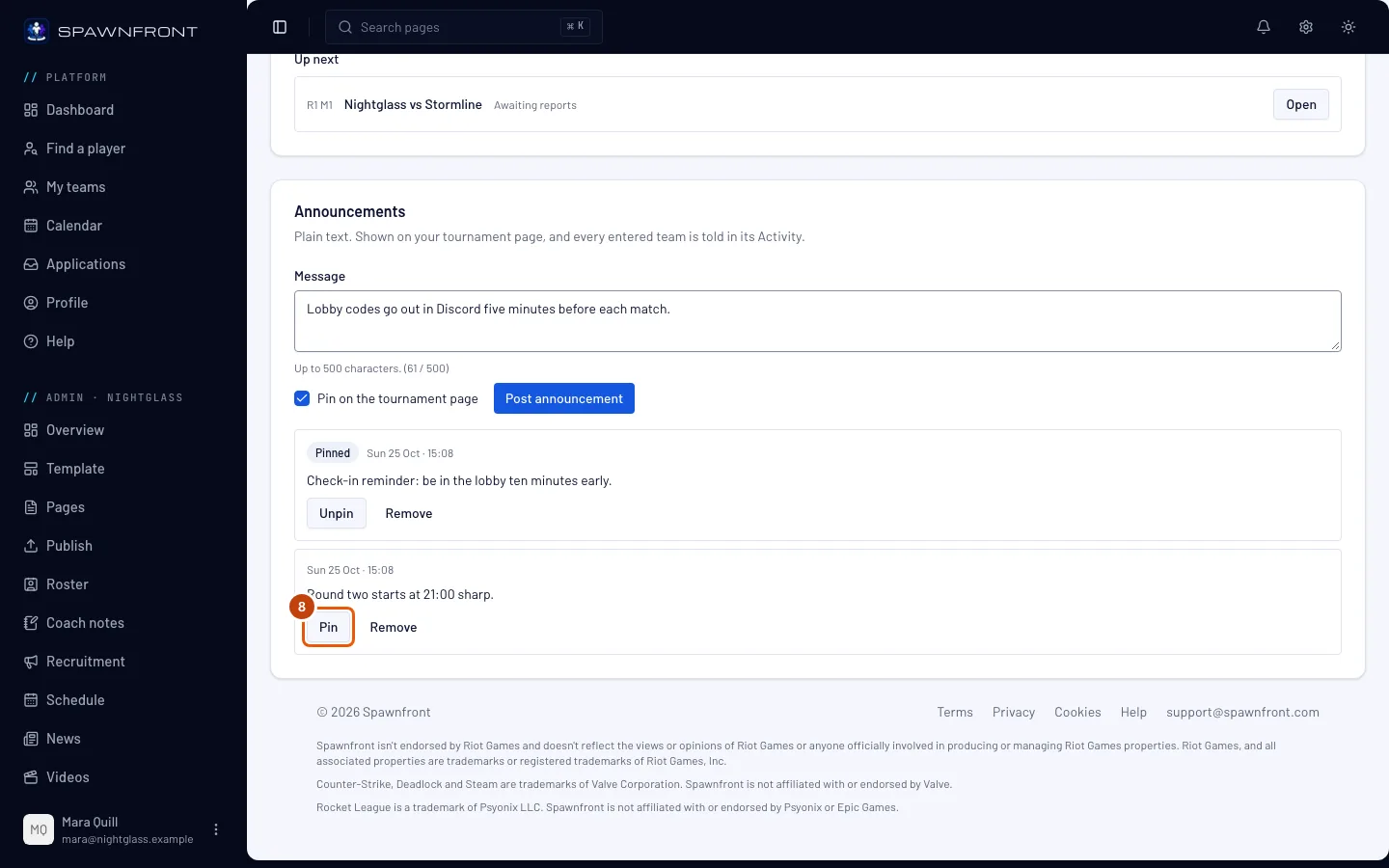
Step 8: Pin or unpin one you posted
On an announcement in the list, press Pin to pin it, or Unpin on a pinned one. Nobody is told again.
You should see: Pinned beside the time of a pinned announcement, and the list in its new order.
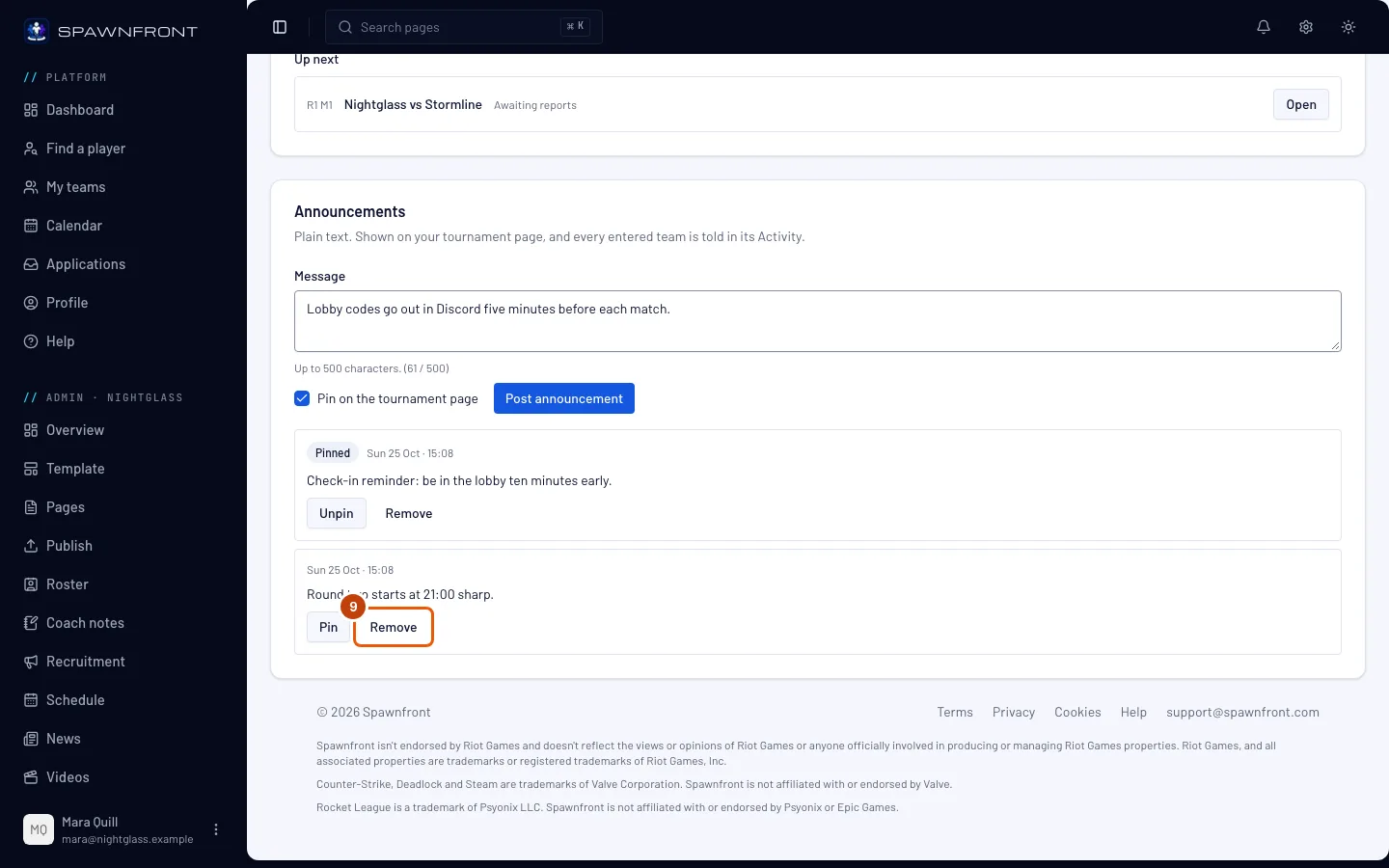
Step 9: Remove one
On the announcement, press Remove, then Remove in the box that opens.
Removing takes it off your tournament's page and every entered team's board. It can't be put back: post it again if you need it.
You should see: the message Announcement removed, and the announcement gone from the list.
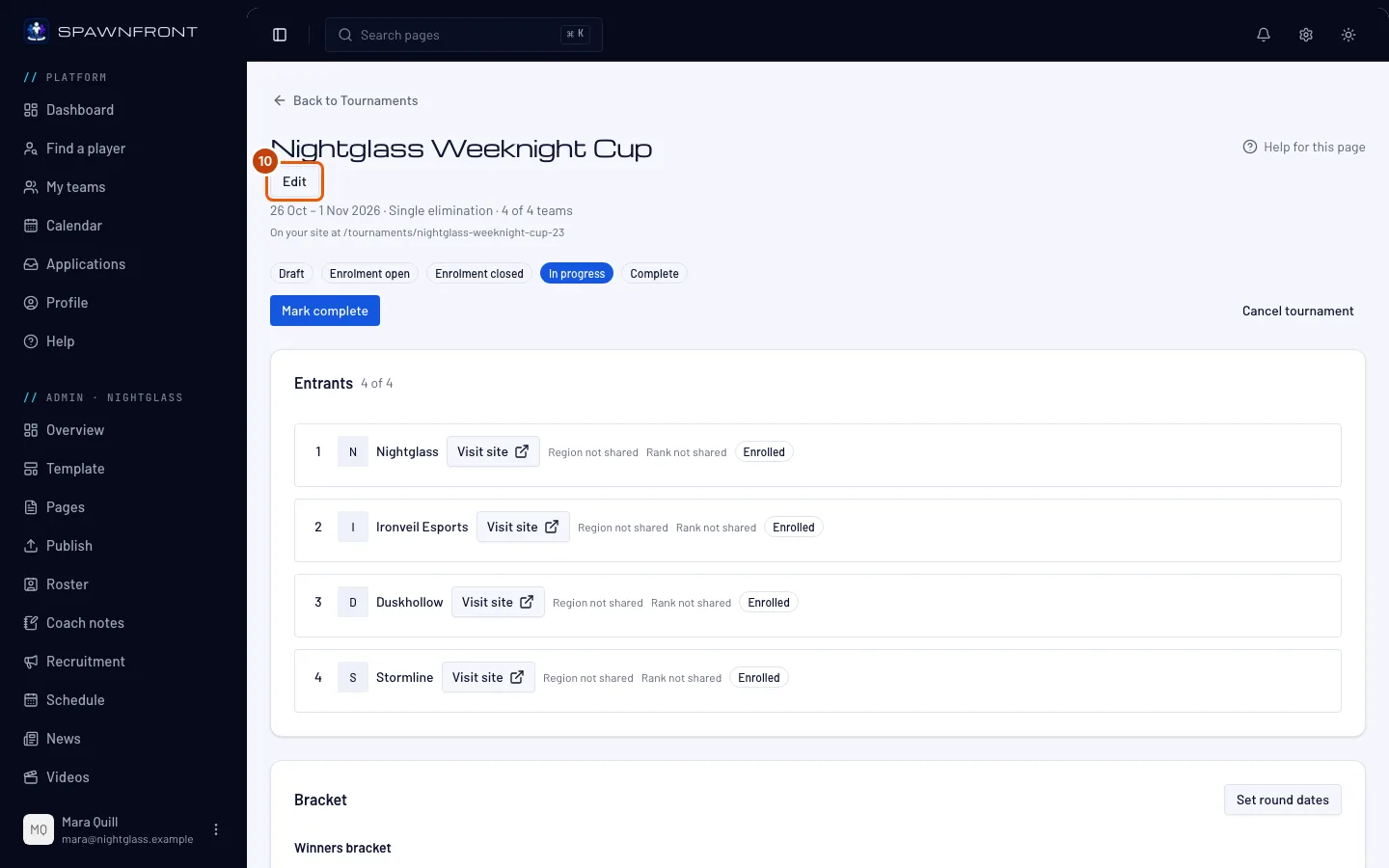
Step 10: Open Edit
If the day runs long, press Edit at the top of the Manage page.
You should see: the tournament's page of sections, with Basics first and Confirm & Save at the bottom.
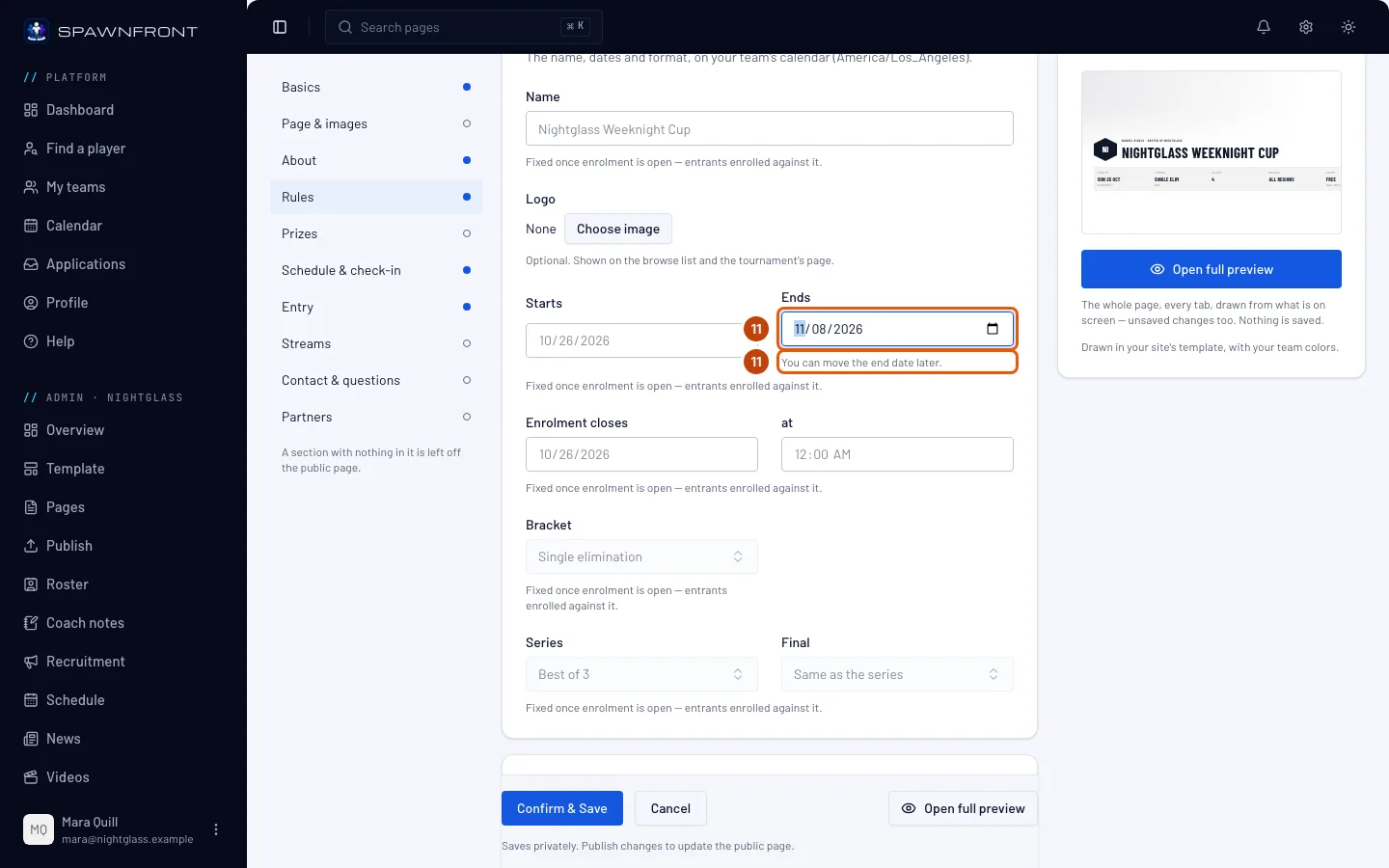
Step 11: Pick a later end date
In Basics, pick a later Ends date.
The end date can only move later while the tournament runs — never earlier and never cleared, so no entered team is told the cup ends sooner. The start date and the bracket stay as they are.
You should see: "You can move the end date later." under Ends, and your new date in it.
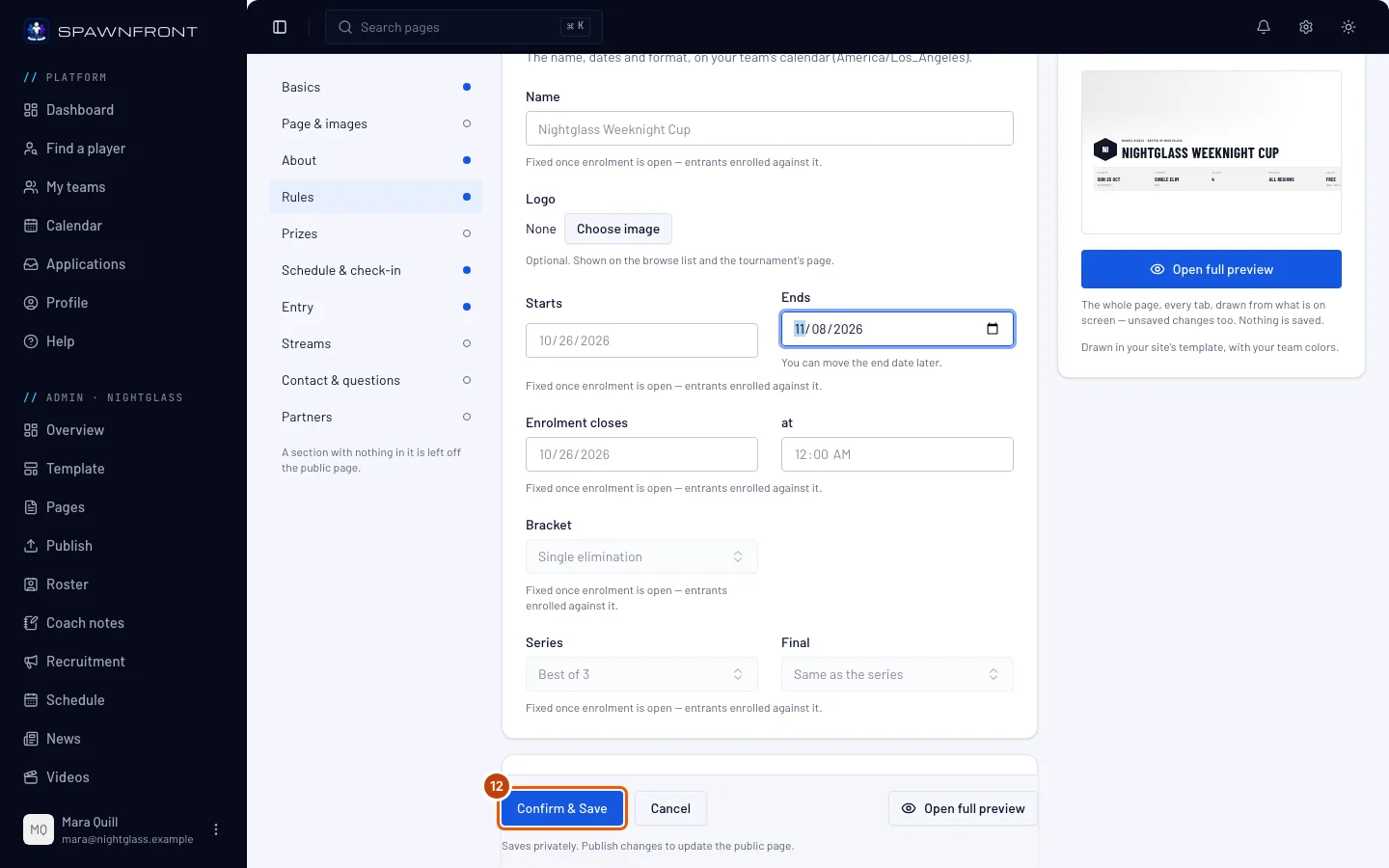
Step 12: Press Confirm & Save
Press Confirm & Save. To leave without changing anything, press Cancel instead — if you changed anything, then Leave without saving.
If another admin saved first, nothing of yours is saved: you see "Another admin saved this tournament first." Press Reload and pick the date again.
You should see: "Tournament saved" and the Manage page — or just the Manage page, if you changed nothing.
How to know it worked
- Needs you is empty, or each match in it is one you are looking at.
- Your announcements show under From the organizer on your tournament's page.
Something doesn't look right?
A score confirmed itself before I looked
The other team didn't answer within the window you chose, so the reported score became the result: it reads Confirmed automatically under Done. If it is wrong, press Open on the match and save the right result, as long as no later match has a result yet. A longer window gives teams more time to answer — it is set in the tournament's settings before enrolment opens, and can't change after.
My announcement doesn't show on the page
A new announcement can take a few minutes to reach your tournament's page. Your site must be published for the page to show at all. The page shows every pinned announcement and the five newest of the rest: pin an older one to keep it there. A removed announcement leaves the page.
It says "The end date can only move later" under Ends
Once enrolment is open, the end date can't move earlier than the one you saved, and can't be cleared. Pick a later Ends date (step 11), or press Cancel.
I can't post an announcement
Post announcement stays gray until you type a message. The Announcements card shows only once enrolment opens: a draft has none, and a cancelled tournament takes no more — Announcements can be posted once enrolment opens, and not on a cancelled tournament. A tournament takes twenty announcements a day: past that you see You can post 20 announcements a day on one tournament. Try again tomorrow. While your team's subscription has lapsed, every button on the card stays gray.
Related articles
Still stuck? Contact support or email support@spawnfront.com — tell us the page you're on and the step number.