
Follow a tournament
Read a hosted tournament's page: its facts, check-in, the teams, the bracket and each match.
For everyone · 8 steps
What you need first
- Nothing to sign in to. A tournament's page is on the host team's site, open to anyone.
- The host has opened the tournament and published its site. A draft has no page.
Steps
Step 1: Open the tournament's page
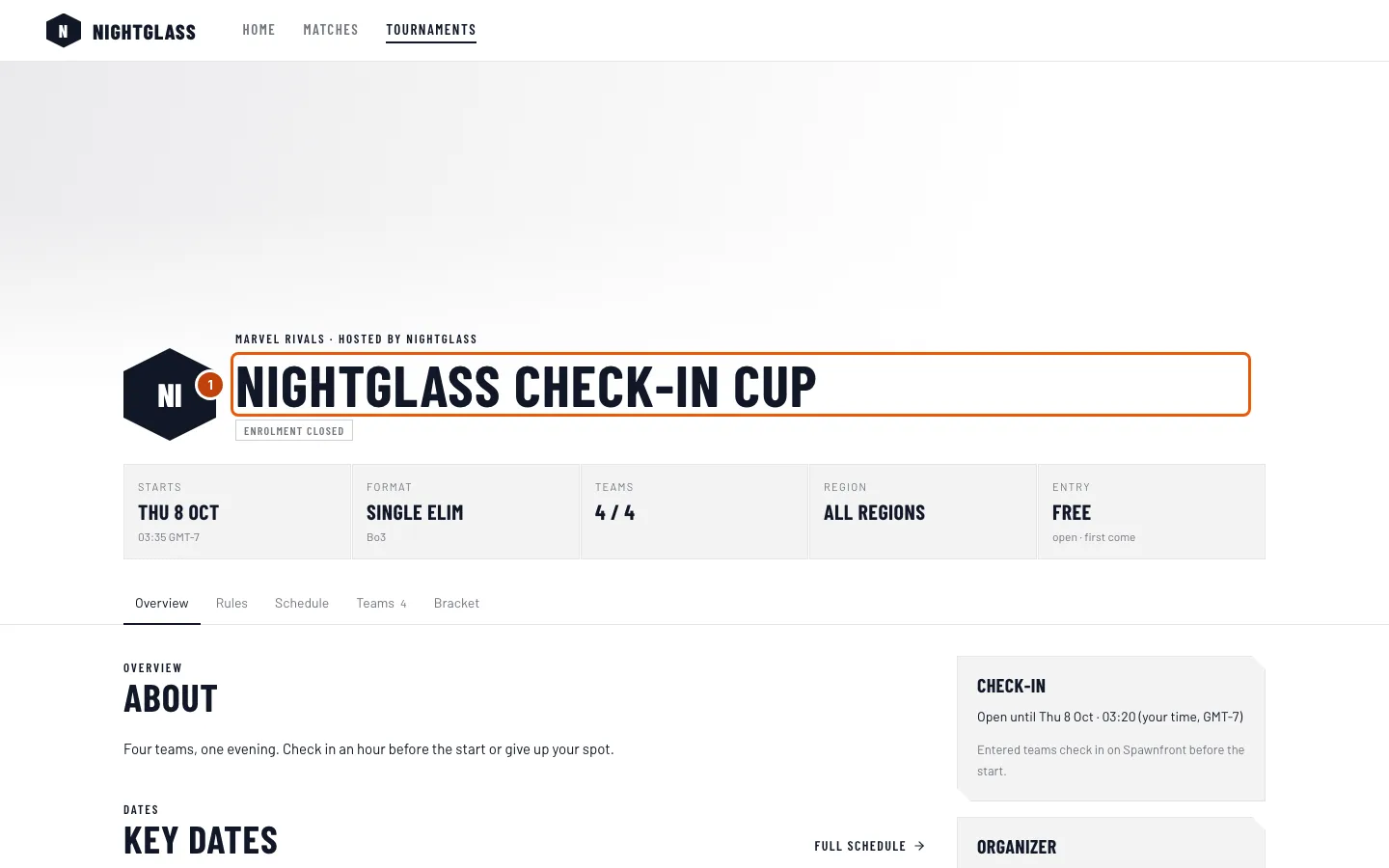
On the host team's site, press Tournaments in its menu, then the tournament. A link someone shared opens the same page. When the host is one of an organization's teams, the page is on the organization's site, under that team's page:
/teams/<game>/<team>/tournaments/<name>.You should see: the tournament's banner and name, its facts — start, format, teams, region, entry and prizes when the host lists them — and where it stands: Enrolment open, Enrolment closed, Live or Complete.
Step 2: Read the facts beside it
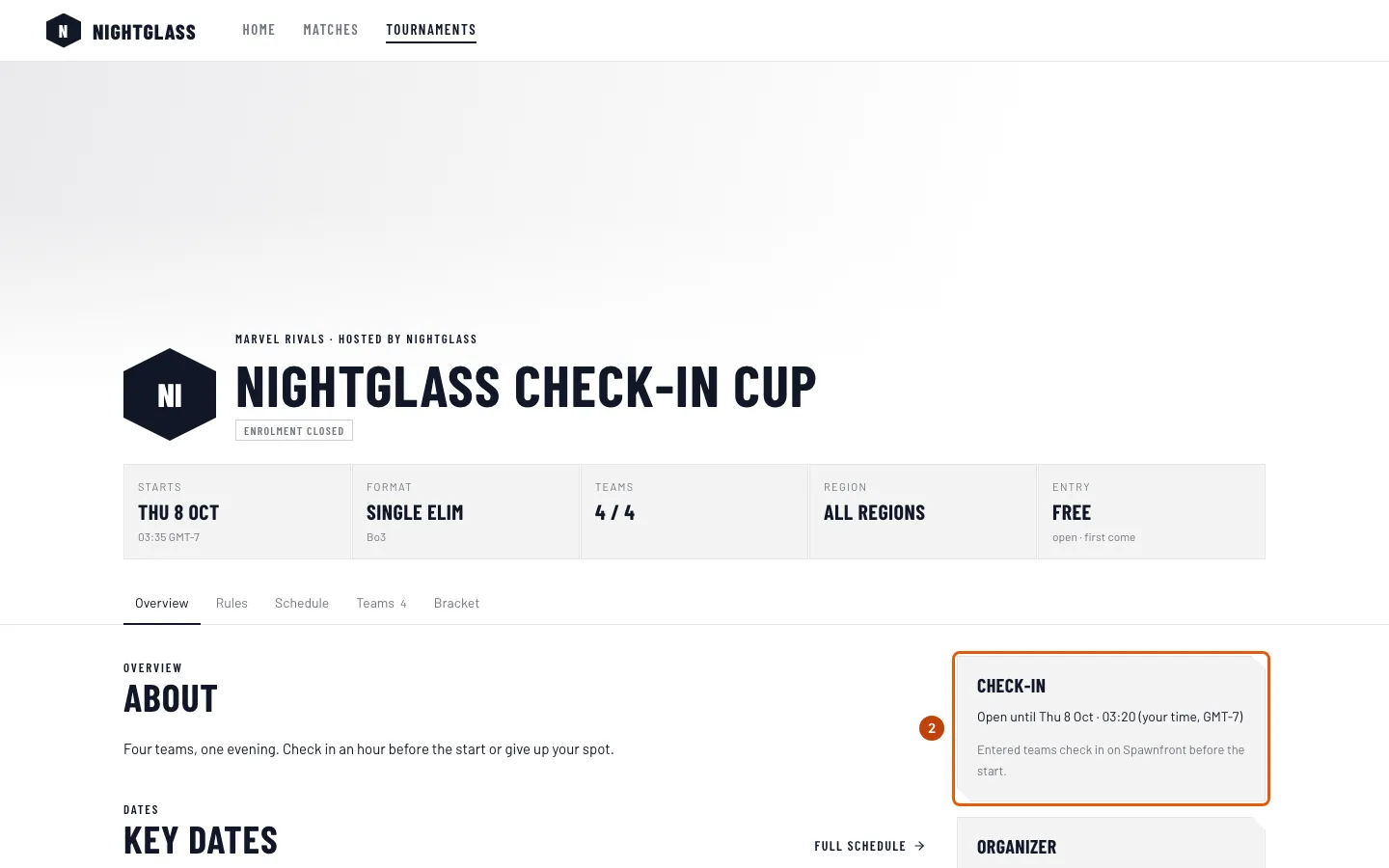
Beside the page (below it on a phone), read the cards:
- Enrolment, while teams can still enter: the teams so far, like 3 of 8 teams, and Enrol your team, which opens Spawnfront — teams enter from their own team's admin, never from this page.
- Check-in, when the host has turned it on: Opens …, Open until … or Closed, in your own time zone. Entered teams check in on Spawnfront before the start. Who has checked in is never shown here.
- Live now, while the tournament runs: the matches being played.
- From the organizer, once the host has posted: the host's announcements (step 3).
- Organizer: the team hosting the tournament.
You should see: the cards that apply to the tournament right now.
Step 3: Read the organizer's announcements
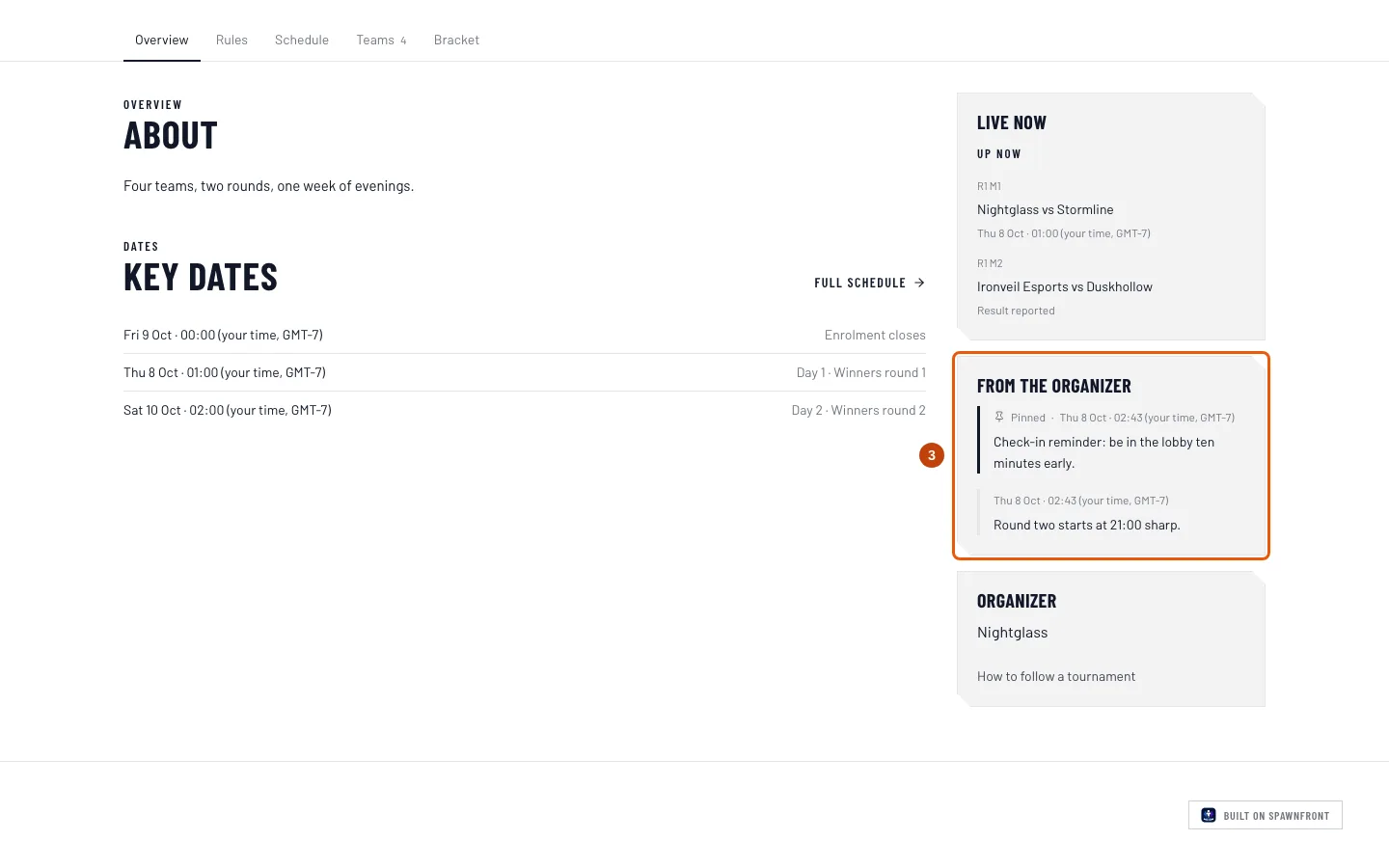
Read From the organizer beside the page (below it on a phone). It stays there on every tab.
The host posts here on match day — a round that starts later, a map swap, a reminder. Pinned announcements come first, marked Pinned; then the newest, each with the time it was posted in your own time zone.
You should see: the host's announcements, or no From the organizer card at all when the host hasn't posted any.
Step 4: Switch tabs
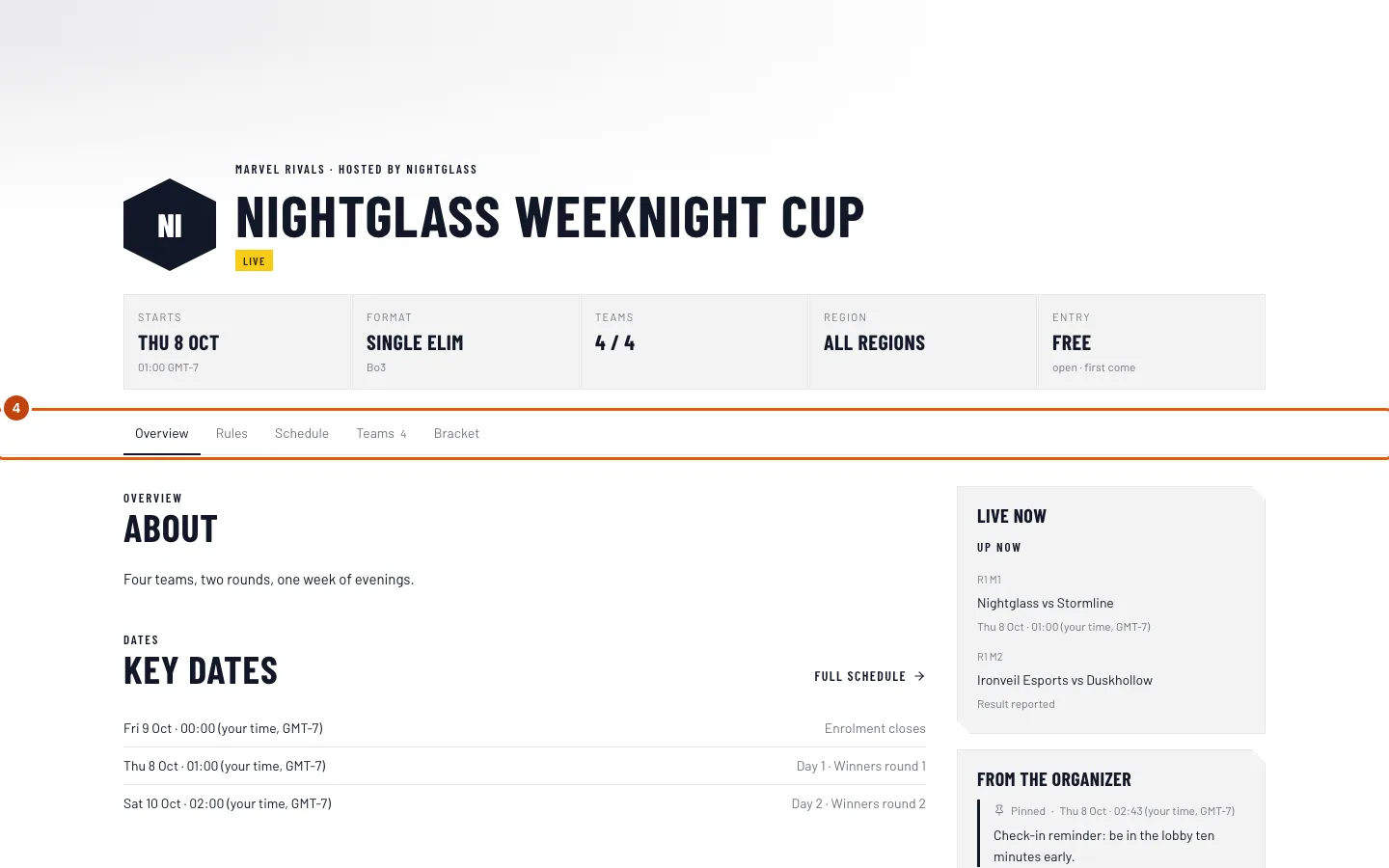
Press a tab along the top: Overview, Rules, Prizes, Schedule, Teams, Bracket, Streams or Contact.
Only tabs with something in them appear — a tournament with no prizes has no Prizes tab, and there is no Bracket tab before the bracket is drawn. Times on Schedule are in your own time zone.
You should see: the tab's content under the tab bar, with the tab marked.
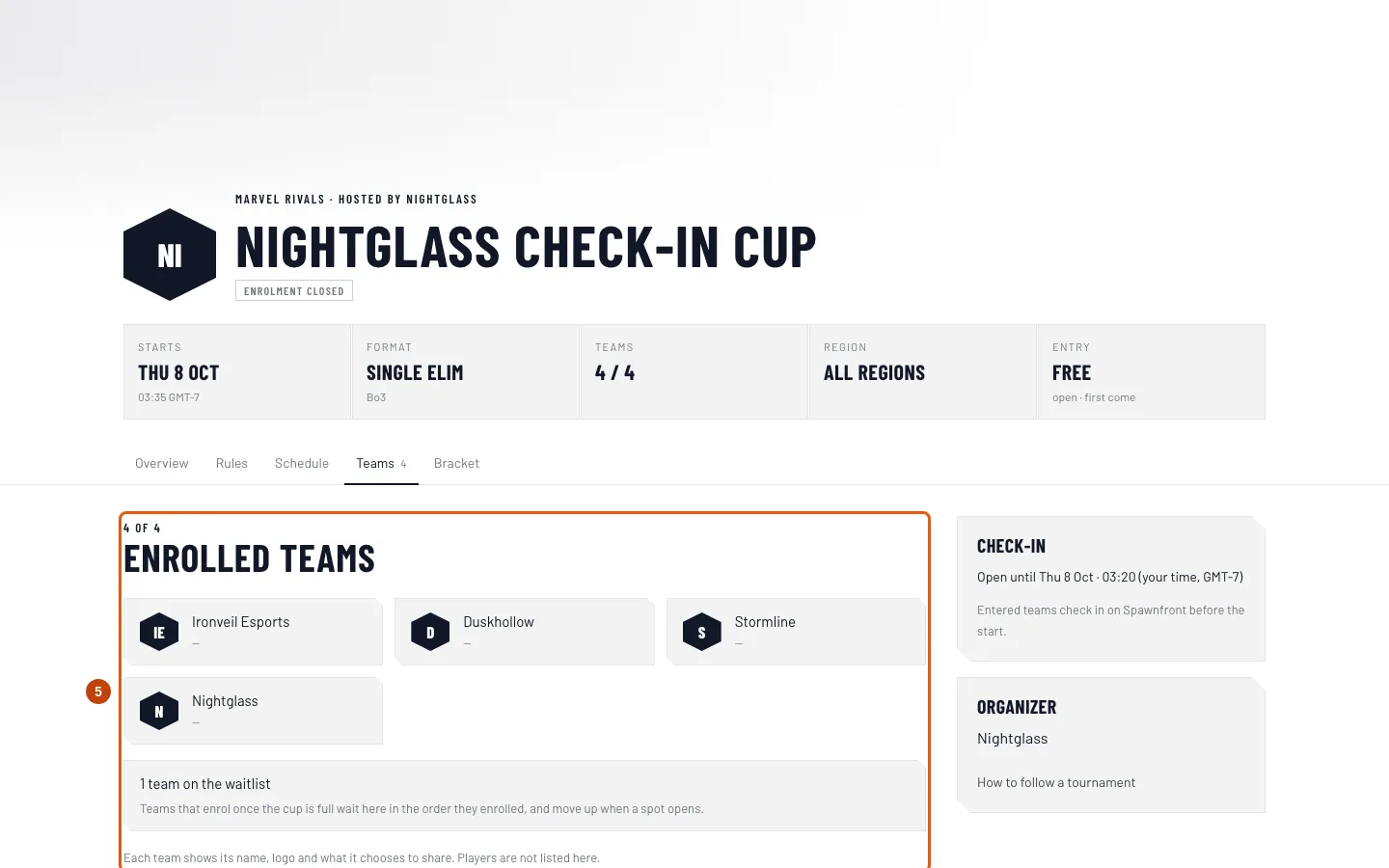
Step 5: See who is playing
Press Teams.
You should see: every entered team, with its name, its logo and what it chooses to share. A team that is part of an organization shows as Organization · Team — for example Blades · Team 2. The bracket and each match page name teams the same way. Players are not listed here. When the tournament is full, a count like 1 team on the waitlist shows how many teams wait for a spot, in the order they entered — without naming them.
Step 6: Follow the bracket
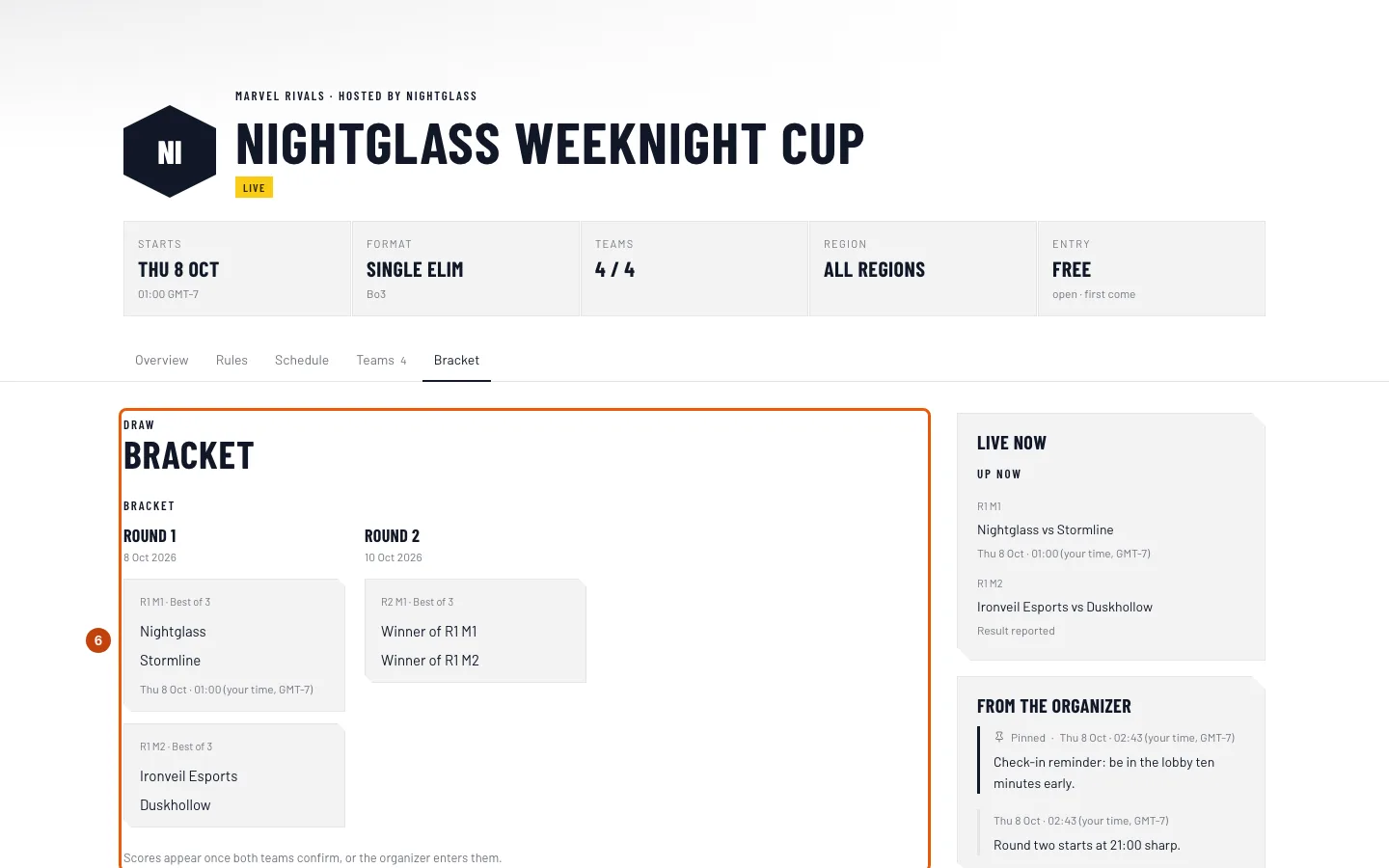
Press Bracket.
You should see: every round, each match with its two teams and, once played, its score. A match whose result is disputed reads Under review until the host decides it.
Step 7: Open a match
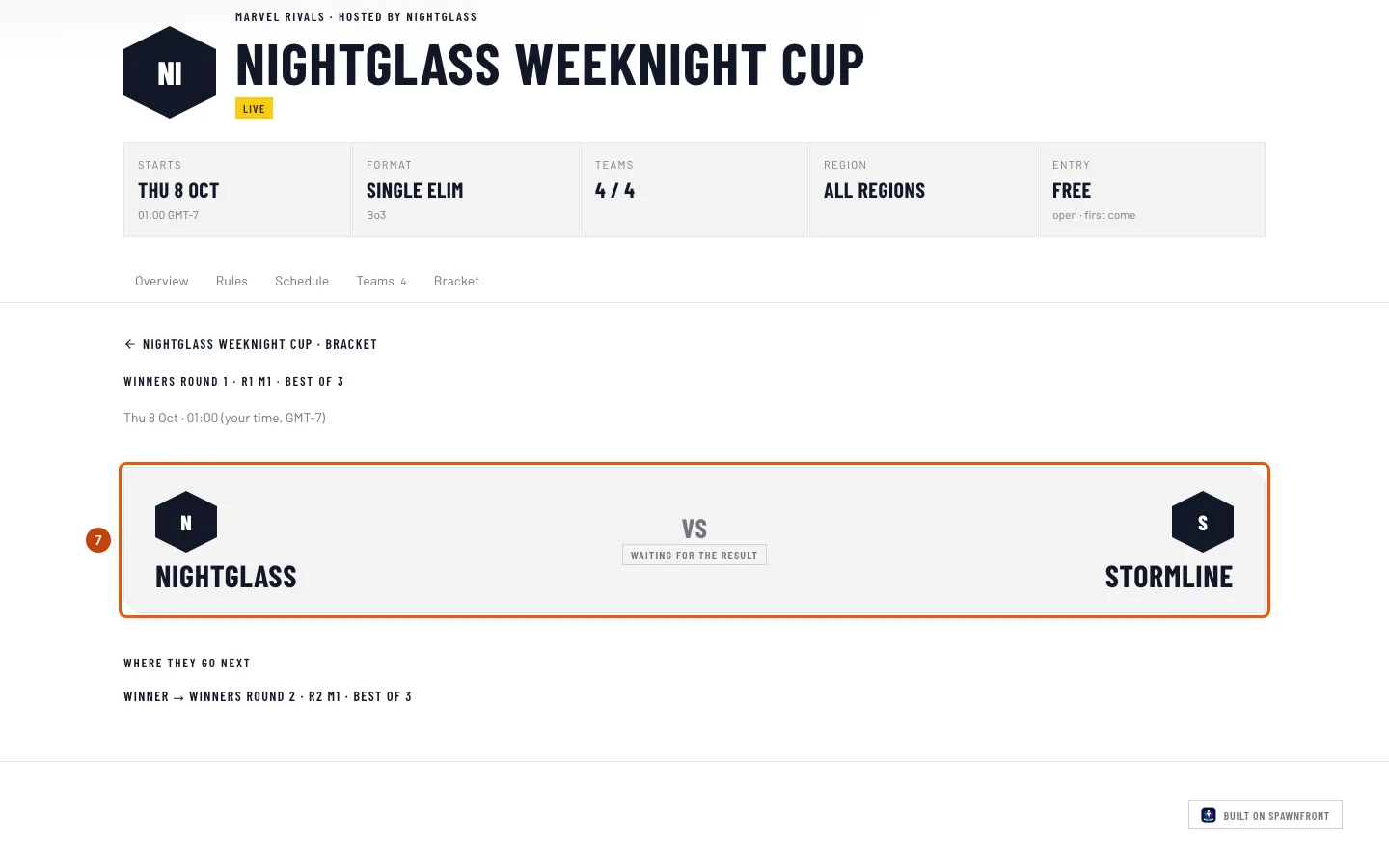
Press a finished match in the bracket — a match links to its page once it has been played. Every match also has its own address, which the host can share before it starts.
You should see: the match's own page — the two teams, when it starts, its score and each game once the result is in, and where to watch when the host listed a stream. Press the back link to return to the bracket.
Game stats appear under the games when players recorded the match with Spawnfront Companion: each team's K / D / A (kills, deaths and assists) per game, summed from its players, with how many recorded — for example · from 4 of 6 players. A Marvel Rivals game read from a player's public match history shows each named player's K / D / A instead, under Players. A team shows a total only once at least half its players — and at least two — recorded the game with their stats shown on their profile; otherwise its line is left out, and a match nobody recorded has no Game stats at all.
A Marvel Rivals game's Replay ID shows under the games once Spawnfront has read the game, with Copy beside it — paste it in Marvel Rivals to watch the game back. It's not shown when the lobby hid its replay.
Step 8: Share the page
Copy the page's address from your browser and send it. Every tab and every match has its own address.
You should see: in chat apps and social posts, a preview with the tournament's name and banner.
How to know it worked
- The tournament's page shows its state, its facts and the tabs it has content for.
- After the start, Bracket shows each result as the teams report it.
Something doesn't look right?
I can't find a tab the host mentioned
A tab appears only once the host fills in what it shows — a Prizes tab needs a prize, a Streams tab a stream. The Bracket tab appears when the tournament starts.
How do I enter my team from this page?
You can't enter here. Press Enrol your team: it opens Spawnfront, where a team's owner or admin enters from the team's admin. See Enter a hosted tournament.
The page says Check-in Closed, but the tournament hasn't started
Check-in closes fifteen minutes before the first round starts, or earlier when the host closes it, so the bracket can be drawn. Teams that didn't check in don't play.
A match has no Game stats
Game stats come from players who recorded the match with Spawnfront Companion. A team's line shows only when at least half its players recorded the game, so a match where fewer did has none. In Marvel Rivals, a game's players show once Spawnfront has read it from the public match history of a player whose team verified their UID — two to eight hours after the match, sometimes longer.
A result I expected isn't on the page
A new result can take a few minutes to reach the page. A result shows once both teams agree, once the host enters it, or once a reported score confirms itself because the other team didn't answer in time; a disputed match reads Under review.
Related articles
Still stuck? Contact support or email support@spawnfront.com — tell us the page you're on and the step number.