
Get an organization
Found an organization, put it on the Organization plan, add your teams — 4 included, $8 a month for each extra — and publish its site.
For team owners and admins · 9 steps
An organization runs several teams under one name and one site. Its plan covers 4 teams in any games — a main team and an academy in Marvel Rivals and a team in Overwatch, for example — and each extra team is $8 a month, up to 10 in each game. Founding an organization is free; its site and everything its teams do on the paid plan come with the Organization plan.
Already have a team you want to grow into an organization? Upgrade it instead — the team keeps its site, address and plan. See Upgrade your team to an organization.
What you need first
- Your birth date, country, the languages you speak and your native language on your profile — see Set up your profile.
- A way to pay on Polar, the payment service Spawnfront uses, for the Organization plan. Your card details go to Polar and never reach Spawnfront.
- Whoever pays becomes the organization's payer. Only the payer can open the subscription on Polar later.
Steps
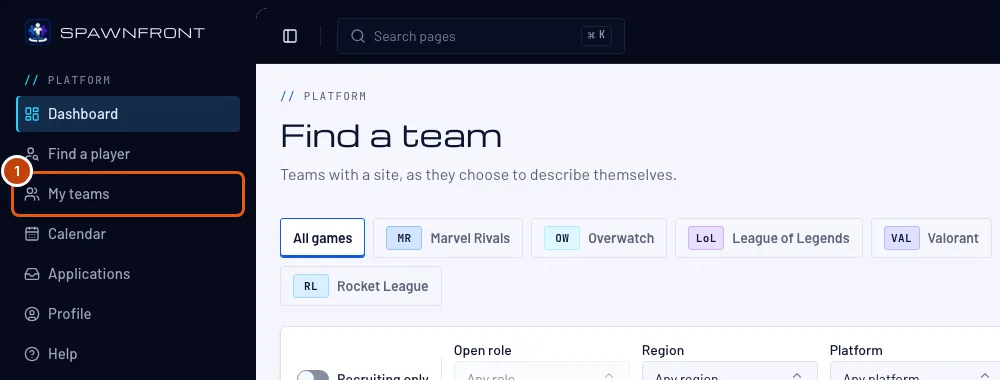
Step 1: Open My teams
In the menu on the left, press My teams.
You should see: My teams, with the line Starting from nothing? Start an organization under your teams. Already run a team? Upgrade it instead.
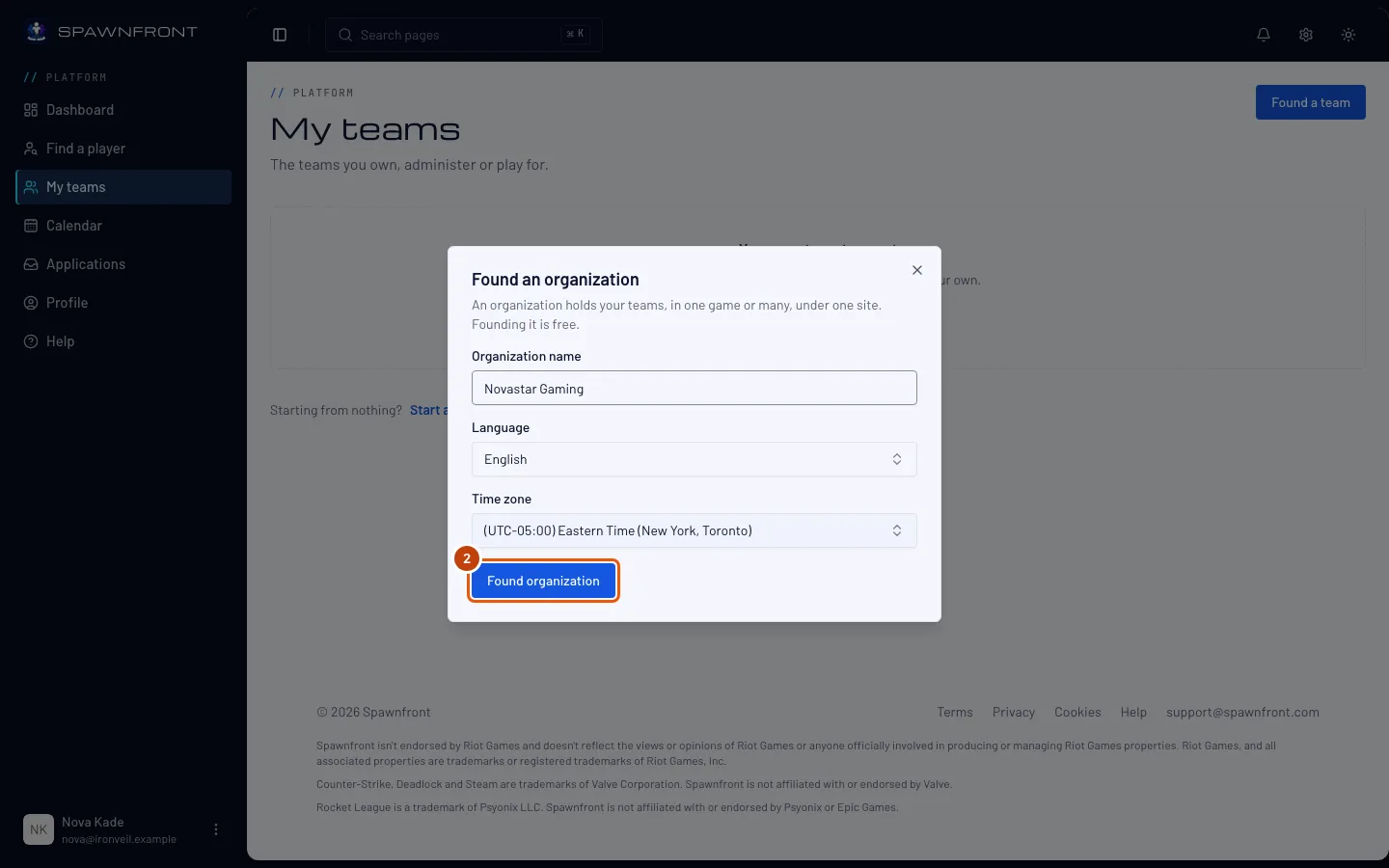
Step 2: Found the organization
Press Start an organization (if you own a team, choose No, start from nothing first), type its name, choose its Language, check the Time zone, then press Found organization. Found an organization walks through the box in detail.
You should see: your organization's Overview, with Get the Organization tier on a card. In the menu on the left, your organization's name heads a group of its own; its Organization list holds Overview, Teams, Admins, Billing, Get a site and Settings.
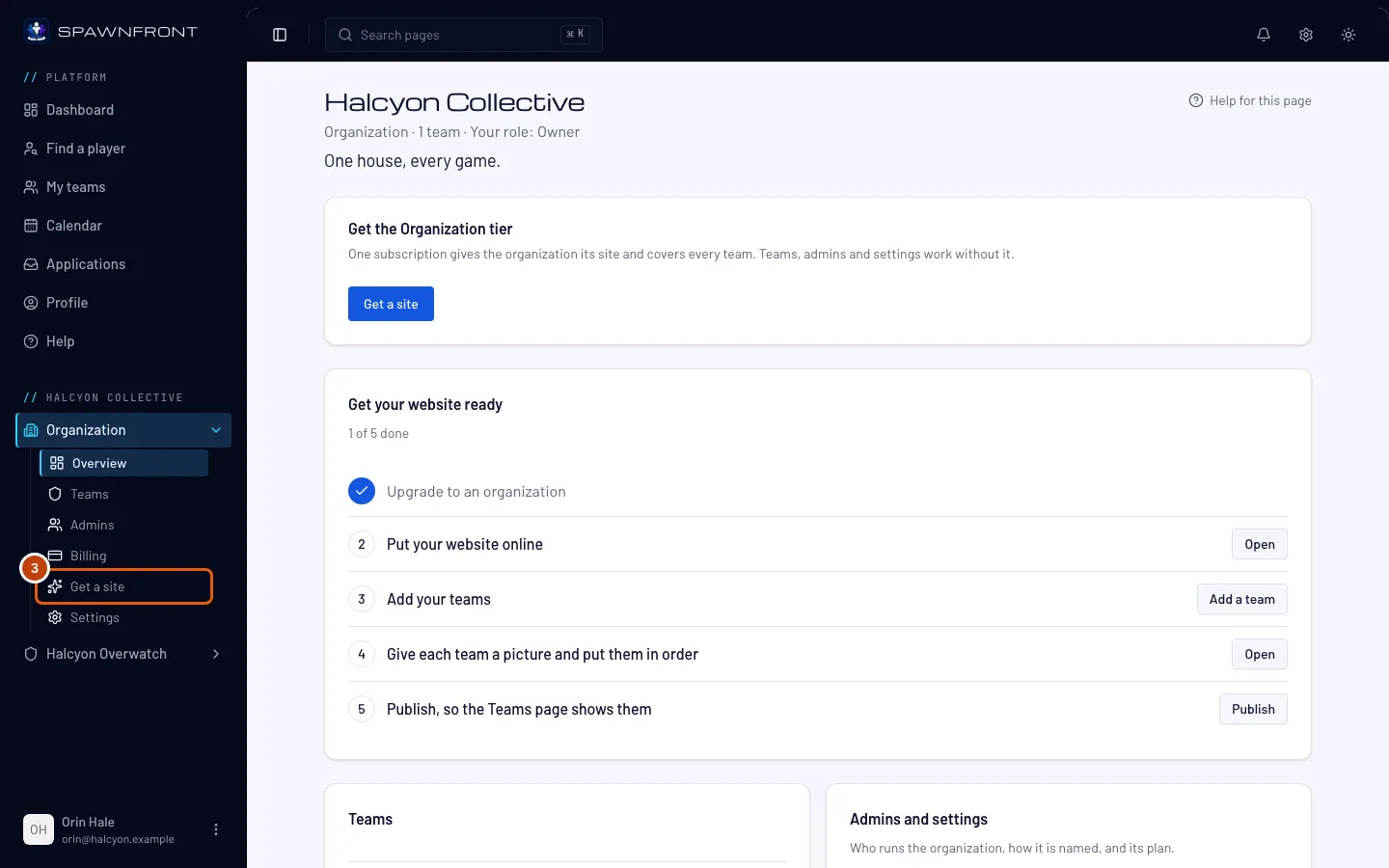
Step 3: Open Get a site
In the menu on the left, under your organization's name, press Get a site in the Organization list. If the list is closed, press Organization first to open it. The Get a site button on the Overview's card opens the same page.
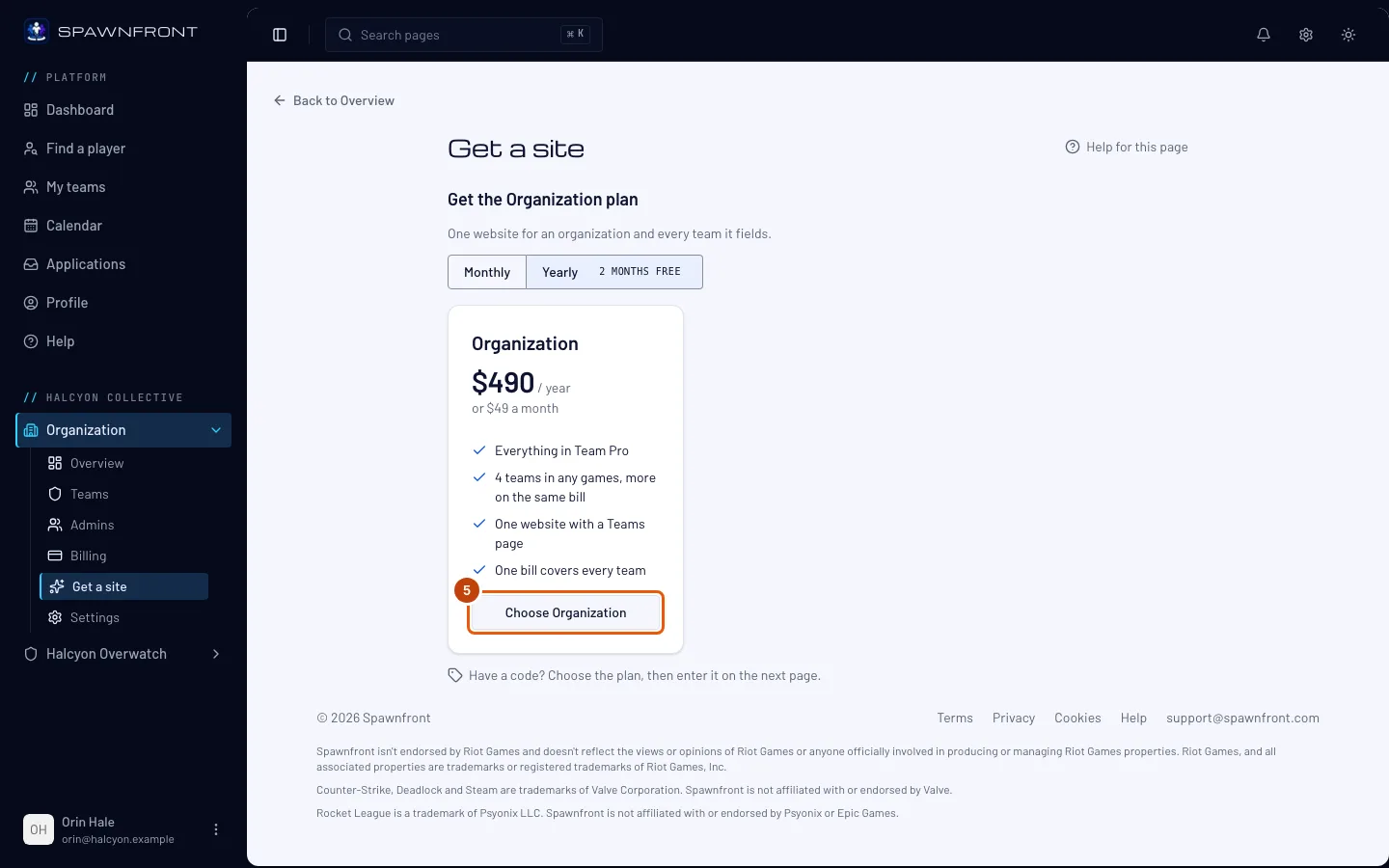
You should see: Get the Organization plan, with the plan's price on its card.
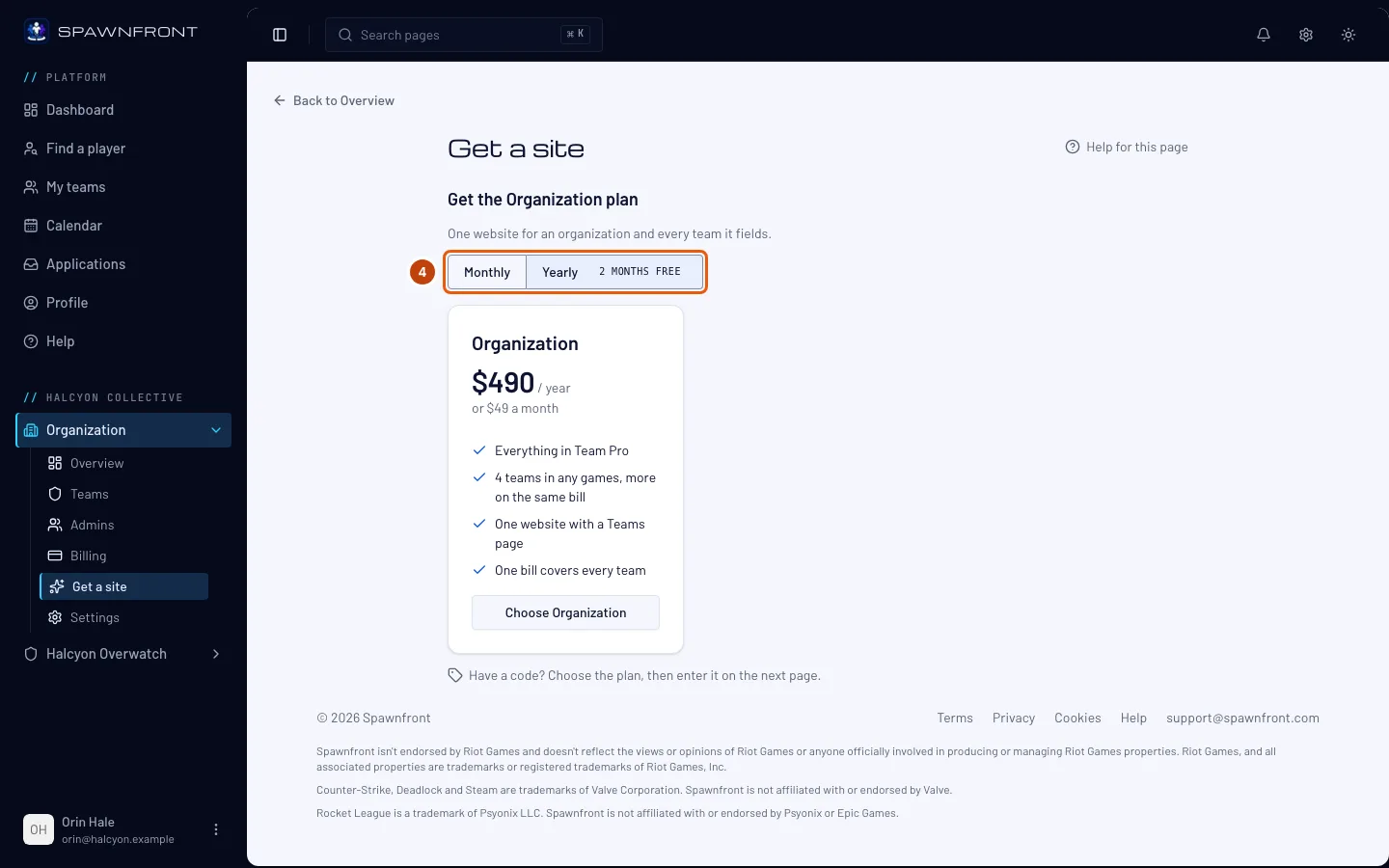
Step 4: Choose monthly or yearly
Above the plan, press Monthly or Yearly. There is one plan to choose — the Organization plan covers the organization's site and every team. Paying yearly costs ten monthly payments.
You should see: the price change to that choice.
Step 5: Choose the Organization plan
Press Choose Organization.
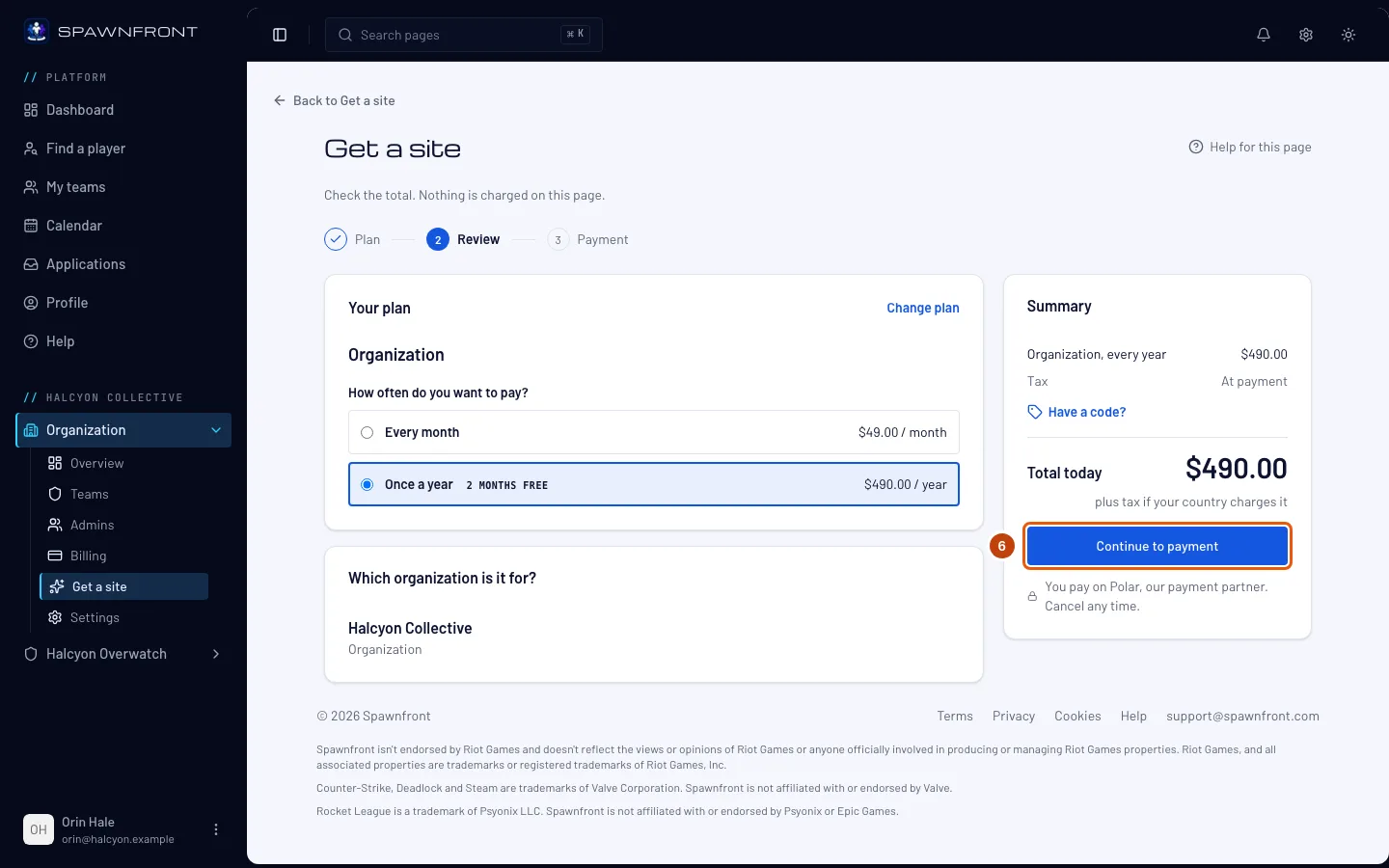
You should see: the Checkout page, with the plan, your organization and Total today. Nothing is charged on this page.
Step 6: Continue to payment
Check the total, then press Continue to payment and pay on Polar's page. Tax, if your country charges it, is added there.
You should see: Polar's payment page. When you have paid, Polar sends you back to Spawnfront.
Step 7: Wait for the confirmation
Back on Spawnfront, the page says Confirming your payment… for a few seconds, until Polar tells Spawnfront the payment went through.
You should see: This organization is on the Organization tier. In the menu on the left, Organization now lists the website's pages too — Template, Pages, Teams page, Publish, News and the rest — and Get a site is gone from it.
Step 8: Add your teams
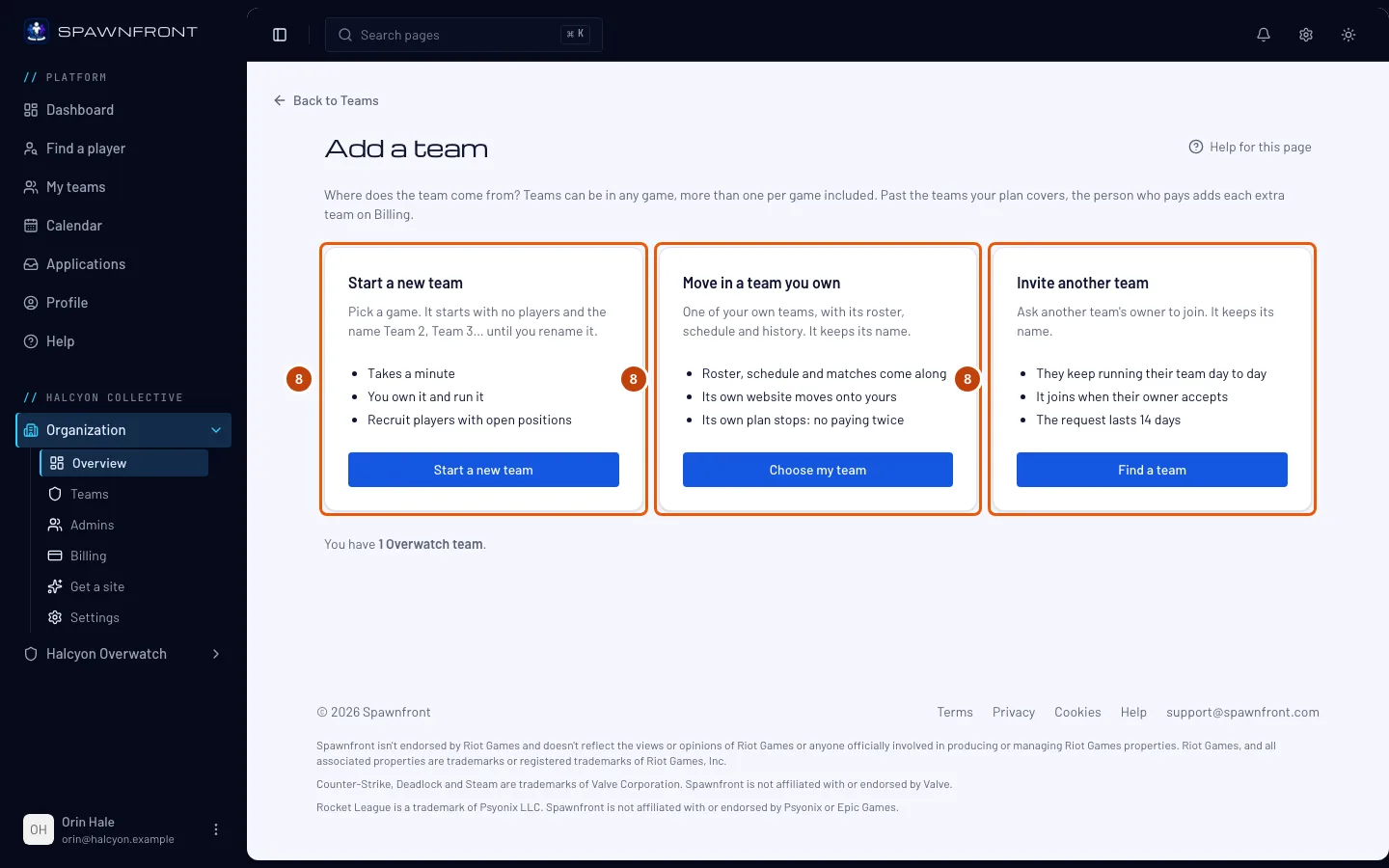
On the organization's Overview, press Add a team on the Teams card. There are three ways to add a team: start a new one in any game, move in a team you own, or invite a team someone else runs. Add a team to your organization explains each.
Your plan covers 4 teams in any games, and every team it covers is on the Organization plan with the organization. The person who pays adds more on the organization's Billing page, $8 a month each, up to 10 in each game. A team you start is called Team 2, Team 3 and so on until you rename it; a team that joins keeps its name. A team that joins stops paying for its own plan at the end of its current period.
Step 9: Set up and publish the organization's site
Use the website's pages under Organization in the menu on the left: choose an address in Address & domains and a template in Template, fill in Pages, then press Publish. They work like a team's — see Set up your site with the wizard and Publish your site. The site's Teams page shows a card for every team, under each game, once you publish, and each team has its own page at
/teams/<game>/<team>. A game with two or more teams also has its own page at/teams/<game>. A tournament one of your teams hosts is published with your site too, at/teams/<game>/<team>/tournaments/<name>, and listed on spawnfront.com/tournaments.
How to know it worked
- My teams lists your organization under Your organizations, marked Owner.
- The organization's Billing page shows the Organization plan and its renewal date.
- Once you publish, the organization's address shows its site, with Our teams on its home page and a Teams page.
Something doesn't look right?
Get a site isn't in the menu
The organization is already on the Organization plan — Get a site is listed under Organization only until it is. Its plan is on the Billing page, under Organization in the menu on the left.
It still says Confirming your payment after a minute
Polar has not told Spawnfront about the payment yet. Leave the page open, or come back to Get a site later — it confirms as soon as Polar does. Nothing is charged twice.
It says "Complete your profile first"
Founding needs your birth date, country, the languages you speak and your native language. Add them on your profile, then come back to My teams and try again.
I have a code from Spawnfront
Press Choose Organization, then Have a code? on the Checkout page, type it and press Apply. The total becomes $0.00; press Start my free Organization plan — no card, no payment. See Use a code.
Related articles
Still stuck? Contact support or email support@spawnfront.com — tell us the page you're on and the step number.