
Use a code
Type a code on the Checkout page: the total becomes $0, no card is needed, and your team gets its plan.
For team owners and admins · 6 steps
A code gives your team a site plan for free — for a while, or for good. You type it on the Checkout page, the same page where you would otherwise pay. When the code makes the total $0.00, there is no payment step at all: no card, no Polar, nothing renews or charges later.
What you need first
- You have a team, and you are its owner or an admin. No team yet? See Found a team.
- A code from Spawnfront or from whoever gave it to you. Codes look like SPWN- and three groups of four letters and numbers.
- Already paying for a plan? Use your code on the Billing page instead — see the questions at the end.
Steps
Step 1: Open Get a site
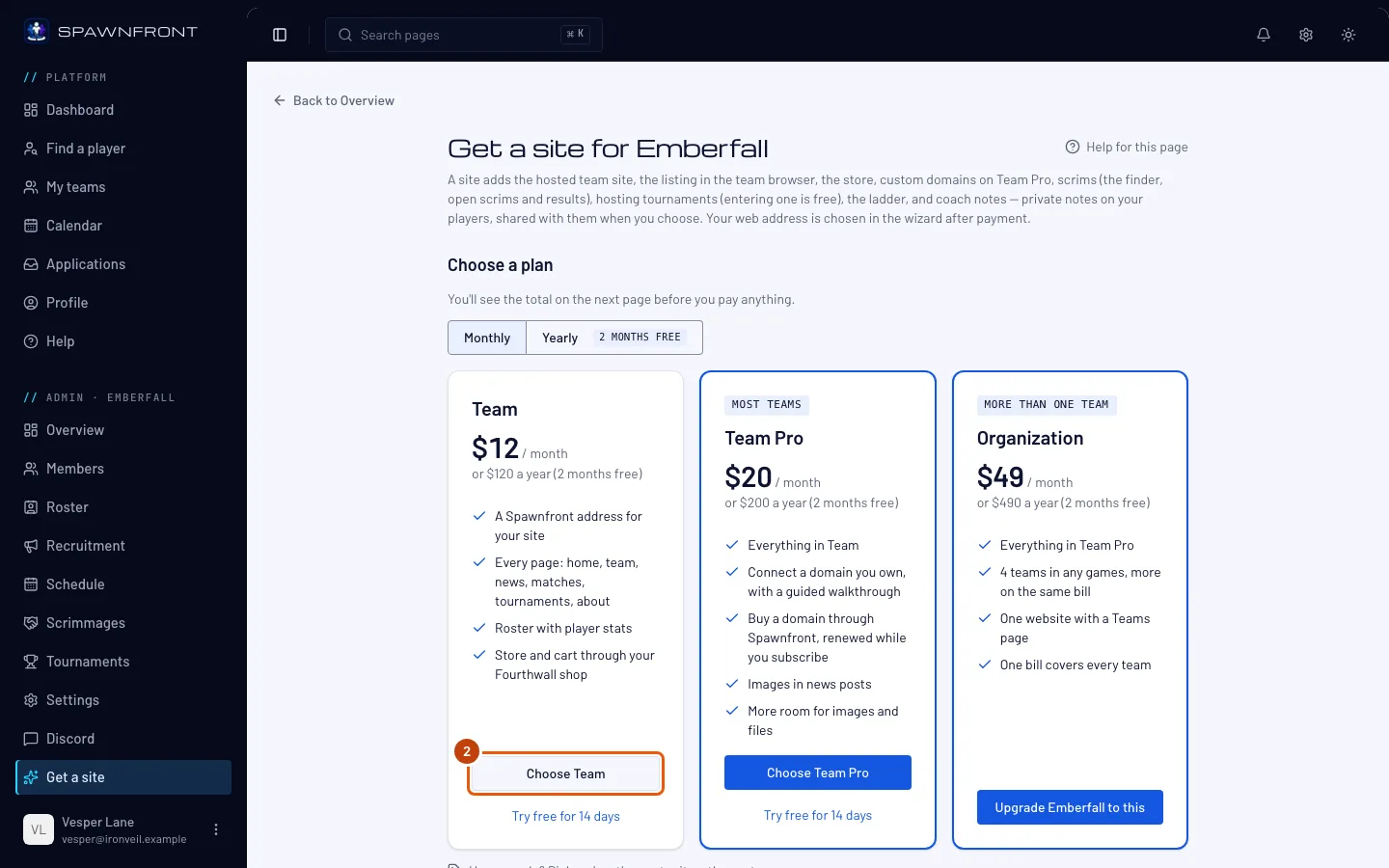
In the menu on the left, under Admin, press Get a site.
You should see: the plans, and the line Have a code? Pick a plan, then enter it on the next page.
Step 2: Choose any plan
Press Choose Team or Choose Team Pro. It doesn't matter which: your code sets the plan it gives.
You should see: the Checkout page, with the price of the plan you chose.
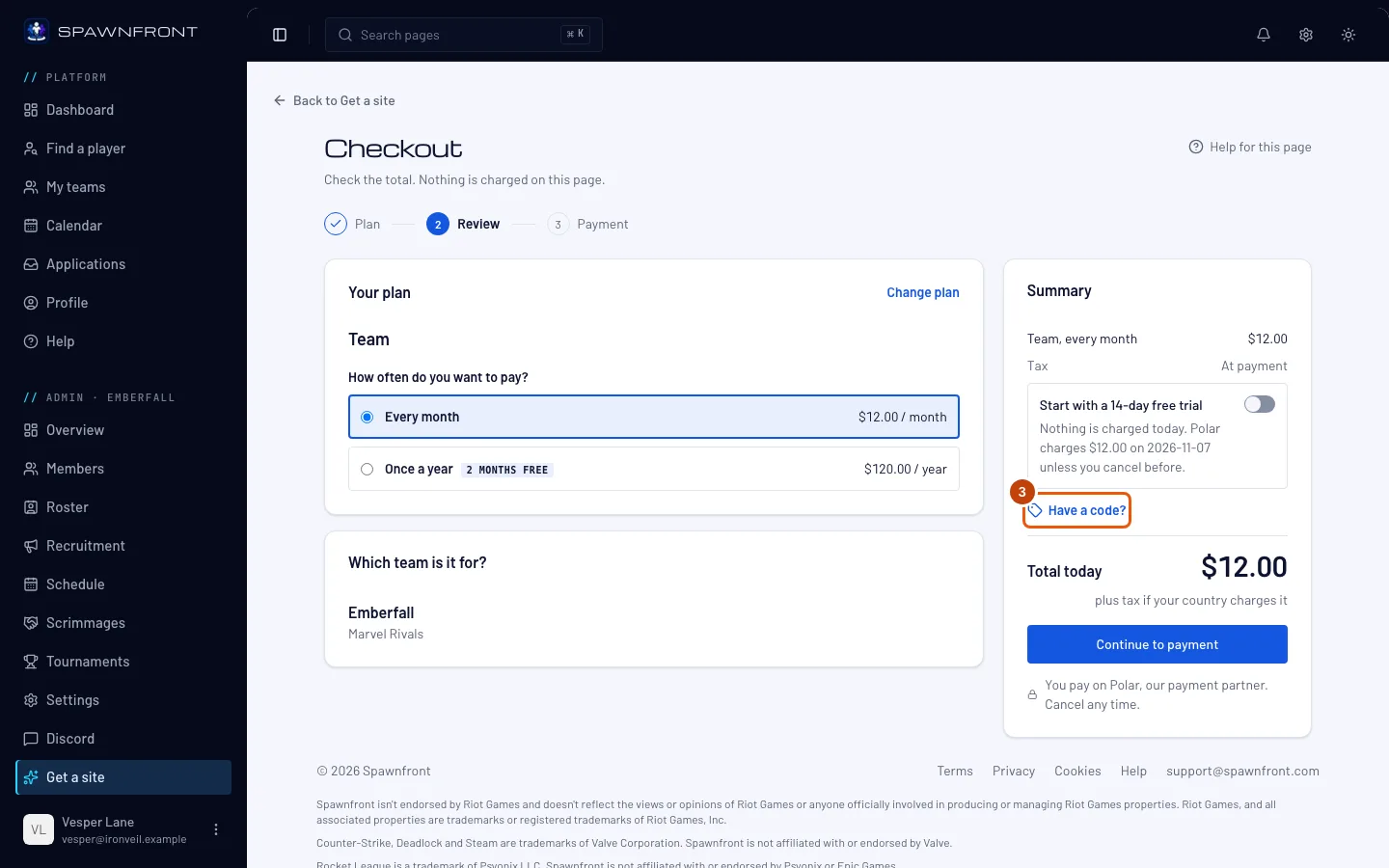
Step 3: Open the code field
In the Summary, press Have a code?.
You should see: a Code field with an Apply button.
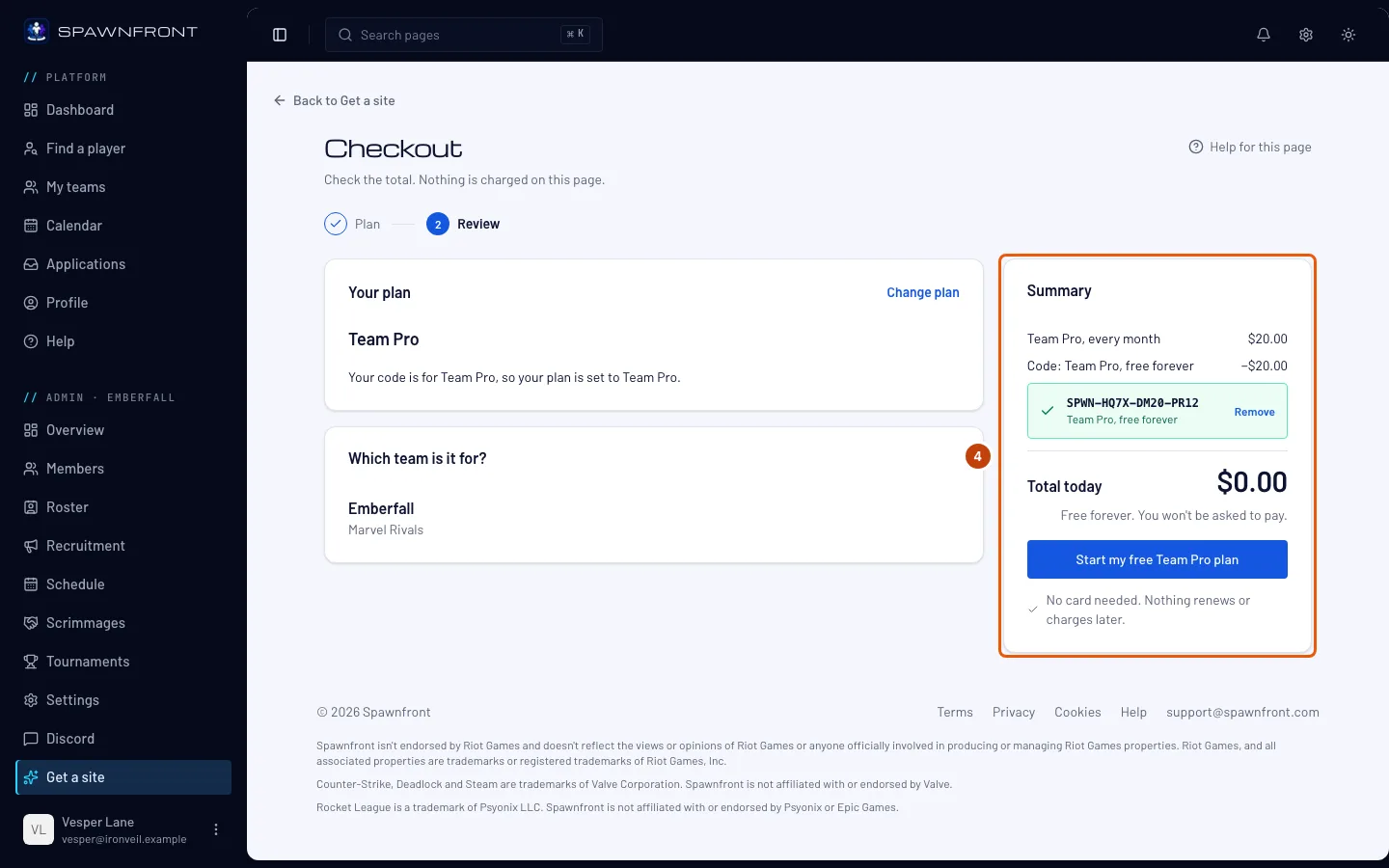
Step 4: Type the code and apply it
Type or paste your code into Code, then press Apply. Capital letters and dashes don't matter.
You should see: your code in a green line with what it gives — for example Team Pro, free forever — and Total today $0.00. If the code is for a different plan than the one you chose, the page says Your code is for Team Pro, so your plan is set to Team Pro. Nothing is used yet: you can still press Remove.
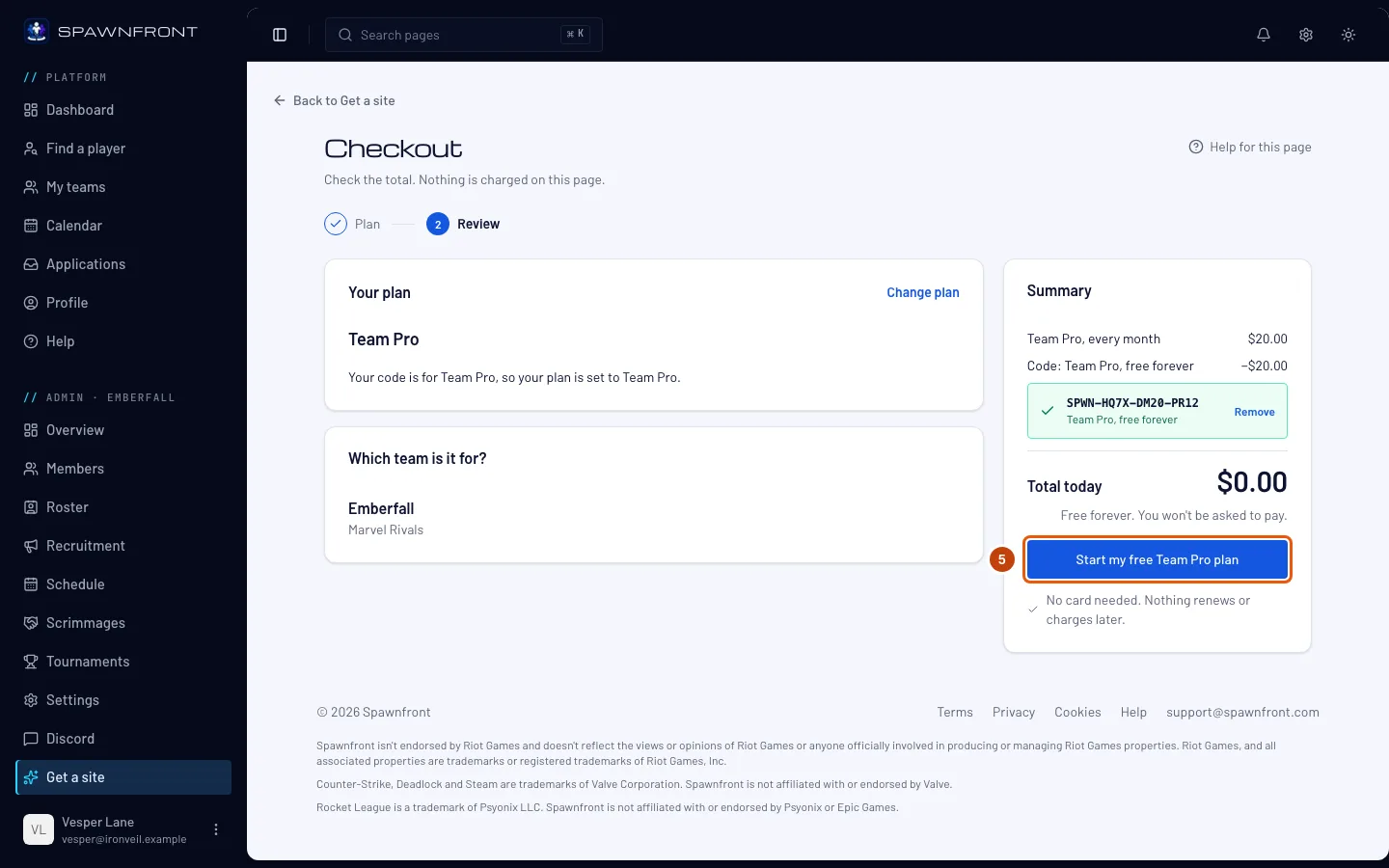
Step 5: Start your free plan
Press Start my free Team Pro plan (the button names your code's plan).
You should see: your team's name with the plan and how long it lasts — for example Emberfall has Team Pro, free forever — and Build my website.
Step 6: Build your website
Press Build my website.
You should see: Set up your team, at Step 1 of 4 — see Set up your site with the wizard.
How to know it worked
- Your team's admin menu shows the site pages — Template, Pages, Publish, Billing and the rest.
- Billing shows A gift from Spawnfront, You pay: Nothing and Card on file: None needed.
Something doesn't look right?
It says the code can't be used
The page says That code can't be used. Check it for typos, or ask whoever gave it to you. The code may be mistyped, expired, already used, or not a code at all — the sentence is the same for every case on purpose. Check each letter, then ask whoever gave you the code.
My team already pays for a plan
Open Billing, type the code under Have a code? and press Redeem code. A box asks Use your code instead of paying? (on the Checkout page, during the week after a payment fails, the same words sit above the button): if you press Use my code, your payment stops so you are not charged again, the time you already paid for is kept, and your website stays exactly as it is. Press Keep paying to change nothing.
It says my free access is saved to my account
The code is meant for a team's owner, and you run this team without owning it. The free access now waits on your own account: open Get a site on a team you own and press Use it for this team under Use your free access — or found a team of your own.
I have an upgrade code for my team
An upgrade code turns your team into an organization with the Organization plan. It is made for one team, and its owner types it on the last step of the upgrade — see Upgrade your team to an organization. Already upgraded? Open your organization's Get a site, choose the Organization plan and apply the code on the Checkout page, as above.
It says I have tried too many codes
Codes can be tried five times an hour per person, and twenty times a day per team, so nobody can guess one. Wait for the time it names, then try again carefully.
Related articles
Still stuck? Contact support or email support@spawnfront.com — tell us the page you're on and the step number.