
Upgrade your team to an organization
Press Upgrade on your team in My teams: the site, address and plan move, the team becomes the organization's first team, and nothing is deleted.
For team owners and admins · 6 steps
Your team can become an organization — one name and one site over several teams in any games: the Organization plan covers 4, and the person who pays adds more. The organization takes your team's name, its site and address, and its plan; your team becomes its first team and keeps its roster, members, matches and schedule. You can then add more teams, in your game or any other. Nothing is deleted, and your website stays online.
It cannot be undone. Starting from nothing, with no team yet? See Get an organization — but if you already run a team, upgrade it instead of founding a new one.
What you need first
- You are the team's owner. An admin sees who the owner is and can ask them — see I'm an admin, not the owner below.
- The team does not already belong to an organization.
- If the team has a paid plan, you are its payer — the person who paid on Polar. Only the payer can move the plan.
- No domain bought through Spawnfront, and no domain purchase still open. A domain you connected yourself moves with the site.
Steps
Step 1: Press Upgrade on your team
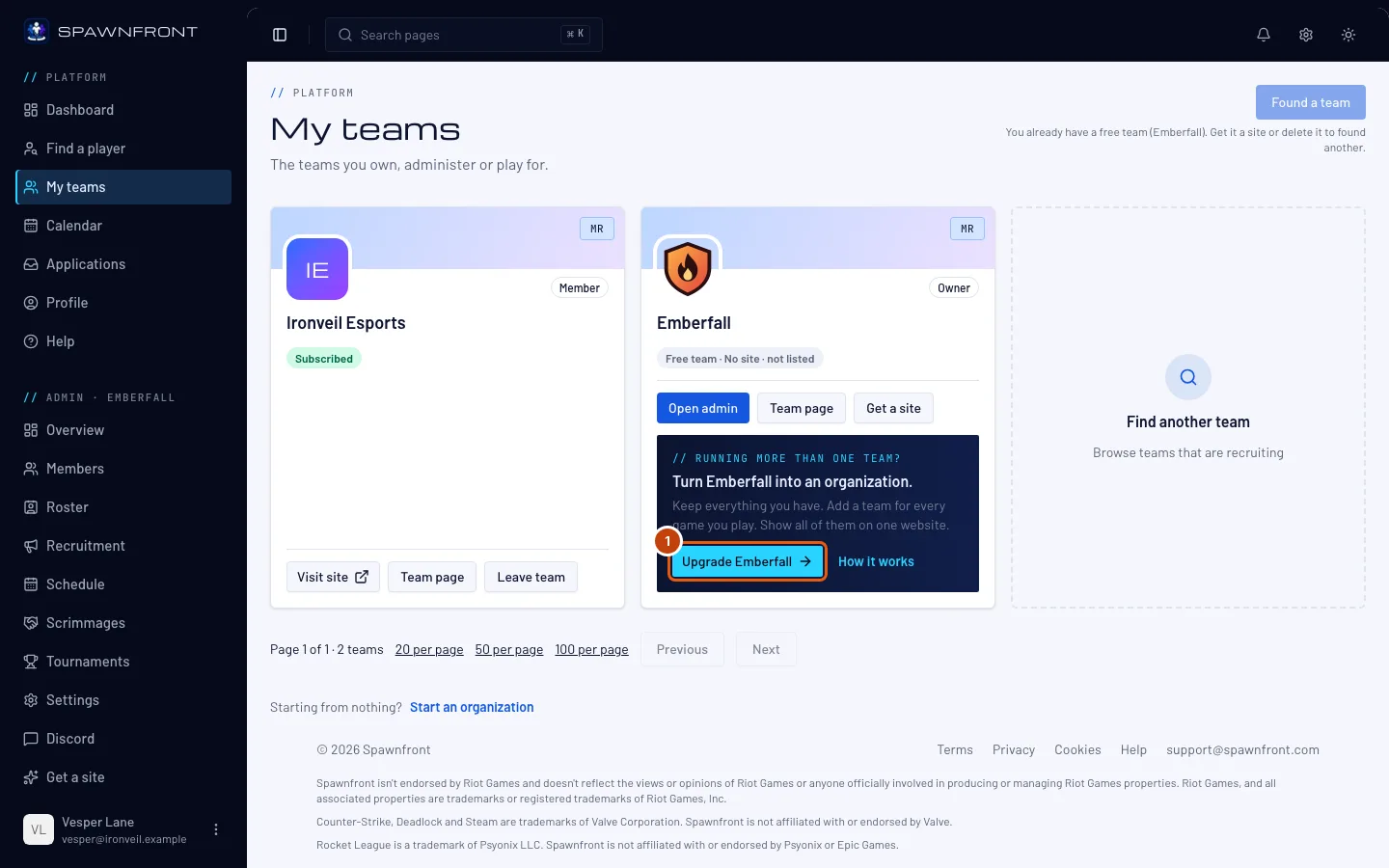
Open My teams. Your team's card says Running more than one team? — press Upgrade with your team's name on it.
The same offer is on your team's Overview (Play more than one game?), on its Get a site page (the Organization plan) and on its Settings page. Each one opens the same upgrade page.
You should see: Upgrade to an organization, with three steps along the top.
Step 2: Read what changes
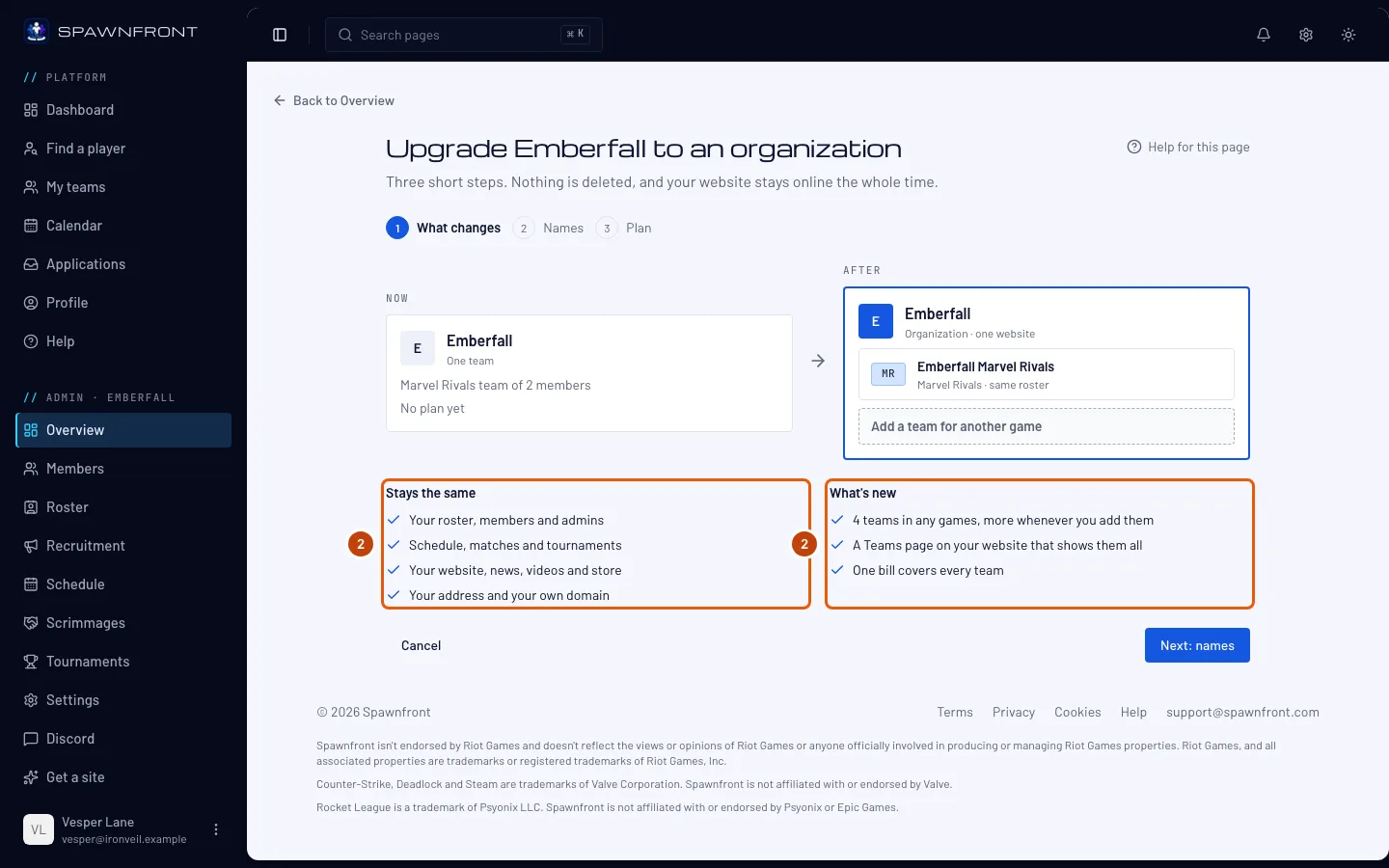
The first step shows your team now and the organization after, then two lists: Stays the same (your roster, members, matches, schedule, website and address) and What's new (4 teams in any games, more whenever you add them; a Teams page on your website that shows them all; one bill for every team). Nothing is deleted.
Press Next: names.
Step 3: Name the organization and your team
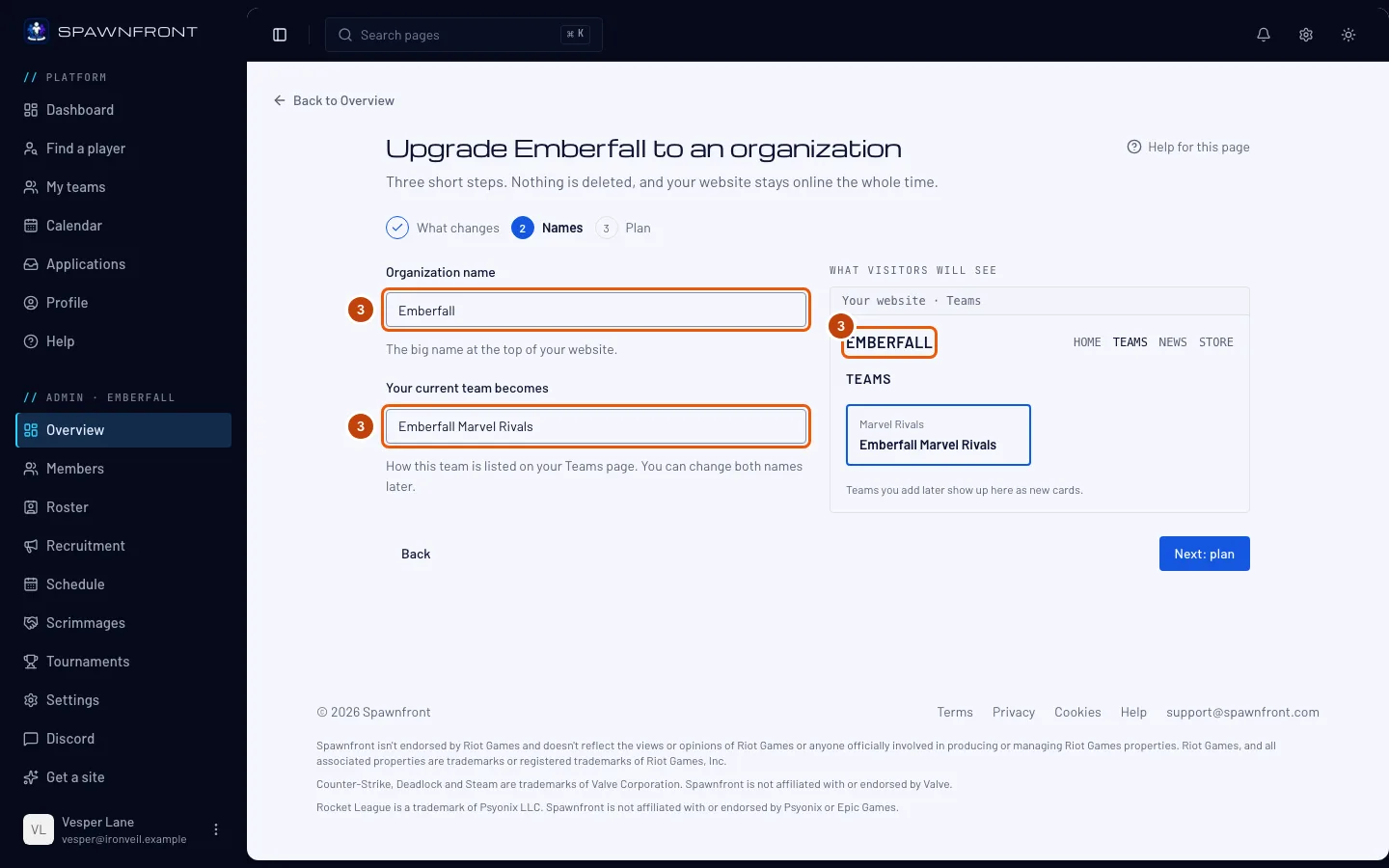
Organization name starts as your team's name. Your current team becomes starts as your team's name and its game — for example Ironveil Overwatch. Change either one; the preview shows how your website's Teams page will read.
Press Next: plan.
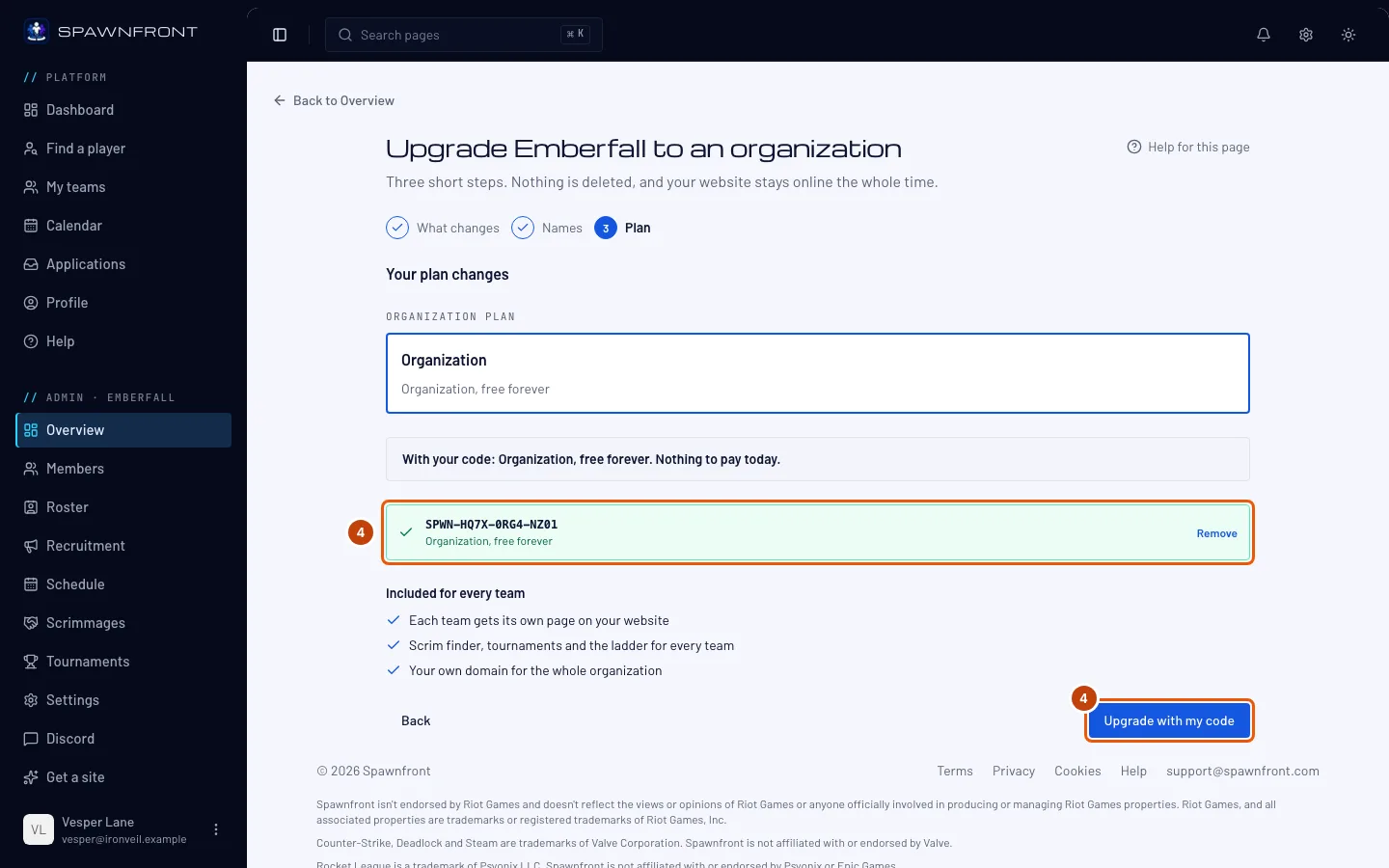
Step 4: Check the plan and upgrade
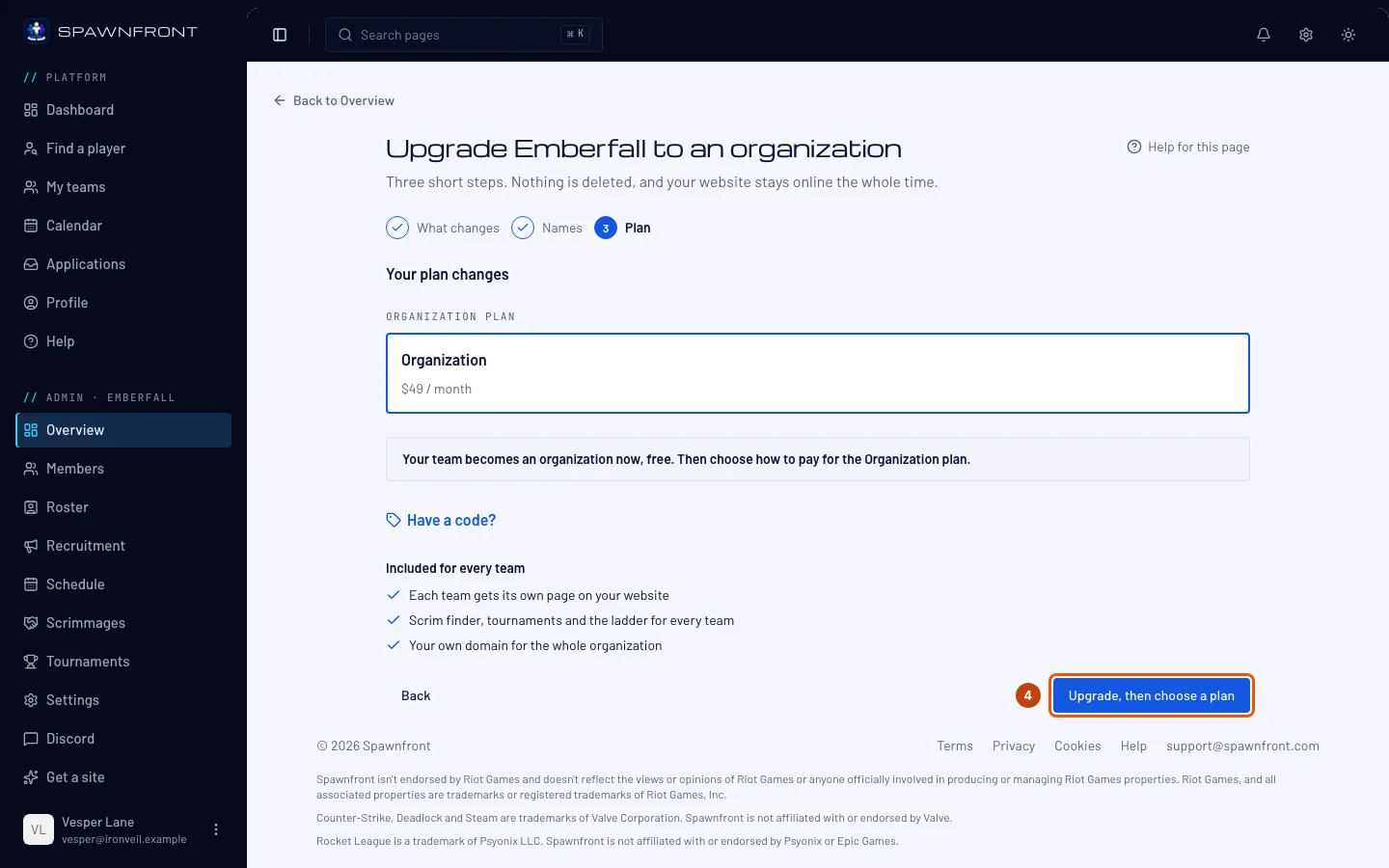
What you see depends on your team's plan:
- A plan that renews: your plan now and the Organization plan after. Today you pay the difference for the rest of this period — Polar shows the exact amount on your receipt. Press Upgrade and pay the difference.
- No plan yet: your team becomes an organization now, free. Press Upgrade, then choose a plan — you go straight to the organization's checkout page to choose monthly or yearly.
- A gifted plan, or one you have cancelled: it keeps its tier. The site stays up and your team keeps playing scrims, but your team's listing, hosted tournaments and ladder ranking pause until the organization is on the Organization plan. Press Upgrade to an organization.
Got an upgrade code from Spawnfront? Use it here, before you upgrade. Press Have a code?, type or paste the code into Code, and press Apply. Capital letters and dashes don't matter.
You should see: your code in a green box with what it gives — for example Organization, free forever — and the line With your code: Organization, free forever. Nothing to pay today. If your team pays for a plan now, the page adds that it stops renewing at the end of this period, so you aren't charged again. Press Upgrade with my code.
Step 5: Add your next team
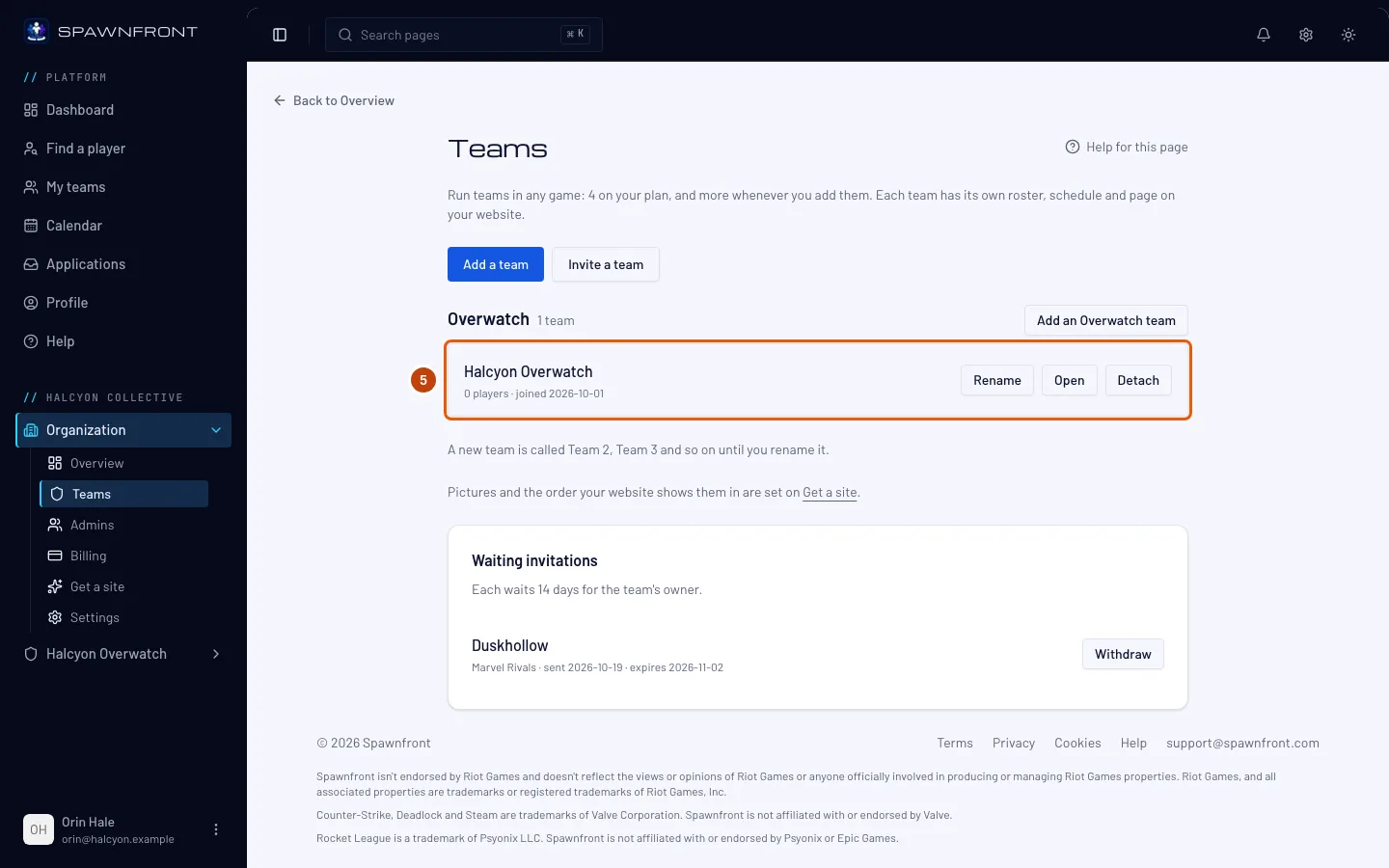
The page says "… is ready" and shows one next step. Press Add a team to start another team, in any game, or bring in a team you already run.
You should see: your organization's teams, with your team listed as its first. Its roster, members and recruitment are where they were.
Step 6: Publish the organization's site
Your site keeps showing your team's last publication, on the same address, until you publish from the organization. When you are ready, in the menu on the left, under your organization's name, press Publish in the Organization list and publish — the site then shows a Teams page with your team on it. See Publish your site. Tournaments your team hosts move to your team's page there, at
/teams/<game>/<team>/tournaments/<name>. Their old addresses send visitors to the new ones.
How to know it worked
- My teams lists the organization under Your organizations, marked Owner, with your team counted among its teams.
- In the menu on the left, the organization's name heads a group with Organization and your team in it.
- Your site's address still opens your site.
- The organization's Billing page shows the plan. A renewing plan shows Organization once Polar confirms the switch, usually within a minute. With an upgrade code, it shows Organization at once, as a gift from Spawnfront.
Something doesn't look right?
I'm an admin, not the owner
The offer on your team's Overview and Get a site says Only the owner, …, can do this. Press Ask … to upgrade: the owner gets a notification and an email. One ask a day per team is sent, however many admins press it.
The upgrade page says this team is already part of an organization
A team can belong to one organization. Open My teams — the team is listed on its organization's card there, and in the menu on the left under the organization's name.
It says "Only the payer can move the plan"
Someone else in the team paid for its plan. The payer makes the team an organization, or hands the plan to you first.
It says "Finish or cancel the domain purchase first"
A domain purchase or renewal is still open. Finish paying for it on Polar, or wait until it lapses, then try again.
It says a domain bought through Spawnfront cannot move
Organizations cannot hold a domain bought through Spawnfront yet. Contact support, and we will move the team for you.
It says the team's free access is a personal credit
The team's free access came from a code redeemed on your own account, and that credit stays yours. Wait until it ends, or contact support.
It says my code can't be used
The page says That code can't be used. Check it for typos, or ask whoever gave it to you. Check each letter. An upgrade code works only for the team it was made for, and only once: make sure you are upgrading that team.
I upgraded without typing my code
Nothing is lost. Open your organization's Get a site page, choose the Organization plan, then press Have a code? on the Checkout page and apply the code there — see Use a code.
My site's Team page disappeared
You published from the organization. An organization's site shows each team on its Teams page instead of a Team page — your roster is on your team's own page there.
Related articles
Still stuck? Contact support or email support@spawnfront.com — tell us the page you're on and the step number.